

Turn recordings into transcripts and summaries in minutes
Upload audio or video for multilingual transcription, AI notes, and action items
It's 5:30 on a Friday afternoon, and you've just finished a 90-minute cross-departmental meeting. The conference room lights are still on, but you've already opened your notebook because the meeting minutes are due tomorrow.
The problem is, all you wrote down were fragments like "Xiao Chen said the homepage is messy," "the manager thinks it needs to change," and "Xiao Lin suggested doing the mobile version first." Who's responsible, when it's due, and which version counts as the decision—none of that is clear.
In this article, I break down "smart meeting notes" into 6 actionable steps, and first compare the 4 common approaches so you know which path to take.
First, define: What does a "useful" meeting record look like?
Many people think meeting notes mean writing down everything everyone said, which turns into a transcript of remarks.
What you really need to record is the "question" behind each remark and the answer that question ultimately received.
Write the core issue as a single question at the beginning, for example, "What is the goal of this website redesign?" That way, anyone receiving the notes can immediately understand what the meeting was solving.
My own judgment is that a usable record must answer at least five things: what was decided, who is responsible, when it's due, what remains undecided, and where the original recording and transcript are stored.
The last item is most often omitted, but that's exactly where the difference shows when you need to verify something later.
There are 4 approaches to smart meeting notes—pick one first
Common approaches fall into four categories, each with different raw data, supported languages, available features, and sharing permissions.
- Platform built-in: Transcription and summaries built into Google Meet, Microsoft Teams, and Zoom. The advantage is no installation; the downside is records are scattered across platforms.
- Meeting bots: Tools like Otter.ai and Fireflies.ai join the meeting as a participant. Features are mature, but an extra member appears on screen, which may not suit sensitive meetings.
- Bot-free desktop recording: Tinrec and Granola take this approach, capturing computer system audio directly without adding a participant.
- Post-meeting audio upload: Notta, TurboScribe, and others let you drop in audio files for transcription, suitable for organizing historical recordings.
No single approach is best across the board. Start from your pain point: if saving typing time is most important, focus on transcription accuracy; if data security is the priority, first confirm how recording and storage work.
Step 1 | 5 minutes before the meeting: Decide what this meeting must answer
Before hitting record, write the problem this meeting will solve as a single question.
For example, "Which pages should be changed in the first version of the website redesign?" This one sentence will determine what you ask AI to produce later.
At the same time, do two things: make sure participants know the meeting will be recorded and obtain consent, and confirm whether the meeting content is suitable for AI processing.
For sensitive meetings, if you can't clearly answer "how data is stored and who can access it," switch to manual notes first, or only provide de-identified post-meeting text.
Step 2 | During the meeting: Let tools handle recording and transcription, you focus on listening
The goal of this step is to turn you from the person typing into the person who understands the decisions.
Take Tinrec as an example: the desktop version captures computer system audio directly, handling online meetings on Zoom, Google Meet, Microsoft Teams, Webex, and others without needing a meeting bot to join.
To be clear: users must open Tinrec themselves to start recording; it is not a bot that automatically joins all calendar meetings, nor does it imply official partnerships with these platforms.
For offline meetings or interviews, you can use real-time recording and transcription, transcribing as you record; for cross-language meetings, you can view the original, translation, or bilingual content during recording.
Step 3 | After the meeting: Proofread the transcript first, then talk about summaries
AI-generated transcripts will always have errors, especially names, company names, product codes, and technical terms.
After AI produces results, be sure to apply human review to check whether names and important technical terms are correct.
My habit is to proofread only three things: names, numbers, and technical terms. Don't fix filler words and repeated remarks—that's a transcript, not an article.
Step 4 | Let AI generate summaries, chapters, and action items
Once you have the transcript, that's when summaries come in.
Tinrec automatically generates summaries, chapters, key points, and action items. For long meetings, you can skim by chapter first, then go back to read the transcript of specific sections.
If there's something you didn't catch in the meeting, you can do AI Q&A around the meeting content, asking directly, "What was the client's final conclusion on pricing?"
The value of this step isn't just saving typing time—it's not having to re-listen to a 90-minute recording.
Step 5 | Apply the Topic + Next Step rewrite
AI summaries usually describe "what was discussed," but records need "what happens next."
Stop organizing recordings by hand
Upload audio or video and automatically get a transcript, summary, and action items
For each discussion item, note the discussion result (Topic) and follow-up action (Next Step)—who is responsible, what to do, and when it's due. I've used this format for over a year, and it's more practical than any template.
Take the website redesign meeting as an example. A verbatim record would say, "Xiao Chen said the homepage is messy, the manager also thinks it needs to change, and Xiao Lin suggested doing the mobile version first." After applying Topic + Next Step, it becomes:
- Topic: Homepage redesign scope
- Decision: First version will be the mobile homepage
- Next Step: Xiao Lin / by August 30 / propose mobile homepage wireframe
- Undecided: Whether the desktop version will be redesigned simultaneously—discuss at next meeting
Same content, but only the second version will get anyone to look back at it.
Step 6 | Send within 24 hours and archive in the same place
Records should be completed within 24 hours. Delay too long, and even you will forget the conclusions—accuracy drops sharply.
My approach is to treat "sending" and "archiving" as one action: when the email goes out, the record and transcript go into a unified location together.
If it's just for personal use, saving to your usual cloud drive is enough. If it's for a team, this is where the biggest difference lies.
Team scenarios: From personal files to team data
Personal version data is managed by individual accounts, while the team version is an independent collaborative workspace where meeting data belongs to the team.
Tinrec team version lets you create and switch between multiple team spaces, invite members via join links, set owners, admins, and regular members, and assign, revoke, or transfer seats.
Here's a commonly misunderstood point: roles and seats are two different things. Roles determine who can manage the team, members, audit, and team settings; seats determine whether members can record, upload, edit, import, export, and use team resources.
Members who are active but have no seat can still view, play, and read team data—they just can't perform uploads, edits, imports/exports, and similar operations.
Also, to be clear: the current team version focuses on team-level sharing, not a granular file-level permission system. It should not be described as "admins can set independent access scopes for each file."
More useful for managers: usage analytics (team trends, member rankings, and details), audit logs (query, filter, and export important operations), audio recycle bin (currently retained for 30 days, can restore accidentally deleted audio; TODO is not included), and team hotwords (maintain common terminology to improve recognition of technical terms).
When a member leaves, team resources are not taken away, but the resources that member was responsible for need to be handed over to other active members.
How to choose plans and pricing
The personal version includes a free plan, weekly card, Pro monthly, and Pro annual. For occasional recording organization, start with the free plan; for short-term intensive meetings or interviews, consider the weekly card; for steady weekly needs, use Pro; for long-term data accumulation, look at the annual plan.
The current team version terms are: first eligible team trial for 7 days, 1 free seat, 300 minutes of team shared import quota; team monthly payment USD 29.80 per paid seat per month; annual payment USD 199 per paid seat per year, equivalent to about USD 16.58 per month.
Each paid seat provides 2,000 minutes of team shared import quota per month. Real-time recording under an active team plan and active seat is currently not deducted by minutes; file and web imports consume team shared import minutes and will not fall back on individual member quotas.
Prices, currencies, and promotions are subject to the official purchase page.
Privacy and three common misconceptions
Misconception 1: AI can make decisions on behalf of the host. No, AI can only organize discussions that have already happened; it cannot bear data responsibility for the organization.
Misconception 2: With a transcript, you don't need to write notes. A transcript is raw material; notes are conclusions. They cannot replace each other.
Misconception 3: Accuracy is a fixed number. Actual results are affected by recording quality, noise, accents, overlapping speakers, and technical terminology. For important content, verify against transcript timestamps and recording playback.
Finally, recording and transcription must comply with local regulations, and participant consent should be obtained when required.
FAQ
Q1: Do smart meeting notes always require a meeting bot?
Not necessarily. Meeting bots are just one approach; the downside is they appear on the participant list. Tinrec desktop version instead captures system audio, adding no participants, but requires the user to actively start recording.
Q2: If I only have a transcript, can I still create notes?
Yes. Paste the transcript into AI and specify "output Topic and Next Step for each discussion item," then manually proofread names and deadlines. Tinrec also supports uploading existing audio and video files for transcription, suitable for organizing past meetings.
Q3: Can it handle meetings with mixed Chinese and English?
Tinrec covers Chinese, Traditional Chinese, and multilingual meeting scenarios, supporting mixed Chinese-English content organization, real-time translation, and team hotwords. Actual results are still affected by accents and audio quality; for technical terms, add them to hotwords in advance.
Q4: Is the free version enough?
For occasional recording organization, you can start with the free version to try recording, importing, summaries, and transcription, and decide whether to upgrade after confirming the workflow. The free version has basic quota limits, and intensive use will hit the cap.
Q5: Can all team members edit meeting notes?
Distinguish between roles and seats. Active members can view, play, and read team data; only after obtaining a seat can they record, upload, and edit.
Q6: Can deleted meeting recordings be recovered?
After team audio enters the recycle bin, it can be restored before permanent cleanup begins; the current retention period is 30 days. TODO is not within the scope of the team recycle bin.
References
- How to use AI for meeting minutes? How to organize meeting transcripts? | AI speech-to-transcript tutorial | 104 Career Power
- How to take AI meeting notes? Tool selection, process, format, and privacy reminders
- How to take AI meeting notes? Complete tutorial from writing principles, tool selection to automation prompts | Manager Today
- Painful to take meeting minutes? Learn to use "NotebookLM + a set of prompts" to send an email 3 minutes after the meeting! | BusinessNext
- Business Weekly - 6-step AI meeting notes organization technique: Use a fixed template to turn discussions into clear action items - Business Weekly
Turn every recording into actionable outcomes
Get 60 free transcription minutes when you sign in. No credit card required.
Related Reading
You might also like

4 AI Meeting Assistants Tested for 2026: No Meeting Bots—Which One Actually Saves You Two Hours After the Meeting?
A mid-level manager who holds 15 meetings a week tested 4 AI meeting assistants, comparing recording methods, post-meeting output, Chinese-language performance, and team governance. Here's why Tinrec (Miao Ting Lu Yin) was the one that stayed, and who Otter.ai, Granola, TurboScribe, and PLAUD are each best suited for.

4 AI Meeting Assistants Tested in 2024: Dcard Users Weigh In—Which One Actually Saves You Post-Meeting Time?
Starting from the most common Dcard question—'How do I choose an AI meeting assistant?'—this article uses the real needs of a mid-level manager with 15 meetings a week to break down 4 key buying factors: how meetings are recorded, what you get after the transcript, whether recordings are kept, and how team seats are counted. It compares Tinrec, Otter.ai, Notta, and Granola, with a pitfalls guide and scenario-based recommendations.

5 Smart Meeting Notes Tools Tested for 2026: What Are AI Meeting Notes & Which Really Saves Time?
Many people think smart meeting notes are just automatic transcripts, but they end up with long text files and still have to find decisions and action items themselves. This article first clarifies common misconceptions about what smart meeting notes are, then reviews the features, official pricing, and ideal users for 6 solutions: Tinrec, Otter.ai, Notta, Fireflies.ai, Granola, and TurboScribe, helping you choose tools based on meeting workflows rather than marketing hype.

2025 AI Meeting Assistant Comparison: 4 Tools Tested—Which Turns Meetings into Searchable Team Knowledge?
How to choose an AI meeting assistant in 2025? This article breaks down 5 key selection criteria based on real meeting workflows, comparing Tinrec, Otter.ai, Notta, and Granola on recording, transcription, AI Q&A, team collaboration, and pricing limits to help you decide which fits Chinese-language meetings and team knowledge retention.

How to Use Smart Meeting Notes in 2026: Bot-Free Recording, Transcription, and AI Summaries with Action Items
Many people think smart meeting notes just means hitting record and waiting for AI to spit out a summary—but the resulting transcript is often something no one wants to read. This article starts with the most common misconceptions, breaks down the four key judgment points that truly matter for meeting notes, and then walks through a complete before-during-after workflow using Tinrec, including copy-paste prompt templates and a pitfalls checklist.

Best AI Meeting Notes Apps 2026: Auto Transcripts + AI Summaries & Action Items
Tired of spending two hours writing up meeting notes? This guide starts with the key question—do you need a recording or usable meeting data?—then breaks down 4 essential factors for choosing an AI meeting notes app, compares Tinrec, Otter.ai, Notta, and Granola, and covers the 3 most common pitfalls so you can pick the right tool the first time.
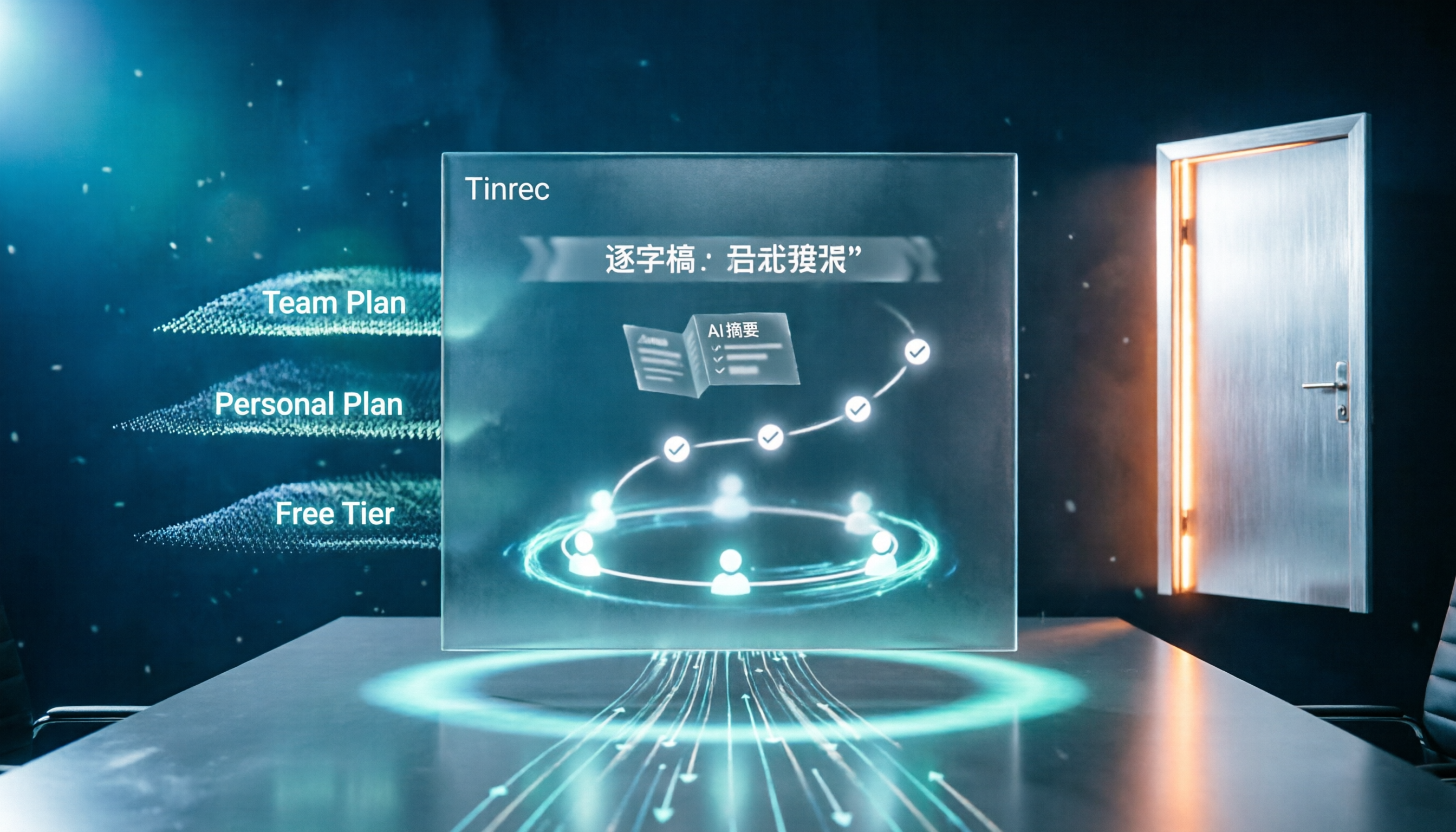
2026 AI Meeting Assistant Cost Comparison: Free Tiers and Paid Thresholds Dcard Users Ask About Most
Starting from the common Dcard question about free minutes, this article explains how to evaluate AI meeting assistant costs. Using Tinrec as the main test subject, it covers the quotas and pricing for the free, personal, and team plans, and compares bot-free recording, Chinese transcripts, AI summaries, action items, and team collaboration, with 6 cost FAQs.
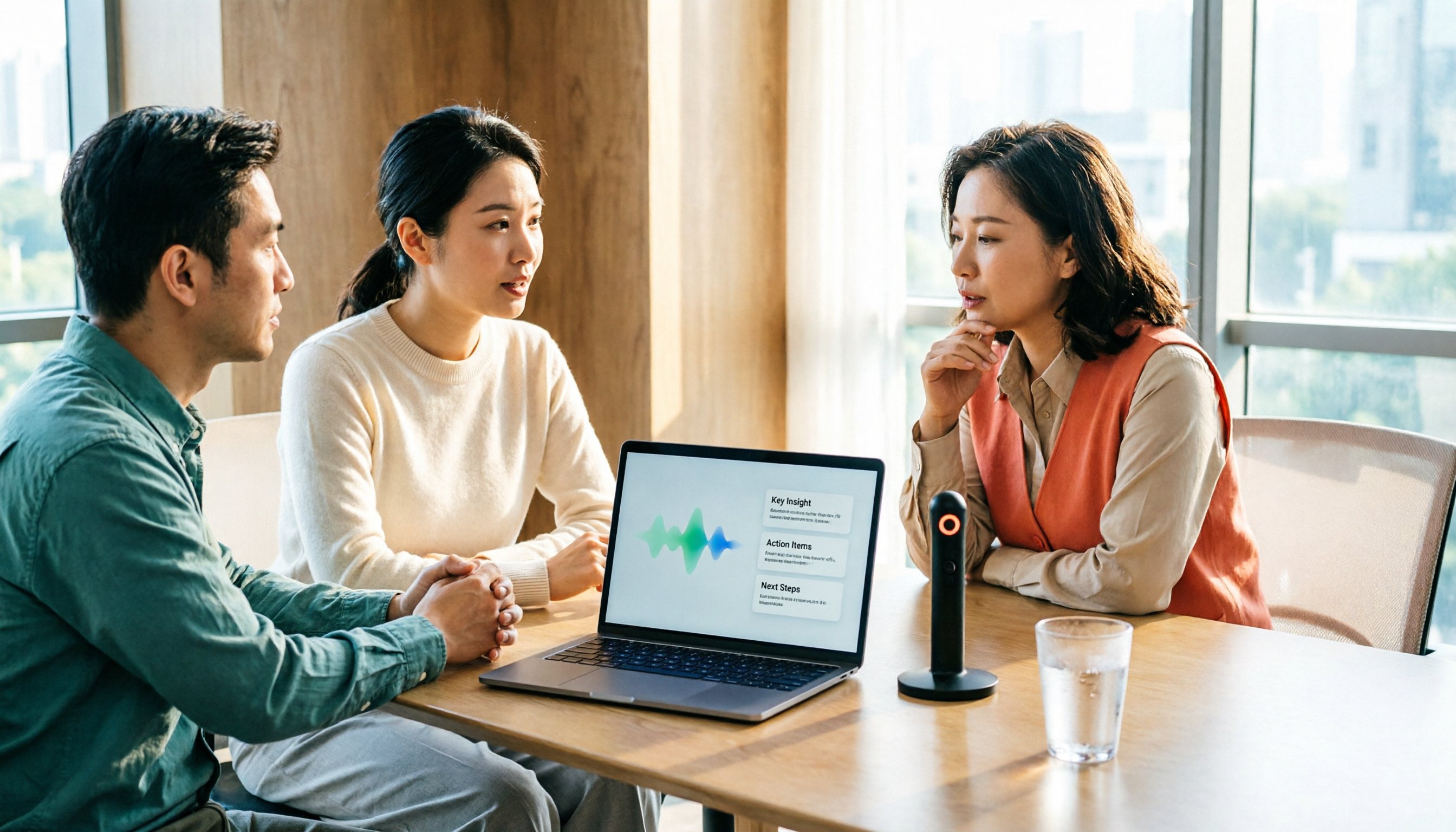
Tinrec vs Notta 2026: 5-Dimension Comparison for Chinese Meeting Notes
How to choose the latest AI meeting assistant in 2026? This article compares Tinrec and Notta across 5 dimensions: Chinese transcription, meeting capture methods, post-meeting output, team data governance, and pricing quotas. It honestly lists free quotas and paid prices for both, and includes 4 common pitfalls when choosing an AI meeting assistant to help you decide which one fits your meeting scenarios.
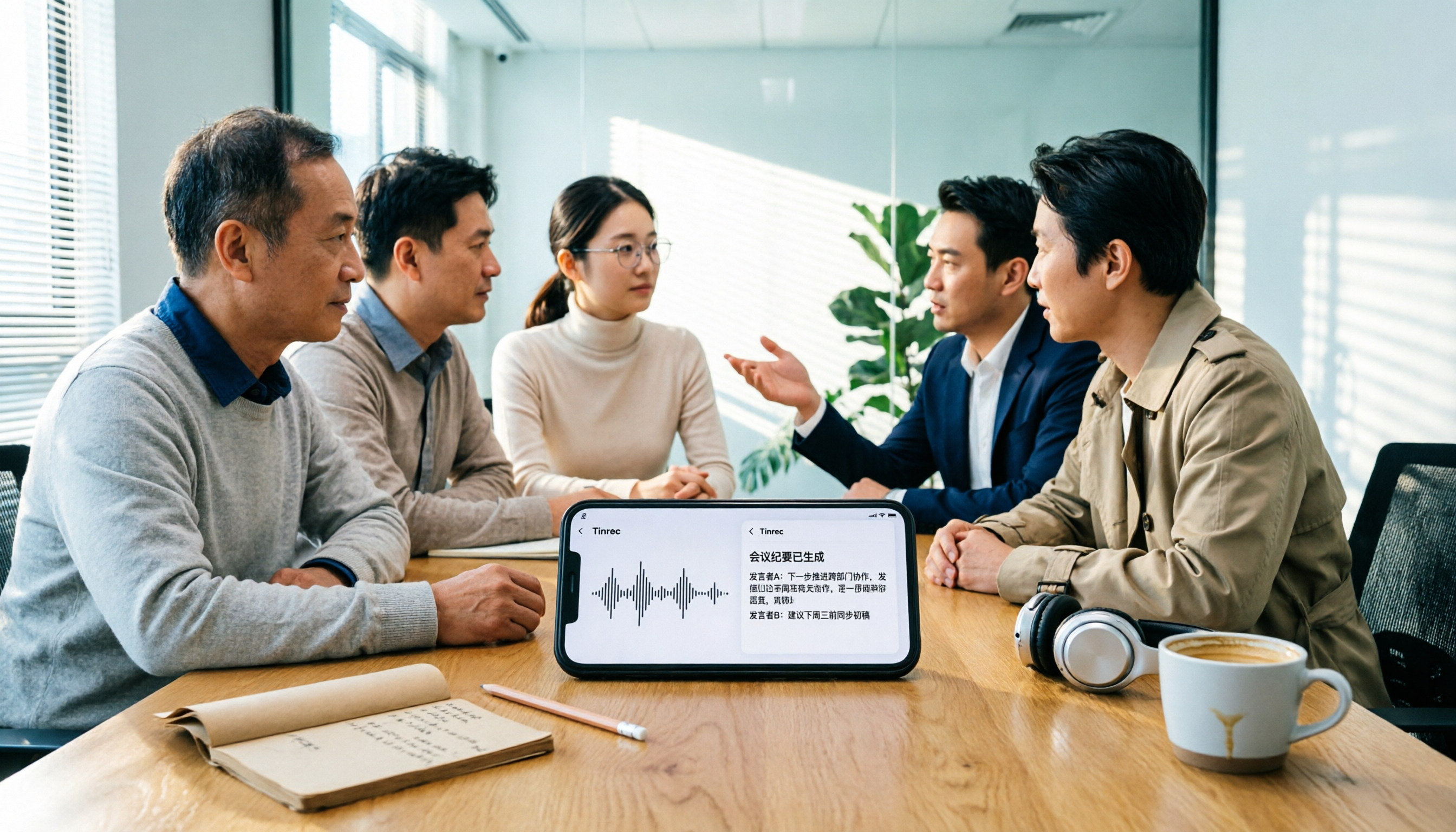
2026 AI Meeting Assistant Comparison: No Bots, Best Chinese Transcription?
How to choose the latest AI meeting assistants in 2026? This article examines four key aspects: recording method, audio retention, Chinese recognition, and post-meeting output. It compares Tinrec, Otter.ai, Notta, and PLAUD, and includes pricing, seats, and quotas for personal and team plans to help you avoid the trap of only looking at free minutes.