
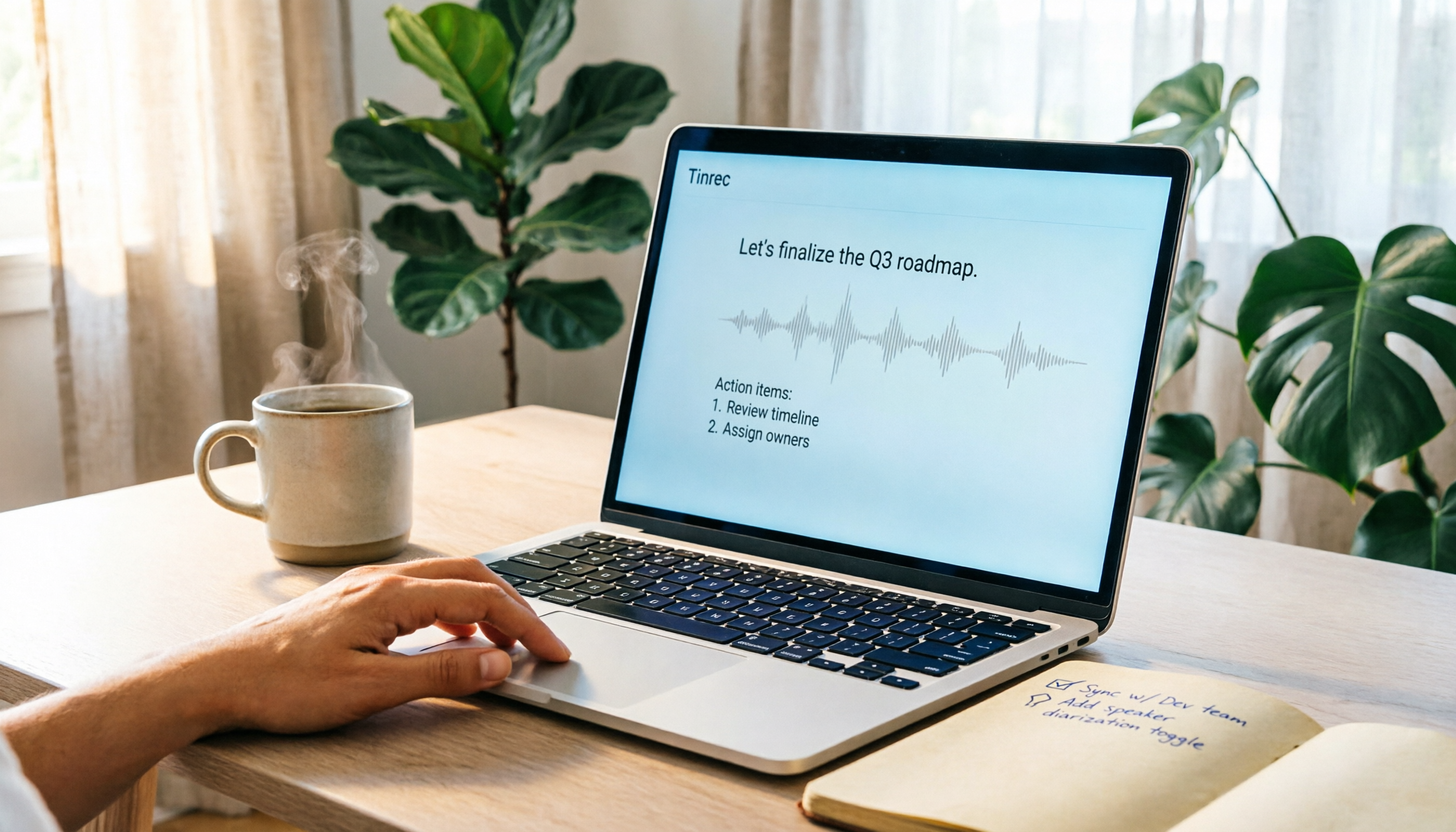
Turn recordings into transcripts and summaries in minutes
Upload audio or video for multilingual transcription, AI notes, and action items
Many people think the only recording software on Mac is QuickTime, until they attend a class, meeting, or interview and realize they need to record and manually take notes at the same time—an hour of audio can take three hours to review. In fact, recording software isn't just about "pressing the record button"; it should help you turn content into searchable, organized data. This guide tests 5 Mac recording tools, from built-in options to AI meeting recorders, to help you find the best fit.
Understand Your Needs: 4 Categories of Mac Recording Software
Built-in Basics
QuickTime Player and GarageBand are built-in Mac tools that require no extra installation, suitable for simple recording or music production.
Open-Source Professional
Audacity is free, open-source software that supports multi-track editing, noise reduction, and effects, ideal for users who need post-production.
Screen Recording
Movavi Screen Recorder can capture both system audio and microphone simultaneously, perfect for tutorial videos and online courses.
AI Meeting Recorder
Tinrec doesn't just record; it also transcribes in real time, generates summaries and action items, suitable for meetings, interviews, and class notes.
5 Mac Recording Software Tested and Recommended
1. Tinrec: More Than Recording, Meeting Organization in One Go
Tinrec is an AI meeting recorder and collaboration tool that supports Mac desktop version for bot-free recording of online meetings, as well as real-time recording and file import. It transcribes while recording, so you get transcripts, summaries, highlights, and action items immediately after the meeting. The personal plan has a free tier, suitable for office workers, students, and freelancers.
Core features: real-time recording-to-text, AI summaries, action item extraction, AI Q&A, multi-format export. Supports online meetings like Zoom, Google Meet, and Microsoft Teams without needing to add a bot.
Pricing: Free version available, plus weekly pass, Pro monthly/yearly plans, and team plans. The free version offers basic credits, ideal for trying out.
Best for: Meeting notes, interviews, lecture recordings, personal notes.
2. QuickTime Player: Built-in on Mac, Most Convenient with No Installation
Every Mac has QuickTime Player; just open it and you can record audio, perfect for quick voice memos. However, it's basic—no transcription, editing, or organization features.
Features: Recording, simple trimming. Can select microphone input.
Price: Free.
Best for: Recording a quick note or simple memo.
3. GarageBand: Built-in Music Workstation with High-Quality Recording
GarageBand is Apple's built-in music production software, supporting multi-track recording, virtual instruments, and filters. It's great for recording podcasts or music demos, but has a steeper learning curve.
Stop organizing recordings by hand
Upload audio or video and automatically get a transcript, summary, and action items
Features: Multi-track recording, music production, export in various formats.
Price: Free.
Best for: Music creation, podcast recording.
4. Audacity: Open-Source and Free, Features Close to Professional
Audacity is free, open-source recording and editing software that supports multi-track, noise reduction, and pitch adjustment. Suitable for users who need post-production, though the interface is more traditional.
Features: Recording, editing, mixing, noise reduction, effects.
Price: Free.
Best for: Audio post-production, interview editing, podcast production.
5. Movavi Screen Recorder: Record Screen and Audio, a Tool for Tutorial Videos
Movavi Screen Recorder focuses on screen recording while also capturing system audio and microphone, ideal for recording tutorials, online courses, and webinars. It's paid software with a trial version.
Features: Screen recording, system audio + microphone, scheduled recording.
Price: Paid; check the official website for details.
Best for: Tutorial videos, webinar recording.
Tutorial: Recording an Online Meeting with Tinrec
- Download and install the Tinrec desktop app (Mac).
- Open Tinrec, select the "Record" feature, and allow microphone and system audio permissions.
- Start your online meeting (Zoom, Google Meet, etc.), and ensure audio is output from the system.
- Click record in Tinrec; the meeting content is transcribed in real time.
- After recording, a transcript, summary, and action items are automatically generated, which you can export or share.
FAQ
Q1: Can QuickTime on Mac record system sound? QuickTime can only record the microphone by default; to record system sound, you need virtual audio devices like Soundflower, which is complex to set up. If you want to record system audio directly, we recommend Tinrec or Movavi.
Q2: Is free recording software enough? If you just need simple recording, QuickTime or Audacity is sufficient. But if you need recording-to-text and automatic meeting summary, you'll need AI tools like Tinrec.
Q3: What are the limitations of Tinrec's free version? The free version provides basic recording and transcription credits, ideal for trying out. For long-term use, we recommend upgrading to Pro or Team.
Q4: How accurate is recording-to-text? It can be affected by background noise, accents, and multiple speakers. Tinrec performs well with clear audio; for important content, we recommend verifying against the original.
Q5: Can Tinrec record offline meetings? Yes, use the Mac's built-in microphone or an external mic and start real-time recording.
Q6: Is Tinrec suitable for team use? Yes, Tinrec offers a team plan with team spaces, member management, and usage analytics, suitable for departmental collaboration.
References
Turn every recording into actionable outcomes
Get 60 free transcription minutes when you sign in. No credit card required.
Related Reading
You might also like

2026 AI Meeting Assistant Comparison: 4 Tools Tested for Chinese Transcription and Post-Meeting Organization — Which One Actually Saves Time?
A 2026 hands-on comparison of 4 AI meeting assistants, starting with the most common pre-download misconceptions. We break down 4 key buying factors, share real-world experience with Tinrec, compare the positioning of Otter.ai, Notta, and Granola, and highlight 3 pitfalls to avoid — so you can think clearly before hitting install.

How to Choose an AI Meeting Notes Tool in 2026: 7 Tools Compared + Summaries and Action Items in One Go
Most people compare AI meeting note tools only by minutes and price, overlooking who will actually use the notes after the meeting. This guide starts with three key questions and compares seven tools—Tinrec, Otter.ai, Fireflies.ai, Notta, Granola, PLAUD, and TurboScribe—on meeting capture methods, Chinese-language experience, post-meeting output, and team management, with clear recommendations by scenario.

Best AI Meeting Recorder in 2026? We Tested 2 Options — This One Saves the Most Time for Chinese Meetings
Many people think the pain point of meeting notes is whether the recording captures audio, so they buy a recorder first—only to still spend time organizing afterward. This article compares Tinrec and Plaud Note across online meeting recording, Chinese transcription, post-meeting organization, team collaboration, and cost structure to help you choose the truly time-saving option in 2026.

How to Download AI Meeting Assistants in 2025: Bot-Free Recording + Chinese Transcripts
Tired of recording meetings but never organizing them? This guide walks you through downloading and using two AI meeting assistants, Tinrec and Otter.ai, comparing them across five dimensions: recording methods, Chinese and mixed-language handling, post-meeting outputs, file import/export, and team collaboration governance. Find out which one fits your meeting scenarios and budget.

Tinrec vs Granola 2026: 5-Dimension Comparison — Which Wins for Chinese Meetings and Team Knowledge Retention?
Looking for the best AI meeting assistant in 2026? This article compares Tinrec and Granola across 5 dimensions: meeting capture and audio retention, Chinese transcription and real-time translation, post-meeting organization and AI follow-up, team workspace governance, and platform coverage and export. It also lists pricing and ideal use cases to help Hong Kong office workers decide which tool fits them best.

3 Smart Meeting Notes Solutions Tested for 2026: Which Saves the Most Time?
Still replaying recordings and manually taking notes after meetings? This article walks through the smart meeting notes workflow using Tinrec, from pre-meeting preparation and in-meeting recording to post-meeting proofreading and archiving. It also provides a ready-to-use meeting minutes format, buying tips, and FAQs.

4 Smart Meeting Notes Tools Tested: How to Go from Recording to Action Items with the Least Time in 2026
How do smart meeting notes work? This article breaks down the five-step workflow—record, transcribe, summarize, query, and create action items—and compares Tinrec, Otter.ai, Granola, and TurboScribe on Chinese meetings, bot-free recording, post-meeting organization, and team collaboration. It includes quota and pricing comparisons, pitfalls to avoid, and selection advice to help you choose the right tool at once.

2026 Smart Meeting Minutes Comparison: Tinrec vs Otter.ai on 5 Dimensions — Which Saves More Time?
Good meeting minutes aren't about verbatim transcription—they're about conclusions and action items. This article compares Tinrec's instant recording and Otter.ai dimension by dimension, from note-taking style, meeting capture, Chinese transcription, post-meeting workflow to team governance and pricing, to help you choose the smart meeting minutes solution that truly saves time.

How to Use AI Meeting Assistants in 2026: Tinrec 6-Step Guide + Auto-Generated Meeting Minutes
A student's hands-on guide to using AI meeting assistants, featuring Tinrec: six steps to get started, how to record online meetings without bots, how to generate post-meeting summaries and action items, and an honest comparison of Google Meet, Tactiq, Notta, and Granola for student use cases. Also covers whether the free version is enough.