
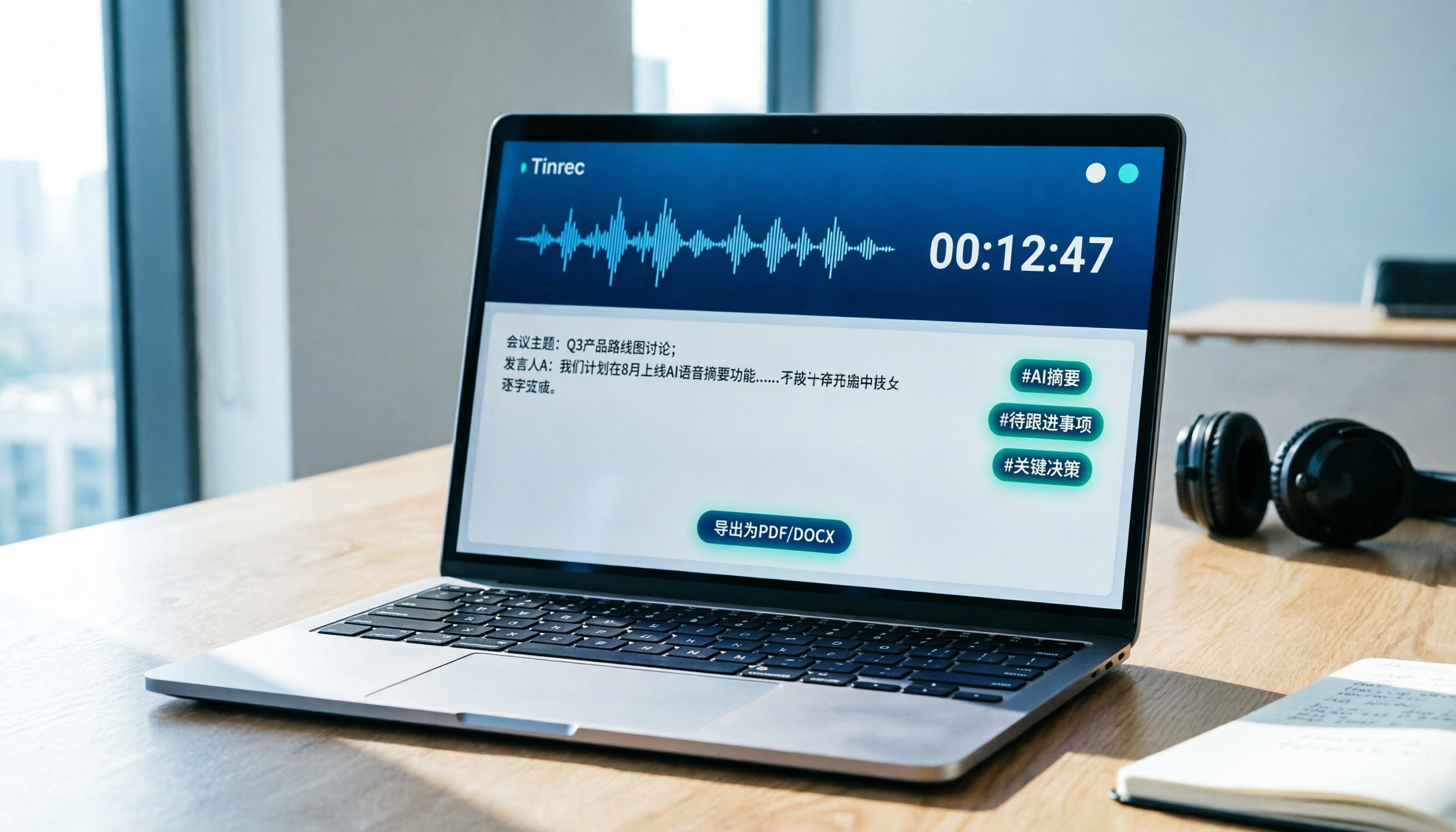
Turn recordings into transcripts and summaries in minutes
Upload audio or video for multilingual transcription, AI notes, and action items
When recording on a Mac, many people first think of QuickTime or Voice Memos. But if you want to "immediately turn recordings into text, summaries, and to-dos," built-in tools fall short. This article uses Tinrec as an example to demonstrate how to record, transcribe, and organize on a Mac in 5 steps.
Before You Start: What You'll Need
- A Mac that can install the Tinrec desktop app
- Download Tinrec desktop (the official website offers a free version; register to get basic credits)
- Content to record, such as online meetings, classes, or interviews
- A stable internet connection; if you need real-time transcription, log in to your account first
Step 1: Record the Content You Want to Transcribe
The goal here is to capture clear audio, which is essential for accurate transcription later.
Open the Tinrec desktop app and select "System Audio" or "Screen Recording" mode. If you're recording an online meeting, simply let the meeting audio play through your Mac's speakers, and Tinrec will capture the system sound. If you also need to record your microphone, you can enable it.
Why check the audio source first? Because macOS doesn't allow direct interception of system audio; Tinrec's desktop app handles this by capturing device audio, so you don't need to install virtual drivers. Minimize background noise during recording, and ask participants to speak one at a time.
When done, the recording will appear in Tinrec's recording list.
(Placeholder image: A person sitting at a Mac with a microphone on the desk, the screen showing a meeting, Tinrec recording in the background with live captions)
Step 2: Let AI Transcribe It for You
If you enabled real-time transcription during recording, the transcript will be generated simultaneously; otherwise, click on the recording after it's done and select "Transcribe."
Tinrec automatically identifies speakers and segments the text. It handles Chinese, English, or mixed content. After transcription, you'll see the transcript on the left and the audio waveform on the right for reference.
The benefit is that you don't have to manually replay and type; a few minutes of recording quickly becomes searchable text.
(Placeholder image: Mac screen with transcript on the left and audio waveform on the right; user can click any segment to jump to that timestamp)
Step 3: Quickly Proofread the Transcript
AI transcription is accurate with clear audio, but errors can occur with proper nouns, accents, or overlapping speech.
Tinrec lets you play the audio while reviewing the transcript; when you spot an error, click on that segment to edit it. If your company or team has common terms, admins can add them to team hotwords to improve transcription accuracy.
Don't listen to the entire recording; start proofreading from headings, timestamps, and to-do sections to save time.
(Placeholder image: User clicks a line in Tinrec interface, an edit box appears on the side, and the audio pauses at that timestamp)
Step 4: Let AI Generate Meeting Minutes
After proofreading the transcript, click "AI Summary" or "Generate Meeting Minutes." Tinrec will extract the meeting topic, chapters, key points, and action items.
You don't need to organize everything from scratch; AI condenses long meetings into structured content and lists next steps. If the summary is too brief, you can use AI Q&A to ask follow-ups like: "What was decided at the end of this meeting?" or "Who is responsible for which project?"
Stop organizing recordings by hand
Upload audio or video and automatically get a transcript, summary, and action items
This is the biggest difference between Tinrec and typical recording tools: it doesn't just give you audio and text; it helps you turn it into usable information.
(Placeholder image: Tinrec showing a meeting minutes card with summary, key points, and to-do list, with an AI chat box on the right)
Step 5: Export and Share
You can export the organized content in common formats or send it directly to tools like Notion, Google Docs, OneNote, or Dropbox.
On the transcript or meeting minutes page, select "Export" and choose a format such as PDF, Word, TXT, or Markdown. If you're on a team plan, data is automatically stored in the team space, and members can view it after logging in.
(Placeholder image: User exports meeting minutes from Tinrec, file is being sent to Notion, and a completion notification appears)
FAQs and Troubleshooting
Q: Is the Tinrec free version enough? A: The free version provides basic credits, suitable for trying out recording, transcription, and summarization. If you have meetings weekly, consider the Pro plan; for team collaboration, look at the team version.
Q: Do I need to install a virtual audio driver for Mac recording? A: No. Tinrec desktop captures system audio directly, so you don't need to pair it with BlackHole like Audacity. However, if your Mac's system permissions aren't granted, remember to allow Tinrec to record the screen and microphone in System Settings.
Q: What if the transcript has many errors? A: This is usually due to a noisy recording environment, the speaker being too far from the microphone, or multiple people talking at once. Tinrec has noise reduction and supports team hotwords. For important occasions, use an external microphone and ask everyone to do a quick sound check before recording.
Q: Can I record only audio without screen recording? A: Yes. Tinrec desktop offers system audio and microphone recording; you don't have to enable screen recording.
Q: Will my recordings be used to train models? A: Tinrec's privacy policy is as stated on the official website; in practice, inform participants and obtain consent before recording, and comply with local laws.
Pro Tips: 3 Ways to Double Your Efficiency with Tinrec
- Use AI Q&A to find key points directly: After transcription, don't read from the start; ask Tinrec questions like "What was the conclusion of last week's meeting?" or "What requirements did the client mention?" This conversational query is something most transcription tools lack.
- Use team hotwords to improve proper noun accuracy: Add product names, people's names, and project codes to the team space, and Tinrec will prioritize recognizing them, making it more tailored to your vocabulary than generic tools.
- Use Agent post-processing to generate reports: Tinrec can generate reports, tables, or documents based on meeting content, which you can export as work deliverables, saving post-meeting time.
If You Don't Use Tinrec, Here Are Alternatives
- Audacity + BlackHole: Free and open-source, but requires manual setup of virtual audio drivers; suitable for advanced users.
- OBS Studio: Great for streaming and recording; the new version can natively record Mac system audio, but you'll still need to transcribe and organize manually.
Back to Tinrec's advantage: it integrates recording, transcription, summarization, to-dos, and export, making it ideal for Mac users who want an all-in-one solution.
Conclusion
By learning these 5 steps, you can complete the workflow from recording to meeting minutes on your Mac. Download the Tinrec free version, try it with a meeting or class recording, and experience turning audio into searchable, actionable data.
References
- 4 Best Mac Recording Software Recommendations [2025]
- Record Internal Audio on Mac | Essential Recording Software Recommendations and Tutorial - Bandicam Blog
- 6 Best Audio Recording Software for Mac (2025 Recommendations)
- 2026 MacBook Recording Guide: 5 Practical Tool Reviews and AI Transcript Tutorial - Tinrec Blog
- 11 Best Recorders for Mac: Easily Record Audio on Mac
Turn every recording into actionable outcomes
Get 60 free transcription minutes when you sign in. No credit card required.
Related Reading
You might also like

Tinrec vs Otter.ai 2026: 5-Dimension Comparison — Which AI Meeting Notes Tool Is Better?
What are smart meeting minutes, and what is the English term? This article first explains in one paragraph the true scope of AI meeting notes and English terms like meeting minutes, then compares Tinrec and Otter.ai across 5 dimensions: recording method, Chinese performance, post-meeting output, team collaboration, and quota pricing. It also includes key buying points and 4 common pitfalls to help you choose the right tool at once.

2026 Comparison of 2 AI Meeting Notes Tools: What They Are and How They Differ from Meeting Bots
AI meeting notes aren't about automatically writing meeting minutes for you—they turn meeting audio into a searchable, organizable, and queryable data workflow. This article first clarifies what AI meeting notes are and how they differ from transcripts and meeting bots, then compares two bot-free tools, Tinrec and Granola, across five dimensions: meeting capture, audio retention, Chinese-language experience, post-meeting organization, and team governance, to help you decide which one to choose.

2026 Smart Meeting Notes Apps Compared: Are Free Versions Actually Usable?
Are smart meeting notes apps actually useful? This article starts from three key questions—how audio gets in, what you get beyond a transcript, and who ends up holding your data—and hands-on compares tools like Tinrec, Notta, Otter.ai, and Granola. It covers buying criteria, common pitfalls, and free-tier limits to help you pick the one you'll actually keep using.

4 Smart Meeting Notes Apps Tested for 2026: Which Handles Chinese Meetings Best?
The meeting ends, but your workday doesn't. This hands-on comparison looks at four key factors for choosing an AI meeting notes app and tests Tinrec, Notta, Granola, and PLAUD—covering free tiers, Chinese recognition, bot-free recording, and team pricing—to help you find the one that truly saves time.

2026 Smart Meeting Notes Tools Compared: Which One Actually Understands Chinese Meetings?
Most people judge meeting note tools by transcription accuracy and free minutes, but the real pitfalls come after the meeting. This article breaks down five key factors that determine usability, using Tinrec as a hands-on example to show how bot-free recording, AI summaries, action item extraction, and team knowledge retention work.

2026 AI Meeting Assistant Comparison: 4 Tools Tested for Chinese Transcription and Post-Meeting Organization — Which One Actually Saves Time?
A 2026 hands-on comparison of 4 AI meeting assistants, starting with the most common pre-download misconceptions. We break down 4 key buying factors, share real-world experience with Tinrec, compare the positioning of Otter.ai, Notta, and Granola, and highlight 3 pitfalls to avoid — so you can think clearly before hitting install.

How to Choose an AI Meeting Notes Tool in 2026: 7 Tools Compared + Summaries and Action Items in One Go
Most people compare AI meeting note tools only by minutes and price, overlooking who will actually use the notes after the meeting. This guide starts with three key questions and compares seven tools—Tinrec, Otter.ai, Fireflies.ai, Notta, Granola, PLAUD, and TurboScribe—on meeting capture methods, Chinese-language experience, post-meeting output, and team management, with clear recommendations by scenario.

Best AI Meeting Recorder in 2026? We Tested 2 Options — This One Saves the Most Time for Chinese Meetings
Many people think the pain point of meeting notes is whether the recording captures audio, so they buy a recorder first—only to still spend time organizing afterward. This article compares Tinrec and Plaud Note across online meeting recording, Chinese transcription, post-meeting organization, team collaboration, and cost structure to help you choose the truly time-saving option in 2026.

How to Download AI Meeting Assistants in 2025: Bot-Free Recording + Chinese Transcripts
Tired of recording meetings but never organizing them? This guide walks you through downloading and using two AI meeting assistants, Tinrec and Otter.ai, comparing them across five dimensions: recording methods, Chinese and mixed-language handling, post-meeting outputs, file import/export, and team collaboration governance. Find out which one fits your meeting scenarios and budget.