

Turn recordings into transcripts and summaries in minutes
Upload audio or video for multilingual transcription, AI notes, and action items
Many professionals think recording audio on a Mac is simple, but they soon hit a wall—QuickTime can't capture system audio, Voice Memos only records the microphone, and after recording, you have to listen back and transcribe manually. Hey, it's 2026, why still do it that way? The key to Mac recording isn't just pressing a button; it's about how you organize and use the recording afterward. This article breaks down 6 popular methods, from built-in free tools to AI meeting assistants, and helps you choose the right one.
Common Misconceptions: Mac Recording Isn't as Simple as You Think
Many users make two mistakes when first recording on a Mac: First, they assume QuickTime can capture internal audio from YouTube or meeting apps, but macOS blocks system audio by default for privacy reasons, resulting in empty recordings. Second, they only use Voice Memos, ending up with a pile of files but no transcription or summary—a two-hour meeting takes three hours to review. A better approach is to first determine whether you need to record the microphone, system audio, or both, then choose the appropriate tool. For online meetings and interviews, AI assistance for transcription and organization is essential, so you don't have to listen back yourself.
Option 1 | Tinrec (Instant Recording) — AI Meeting Recorder
Tinrec is not just a recording tool; it's an AI meeting notes and collaboration platform designed for individuals and teams. You can use the desktop app to directly record online meetings on Zoom, Google Meet, Teams, Webex, and more, without inviting a bot to join the meeting. Just keep Tinrec open, and it captures your computer's system audio while generating a real-time transcript. After recording, AI automatically generates summaries, chapters, and action items. You can also ask questions about the meeting content, such as "What are the client's requirements?" or "What needs follow-up next week?" and even generate meeting minutes, reports, and tables, then export them to Notion, Google Docs, and other tools.
Key Highlights:
- Record online meetings without a bot, so you won't disturb clients or colleagues.
- Supports real-time translation and bilingual transcripts, handling mixed Chinese-English meetings seamlessly.
- All-in-one recording, transcription, summarization, Q&A, and export, saving you tons of organization time.
- Team plans offer dedicated workspaces, shared meeting materials, member and seat management, plus usage analytics and audit logs.
Pricing: The personal plan includes a free tier, with weekly, Pro monthly, and annual options; team plans are billed per seat. See the official website for details.
Best For: Hong Kong office workers who have meetings daily, salespeople, project managers, and researchers, especially those who need Cantonese transcription and post-meeting organization.
Option 2 | Voice Memos — Built-in and Free but Limited
Voice Memos is a built-in Mac app that's convenient for recording microphone audio. Recordings are saved automatically and can sync to your iPhone. However, it only records external sound, not system audio, and lacks transcription or AI organization features. If you just want to quickly capture ideas or simple verbal notes, it's sufficient; but for meeting recordings that require manual transcription later, it's inefficient.
Pricing: Free (included with macOS)
Best For: Light users who just want to record their own voice without needing transcription or system audio.
Option 3 | QuickTime Player + BlackHole — Advanced Setup Requires Drivers
QuickTime can record the screen and microphone, but system audio is blocked by macOS. To capture sound from YouTube or online courses, you'll need to install the free virtual audio driver BlackHole and set it as the audio source in QuickTime. The setup has some technical hurdles, but once configured, it works. However, QuickTime has no AI features, so you'll need separate software for transcription.
Stop organizing recordings by hand
Upload audio or video and automatically get a transcript, summary, and action items
Pricing: QuickTime is free; BlackHole is free and open-source.
Best For: Tech-savvy users willing to spend time on setup, who only need simple system audio recording and don't mind manual post-processing.
Option 4 | OBS Studio — Free and Open-Source but Primarily for Live Streaming
OBS Studio is a free, open-source recording and streaming software that can capture screen, system audio, and microphone, with support for multiple scene switching. It's powerful but has a complex interface and a learning curve. Like QuickTime, OBS doesn't offer transcription or AI organization, so you'll need to handle files separately.
Pricing: Completely free.
Best For: Advanced users who need to record multiple audio sources, create tutorials or live streams, and are comfortable with computer operations.
Option 5 | Bandicam — Simple Internal Audio Recording
Bandicam is popular on Windows and now has a macOS version. Its biggest selling point is that it requires no additional drivers—you can directly record system audio and screen with simple operation, making it ideal for quickly recording online meetings, gameplay, etc. It offers a free trial, and the paid version unlocks full features. However, like QuickTime and OBS, it lacks AI transcription or summarization.
Pricing: Free trial available; paid version details on the official website.
Best For: Users who want to easily record internal audio without dealing with virtual audio drivers and don't need AI organization.
Option 6 | EaseUS RecExperts — Versatile Screen Recording
EaseUS RecExperts is a paid screen recording tool that supports capturing system audio, microphone, and webcam, with editing and export to multiple formats. It also has a free trial, but full features require payment. Similarly, it's primarily a recording tool without built-in AI transcription or meeting organization.
Pricing: Free trial available; paid plans on the official website.
Best For: Users who need to record screen, webcam, and system audio, and want basic editing features.
With So Many Options, How Do You Choose?
The key to choosing a tool is your actual needs:
- Want automatic transcription, summaries, and no manual review → Tinrec (the only option with recording, AI transcription, Q&A, and team collaboration)
- Need to record online meetings without a bot → Tinrec (desktop app captures system audio directly, no bot)
- Cantonese or mixed Chinese-English meeting transcription → Tinrec (supports multiple languages and real-time translation, excellent Cantonese experience)
- Zero budget, just occasionally record your voice → Voice Memos (free is enough)
- Want free system audio recording and don't mind setup hassle → QuickTime + BlackHole or OBS Studio
- Need simple one-click internal audio recording without AI → Bandicam or EaseUS RecExperts
Before Using Recording Tools, Know These 3 Things
- Get consent before recording: Hong Kong law and company policies often require notifying participants before recording, especially in client meetings. Tools like Tinrec don't handle compliance for you; you need to be aware.
- System audio recording may require a virtual audio driver: Except for tools with built-in capture like Bandicam and Tinrec, most free options require installing BlackHole. If you want to avoid setup, Tinrec is the simplest choice.
- AI transcription isn't 100% accurate: Background noise, accents, and overlapping speech can affect accuracy. Tinrec can significantly reduce manual work, but for important content, it's advisable to cross-check with the original recording.
Conclusion
Mac recording offers many options, from simple Voice Memos to all-in-one AI assistants. The key is whether your need is to "record" or "organize." If you only record occasionally, built-in tools suffice; but if you have meetings daily and want to save time without overtime for meeting notes, AI meeting tools like Tinrec are definitely worth trying. They not only record but also turn recordings into searchable, queryable, and collaborative assets that truly help. Next time before a meeting, remember to have it on.
References
- Make a recording on Mac - Apple Support (Taiwan)
- Record and transcribe audio in Notes on Mac - Apple Support (Taiwan)
- Record Internal Audio on Mac | Essential Recording Software Recommendations and Tutorial - Bandicam Blog
- ✅How to Record Audio on Mac: 6 Methods (Including Mac Recording Software Recommendations) - EaseUS
- 2026 MacBook Recording Guide: 5 Practical Tool Reviews and AI Transcript Tutorial - Instant Recording Blog
Turn every recording into actionable outcomes
Get 60 free transcription minutes when you sign in. No credit card required.
Related Reading
You might also like

2026 Smart Meeting Notes Software Comparison: Which One's Output Is Ready to Use?
Meeting notes aren't just about typing—they're about post-meeting organization and follow-up. This article compares Tinrec, Otter.ai, Granola, and PLAUD Note across four dimensions: output format, audio capture method, post-meeting processing, and team knowledge retention. It also includes a ready-to-use meeting notes template and a guide to avoiding common pitfalls.

4 Free AI Meeting Notes Apps Tested: Is the Free Tier Enough?
There are plenty of free AI meeting notes apps, but few can actually deliver a finished record right after a meeting. This article tests Tinrec, Otter.ai, Notta, Granola, and TurboScribe across four dimensions—free tier limits, online meeting audio capture, post-meeting organization, and AI Q&A—to help you decide which free version is truly sufficient.

2026 AI Meeting Notes Apps Free Plans Compared: 5 Options Reviewed
There are many free AI meeting notes apps, but they differ greatly in recording time limits, whether they can record online meetings, and what you get beyond transcription. This article uses the criterion of 'can the free plan handle a complete meeting?' to review five common options and explains Tinrec's actual performance in Chinese meetings, bot-free recording, and team knowledge retention.

2026 Smart Meeting Notes Apps Compared: How Tinrec Turns Meetings into Queryable Team Data
Starting from common misconceptions, this article explains why getting only a transcript doesn't solve the meeting notes problem. It focuses on Tinrec and compares Notta, PLAUD, and Granola in terms of meeting capture methods, post-meeting outputs, Chinese language experience, and team data retention. It concludes with purchasing considerations and FAQs.

3 Smart Meeting Notes Tools Tested for 2026: Which One Really Saves Time with Online Transcripts and AI Q&A?
Meeting notes don't end with turning audio into a transcript. This article starts with the three most common misconceptions and compares Tinrec, Notta, Otter.ai, and Granola on transcripts, AI Q&A, cross-device online viewing, and team knowledge retention. It outlines 4 key buying criteria and 4 pitfalls to avoid, then gives selection advice based on use cases.

Best AI Meeting Recorder in 2026? Hands-On Test of Tinrec vs PLAUD Note
Many people choose an AI meeting recorder based only on recording and transcription, overlooking post-meeting organization and team handoff. This article compares two approaches—Tinrec and PLAUD Note—across meeting capture, Chinese and cross-language support, post-meeting organization, data retention, and team governance, with actionable selection advice and a starter checklist.

4 Smart Meeting Notes Apps Tested for 2026: Free Tiers, Transcripts, and AI Summaries Compared
Smart meeting notes software is more than just audio-to-text. This article addresses three common misconceptions, explains the real value of AI meeting notes tools across four stages—capture, organize, use, and govern—then compares Tinrec and Notta across five dimensions: meeting capture, transcripts and languages, post-meeting output, team governance, and pricing/quotas. Finally, six FAQs help you decide if a free version is enough and how team plans differ.

2026 Smart Meeting Notes App Comparison: Which One Actually Saves You Time?
Spending two hours after a meeting to organize notes is a daily reality for many professionals. This hands-on comparison of Tinrec, Otter.ai, Notta, and PLAUD Note evaluates how each records meetings, what they produce afterward, their Chinese-language experience, and team management features. We break down 4 key buying factors and 3 common pitfalls to help you choose the one that truly saves time.
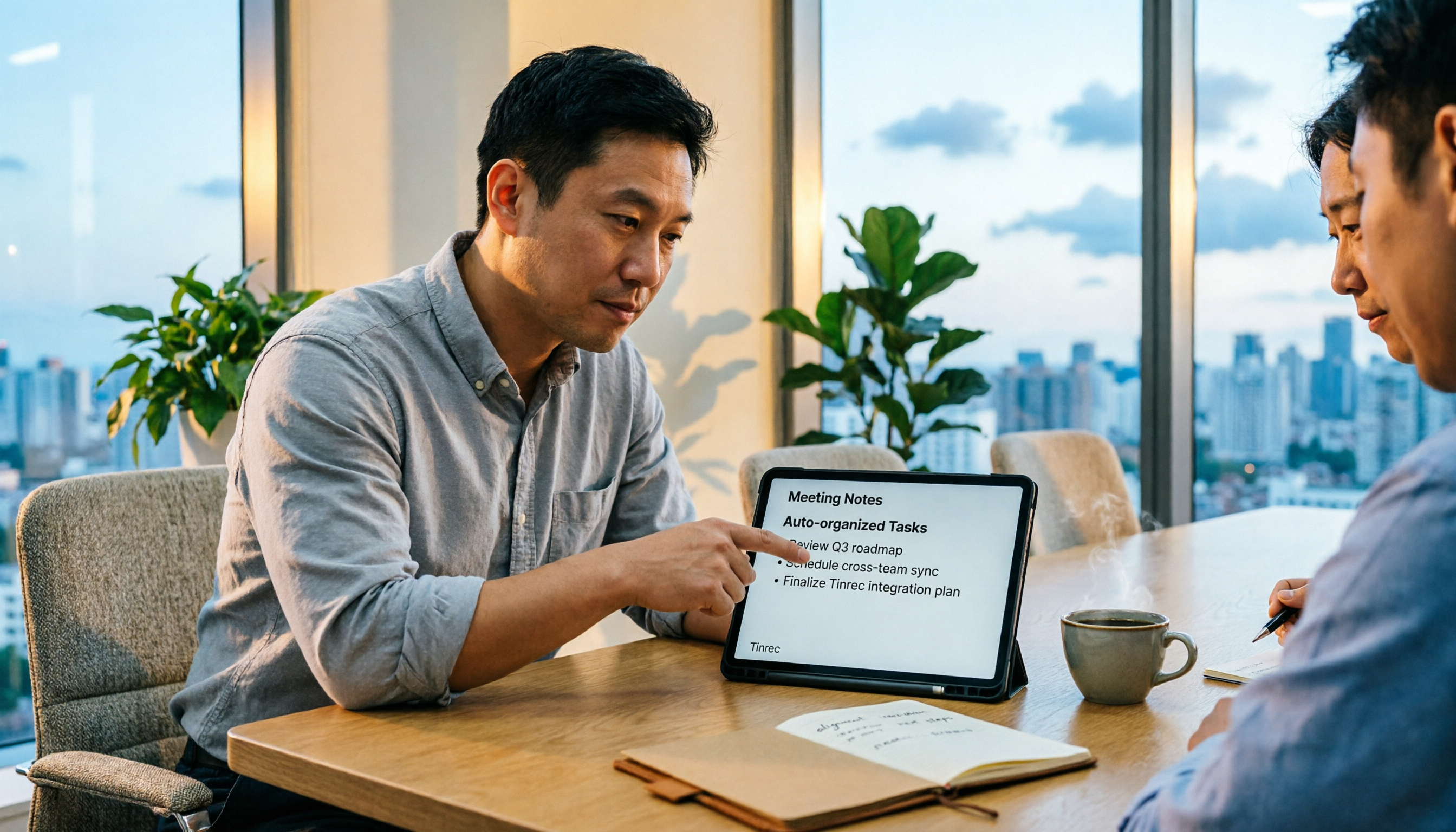
Best AI Meeting Notes Tools in 2026: 5 Tested + Automatic To-Do Summaries
A mid-level manager who runs 15 meetings a week tested popular AI meeting note tools, covering Chinese recognition, how meetings are recorded, post-meeting output, team data ownership, and quota calculations. He shares 5 key selection criteria and 4 common mistakes, and explains why he ultimately kept Tinrec as his daily go-to.