

Turn recordings into transcripts and summaries in minutes
Upload audio or video for multilingual transcription, AI notes, and action items
Last week, during a Google Meet product meeting, I had to respond to client requests while jotting down key points. By the end of the meeting, my notes only had three lines: "Client wants a redesign," "Schedule another time," and "Roughly." Back at my desk, I couldn't recall any details.
If you've been in this situation, it's time to rethink how you take meeting notes.
Google Meet has built-in AI features, but many people don't know how to use them, or they face plan or language limitations. In this article, I've put together 5 steps, from built-in features to third-party tools, to help you establish a truly practical Google Meet AI meeting notes workflow.
Why You Need Google Meet AI Meeting Notes
The most annoying part of online meetings isn't the meeting itself—it's the post-meeting cleanup.
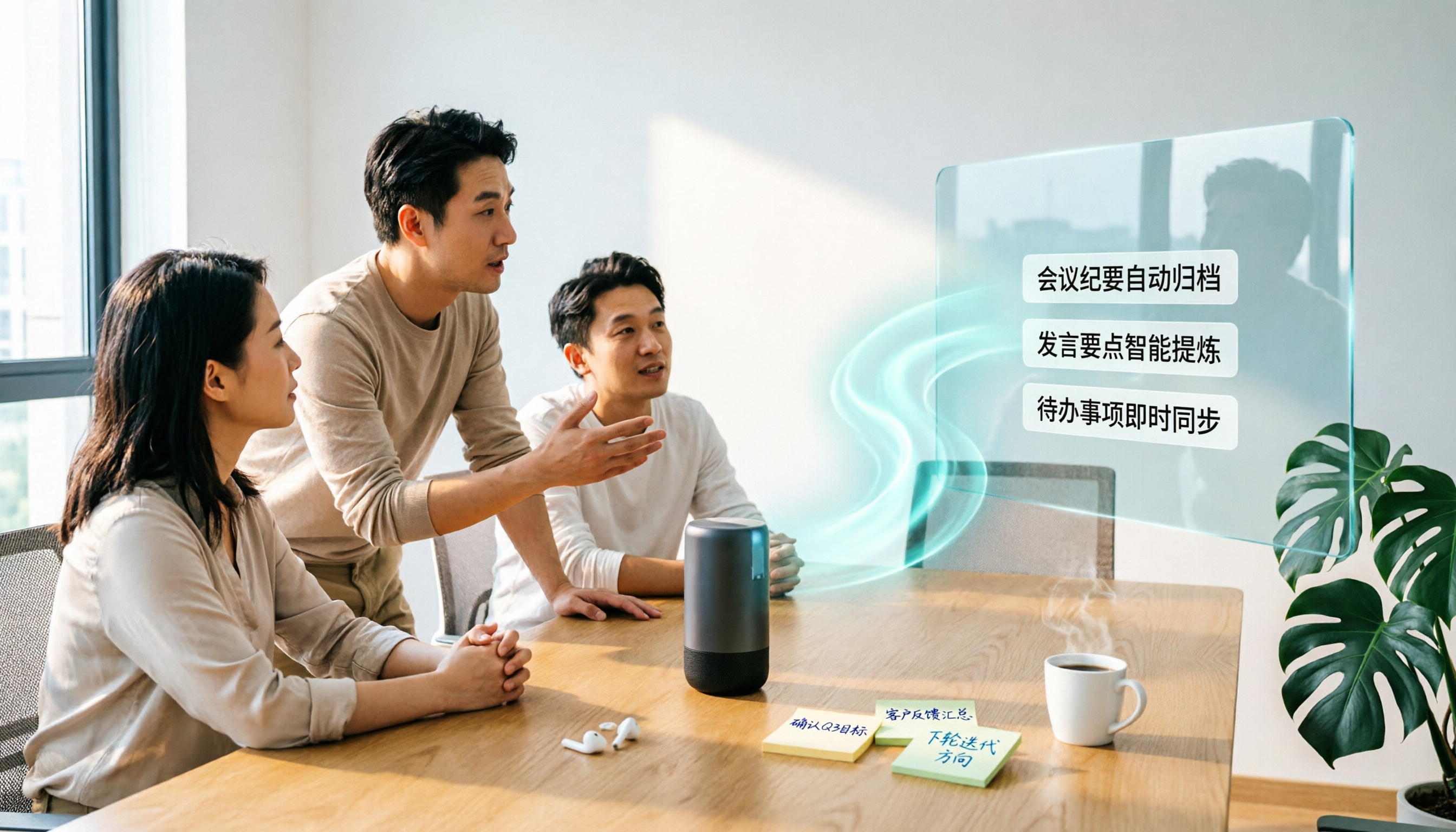
Manual notes tend to miss key points, and recordings are too long to re-listen to. AI meeting notes can automatically transcribe speech to text, then generate summaries, action items, and even let you query the meeting content via Q&A later.
But with so many tools, using them incorrectly can lead to more chaos. Let me walk you through the steps below.
Step 1: Check If You Have Access to Google Meet's Built-in "Take Notes for Me"
Google Meet's Gemini version offers the "Take notes for me" feature, which automatically captures meeting notes, organizes them into a Google Doc, and shares them with your team.
However, this feature has two limitations:
- It's only available for Google accounts set up by a company or school, or for users with an eligible Google AI plan.
- Currently, it supports only English, French, German, and Italian—not Chinese.
So if your meetings are in Chinese, or you're using a personal Google account, this feature may not be available.
To use it, enable "Take notes for me" during the meeting, and after the meeting ends, you'll receive an email with a link to the meeting notes document, a summary, and suggested next steps. Participants who join mid-meeting can also use the "Summary so far" feature to quickly catch up.
If you're eligible and your meetings are in English, give this built-in feature a try.
Step 2: No Access? Use Google Meet Live Captions + Manual Organization as a Stopgap
Google Meet's live captions feature can transcribe speech in real time and display it on your screen. However, the caption interface doesn't allow direct copying, so you'll need a little trick.
Here's what I do:
- Turn on live captions during the meeting.
- Use Chrome's developer tools to copy the HTML elements of the caption area.
- Paste the copied content into Gemini or NotebookLM and ask it to organize it into a transcript or meeting minutes.
You can use this prompt template:
From the HTML code of the meeting captions below, extract and match each speaker with their corresponding Chinese content. Speaker names usually appear in the block before the dialogue. Output the full conversation log in the format "[Speaker]: [Speech content]". Omit all HTML tags and special symbols.
This method is free but involves several steps, making it more suitable for occasional meeting note needs.
Step 3: Switch to Tinrec, a Bot-Free Solution That Handles Chinese and Team Needs
If you need a more stable solution that supports Chinese and turns meeting materials into team assets, Tinrec (秒听录音) is my top recommendation right now.
Tinrec isn't just a recording-to-text tool; it turns meetings into searchable, collaborative, and actionable team resources.
Key Highlights
- Bot-free desktop recording: No need to invite a meeting bot to join Google Meet. Just open the Tinrec desktop app, and it captures your system audio, transcribing the meeting in real time. No extra setup, and no bot to worry about interrupting your meeting.
- Chinese and multilingual support: Tinrec supports Traditional Chinese and Simplified Chinese meeting transcription and minutes, as well as mixed Chinese-English content organization, multilingual meeting transcription, real-time translation, and bilingual viewing. The team glossary feature lets you maintain common terms to improve recognition of professional vocabulary.
- More than just transcripts: Automatically generates summaries, chapters, key points, and action items, supports mind maps, and allows AI Q&A around the meeting content, even generating reports, tables, and documents.
- Team space: Centralizes meeting recordings, transcripts, summaries, and action items in one team space. Members can view and reuse historical meeting materials, while admins can manage roles, seats, usage, and audits. When a member leaves, meeting materials don't disappear; they can be handed over to other members.
Stop organizing recordings by hand
Upload audio or video and automatically get a transcript, summary, and action items
Who It's For
Professionals, project teams, and sales teams who need Chinese meeting notes, prefer not to use meeting bots, and want to turn meetings into team knowledge.
Pricing Plans
- Free plan: Includes basic credits to try recording, importing, summarization, and transcription.
- Pro monthly/yearly: For regular users; the yearly plan offers a lower monthly equivalent.
- Team plan: $29.80 per paid seat per month, or $199 per paid seat per year (approximately $16.58/month), with 2,000 minutes of shared import credits per seat per month.
Actual pricing is subject to the official purchase page.
Step 4: Other Alternative Tools Worth Knowing
Besides Tinrec, there are other tools that can work with Google Meet, but each has its own positioning.
SeaMeet
SeaMeet is tied to Google Meet, transcribing online meetings in real time and emailing the transcript to all participants after the meeting ends. It's specially tuned for Taiwanese Mandarin, easy to use, and also allows uploading recordings from in-person meetings via mobile. Suitable for users who want a lightweight, quick-to-learn tool.
Otter.ai
A mature AI meeting assistant that covers Zoom, Microsoft Teams, and Google Meet, with a strong focus on English business meetings. It uses a bot to join meetings and also offers desktop capabilities. Suitable for teams that primarily hold meetings in English.
Fireflies.ai
Strong in meeting automation, with a meeting bot, AI summaries, AskFred Q&A, and team analytics. Commonly used by sales teams and companies that need extensive meeting data analysis.
Notta
Offers multi-device transcription, meeting notes, document import, and translation features, overlapping significantly with Tinrec. Suitable for users who need cross-device transcription and translation.
Each of these tools has its strengths, but if you need bot-free recording, Chinese language support, and team knowledge management, Tinrec offers a more integrated solution.
Step 5: With So Many Tools, How Do You Choose?
Before choosing a tool, ask yourself three questions:
- Is your meeting primarily in Chinese or English?
- Do you want the tool to automatically join meetings, or do you prefer bot-free recording?
- Do you only need it for personal use, or do you need team sharing and management?
Based on different scenarios, here are my recommendations:
- For the most complete AI meeting notes (transcription + AI Q&A + automatic minutes + team space) → Tinrec
- For Chinese meeting notes without inviting a bot to Google Meet → Tinrec
- If your Google Workspace plan is eligible and meetings are in English → Google Meet's built-in "Take notes for me"
- If you have zero budget and only need occasional organization → Google Meet live captions + manual organization
- If you only need a lightweight Google Meet integration and don't care about team management → SeaMeet
- If your meetings are primarily in English and you have a large team → Otter.ai or Fireflies.ai
3 Things to Know Before Using AI Meeting Notes
- Accuracy isn't 100%: AI transcription can be affected by audio quality, accents, overlapping speech, and technical jargon. For important conclusions, cross-check with the transcript timestamps and replay the recording.
- Get consent before recording: Different regions have different laws regarding recording and transcription, and online meetings are no exception. Politely inform participants beforehand to avoid disputes.
- Transcripts are just the starting point: Don't just save the transcript; further generate summaries, action items, and next steps to turn meetings into inputs for follow-up work.
Conclusion: Turn Meeting Notes into Your Work Asset
Google Meet AI meeting notes shouldn't just be "recording to text"; they should make meeting content searchable, queryable, and actionable.
From built-in features, free tricks, to third-party tools, you can test gradually and find the method that works best for you. If you need Chinese support, bot-free recording, and team collaboration, Tinrec is currently a highly integrated choice.
Quick-start checklist:
- Check if your Google account has access to "Take notes for me."
- If not, use live captions + HTML copy trick as a stopgap.
- Download the Tinrec desktop app and test bot-free Google Meet recording.
- Upload an old meeting recording to experience AI summaries and Q&A.
- Set up your common meeting templates and team glossary to establish a consistent workflow.
Test step by step, and you'll gradually master this approach.
References
- Use AI in meetings and video conferences | Google Workspace
- Recently, many people have asked me if there's any AI tool for meeting notes. They still type manually, often unable to multitask, and it's quite time-consuming. My answer is always — SeaMeet. Why recommend it? Let me summarize: -Tied to Google Meet, online meetings are transcribed in real time, with instant summaries, super convenient. -No need to reorganize; after the meeting, it emails all participants directly. -Extremely easy to use; I taught middle-aged people with no AI experience in 10 minutes. -In-person meetings
- Google Meet "Take notes for me" feature - Computer - Google Meet Help
- Using Google Meet Live Captions for Meeting Notes
- Google Meet "Take notes for me" feature - Android - Google Meet Help
Turn every recording into actionable outcomes
Get 60 free transcription minutes when you sign in. No credit card required.
Related Reading
You might also like

How to Transcribe Audio to Text in 2026: Mixed Chinese-English Transcription + AI-Generated Meeting Minutes
How do you transcribe audio to text? From manual typing and built-in phone voice input to AI transcription platforms, the real difference between these three approaches isn't the text they produce—it's how much effort you still have to spend organizing afterward. This article breaks down 4 key buying factors, tests Tinrec's meeting workflow, briefly reviews Notta, TurboScribe, and Granola for their best-fit scenarios, and includes 3 common pitfalls to avoid.

2026 Free Audio-to-Text Options Compared: Tinrec vs Notta
What is an audio-to-text file? Starting from real meeting and interview scenarios, this article explains what audio-to-text files are used for and compares the free plans of Tinrec and Notta, including Chinese meeting transcription, bot-free recording, post-meeting workflows, and team governance, to help you choose the right option.

Best Meeting Transcription Tools in 2026: 5 Tested for Chinese Meetings & Post-Meeting Workflows
Which meeting transcription tool is best? I tested 5 tools, comparing audio capture methods, Chinese recognition, post-meeting outputs, and team data ownership. Using 'how many steps from meeting end to usable data' as the criterion, I explain why Tinrec is smoothest for Chinese meetings and team knowledge retention, and who Otter.ai, Notta, and Granola are each best for.
Tinrec vs Notta 2026: 5-Dimension Comparison — Which Free Audio-to-Text Tool Is Better?
Are free audio-to-text tools actually usable? This article compares Tinrec and Notta across five dimensions — free quota, recording method, post-meeting organization, Chinese recognition, and team data ownership — and adds suitable use cases for Otter.ai and TurboScribe, helping you choose the right tool without spending money.

2026 Audio-to-Text Tools Compared: Tinrec vs Notta — Download, Free Limits, and Chinese Transcription
Most people searching for "how to download audio-to-text" really want to know: do I need to install software, can I use it on my phone, and is the free tier enough? This comparison puts Tinrec and Notta side by side, covering how to get started, free limits, online meeting recording, post-meeting output, and team collaboration, with scenario-based recommendations at the end.

Free Audio Transcription Options in 2026: 4 Plans Compared
The key to a good audio transcription app isn't just accuracy—it's how much time it saves you on organizing afterward. This article walks through the complete workflow using Tinrec, breaking down four plans from free version to weekly pass to Pro monthly and annual, and covers five key factors to consider when choosing, plus FAQs.

6 Best Speech-to-Text Tools in 2026: How to Get the Most Out of Free Tiers
The key to free transcription isn't which tool is free, but how long your recordings are and how often you use them. This article compares the free rules and limits of 6 tools—Tinrec, Notta, MyEdit, cSubtitle, TurboScribe, and Monica—offers selection advice based on use cases, and lists paid plan prices.

6 AI Meeting Notes Tools Tested and Compared in 2026: How to Use and Choose
From pre-meeting to in-meeting to post-meeting workflows, we compare the free tiers, paid pricing, and best use cases of six AI meeting notes tools—Tinrec, Otter, Notta, Fireflies, Granola, and TurboScribe—to help you pick the one that fits your meeting style.

2026 Comparison of 4 Audio-to-Text Tools: How Free Tiers Work and Which Really Saves Time After Meetings
Are audio-to-text tools actually useful? Many find them hard to use, but the problem often lies in testing methods and mismatched expectations. This article addresses three common misconceptions, outlines 4 key criteria for choosing a tool, and then compares Tinrec, Notta, TurboScribe, and PLAUD in terms of positioning, quota calculations, and post-meeting organization capabilities. It helps you decide which tool suits meeting notes, interview transcripts, or team knowledge retention.