
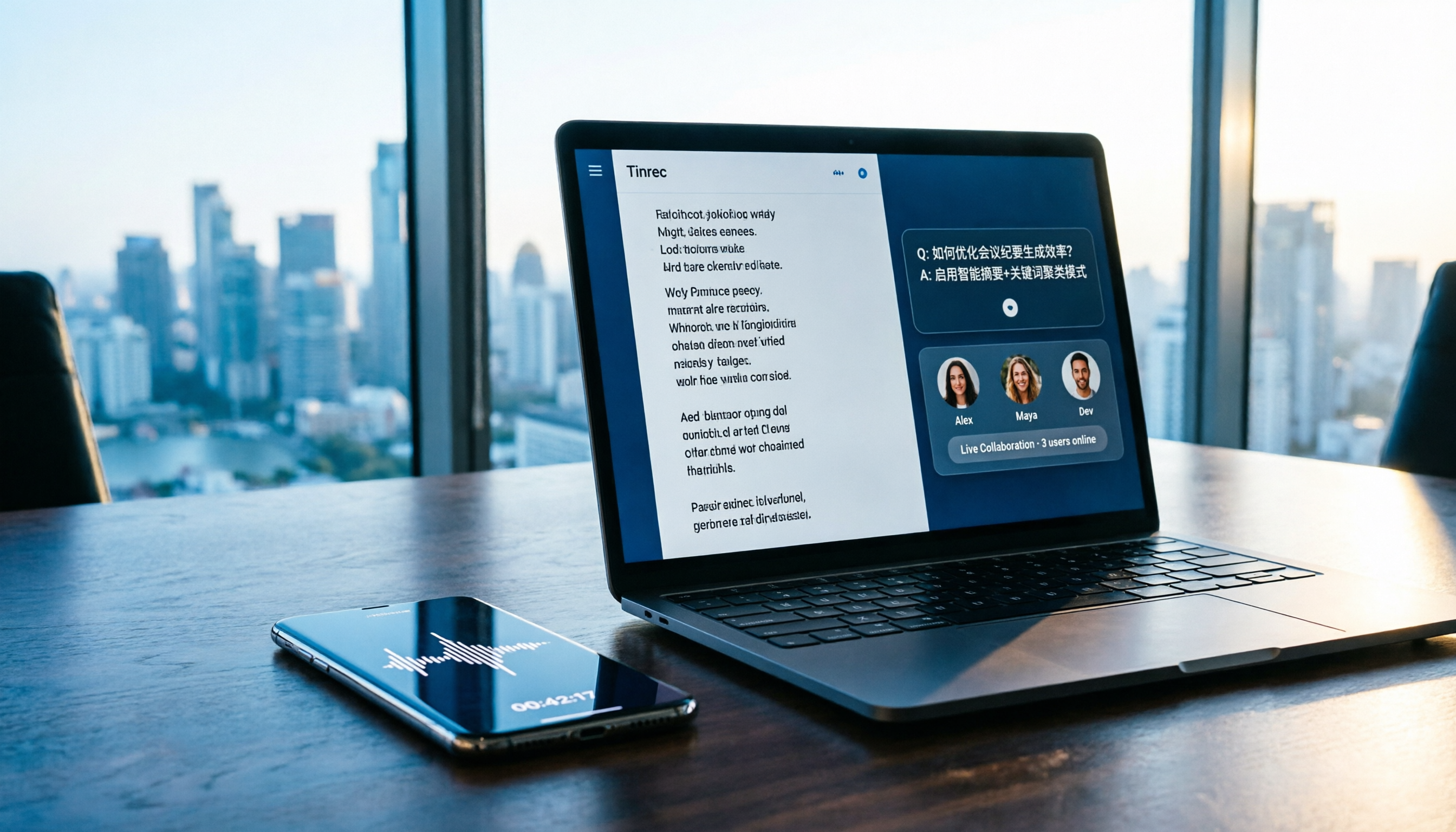
Turn recordings into transcripts and summaries in minutes
Upload audio or video for multilingual transcription, AI notes, and action items
Why Doesn't iPhone Recording Have a Transcript? Check These Things First
I often encounter this scenario: after a one-hour interview, the complete recording sits in iPhone's Voice Memos, but the transcript never appears.
Why? It's not that your phone is broken—it's that the conditions haven't been met.
Based on Apple's official information and real-world testing, iPhone's built-in voice transcription has several key requirements:
- Device: Requires iPhone 12 or later.
- System: iOS 18.4 or later supports Traditional or Simplified Chinese transcription; early 18.0 versions had limited language support.
- Recording time: Old recordings typically won't automatically generate a transcript; you need to re-record or convert them.
- First use: You must connect to Wi-Fi to download the transcription feature module.
So, if you have an older iPhone, haven't updated the system, or the recording was made before the upgrade, it's normal that there's no transcript.
But even if all these conditions are met, the built-in transcription only answers "what was recorded," not "what to do next."
In this article, I'll compare iPhone's built-in Voice Memos with Tinrec (a transcription app) across 4 dimensions.
My focus isn't the tools themselves, but this: you need more than just a transcript—you need to turn recordings into actionable data.
Option 1 | Tinrec—Turning Recordings into Actionable Meeting Data
If you record on your iPhone but need a more complete workflow, Tinrec is the solution I most often recommend.
It's not positioned as a "recording tool" but as an "AI meeting notes and collaboration tool."
You can record on your iPhone, upload the audio file to Tinrec, and it will do four things that the built-in Voice Memos can't:
Transcribe old recordings
No matter how old the recording is or which app it came from, as long as you upload the audio file, Tinrec can convert it into a transcript.Automatic summaries and chapters
It breaks a one-hour interview into sections and highlights key points at the beginning of each section. You don't need to listen from start to finish.AI chat-based queries
This is the key difference. You can ask directly: "What was the conclusion about the budget in the meeting?" The system will give you the answer and cite the timestamp.Action items and export
Tinrec extracts action items from the discussion and supports exporting results to tools like Notion and Google Docs for further use.
(Screenshot here: Tinrec interface for uploading iPhone recordings, with an arrow pointing to the "Upload Audio" button)
The free version lets you experience basic features; the Pro plan is suitable for those with regular weekly meeting note needs.
If you need to share meeting data with colleagues, the team version provides team spaces, member management, and usage analytics, so meeting notes don't stay stuck on your personal phone.
Who it's for: Professionals, researchers, and students—especially those who need to turn recordings into summaries, action items, or reports.
Option 2 | iPhone's Built-in Voice Memos—Free but with Strict Conditions
The biggest advantage of the built-in Voice Memos is that it's free and requires no additional app installation.
As long as you meet the device, system version, and first-time download conditions mentioned earlier, you can see the transcript in real time while recording, and you can tap the text to jump to the corresponding audio position.
(Screenshot here: A new recording in iPhone Voice Memos, with an arrow pointing to the speech bubble icon)
But its limitations are also clear:
- It only supports new recordings; old files cannot be automatically transcribed.
- The transcript only converts speech to text; there are no summaries, action items, or AI Q&A.
- Language support is subject to Apple's official specifications, and recognition of certain accents or mixed Chinese-English content can be unstable.
Stop organizing recordings by hand
Upload audio or video and automatically get a transcript, summary, and action items
Who it's for: iPhone users who record occasionally, only need basic transcripts, and whose devices and systems meet the requirements.
Option 3 | Yating Transcription—Developed by a Taiwanese Team, Friendly to Chinese and Taiwanese
Yating Transcription is a transcription tool developed by a Taiwanese team, with special optimization for Chinese and Taiwanese recognition.
If you often deal with Taiwanese interviews or meetings, this is a worthwhile option.
The free version has a transcription time limit; the paid version unlocks more minutes and batch features.
But like the built-in tool, it mainly solves "speech-to-text," and subsequent summaries, Q&A, and team collaboration require additional tools.
Who it's for: Users who need Chinese or Taiwanese transcripts and already have other methods for organization.
Option 4 | NotebookLM—Ideal for Research and Deep Analysis
NotebookLM is more like a "research assistant."
You can upload audio files or other materials, and it will generate transcripts, summaries, and allow you to ask questions about the content.
It's particularly suitable for users who need to cross-analyze multiple interviews or documents.
However, its interface leans toward a document database, and the real-time meeting note experience isn't as good as dedicated AI meeting tools.
Who it's for: Academic researchers and those who need to extract insights from large volumes of recordings.
Option 5 | MyEdit—A Subtitle Tool for Video Creators
MyEdit's strength lies in converting recordings or videos into subtitle files, especially for creators who need SRT format.
If your main goal is video editing and adding subtitles, MyEdit's output is more convenient than general meeting tools.
But it doesn't emphasize meeting summaries or action items, and team spaces aren't a core feature.
Who it's for: Video creators and users who need large-scale subtitle production.
With So Many Options, How Do You Choose?
I've organized it for you across 4 dimensions:
Dimension 1: Completeness of Chinese transcription
- If you just want free, basic Chinese transcription → iPhone's built-in Voice Memos (but with strict conditions).
- If you need to handle old recordings, mixed Chinese-English, or multi-speaker discussions → Tinrec is more reliable.
Dimension 2: Ability to handle old recordings
- Built-in tools typically don't support automatic transcription of old files.
- Tinrec lets you upload existing audio files directly, regardless of when they were recorded.
Dimension 3: What happens after transcription
- Built-in tools stop after transcription.
- Tinrec automatically generates summaries, chapters, and action items, and you can use AI Q&A to dig out key points.
Dimension 4: Personal use vs. team collaboration
- Built-in tools only exist on your own phone.
- Tinrec has team spaces, allowing you to share and hand off meeting data, and even view usage and audit logs.
So, if your need is just "turning speech into text" and your device meets the conditions, the built-in Voice Memos is worth trying first.
But if you want recordings to truly become work output, Tinrec is a more complete choice.
4 Things to Know Before Using Speech-to-Text
Check your device and system first
If you plan to use the built-in feature, update to iOS 18.4 or later and confirm your device is iPhone 12 or later.Old recordings need separate handling
Don't expect old files to automatically get transcripts. You can upload them to tools like Tinrec for transcription, or re-record.Transcription isn't the end goal
Often, you need summaries, action items, and decision records. Tinrec puts all of these in the same workflow—that's its biggest difference from simple transcription tools.Verify important content against the recording
AI transcription can make mistakes, especially with names, technical terms, or overlapping speech. Treat the transcript as an index and replay key sections to confirm.
Conclusion
If iPhone recordings don't have transcripts, it's usually a matter of device, system, or recording time.
The built-in Voice Memos can address some needs, but if you need to handle old recordings, generate summaries and action items, or collaborate with a team, Tinrec offers a more complete solution.
My advice is simple: first use free tools to check transcription quality, then decide whether to upgrade to Tinrec or other options based on your downstream needs.
Test step by step, and you can turn every recording into searchable, actionable data.
References
- View Voice Memos transcripts on iPhone - Apple Support (Taiwan)
- iPhone Voice Memos to Text: How to Get Transcripts Without Third-Party Apps - Mr. Mad
- Why Doesn't iPhone Recording Have a Transcript? 2026 Guide to 5 AI Speech-to-Text Tools - Tinrec Blog
- No Third-Party Apps Needed! A Complete Guide to iPhone Voice Memos and Notes App Transcription
- iPhone Recording to Text with Free Transcripts! iOS 18 Supports 10 Languages - 500 Times
Turn every recording into actionable outcomes
Get 60 free transcription minutes when you sign in. No credit card required.
Related Reading
You might also like

2026 Audio-to-Text Comparison: Tinrec vs Otter.ai for Chinese Meetings & Team Knowledge
How to choose an audio-to-text tool in 2026? This article compares Tinrec and Otter.ai across 5 dimensions: Chinese meeting transcription, bot-free online meeting capture, audio file organization, post-meeting workflows, and team data governance. Based on public features and pricing, it helps you decide which is better suited for meeting notes needs in Taiwan.

How to Choose an Online Audio-to-Text Tool in 2026: 5 Steps to Pick the Right One and Get a Transcript
How do you choose an online audio-to-text tool? This article reviews 6 online options—Tinrec, MyEdit, cSubtitle, CyberLink, Yating Transcript, and Monica—comparing free quotas, Chinese recognition, export formats, and team collaboration. It also walks you through 5 steps to turn an audio file into a transcript.

2024 Review of 4 Audio-to-Text Tools: Which Saves the Most Time on Chinese Meeting Transcripts and AI Summaries?
The 2024 audio-to-text comparison isn't just about transcription speed—it's about whether the tool can organize your meeting notes afterward. Based on real meetings and interviews, this review compares Tinrec, Notta, Granola, and PLAUD on audio sources, transcripts, AI summaries, action items, team collaboration, and pricing limits to help you choose the right tool.

4 Free Online Audio-to-Text Tools Compared (2026): Which Offers the Best Free Tier and Chinese Recognition?
A comparison of Tinrec, MyEdit, cSubtitle, and Monica's free online audio-to-text offerings, covering free quotas, Chinese recognition, export formats, and post-meeting AI organization to help you decide which suits meetings, interviews, and subtitles.

4 Free AI Audio-to-Text Tools Tested: Which Free Tier Is Enough in 2026?
There are many free AI audio-to-text tools, but free quotas, single-recording length limits, Chinese recognition, and post-meeting organization capabilities vary widely. This article compares the free plans and use cases of 4 tools, using Tinrec's no-bot recording, AI Q&A, and team spaces as selection references.

2026 Comparison of 2 Online Audio-to-Text Tools: Tinrec vs Otter.ai — Which Is Better for Chinese Meetings?
Starting from common misconceptions, this comparison examines Tinrec and Otter.ai in Chinese meetings, bot-free recording, post-meeting organization, real-time translation, and team data retention to help you decide which online audio-to-text tool fits your daily work.

2026 Comparison of 2 Audio-to-Text Platforms: Free Tiers, Chinese Recognition, and Post-Meeting Organization at a Glance
A side-by-side comparison of Tinrec and Notta across free tiers, Chinese recognition, online meeting recording, post-meeting organization, and team collaboration, helping you decide whether the free version is enough and when to upgrade.

iPhone Voice Memos vs Tinrec in 2026: 5-Dimension Comparison — Is Free Transcription Enough?
iPhone's built-in Voice Memos can now transcribe recordings for free, so do you still need a separate tool? This article compares iPhone's built-in features with Tinrec across 5 practical dimensions and honestly explains where the free limits are, helping you decide which approach fits your meeting volume.

4 Free Audio-to-Text Tools Tested for 2026: Which Free Tier Is Actually Enough?
There are plenty of free audio-to-text tools, but few can handle a full meeting. This hands-on comparison tests the free plans of Tinrec, Otter.ai, Notta, and TurboScribe—breaking down how limits are calculated, transcript post-processing, audio retention, and team collaboration—to help you decide which free version is truly usable.