
Turn recordings into transcripts and summaries in minutes
Upload audio or video for multilingual transcription, AI notes, and action items
How do you choose with a budget of $0? What about a few hundred dollars? Or a monthly subscription? This article breaks down 4 iPhone recording solutions from free to paid, including the built-in Voice Memos, quick recording shortcuts, hardware recorders, and AI transcription tools, so you don't have to blindly download a bunch of recording apps.
First, Understand the Basics: The Built-in Voice Memos App
Every iPhone comes with the Voice Memos app, so you can start recording without spending extra money. It's simple: tap the red record button to start, tap again to stop, and the recording is automatically saved in the app. While recording, an orange dot appears at the top of the screen to remind you the microphone is in use; if you use other apps simultaneously, a red bar appears at the top, indicating recording continues in the background.
In Settings > Voice Memos, you can choose between "Compressed" or "Lossless" audio quality. For everyday recordings, compressed is fine; for important interviews or music, choose lossless for clearer sound. With iCloud sync enabled, recordings automatically appear on your iPad and Mac signed in with the same Apple ID.
Voice Memos can record continuously for over 24 hours, but long recordings drain battery quickly, so it's best to keep it plugged in. Also, opening other apps during recording usually doesn't interrupt it, but stability isn't as reliable as dedicated recording devices.
Quick Recording Tips: Back Tap and Action Button
If you need to start recording quickly, iPhone offers two one-touch methods:
Back Tap (available on all models supporting iOS 12 or later)
First, create a shortcut: Open the Shortcuts app > Tap the "+" in the top right > Search for "Voice Memos" > Select "Create Recording" > Done. Then go to Settings > Accessibility > Touch > Back Tap, choose "Double Tap" or "Triple Tap," and assign the "Create Recording" shortcut you just made. After that, just double- or triple-tap the back of your iPhone to start recording (screen must be unlocked).
Action Button (only iPhone 15 Pro / Pro Max and later)
The Action button on iPhone 15 Pro and later can be customized for recording. Go to Settings > Action Button > Select "Voice Memo." Once set, you can press the Action button to record immediately, even from the lock screen—it's the fastest response.
Beyond Recording: AI Transcription Tool Tinrec
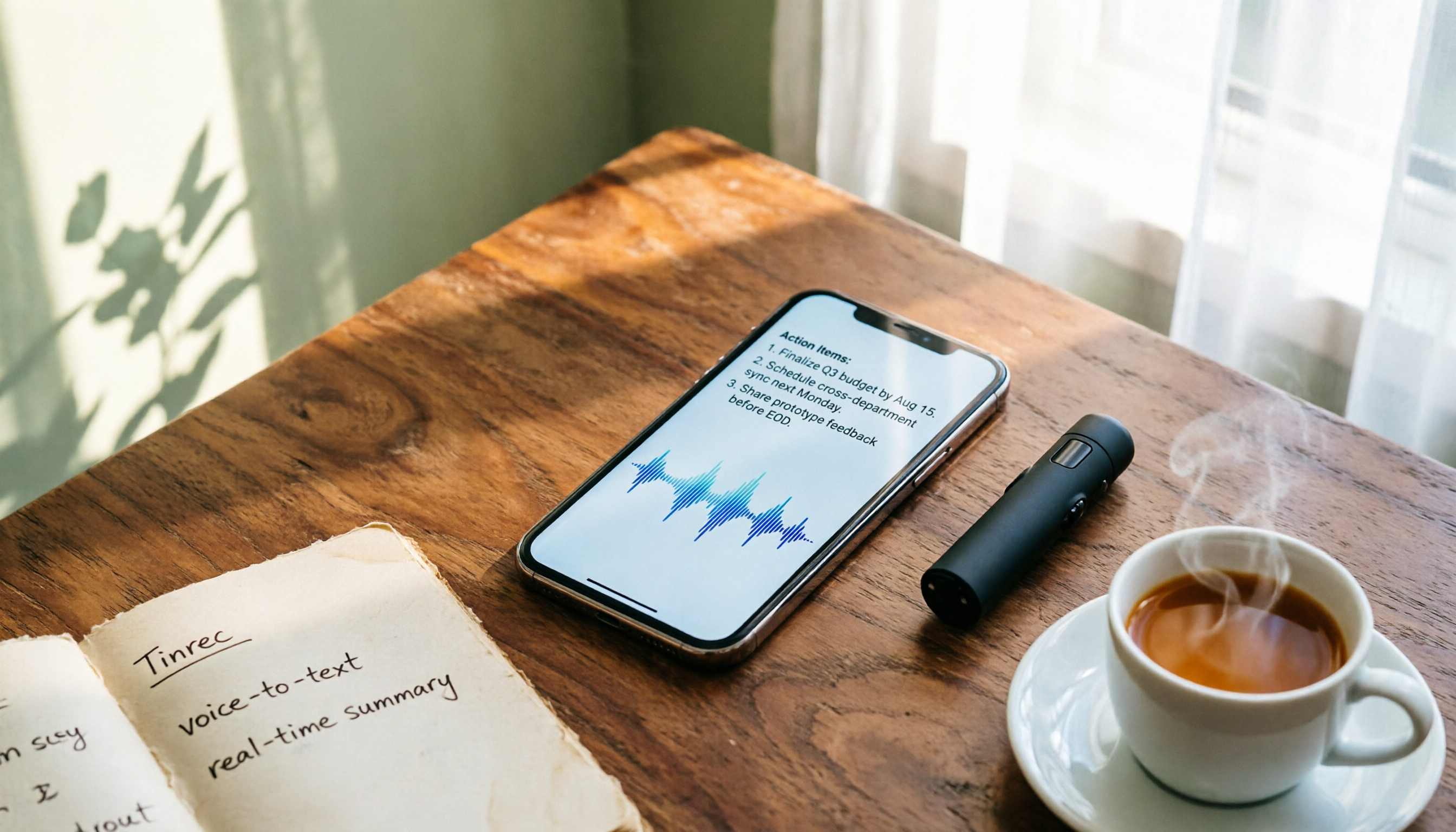
If your goal is meeting minutes, interview notes, or quick transcripts, the built-in Voice Memos only handles the "recording" part; you still have to manually organize everything. Tinrec is an AI meeting notes and collaboration tool that works on iPhone, integrating recording, transcription, summaries, to-dos, and team collaboration.
Stop organizing recordings by hand
Upload audio or video and automatically get a transcript, summary, and action items
Tinrec supports real-time transcription—text appears as you record, so the transcript is ready when the meeting ends. It also auto-generates AI summaries, chapters, key points, and action items, and supports AI Q&A, so you can ask "What was the meeting conclusion?" or "Who is responsible for what?" Additionally, Tinrec's desktop version can record online meetings (Zoom, Google Meet, Microsoft Teams, Webex) without a bot, so no bot needs to join the meeting.
The personal plan has a free tier with basic credits, suitable for light use. If you have many meetings or need team collaboration, consider Pro or Team plans. The Team plan offers team spaces, member roles and seat management, usage analytics, audit logs, and audio recycle bin, ideal for departments or project teams to centralize meeting data.
Side-by-Side Comparison of 4 Solutions
| Solution | Price | Recording Method | Transcription | AI Organization | Best For |
|---|---|---|---|---|---|
| Built-in Voice Memos | Free | Real-time recording, supports external mics | No | No | Casual recording, personal notes |
| Quick Recording Shortcuts | Free | Back Tap / Action Button one-touch start | No | No | Scenarios needing quick start |
| Plaud Hardware Recorder | Device from ~$150, plus subscription for AI features | Standalone hardware recording, can record phone calls | Requires companion app | Has summaries, templates | Portable recording, phone call recording, when you don't want to use your phone |
| Tinrec | Free plan; Pro monthly/yearly; Team pricing separately | Real-time recording on phone, desktop bot-free online meeting recording, file import | Real-time transcription | Summaries, chapters, to-dos, AI Q&A, translation, export | Meeting notes, interviews, class notes, team collaboration |
Buying Advice: Choose Based on Your Needs
- If you only need simple recording occasionally: The built-in Voice Memos is enough—zero cost.
- If you frequently need quick recording (e.g., journalists, salespeople): Set up Back Tap or Action Button for the fastest start.
- If you value portability and standalone recording (e.g., don't want to use your phone, or need to record calls): Consider the Plaud hardware recorder, but be aware of the device cost and subscription fee.
- If you need to quickly turn recordings into text, summaries, or share with your team: Tinrec is currently the most integrated option; the free plan lets you test transcription and AI summaries, so we recommend downloading it to try.
Overall, if you just need to record, the built-in features work great; but if you want meeting data that's "ready to use" right after recording, Tinrec is worth a try.
References
- Record audio in Voice Memos on iPhone - Apple Support (Taiwan)
- iPhone Recording Made Easy: One-Tap Quick Self-Protection at Critical Moments
- Complete Guide to iPhone Recording: Beyond Voice Memos, This Tool Can Also Record LINE and Zoom Calls!
- Record audio and video on iPhone - Apple Support (Taiwan)
- How to Record Audio and Voice on iPhone with 3 Simple Methods
Turn every recording into actionable outcomes
Get 60 free transcription minutes when you sign in. No credit card required.
Related Reading
You might also like

2026 Audio-to-Text Comparison: Tinrec vs Otter.ai for Chinese Meetings & Team Knowledge
How to choose an audio-to-text tool in 2026? This article compares Tinrec and Otter.ai across 5 dimensions: Chinese meeting transcription, bot-free online meeting capture, audio file organization, post-meeting workflows, and team data governance. Based on public features and pricing, it helps you decide which is better suited for meeting notes needs in Taiwan.

How to Choose an Online Audio-to-Text Tool in 2026: 5 Steps to Pick the Right One and Get a Transcript
How do you choose an online audio-to-text tool? This article reviews 6 online options—Tinrec, MyEdit, cSubtitle, CyberLink, Yating Transcript, and Monica—comparing free quotas, Chinese recognition, export formats, and team collaboration. It also walks you through 5 steps to turn an audio file into a transcript.

2024 Review of 4 Audio-to-Text Tools: Which Saves the Most Time on Chinese Meeting Transcripts and AI Summaries?
The 2024 audio-to-text comparison isn't just about transcription speed—it's about whether the tool can organize your meeting notes afterward. Based on real meetings and interviews, this review compares Tinrec, Notta, Granola, and PLAUD on audio sources, transcripts, AI summaries, action items, team collaboration, and pricing limits to help you choose the right tool.

4 Free Online Audio-to-Text Tools Compared (2026): Which Offers the Best Free Tier and Chinese Recognition?
A comparison of Tinrec, MyEdit, cSubtitle, and Monica's free online audio-to-text offerings, covering free quotas, Chinese recognition, export formats, and post-meeting AI organization to help you decide which suits meetings, interviews, and subtitles.

4 Free AI Audio-to-Text Tools Tested: Which Free Tier Is Enough in 2026?
There are many free AI audio-to-text tools, but free quotas, single-recording length limits, Chinese recognition, and post-meeting organization capabilities vary widely. This article compares the free plans and use cases of 4 tools, using Tinrec's no-bot recording, AI Q&A, and team spaces as selection references.

2026 Comparison of 2 Online Audio-to-Text Tools: Tinrec vs Otter.ai — Which Is Better for Chinese Meetings?
Starting from common misconceptions, this comparison examines Tinrec and Otter.ai in Chinese meetings, bot-free recording, post-meeting organization, real-time translation, and team data retention to help you decide which online audio-to-text tool fits your daily work.

2026 Comparison of 2 Audio-to-Text Platforms: Free Tiers, Chinese Recognition, and Post-Meeting Organization at a Glance
A side-by-side comparison of Tinrec and Notta across free tiers, Chinese recognition, online meeting recording, post-meeting organization, and team collaboration, helping you decide whether the free version is enough and when to upgrade.

iPhone Voice Memos vs Tinrec in 2026: 5-Dimension Comparison — Is Free Transcription Enough?
iPhone's built-in Voice Memos can now transcribe recordings for free, so do you still need a separate tool? This article compares iPhone's built-in features with Tinrec across 5 practical dimensions and honestly explains where the free limits are, helping you decide which approach fits your meeting volume.

4 Free Audio-to-Text Tools Tested for 2026: Which Free Tier Is Actually Enough?
There are plenty of free audio-to-text tools, but few can handle a full meeting. This hands-on comparison tests the free plans of Tinrec, Otter.ai, Notta, and TurboScribe—breaking down how limits are calculated, transcript post-processing, audio retention, and team collaboration—to help you decide which free version is truly usable.