
Turn recordings into transcripts and summaries in minutes
Upload audio or video for multilingual transcription, AI notes, and action items
What Can iPhone Headphone Recording Do for You?
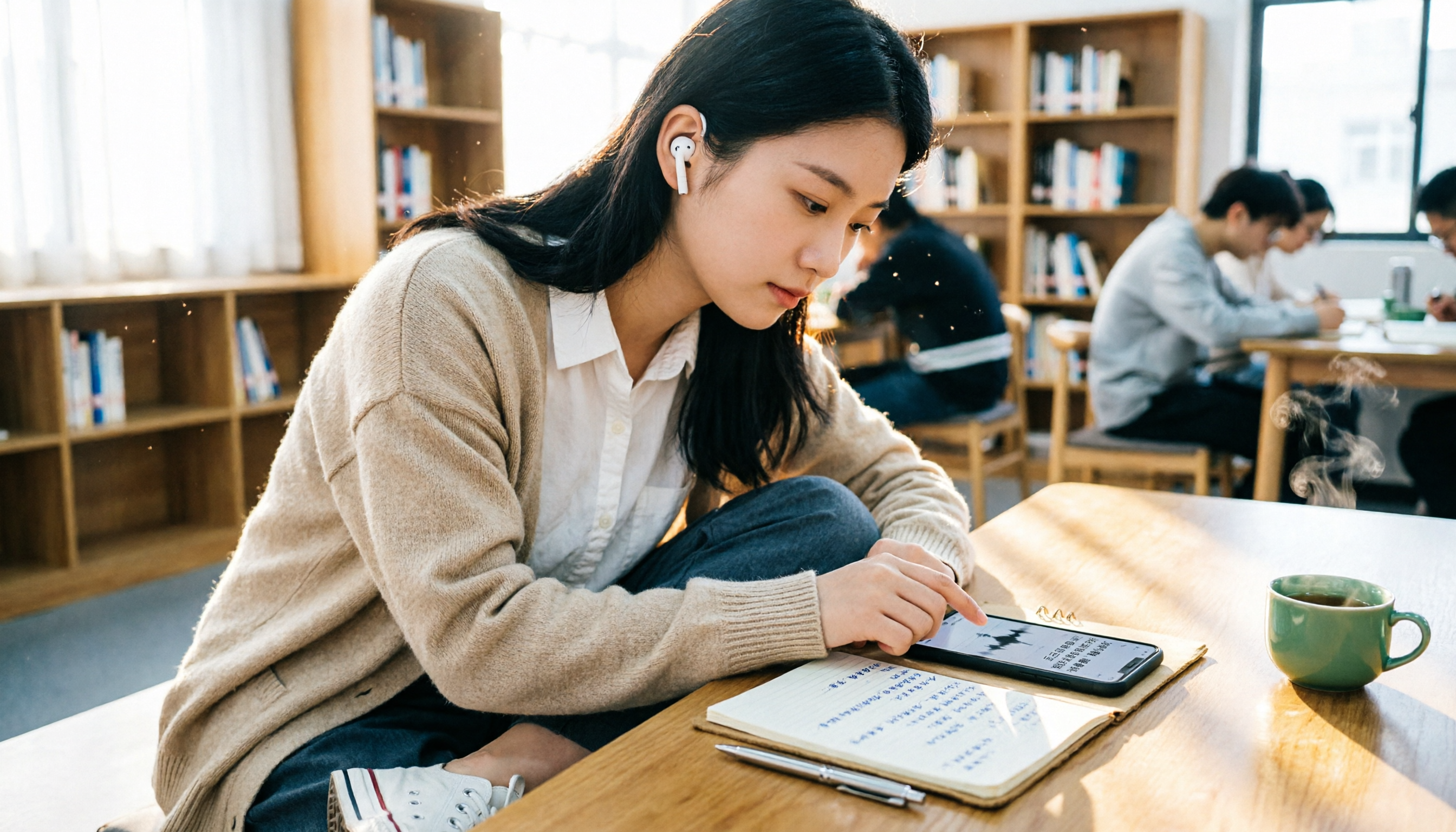
Many people think iPhone recording is limited to the built-in microphone, but connecting earbuds with a mic or AirPods makes recording much more flexible.
Scenario 1: Record lectures without placing your phone on the podium
The professor is speaking at the front, and you're sitting in the middle or back of the room. Relying solely on the iPhone's built-in mic might pick up coughs from classmates and the low hum of the AC. With a mic-equipped headset, you can at least bring the recording source closer to yourself, reducing that hollow, distant sound.
Scenario 2: Turn recordings directly into searchable transcripts
Recording is just the first step. After a two-hour lecture, you won't want to listen to the entire thing. For example, Tinrec lets you upload your audio files and converts them into transcripts, then automatically organizes summaries, chapters, and action items. Before midterms and finals, you no longer need to rewind repeatedly to find key points—just ask AI, "Which part did the professor mention about the midterm scope?" and quickly locate it.
Scenario 3: Capture exactly what everyone said during group discussions
Group projects often suffer from no one remembering the conclusions after the meeting. You can connect your iPhone to earbuds with a mic, place it at the center of the discussion table, record the entire conversation, then use Tinrec to generate a transcript and extract each person's tasks and deadlines. This way, you're not relying on someone's handwritten notes but preserving the original dialogue.
What Are the Core Capabilities of iPhone Headphone Recording?
Use earbuds with a mic instead of the built-in microphone
The iPhone's Voice Memos app can use the built-in mic, supported headsets, or external microphones. This means EarPods or other headphones with mic functionality can serve as recording input sources. Actual recording quality still depends on headphone quality, ambient noise, and recording distance.
AirPods can be used as Bluetooth microphones
AirPods have built-in microphones and can be used as recording input. Some people place one AirPod in the recording environment and use the iPhone to capture audio. However, Bluetooth connections are affected by distance and obstacles, so this isn't recommended as a stable, high-quality remote recording solution.
Automatic transcription and summarization after recording
The iPhone's Voice Memos handles recording, but organizing is still up to you. Tinrec, on the other hand, can automatically generate transcripts, AI summaries, chapters, and key points after recording or importing audio files. For a two-hour lecture recording, Tinrec breaks it into segments and highlights content the professor repeatedly emphasized.
Turn long recordings into a queryable database
After transcription, you can directly ask Tinrec: "What are the exam focus points for this class?" or "What did the group discussion finally decide?" It answers based on the recording content, rather than just throwing a wall of text for you to sift through. This is especially useful for final exam reviews and post-meeting organization.
Supports multiple input sources
Tinrec isn't limited to iPhone-recorded audio; it also supports live recording, desktop online meeting recording, audio/video file import, and mobile recording. So you're not restricted to a single recording method.
Real-World Use Cases: How Students Use iPhone Headphone Recording
Classroom recording
I connect EarPods to my iPhone, open Voice Memos, and record the entire class. When I get home, I import the audio into Tinrec, which transcribes it and automatically organizes chapters. If the professor speaks quickly, I don't need to pause constantly to take notes; I can replay specific parts of the original audio later for clarification.
Interviews and qualitative research
Stop organizing recordings by hand
Upload audio or video and automatically get a transcript, summary, and action items
Graduate students conducting interviews benefit greatly from using earbuds with a mic. After getting consent, I typically place the phone near the interviewee and wear mic-equipped headphones to monitor the recording. After the interview, Tinrec helps me identify keywords the interviewee repeatedly mentioned and organizes them into paragraph summaries, eliminating the need for manual tagging.
Online courses and meetings
For online classes on a computer, Tinrec's desktop version can directly capture system audio, so you don't need to hold earphones near the speaker. This is practical for students who need to operate their computer simultaneously and don't want to be distracted by handwritten notes.
Language learning and transcription practice
Some people record English lectures and then compare transcripts to see which words they missed. Tinrec supports multiple languages and real-time translation, allowing you to view content in the original language or bilingually, turning recordings into language learning materials.
4 Things to Consider When Choosing or Using Recording and Organization Tools
1. Determine whether you need "recording" or "organizing recordings"
The iPhone's built-in Voice Memos can handle basic recording, but if you need to turn large volumes of lecture recordings into searchable, summarized data, you should look for a tool that handles post-processing. Tinrec's focus isn't just transcription—it's about turning long recordings into usable content.
2. Bluetooth headphones aren't ideal as high-stability microphones
AirPods can act as microphones, but Bluetooth connections are prone to interference from distance and obstacles. If you need to record an entire lecture or interview, wired earbuds with a mic are generally more stable than Bluetooth. Poor recording quality will also affect subsequent transcription accuracy.
3. The key is whether you can continue organizing after transcription
Getting a transcript is just the beginning. Some tools only convert speech to text, leaving you to manually find key points. Tinrec offers AI summaries, action item extraction, AI Q&A, and export features, reducing post-class organization time.
4. Whether the free tier is sufficient for your daily use
For students, the free tier's quota is crucial. Tinrec's free version provides basic credits to experience recording, import, summarization, and transcription. You can use the free version for one or two lecture recordings to see if it fits your habits before deciding on a paid plan.
Frequently Asked Questions
Can I record with iPhone headphones?
Yes. The iPhone's Voice Memos app supports recording with the built-in mic, supported headsets, or external microphones. As long as the headphones have mic functionality, they can typically serve as a recording input source.
Can AirPods be used as recording microphones?
Yes, AirPods' microphones can be used as recording input. However, Bluetooth connection stability is affected by distance and obstacles, making them more suitable for close-range use, not as a primary solution for remote recording.
Can iPhone record phone calls?
The iPhone's built-in calling feature doesn't directly provide call recording. Practical methods and limitations depend on iOS version, regional regulations, and carrier services. Before recording calls, you should verify local laws and obtain consent from the other party if required.
How can I quickly organize recordings into key points?
You can import audio files into Tinrec, which automatically generates transcripts, summaries, chapters, and action items. You can then use the AI Q&A feature to ask questions about the recording content directly, without having to listen to the entire thing.
Is the free version enough for students?
If you only occasionally organize lecture recordings or interviews, you can start with Tinrec's free version. It provides basic trial credits, allowing you to assess transcription quality and organization workflow before choosing other plans based on your actual usage frequency.
Conclusion
iPhone headphones can indeed serve as recording input sources, but the real challenge often isn't recording—it's turning hours of content into usable data afterward. Instead of repeatedly listening to recordings before every exam, let Tinrec organize your audio into transcripts, summaries, and action items. The free version lets you try it out first, and once you confirm it fits your lecture and interview scenarios, you can decide whether to commit long-term.
References
- Record audio in Voice Memos on iPhone - Apple Support (Taiwan)
- Use AirPods as a microphone! Recording lectures and evidence - Applealmond
- iPhone call recording made easy! Xiaomi call recording Bluetooth earbuds
- [Question] Can iPhone earbuds be used as a mic on a desktop PC? (Solved) - Bahamut Forum
- Use Live Listen with AirPods or Beats - Apple Support (Taiwan)
Turn every recording into actionable outcomes
Get 60 free transcription minutes when you sign in. No credit card required.
Related Reading
You might also like

3 Ways to Remove Someone from a Teams Meeting in 2026: Don't Confuse Kicking with Canceling
There are three common scenarios for removing members from Teams meetings: kicking someone out during a meeting, removing them from the invite list, and canceling the meeting. This article covers the steps, common pitfalls, and how to use Tinrec to keep post-meeting transcripts and summaries.

2026 AI Meeting Notes Showdown: Tinrec vs Otter.ai for Chinese Meetings
Tired of replaying an hour-long recording after a meeting? This hands-on comparison of Tinrec and Otter.ai tests five dimensions: bot-free recording, Chinese and mixed Chinese-English transcription, post-meeting summaries and AI Q&A, team knowledge retention, and historical meeting organization. It also outlines a ready-to-use AI meeting summary workflow and buying advice to help you decide which tool fits your meeting scenarios.

5 AI Meeting Notes Tools Compared for 2026: Examples & Prompt Templates
Tired of endless meeting notes? This article breaks down AI meeting notes with real examples: a three-part summary, action items, and prompt templates. It also compares five common tool approaches and explains how Tinrec uses bot-free desktop recording, AI Q&A, and team spaces to turn a meeting into searchable, trackable team knowledge.

2026 AI Meeting Notes Tools Compared: How to Calculate Costs Without Getting Burned
AI meeting notes tools don't use the same pricing unit: some charge monthly, some per minute, some per hour. This article converts 5 mainstream options to a "cost per meeting hour," breaks down hidden costs like free plan ceilings, overage charges, and manual cleanup time, and uses Tinrec's team plan as a real example to help you bring numbers to your procurement meeting.

2026 AI Meeting Notes Tools Compared: Which One Produces a Ready-to-Use Meeting Minutes Table?
A meeting minutes table is not a copy-paste of the transcript. Starting from 'what the table should look like and how to choose a tool,' this article tests and compares Tinrec, Notta, Otter.ai, and Granola on Chinese meetings, bot-free recording, post-meeting organization, and team collaboration. It also includes ready-to-use minutes table fields and AI prompts to help you pick the one that truly produces a usable minutes table.

4 AI Meeting Transcription Tools Compared for 2026: From Transcripts to Summaries, Which Saves You the Most Time After Work?
A mid-level manager who attends over a dozen meetings per week tested 4 AI meeting transcription tools, covering bot-free recording, Chinese and mixed Chinese-English recognition, summary and action item extraction, team spaces, seats, and auditing. The article explains 5 key points to consider before purchasing, 4 common pitfalls, and the suitable scenarios and limitations of Tinrec, Otter.ai, Notta, and PLAUD.

4 AI Meeting Note Tools Tested for 2026: Which Saves the Most Time After Applying Templates?
Meeting notes often go unfinished not because of slow typing, but because there's no template from the start. This article compiles two ready-to-copy meeting note templates for corporate meetings and team weekly meetings, explains how to apply AI tools and connect post-meeting outputs, and compares Tinrec, Otter.ai, Granola, and Notta in real tests on Chinese meetings and template workflows.

2026 AI Meeting Notes Tools Compared: Free Tiers and Chinese Recognition Are Key
Starting from three questions—where your meetings happen, what language they're in, and who needs the notes—this hands-on comparison of Tinrec, Otter.ai, Notta, and PLAUD covers the meeting notes workflow, plus four buying criteria, four common mistakes, and a six-step post-meeting workflow you can copy directly.

2026 AI Meeting Transcription Tools Compared: Tinrec vs Otter.ai vs Notta vs TurboScribe
Many people struggle to organize meeting transcripts after recording. This article starts with common inefficient practices and compares the meeting documentation workflows of Tinrec, Otter.ai, Notta, and TurboScribe. It breaks down the steps from recording to transcript, summary and action items, AI Q&A, and team knowledge retention, and provides buying criteria and pitfalls to avoid.