
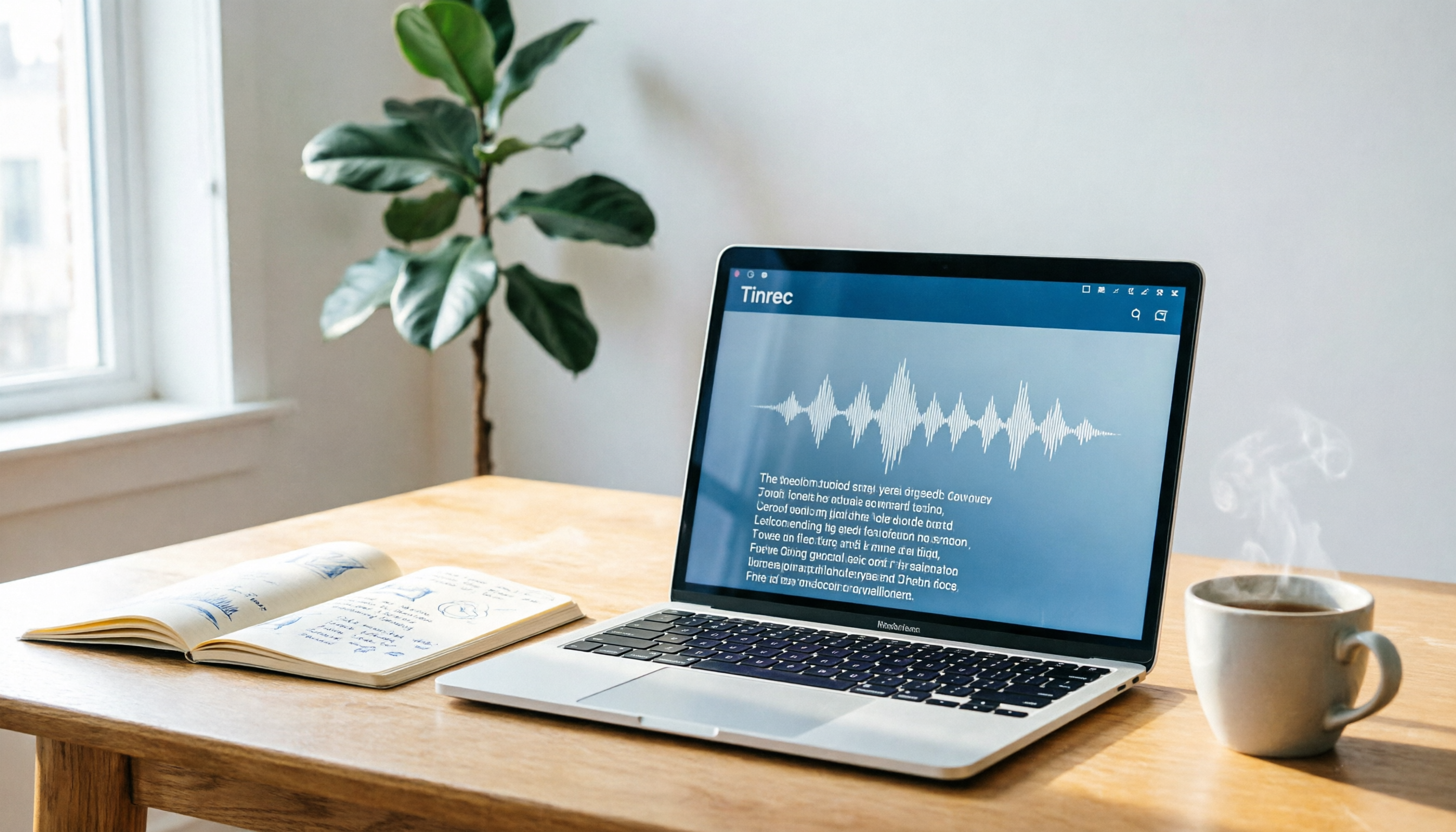
Turn recordings into transcripts and summaries in minutes
Upload audio or video for multilingual transcription, AI notes, and action items
Before Downloading Notta for Mac, Decide: Do You Need Transcription or Meeting Summaries?
Many Mac users search for "notta download mac" to convert meeting discussions into text. But if you just find a download link, install the app, and still have to manually organize the transcript, the core problem remains unsolved.
Based on hands-on experience with Tinrec, transcription is only the first step. On Mac, Tinrec doesn't just convert audio to text—it also generates summaries, chapters, key points, and action items, turning meeting content directly into actionable work material.
So this guide doesn't tell you to blindly download any app. Instead, it helps Mac users understand common pitfalls before downloading and why Tinrec is better suited for those who need Chinese meeting organization.
3 Common Mistakes When Downloading Recording-to-Text Tools on Mac
Mistake 1: Assuming "Has a Mac Version" Means "Great Mac Experience"
Some tools offer a macOS version, but it's actually an emulator or web wrapper, resulting in laggy interfaces and unresponsive shortcuts. Tinrec's desktop app natively supports macOS—after installation, you can launch it directly from the Applications folder or Launchpad.
A more practical difference: Tinrec stays in the menu bar after you close the main window on macOS, making it easy to start recordings, check status, and adjust settings quickly. For those who need to operate during meetings, this is far more convenient than reopening the window every time.
Mistake 2: Thinking the App Automatically Records All Meetings
Many tools require adding a meeting bot to Zoom, Google Meet, or Microsoft Teams, which means an extra participant in your meeting invite—something some people find intrusive. Tinrec takes a bot-free approach: the desktop app directly captures your Mac's system audio, so no bot needs to join your meetings.
Note: This doesn't mean Tinrec automatically joins all calendar meetings. You need to manually start a recording in Tinrec, but you won't have to let a bot into the meeting room.
Mistake 3: Focusing Only on Free Transcription Minutes, Ignoring Post-Transcription Organization Costs
Free minutes matter, but if you record a two-hour meeting and get a long transcript, then spend another hour extracting key points yourself, you've only saved typing time. Tinrec's value lies in automatically generating summaries, chapters, and action items after transcription—you can even use AI Q&A to ask, "Who mentioned the budget in the meeting?"
Key Differences Between Notta for Mac and Tinrec
Notta and Tinrec do overlap in multi-device transcription, meeting notes, file import, and translation. But for the most common meeting scenarios Mac users face, several key differences stand out.
Notta's free plan offers 120 minutes per month, with a 3-minute limit per recording; paid plans provide more minutes and team features. If you occasionally organize short audio files, such tools can suffice.
Tinrec takes a different approach. It emphasizes the "post-meeting workflow": generating summaries, extracting action items, using AI Q&A for follow-ups, exporting to Notion or Google Docs, and storing meeting data in team spaces. For those with 5+ meetings per week, this is more impactful than raw transcription minutes.
Another Mac-specific difference is bot-free recording. Tinrec's desktop app captures system audio directly, so you don't need to invite bots to Zoom, Meet, Teams, or Webex. This is a more comfortable option for those who dislike unfamiliar participants in meetings.
Stop organizing recordings by hand
Upload audio or video and automatically get a transcript, summary, and action items
4 Decision Points for Mac Users
1. Native macOS Support vs. Emulator Solutions
Before downloading, check if the tool offers a native macOS version. Tinrec provides native installers for macOS and Windows on its official site, with the system automatically detecting your OS and downloading the right version. After installation, launch it from the Applications folder.
2. Can It Record Online Meetings Without Bots?
If you frequently use Zoom, Google Meet, or Microsoft Teams, bot-free recording is a key consideration. Tinrec captures your Mac's system audio directly, so no extra participant is needed in the meeting.
3. Does It Produce Usable Meeting Output After Transcription?
A transcript is just raw material. Tinrec goes further by generating summaries, chapters, and action items, plus AI Q&A, multi-format export, and Agent post-processing. You can turn meeting results directly into reports, tables, or meeting minutes.
4. Handling of Chinese and Multilingual Meetings
If you often have Chinese meetings, mixed Chinese-English conversations, or cross-language communication, transcription and translation quality directly impact efficiency. Tinrec covers Chinese, Traditional Chinese, and multilingual meeting scenarios, with real-time translation and team-specific terminology.
How to Use Tinrec on Mac for a Complete Meeting Workflow
Step 1: Download and Install Tinrec Desktop
Go to the Tinrec official website and find the desktop download page. The system will automatically detect macOS and download the .dmg installer. Open it, drag Tinrec to the Applications folder, then launch from Launchpad.
Step 2: Log In and Start Recording
After logging in, select the "Record" feature. During online meetings, Tinrec captures your Mac's system audio, transcribing in real time. You can view the original text, translation, or bilingual content simultaneously.
Step 3: Generate Summary and Action Items
After recording, Tinrec automatically generates a summary, chapters, key points, and action items. You can quickly review the meeting topic, conclusions, and responsible persons without reading the entire transcript.
Step 4: Export or Continue with Q&A
For further organization, export to Notion, Google Docs, or OneNote, or use AI Q&A to ask about meeting details. Team users can save meeting data to a shared team space for others to view and search.
FAQ
Does Tinrec have a Mac version?
Yes. Tinrec offers a native macOS desktop app, downloadable as a .dmg from the official website. After installation, launch it from the Applications folder or Launchpad; it stays in the menu bar after closing the main window for quick access.
Which is better: Tinrec or Notta for Mac?
There's no absolute winner—it depends on your needs. Notta is comprehensive in multi-device transcription, translation, and file handling. Tinrec excels in bot-free meeting recording, Chinese meeting organization, AI Q&A, action item extraction, and team spaces. If you need "post-transcription meeting organization and collaboration," Tinrec is a better fit.
Can Tinrec record Zoom or Google Meet meetings on Mac?
Yes. Tinrec's desktop app captures your Mac's system audio, recording online meetings on Zoom, Google Meet, Microsoft Teams, and Webex without requiring a bot to join.
Is Tinrec's free plan sufficient?
For light use, the free plan is a good starting point to experience recording, import, summary, and transcription basics. If you have consistent weekly meeting needs, consider the Pro or Team plan based on usage.
What should I keep in mind when using Tinrec for recording and transcription?
Transcription quality depends on recording clarity, background noise, accents, and overlapping speech. Tinrec significantly reduces manual organization effort, but for critical content, cross-check the transcript timestamps with the audio playback. Also, comply with local laws and obtain consent from participants when required.
Conclusion
People searching for "notta download mac" usually don't just want a download link—they want a reliable way to turn meetings into usable data on their Mac. Tinrec offers a more practical alternative with bot-free recording, Chinese meeting organization, AI summaries, and team spaces. If you have weekly meetings that need recording and organizing, give Tinrec for Mac a try.
References
- Notta for Mac - Download it from Uptodown for free
- Notta for Mac - Free download and software reviews - CNET Download
- Notta - Desktop App & Mobile App - Mac, Windows, Android, iPhone & iPad - WebCatalog
- Getting Started with Notta Desktop – Notta - Help Center
- Download and run Notta-Transcribe Audio to Text on PC & Mac (Emulator)
Turn every recording into actionable outcomes
Get 60 free transcription minutes when you sign in. No credit card required.
Related Reading
You might also like

2026 AI Meeting Notes Online Tools: No-Bot Recording + Auto Summaries & Action Items
Recorded meetings but never open the audio files? This guide covers key factors for choosing AI meeting notes tools in 2026—how meeting audio gets in, what you can do beyond transcripts, and how to retain team knowledge. It includes hands-on testing of Tinrec's no-bot recording, AI summaries, and post-meeting Q&A, plus a quick look at who Otter.ai, Granola, and TurboScribe are best for, along with 4 common pitfalls to avoid.

Free AI Meeting Notes Online in 2026: No-Bot Recording + Auto Summaries & Action Items
How to choose a free AI meeting notes tool? This article examines four key factors: free quota, meeting capture method, post-meeting AI organization, and team data ownership. It compares the free plans and limitations of Tinrec, Otter.ai, Notta, and Granola, and provides four common pitfalls to avoid plus selection advice to help you find the tool that truly lets you finish on time.

2026 Tinrec AI Meeting Notes Review: Auto Summaries + Action Items Made Easy
2026 AI meeting notes tool comparison: hands-on testing of Tinrec, Otter.ai, Notta, and PLAUD Note, comparing Chinese transcription, AI summaries, bot-free recording, and team collaboration to help you find the most time-saving meeting notes solution.

2026 AI Meeting Recorder Comparison: 4 Tools Tested for Chinese Transcription, AI Q&A, and Team Knowledge Retention
The meeting ending is just the beginning of the pain? This article compares Tinrec, Notta, Otter.ai, and PLAUD across four dimensions: meeting capture method, post-meeting outputs, Chinese recognition, and data ownership, plus key pitfalls to avoid with team seats and pricing.

2026 AI Meeting Notes App Comparison: Is the Free Version Enough, and Which One Actually Saves You Time?
Many people think an AI meeting notes app is just speech-to-text, but they still end up with a transcript they have to organize themselves. This article starts with common misconceptions and explains what to really look for in AI meeting notes generation: summaries, chapters, action items, AI Q&A, export, and team collaboration. Using Tinrec as an example, it helps you decide whether the free version is enough and whether the team version fits, plus 5 buying tips and FAQs.

2026 AI Meeting Recorder Apps Compared: Which Free Version Is Good Enough?
The meeting ends, but the overtime begins. This hands-on comparison of Tinrec, Otter.ai, Notta, and PLAUD looks at free quotas, how online meetings get recorded, post-meeting output, and data ownership. It also covers four common pitfalls to help you handle meeting notes without spending money.

2026 AI Meeting Notes Software Comparison: Tinrec vs Notta — Which Better Understands Chinese-Speaking Teams?
A hands-on 2026 comparison of Tinrec and Notta, two AI meeting notes tools, analyzed across five dimensions: bot-free recording, post-meeting organization, team collaboration, Chinese-language experience, and pricing, to help Chinese-speaking teams choose the right meeting notes tool.

Best AI Meeting Recorder for 2026: Auto Summaries + Action Items in One Tool
Starting from the Friday afternoon meeting pain point, this guide covers 5 key factors for choosing an AI meeting recorder, using Tinrec as the main example to explain bot-free online meeting recording, automatic summaries, action item extraction, AI Q&A, and team collaboration. It also honestly lists the positioning and pricing of Otter.ai, Granola, and PLAUD, with a pitfalls guide and scenario-based selection advice.

How Much Does AI Meeting Notes Cost in 2026? 5 Steps to Choose the Right Platform Without Pitfalls
AI meeting notes platforms range from free to $30 per month. The difference isn't just price—it's the billing unit. This guide walks you through 5 steps to calculate your reasonable budget, breaks down Tinrec's Personal and Team plan cost structures, and compares actual pricing and free tier limits from Otter, Notta, and Fireflies. Avoid common mistakes like only looking at monthly unit price or treating 'unlimited' as truly unlimited.