
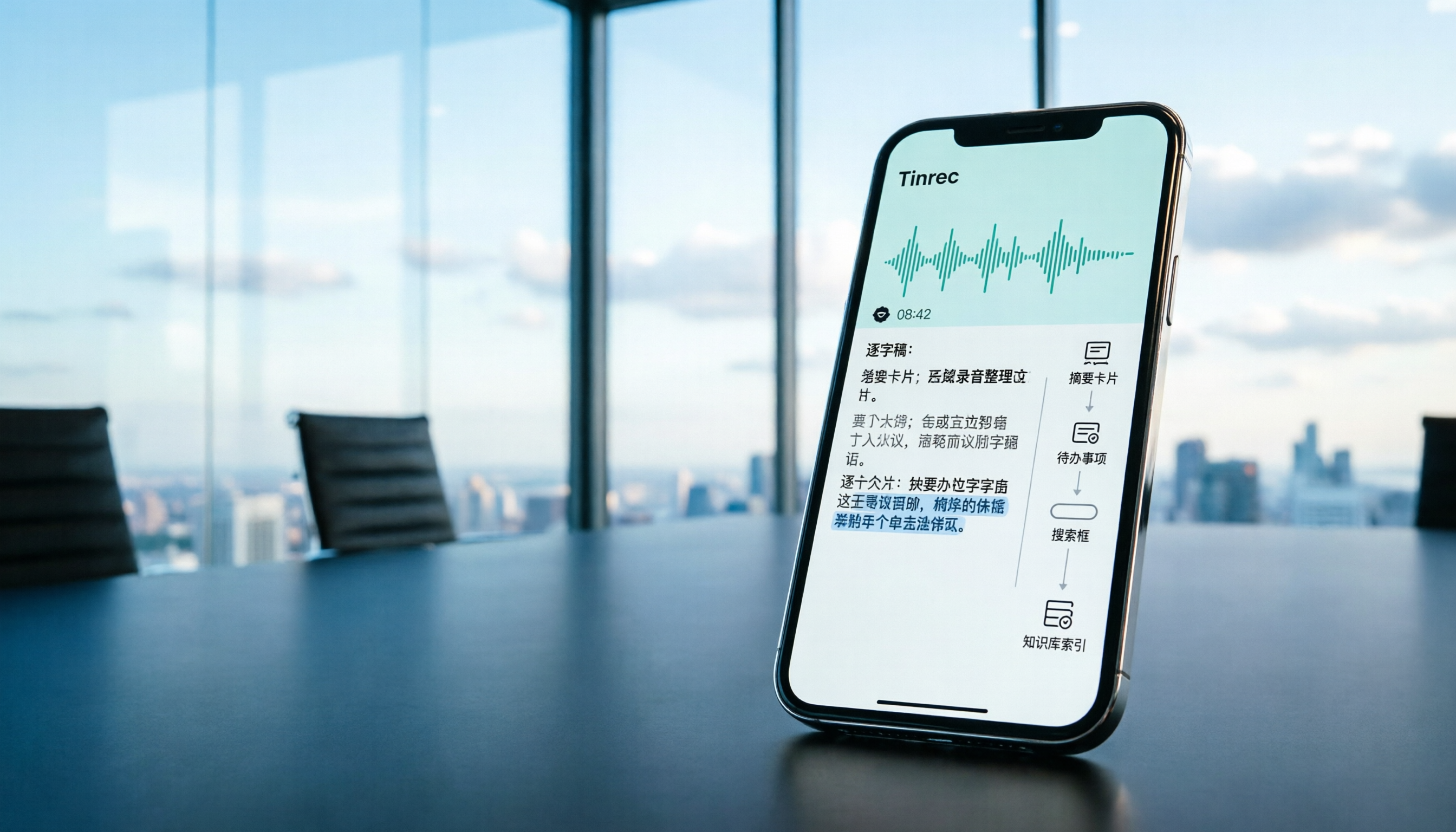
Turn recordings into transcripts and summaries in minutes
Upload audio or video for multilingual transcription, AI notes, and action items
Recently, I was organizing a 90-minute client interview recording.
In the past, I would open the Voice Memos app on my iPhone, play, pause, and manually type out the conversation.
One interview would easily eat up an entire afternoon just for the transcript.
But now, I've switched to a different approach.
It's not about changing the recording tool—it's about changing what I do after hitting stop.
In this article, I want to share that workflow with you.
Why the Real Problem with iPhone Recordings Isn't the Recording Itself
The built-in Voice Memos app on iPhone is actually quite good.
You can start recording instantly, the audio quality is clean, and background noise is less of an issue compared to video recordings.
But what happens after you finish recording?
Hours of audio sit in your phone, too time-consuming to replay and too overwhelming to organize.
That's the real struggle for most people.
So, my approach is to treat recording as the starting point and organization as the main focus.
Step 1: Decide What You Want to Keep from the Recording
Many people hit record as soon as they open the app, only to think about its purpose afterward.
That's backward.
My habit is to ask myself one question before recording: How will I use this recording later?
If it's a meeting, I need action items and decisions.
If it's an interview, I need direct quotes and key insights.
If it's a lecture, I need chapter structure and a reviewable summary.
Different purposes call for different organization methods.
Thinking it through first prevents you from ending up with a pile of recordings you don't know how to use.
(Screenshot placeholder: iPhone Voice Memos recording list, arrow pointing to the naming field before recording, indicating to name it by purpose)
Step 2: When Recording on iPhone, Choosing the Right Tool Matters More Than Choosing an Expensive One
If you only need basic recording, the built-in Voice Memos app is sufficient.
It's free, intuitive, offers stable audio quality, and syncs across iPhone, iPad, and Apple Watch.
But if you need to convert recordings to text right after, you'll want to consider different tools.
I first tried manually organizing Voice Memos recordings.
That worked fine for short recordings, but for meetings over 30 minutes, the cost of replaying was too high.
Later, I switched to AI transcription tools like Tinrec.
It lets you record directly and transcribe in real time, so you have a text version as soon as you're done.
The key isn't how advanced the recording features are—it's skipping the most time-consuming part: replaying and typing.
(Screenshot placeholder: Tinrec recording interface, arrow pointing to the real-time transcript area, indicating transcription while recording)
Stop organizing recordings by hand
Upload audio or video and automatically get a transcript, summary, and action items
Step 3: Don't Just Save the Recording—Do These Three Things First
An audio file itself has no value; organized content does.
After recording, I always do three things.
First, generate a summary.
No need to replay everything—let AI pull out the key points from the entire recording.
Second, extract action items.
Any "things to do later" mentioned in the meeting get turned into a clear list.
Third, mark timestamps.
Highlight important sections so you can jump back without listening from the start.
Once these three steps are done, the raw recording becomes a quick-reference document.
(Screenshot placeholder: Tinrec summary and action items, arrow pointing to the to-do list, indicating automatic extraction from the recording)
Step 4: Turn the Recording into a Searchable Database
This is what I do most often these days.
After organizing the summary and action items, I don't just stop at reading.
I continue to ask questions about the recording content.
For example, after a client interview, I might ask: "What budget constraints did the client mention?"
Or after a meeting, I ask: "What was the decision from the last discussion?"
The tool pulls answers directly from the recording, so I don't have to scan the entire transcript.
This turns the recording from a file into conversational data.
(Screenshot placeholder: Tinrec AI Q&A interface, arrow pointing to the question box, indicating follow-up questions about the recording)
Step 5: Keep the Recording Data Usable
The final step is to get the organized content out of the recording tool.
Meeting notes can be exported to Google Docs, action items can be turned into tables, and key summaries can go into Notion.
If you're working in a team, you can also put the recording and transcript in a shared team space.
New members can search past meeting materials without asking around.
When someone leaves, the data doesn't disappear with them.
Recordings become a team asset, not just a file on someone's phone.
(Screenshot placeholder: Tinrec export options, arrow pointing to Google Docs and Notion, indicating export to common tools)
A Repeatable Recording Organization Workflow
Let's recap my approach.
Before recording, think about what you want to keep from it.
While recording, choose an AI tool that can directly transcribe to text, saving you from manual work.
After recording, start with a summary, action items, and timestamps.
Then, turn the recording into a searchable database.
Finally, export the content to your everyday tools or share it in a team space.
This workflow doesn't depend on a specific app.
The built-in Voice Memos can handle the first two steps, but if you frequently record meetings, interviews, or lectures, picking an AI tool that can transcribe and organize will make the later steps much easier.
You can start simple: before your next recording, write down its purpose.
Then, after recording, try to organize three things: a summary, one action item, and one key timestamp.
Test it step by step, and you'll gradually master this method.
References
Turn every recording into actionable outcomes
Get 60 free transcription minutes when you sign in. No credit card required.
Related Reading
You might also like

Tinrec vs PLAUD Note in 2026: 5-Dimension Comparison — Which Is the Better Meeting Notes Assistant?
The real hassle begins after the meeting ends. This comparison examines five dimensions — online meetings, hardware requirements, post-meeting organization, Chinese recognition, and team sharing — to compare the software-based Tinrec with the hardware-based PLAUD recorder (Note, Note Pro, NotePin). It lists actual pricing and limitations to help you decide which approach fits your meeting style.
Best Free Vocal AI Splitters in 2026: 5 Options Reviewed
If you want to split a song into vocals, drums, and bass for practice or karaoke, a free vocal AI splitter can get the job done. This guide covers 4 online stem-splitting tools, honestly explains each one's free-tier limits, and then addresses a step most people overlook: how to turn isolated vocals into a transcript and key takeaways.

2026 AI Vocal Tools Compared: Singing Generation vs. Speech-to-Text — How to Choose
People searching for 'vocal ai singer' actually have three different needs: generating singing vocals, converting timbre, and turning recorded vocals into usable text. This article first clarifies the differences among these three tool categories, then uses Tinrec to demonstrate the complete workflow of speech-to-text and post-meeting organization, along with key buying considerations and FAQs.
Vocal AI Cover Tutorial 2026: 5 Tools Tested + No-Install Workflow
Want to try vocal AI covers? The first decision isn't which tool is best—it's whether to use existing voices or clone your own. This guide compares five browser-based tools: Musicfy, Jammable, VoiceDub, Vocalize, and Vocal Remover. It breaks down the process into five steps and covers advanced tips like pitch adjustment and multi-voice harmonies, plus copyright considerations.

Tinrec vs Vocol 2026: 5-Dimension Comparison for Online Transcript Editing
Tinrec and Vocol take different approaches to speech-to-text: Tinrec focuses on bot-free recording and post-meeting AI workflows, while Vocol emphasizes online transcript editing and subtitle export. This article compares them across 5 dimensions—meeting capture, transcript editing, AI follow-up, multilingual support, and team collaboration—to help you decide which fits your workflow.

2026 Comparison of 4 Free Speech-to-Text Tools: Vocol vs. Tinrec — Which Free Tier Is Enough?
Most people searching for 'Vocol free version' really want to know if the free quota can cover a month's worth of meetings. This article examines four free speech-to-text tools—Vocol.ai, Tinrec, Otter.ai, and TurboScribe—based on quota units, language support, post-meeting organization, and data retention. It also highlights common pitfalls when choosing a free version and offers scenario-based recommendations.

2026 AI Voice Recorder Comparison: Plaud Note Pro vs Tinrec and More
Looking for the latest Plaud recorder in 2026? We compare Plaud Note Pro, Plaud Note, NotePin, and Tinrec (no extra hardware) across online meeting recording, Chinese summaries, post-meeting Q&A, and team collaboration to help you choose the right AI recording solution.

2026 AI Meeting Notes Tools Compared: Which Vocol Alternative Is Best? Team Collaboration Is Key
Many people search for the best Vocol alternative, but meeting note tools shouldn't be compared only by transcription price. This article examines bot-free recording, post-meeting summaries, AI Q&A, team spaces, and seat governance to explain how Tinrec fills team collaboration gaps, plus a buying checklist and FAQs.
4 AI Meeting Transcription Tools Tested in 2026: How to Use Vocol Referral Codes and Why Tinrec Is Easier
Starting from the real pain points of meeting notes, this article tests and compares four AI meeting transcription tools: Tinrec, Vocol, Otter.ai, and Notta. It also fully explains how to obtain Vocol referral codes and V-points promo codes, redemption steps, and common pitfalls, helping you decide which tool best fits your meeting scenarios.