

Turn recordings into transcripts and summaries in minutes
Upload audio or video for multilingual transcription, AI notes, and action items
After the Meeting, You Realize: Where Did the Recording Go?
Many people hit the record button in Google Meet, and as soon as the meeting ends, they start hunting for the file.
First, they check the Downloads folder—nothing. Then the desktop—still nothing. Finally, they search Gmail, only to find a bunch of meeting invitations, but the recording is nowhere to be seen.
This isn't your fault—it's just that Google Meet's storage logic is different from typical software.
Google Meet recordings don't save directly to your computer; they're automatically uploaded to the cloud. More precisely, they're stored in the meeting organizer's Google Drive.
So, if you're not the organizer, it's normal not to find the recording in your own Drive.
This article breaks down 4 ways to locate Google Meet recordings, including how to download, share, and what you can do after recording.
Before You Search for Your Google Meet Recording, Know These 3 Things
Before you start looking, three key factors directly affect whether you can find the recording.
Are you the meeting organizer?
Google Meet recordings are only saved to the organizer's Drive—not to whoever pressed record. If you're an invited participant, even if you hit record, the file still goes to the organizer.
Does your account have recording permission?
Not all Google Meet accounts have recording capabilities. Generally, you need a paid Google Workspace plan, such as Business Standard, Business Plus, Enterprise, or Education. Free personal Gmail accounts typically can't use the recording feature.
Recording processing takes time.
After the meeting ends, Google needs time to process the recording. It can take a few minutes, or longer depending on the meeting length. If you look right away, the folder might still be empty. Wait 10–15 minutes, then refresh.
4 Places to Find Your Google Meet Recording
Location 1: The 'Meet Recordings' Folder in Google Drive
This is the primary and most reliable location.
After your first Google Meet recording, the system automatically creates a folder named 'Meet Recordings' in your Google Drive. All subsequent recordings are saved there.
Steps to find it:
- Open Google Drive (drive.google.com).
- Click 'My Drive' in the left sidebar.
- Find and open the 'Meet Recordings' folder.
- Recordings are named after the meeting topic, usually in MP4 format.
If you can't find it in 'My Drive,' check 'Shared with me.' However, note that only the organizer's Drive has this folder; regular participants won't see it automatically.
Location 2: The Meeting Event in Google Calendar
If you scheduled the meeting via Google Calendar, the recording link is automatically added to the event details.
Steps to find it:
- Open Google Calendar.
- Find the original meeting event.
- Click into the event details.
- Look for the recording link in the description or attachments.
This is convenient for attendees. After the meeting, everyone can return to the same Calendar event to see the recording, no need for a separate email.
Location 3: The Recording Notification Email in Gmail
Once the recording is processed, Google sends a notification email.
Recipients include the meeting organizer and whoever pressed record. The email contains a link to the recording—click it to open directly.
If you can't find the recording, search Gmail first. Use keywords like 'Meet recording' or the meeting topic—it's faster than digging through folders.
Location 4: Verify the Recording Actually Started
This sounds obvious, but it happens more often than you'd think.
Some people think they pressed record but didn't, or the network dropped mid-meeting, interrupting the recording.
At the start of the meeting, confirm you see the red 'Recording' indicator or prompt. If unsure, stop and restart the recording rather than waiting until the end to find nothing was captured.
After You Find the Recording: Download, Share, and Follow-Up
How to Download to Your Computer?
In the 'Meet Recordings' folder, right-click the file and select 'Download.' The browser will save the MP4 to your computer's Downloads folder.
If you notice the file is .webm after downloading, that's due to browser or system differences. Typically, downloads from Drive are MP4.
How to Share with Others?
In Drive, right-click the recording and select 'Share.' You can set:
- Anyone with the link can view
- Restricted to specific people
- Allow commenting or editing
Stop organizing recordings by hand
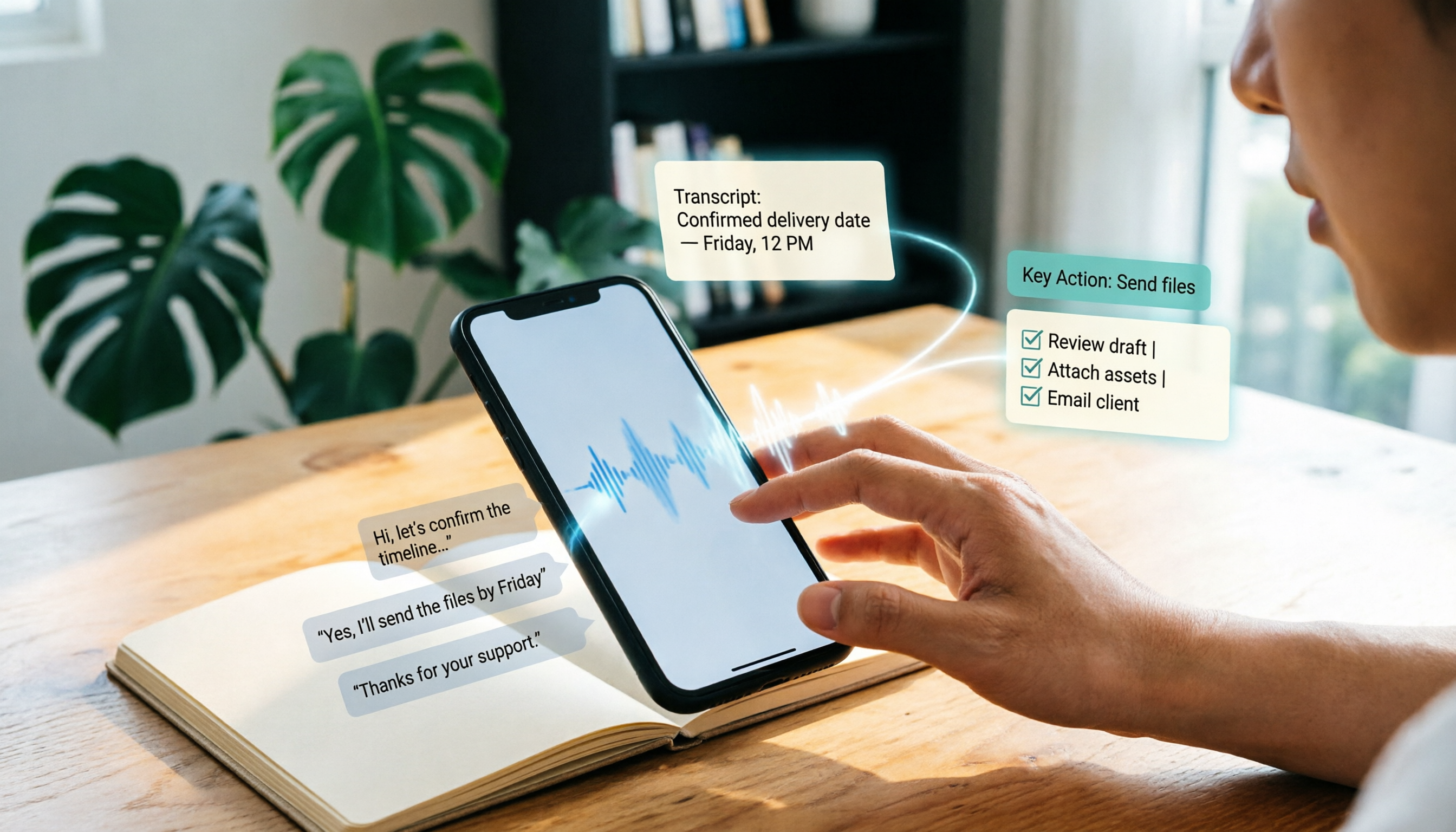
Upload audio or video and automatically get a transcript, summary, and action items
If you got the link via a Calendar event, it usually inherits the event's sharing settings.
After Recording, There's More You Can Do
Google Meet's built-in recording solves the 'capture' problem, but follow-up is still on you.
The reality for many professionals: a 1-hour meeting means another hour re-listening, transcribing, extracting key points, and listing action items. The recording itself isn't the issue—it's what happens after.
If you want to skip the manual work, consider AI meeting tools like Tinrec.
Tinrec works differently from Google Meet's built-in feature. Instead of re-listening, it transcribes the meeting and automatically generates summaries, chapters, highlights, and action items. You can even ask, 'Who mentioned the budget in the last meeting?' and it answers based on the content—not just handing you a transcript to search through.
For anyone with 3+ meetings a week, this kind of tool saves more time than you'd expect.
Beyond Google Meet's Built-in Recording: What Are Your Options?
If Google Meet's built-in recording feels limiting, here are two directions to consider.
Tinrec: Bot-Free Desktop Recording with Instant Summaries
Tinrec is an AI meeting notes tool. Its standout feature is the desktop app that captures system audio directly, recording online meetings on Zoom, Google Meet, Microsoft Teams, and more—no need to add a bot to the meeting.
Compared to Google Meet's built-in feature, Tinrec excels at post-meeting organization. It doesn't just give you a video file; it generates transcripts, summaries, action items, and chapters. You can export results to Notion, Google Docs, and more, or share a team-wide meeting database.
Note that Tinrec is a standalone tool, requiring installation and a learning curve. If you only record a meeting once or twice a year, Google Meet's built-in feature is enough. But if meetings are a regular part of your work, Tinrec gets closer to what you actually need.
Otter.ai: Another Option for English Meetings
Otter.ai is a mature AI meeting assistant, well-known in English business settings. It supports Zoom, Google Meet, Microsoft Teams, with live transcription and AI summaries. The free plan offers 300 minutes per month—generous for occasional use.
However, Otter.ai's strength is English content. If your meetings are in Chinese or mixed Chinese-English, Tinrec offers a smoother experience for Chinese and real-time translation.
Pitfall Guide: 3 Common Mistakes When Looking for Google Meet Recordings
Mistake 1: Assuming the recording saves to your computer.
Google Meet recordings don't auto-download locally. All files are in Drive; you must manually download them.
Mistake 2: Searching the wrong Google account.
Many people are logged into multiple Google accounts and spend ages searching their personal Drive, when the recording is in their work or school account. Before searching, verify which account is active in the top-right corner.
Mistake 3: Recording and never revisiting.
This is the most common and unfortunate case. The purpose of recording is to review and follow up, not to consume Drive space. If you record tons of meetings but never rewatch, maybe the issue isn't the tool but your workflow. Using AI to turn meetings into summaries and action items is more practical than manual re-listening.
Summary: Where Exactly Is Your Google Meet Recording?
The direct answer: The meeting organizer's Google Drive → 'Meet Recordings' folder.
If you're not the organizer, check the Calendar event or Gmail notification for the link. If you can't find it, verify you have recording permission and that the recording actually started.
Once you find the recording, the real challenge begins: turning a 1-hour video into actionable information.
- If you record occasionally, Google Meet's built-in feature is sufficient.
- If you have weekly meetings and need quick summaries and action items, try Tinrec.
- If your meetings are primarily in English, Otter.ai is worth considering.
Start with free plans. Tinrec offers a free version to experience basic transcription and summaries. Upgrade only if it fits your needs—no rush.
FAQ
Where do Google Meet recordings save?
Recordings are automatically saved to the meeting organizer's Google Drive, in a folder called 'Meet Recordings.' They don't save directly to your computer.
Why is there no 'Meet Recordings' folder in my Drive?
The most common reasons: you're not the organizer, or your account lacks recording permission. Free personal Gmail accounts typically can't record.
Can I download Google Meet recordings?
Yes. In Drive, find the recording in the 'Meet Recordings' folder, right-click, and select 'Download.'
How long does recording processing take?
It depends on meeting length and Google's processing status, usually a few to 15+ minutes. If the meeting just ended, wait a bit and refresh Drive.
What if I don't have recording permission?
Ask the organizer to record, or use alternative methods like Tinrec, which records from your computer without needing Google Meet's built-in permission.
How long are recordings stored?
Basically, they stay in Drive until manually deleted. But watch your storage space—recordings can be large.
References
Turn every recording into actionable outcomes
Get 60 free transcription minutes when you sign in. No credit card required.
Related Reading
You might also like

2026 Outlook Teams Meeting Notes Comparison: Which Method Saves the Most Time After the Meeting?
The new Outlook has built-in Teams meeting toggles, making scheduling a 30-second task—but the real cost is post-meeting organization. This guide breaks down the 5 key checks for scheduling Teams meetings in new Outlook, from version identification to account requirements and step-by-step actions, and compares three post-meeting documentation methods: Teams built-in transcription, Otter.ai, Notta, and Tinrec, to help you choose the most time-saving meeting workflow.

5 LINE Call Recording Methods Tested for 2026: Can iPhone and Android Record Both Sides?
LINE has no built-in call recording feature, and iPhone screen recording often captures only your own voice. This guide covers 5 practical LINE recording methods—from iOS 18 built-in call recording and Android screen recording to computer system audio capture—and compares how to use Tinrec to turn recordings into transcripts, summaries, and action items.

5 LINE Call Recording Methods Tested for 2026: Which One Actually Captures the Other Person's Voice?
LINE itself has no call recording button, so the real question is whether you're using a phone or computer, iPhone or Android. This guide covers 5 common LINE call recording methods, whether each captures the other party's voice, and how to use Tinrec afterward to turn audio into transcripts, summaries, and action items—solving both 'recording it' and 'making it useful.'

5 Best Microsoft Teams Meeting Transcription Tools in 2026: From Built-in Recording to AI Summaries
Creating a meeting in Teams takes three clicks, but the real time sink is post-meeting organization. This guide first breaks down the differences between the three entry points for creating Teams meetings—calendar meetings, channel meetings, and Outlook—along with a pre-send checklist. Then it compares five solutions that turn meetings into transcripts, summaries, and action items, helping you move from 'meeting ended' to 'ready to act.'
6 Ways to Save LINE Voice Messages and Calls in 2026: Tested and Compared
Can't find a download option when you long-press a LINE voice message? This article covers 6 methods to save LINE recordings—from sharing to Files on mobile, saving on desktop, Keep notes, to AI transcription tools. We tested which method is least likely to lose files and explain how to turn saved recordings into transcripts, summaries, and action items.

What Is LINE IN Recording in 2026? 2 Recording Solutions Compared: Don't Confuse It With LINE Call Recording
LINE IN recording captures a line-level input signal, which is completely different from recording a LINE call. This article first explains in 3 minutes the equipment, connections, and most common volume misunderstanding for LINE IN, then compares PLAUD NotePin and Tinrec across five dimensions: device requirements, post-meeting organization, scenario coverage, Chinese-language experience, and team collaboration, to help you decide which method to use for preserving important audio.

How to Save LINE Voice Messages to Your Phone in 2026: 5-Step Guide
How do you save LINE recordings to your phone? This guide tackles three common misconceptions and walks you through five steps to download LINE voice messages, convert them to MP3, and back them up to the cloud. It also explains why LINE call recording isn't managed by LINE and how to turn saved audio into searchable, queryable text data.

How to Save LINE Recordings in 2026: 5-Step Guide to Voice Messages, Call Recordings & Backup
LINE recordings come in two types—chat voice messages and call recordings—and they're saved completely differently. This guide walks you through 5 steps to save voice messages to your phone, computer, and cloud, explains how to handle call recordings, covers 4 common mistakes that make files disappear, and shows how to turn saved recordings into searchable, queryable text with AI tools.

3 LINE Voice Message Download Methods Tested in 2026: Which One Actually Works?
LINE doesn't offer an official download button for voice messages, and online tutorials contradict each other. This guide covers three approaches—saving via Keep Notes, sharing to Files, and third-party backup tools—comparing compatible devices, batch capability, and real limitations, plus how to transcribe recordings after downloading.