

Turn recordings into transcripts and summaries in minutes
Upload audio or video for multilingual transcription, AI notes, and action items
Before You Click 'New Meeting' in Teams, Think About One Thing
Click an empty time slot on the Teams calendar, type a title, hit save. Meeting created in three seconds.
But the real hassle never comes from creating the meeting.
It comes after the meeting ends: Where's the transcript? Who's writing the minutes? Who exactly said that decision last week?
So I've split this into two parts. First, the three entry points for creating a Teams meeting, because choosing the wrong container means you won't find your data later. Then a comparison of five solutions that turn meetings into usable data.
Creating the meeting is the starting point; post-meeting organization is the real cost.
Choose Your Container First: Three Entry Points for Creating a Teams Meeting
There are three ways to create a meeting in Teams, and which one you choose determines where the meeting data will live.
Regular calendar meeting: Open the Teams 'Calendar,' pick a time slot, or click 'New meeting.' Enter the title, date, attendees, and agenda. If a Teams meeting option appears, enable it, then save. Suitable for internal discussions and client calls with a clear invite list.
Channel meeting: Use this when the discussion belongs to a specific team. The meeting, chat, and shared resources stay in the existing team channel; all channel members can join, and recordings made during the meeting are stored in the channel.
Outlook: If your scheduling hub is already email, creating from Outlook is smoother—provided your account supports Teams scheduling.
If you're using Teams free, the path is different: switch to the 'Meet' tab, choose to create a meeting link. The link is saved in the 'Meeting links' list and can be joined or shared directly.
Before Sending the Invite, Check These Five Things
My own habit is to always reopen the meeting after saving and take another look.
What to confirm: external attendee addresses, time zone, whether it's a recurring meeting, lobby access, and presenter roles.
And one often-overlooked step—copy the join link and paste it into your own work notes.
(Visual guide: The form after adding an event in Teams calendar, with arrows pointing to the 'Teams meeting' toggle and meeting options entry)
Meeting created. Now comes the part that actually takes time.
Solution 1 | Tinrec — Turn Meetings into Data You Can Query
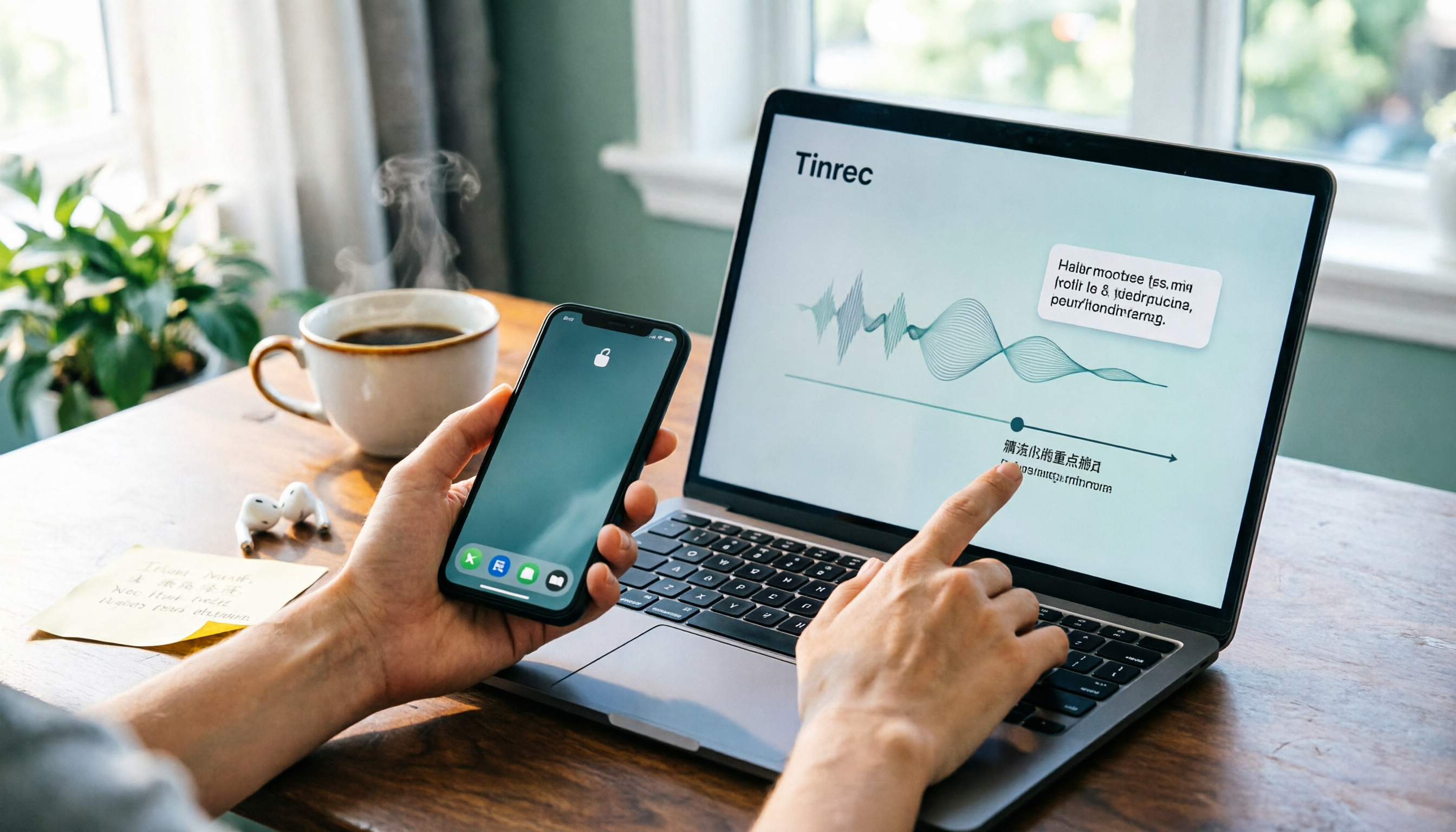
One-line positioning: An AI meeting recording and collaboration tool for individuals and teams; the desktop version captures system audio directly, no bot needs to join your Teams meeting.
First highlight: It doesn't add a 'fourth person' to the meeting. Open the Tinrec desktop app, and audio from Teams, Zoom, Google Meet, and Webex is captured directly from your computer—no bot participant appears in the meeting, and no last-minute changes to the invite list.
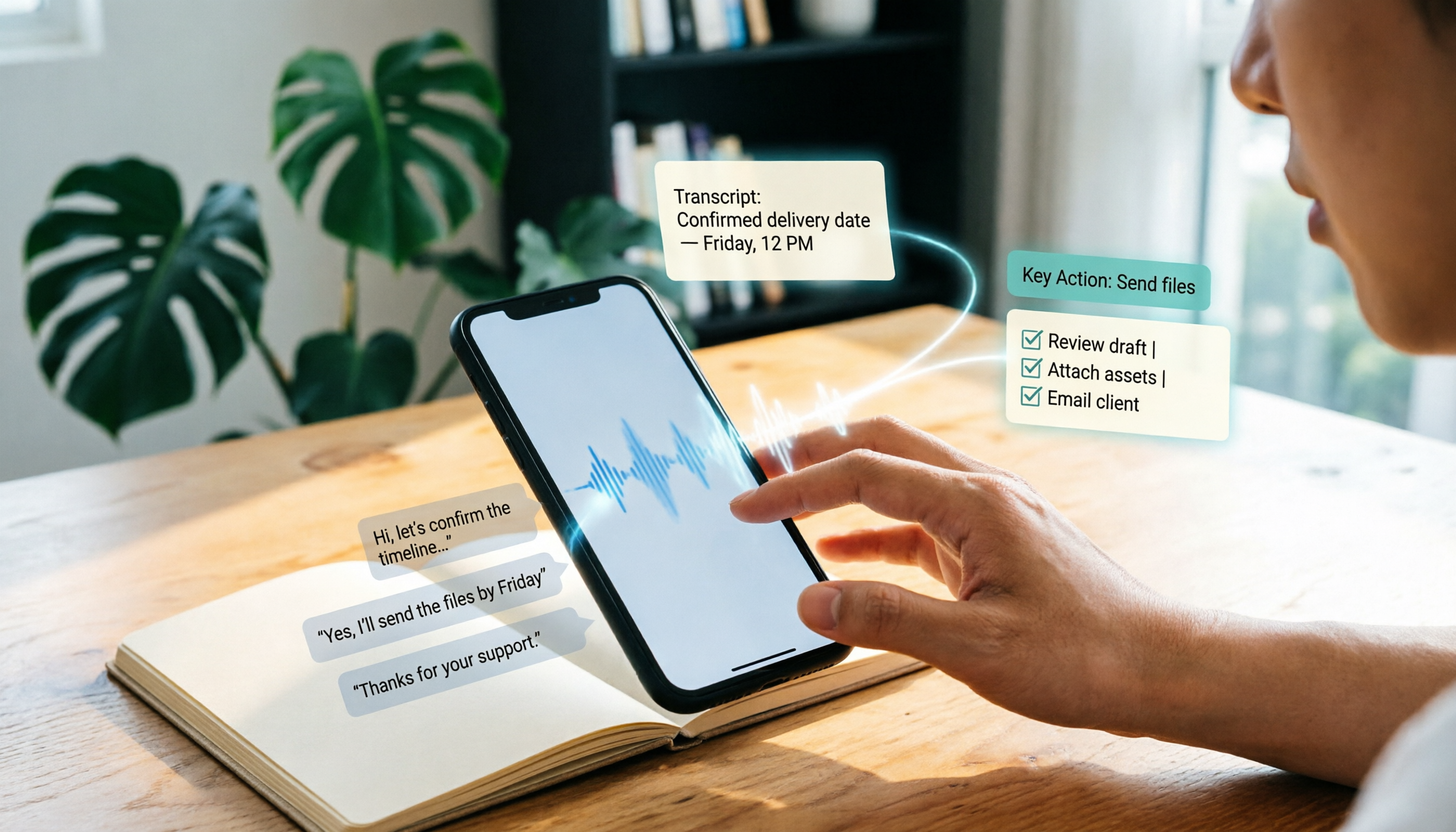
Second highlight: It handles the 'after meeting' part. The transcript is just the starting point; summaries, chapters, key points, and action items are generated together. You can keep asking questions about a specific meeting: 'What was the budget cap the client mentioned?' 'Who proposed this decision?'—without rewinding the recording.
Third highlight: Cross-language meetings. During recording, you can switch between original text, translation, or bilingual view, and mixed Chinese-English discussions can also be organized.
Fourth highlight: Team spaces. Meeting data belongs to the team, not to an individual's account. Roles determine who can manage the team and audit; seats determine who can record, upload, and edit—these are separate concepts.
Plans and pricing: The personal version offers a free tier, weekly pass, Pro monthly, and Pro annual—choose based on usage frequency. The team version offers a 7-day trial for first-time eligible users, 1 free seat, and 300 minutes of shared team import quota. Monthly billing is USD 29.80 per paid seat per month; annual billing is USD 199 per paid seat per year (about USD 16.58/month). Each paid seat provides 2,000 minutes of shared import quota per month. Under current active team plans, live recording does not deduct minutes; only file imports consume shared quota. Actual prices and benefits are subject to the official purchase page.
Who it's for: People with high Teams meeting density who need to follow up and organize after meetings, or who want to turn meeting data into a team asset.
Solution 2 | Microsoft Teams Built-in Recording — Easiest, but Data Stays Put
One-line positioning: No tools to install; the meeting and its recording stay in the original channel.
Its advantage is zero switching cost. Meetings are held in Teams, and recordings and shared resources follow the channel; all channel members can review later. With the free version, you can use the 'Meet' tab to generate a meeting link and quickly share it with contacts.
The limitation is clear: Data stays inside Teams. To turn it into action items, reports, or export to other workflows, you'll need to go the extra mile yourself.
Who it's for: People whose entire company is in the Microsoft ecosystem and who only need retention and review, without further processing.
Solution 3 | Otter.ai — A Mature Choice for English Business Meetings
One-line positioning: A veteran AI meeting assistant covering meeting notes, summaries, and AI Q&A for Teams, Zoom, and Google Meet.
Stop organizing recordings by hand
Upload audio or video and automatically get a transcript, summary, and action items
Highlights: Maturity in English meetings and team management capabilities; smooth for English communication in multinational teams. Free Basic plan: 300 minutes per month; Pro annual billing works out to about USD 8.49 per user per month, including 1,200 minutes of in-app recording and 10 file imports per month; Business offers more recording and import capacity—prices may be affected by promotions, subject to the official pricing page.
Who it's for: Teams whose meetings are primarily in English and who are already comfortable with an English interface and English summaries.
Solution 4 | Fireflies.ai — Most Meeting Automation and Integrations
One-line positioning: An AI meeting assistant known for meeting automation and extensive third-party integrations.
Highlights: Automation workflows and team analytics, suitable for teams connecting meeting notes to sales or project workflows. Annual pricing: Free USD 0, Pro USD 10 per seat per month, Business USD 19 per seat per month, Enterprise USD 39 per seat per month. Note that its 'unlimited' is still subject to storage, upload speed, and AI Credit rules—not all capabilities are completely unlimited. Details are subject to official documentation.
Who it's for: Teams that need to connect meeting outputs to multiple external systems and prefer automation flows.
Solution 5 | Notta — A Middle Option for Multilingual Transcription and Team Plans
One-line positioning: A multilingual transcription tool with heavy overlap with meeting notes, covering multi-device recording, file import, and translation.
Highlights: Multilingual support and clear plan tiers. Free version: 120 minutes per month, max 3 minutes per item; Pro annual billing works out to about USD 8.17 per month, 1,800 minutes per month; Business annual billing works out to about USD 16.67 per seat per month, offering unlimited transcription, role permissions, and usage reports. Subject to the official pricing page.
Who it's for: Teams that need multilingual transcription and also want basic team permission management.
Solution 6 | Granola — Lightweight Personal Meeting Notes
One-line positioning: A bot-free AI meeting notes tool that captures system audio via desktop and combines it with your handwritten notes to generate content.
Highlights: The hybrid experience of 'your notes + AI enhancement,' and it handles cross-meeting context well. Note that it does not support uploading pre-recorded audio files, nor does it save meeting audio; transcripts can be viewed, copied, and searched. Pricing: Basic free, Business USD 14 per user per month, Enterprise USD 35 per user per month, subject to the official pricing page.
Who it's for: Individual users who mainly attend live meetings, don't need to keep audio files, and prefer taking notes while listening.
With So Many Options, How Should You Choose?
My decision order is simple: First ask 'What will I do with this data after the meeting?' Then ask 'What's the tool called?'
• Want a complete post-meeting processing chain (transcription → summary → action items → AI Q&A → export) → Tinrec; this chain is its core design • Meetings are on Teams, but you don't want to add another bot to the meeting → Tinrec desktop captures system audio directly • Need mixed Chinese-English, or even real-time bilingual view → Tinrec supports live translation and bilingual viewing • Multiple team members need to share meeting data, and you need to manage seats, usage, and auditing → Tinrec team version separates roles and seats • Need to keep recordings and also import existing interview files → Tinrec supports both; Granola does not keep audio files • Entire company is in the Microsoft ecosystem and only needs retention and review → Teams built-in recording is enough • Primarily English business meetings, team already used to English interface → Otter.ai • Need to connect meeting outputs to many external systems → Fireflies.ai • Need multilingual transcription plus basic team permissions → Notta • Only need personal live notes, not a full post-meeting workflow → Granola
If right now you just want an answer to 'nothing was left after the meeting,' start with Tinrec.
4 Things to Know When Using Teams for Meetings and Post-Meeting Organization
1. Notify before recording. Before any meeting starts, I always say, 'I'll be recording and organizing this meeting; let me know if you have any concerns.' This isn't just courtesy—recording notification and consent requirements vary by jurisdiction, so it's easiest to be clear upfront.
2. Check lobby and presenter roles before sending the invite. These two defaults are often not what you want. When meeting with external clients, a wrong lobby setting can leave them stuck waiting at the door.
3. For team plans, distinguish roles, seats, and member relationships. Active members can still view, play, and read team data even without a seat; but to record, upload, edit, and export, a seat is required. This is also the biggest difference between the team version and 'multiple people sharing one personal account.'
4. Import quota is shared across the team. File and web imports consume the team's shared import minutes and do not draw from members' personal quotas; live recording under an active team plan and active seat currently does not deduct minutes. This difference directly affects your usage habits.
Conclusion
Creating a Teams meeting takes three seconds, but the organization work afterward determines whether the meeting ever really happened.
Recording a meeting isn't hard; the hard part is making it searchable, queryable, and usable for driving progress two weeks later.
That's why I put Tinrec first on the list: It doesn't just handle recording—it handles the entire stretch of work after the meeting.
Quick Start Checklist
- Click 'New meeting' in the Teams calendar, choose a time slot and attendees
- Enable Teams meeting options, save, then reopen to check lobby, presenters, and join link
- Copy the join link and paste it into your work notes
- Before the meeting starts, inform attendees that it will be recorded and organized
- Open the Tinrec desktop app, select live recording—no bot invitation needed
- After the meeting, review the summary and chapters first, then use AI Q&A to fill in details, and finally export action items to your workflow
Test step by step, and you too can gradually turn 'having meetings' into something that accumulates.
References
Turn every recording into actionable outcomes
Get 60 free transcription minutes when you sign in. No credit card required.
Related Reading
You might also like

4 Recommended LINE Call Recording Solutions for 2026: iPhone, Android, and Computer Explained
LINE does not have built-in call recording, but there are solutions for iPhone, Android, and computer. Based on real needs from student projects and interviews, this article covers 4 recording methods, 4 key considerations before recording, 5 common pitfalls, and a hands-on test of using Tinrec to turn call audio into transcripts, summaries, and action items.

3 LINE Voice Message Download Methods Tested: Phone, Computer, and Tinrec Workflow (2026)
How do you download LINE voice messages? This guide covers saving voice messages on phone and computer, plus how to use Tinrec to transcribe, summarize, and extract action items so your recordings don't just sit in a folder.

2026 Outlook Add Teams Meeting Tools Comparison: Which Saves More Time from Scheduling to Minutes?
Adding a Teams meeting in Outlook looks like just a button click, but what really trips people up is version differences, drafts without links, and that hour of post-meeting cleanup. This article tackles three common misconceptions, walks you through the complete process from scheduling to minutes, and tests how Tinrec turns Teams meeting content into searchable, queryable data.
4 LINE Voice Message Download & Organization Tools Tested in 2026: After You Save Them, Which One Actually Helps You Find the Key Points?
How do you download LINE voice messages? This guide first explains the steps for saving them on desktop via "Save As" and on mobile by transferring through Keep to the Files app, then tests and compares 4 ways to organize them after download, including Tinrec, Otter.ai, Notta, and TurboScribe, to help you decide which one truly turns voice into searchable, quotable data.

6 LINE Recording Expiration Rescue Methods Tested: Which Ones Actually Work in 2026?
LINE recordings and voice files often become inaccessible after expiration because chatroom files are only kept for 7 days. This article compiles 6 practical rescue and backup methods, from forwarding, Keep, cache recovery to backup restoration, and explains how to use Tinrec to convert important voice messages into long-term, searchable text data.

2026 Outlook Teams Meeting Notes Comparison: Which Method Saves the Most Time After the Meeting?
The new Outlook has built-in Teams meeting toggles, making scheduling a 30-second task—but the real cost is post-meeting organization. This guide breaks down the 5 key checks for scheduling Teams meetings in new Outlook, from version identification to account requirements and step-by-step actions, and compares three post-meeting documentation methods: Teams built-in transcription, Otter.ai, Notta, and Tinrec, to help you choose the most time-saving meeting workflow.

5 LINE Call Recording Methods Tested for 2026: Can iPhone and Android Record Both Sides?
LINE has no built-in call recording feature, and iPhone screen recording often captures only your own voice. This guide covers 5 practical LINE recording methods—from iOS 18 built-in call recording and Android screen recording to computer system audio capture—and compares how to use Tinrec to turn recordings into transcripts, summaries, and action items.

5 LINE Call Recording Methods Tested for 2026: Which One Actually Captures the Other Person's Voice?
LINE itself has no call recording button, so the real question is whether you're using a phone or computer, iPhone or Android. This guide covers 5 common LINE call recording methods, whether each captures the other party's voice, and how to use Tinrec afterward to turn audio into transcripts, summaries, and action items—solving both 'recording it' and 'making it useful.'
6 Ways to Save LINE Voice Messages and Calls in 2026: Tested and Compared
Can't find a download option when you long-press a LINE voice message? This article covers 6 methods to save LINE recordings—from sharing to Files on mobile, saving on desktop, Keep notes, to AI transcription tools. We tested which method is least likely to lose files and explain how to turn saved recordings into transcripts, summaries, and action items.