

Turn recordings into transcripts and summaries in minutes
Upload audio or video for multilingual transcription, AI notes, and action items
The moment I hung up the LINE call, I realized no one remembered the conclusion
Last semester, for our graduation project, our group was used to discussing via LINE group voice calls. One time we talked from 9 PM until almost 11 PM, covering task assignments, timeline, which database to use, who would ask the professor—everything was discussed, everyone said "okay, okay" and hung up.
Two days later, when we had to write meeting minutes, the four people in the group gave four different versions. Someone said I was responsible for the frontend, someone said I never agreed to that, and another insisted the database was something else. In the end, those two hours of conversation were wasted, and we had to redo the whole discussion.
Later, I ran into similar problems a few more times: an internship interview notification came via LINE, and after the call I only remembered "next Wednesday"—I forgot the position and what I needed to prepare. When discussing my thesis direction online with my professor, after it ended I wanted to confirm the professor's exact words but could only guess from memory.
The common thread in these situations is—it's not that you don't want to record, but you don't know how, and you don't know what to do after recording. This article compiles the methods I've tried over the past year, covering iPhone, Android, and computer, and how to turn the audio into truly usable notes after recording.
Before recording a LINE call, understand these 4 key points
1. Can you record both sides' voices? Many people fail on their first try because they only record their own microphone. On iPhone, you need to turn on speakerphone to capture the other person's voice; on Android, when using screen recording, set the audio source to "Media sounds" instead of "Microphone." If you don't set this up correctly, you'll end up with a monologue of yourself.
2. Will the other party know? Some recording methods play a notification sound that both parties can hear. Honestly, this isn't a downside: saying "I'm recording this to write notes" beforehand is much better than being discovered afterward, and the other person will usually speak more clearly.
3. How to use the recording afterward This is the most overlooked point. If you record an hour of audio and can only listen from the beginning, your organizing time equals the call time—no savings. The real difference comes from "automatic transcription + summary + action items."
4. How free quotas are calculated Students have limited budgets, but you need to check whether the free version is "X minutes per month" or "X minutes per session." Some tools have very short per-session limits, so a group discussion can't even be recorded fully—no matter how large the quota, you can't use it.
Tinrec — The one I'm still using
Tinrec is an AI meeting notes tool that supports multilingual transcription, available on iOS, Android, and web. I initially used it to organize class recordings, but later found it even better for handling LINE calls—because it solves not "recording" but "what to do after recording."
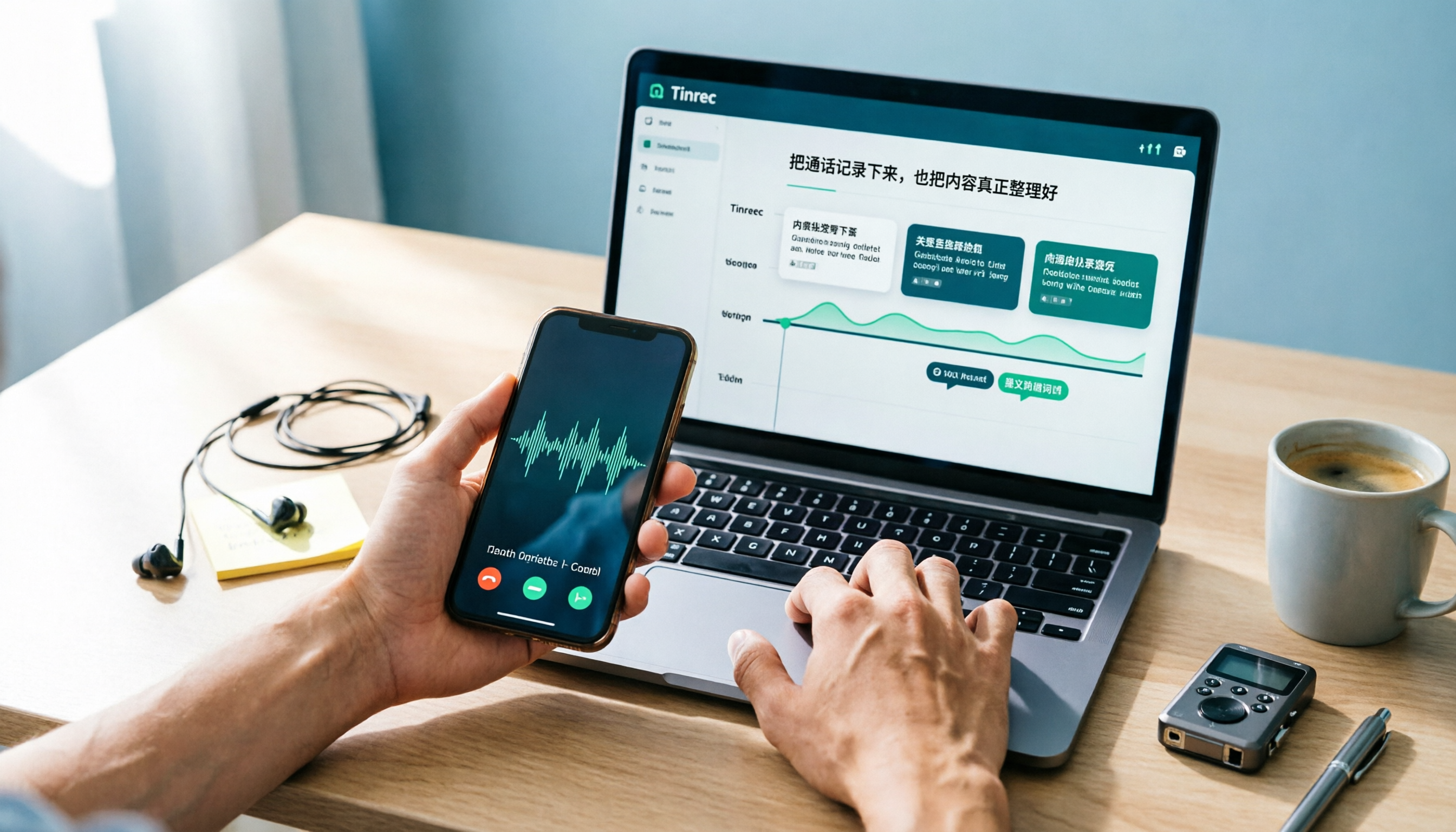
My actual workflow has two steps. First, record the call as an audio file on your phone: on iPhone, use the system's call recording (remember to enable the integration with iPhone calls in LINE settings first); on Android, use screen recording and set the audio source to media sounds. After hanging up, import the audio file into Tinrec, and it will give you a complete transcript, automatically split chapters, extract key points, and list action items.
On computer, it's even more direct. If you're using LINE desktop for a voice meeting, Tinrec's desktop version can capture the system sound playing on your computer to record, without inviting any meeting bot to join the call. This is very noticeable for group discussions—there won't be a third party called "Tinrec" appearing in the call list, so people speak more naturally.
What really made me stay is the AI Q&A. Last month after a project discussion, I was too lazy to re-listen to nearly 50 minutes of recording, so I directly asked in Tinrec: "Which database did we decide to use in this discussion? Who is responsible for which part?" It gave the answer directly with corresponding timestamps, and I could click to listen to the original audio for verification. If you throw the same question to a general transcription tool, you'll only get a bunch of keyword search results and still have to flip through page by page. That recording was made indoors with air conditioning noise; the transcript came out faster than I expected, and the noise didn't cause it to collapse entirely.
Stop organizing recordings by hand
Upload audio or video and automatically get a transcript, summary, and action items
Team spaces are very useful for project groups. We later opened a team version space, putting all discussion recordings, transcripts, and action items in one place. Anyone who was absent can just check and know where the last discussion left off. The team version is priced per paid seat: USD 29.80/seat monthly, USD 199/seat annually (about USD 16.58/month), each paid seat provides 2,000 minutes of shared team import quota per month; the first trial is 7 days, 1 free seat, 300 minutes shared quota. For a student group, one person paying and others viewing as members is actually enough—members without a seat can still view, play, and read transcripts, just cannot upload or edit.
Let's be clear about the downsides. The free version only has a basic quota; if you're the type who records every class and has meetings daily, you'll probably run out in a few weeks and need to seriously consider upgrading. Also, it won't "automatically record" LINE calls for you—you still need to generate the audio file using your phone's system method, or record on the computer with the desktop version. Its strength is the post-recording part, not the recording itself.
Who it's for: Students who often need to look back and check "what exactly was said that time"—project groups, thesis interviews, online courses, internship phone interviews. If you're someone who records but never listens, what you need isn't a recording tool, but to first think clearly about why you're recording.
Besides Tinrec, what other options are there?
Notta: A multilingual transcription tool with decent Chinese recognition, free version 120 minutes per month. But note—the free version has a 3-minute limit per session, which is almost fatal for LINE call recording; a group discussion easily exceeds half an hour. Also, it doesn't have Tinrec's AI Q&A that directly asks about meeting content.
Otter.ai: A veteran choice for English meetings, free version 300 minutes per month is generous, Pro annual billing is about USD 8.49/month. If most of your calls are in English (e.g., interviews with overseas contacts), it's really cost-effective. But Chinese summaries are not its strength, and it lacks Tinrec's team hotword management and post-meeting Agent processing.
PLAUD Note: AI recording hardware, the advantage is you don't need to keep your phone nearby. NotePin is USD 159, Note Pro is USD 189, membership Pro plan USD 99.99/year. Suitable for people who often run interviews and need portable recording. But for students, it's a significant expense, and after hardware recording you still need to import into an app for organizing—Tinrec can do it with just a phone or computer, no extra device needed.
Pitfall guide: 5 most common mistakes when recording LINE calls
Pitfall 1: Thinking LINE has built-in recording. It doesn't. LINE officially does not provide call recording, and all methods on the market are workarounds, so stop looking in the settings.
Pitfall 2: Forgetting to turn on speakerphone, recording silence. This is the most common failure reason. iPhone call recording requires speakerphone to capture the other person's voice; Android screen recording requires setting audio source to "Media sounds," not "Microphone."
Pitfall 3: Using screen recording and getting a huge video file that fills up your phone storage. If you only need audio, check before recording if you can select "Audio only" mode; otherwise, an hour-long video file will noticeably impact your storage.
Pitfall 4: Only saving the audio file and re-listening from the beginning afterward. This is my most common mistake. After recording, directly throw the file into a transcription tool to get transcript and summary first; you only need to go back and verify doubtful sections—for the same two-hour discussion, organizing time can be reduced from two hours to twenty minutes.
Pitfall 5: Not saying anything before recording. In Taiwan, if you are one of the parties in the call and record for work records or evidence preservation, it is usually legal; but if it's to spy on the other party's privacy, that's not allowed. In practice, saying "I'm recording this to make notes" actually makes the other person more willing to explain details clearly.
Conclusion: Which one should you use?
One-sentence conclusion: For recording itself, the system built-in is enough; the real decisive factor is post-recording organization, and for that I use Tinrec.
- Only use iPhone, want free, calls under half an hour → Enable integration with iPhone calls and use system call recording, fastest
- Android user, don't want to install any app → Screen recording, remember to set audio source to media sounds
- Calls often exceed one hour, must write minutes afterward → Throw into Tinrec after recording, transcript, summary, action items all at once
- Project group, multiple people need to share meeting data → Tinrec team space, data belongs to the team not individuals
- Often run interviews, need portable recording → Hardware like PLAUD has its place
I suggest starting with the free version to run through the complete workflow: record a call, import, see what the transcript and summary look like. Decide whether to pay after the quota runs out; there's really no need to spend money from the start. As for me, the first thing after a project discussion is no longer "quickly take notes," but opening the transcript and asking "So what was our conclusion?"
References
- How to record phone calls and LINE calls? iPhone and Samsung call recording app recommendations
- 2026 Workplace Must-Learn: Can LINE Calls Be Recorded? 4 Tricks to Break Limits and Tinrec Transcript Guide - Tinrec Blog
- LINE Call Recording Complete Guide: Android, iPhone, Computer All Covered! – AirDroid
- LINE Call Recording Compendium, 5 Methods to Achieve LINE Recording!
- [Mobile Knowledge] LINE Can Record Calls! iPhone Built-in Call Recording Secret, Won't Notify the Other Party! | Jyes Communication ~ Challenge the Lowest Phone Market Price
Turn every recording into actionable outcomes
Get 60 free transcription minutes when you sign in. No credit card required.
Related Reading
You might also like

2026 Comparison of 4 Meeting Notes Tools: Which Free Version Is Good Enough?
There are countless meeting notes tools, but what really matters is whether they can turn recordings into trackable conclusions and action items. This article breaks down the selection criteria using 4 common tool approaches and demonstrates Tinrec's practical use for real-time transcription, AI summaries, action item extraction, AI Q&A, and team knowledge retention, along with buying tips and FAQs.

Teams Meeting Creation: 3 Methods Tested in 2026, Tinrec Makes Post-Meeting Cleanup Easier
A comparison of three common ways to create Teams meetings: Teams calendar, Outlook calendar, and channel meetings. Covers attendee invitations, external participants, recording storage, and post-meeting data management, plus how Tinrec fits into transcription, summaries, action items, and team knowledge retention.
4 LINE Call Recording Methods Compared for 2026: How to Choose Between iPhone, Android, and Desktop
LINE doesn't have built-in call recording, but the methods fall into two layers: capturing the audio and then using it. This guide starts with the system limitations on iPhone and Android, compares screen recording, third-party call recording apps, external recording devices, and Tinrec's post-recording workflow, helping you choose the method that truly saves time.

4 Ways to Start a New Meeting in Microsoft Teams: Instant Meeting, Calendar, Channel, or Outlook — Which Is Fastest?
A comparison of four ways to start a new meeting in Microsoft Teams: Calendar Instant Meeting, Calendar New Meeting, Team Channel Instant Meeting, and the Outlook add-in. It also covers how to use Tinrec to transcribe, summarize, and capture action items after the meeting.

5 LINE Call Recording Methods Tested for 2026: Which One Turns Calls into Meeting Notes?
LINE doesn't have built-in call recording, but many important workplace conversations happen over LINE calls. Based on my real needs leading a team, this article covers 5 ways to record LINE calls on iPhone, Android, and desktop, comparing audio quality, whether both sides are captured, and whether recordings can become transcripts and action items. It concludes with which method best suits professionals juggling a dozen meetings a week.

3 LINE Voice Message Download Methods Tested: Phone, Computer, and Tinrec Workflow (2026)
How do you download LINE voice messages? This guide covers saving voice messages on phone and computer, plus how to use Tinrec to transcribe, summarize, and extract action items so your recordings don't just sit in a folder.

2026 Outlook Add Teams Meeting Tools Comparison: Which Saves More Time from Scheduling to Minutes?
Adding a Teams meeting in Outlook looks like just a button click, but what really trips people up is version differences, drafts without links, and that hour of post-meeting cleanup. This article tackles three common misconceptions, walks you through the complete process from scheduling to minutes, and tests how Tinrec turns Teams meeting content into searchable, queryable data.

4 LINE Voice Message Download & Organization Tools Tested in 2026: After You Save Them, Which One Actually Helps You Find the Key Points?
How do you download LINE voice messages? This guide first explains the steps for saving them on desktop via "Save As" and on mobile by transferring through Keep to the Files app, then tests and compares 4 ways to organize them after download, including Tinrec, Otter.ai, Notta, and TurboScribe, to help you decide which one truly turns voice into searchable, quotable data.

6 LINE Recording Expiration Rescue Methods Tested: Which Ones Actually Work in 2026?
LINE recordings and voice files often become inaccessible after expiration because chatroom files are only kept for 7 days. This article compiles 6 practical rescue and backup methods, from forwarding, Keep, cache recovery to backup restoration, and explains how to use Tinrec to convert important voice messages into long-term, searchable text data.