
Turn recordings into transcripts and summaries in minutes
Upload audio or video for multilingual transcription, AI notes, and action items
Whether Google Meet Can Record: Clarifying Feature Ownership and Prerequisites
To answer the keyword directly: yes, Google Meet has a built-in recording feature, but it is not a universal button that works for everyone. According to Google Workspace official documentation, recording is a Workspace feature, and whether you can use it depends on your plan type and administrator settings; free personal accounts typically cannot use it.
It helps to separate two layers first so things don't get mixed up during handoff:
- Meeting process: who said what, what was shared on screen, and how the discussion unfolded. Built-in recording handles this layer.
- Meeting conclusions: what was decided, who is responsible for which item, and when it is due. This layer is not automatically completed just because a recording exists.
In other words, recording solves the problem of "keeping the screen and audio." If you finish a meeting with only a recording and no one knows who is responsible for what, that is not a recording failure—recording was never designed to handle handoff in the first place.
Requirements to Enable Recording: Plan Type, Administrator Settings, and Participant Consent
Before pressing record, it is a good idea to check the following three things, or you may not even find the button.
First, plan and account type. Recording is a Workspace feature, and free personal accounts typically cannot use it. If you are using a company-issued account, whether you can record depends on your organization's plan level.
Second, whether the administrator has enabled it. Organizations can decide whether to allow recording, and may require all participants to provide explicit consent before enabling certain features. That means even if your plan supports it, if the administrator has turned it off, you still cannot record.
Third, who starts it. According to Google's official documentation, recording does not happen automatically; a participant in the meeting must actively press record. Whether a participant can record depends on whether the host has recording permissions. According to third-party summaries, when Host Management is on, usually only the host or promoted co-hosts can start recording; when it is off, participants within the host organization can record. External guests usually need to be promoted to co-host to record.
Also, according to Google's official documentation, recording can only be done on a computer or Android device. If a mobile participant needs to record, they should first confirm they are on one of those two device types.
Checkpoints before handoff: who initiated the meeting, whether the plan supports it, whether the administrator has enabled it, and who is responsible for pressing record. If these four items are not agreed upon in advance, it is easy to end up with the situation where everyone thought someone recorded it, but no one did.
Before recording, you should also confirm participant consent and local legal requirements, especially for external or cross-organization meetings.
Where the Recording Is Stored: Differences Between Organizer, Participants, and External Parties
Here is the conclusion first: Google Meet recordings are saved by default to the meeting organizer's Google Drive, not a space shared by all participants. According to third-party summaries, after recording ends, the file is saved to a folder named "Meet Recordings" in the organizer's Google Drive; if you cannot find it right away, you can search for "Meet Recordings" at the top of Google Drive.
Two easily confused concepts need to be separated here:
- Ownership of the recording: the file follows "who initiated the meeting," not "who pressed record" or "who attended the meeting."
- Access to the recording: the file is stored in the organizer's Google Drive, and others need the organizer to share it before they can view it.
Therefore, if you are not the meeting organizer and cannot find the recording in your own Google Drive after the meeting, that is normal—it is not a recording failure.
The first question to confirm during handoff is not "where is the recording," but "who initiated this meeting." External parties usually have a harder time getting the recording directly and need the organizer to share it or provide it separately.
How Long Recordings Are Kept: Retention Periods and Deletion Rules
Retention periods and deletion rules for recordings are affected by plan type and administrator settings, and there is no fixed number of days that applies to all accounts.
According to Google Workspace official documentation, administrators can set recording-related policies for the organization; official documentation also mentions that starting April 30, 2026, users in the organization with viewer or commenter permissions on new Google Meet recordings will be able to copy and download those recordings. Such rules may change over time and by plan, so actual conditions should be based on official documentation and your organization's administrator settings.
Checkpoints before handoff:
- Whose Google Drive currently stores this recording.
- Whether the organization has retention or auto-deletion rules.
- If long-term retention is needed, whether the organizer has already shared it with the appropriate colleagues or archive location.
Do not assume recordings are kept forever. Retention periods are subject to official documentation and administrator settings. For important meetings, it is recommended to complete sharing and archiving right after the meeting.
A Recording Is Not a Meeting Record: What Is Really Missing During Handoff
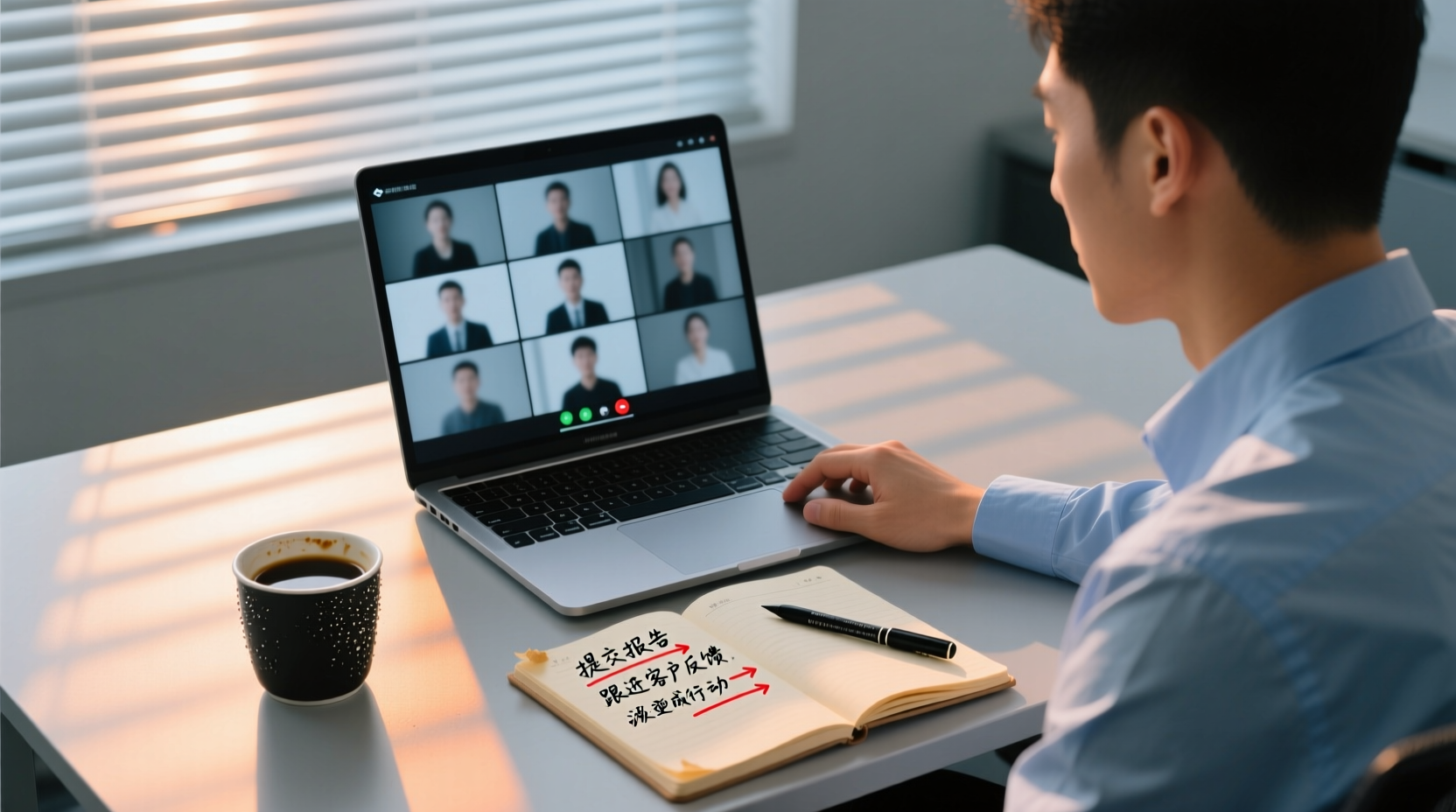
After a meeting, you may have only a recording, but no one knows who is responsible for what—this is the most common gap in handoff scenarios.
Stop organizing recordings by hand
Upload audio or video and automatically get a transcript, summary, and action items
What a recording can provide is a complete reconstruction of the "meeting process": who said what and how the discussion progressed. What it cannot directly provide includes:
- Decision list: what exactly was decided in this meeting.
- Owners: who is responsible for each follow-up action.
- Deliverables and deadlines: what needs to be delivered and by when.
- A summary that absentees can quickly understand.
A 60-minute recording means a colleague who did not attend would need to spend 60 minutes to catch up. What handoff really needs is material that can be searched, cited, and used to directly assign actions.
From Recording to Transcript: Turning Audio into Searchable, Shareable Text
To turn a recording into shareable material, the first step is to obtain a transcript.
In practice, you can import the meeting audio or recording into a tool that supports transcription to generate a timestamped transcript. Take Tinrec as an example: the desktop version can process online meetings by capturing system audio, without inviting a meeting bot to join; existing audio and video files can also be uploaded directly for transcription. After transcription is complete, the transcript supports search and review, so during handoff the other person does not need to re-listen to the entire recording—they can search keywords to locate the discussion section.
The specific problem this step solves is: a recording can only be watched from beginning to end, while a transcript can jump by keyword. For a project assistant or the person responsible for meeting organization, this means that during handoff they can mark only the relevant sections instead of handing over the entire recording.
One reminder: transcription quality can be affected by audio quality, noise, accents, overlapping speakers, and technical terminology. For important content, it is recommended to verify against the transcript timestamps and audio playback.
From Transcript to Minutes, Action Items, and Handoff Checklist
Once you have a transcript, the next step is to produce what handoff really needs.
Using Tinrec's workflow as an example, the transcript can further generate AI summaries, chapters, and key points, and extract action items from the discussion. The AI assistant (Agent) then uses the meeting minutes and context to help process the action items into usable post-meeting work products, such as action plans, follow-up materials, reports, tables, and documents.
The following is a fictional teaching example used to illustrate the process, not a real case:
> After a project weekly meeting, the assistant responsible for organizing imports the recording into the tool, obtains the transcript and summary, and extracts three action items: A is responsible for providing the revised specification by next Wednesday, B is responsible for contacting the supplier to confirm the delivery date, and C is responsible for updating the schedule. The assistant organizes the action items and corresponding sections into a handoff checklist, attaches the transcript link, and sends it to colleagues who did not attend and to the manager.
The specific problem this step solves is: a transcript is still raw material; handoff needs a checklist with responsibilities and deadlines already assigned.
Boundaries that require human confirmation: important commitments, externally sent content, and key decisions should still be confirmed by the responsible person before external use. The AI assistant can help organize and process, but it does not replace people in making final decisions.
Team Edition: Making Meeting Recordings and Conclusions Shared, Followed Up, and Retained Long-Term
If meeting organization is not a one-person task but a routine shared by a department or project team, the personal edition approach will run into two breakpoints: data scattered across personal accounts, and no one knowing who owns the files when members change.
Tinrec Team Edition provides an independent team collaboration space, and the post-meeting handoff process can connect as follows:
Step one: Put meeting materials into the team space instead of leaving them on a personal drive. Team Edition can centrally store Audio, Folder, TODO, and related meeting materials, and share the team's real-time recording and import entitlements. The original obstacle was: recordings are stored in the organizer's personal Google Drive, and others must be shared with one by one to view them; after putting them into the team space, team members can view and reuse historical meeting materials in the same location.
Step two: When members change, hand over resources to other active members. Team resources belong to the team, not to the individual uploader. When a member leaves, is removed, or loses their seat, their team resources can be handed over to other active members, preventing meeting materials from losing ownership when individuals leave. This solves the most practical problem in handoff scenarios: if the person responsible for organizing leaves, are the meeting records still there?
Boundaries to note: Team Edition currently focuses on team-level sharing, governing and using entitlements through roles and seats, and is not document-level or member-level fine-grained permission control. Active members without a seat can view, play, and read team materials, but cannot perform resource usage operations such as uploading, editing, importing, or exporting.
If your team is struggling with "after the meeting, who owns the materials and who follows up," you can learn more about Tinrec Team Edition's team space and resource handoff capabilities, and evaluate based on your team's actual meeting volume and collaboration style.
Pre-Handoff Checklist
To condense the above into a usable checklist, confirm in order after the meeting ends:
| Checklist Item | What to Confirm | Owner |
|---|---|---|
| Recording prerequisites | Whether the plan supports it, whether the administrator has enabled it, who starts recording | Meeting organizer |
| Participant consent | Whether participant consent has been obtained and local legal requirements are met | Meeting host |
| Recording ownership | Which organizer's Google Drive stores the file | Meeting organizer |
| Sharing and access | Whether colleagues who need to view it have been granted sharing permissions | Meeting organizer |
| Retention period | Whether the organization has retention or deletion rules | Meeting organizer / administrator |
| Transcript | Whether a searchable transcript has been generated | Meeting organizer |
| Minutes and action items | Whether decisions, owners, and deliverables are clearly listed | Meeting organizer |
| Handoff and archiving | Whether materials have been placed in a shared team location | Meeting organizer |
Recording solves the problem of "keeping the meeting process," while handoff needs "delivering the meeting conclusions." Only when both are done is the meeting truly over.
References
Turn every recording into actionable outcomes
Get 60 free transcription minutes when you sign in. No credit card required.
Related Reading
You might also like

2026 Auto Subtitle Generator Comparison: Which Tool Produces the Most Effortless Chinese Video Transcripts?
There are many auto subtitle generators, but do you need subtitles burned into the video or a searchable, summarizable, and queryable transcript? This article compares Tinrec, FlexClip, VEED, and CapCut based on real-world use cases, and provides buying criteria, common mistakes, and scenario recommendations to help you choose the right tool.

4 Auto Subtitle Generators Tested: Which Handles Chinese Transcription with the Least Editing?
Auto subtitles aren't a one-click finish. This article tackles the common pain point of still having to edit every line after auto-captioning. It covers 4 key factors to consider when choosing an auto subtitle generator, compares Tinrec, VEED, FlexClip, and Clideo on Chinese transcription, post-meeting organization, and team collaboration, and outlines common buying mistakes and scenario-based recommendations to help you decide which tool fits your video and meeting workflow.

2026 Free Simultaneous Interpretation Software Options: 2 Tools Compared
Starting from a real-world experience of missing a delivery deadline in a Japanese meeting, this article compares two simultaneous interpretation tools—Tinrec and Notta—from the perspective of a mid-level manager, covering five dimensions: Chinese recognition, meeting capture methods, post-meeting output, team governance, and free plan limits, along with each tool's unique strengths and ideal use cases.

2026 Subtitle Generation Tools Compared: Which Transcripts Are Actually Usable?
How to choose a subtitle generation tool? We tested Tinrec, Notta, TurboScribe, and Otter.ai with the same mixed Chinese-English meeting recording, breaking down transcription quality, post-meeting output, export workflow, and team management—plus 3 common pitfalls to help you pick a tool that delivers usable results.

2026 Video Subtitle AI: Tinrec Handles Bot-Free Transcription and Bilingual Transcripts in One Go
Finished adding subtitles only to realize you still need a transcript and action items? This article starts from a real meeting scenario and compares online subtitle generators with Tinrec: input sources, deliverable formats, Chinese and bilingual handling, team roles and seat management, and quota-based billing. It also lists 5 key points to consider when purchasing and clarifies team plan pricing, so you can speak clearly in procurement meetings.
![[Tutorial] Tinrec Live Recording Translation in 2026: Bilingual Transcripts + Post-Meeting Organization](https://record-img.tos-accelerate.volces.com/images/2026/11/04/1793793287175032755.png)
[Tutorial] Tinrec Live Recording Translation in 2026: Bilingual Transcripts + Post-Meeting Organization
From multilingual meetings to interview organization, learn how to choose live recording translation tools, Tinrec's real-time bilingual transcripts, summary to-dos, team spaces, and plan budgets to help you pick the right tool.

4 Auto Subtitle Software Compared (2026): Chinese Recognition, Free Tiers, and Export Formats
Avoid common pitfalls when choosing auto subtitle software. We compare Chinese recognition, free tiers, export formats, and team collaboration, and explain when Tinrec fits meeting transcripts, AI summaries, action items, and team knowledge retention.

5 Free AI Subtitle Generators in 2026: A Complete Comparison
Too many AI subtitle generators? Is the free version enough? This guide starts with the key decision: do you need subtitles or a transcript? We review 5 free options, comparing Chinese recognition, free quotas, output formats, and post-meeting organization, and honestly list each tool's limitations and paid thresholds.

4 Free AI Subtitle Tools Tested: Which Free Version Actually Delivers in 2026?
There are plenty of free AI subtitle tools, but most people get stuck not because they can't find a tool, but because they treat subtitles as the end goal. This article starts with common misconceptions, breaks down the real shape of free quotas, privacy risks, and post-subtitle workflows, and tests four tools—Tinrec, OpenSubs, Wayin, and cSubtitle—to compare their suitable use cases.