
Turn recordings into transcripts and summaries in minutes
Upload audio or video for multilingual transcription, AI notes, and action items
Ever finish an important business call on LINE and realize you forgot key details right after hanging up? Due to system privacy restrictions, LINE does not offer a built-in call recording feature, which can be a real headache for professionals who need to keep meeting notes or client requirements.
To solve this problem, this article breaks down the 3 most practical solutions for recording LINE calls, provides an objective tool comparison table, and includes a hands-on tutorial from "recording" to "AI-powered key point summarization," along with a FAQ section.
Quick navigation conclusion: If you just need simple call archiving, Android users can first try the built-in screen recorder or Cube ACR; for business scenarios where you need to convert call content into transcripts and to-do items, pairing with a multi-platform AI recording assistant like Tinrec can significantly reduce the cost of organizing information.
Why Can't LINE Calls Be Recorded Directly? Common Pain Points and Device Limitations
When using LINE for voice calls, many people encounter situations where they "can't tap to record" or "the recording has no sound." This is mainly due to the strict privacy protection policies of mobile operating systems.
Privacy Restrictions and Solutions for iPhone (iOS) Users
Apple, for privacy reasons, does not natively allow third-party communication apps (including LINE, WhatsApp, etc.) to record two-way calls directly on the device. If you enable the built-in "Screen Recording" during a call, you'll usually only capture the screen, as the microphone audio is systematically blocked. Therefore, iPhone users who want to record LINE calls typically need to use external recording devices (like the Magmo magnetic recording pen) or put the call on speaker and use another device (such as a Mac or iPad) to capture the audio.
Current State of Android Support
Compared to iOS, Android offers slightly more flexibility. Some Android brands (such as Samsung, OPPO) have built-in screen recording features that allow you to enable "Media Sounds and Microphone" in settings, thereby recording LINE call audio. Additionally, Android users can install third-party apps that support VoIP call recording for automatic recording.
Comparison of 3 Major LINE Call Recording Solutions (Including Tool Comparison Table)
Based on different operating systems and usage needs, we've compiled the current mainstream solutions and added evaluation dimensions for subsequent audio file organization.
| Comparison Dimension | Built-in Screen Recording | Professional Call Recording App (e.g., Cube ACR) | External Recording Pen (e.g., Magmo) | AI Recording & Transcription Tool (e.g., Tinrec) |
|---|---|---|---|---|
| Compatible Devices | iOS (mostly silent) / Android | Primarily Android | iPhone (external hardware) | Multi-platform (iOS, Android, Web) |
| Recording Method | Records screen and microphone | Automatic or manual background recording | MagSafe magnetic contact recording | Real-time recording with transcription or audio file import |
| Language Support & Recognition | No text recognition | No text recognition | No text recognition | Automatic recognition of 10 languages including Chinese, English, Japanese, etc. |
| Transcripts & Action Items | None | None | None | Auto-generates meeting summaries, key points, and action items |
| AI Chat Query | None | None | None | Supported (ask AI about call highlights directly) |
| Price / Offers | Free (built-in) | Free version with ads / paid upgrade | Hardware purchase required | 100 free minutes per month |
Now That You've Recorded It? Use Tinrec to Turn Recordings into High-Value Information
The biggest pain point of traditional recording is the "extremely low information density." A 30-minute LINE discussion can take another 30 minutes to replay and verify details. Simply recording the audio isn't enough; the key lies in subsequent "organization and application."
Stop organizing recordings by hand
Upload audio or video and automatically get a transcript, summary, and action items
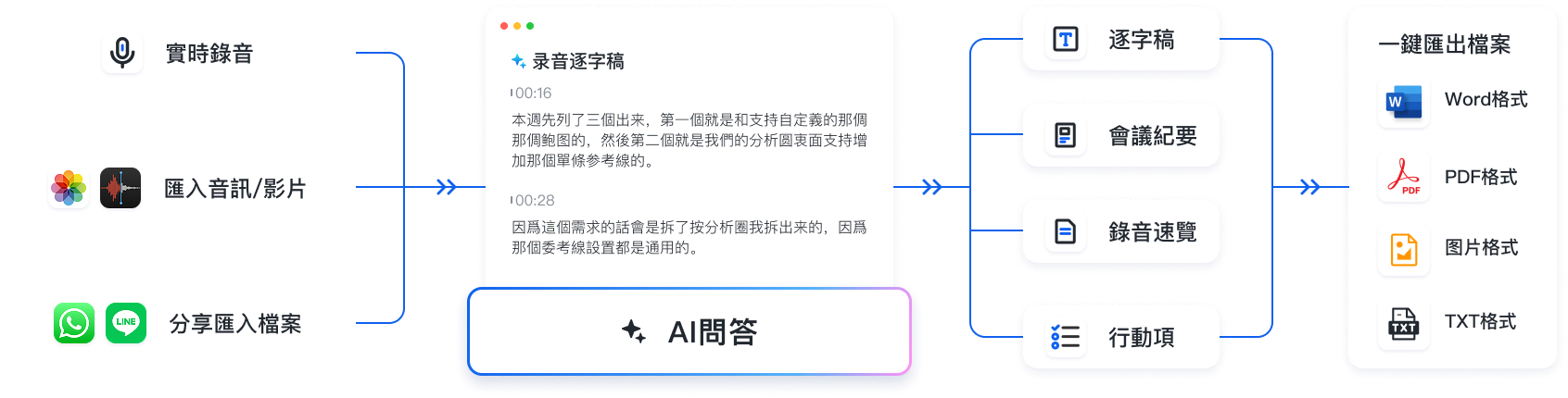
Tinrec (Miao Ting Voice Recorder), as a multi-platform AI recording assistant, is designed to establish a complete workflow from "Recording → Understanding → Action." Compared to tools that only offer recording or simple transcription, it offers the following information processing advantages:
- Auto-Organized Decisions & To-Dos: Not only does it provide transcripts, but it also automatically extracts "meeting minutes" and "action items (to-do list)" from conversational content.
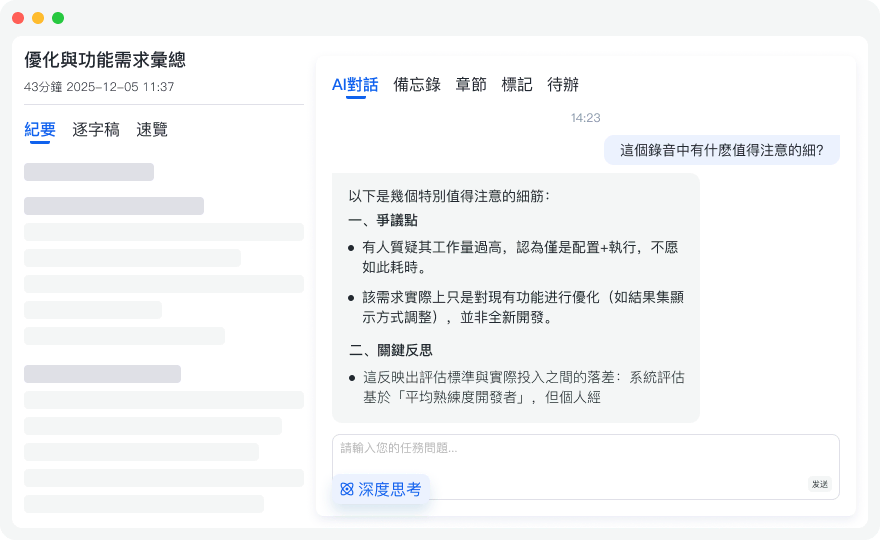
- Smart AI Chat Query: Traditional transcripts only allow Ctrl+F keyword searches. With Tinrec, you can ask the AI in natural language (e.g., "What was the quote mentioned in the call?"), making queries as intuitive as asking an assistant.
- Cross-Language Meeting Tool: Supports 10 languages including Chinese, English, Japanese, Taiwanese, etc. If you have LINE calls with overseas clients or colleagues, it significantly reduces understanding costs due to language barriers.
Hands-On Tutorial: How to Record and Quickly Organize LINE Call Content?
Below are 4 specific steps to combine recording with AI processing tools to transform intangible speech into tangible textual assets.
Step 1: Real-Time Transcription During the Call
If you use LINE on your computer or put your phone on speaker mode:
- Open the Tinrec real-time recording and transcription interface.
- Tap start recording; the system will capture audio and convert the conversation into text in real-time.
- No need to wait until the call ends; you can check the transcribed text anytime to ensure no important information is missed.
Step 2: Transcribe Existing Audio Files
If you've already recorded the call using Android's Cube ACR or screen recording and saved it as an audio or video file:
- Go to the Audio File to Text feature.
- Upload the audio file from your phone or computer.
- The system will automatically differentiate speakers and generate a complete transcript along with an AI summary.
Step 3: Online Meeting or Video Link Analysis
If your company uploads a recording of a LINE meeting to the cloud or an internal platform, or if you want to organize a related online tutorial:
- Copy the URL of the video or audio.
- Paste it into the Video Link to Text portal.
- The tool will automatically fetch and analyze the content, producing summaries and key points.
Step 4: Leverage AI Chat Query for Key Information Retrieval
After the text is generated, if it's too long:
- Open the AI Chat Query panel.
- Enter your question, for example, "What are the next steps listed in this discussion?"
- The AI will provide an accurate answer based on the recording content, saving you the time of reading line by line.

Pitfall Avoidance and Purchasing Guide: Common Controversies with Third-Party Monitoring Software
When searching for LINE recording methods, you may come across software like KidsGuard for LINE that claims to "monitor" or "secretly record." While these tools purport to run hidden in the background and intercept calls and chat records, it is strongly advised to use caution in general business and daily scenarios. Recording without consent may involve serious privacy violations and legal risks. When choosing a tool, prioritize legitimate, transparent, and productivity-enhancing recording and organizing software.
Frequently Asked Questions About Recording LINE Calls
Q1: Can iPhone directly record LINE calls?
Due to iOS security and privacy restrictions, the iPhone cannot directly use built-in features or apps to record two-way LINE calls. It is recommended to use speakerphone with another device to record, or purchase a magnetic recording pen designed for iPhone.
Q2: What free LINE recording methods are available for Android users?
Android users can first try the built-in "Screen Recorder" (ensuring microphone and media sounds are enabled). If that doesn't work well, download a free call recording app that supports VoIP, such as Cube ACR.
Q3: Why is there no sound when using screen recording for LINE calls?
This is usually due to the operating system protecting call privacy or incorrect audio source settings. iOS users almost never can capture both sides of a call via screen recording; Android users need to check "Media Sounds and Microphone" in screen recording settings.
Q4: How to quickly convert recorded LINE audio files into transcripts?
After obtaining the audio file, import it into an AI transcription tool like Tinrec. The system will automatically recognize speech, differentiate speakers, and quickly produce an editable transcript and meeting summary. There's even a free monthly allowance of 100 minutes.
Q5: Can these methods also be used for meetings on Teams or Google Meet?
Yes. Compared to LINE calls, Teams and Meet already have built-in recording features in certain plans. If you don't have permission, you can use your computer's system audio recording and then upload the recording to an AI transcription tool for summaries and action items.
Q6: Is it safe to use third-party call recording apps or hardware?
Generally, legitimate call recording apps (like Cube ACR) offer basic storage functions, but pay attention to where the recording files are stored and their cloud security. For business confidentiality, it's advisable to choose an AI platform with clear privacy policies and multi-platform support to handle recordings and text data, avoiding data leaks.
Turn every recording into actionable outcomes
Get 60 free transcription minutes when you sign in. No credit card required.
Related Reading
You might also like

2026 Comparison of 4 Meeting Transcription Tools: Actionable Transcripts Without a Meeting Bot
Meeting transcription isn't just uploading an audio file. This hands-on comparison of Tinrec, Notta, Otter.ai, and Granola breaks down selection criteria, common pitfalls, and team seat differences to help you find a solution that truly produces actionable meeting notes.

5 Meeting Transcription Methods Tested for 2026: Which One Actually Saves You from Re-listening?
Meeting transcription isn't just about dumping audio into a tool. This article tackles common misconceptions and compares five approaches: manual transcription, built-in platform transcription, meeting bots, bot-free desktop recording, and file upload. We break down key selection criteria, practical limitations, and team collaboration differences to help you find a method that truly saves post-meeting cleanup time.

4 Meeting Transcription Tools Tested for 2026: Which Free Version Is Actually Good Enough?
Meeting transcription tools have changed a lot since 2024. The key question is no longer whether they can transcribe, but what they can do for you after transcription. This article starts with common misconceptions, explains 4 key points for choosing a tool, then compares Tinrec, Otter.ai, Notta, and TurboScribe in terms of positioning, free quotas, and paid plans, and finally offers scenario-based recommendations to help you avoid pitfalls from looking only at free quotas.

How to Transcribe Meeting Audio in 2026: Real-Time Transcripts + AI Summaries and Action Items in One Go
How can you transcribe meeting recordings without working overtime? This guide starts with four key criteria for choosing a tool, then hands-on breaks down Tinrec's bot-free recording, real-time transcription, AI Q&A, and team seat management. It also compares who Notta, Otter.ai, and Granola each suit best, with three common pitfalls to watch out for.

2026 Meeting Transcription Comparison: Bot-Free Recording + AI Summaries Made Easy
How to choose a meeting transcription tool? This article uses a comparison chart to break down the differences between four approaches: meeting bots, pure transcription, recording hardware, and Tinrec. It covers real-time transcripts, AI summaries, action item extraction, team spaces, and pricing quotas to help you decide which suits your meeting style.

Tinrec vs Notta 2026: 5-Dimension Showdown — Which Is Faster for Chinese Meeting Transcripts?
A two-hour meeting takes three hours to transcribe? This guide breaks down the five key dimensions of meeting audio-to-text — from recording and transcription to proofreading and team archiving — with hands-on comparisons of Tinrec and Notta in Chinese meeting scenarios. Plus, four common pitfalls to help you find the right tool within free limits.

2026 Comparison of 4 Meeting Transcription Apps: Cantonese Meetings, AI Summaries, and Team Knowledge Retention—Which One Wins?
A hands-on comparison of 2026 meeting transcription tools—Tinrec, Otter.ai, Notta, and PLAUD—covering capture methods, post-meeting organization, Chinese and Cantonese meeting experience, team collaboration, and pricing structures, to help Hong Kong office workers decide whether they need 'a transcript' or 'meeting materials they can act on directly.'

2026 Comparison of 5 Meeting Transcription Tools: Which Offers the Best Free Tier and Chinese Recognition?
How to choose a meeting transcription tool? This article examines four key aspects: recording method, post-meeting output, free tier limits, and Chinese recognition. It compares Tinrec, Otter.ai, Notta, PLAUD, and other mainstream tools, outlines team plan pricing and seat details, and includes a pitfalls guide and scenario-based recommendations to help you select the right transcription tool for your needs.

How to Transcribe Platform Meeting Recordings in 2026: Bot-Free Recording + AI Summaries & Action Items
From Zoom, Google Meet, Teams to in-person meetings, this guide covers key considerations, workflow, and tool comparisons for transcribing platform meeting recordings. Using Tinrec as an example, it explains bot-free recording, transcripts, summaries, action items, AI Q&A, and team plan limitations, and compares Otter.ai, Granola, Notta, and other options.