
Turn recordings into transcripts and summaries in minutes
Upload audio or video for multilingual transcription, AI notes, and action items
iPhone’s built-in "Voice Memos" is a great tool for many people to record meetings and classes, but the default .m4a format often cannot be played directly on Windows computers, leading many to search for how to "convert iPhone voice memos to mp3." Moreover, even after successfully converting, re-listening to an hour-long recording to take notes is still exhausting.
This article will fully break down the specific steps from exporting recordings from an iPhone to converting them to MP3, and further compare traditional conversion tools with the latest 2026 AI audio processing tools. It provides a clear tool comparison table, practical operation tutorials, and a FAQ section.
Quick conclusion: If you simply need to change the file format for playback, you can use free online conversion tools; but if you want to directly convert recordings into text and automatically extract meeting summaries, then market-available multilingual AI tools (such as Tinrec) are the best choice to save time.
Why Convert iPhone Voice Memos to MP3? Analyzing Common Pain Points
Many users encounter the following issues when processing recordings from work meetings, classroom notes, or important interviews:
- Format incompatibility: iPhone Voice Memos saves recordings in
.m4aformat, which may not open properly on some players or older Windows systems. - Time-consuming processing: Even if you successfully convert iPhone voice memos to MP3, listening through the entire recording to create a transcript often takes 2 to 3 times longer than the recording itself.
- Lack of action items: Traditional audio files are just carriers of sound, unable to perform targeted searches, making it difficult to quickly list to-dos after meetings.
Basic Tutorial: How to Upload iPhone Voice Memos to a Computer and Convert to MP3?
If you only need to solve file compatibility issues, you can easily export and convert files via iCloud. Here are the specific steps:
- Save to Files: Open the "Voice Memos" app on your iPhone, tap the "..." next to the desired recording, select "Save to Files," choose a folder in iCloud Drive (e.g., "Downloads"), and tap Save.
- Download from Computer: On your computer, open a browser, go to iCloud.com, sign in, enter "iCloud Drive," find the folder, and download the
.m4afile. - Convert Online: Visit a free online conversion site (e.g., Online Audio Converter), upload the
.m4afile, select "mp3" format and desired quality, click "Convert," and download.
Still Too Time-Consuming After Converting to MP3? 2026 Recording Processing Tool Comparison
Simply converting the file solves the playback issue but not the information absorption challenge. More and more professionals and students are turning to AI tools to convert time-based content into text. The following compares traditional conversion tools, common AI transcription software, and Tinrec.
| Comparison Dimension | Traditional Online Conversion Websites | General AI Transcription Software | Tinrec |
|---|---|---|---|
| Main Function | Only changes file format (e.g., m4a to mp3) | Voice to transcript | Transcription + Summary + Action Items |
| Language Support | Not language-related | Usually supports single language | Supports automatic recognition of 10 languages including Chinese, English, Japanese, Taiwanese, etc. |
| Summary/Action Items | None | Some require extra payment | Auto-generated meeting minutes and action items |
| AI Query | None | Most only support traditional keyword Ctrl+F | Supports AI semantic query |
| Real-time | Requires file upload | Some support real-time transcription | Supports real-time transcription and multi-format file export |
| Price/Free Tier | Free with ads | Limited free tier, higher subscription fee | 100 minutes free/month, Pro $8.25/month (1200 minutes) |
Stop organizing recordings by hand
Upload audio or video and automatically get a transcript, summary, and action items
From the table above, if you just need to solve playback issues, traditional conversion is sufficient; but to improve work efficiency, tools with AI understanding and action item extraction offer more value.
Key to Efficiency: AI Recording Processing Practical Tutorial
When you are no longer satisfied with just converting iPhone voice memos to MP3, but want to turn recordings into "scannable, searchable, actionable text," refer to the following steps based on Tinrec, covering various common workplace and learning scenarios.
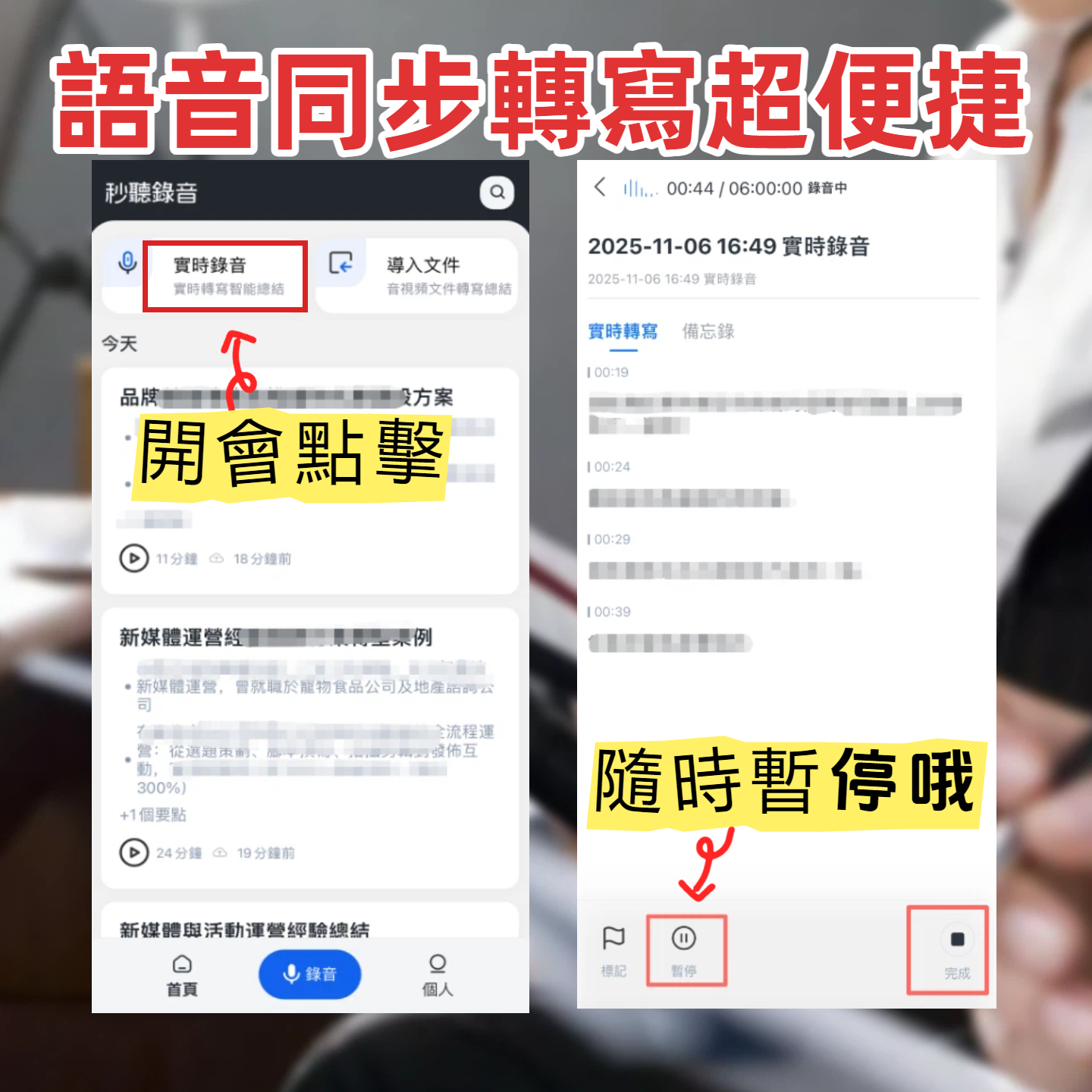
1. Real-Time Speech-to-Text
In physical meetings or classes, you can directly open the tool for real-time recording.
- Steps: Go to the Tinrec real-time recording page and click "Start Recording."
- Effect: The system converts speech to text in real time, allowing you to grasp content without waiting for the recording to finish. It supports automatic recognition of multiple languages such as Taiwanese, Chinese, and English, and can distinguish different speakers.
2. Audio File-to-Text
If you have already exported .m4a or converted .mp3 files from your iPhone, you can directly upload them to get transcripts.
- Steps: Go to the audio file-to-text portal and upload your local recording.
- Effect: Supports multiple audio formats; after upload, it quickly generates a transcript, and the system automatically produces meeting minutes and action item lists, saving a lot of re-listening time.
3. Video Link-to-Text
For creators who need to organize online courses or interview materials, directly pasting a URL is most convenient.
- Steps: Go to the video-to-text feature and paste a URL from YouTube or other online videos/podcasts.
- Effect: No need to download large audio/video files; the tool automatically parses the link and generates a complete transcript and AI summary.
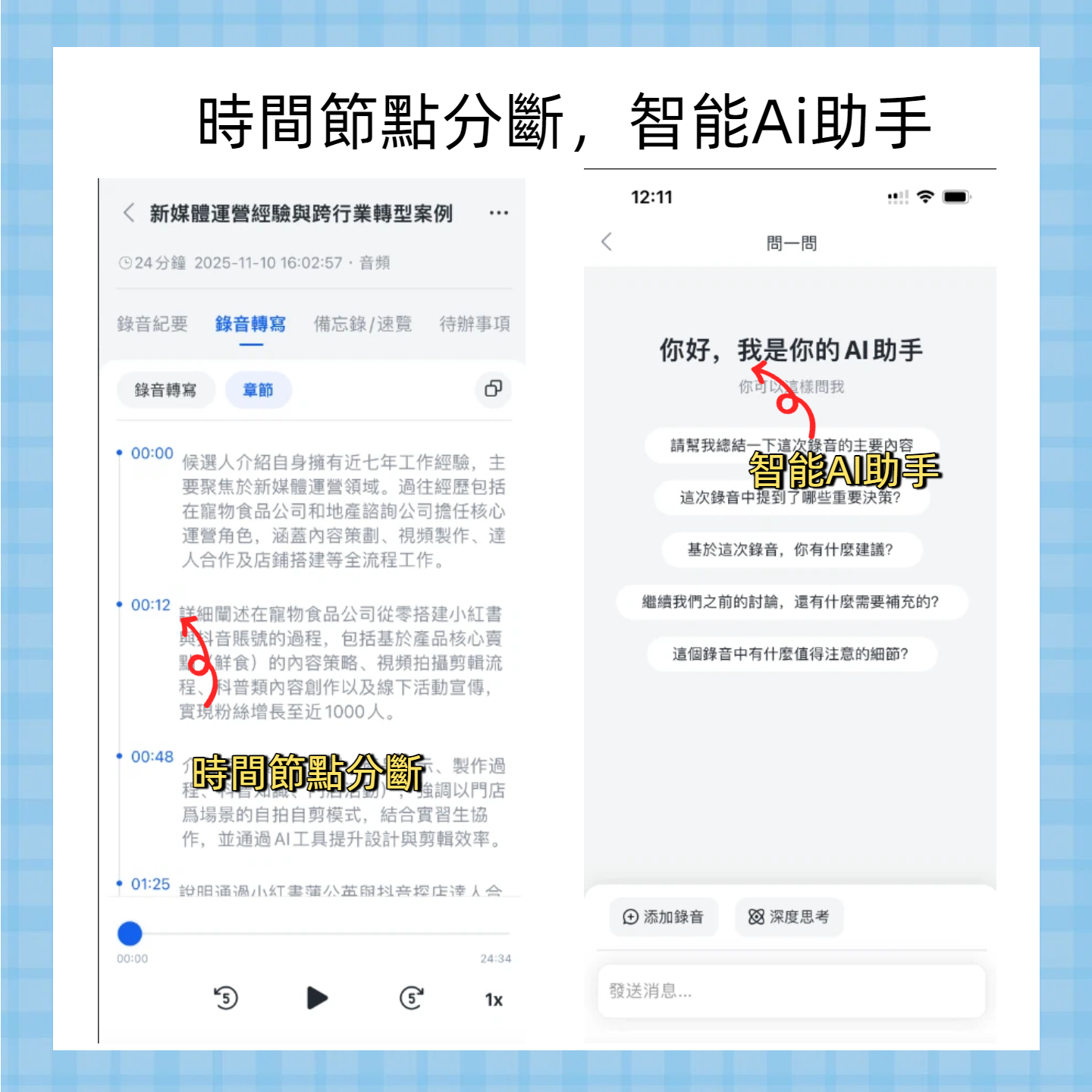
4. AI Chat Query
When the transcript is too long and traditional Ctrl+F can't find key points, AI Q&A quickly solves the problem.
- Steps: On the generated transcript page, click AI Chat Query.
- Effect: You can directly ask the AI questions, such as "What was the deadline mentioned by the boss for next week's project?" The AI gives precise answers based on the recording content, like a personal assistant who attended the entire meeting.
Frequently Asked Questions (FAQ)

Q1: Can iPhone voice memos be converted to MP3 directly on the phone?
iPhone's built-in Voice Memos does not support direct conversion to MP3. The most reliable method is to save the file via iCloud to Files, then use an online conversion tool on a computer; or directly upload the original m4a file to an AI transcription tool to generate text.
Q2: Can meeting recordings from Teams or Google Meet be transcribed?
Yes. If you have meeting recordings downloaded from Teams or Meet (in mp4, mp3, m4a, etc.), simply upload them to an AI tool with audio-to-text functionality to quickly generate meeting records and action items.
Q3: How much free transcription time do audio-to-text tools typically offer?
Tools vary widely; some only offer a few trial uses. For example, the tool evaluated in this article provides up to 100 minutes of free transcription per month, which is quite practical for light users (e.g., occasional short meetings or idea memos).
Q4: If a meeting mixes Chinese and English, can the tool accurately recognize it?
Traditional transcription software usually requires manual switching to a single language. Newer AI platforms support automatic multilingual recognition, even including Taiwanese and Cantonese, automatically handling mixed-language conversations and reducing comprehension and organization costs.
Q5: Are online conversion websites safe? Are there privacy concerns?
Free online conversion tools typically delete files from their servers after a period, but if your recordings involve company secrets or high privacy, it is recommended to choose professional platforms with strict privacy protection policies and account security mechanisms.
Q6: What formats can the generated transcripts be exported to?
Most modern AI audio processing tools support multi-format export, including txt, docx, srt (subtitle files), etc., making it convenient for users to further edit and share in Word or other document software.
Turn every recording into actionable outcomes
Get 60 free transcription minutes when you sign in. No credit card required.
Related Reading
You might also like

2026 Comparison of 4 Meeting Transcription Tools: Actionable Transcripts Without a Meeting Bot
Meeting transcription isn't just uploading an audio file. This hands-on comparison of Tinrec, Notta, Otter.ai, and Granola breaks down selection criteria, common pitfalls, and team seat differences to help you find a solution that truly produces actionable meeting notes.

5 Meeting Transcription Methods Tested for 2026: Which One Actually Saves You from Re-listening?
Meeting transcription isn't just about dumping audio into a tool. This article tackles common misconceptions and compares five approaches: manual transcription, built-in platform transcription, meeting bots, bot-free desktop recording, and file upload. We break down key selection criteria, practical limitations, and team collaboration differences to help you find a method that truly saves post-meeting cleanup time.

4 Meeting Transcription Tools Tested for 2026: Which Free Version Is Actually Good Enough?
Meeting transcription tools have changed a lot since 2024. The key question is no longer whether they can transcribe, but what they can do for you after transcription. This article starts with common misconceptions, explains 4 key points for choosing a tool, then compares Tinrec, Otter.ai, Notta, and TurboScribe in terms of positioning, free quotas, and paid plans, and finally offers scenario-based recommendations to help you avoid pitfalls from looking only at free quotas.

How to Transcribe Meeting Audio in 2026: Real-Time Transcripts + AI Summaries and Action Items in One Go
How can you transcribe meeting recordings without working overtime? This guide starts with four key criteria for choosing a tool, then hands-on breaks down Tinrec's bot-free recording, real-time transcription, AI Q&A, and team seat management. It also compares who Notta, Otter.ai, and Granola each suit best, with three common pitfalls to watch out for.

2026 Meeting Transcription Comparison: Bot-Free Recording + AI Summaries Made Easy
How to choose a meeting transcription tool? This article uses a comparison chart to break down the differences between four approaches: meeting bots, pure transcription, recording hardware, and Tinrec. It covers real-time transcripts, AI summaries, action item extraction, team spaces, and pricing quotas to help you decide which suits your meeting style.

Tinrec vs Notta 2026: 5-Dimension Showdown — Which Is Faster for Chinese Meeting Transcripts?
A two-hour meeting takes three hours to transcribe? This guide breaks down the five key dimensions of meeting audio-to-text — from recording and transcription to proofreading and team archiving — with hands-on comparisons of Tinrec and Notta in Chinese meeting scenarios. Plus, four common pitfalls to help you find the right tool within free limits.

2026 Comparison of 4 Meeting Transcription Apps: Cantonese Meetings, AI Summaries, and Team Knowledge Retention—Which One Wins?
A hands-on comparison of 2026 meeting transcription tools—Tinrec, Otter.ai, Notta, and PLAUD—covering capture methods, post-meeting organization, Chinese and Cantonese meeting experience, team collaboration, and pricing structures, to help Hong Kong office workers decide whether they need 'a transcript' or 'meeting materials they can act on directly.'

2026 Comparison of 5 Meeting Transcription Tools: Which Offers the Best Free Tier and Chinese Recognition?
How to choose a meeting transcription tool? This article examines four key aspects: recording method, post-meeting output, free tier limits, and Chinese recognition. It compares Tinrec, Otter.ai, Notta, PLAUD, and other mainstream tools, outlines team plan pricing and seat details, and includes a pitfalls guide and scenario-based recommendations to help you select the right transcription tool for your needs.

How to Transcribe Platform Meeting Recordings in 2026: Bot-Free Recording + AI Summaries & Action Items
From Zoom, Google Meet, Teams to in-person meetings, this guide covers key considerations, workflow, and tool comparisons for transcribing platform meeting recordings. Using Tinrec as an example, it explains bot-free recording, transcripts, summaries, action items, AI Q&A, and team plan limitations, and compares Otter.ai, Granola, Notta, and other options.