

Turn recordings into transcripts and summaries in minutes
Upload audio or video for multilingual transcription, AI notes, and action items
"How do you record only computer audio?" The real challenge usually isn't whether you can find the record button—it's that you first need to make a decision: do you want a clean system audio file, or a transcript you can read right after recording? The former determines whether you need to change your audio source settings, while the latter determines which tool you should choose. Get this step wrong, and you'll end up recording a 40-minute meeting only to open the file and find it's all your own breathing.
Why Do You Hear Yourself When You Press Record?
Windows defaults to using the microphone as the recording source, so many people trying to record "computer audio" for the first time open the file and find they've captured ambient noise and keyboard typing instead, while the music or meeting content playing through the computer is barely audible.
The key lies in the "Stereo Mix" device: it routes the sound playing through your speakers or headphones back into the recording channel. Microsoft disables it by default and hides it, so you have to manually enable it to see it. Another common limitation is that this type of device mainly works with headphones or speakers that have an audio cable—it may not be supported when using Bluetooth or USB digital speakers. This is why many people follow old tutorials and still fail.
If you're recording online meetings like Zoom, Google Meet, or Microsoft Teams, it gets even trickier: either you can't record at all, or your own microphone gets picked up too, and you have to transcribe it yourself afterward.
4 Key Considerations Before You Record
Audio source: system sound / microphone / dual-track — If you only want computer playback sound, choose "system sound" or Stereo Mix; if you need to narrate while recording, find a tool that supports dual-track synchronization. Most people set this wrong from the start because they never checked where the audio source options are hidden.
Do you need transcription after recording? — If you just need an audio file, the built-in system recorder is enough. But for meetings, interviews, or lectures, the point is never the audio file itself—it's the conclusions and action items inside. In that case, you need a tool that automatically generates transcripts and summaries, not just a voice recorder.
Cross-platform and quotas — If you record on your computer today and want to listen or organize on your phone tomorrow, a tool that doesn't support cross-platform will be painful. Also check free quotas and single-file length limits upfront so you don't get cut off mid-recording.
Does your team need to share? — If meeting materials are for the whole team, consider whether the tool offers shared spaces and permission management, rather than storing files on someone's personal computer.
Tinrec — The Top Choice for Recording Only Computer Audio and Getting a Transcript Immediately
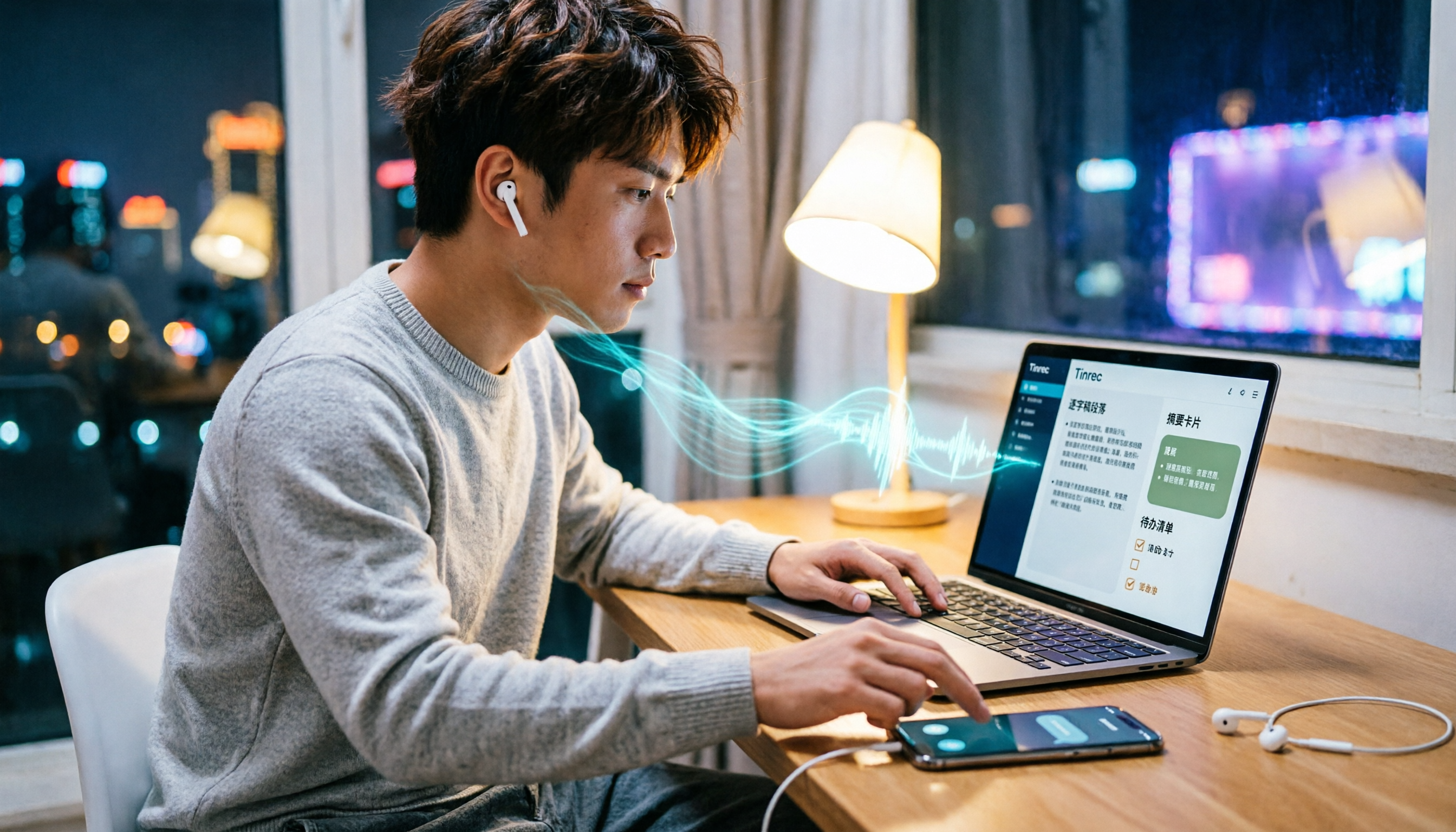
Tinrec is an AI meeting notes and collaboration tool for individuals and teams, available on iOS, Android, and web. The desktop version's key capability is directly capturing your computer's system audio, handling meeting sound from Zoom, Google Meet, Microsoft Teams, Webex, and more playing on your computer.
4 Steps to Record Only Computer Audio
Open Tinrec desktop, choose to record an online meeting or start instant recording. It doesn't require inviting a meeting bot—just press record and it starts capturing the audio playing on this computer.
Make sure only "System Sound" is checked as the audio source, not the microphone. This step is the key to "recording only computer audio"—by not checking the microphone, nearby conversations and keyboard sounds won't be captured.
View the live transcript while recording. The transcript is generated in real time during recording, and if the meeting has foreign language content, you can switch between original text, translation, or bilingual view.
Use the results right after finishing. AI automatically generates summaries, chapters, and action items. You can ask questions directly about the meeting content, or generate reports, tables, and documents from the results, then export to Notion, Google Docs, OneNote, Dropbox, and other tools to continue working.
Why It Goes One Step Further Than a Simple Recording Tool
A typical recording app's endpoint is "an audio file," while Tinrec's endpoint is "data you can keep working with." After a 40-minute project meeting, you don't need to replay the entire recording to find conclusions—you can directly ask it "What was decided in this meeting, who is responsible for what, and what are the deadlines?" It finds answers based on semantics, not just keyword matching. This kind of AI Q&A is especially useful after recording because it handles "finding key points" rather than keyword comparison.
Stop organizing recordings by hand
Upload audio or video and automatically get a transcript, summary, and action items
Additionally, Tinrec keeps the recording file and supports uploading existing audio or video files for transcription, which is a big time-saver for those with a backlog of historical recordings. If your team needs to share meeting materials, the team version offers independent team spaces, member and seat management, usage analytics, and audit logs. Data belongs to the team, so meeting records won't disappear when a member leaves.
Pros
- Intuitive system-sound-only recording: No need to dig out the hidden Stereo Mix in Control Panel or connect a virtual audio cable.
- Ready to use right after recording: Transcript, summary, action items, AI Q&A, and export all in one place, saving post-meeting transcription time.
- Friendly for Chinese and multilingual scenarios: Supports Chinese, Traditional Chinese, and multilingual meetings, with team hotwords for maintaining professional terminology.
Limitations
- The free version has quota limits, and heavy users need to upgrade to a paid plan; if you process a large number of recordings weekly, check whether the quota is sufficient.
- Transcription accuracy can be affected by recording quality, background noise, accents, and multiple people talking over each other. For important content, verify against transcript timestamps and recording playback.
- The desktop version starts only when you actively press record—it's not a meeting bot that "automatically joins all calendar meetings."
Who It's For
If what you want is "record only computer audio and get a transcript and key points right after," Tinrec is currently the most streamlined choice. For those who frequently handle Chinese meetings, need cross-device use, or want to turn meeting records into team knowledge, it will feel much more effective than pure recording software.
Besides Tinrec, What Other Options Are There?
Windows built-in Voice Recorder: Free, no installation required. With Stereo Mix manually enabled, it can record only system audio—good for occasional short recordings. But it only gives you an audio file, with no transcript, summary, or AI Q&A. Also, Stereo Mix has limited support for digital speakers without an audio cable, and setup requires digging through Control Panel yourself.
Bandicam audio-only mode: Focuses on "audio only" recording, with options for computer sound, microphone, or dual-track sync. Outputs MP3 or WAV, and supports scheduled auto start/stop. If you want high-quality audio files and don't need text organization, it does its job well. But it can't help with transcripts, summaries, or AI Q&A after recording.
Granola: Also uses desktop system audio capture for bot-free meeting notes, emphasizing "your own notes + AI enhancement." Note that it doesn't save meeting audio files and doesn't support uploading existing recordings. If you want to keep that recording or organize old files, Tinrec is more complete on both points.
Pitfall Guide: The 4 Most Common Mistakes When Recording Only Computer Audio
Pitfall 1: Not turning off the microphone. This is the most common cause of failure. Many tools default to the microphone as the audio source, so you think you're recording the computer but actually capture air conditioning noise and colleagues chatting. Always confirm only "System Sound" is checked before starting.
Pitfall 2: Assuming every computer has Stereo Mix. It's disabled and hidden by default, requiring manual enabling. Also, some digital speakers and Bluetooth devices without an audio cable may not support it. If you can't find it no matter what, switching to a tool that directly captures system audio will be faster than continuing to research sound card settings.
Pitfall 3: Treating the recording tool as the endpoint. Using the tool only as a "voice recorder" means you're only using part of its capabilities. The summary, action items, and AI Q&A after recording are where the real time savings are—instead of manually scanning a 40-minute transcript, just ask "What was the conclusion of this meeting?"
Pitfall 4: Forgetting legal and consent issues around recording. Before recording meetings or conversations with others, check local regulations and obtain consent when necessary, especially in situations involving personal data or confidential content.
Summary: Which One Should You Choose?
- Just want a clean computer audio file, recording occasionally → Windows built-in Voice Recorder plus Stereo Mix, free and sufficient.
- Need high-quality MP3/WAV, possibly scheduled recording → Bandicam audio-only mode.
- Only want meeting notes, don't plan to keep the recording → Granola is worth considering.
- Want to record only computer audio and also get transcript, summary, action items, and AI Q&A → Tinrec, which also keeps the recording file and supports importing existing audio.
- Meeting materials need to be shared by the whole team, with member and seat management → Tinrec team version, data belongs to the team and won't disappear due to personnel changes.
We suggest trying Tinrec's free version to record one of your own online meetings first, confirm the audio source settings and transcript quality meet your needs, and then decide whether to upgrade—no need to pay from the start.
References
- Record computer sound (computer recording) - Microsoft Q&A
- 4 Ways to Record Computer Audio! Easy to Understand, Easily Record Computer Sound [2026 Latest]
- How to record computer internal sound? Clean recording tutorial with Windows Voice Recorder
- Bandicam Best Audio Recording Software | Free Recording Tool Supports System and Microphone (Windows)
- How to record only computer sound? - Superman Marketing
Turn every recording into actionable outcomes
Get 60 free transcription minutes when you sign in. No credit card required.
Related Reading
You might also like

LINE Video Call Beauty Filters: Mobile vs Desktop Comparison (2026)
Does LINE video calling support beauty filters? Yes, and the mobile and desktop versions work differently. This article compares LINE mobile and desktop (version 7.8+) beauty features across 5 dimensions: where to find them, adjustable options, filters and backgrounds, supported call types, and whether settings are saved. We break down the differences and offer recommendations based on your usage scenario.
4 Ways to Record LINE Calls in 2026: Will the Other Person Know?
Will the other person know if you record a LINE call? This article compares four methods: iPhone's built-in screen recording, Android screen recording, third-party recording apps, and external recording devices. It explains which methods notify the other party and which might leave traces, and provides a practical workflow using Tinrec to turn recordings into transcripts, summaries, and action items.

5 Ways to Record LINE Calls in 2026: iPhone, Android, or PC — Which Is Most Reliable?
LINE doesn't have a built-in call recording feature, but there are 5 workarounds. This guide compares iPhone, Android, PC, and external device methods, including how they work, their limitations, and legal considerations. It also shows how to send your recorded calls to Tinrec to generate transcripts, summaries, and action items—so you don't have to rely on memory after hanging up.

4 Meeting Transcription Tools Tested in 2026: Which One Actually Turns Recordings into Meeting Minutes?
Tired of spending time after meetings writing up minutes? This hands-on comparison tests Tinrec, Otter.ai, Notta, and Granola on transcription accuracy, AI post-processing, meeting recording methods, and team collaboration. We also cover key buying factors and common pitfalls to help you find a tool that truly turns meeting recordings into usable meeting minutes.

iPhone Built-in Call Recording vs Tinrec in 2026: 5-Dimension Comparison — Which Should You Choose for Meeting Notes?
Can iPhone record calls while you're on the phone? iOS 18 supports it in some regions, but with many limitations. This article compares iPhone built-in call recording and Tinrec across 5 dimensions — compliance, recording source, post-meeting organization, cross-platform use, and team collaboration — to help you find the best meeting notes solution.

Tinrec vs PLAUD Note 2026: 5-Factor Comparison, Is Meeting Recording Legal, and Which Is More Practical?
Can you record meetings? This article first clarifies the three most common legal misconceptions, outlines four key points to consider before a meeting, and then compares Tinrec with PLAUD Note, Otter.ai, Granola, and other meeting recording tools to help you find a practical approach that balances self-protection and post-meeting organization.

How Many Days to Submit Meeting Minutes in 2026? 4 Steps to Finish Same-Day
How many days do you have to submit meeting minutes? This article debunks three common misconceptions, explains that the real answer isn't a number of days but a workflow, and shows how Tinrec uses live transcription, AI summaries, and action-item extraction to compress post-meeting cleanup into the same day. Includes a 4-step process and 5 checkpoints for choosing a tool.

Is Recording Audio Legal in 2026? A Complete Guide: 3 Key Steps from Lawful Evidence Collection to Post-Meeting Organization
Is recording audio actually illegal? This article addresses the three most common misconceptions, explains the key points of Article 315-1 of the Criminal Code and the Communication Security and Surveillance Act, then shows you how to use Tinrec to turn legally recorded meetings and interviews into searchable, queryable, shareable transcripts and action items.

3 LINE Meeting Recording Tools Tested in 2026: How Tinrec Turns Calls into Searchable Transcripts
LINE doesn't have built-in call recording. This guide covers common workarounds like Android call recording apps and screen recording on phones and computers, and compares how Tinrec uses desktop-based recording without a bot to turn meeting calls into searchable, summarizable, and queryable transcripts. It also explains the differences between the free and team plans.