
Turn recordings into transcripts and summaries in minutes
Upload audio or video for multilingual transcription, AI notes, and action items
3 iPhone Text-to-Speech Solutions Compared: Built-in Speak Screen, Live Speech, and Tinrec Transcription
Ask yourself one question first: do you want to "read text aloud," or do you want to "turn speech into text, organize it, and then read it aloud"? These two things take completely different paths on iPhone. The former relies on the system's built-in Speak Screen and Live Speech; the latter requires a tool that can turn meetings, interviews, and classes into transcripts, and Tinrec plays a key role here. This article breaks down the applicable scenarios, setup methods, and limitations of the three solutions at once.
What can iPhone text-to-speech help you do?
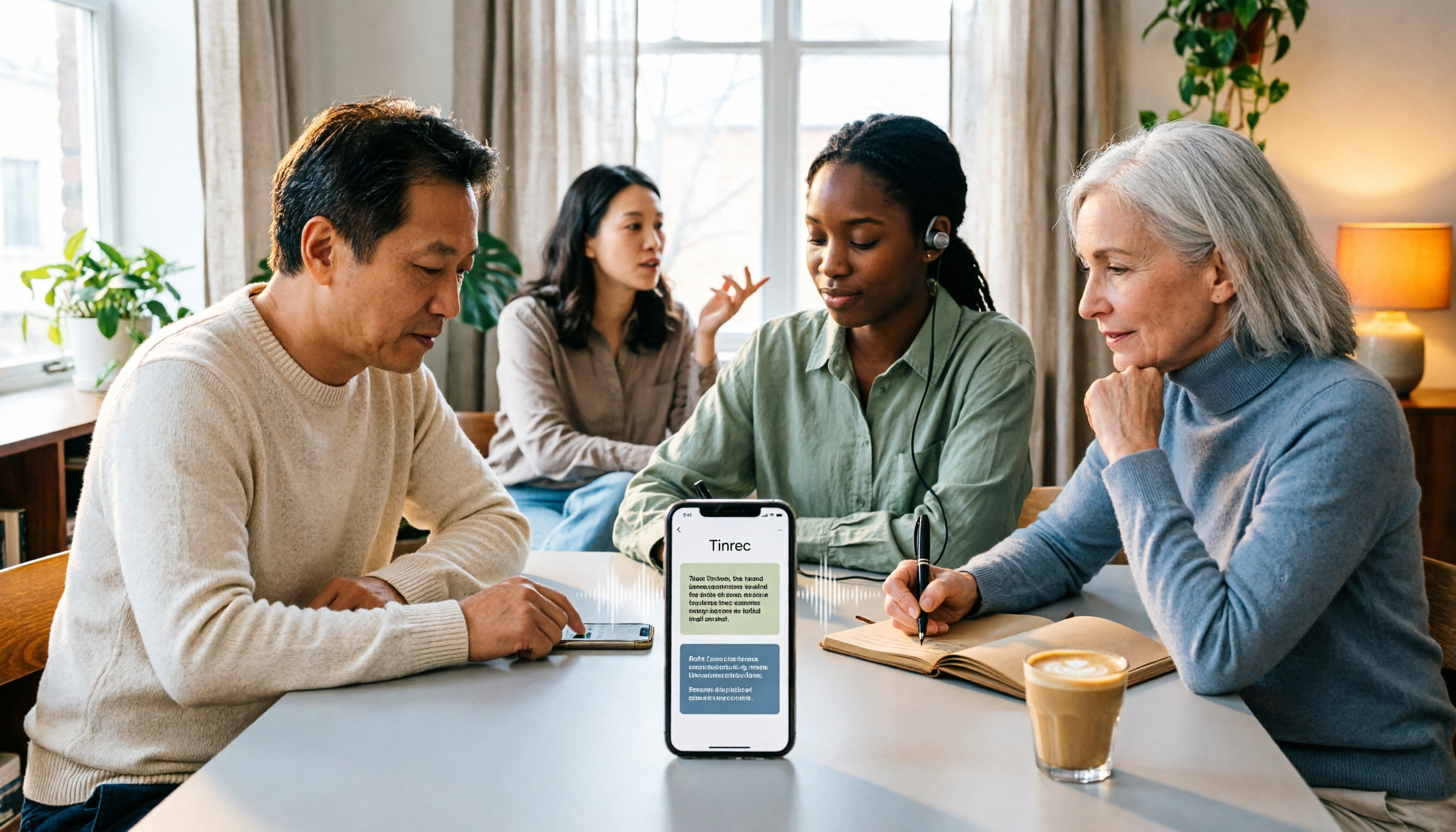
Scenario 1: After a meeting, review key points by listening during your commute A two-hour meeting ends, and you do not want to stare at the screen reading the transcript again. Take Tinrec as an example: during the meeting, it can record and transcribe at the same time, and after the meeting it automatically generates a summary, chapters, and action items; you just copy the summary to your iPhone, turn on the system's Speak Screen feature, and your phone will read the meeting highlights to you, completing a review during your commute.
Scenario 2: When you cannot speak aloud, let iPhone speak for you In a library, hospital, or quiet office, you can open iPhone's "Live Speech," type what you want to say into the window, and the phone will read it aloud directly. In practice, a smoother approach is: first use Tinrec to organize the meeting conclusions or key points of a client reply into short text, copy it, and paste it into the Live Speech window, saving the time of organizing language on the spot.
Scenario 3: Cross-language meetings, view the original text and translation together The biggest fear in international meetings is missing something. Tinrec supports real-time translation during recording, and you can choose to view the original text, translation, or bilingual content. The organized text can also be handed to iPhone for Speak Screen, giving you both a transcript and audio review in two forms.
Scenario 4: Turn class and interview recordings into listenable text materials Students or researchers often accumulate a large number of recordings. After importing audio files into Tinrec to convert them into transcripts, summaries, and chapters, important passages can be listened to repeatedly with the Speak Screen feature, which is much more efficient than dragging the timeline back and forth to find passages.
What are the core capabilities of text-to-speech?
Speak Screen and selected range: This is iPhone's most intuitive text-to-speech method. Once enabled, you can have the system read the entire screen, or only the passage you highlight. Tinrec's transcripts, AI summaries, and to-do lists are all plain text, and can be read aloud directly after copying.
Live Speech: After enabling it in "Settings" > "Accessibility" > "Live Speech," the text you type in the window will be read aloud immediately, and you can also save commonly used phrases in advance and manage them by activity. It is especially useful when you need to speak on the spot but do not want to make sound.
Dictation and Voice Memos transcripts: These two are reverse capabilities—turning speech into text. The microphone icon on the keyboard can convert dictation into text in real time; "Voice Memos" can turn recordings into transcripts, and you can tap a word in the transcript to jump to the corresponding playback position.
Tinrec's transcription and post-meeting organization: iPhone's built-in features handle the passage in front of you, while Tinrec handles an entire meeting. It supports real-time recording transcription, recording online meetings through the desktop version without a bot (capturing computer system audio, without an extra bot joining Zoom, Google Meet, Microsoft Teams, or Webex), and importing audio and video files for transcription. After transcription, it not only gives you a transcript, but also generates a summary, chapters, key points, and action items.
AI Q&A and export: After transcription is complete, you can directly ask Tinrec "who mentioned the budget in this meeting" or "what are the client's concerns," and it will answer based on semantics. The organized content can be exported to tools such as Notion, Google Docs, OneNote, and Dropbox, and then handed to iPhone for Speak Screen as needed.
Practical application scenarios
Meeting notes and post-meeting follow-up: Take Tinrec as an example. Start recording at the beginning of a weekly meeting, see the transcript in real time during the meeting, and get the summary and action items after the meeting; copy the action items to your phone and use Speak Screen to confirm each owner and deadline, avoiding missing commitments.
Communication situations where you cannot speak aloud: Paste the key points organized by Tinrec into the iPhone Live Speech window and let the phone speak for you; commonly used sentences can be saved in Live Speech's phrase library in advance and selected directly next time.
Stop organizing recordings by hand
Upload audio or video and automatically get a transcript, summary, and action items
Cross-language and remote collaboration: Tinrec's real-time translation lets you view bilingual content while in a meeting, and after the meeting you can hand the translation to Speak Screen and listen once to confirm whether your understanding is correct.
Content creation and interview organization: After importing interview or podcast recordings into Tinrec, transcripts and summaries can be exported directly to document tools; when writing, use Speak Screen to listen to your draft, which makes it easier to catch awkward phrasing than reading alone.
Team knowledge retention: The team version provides an independent team space, and meeting data belongs to the team. Members can view, play, and read even without a seat; with a seat, they can record, upload, edit, and export. Administrators can view usage trends and operation logs, and team resources can be handed over when members change.
When choosing a text-to-speech solution, pay attention to these 6 points
First distinguish the direction. To "read text aloud," iPhone's built-in Speak Screen and Live Speech are enough; to "turn meeting speech into usable text," the focus should be on transcription and post-meeting organization capabilities, such as Tinrec's summaries, action items, and Q&A.
Do not just look at whether it can read, but at what it reads. The Speak Screen feature only turns text into sound; the premise is that you have clean, structured text. Tinrec breaks long meetings into chapters and key points, so it sounds logical when read aloud, rather than a long transcript without breaks.
Transcription quality depends on audio conditions. Microphone distance, environmental noise, accents, multiple people speaking at the same time, and technical terms all affect the result; Tinrec provides team hotwords to maintain commonly used terms. No tool should be promised a fixed accuracy rate externally, and important content should still be checked against transcript timestamps or recordings.
Confirm language and translation needs. If meetings mix Chinese and English or require cross-language communication, confirm that the tool supports real-time translation and bilingual viewing; Tinrec covers Chinese, Traditional Chinese, and multilingual meeting scenarios, and supports original text, translation, and bilingual display.
Can it be used directly for work after the meeting. A transcript is only the starting point. Whether it can automatically generate summaries, chapters, and action items, whether you can ask follow-up questions in natural language, and whether it can export to your existing workflow determine how much time you save. These are the areas where Tinrec is relatively complete.
Team use depends on governance capabilities. When multiple people share it, roles and seats must be distinguished: roles determine who can manage the team and view operation logs, and seats determine whether one can record, upload, edit, and export; team data belongs to the team and will not disappear because an individual leaves. The Tinrec team version offers a 7-day trial (1 free seat, 300 minutes of team shared import quota), monthly USD 29.80 per paid seat per month, annual USD 199 per paid seat per year (about USD 16.58 per month), each paid seat provides 2,000 minutes of team shared import quota per month, and real-time recording under an active seat is currently not deducted by minutes. Actual prices and benefits are subject to the official purchase page.
FAQ
Q1: Can iPhone turn text into speech with built-in features? Yes. Go to "Settings" > "Accessibility," enable the Speak Screen-related features, and the system can read selected text or screen content; when you need real-time speaking, use "Live Speech," and the text entered in the window will be read aloud.
Q2: How do I make iPhone read Tinrec meeting transcripts aloud? Copy Tinrec's transcript or AI summary, paste it into an app that supports text selection such as Notes or Mail, highlight it, and use Speak Selection; you can also read only the summary and action items to quickly grasp the conclusions.
Q3: What is the difference between Live Speech and Dictation? They go in opposite directions. Live Speech is text-to-speech: you type, and the phone speaks; Dictation is speech-to-text: you speak, and the phone types. The two can be combined: first use Tinrec to organize content, then use Live Speech to speak on your behalf on the spot.
Q4: Where can Tinrec's transcribed content be taken? It supports multiple export formats and third-party tools, such as Notion, Google Docs, OneNote, and Dropbox, and can also generate reports, tables, and documents, making it easy to continue with existing workflows.
Q5: What is the difference between the team version and the personal version? Personal version data is managed by the individual account; the team version is an independent team space with capabilities such as member invitations, role and seat management, shared benefits, usage analysis, operation logs, and audio recycle bin, suitable for departments or project teams that need to jointly retain meeting data.
Q6: Can recording-to-text completely replace manual note-taking? It is not recommended to expect that. AI can greatly reduce the cost of manual organization, but it may miss or misunderstand details. Important decisions should still be checked against transcript timestamps and recording playback; at the same time, before recording, you should comply with local regulations and obtain consent from participants when necessary.
Conclusion
iPhone's text-to-speech capability solves the output problem—reading aloud text that already exists; but the real time-consuming part is often the input side: how meetings, interviews, and classes become usable text. Connecting the two parts is the complete process.
If your need is only to occasionally read a passage aloud, the built-in Speak Screen and Live Speech are more than enough; if you handle meeting or interview records every week, it is recommended to let Tinrec handle transcription, summaries, action items, and export, and then hand them to iPhone's Speak Screen feature to help you review. Tinrec's free version provides a basic quota. Try the actual effect of transcription and summaries with one or two meetings first, then decide whether to upgrade.
References
- View Voice Memos transcripts on iPhone - Apple Support (Taiwan)
- iPhone voice-to-text setup tips: 5 methods to achieve recording-to-text - Mr. Mad
- A practical guide to speech-to-text on iPhone
- Use Live Speech on iPhone to type-to-speak - Apple Support (Taiwan)
- iPhone speech-to-text tutorial: easily done without third-party apps
Turn every recording into actionable outcomes
Get 60 free transcription minutes when you sign in. No credit card required.
Related Reading
You might also like

2026 Comparison of 3 iPhone Camera-to-Text Methods: Live Text, Scan Text, and Tinrec Audio Transcription — Which to Choose?
iPhone camera-to-text (Live Text, Notes Scan Text) only handles words in the frame, so it's useless for audio content like meetings and interviews. This article first breaks down common misconceptions, then uses Tinrec to demonstrate how to turn recordings into transcripts, summaries, action items, and searchable team meeting data.

Tinrec vs Notta 2026: 5-Dimension Comparison — Which AI Tool Creates More Complete Meeting Notes?
What should meeting notes include? This article breaks down the 5 essential elements of usable meeting minutes and compares Tinrec and Notta across 5 dimensions: output completeness, meeting capture method, Chinese language experience, post-meeting Q&A, and team governance — helping you choose the right meeting notes tool for your team.

Phone Voice to Text in 2026: Built-in Dictation Settings + Tinrec Meeting Transcripts
Phone voice-to-text actually covers two scenarios: live dictation and converting existing recordings into transcripts. This guide uses 5 decision points to help you choose the right approach, with hands-on comparisons of iPhone Dictation, Android keyboards, Tinrec, Otter.ai, PLAUD, and more—plus a pitfalls guide and selection advice.

4 Best Voice Memo & Note Recording Tools in 2026: Is iPhone Built-in Enough or Should You Switch to AI?
Can you record audio in Notes? Yes. This hands-on comparison covers four common approaches—iPhone built-in Notes and Voice Memos, Tinrec, Notta, and Granola—explaining how they differ in recording, transcription, AI summaries, and team collaboration. It also includes buying criteria and pitfalls to help you decide whether to stick with built-in tools or switch to an AI meeting assistant.

2026 Comparison of 2 Meeting Transcription Tools: Which Creates Records with Stronger Legal Validity?
Do meeting minutes have legal validity? This article examines the legal practice perspective, comparing Tinrec and Otter.ai across Chinese meeting transcription, bot-free recording, record completeness, AI follow-up questions, and team collaboration to help you choose a tool that produces meeting records that can withstand legal scrutiny.

How to Record Audio and Video on a Computer in 2026: 3 Methods + AI-Generated Transcripts
How do you record audio and video on a computer? First, understand the 4 key decision points: system audio, built-in tool limitations, and post-meeting organization. Then compare Windows built-in tools, Otter.ai, PLAUD, and Tinrec to find the most time-saving approach.

EverCam Free Version Review 2026: 5-Point Comparison with Tinrec for Meeting Notes
Is EverCam free? According to its official FAQ, it automatically switches to a free version after a one-month trial, but the free version adds a watermark, cannot export MP4, and cannot insert videos. This article compares EverCam and Tinrec across 5 dimensions—free version limits, Chinese transcription, post-meeting organization, cross-device use, and team collaboration—to help you decide which one fits your needs.

How to Transcribe Phone Recordings in 2026: A 5-Step Guide
Recorded audio on your phone but no time to organize it? This guide starts with the built-in Voice Memos transcription feature on iPhone and walks you through 5 steps to turn phone recordings into usable transcripts. Then, from a mid-level manager's practical perspective, it explains the limits of built-in features, when to switch to a cross-platform AI meeting notes tool like Tinrec, and includes pitfalls to avoid and selection advice.

2026 Comparison of 4 Audio-to-Text Tools: Is Good Tape Worth It? Which Saves More Time for Chinese Meetings?
Is Good Tape worth it? This article breaks down Good Tape's positioning and use cases from real-world scenarios, and explains why Tinrec saves more time for Chinese meetings, mixed Chinese-English content, post-meeting organization, and team collaboration. It also covers 5 key points to check when choosing an audio-to-text tool and answers common questions.