
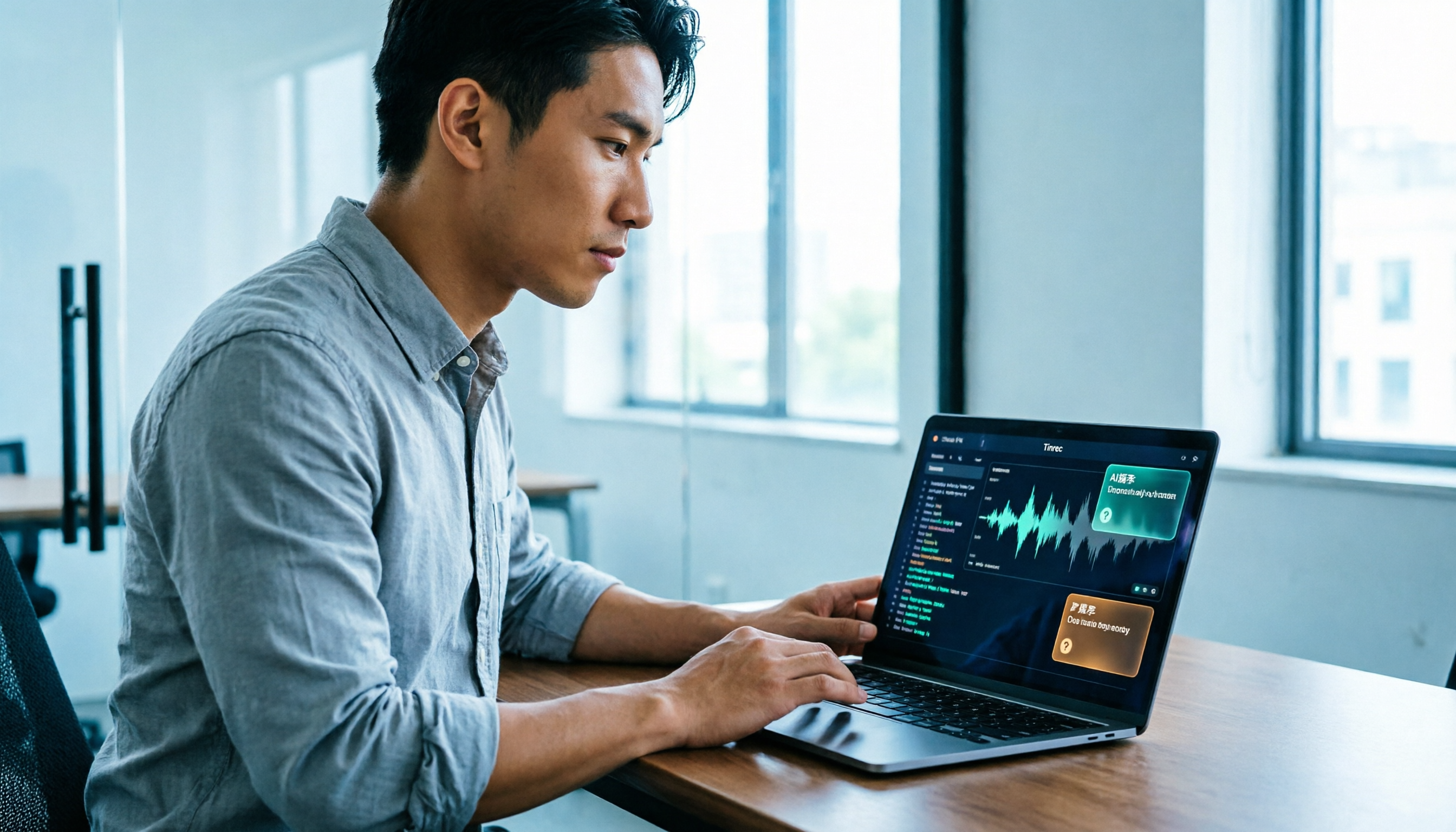
Turn recordings into transcripts and summaries in minutes
Upload audio or video for multilingual transcription, AI notes, and action items
After a one-hour meeting, all you remember is "someone mentioned the budget"
Online meetings are convenient, but the real trouble starts after everyone logs off.
Your boss asks, "What delivery date did the client mention last time?" You scroll through the chat history and find only "I'll confirm after the meeting."
Even more common: you hit record, but when you open the file at home, you realize it only captured your own voice—everyone else's comments are missing.
The problem usually isn't you—it's the tool. Most people think "just hit record and it'll work," but recording online meetings involves three things: permissions, capturing the other party's audio, and whether the recording is usable afterward.
This article compiles the methods I've tried myself, from built-in meeting platform features to desktop recording tools, all explained clearly.
5 Key Points to Understand Before Recording Online Meetings
1. Who has permission to hit the record button
Google Meet's official documentation states it plainly: attendees can only record if the host has enabled recording for the meeting. Zoom also often reserves recording permissions for the host. If you're just a participant, the built-in record button is likely grayed out.
2. Are you recording the screen or the other party's audio?
This is the most common trap for beginners. Windows built-in recording defaults to microphone only, so you end up with just your own voice. To capture other participants' audio, you must switch to system audio capture. This is why many people eventually turn to desktop recording tools.
3. What can you do with the recording afterward?
Getting just a transcript versus getting "summary + chapters + action items" are two different things. The value of meeting recordings lies after the meeting: who's responsible for what, when it's due, and what the conclusions were.
4. Quotas and time limits
Many free tools have a 15–30 minute per-session limit or monthly minute caps. Meetings often run an hour or more, and getting cut off halfway is worse than not recording at all.
5. Who ultimately holds the team's data
If meeting recordings only live on your personal cloud drive, they scatter when colleagues leave or you switch devices. What teams really need is a searchable, transferable meeting database.
Tinrec — Our Top Pick After Testing
Tinrec is an AI meeting notes and collaboration tool for individuals and teams, available on desktop, web, and mobile.
Its most impressive feature is no meeting bot required. The Tinrec desktop app directly captures your computer's system audio. When you're in a Zoom, Google Meet, Microsoft Teams, or Webex meeting, just open the desktop app and start recording manually—you'll get a live transcript while the meeting is happening, and no strange account appears in the participant list. Note that this isn't "automatically joining all meetings on your calendar"—you press start yourself.
After the meeting, Tinrec generates summaries, chapters, key points, and action items. Who's responsible for what and by when are listed as a checklist; when you need to deliver, you can further generate reports, tables, or documents.
Even better is the AI Q&A. For a 40-minute transcript, if you're looking for a specific sentence, Ctrl+F only searches keywords; Tinrec lets you directly ask "What was the conclusion about the marketing budget in the last meeting?" and it gives you an answer based on semantics, not just a string of keyword hits. This feature is uncommon among tools at the same price point.
It also supports real-time translation, so cross-language meetings can be viewed in original, translated, or bilingual mode; Traditional Chinese and mixed Chinese-English content are also supported. Teams can maintain their own hotwords to improve recognition of internal product codes and proper nouns. Meeting results can be exported to Notion, Google Docs, OneNote, Dropbox, and other tools for further processing.
Let me explain the testing conditions: we recorded online meetings in a typical office environment using headphones via the desktop app, with air conditioning and keyboard noise present. Actual recognition performance will be affected by recording quality, accents, overlapping speech, and technical terminology, so I won't give you a fixed accuracy number—when you see claims like "98%," check what conditions it was tested under.
Three reasons I'd recommend it:
- Bot-free system audio recording—no extra participant in the meeting list, and no waiting for the host to grant permission.
- Complete post-meeting workflow: transcript, summary, chapters, action items, AI Q&A, multi-format export, all connecting to your existing workflow.
- Excellent Chinese meeting experience, with real-time translation and team hotwords—far more practical for Chinese teams than English-only tools.
Stop organizing recordings by hand
Upload audio or video and automatically get a transcript, summary, and action items
Limitations I must be honest about:
The free version provides basic quota for you to try. If you have several meetings every week, you'll need to consider a paid plan. Also, even the most accurate AI summary can miss details—for important conclusions, it's best to go back and verify the transcript timestamp or recording.
Who it's for:
People who have regular online meetings every week and need to produce minutes and action items afterward; teams looking for a Chinese-friendly tool that doesn't require a bot to join meetings.
If you need the team version:
Tinrec's team version isn't "multiple people sharing one personal account"—it's an independent team workspace. Meeting data belongs to the team, and when members leave, are removed, or lose their seat, they can hand over their resources to other active members. Admins can create and switch between multiple team workspaces, invite members via join links, set roles (owner/admin/member), and assign or revoke seats; they can also view team usage trends, member rankings and details, query and export audit logs, and recover accidentally deleted content via the audio recycle bin.
It's important to distinguish "roles" from "seats": roles determine who can manage the team, members, and audits; seats determine whether a member can record, upload, edit, import, and export. Members without a seat can still view, play, and read team data, but cannot perform resource usage operations.
Current team pricing: USD 29.80 per paid seat per month, or USD 199 per paid seat per year (about USD 16.58/month); each paid seat provides 2,000 minutes of team shared import quota per month, while real-time recording under an active plan and seat is currently not deducted by minutes—file and web imports use the team shared quota. Eligible teams get a 7-day trial, 1 free seat, and 300 minutes of shared import quota for the first time. Actual prices, currencies, and promotions are subject to the official purchase page.
Besides Tinrec, What Other Options Are There?
Otter.ai: A mature choice for English business meetings. Free version offers 300 minutes per month; Pro annual billing is about USD 8.49 per user per month, including 1,200 minutes of in-app recording and 10 file imports per month. If your meetings are almost entirely in English, it's more than enough; but if meetings are in Chinese or mixed Chinese-English, Tinrec is smoother for Chinese summarization and real-time translation.
Notta: The direct competitor with the most overlap with Tinrec. Free version offers 120 minutes per month, max 3 minutes per session; Pro annual billing is about USD 8.17 per month. It's good for file transcription and translation; Tinrec's differences are bot-free system audio capture on desktop, plus team workspaces, seat governance, and Agent post-processing.
Granola: Also a bot-free AI meeting notes tool. Basic is free, Business is USD 14 per user per month, Enterprise is USD 35 per user per month. Note that it doesn't support uploading pre-recorded audio files and doesn't save meeting audio; if you need to keep recordings, upload files afterward, or build a team data repository, Tinrec is more suitable.
Pitfall Guide: 4 Most Common Mistakes When Recording Online Meetings
Pitfall 1: Assuming hitting record captures audio. Windows built-in recording defaults to microphone only, so you only record yourself. To capture other participants' audio, you must switch to system audio capture—this is why most people eventually switch to desktop recording tools.
Pitfall 2: Assuming the platform's built-in record button always works. In Google Meet, attendees can only record if the host has enabled recording; Zoom usually reserves recording permissions for the host. If participants want their own copy, they need to handle it on their end.
Pitfall 3: Ignoring storage space and recording consent. For example, in Google Meet, recordings are uploaded to the initiator's Google Drive—if there's not enough space, recording fails, so check beforehand. Also, before recording, ensure compliance with local laws and obtain participant consent if necessary.
Pitfall 4: Treating recordings only as "future reference." If you just get a transcript and leave it, you're only using a third of the tool's capabilities. After recording, directly use AI to ask for key points and extract action items—that's where the real time savings are.
Conclusion: Which One Should You Choose?
In a nutshell: if you want "Chinese meetings + post-meeting organization + team knowledge retention," Tinrec is my top pick after testing.
- Don't want a bot joining the meeting, need system audio recording → Tinrec (bot-free desktop recording)
- Need summaries, chapters, action items after recording, and the ability to ask questions about meeting content → Tinrec (AI Q&A is the differentiator)
- Chinese or mixed Chinese-English meetings → Tinrec (real-time translation + team hotwords)
- Team needs unified meeting data storage, member and usage management → Tinrec Team (roles and seats managed separately)
- Meetings almost entirely in English, zero budget → Otter.ai (reasonable choice for English scenarios)
I recommend starting with the free version, recording a real meeting to see if the recognition quality and post-meeting output meet your needs, then deciding whether to upgrade. The best way to judge a tool is by your own meeting recordings.
References
- How to Record Online Meetings [Audio and Video] - EaseUS
- Record a video meeting - Computer - Google Meet Help
- How to record audio with Windows 10 built-in recorder for online meetings? - Microsoft Q&A
- 2025 Most Complete Meeting Recording Guide: 6 Free Tools Recommended - EaseUS
- 5 Methods! How to Record Online Meetings (2025 Guide) - FoneDog
Turn every recording into actionable outcomes
Get 60 free transcription minutes when you sign in. No credit card required.
Related Reading
You might also like

2026 Comparison of 4 Audio-to-Text Tools: ChatGPT Recording Limit 120 Minutes, Tinrec Saves Time on Chinese Meetings
This article answers "How long can ChatGPT record?" and compares 4 audio-to-text tools. ChatGPT's recording mode lasts up to 120 minutes, is limited to certain paid versions, and lacks speaker separation and structured summaries. Tinrec (秒聽錄音) supports bot-free online meeting recording, Chinese transcription, AI Q&A, and team spaces, making it suitable for long Chinese meetings and team knowledge retention. The article includes buying criteria, pitfalls to avoid, and scenario recommendations.
4 iPhone Transcription Solutions Compared: Is the Built-in Voice Memos App Enough?
Can't find iPhone recording transcripts? This article first clarifies where transcripts are hidden in Voice Memos, which models and languages are supported, then compares four solutions: Apple's built-in, Tinrec, Yating, and Notta. It also covers selection criteria and pitfalls to help you choose the most time-saving option.

Where Is the Microphone in Word 2026? 3 Locations Compared: Built-in Dictation vs. AI Tools for Meeting Notes
Where is the microphone in Word? Word actually has three voice entry points: the Dictate button on the Home ribbon, the microphone icon in the floating dictation menu (or ALT + '), and the voice search microphone next to the search box. This article covers how each location works in practice, along with permission and offline limitations, explains why built-in dictation isn't suited for recording full meetings, and compares meeting note tools like Tinrec, Otter.ai, Notta, and Granola.

2026 Comparison of 3 Chinese AI Tools: Is Google AI Studio's Chinese Good Enough?
Does Google AI Studio support Chinese? Here's the bottom line: the interface is still primarily in English, but the Gemini model itself fully supports Traditional Chinese, so you can give commands entirely in Chinese. This article also compares three AI tools that handle Chinese, including the free Google AI Studio, Otter.ai, and Tinrec, and outlines key considerations and common pitfalls when choosing a Chinese meeting transcription tool, helping you decide which one truly saves you time.

2026 Real-Time Transcription Tools Compared: Which Is Easiest to Learn and Has a Free Version That Works?
We tested and compared real-time transcription tools including Tinrec, Notta, Otter.ai, and Granola, focusing on ease of learning, Chinese recognition, post-meeting organization, and free tier limits to help you avoid common pitfalls and find the best transcription tool for your needs.

4 Free Real-Time Transcription Tools Compared in 2026: Which Offers the Best Free Tier and Live Accuracy?
How do you choose a free real-time transcription tool? This comparison of Tinrec, Otter.ai, Notta, and cSubtitle covers free quotas, live transcription capabilities, Chinese recognition, and post-meeting organization features. We also share 4 key selection criteria and common pitfalls to help you find the best free solution for your meeting style.

Best Live Transcription Tool in 2026? 5 Steps to Find Your Perfect Fit
What's the best live transcription tool in 2026? This article addresses common pitfalls and walks you through a 5-step evaluation process, using Tinrec as an example to illustrate bot-free meeting recording, AI summaries, action items, Q&A, and team collaboration, helping you find the right solution.

4 Live Transcription Tools Tested for 2026: Which One Handles Chinese Meetings Best?
Which live transcription tool is best? This article tests 4 tools with real-time transcription capabilities using the same real meeting recording, comparing them on four key points: whether they transcribe while recording, how they capture meeting audio, what they produce after the meeting, and free quota and data ownership. It also explains how Tinrec's desktop version records without a bot, real-time translation, AI Q&A, and team spaces work.

4 Real-Time Transcription AIs Compared in 2026: Which Handles Chinese Meetings and Free Tiers Best?
How to choose a real-time transcription AI? This article takes a decision-making approach, comparing Tinrec, Notta, Otter.ai, and Granola on real-time transcription, online meeting recording methods, post-meeting summaries, and team collaboration. It also covers free tiers, per-seat pricing, and common pitfalls to help you find the tool that truly fits your meeting style.