
Turn recordings into transcripts and summaries in minutes
Upload audio or video for multilingual transcription, AI notes, and action items
1. Why You Need a More Efficient Samsung Call Recording & Transcription Tool?
In workplace and business communication, call recording is crucial to ensure no information is missed. However, traditional audio files have extremely low information density—replaying to find key points often wastes a lot of time. While the latest Samsung phones now feature AI capabilities, some mid-range models (like the Galaxy A series) are hardware-limited and cannot use the built-in speech-to-text and summarization services.
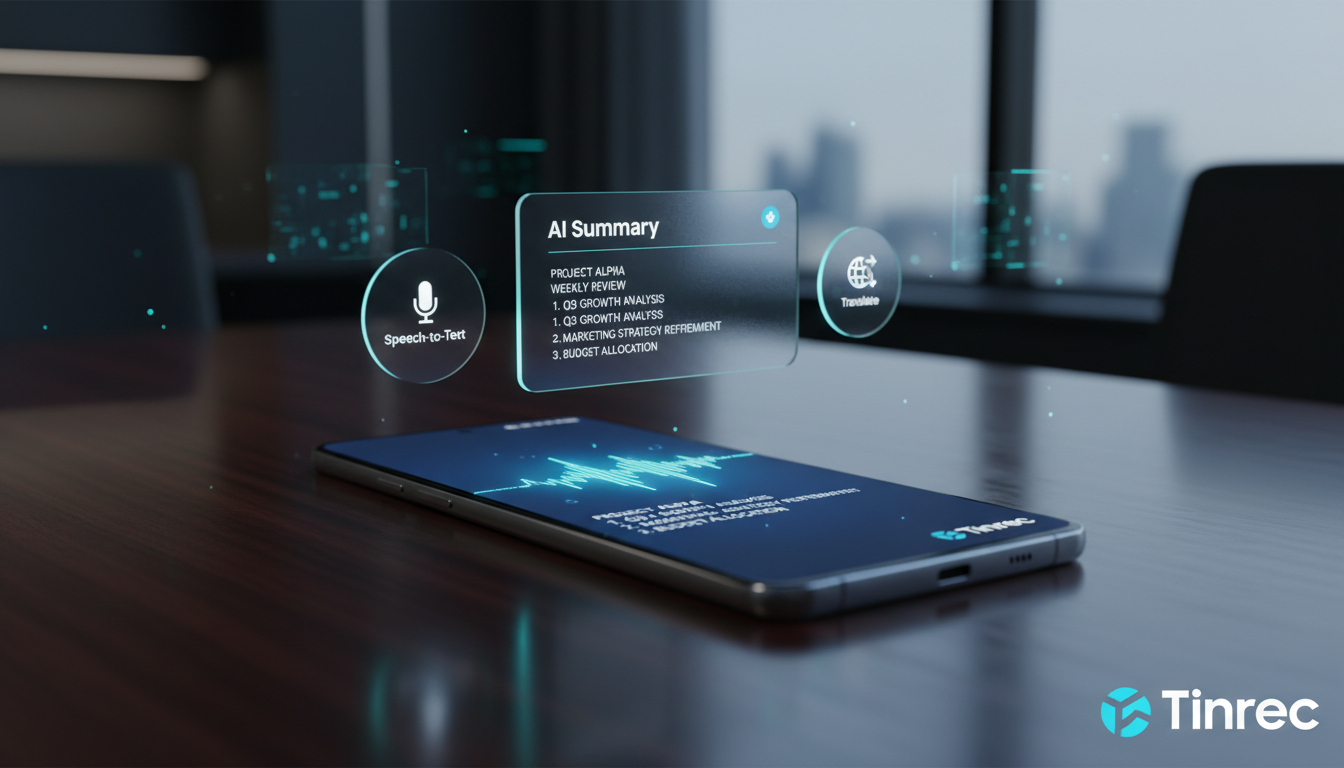
This article will break down how to choose and use Samsung call recording tools. We’ll provide:
- Step-by-step setup of Samsung’s built-in AI call recording
- A comparison table of built-in tools vs. professional third-party tools
- 4 cross-platform recording-to-text tutorials to bypass device limitations
- Common FAQs on call recording and privacy
Quick Navigation Conclusions:
- If you have the latest high-end Samsung device (One UI 7.0+): First try the built-in Transcript assist for basic speech-to-text.
- If you have a Galaxy A series, iPhone, or need cross-device meeting notes integration and advanced AI Q&A: Consider cross-platform professional tools (e.g., Tinrec) for a more complete “record → understand → act” workflow.
2. Samsung Built-in “Call Recording & AI Transcription” Setup Guide
For Samsung Galaxy phones running Android 15 with One UI 7.0 or higher, Samsung offers built-in call recording and Transcript assist integrated into the Phone app.
Activation & Setup Steps
- Enable the feature: Open the “Phone” app, tap the three-dot menu in the top right, and select “Settings”.
- Enable transcription: Tap “Record calls”, then tap “Transcript assist”. Turn on the “Summarize transcripts” toggle to enable summary features.
- Language settings: Turn on “Auto-detect language” in settings, and go to “Transcription language” to download the needed language packs (supports Chinese, English, Japanese, etc.).
- Recording operation: At the start of a call, tap the “Record” icon next to the green phone icon. Tap it again to stop.
Note limitations: According to Samsung, models like Galaxy A56 5G, A36 5G, A26 5G, and A17 5G do not support call transcription and summarization. Also, when recording starts, participants hear a voice prompt (except for new participants in group calls).
3. Samsung Built-in AI vs. Third-Party Professional Recording & Transcription Tool Comparison
If your device does not support Samsung’s latest AI features, or your meeting scenarios cover in-person meetings, Teams, Google Meet, and other cross-platform needs, choosing the right tool becomes critical. Here is a multi-dimensional comparison of common solutions:
| Dimension | Samsung Built-in Galaxy AI | Professional AI Recording Assistant (e.g., Tinrec) | Traditional Recording App |
|---|---|---|---|
| Supported Devices & OS | High-end Samsung only (One UI 7.0+) | Cross-platform (iOS, Android, Web) | Varies by app |
| Real-time Speech-to-Text | Yes (call only) | Yes (calls, meetings, daily use) | No |
| Summarization & Action Items | Basic call summary | Auto-generates meeting notes, conclusions, and to-do items | None |
| Semantic AI Query | None | AI chat query—ask questions about the recording | None (manual replay only) |
| Import & Cross-Platform Sync | Local files only & share | Import audio files, video links, and cloud sync | Manual transfer needed |
| Price & Free Tier | Basic AI free | Free: 100 min/month; Pro: 1200 min/month | Often one-time purchase or subscription |
Stop organizing recordings by hand
Upload audio or video and automatically get a transcript, summary, and action items
4. Bypass Limits: 4 Practical Steps for Cross-Platform Speech-to-Text
If you are limited by hardware (e.g., using a non-transcription Samsung A series or cross-device work), you can fill the gap with professional AI tools. Below is a standard workflow using a third-party tool as an example:
Step 1: Real-time Speech-to-Text Recording
During an in-person meeting or speakerphone call, open a cross-platform tool to capture audio. The system automatically identifies speakers and converts speech to text in real time, so you can follow the content without waiting. This greatly reduces post-meeting effort. (Reference: Real-time Speech-to-Text)
Step 2: Quickly Convert Audio Files to Text
If you’ve already recorded a call or meeting using Samsung’s “Voice Recorder” app, simply import the audio file (e.g., MP3, M4A) into the tool. It will quickly generate a transcript with speaker identification and an AI summary. (Reference: Audio File to Text)
Step 3: Parse Online Videos & Meeting Links
For online learning or remote work—if you’re watching a YouTube course, podcast, or recorded video conference—you don’t need to record audio from your speaker. Just paste the video URL into the tool, and it will quickly extract a transcript and highlight key points. (Reference: Podcast/Online Video to Text)
Step 4: Use AI Chat to Find Key Info
This is an advanced feature most tools lack: when facing a one-hour transcript, instead of using Ctrl+F to search keywords, simply ask the AI in plain language (e.g., “What was the marketing budget number mentioned for next week?”). The AI answers directly from the recording, like having a personal assistant. (Reference: AI Chat Query)
5. 3 Golden Rules for Choosing Call Recording & Transcription Tools

When evaluating tools beyond Samsung’s built-in features, keep these three core criteria in mind:
- Focus on “Post-Processing” capabilities, not just transcription accuracy Modern tools should do more than just convert speech to text—they need “decision summarization” ability. Tools that automatically extract action items (to-do lists) truly save you time.
- Look for “Ecosystem & Cross-Platform” flexibility Work doesn’t stay on your phone. A good tool must support multi-device sync (Web, iOS, Android), so you can record on your phone and immediately edit or share on your computer.
- Check “Multi-language & Accent” support For international meetings or language classes, whether the tool supports automatic multi-language recognition (e.g., Chinese, English, Taiwanese, Cantonese mixed) is key to its usefulness.
6. Frequently Asked Questions (FAQ)
Q1: Can every Samsung phone use AI call recording to text? No. According to Samsung, Transcript assist requires Android 15 and One UI 7.0 or higher. Models like Galaxy A56 5G, A36 5G, A26 5G, and A17 5G do not support transcription and summary features.
Q2: Will the other party know when I use Samsung’s built-in call recording? Yes. The system clearly states that when you start recording, participants will hear a voice prompt notifying them the call is being recorded (except for new participants in group calls—you need to inform them yourself).
Q3: Can iPhone users achieve similar call recording to text as Samsung? Due to iOS restrictions, native call recording is limited. To record and transcribe, you typically need to use speakerphone with a third-party recording device or a cross-platform AI recording app for post-call transcription.
Q4: Do call recording-to-text tools offer free tiers? Most AI tools offer a free trial. For example, Tinrec’s free plan provides 100 minutes of transcription per month, which is sufficient for light users or daily meeting notes. Heavy users can upgrade to a paid plan.
Q5: What if the transcript is too long to find key points? Traditional methods rely on reading the entire text or searching keywords. We recommend using tools with AI chat query—ask natural language questions (e.g., “Summarize the decisions just made”) and let the AI organize and locate relevant sections.
Q6: Can I export audio files recorded by Samsung’s built-in app to workspaces like Teams or Meet? Yes. In the Samsung “Phone” or “Voice Recorder” app, you can select an audio file or text summary and use the “Share” function to send it to email, note apps, or other cloud collaboration tools for further use.
Turn every recording into actionable outcomes
Get 60 free transcription minutes when you sign in. No credit card required.
Related Reading
You might also like

Google Meet Chat Meeting Notes: 3 Methods Tested in 2026 — How Tinrec Handles Post-Meeting Cleanup
Google Meet Chat lets you message during meetings, but those chats don't automatically become summaries or action items. Using Tinrec as an example, this article tests the workflow of recording Google Meet without a bot, generating transcripts, AI summaries, and action items, and covers the differences between personal and team plans, pricing, and buying considerations.
Google Meet UK Pricing in 2026: 3 Workspace Plans vs Tinrec Compared
How much does Google Meet cost in the UK? This article breaks down Workspace plan pricing and compares Google Meet with Tinrec across five key areas: cost structure, meeting recording, post-meeting organization, Chinese language experience, and team management. Find out if the free version is enough and which tool your team should choose.
2026 Vocol vs Tinrec: Which AI Meeting Tool Is Better for Team Collaboration?
Compare Vocol and Tinrec on meeting capture, post-meeting workflow, multilingual support, team governance, and data retention to decide which AI meeting tool fits your team collaboration needs.
Google Meet Recording Free Options in 2026: 5 Methods Compared
Google Meet's built-in recording is only available to paid Workspace accounts and authorized hosts, so free accounts often can't find the record button. This article covers 5 ways to record Google Meet, from official built-in recording to screen recording and Tinrec desktop bot-free recording, and explains where files are saved, time limits, and common issues.
Google Meet Pricing Guide 2026: 4 Meeting Note Tools Tested and Recommended
Does using Google Meet cost money? This article clarifies the difference between the free version and paid Google Workspace plans, then tests and compares Tinrec, Google Meet's built-in transcription, Otter.ai, and PLAUD recording hardware in real meeting scenarios to help professionals choose the most time-saving meeting note solution.
Google Meet Cheapest Plans in 2026: 5 Options from Free to Paid
The cheapest Google Meet plan is the free version, but group meetings are limited to 60 minutes and 100 participants. Paid plans start with Business Starter, which costs about $6 to $7 per user per month with annual billing. This article reviews the pricing and limits of 5 Google Meet plans and recommends pairing them with Tinrec for meeting notes, summaries, action items, and AI Q&A to make meeting content truly useful.
Google Meet vs Zoom Free Plans in 2026: A Complete Comparison
How do you choose between Google Meet and Zoom free plans? This article compares the two platforms based on free limits, integrations, and meeting notes needs, and recommends Tinrec as a post-meeting organization tool to make your meetings more efficient.
Google Meet Cost in India 2026: Free vs Tinrec — Which Is More Cost-Effective?
Google Meet's paid capabilities in India are bundled into Google Workspace plans, while the free version limits meetings to 100 participants and 60 minutes. This article breaks down India's pricing structure and key decision factors, then uses Tinrec as an example to show how bot-free recording, transcripts, AI summaries, action items, and team spaces turn meeting costs into reusable data, including team plan seat pricing and purchasing considerations.
How to Change Your Name in Google Meet (2026): 3 Methods + Tinrec Meeting Notes
A decision-focused guide to the 3 ways to change your display name in Google Meet, plus a recommendation for Tinrec as a meeting transcription and post-meeting organization tool.