
Turn recordings into transcripts and summaries in minutes
Upload audio or video for multilingual transcription, AI notes, and action items
Many people encounter the dilemma of "unable to record" or "screen recording lacks the other person's voice" when using LINE for important business communication or interviews, especially iPhone users who are restricted by iOS privacy policies—it's even more challenging. Plus, after recording, manually transcribing the audio often takes a lot of time. This article breaks down the common limitations of LINE call recording and provides a comparison table of 5 cross-device (iOS/Android/computer) solutions, step-by-step guides, and a FAQ.
Quick Navigation Conclusions:
- For free mobile-only recording: Android users can use third-party call recording apps; iPhone users are advised to use the desktop version of LINE or side-record with another device.
- For post-meeting organization and efficiency: Pair with an AI speech-to-text tool like Tinrec to convert recordings into transcripts and decision summaries, significantly reducing review time.
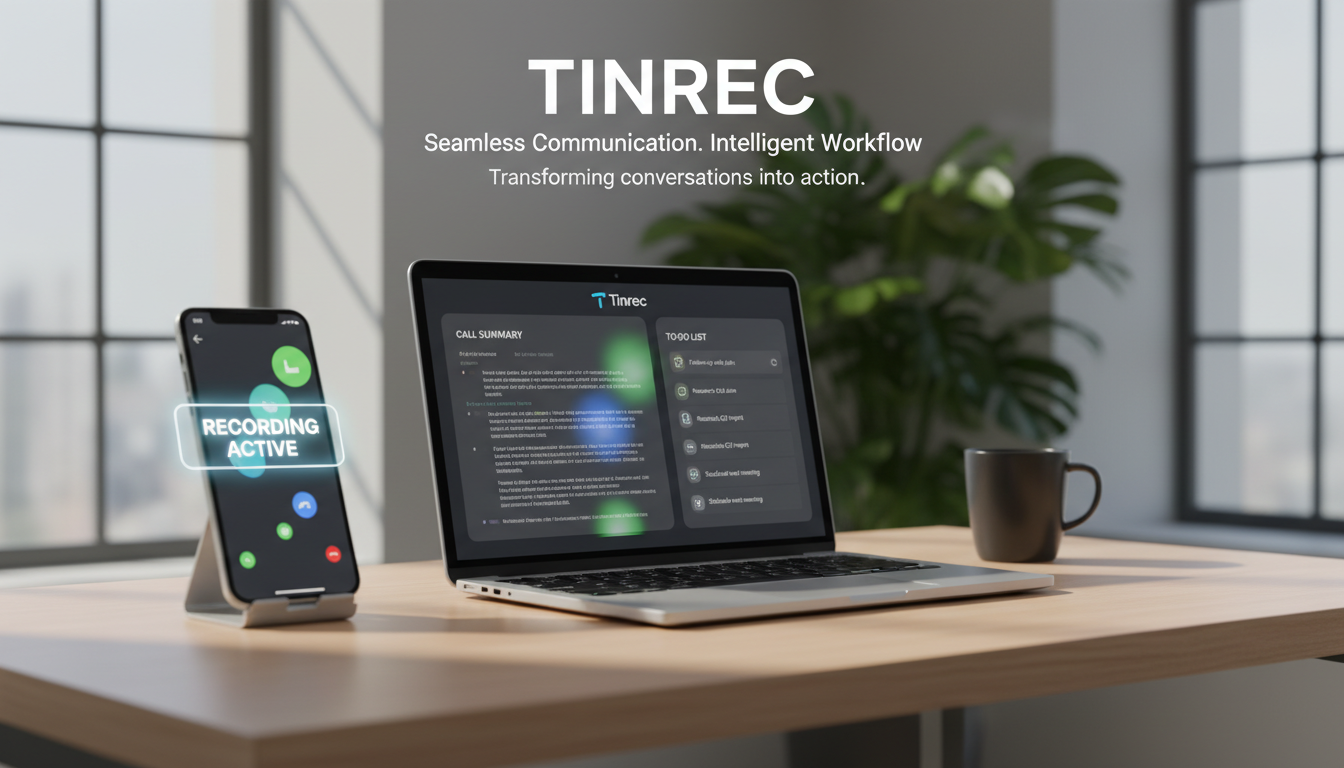
Why Is Recording LINE Calls So Difficult? Current State and 3 Main Pain Points
When using LINE for calls, users commonly face these three challenges:
- Strict system privacy restrictions: iOS systems, due to privacy protection, completely prohibit third-party apps (including screen recording) from capturing both sides of a call, so iPhone recordings often only capture the screen or one side's audio.
- Time-consuming post-recording transcription: Even if you successfully record a call, traditional audio files have very low information density. A 1-hour call can take 1.5 to 2 hours to manually type into text.
- Lack of actionable outcomes: Most recordings are kept as "reference" audio files and cannot directly generate actionable conclusions or to-do items, causing meeting follow-ups to be forgotten.
LINE Call Recording Solutions Unveiled (by Device)
For different devices, common solutions to obtain LINE call recordings are as follows:
- iPhone (iOS) Users: The safest method is to turn on speakerphone and use another phone or a physical voice recorder for "physical side-recording"; alternatively, use the desktop version of LINE for the call and record on the computer.
- Android Users: Some branded phones (e.g., Samsung) can use third-party apps (e.g., Cube ACR) for in-app recording, but compatibility depends on the Android OS version.
- Desktop (Windows/Mac) Users: Use the built-in voice recorder, QuickTime Player, or professional recording software (e.g., OBS) to capture system audio and microphone input.
Comparison Table: 5 LINE Call Recording & Transcription Tools
After obtaining the audio, how to process the voice information is key. Below is an objective comparison across dimensions of "recording methods" and "transcription tools":
| Dimension | iOS Built-in Screen Recording | Cube ACR (Android App) | Desktop Recording Software (e.g., OBS) | Physical Recorder Side-Recording | Tinrec (AI Voice Assistant) |
|---|---|---|---|---|---|
| Supported Device/Scenario | iPhone (usually no audio) | Android phones | Windows / Mac computers | All physical speakerphone scenarios | Web / iOS / Android (processes audio files) |
| Real-time Transcription | ❌ Not supported | ❌ Not supported | ❌ Not supported | ❌ Not supported | ✅ Supports real-time transcription & multilingual recognition |
| Transcripts/Action Items | ❌ Video only | ❌ Audio only | ❌ Audio only | ❌ Audio only | ✅ Auto-generates meeting minutes & to-do lists |
| AI Query Interaction | ❌ None | ❌ None | ❌ None | ❌ None | ✅ Supports semantic-based conversational queries |
| Export & Integration | Export MP4 | Export audio formats | Export audio formats | Export audio formats | Export multiple text/document formats |
| Price/Free Tier | Completely free | Free basic / Paid advanced | Completely free | Hardware purchase required | Free plan: 100 minutes/month |
Stop organizing recordings by hand
Upload audio or video and automatically get a transcript, summary, and action items
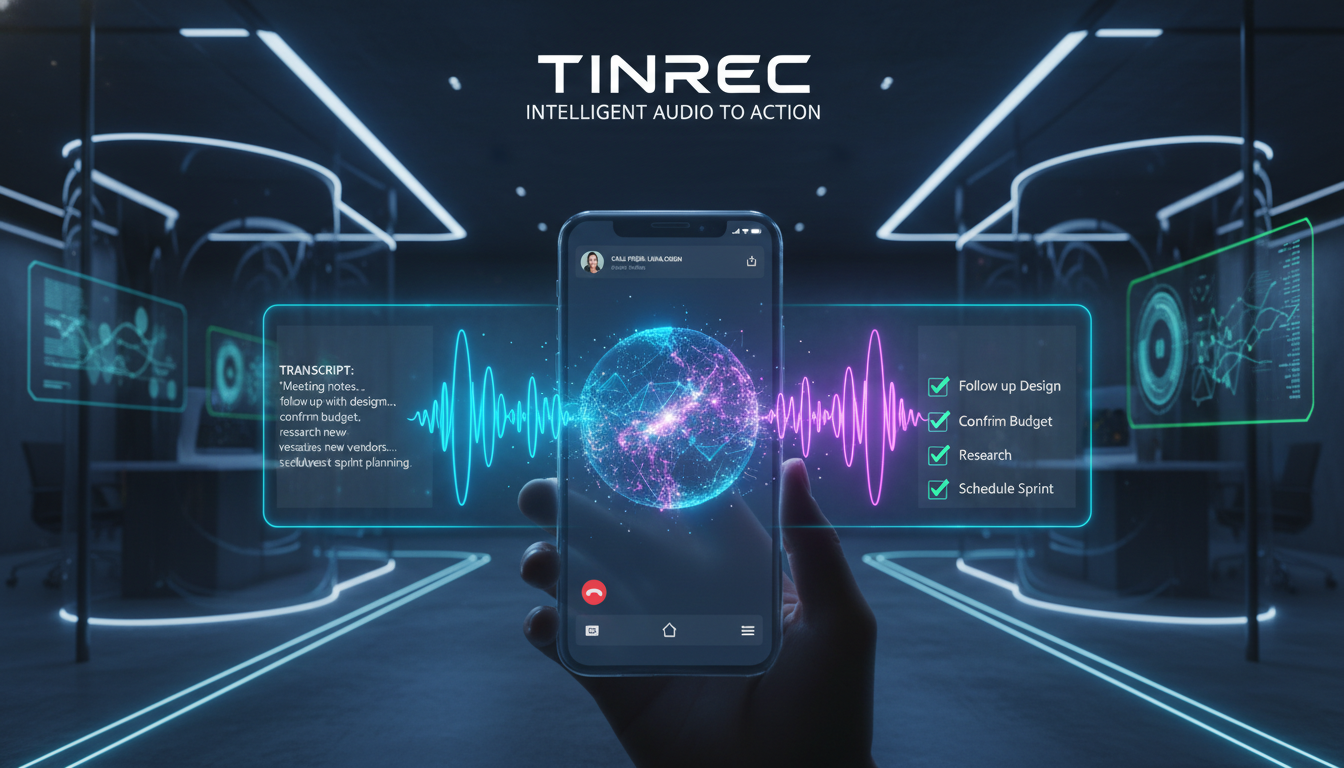
Tinrec In-Depth Review: Complete Workflow from Recording to Action Items
If you have already solved the "how to get the audio file" issue (e.g., recording a LINE call on your computer), the next pain point is "how to digest the content." Taking Tinrec as an example, it is not merely a recording tool but a workflow covering "Recording → Understanding → Action."
- Applicable Scenarios: Ideal for high-information-density communications such as remote meeting notes, client interview collation, and project discussions.
- Test Performance: It not only supports uploading audio files for transcription but also, if you use LINE on desktop with speakerphone for meetings, you can directly open the Tinrec web version for "real-time recording-to-text." The system automatically recognizes 10+ languages (Chinese, English, Japanese, etc.) and distinguishes different speakers.
- Usage Boundaries: Tinrec itself cannot bypass iOS system restrictions to forcibly record LINE mobile calls; therefore, on mobile devices, you still need to externally import audio files, or use the real-time recording feature during physical meetings/desktop speakerphone sessions.
Step-by-Step Tutorial: 4 Steps to Convert a LINE Call Recording into Meeting Notes
Below is a demonstration of how to use conventional recording methods combined with Tinrec to process the subsequent meeting transcript and summary:
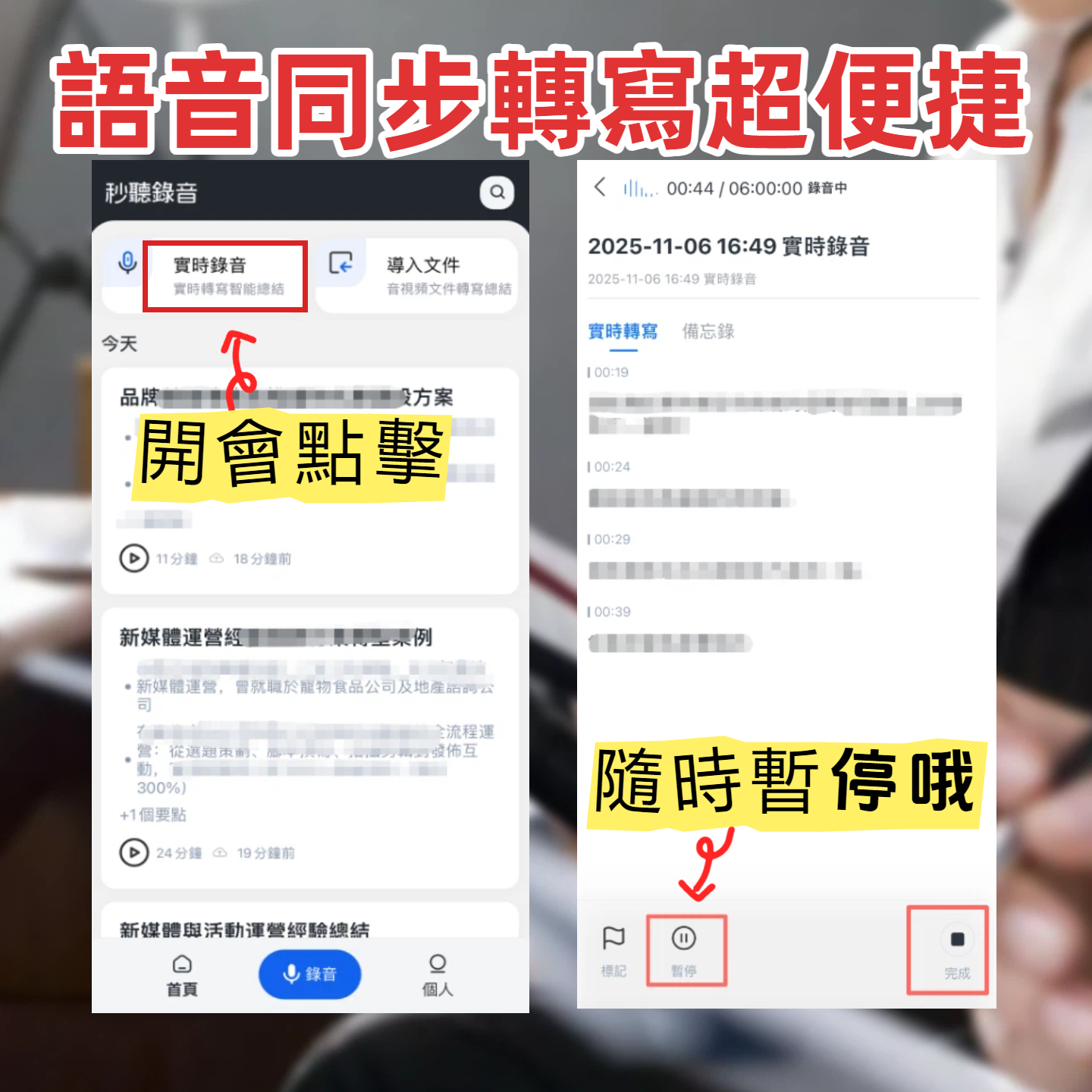
Step 1: Obtain LINE Call Audio or Start Real-Time Recording
If using the desktop version of LINE, you can directly enable the "Real-time Recording-to-Text" feature on the Tinrec web page, point the microphone at the speaker, and the text will be transcribed with minimal delay.
Step 2: Upload Audio or Video Files
If you have recorded LINE call audio (e.g., MP3, M4A) via side-recording or other software, use the "Audio File to Text" feature. After uploading, the system will quickly generate a transcript.
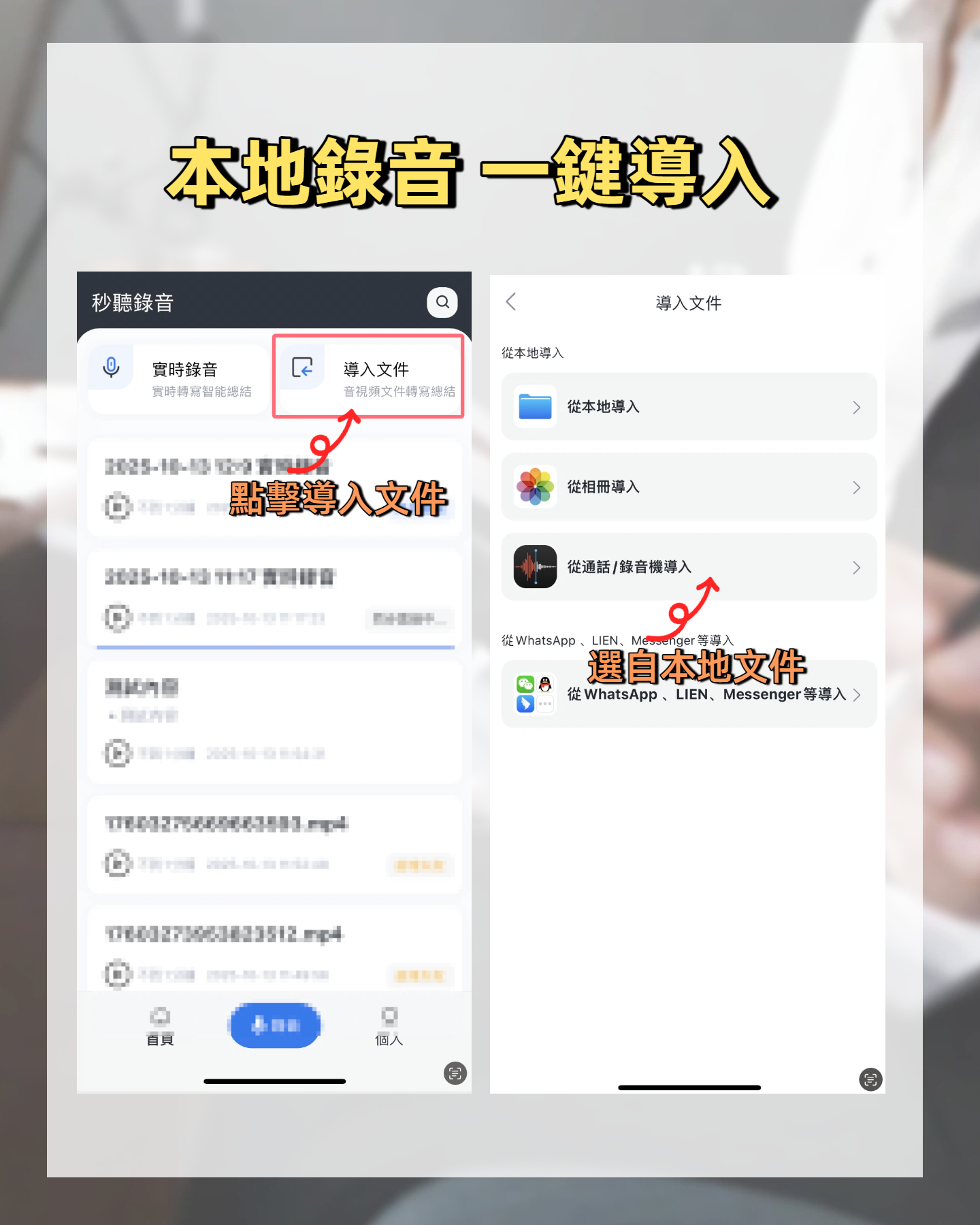 (Note: For remote education or meetings with cloud video links, you can also paste the video link for direct transcription.)
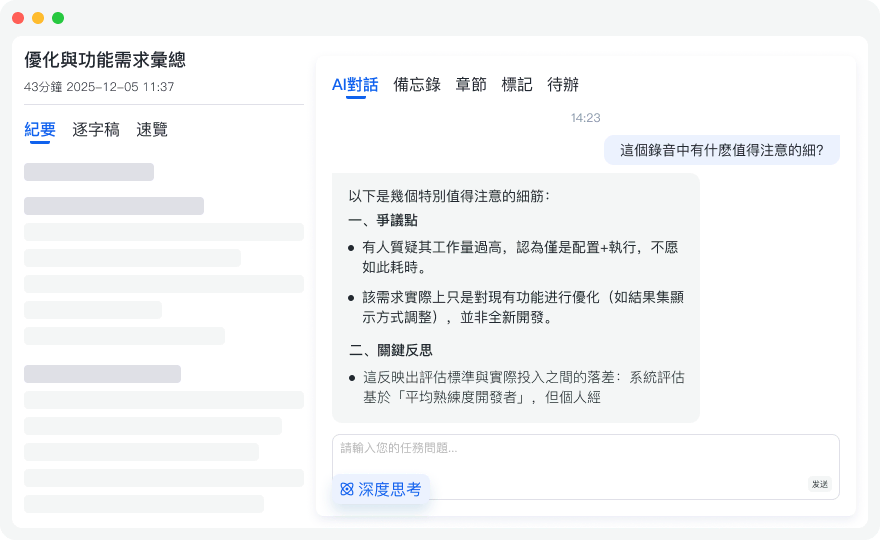
Step 3: Use AI Chat to Query Key Content
Traditional transcripts only allow Ctrl+F to search keywords. With Tinrec's "AI Chat Query" feature, you can directly ask the AI questions like, "What was the quote mentioned in the call?" The AI will provide an accurate answer based on the recording's semantics.
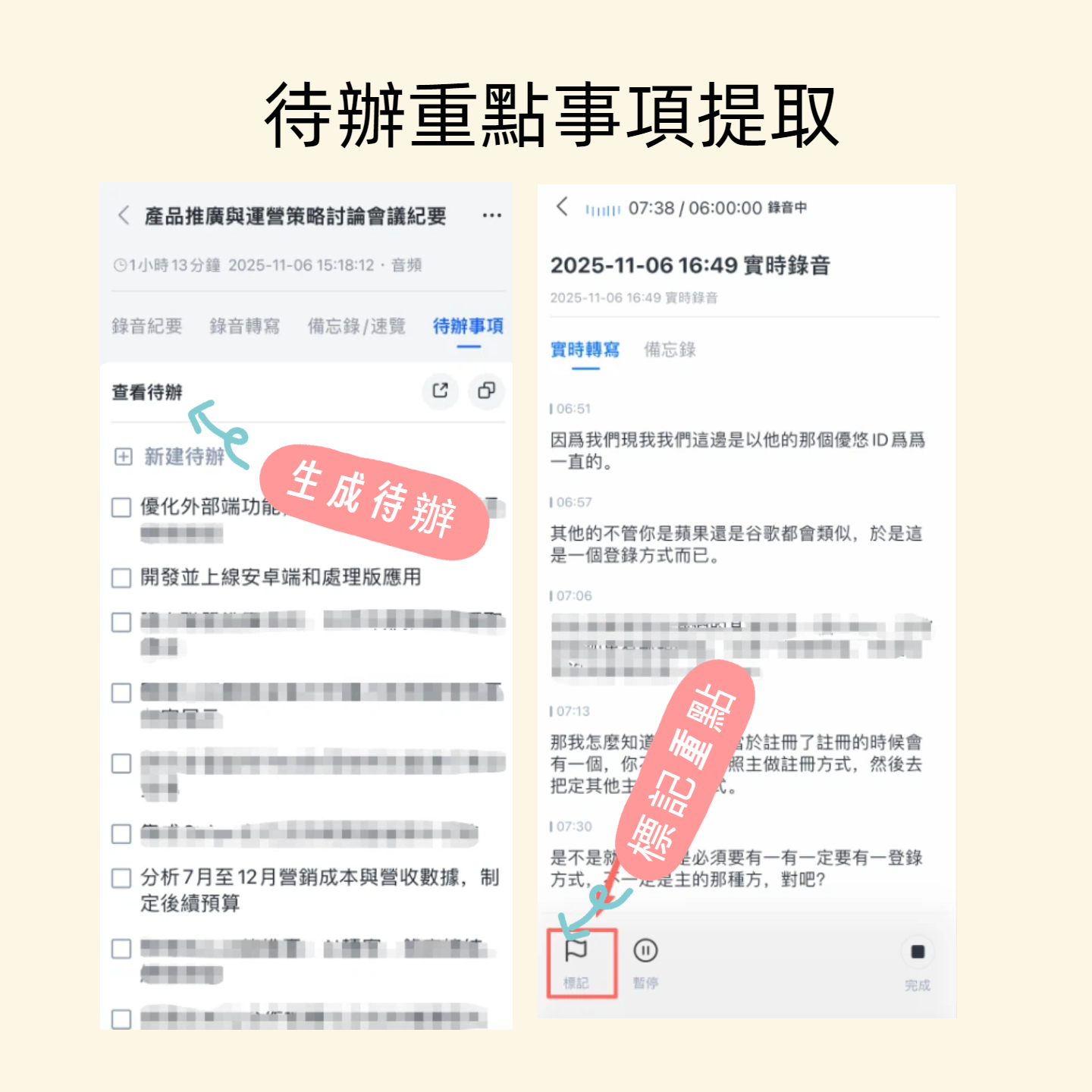
Step 4: Auto-Extract To-Do Items and Export
No need to manually reorganize after the meeting; the system automatically generates "Meeting Minutes" and "Action Items (To-Do List)." Once confirmed, you can export in multiple formats and share with the team.
Frequently Asked Questions (FAQ)
Q1: Can I directly record a LINE call on iPhone? No. iOS system privacy restrictions prevent third-party apps or built-in screen recording from capturing both sides of a call simultaneously. It is recommended to use the desktop version of LINE or side-record with another device.
Q2: Is recording a LINE call legal? Depending on local laws, if you are one of the participants and record for your own protection, it may be allowed in some regions. However, if it involves public dissemination or trade secrets, it is advisable to obtain consent from the other party beforehand.
Q3: Can I record and transcribe calls from Teams or Google Meet as well? Yes. For Teams or Meet meetings on a computer, you can also enable the "Real-time Recording-to-Text" feature of a speech-to-text tool, or download the official meeting recording afterward and import it for text analysis.
Q4: Do recording-to-text tools have free tiers? Many tools offer basic free tiers. For example, Tinrec's free plan provides up to 100 minutes of recording-to-text per month, suitable for light users.
Q5: The recording is too long. Finding key points is time-consuming—what can I do? Choose tools with AI summarization capabilities. After uploading the audio, besides viewing the transcript, you can directly check the AI-generated key summary or use the AI Q&A feature for quick retrieval.
Q6: For international meetings, does it support foreign language translation? Most modern AI voice assistants support multilingual recognition, such as automatic identification and transcription of Chinese, Japanese, English, Korean, etc., effectively reducing the cost of processing language barriers.
Summary and Recommendations
The key to solving "how to record a LINE call" lies in choosing the right recording method for your current device. However, what truly boosts work and life efficiency is the "post-recording information processing." We recommend running a 10-minute test call (including side-recording and AI transcription) before important formal meetings to evaluate accuracy and efficiency, then decide whether to incorporate it into your long-term essential toolkit.
Turn every recording into actionable outcomes
Get 60 free transcription minutes when you sign in. No credit card required.
Related Reading
You might also like

How to Transcribe Audio to Text in 2026: Mixed Chinese-English Transcription + AI-Generated Meeting Minutes
How do you transcribe audio to text? From manual typing and built-in phone voice input to AI transcription platforms, the real difference between these three approaches isn't the text they produce—it's how much effort you still have to spend organizing afterward. This article breaks down 4 key buying factors, tests Tinrec's meeting workflow, briefly reviews Notta, TurboScribe, and Granola for their best-fit scenarios, and includes 3 common pitfalls to avoid.

2026 Free Audio-to-Text Options Compared: Tinrec vs Notta
What is an audio-to-text file? Starting from real meeting and interview scenarios, this article explains what audio-to-text files are used for and compares the free plans of Tinrec and Notta, including Chinese meeting transcription, bot-free recording, post-meeting workflows, and team governance, to help you choose the right option.

Best Meeting Transcription Tools in 2026: 5 Tested for Chinese Meetings & Post-Meeting Workflows
Which meeting transcription tool is best? I tested 5 tools, comparing audio capture methods, Chinese recognition, post-meeting outputs, and team data ownership. Using 'how many steps from meeting end to usable data' as the criterion, I explain why Tinrec is smoothest for Chinese meetings and team knowledge retention, and who Otter.ai, Notta, and Granola are each best for.

Tinrec vs Notta 2026: 5-Dimension Comparison — Which Free Audio-to-Text Tool Is Better?
Are free audio-to-text tools actually usable? This article compares Tinrec and Notta across five dimensions — free quota, recording method, post-meeting organization, Chinese recognition, and team data ownership — and adds suitable use cases for Otter.ai and TurboScribe, helping you choose the right tool without spending money.

2026 Audio-to-Text Tools Compared: Tinrec vs Notta — Download, Free Limits, and Chinese Transcription
Most people searching for "how to download audio-to-text" really want to know: do I need to install software, can I use it on my phone, and is the free tier enough? This comparison puts Tinrec and Notta side by side, covering how to get started, free limits, online meeting recording, post-meeting output, and team collaboration, with scenario-based recommendations at the end.

Free Audio Transcription Options in 2026: 4 Plans Compared
The key to a good audio transcription app isn't just accuracy—it's how much time it saves you on organizing afterward. This article walks through the complete workflow using Tinrec, breaking down four plans from free version to weekly pass to Pro monthly and annual, and covers five key factors to consider when choosing, plus FAQs.

6 Best Speech-to-Text Tools in 2026: How to Get the Most Out of Free Tiers
The key to free transcription isn't which tool is free, but how long your recordings are and how often you use them. This article compares the free rules and limits of 6 tools—Tinrec, Notta, MyEdit, cSubtitle, TurboScribe, and Monica—offers selection advice based on use cases, and lists paid plan prices.

6 AI Meeting Notes Tools Tested and Compared in 2026: How to Use and Choose
From pre-meeting to in-meeting to post-meeting workflows, we compare the free tiers, paid pricing, and best use cases of six AI meeting notes tools—Tinrec, Otter, Notta, Fireflies, Granola, and TurboScribe—to help you pick the one that fits your meeting style.

2026 Comparison of 4 Audio-to-Text Tools: How Free Tiers Work and Which Really Saves Time After Meetings
Are audio-to-text tools actually useful? Many find them hard to use, but the problem often lies in testing methods and mismatched expectations. This article addresses three common misconceptions, outlines 4 key criteria for choosing a tool, and then compares Tinrec, Notta, TurboScribe, and PLAUD in terms of positioning, quota calculations, and post-meeting organization capabilities. It helps you decide which tool suits meeting notes, interview transcripts, or team knowledge retention.