
Turn recordings into transcripts and summaries in minutes
Upload audio or video for multilingual transcription, AI notes, and action items
How to Convert Apple Recordings to Text? Quick Answer and Navigation
How to convert Apple recordings to text? If you only need basic plain text, update your iPhone to iOS 18.4, and the built-in "Voice Memos" app can automatically generate a transcript (limited to iPhone 12 and later models). If you need cross-platform, automatic generation of meeting minutes and to-do action items, we recommend professional AI recording assistants such as Tinrec, which offer high accuracy and AI summarization capabilities. This article will cover:
- Common pain points of traditional Voice Memos
- Official iOS 18.4 transcription tutorial
- Comparison table: Apple built-in feature vs. AI tools
- Practical tutorial: How to efficiently process recordings with AI tools
- Frequently Asked Questions (FAQ)
Current Situation and Pain Points: Why "Transcripts" Alone Aren't Enough?
Many people still face three major pain points after converting Apple recordings to text:
- Exhausting organization: Traditional Voice Memos only provide plain text without paragraph breaks. For a one-hour meeting, simply reformatting consumes a lot of energy.
- Time-consuming replay: When you need to recall a key decision, if you don't know the exact keyword, traditional transcripts force you to blindly search with Ctrl+F or re-listen to the entire recording.
- No action items after meetings: The purpose of recording meetings or lectures is for "follow-up execution and review," but plain text cannot automatically extract conclusions, meeting minutes, or to-do lists.
Official Solution: iOS 18.4 Built-in Voice Memos Transcription Tutorial
According to the latest information, if you frequently use the built-in Voice Memos app on iPhone to record, the iOS 18.4 update has added an automatic transcription feature. Here are the steps to use this official feature:
- Step 1: In the Voice Memos app, if a recording file has an English quotation mark icon ("”") below its filename, it means the system offers a transcript. Tap the "waveform" icon.
- Step 2: In the menu that appears, find and tap "View Transcript".
- Step 3: The full text of the recording will appear on the screen.
- Step 4: If you recorded the content before updating to iOS 18.4, you might not see the "”" icon. Tap the "waveform" icon to enter the playback page.
- Step 5: On the playback page, if there is a "”" icon, tap it.
- Step 6: The system will then start analyzing and converting to text (note: this feature is limited to iPhone 12 and later models).
Tool Comparison: Apple Built-in Voice Memos vs. Professional AI Tools
If the built-in iOS feature doesn't meet your work or study needs, there are many advanced AI alternatives on the market. Below is an objective comparison between iOS Voice Memos and the cross-platform AI tool Tinrec (Instant Recording):
| Comparison Dimension | iOS 18.4 Voice Memos | Tinrec (Instant Recording) |
|---|---|---|
| Language Support | Depends on iOS system-supported languages | Supports 10 languages including Chinese, Japanese, English, Taiwanese, Cantonese, etc. |
| Real-Time Transcription | Analyze and generate after recording | Supports "real-time voice-to-text," view text as you record |
| Summaries & Action Items | Plain text transcript only | Automatically generates meeting minutes, conclusions, and to-do action items |
| AI Chat Query | None; requires manual search | Supports semantic AI chat query |
| Export & Integration | Copy text or share memo | Cross-device sync (iOS/Android/Web), supports multiple file format exports |
| Price & Free Tier | Built-in free (with hardware model restrictions) | Free version up to 100 minutes per month; Pro version offers more hours |
Stop organizing recordings by hand
Upload audio or video and automatically get a transcript, summary, and action items
Scenario Solutions & Practical Tutorial: How to Process Recordings and Meetings with AI
Tinrec is not just a voice-to-text tool; it's a complete workflow from "recording → understanding → action." Below are practical steps for four common scenarios:
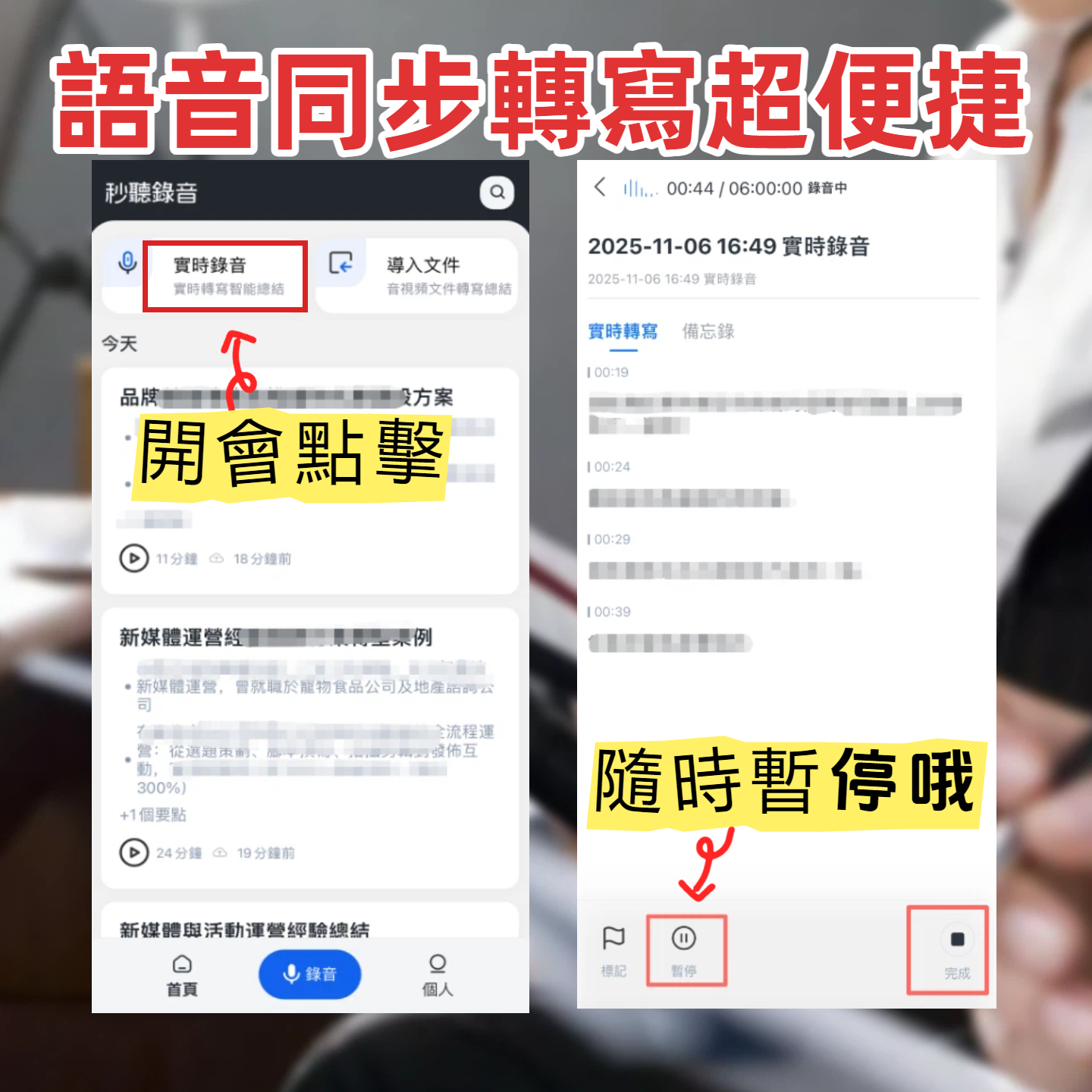
1. Real-Time Voice-to-Text (Ideal for In-Person Meetings, Class Notes)
If you want to see text immediately during a meeting or class, follow these steps:
- Open the Tinrec app on your phone or computer.
- Tap the "Live Recording" button to start capturing audio.
- The system will instantly convert the audio to text displayed on the screen; no need to wait for the recording to end.
- After recording, the system automatically generates a meeting summary and key notes.
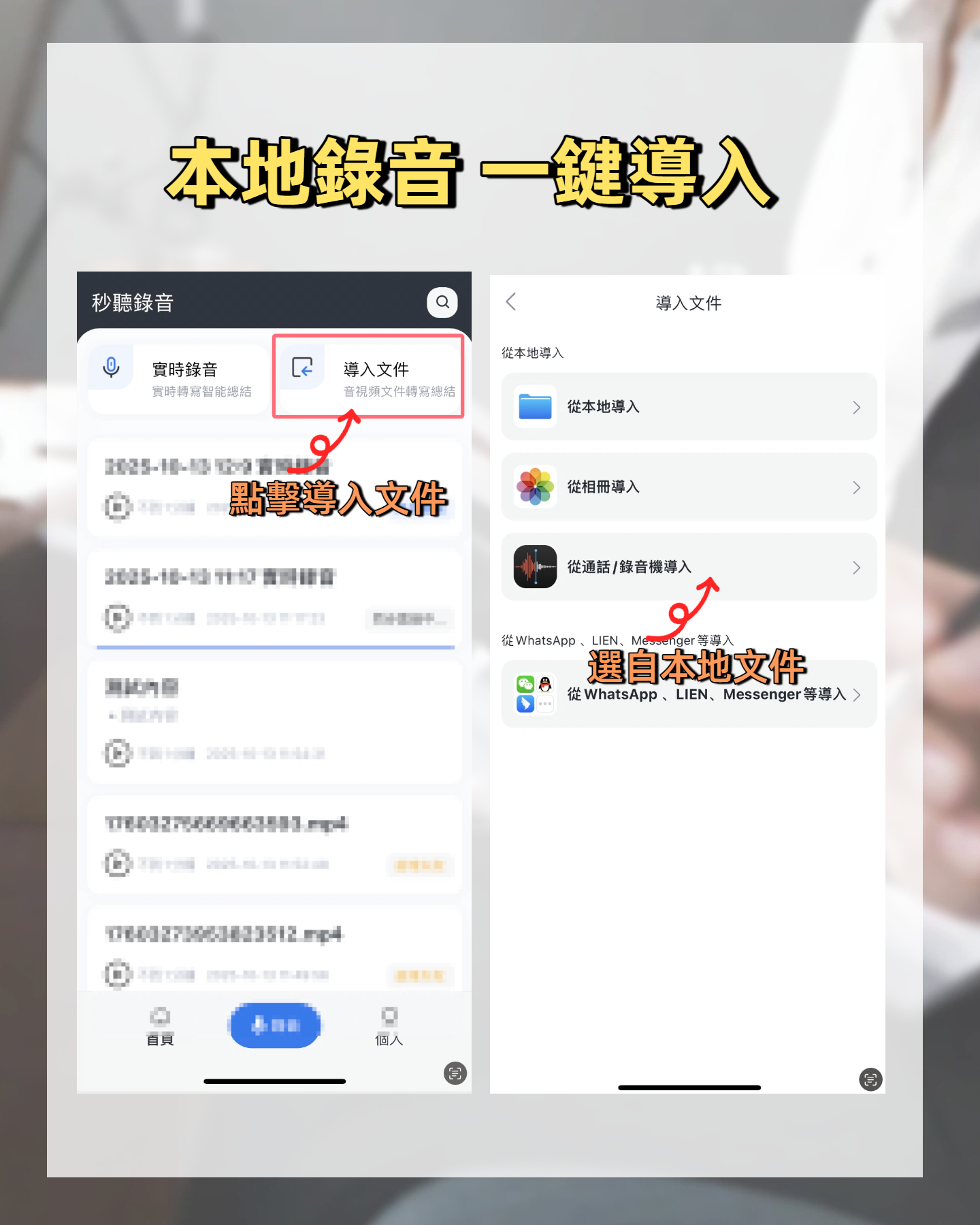
2. Audio File to Text (Ideal for Processing Existing iPhone Recordings)
If you've already recorded files with iPhone Voice Memos, here's how to transcribe them:
- In the iPhone Voice Memos app, "Share" the file and save it to the Files folder.
- Open Tinrec's web version or app and use the "Audio File to Text" feature.
- Upload the saved audio format file.
- After processing, the system will automatically generate a transcript, distinguish speakers, and extract a to-do list.
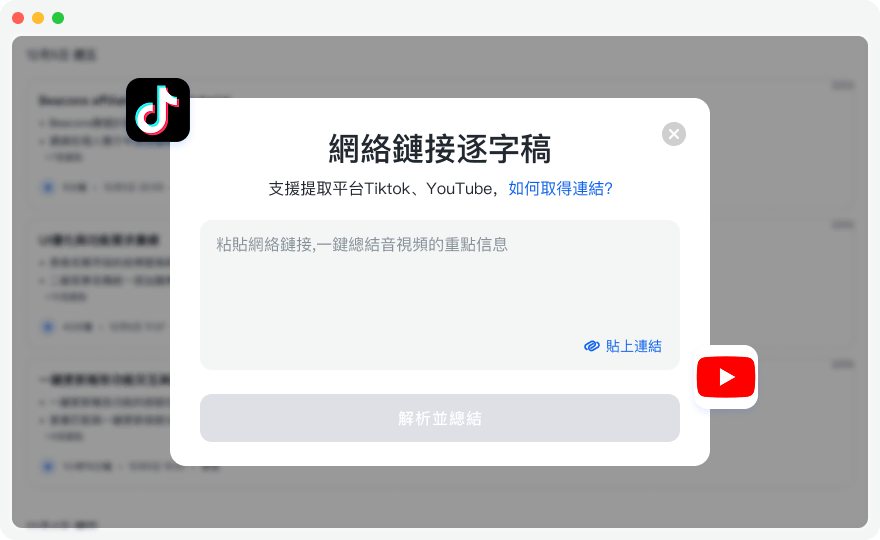
3. Video Link to Text (Ideal for Online Learning, Podcast Transcription)
- Copy the URL of a YouTube video or podcast.
- In the tool, find the "Web Video Link Transcription" feature and paste the link.
- Tap to analyze; the AI will automatically extract the audio and convert it into full text with key summaries.
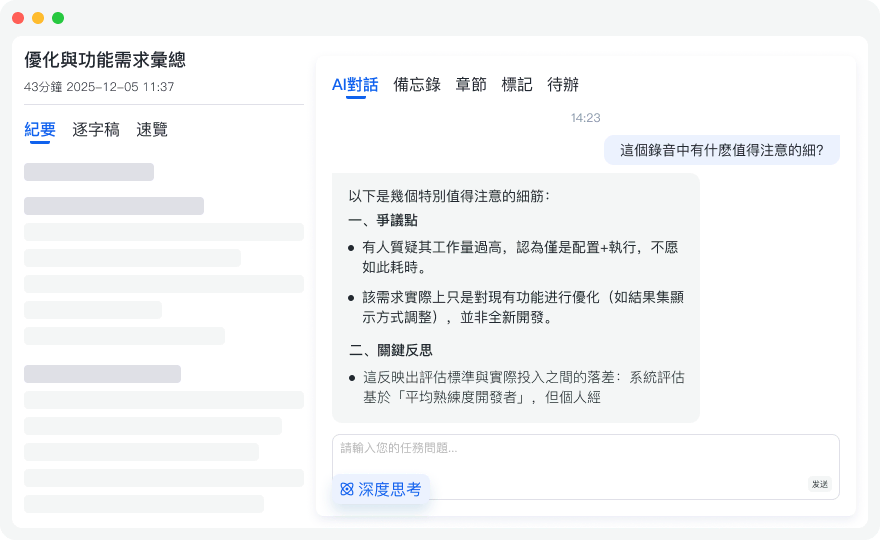
4. AI Chat Query (Ideal for Long Recording Review)
- Open the transcript record of a completed file.
- Find the "AI Chat Query" input box in the sidebar.
- Ask a question directly, e.g., "What was the marketing strategy for next week mentioned in today's meeting?"
- The AI will intelligently search the recording content and provide the core answer.
Frequently Asked Questions (FAQ)
Q1: I don't see the "Transcript Icon" on my iPhone. What should I do?
Apple's built-in transcription feature requires updating the system to iOS 18.4, and the hardware is limited to iPhone 12 and later models. If your device is not supported, we recommend using a cross-platform AI tool to process your recordings.
Q2: Can I use an iPhone to transcribe meetings held on Teams or Google Meet?
For online meetings, using an iPhone to record audio nearby may result in poor sound quality due to speaker pickup. We recommend using an AI recording assistant that supports a web version on your computer for clearer recording of Teams or Meet meeting content.

Q3: Are these voice-to-text tools free?
Apple's built-in Voice Memos is free; AI tools like Tinrec typically offer a free tier (e.g., up to 100 minutes of free voice-to-text per month), after which you need to subscribe according to personal needs.
Q4: How accurate is the voice-to-text transcription? What about accents or dialects?
Accuracy depends on the recording environment and clarity of speech. Traditional tools often struggle with dialects, but modern AI tools (like Tinrec) support multiple languages and dialects (including Taiwanese, Cantonese, etc., covering 10 languages), significantly improving accent tolerance and recognition accuracy.
Q5: Can the generated transcript be exported to other formats?
Apple's built-in transcript is mainly copied or shared to Notes; advanced AI tools support exporting in multiple formats (e.g., TXT, Markdown) for easy editing in Word or Notion later.
Q6: If I'm not satisfied with the AI-generated meeting summary, can I modify it?
Yes. The meeting minutes and to-do action items generated by AI tools can be manually reviewed and edited alongside the original transcript to ensure the content fully meets your work needs.
Summary
Organizing iPhone recordings no longer has to be a chore. If your recordings are simple personal memos, updating your phone to iOS 18.4 and using the built-in feature is sufficient. However, if your recordings involve work meetings or important classes requiring efficient organization and output, we recommend taking a 10-minute meeting recording file and trying it with Tinrec. Experience the efficiency boost from automatically generated meeting minutes and to-do items, and then decide whether to incorporate it into your long-term workflow.
Turn every recording into actionable outcomes
Get 60 free transcription minutes when you sign in. No credit card required.
Related Reading
You might also like

Tinrec vs Notta 2026: 5-Dimension Comparison — Which Audio-to-Text Tool Is More Time-Saving for Student Self-Study?
From classroom lectures, group discussions, and exam review scenarios, this comparison of Tinrec and Notta across 5 dimensions explains how to choose an audio-to-text tool, how to evaluate free tiers, and how Tinrec works in practice for Chinese meetings, bot-free recording, post-meeting organization, and team collaboration.

2026 Best 4 Audio-to-Text Tools Compared: How to Choose from Recording to Transcript
Transcribing audio to text isn't hard—the challenge is whether the output is usable. Based on real scenarios like Chinese meetings, interviews, and lecture recordings, this article compares Tinrec, Otter.ai, Notta, and Granola on transcription, summarization, AI Q&A, and team collaboration. It also outlines selection criteria and pitfalls to help you find the right audio-to-text solution.

2026 Comparison of 4 Meeting Transcription Tools: Which AI Meeting Notes Actually Save Time?
2026 hands-on comparison of meeting transcription tools, evaluating Tinrec, Otter.ai, Notta, and Granola across input sources, Chinese recognition, post-meeting organization, and team collaboration, with common pitfalls and selection advice.

2026 Audio-to-Text Tools Compared: Which Offers the Best Free Tier and Post-Meeting Organization?
Starting from common misconceptions, this article explains how to use audio-to-text so you don't just end up with a pile of transcripts. It compares Tinrec, Otter.ai, Notta, and TurboScribe on free quotas, post-meeting organization, and team collaboration to help you choose the right tool.

Tinrec vs Notta 2026: 5-Dimension Comparison — Which Is Better for Chinese Meeting Transcription for Teams?
Meeting transcription tools are not just about converting speech to text; they also need to handle post-meeting organization and team collaboration. This article compares Tinrec and Notta across 5 dimensions, analyzing bot-free meeting recording, Chinese-language experience, AI summary Q&A, team seat governance, and purchasing considerations to help you choose the right solution for Chinese meetings and team knowledge retention.

How to Transcribe Audio to Text in 2026: Mixed Chinese-English Transcription + AI-Generated Meeting Minutes
How do you transcribe audio to text? From manual typing and built-in phone voice input to AI transcription platforms, the real difference between these three approaches isn't the text they produce—it's how much effort you still have to spend organizing afterward. This article breaks down 4 key buying factors, tests Tinrec's meeting workflow, briefly reviews Notta, TurboScribe, and Granola for their best-fit scenarios, and includes 3 common pitfalls to avoid.

2026 Free Audio-to-Text Options Compared: Tinrec vs Notta
What is an audio-to-text file? Starting from real meeting and interview scenarios, this article explains what audio-to-text files are used for and compares the free plans of Tinrec and Notta, including Chinese meeting transcription, bot-free recording, post-meeting workflows, and team governance, to help you choose the right option.

Best Meeting Transcription Tools in 2026: 5 Tested for Chinese Meetings & Post-Meeting Workflows
Which meeting transcription tool is best? I tested 5 tools, comparing audio capture methods, Chinese recognition, post-meeting outputs, and team data ownership. Using 'how many steps from meeting end to usable data' as the criterion, I explain why Tinrec is smoothest for Chinese meetings and team knowledge retention, and who Otter.ai, Notta, and Granola are each best for.
Tinrec vs Notta 2026: 5-Dimension Comparison — Which Free Audio-to-Text Tool Is Better?
Are free audio-to-text tools actually usable? This article compares Tinrec and Notta across five dimensions — free quota, recording method, post-meeting organization, Chinese recognition, and team data ownership — and adds suitable use cases for Otter.ai and TurboScribe, helping you choose the right tool without spending money.