

Turn recordings into transcripts and summaries in minutes
Upload audio or video for multilingual transcription, AI notes, and action items
Google Meet Recording & Transcription Guide 2026: Bot-Free Recording, Transcripts & AI Summaries
I used to think that once a Google Meet ended, the work was done. Then last semester, during our graduation project, we discussed for a full hour on Meet. Afterward, a teammate asked in the group chat: "Who said they'd handle the survey?" The whole thread was read, but no one could answer. We ended up redoing the entire meeting, wasting enough time to write two reports.
That's when I started looking for a better way. This article compiles the pitfalls I've encountered, for those of you who, like me, have two or three Google Meet meetings every week.
Three Common Misconceptions to Avoid
Misconception 1: "Having a recording means having notes."
Google Meet can record meetings, but the recording is a video tens of minutes long. You can't rewatch the whole thing before a presentation. The real cost isn't recording—it's finding the key points afterward.
Misconception 2: "The more automated the meeting bot, the better."
Many tools require a bot account to join the meeting to record audio. The problem: when an unknown account suddenly appears in a Google Meet, you have to explain it to your professor, international classmates, or interview subjects. And without an invitation, the bot can't get in anyway.
Misconception 3: "A transcript is the end goal."
Getting a 3,000-4,000 word transcript is honestly as painful as getting a one-hour recording—you still have to read through it all yourself.
A more sensible approach is to break the process into four steps: record → transcribe → automatically organize into summaries and action items → be able to ask questions afterward. I've been running these four steps with Tinrec this semester, and I'll use it as an example below.
What Can Tinrec Do for Google Meet?
Scenario 1: Group meeting ends, conclusions are already organized
Previously, after a Google Meet discussion, we'd piece together conclusions from each member's notes, often unsuccessfully. Now, as soon as the meeting ends, Tinrec has already produced a transcript, summary, chapters, and action items. Who's responsible for what, what needs to be delivered before the next meeting—just copy and paste into the group chat.
Scenario 2: No need to take notes during online classes and lectures
Some classes are live online, with professors speaking fast and slides flipping even faster. I use Tinrec desktop to listen and record simultaneously; the transcript generates in real time. After class, I can jump to chapters to review parts I missed without rewatching the whole thing.
Scenario 3: Mock interviews and interview practice
Before applying for internships, my classmates and I did mock interviews. After recording, I used AI Q&A to ask questions like "Did my logic jump when I answered about project experience?"—much more accurate than trying to recall myself.
Scenario 4: Cross-language meetings
If the meeting includes English segments, Tinrec supports real-time translation. You can switch between original text, translation, or bilingual view, so you don't have to look up words while listening.
What Are the Core Features?
Bot-free recording of online meetings
Tinrec desktop directly captures your computer's system audio, handling Google Meet, Zoom, Microsoft Teams, and Webex meetings played on your computer—no need to invite any bot to join. The most practical benefit for students is a clean screen and no need to explain to professors who that account is.
Real-time speech-to-text
Transcribes while recording, so text is available as the meeting progresses, not after waiting for conversion. With team hotwords (Team plan), you can add department abbreviations and project codes for smoother recognition of technical terms.
AI summaries and chapters
It breaks the transcript into structured meeting topics, discussion points, and chapters, rather than just condensing into a paragraph. For long meetings, you can jump directly to the section you need.
Action item extraction
Pulls out action items from the discussion. For group reports, this is almost the most impactful feature—previously, "who does what" was always forgotten after the meeting.
AI Q&A
After transcription, you can ask questions directly about the meeting content, such as "Which research method did we decide to use in this meeting?" or "What was the senior's opinion on the budget?" It answers based on semantics, so you don't have to Ctrl+F for keywords.
Translation and bilingual view
During recording, you can view original text, translation, or bilingual content—especially useful for classes or international online meetings with mixed Chinese and English.
Multi-format export and post-processing
Export to Notion, Google Docs, OneNote, Dropbox, etc. for further use. You can also use Agent post-processing to generate reports, tables, and documents—very convenient for writing project logs or internship weekly reports.
Stop organizing recordings by hand
Upload audio or video and automatically get a transcript, summary, and action items
Team space (Team plan)
Meeting data is stored centrally in the team space, not scattered across personal accounts. Members can share and view historical meetings; admins can manage roles, seats, usage, and audit logs. This is especially practical for organizations like student associations or project teams where "someone graduates every year."
Real-World Use Cases
Online courses and lectures
A two-hour class, sixteen sessions per semester—you can't rewatch them all. Use Tinrec to record while attending; after class, jump through chapters, and before exams, just review summaries and marked transcript sections.
Graduation projects and group discussions
Each Meet discussion leaves a transcript and action items. Before the next meeting, check if previous action items are completed—no need to recap from scratch, freeing up twenty extra minutes for actual discussion.
Mock interviews and interview practice
After recording a mock interview, use AI Q&A to review your expression structure. For actual interviews (e.g., project interviews with seniors or industry professionals), you can organize transcripts and key points the same day, without delaying to the weekend.
Team collaboration and handover
Project teams or student associations use the Team plan, so meeting data belongs to the team. Even if a member leaves, graduates, or loses their seat, resources can be handed over to other members and won't disappear with personal accounts.
5 Things to Check When Choosing a Tool
1. Can it work without inviting a bot?
Some tools require a bot to join the meeting. If you often meet with professors, external parties, or clients, first confirm whether the tool can capture system audio directly via desktop. Tinrec desktop takes this approach.
2. Does it retain audio files?
Some AI note-taking tools only keep text, not audio, making playback verification troublesome. Tinrec retains audio files, and the Team plan has an audio recycle bin to recover accidentally deleted recordings.
3. Can it organize after transcription?
A transcript is just raw material. When choosing a tool, see if it can produce summaries, chapters, action items, and even let you ask questions directly about the meeting. Tinrec does these in a connected workflow.
4. Performance with Chinese and mixed Chinese-English
Classrooms and meetings in Taiwan almost always mix Chinese and English. The best test is to use your own recordings; official accuracy claims are just for reference. Actual performance is affected by recording quality, ambient noise, accents, multiple people speaking simultaneously, and technical terminology.
5. Are quotas and pricing transparent?
Students have limited budgets, so check clearly what the free version offers and how paid versions are calculated. Tinrec Personal has a free version, weekly card, Pro monthly, and Pro annual: for short bursts (e.g., several interviews in a week), the weekly card is enough; for steady weekly use, go Pro; for long-term data accumulation, consider annual. Team plan is priced per seat: USD 29.80 per paid seat per month, or USD 199 per paid seat per year (about USD 16.58 per month). Each paid seat includes 2,000 minutes of team shared import quota per month; real-time recording within an active team plan is currently not deducted by minutes, while file and web imports use the team shared quota. Eligible teams can try 7 days, 1 free seat, and 300 minutes of team shared import quota for the first time. Actual prices, currencies, and promotions are subject to the official purchase page.
FAQ
Q: Is Google Meet's built-in recording not enough?
A: The shortfall is in the "afterward." Recording is linear video; finding a sentence means dragging the timeline. Tinrec produces searchable, queryable, exportable text data. They don't conflict, but serve different purposes.
Q: Does Tinrec need to be installed inside Google Meet?
A: No. It's not an extension within Google Meet, nor does it require inviting a bot. Use the desktop version to start recording and capture the meeting audio played on your computer; the mobile app and web version can handle on-site recording and import of audio/video files.
Q: What are the limitations of Google Meet's free version?
A: According to Google's official documentation, free users have a 60-minute limit per meeting and up to 100 participants. Meeting links look like abc-defg-hjk; participants join via link or code, and meeting content is encrypted in transit. Plan details are subject to Google's official page.
Q: Is the free version enough for students?
A: If you only occasionally record a project discussion or a key class, the free version's basic quota is a good start. If you're sure you'll use it weekly, consider the weekly card or Pro. It's best to test with one or two meetings to verify recognition quality before deciding to pay.
Q: What's the difference between Team and Personal?
A: Personal data belongs to the individual account; Team is a separate team space with member invitations, role and seat management, shared benefits, usage analytics, audit logs, and audio recycle bin. Note that roles and seats are different: active members without a seat can view, play, and read team data, but need a seat to record, upload, edit, and export.
Q: Can accuracy be guaranteed?
A: It's not recommended to rely on a fixed number. Actual performance is affected by recording quality, ambient noise, accents, overlapping speech, and technical terminology. For important content, verify against transcript timestamps and audio playback.
Conclusion
Google Meet solves "how to meet," but the recording, organizing, and follow-up after the meeting is where students actually spend time. Rather than piecing things together from memory and group messages afterward, let a tool produce transcripts, summaries, and action items in one go.
My advice: start with the free version, pick a meeting you really care about (project discussion or key class), and try it once to see if the transcript is directly usable. If the time saved feels worth it, consider upgrading; if you only use it occasionally, the free quota is actually sufficient. Also remember to respect your meeting participants and get consent when needed before recording.
References
Turn every recording into actionable outcomes
Get 60 free transcription minutes when you sign in. No credit card required.
Related Reading
You might also like

3 Mac Meeting Transcription Tools Tested: Which Saves the Most Time After Google Meet? (2026)
Hosting a Google Meet on Mac is easy—the real challenge is post-meeting organization. This guide covers how to open Google Meet on Mac, install it as a PWA, and set up audio, then puts three meeting transcription solutions to the test: Tinrec, Google Meet's built-in transcription, Otter.ai, and Granola. Find out which one truly captures your meeting content.

How to Take Google Meet Meeting Notes in 2026: 5 Steps from Recording to AI Summary
Google Meet makes meetings fast, but writing up notes afterward is the real grind. This article first clears up common misconceptions like 'subscribing to Google One unlocks all Meet features,' then gives 4 key buying criteria, Tinrec's 5-step post-meeting workflow, and a quick review of Otter.ai, Fireflies.ai, and Notta's best-use scenarios—helping Hong Kong office workers save hours of transcription time every week.

How to Use Google Meet on Nest Hub in 2026: A 4-Step Guide
Can you still use Google Meet on Nest Hub Max? This guide covers device checks, voice commands, and answering/ending calls in 4 steps. It also explains why you should switch to a computer for formal meetings and how to capture transcripts, summaries, and action items afterward.

2026 Comparison of 3 Meeting Notes Solutions: Google Meet Built-in, Tinrec, Otter.ai
Google Meet now in Gmail makes meetings easier, but post-meeting organization remains a pain point. This article compares Google Meet's built-in Gemini notes, Tinrec, and Otter.ai, covering bot-free recording, Chinese transcription, AI Q&A, team data retention, and pricing limits to help you find the best meeting notes solution.

5 Google Meet Instant Link Methods Tested for 2026: Get a Link in 30 Seconds
Need to start a meeting on the fly? You need a Google Meet link you can paste to colleagues right away. This guide covers 5 ways to get a google meet now link: the meet.google.com homepage, Google Calendar, Gmail, the mobile app, and entering a meeting code. Each method explains how fast you get the link and when it's best used. It also covers post-meeting transcription, summaries, and action items with Tinrec, plus an FAQ.

2026 Google Meet Free Plan Comparison: 5 Options Reviewed
A 2026 comparison of free plans for Google Meet, Tinrec, Otter.ai, Notta, and Granola, covering free limits, whether free tiers suffice, how to fill gaps in transcripts and meeting notes, and team plan seats, quotas, and pricing.
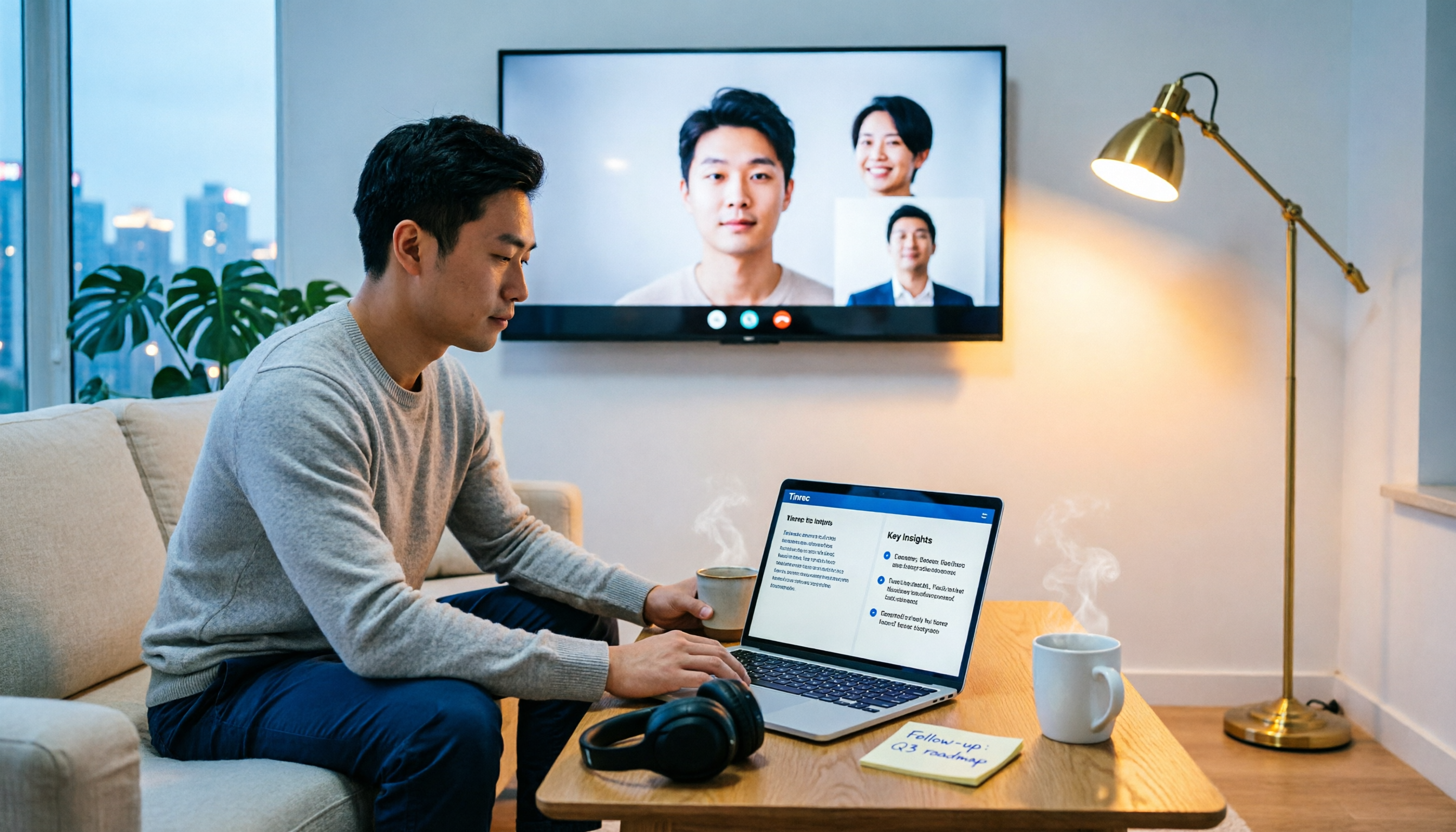
Google Meet on TV vs Tinrec in 2026: 5-Dimension Comparison — Which Should You Choose for Living Room Meetings?
Putting Google Meet on your TV isn't hard — the hard part is figuring out whether you want a bigger picture or usable meeting data afterward. This article compares Chromecast casting, built-in Meet on Android TV, Chrome tab casting, and Tinrec desktop recording across 5 key decision points, covering differences, limitations, and ideal use cases, with step-by-step instructions and common mistakes to help you choose the right approach.

Google Meet vs Tinrec in 2026: 5-Factor Comparison — Presentation Audio vs. Meeting Notes
Google Meet now lets you share full system audio during presentations, but it's off by default, has OS version requirements, and won't save meeting notes for you. This article compares Google Meet and Tinrec across 5 dimensions to help you decide when to use built-in sharing and when to use Tinrec for recording, transcription, AI summaries, and team collaboration.

Google Meet On-the-Go vs. Tinrec: Which Actually Saves Post-Meeting Time?
Google Meet's On-the-Go mode lets you join meetings while walking or commuting, but does it solve participation or documentation? This article breaks down On-the-Go's real boundaries across 5 dimensions and compares Tinrec's approach to post-meeting organization, cross-platform support, and team knowledge retention, helping you decide how to divide mobile meeting tasks.