

Turn recordings into transcripts and summaries in minutes
Upload audio or video for multilingual transcription, AI notes, and action items
Google Meet on Windows in 2026: PWA vs Desktop Client vs Tinrec — Which Should You Choose?
You open the Microsoft Store on your Windows laptop, type "Google Meet," and the first result isn't an app made by Google.
You're not imagining it. Google has never released an official desktop version of Google Meet for Windows or macOS. There's a mobile app, but on a computer you have to rely on a browser or an alternative.
In this article, I'll compare three common approaches on Windows: the Chrome PWA, third-party desktop clients from the Microsoft Store, and using Tinrec's desktop app to record meetings directly.
If you just want to hold a meeting, the first option is enough. But if you also need to keep a record of what was discussed and turn it into minutes and action items, the differences start to matter.
Google Meet vs Tinrec: Quick Overview
Google Meet is Google's video conferencing service. There's no official desktop program for Windows; Google recommends installing the web version as a PWA (Progressive Web App).
Tinrec is an AI meeting notes and collaboration tool. Its desktop version captures your computer's system audio directly, so you can record Google Meet, Zoom, Microsoft Teams, Webex, and other online meetings without inviting a meeting bot.
| Item | Google Meet | Tinrec |
|---|---|---|
| Core purpose | Video conferencing service | AI meeting notes and team collaboration |
| How to use on Windows | Browser, Chrome PWA, third-party client | Install desktop app, start recording during meetings |
| Transcript | Assistive notes during the meeting | Transcribes while recording; can also upload existing audio files |
| Post-meeting organization | You handle it yourself | Summary, chapters, action items, AI Q&A, translation |
| Team capabilities | Primarily meeting and Workspace management | Team spaces, roles, seats, usage, audit logs |
Below, I'll go through six dimensions: installation, transcription, post-meeting organization, cross-platform records, team collaboration, and pricing.
Dimension 1: Installing and Launching on Windows
Google Meet is the easiest: open your browser, go to meet.google.com, and you're ready to meet. No installation required.
For a more app-like experience, you can install Meet as a PWA in Chrome. You need Chrome version 73 or later. Once installed, it runs in its own window with notifications, and the features are the same as the web version.
There's also a third-party desktop client called GMeet on the Microsoft Store. It focuses on one-click meetings, pre-generated links, desktop widgets, and reminders. The free version is usable; advanced automation features require Premium. Some people also use workspace management tools like Rambox to keep Meet and other services in one window.
Tinrec requires installing the desktop app first. Its logic is different: it's not for holding meetings, but for recording and transcribing audio in real time while you meet.
→ This dimension: Tie. For holding meetings, Google Meet is nearly zero-cost. For keeping records, Tinrec removes the "process it after the meeting" step.
Dimension 2: How Transcripts Are Generated
Google Meet's transcription feature is an assistive tool during the meeting. After the meeting ends, you usually have to copy the text, paste it elsewhere, and organize it yourself. In other words, it solves "was this meeting recorded?" not "will these records be useful later?"
Tinrec's desktop app captures your computer's system audio directly. So when you're in a Google Meet meeting, just start Tinrec and it transcribes in sync. You don't need to pull a bot account into the meeting room.
Note that Tinrec is not a tool that "automatically joins all meetings on your calendar." You need to start recording manually.
Besides online meetings, it can also upload existing audio or video files, which is handy for catching up on past interviews and class recordings.
→ This dimension: Tinrec wins. The difference is "generated during the meeting" vs "ready to use when the meeting ends."
Dimension 3: Post-Meeting Organization — Summaries, Chapters, and Action Items
This is where I think the gap between the two approaches is most obvious.
Google Meet gives you the meeting itself. Once the text is saved, someone still has to read through it, pick out the key points, and write up minutes. A one-hour meeting typically takes another 30 to 40 minutes to organize.
Tinrec picks up that work: after transcription, it generates a summary, chapters, and key points. It can automatically extract action items, and you can use AI Q&A to follow up on a specific meeting — for example, "What solution did the client finally decide on?"
When you need cross-language communication, it supports real-time translation, viewable in original, translated, or bilingual mode. For reports, you can use Agent post-processing to generate reports, tables, and documents.
→ This dimension: Tinrec clearly wins.
Dimension 4: Cross-Platform Records and Historical Data
Here's the reality: on the same project, some people use Google Meet, some use Zoom, and a client might send a Teams link.
Google Meet records naturally stay within the Google ecosystem. Meetings on other platforms have to be handled separately, and over time your data ends up scattered in different places.
Stop organizing recordings by hand
Upload audio or video and automatically get a transcript, summary, and action items
Tinrec's desktop app is platform-agnostic. It can record meeting audio from Google Meet, Zoom, Microsoft Teams, Webex, and anything else playing on your computer, all into one database. You can search it, ask follow-up questions, and export to Notion, Google Docs, OneNote, or Dropbox for further editing.
Also, you don't have to listen to past meetings from the beginning — you can jump to timestamps in the transcript to replay and verify.
→ This dimension: Tinrec wins, thanks to the word "unified."
Dimension 5: Team Collaboration and Member Management
Google Meet's team concept leans toward meeting rooms and Workspace management — it manages "who can hold meetings."
Tinrec's team edition manages "how meeting data is used." It provides separate team spaces where meeting recordings, transcripts, action items, and folders belong to the team. New members can see historical data, and nothing disappears when someone leaves.
In practice, two concepts need to be kept clear: roles determine who can manage the team and members, and seats determine who can record, upload, edit, and export.
Note that members without a seat can still view, play, and read team data, but cannot upload, edit, import, or export. Currently, sharing is at the team level, not fine-grained file-level permissions.
Admins can also view usage trends, member rankings, and usage details, query and export audit logs, and maintain team hotwords to improve recognition of technical terms.
→ This dimension: Tinrec wins, especially for teams that need handoffs and traceability after meetings.
Dimension 6: Pricing and Plans
Google Meet is tied to your Google account and its plan. For actual available features and quotas, please refer to Google's official pages — I won't guess here.
Tinrec's personal edition lets you choose a plan based on your usage rhythm: use the free version for occasional recording organization, consider a weekly card for short-term intensive meetings or interviews, a Pro monthly card for steady weekly needs, and a Pro annual card for long-term data accumulation. For personal edition pricing, please refer to the official purchase page.
The current team edition terms are: eligible teams can try it for 7 days with 1 free seat and 300 minutes of team shared import quota; monthly USD 29.80 per paid seat, annual USD 199 per paid seat (about USD 16.58/month).
Paid seats include 2,000 minutes of team shared import quota per month. Real-time recording is currently not deducted by minute under an active plan and active seat; file and web imports use the team shared quota.
→ This dimension: Hard to compare directly, because the two solve problems at different stages.
What Are the Unique Advantages of Each?
Tinrec's unique advantages
- Bot-free recording: The desktop app captures system audio, so no "recording bot" attendee appears in the meeting room.
- Complete post-transcription workflow: Summary, chapters, action items, mind maps, AI Q&A, and translation all flow together — no moving text around.
- Multiple formats and third-party exports: Results can go into your existing workflows like Notion, Google Docs, OneNote, and Dropbox.
- Complete team governance: Spaces, roles, seats, usage analytics, audit logs, and an audio recycle bin (30-day retention) all in one backend.
Google Meet's unique advantages
- Zero installation barrier: Open your browser and meet — great for ad-hoc meetings.
- Google ecosystem integration: Calendar, Docs, and account system in one, smoothest for teams already living in Google.
Conclusion: Which Should You Choose?
- If you just want to hold a Google Meet on Windows → use the browser or Chrome PWA; no installation needed.
- If you want a desktop window feel, desktop widgets, and meeting reminders → try a third-party client like GMeet from the Microsoft Store.
- If you need transcripts, summaries, and action items after the meeting → Tinrec (desktop app records directly, no bot to join).
- If you need to organize Google Meet, Zoom, and Teams meetings in one place → Tinrec (cross-platform unified storage).
- If your team deals with member departures, data handoffs, and usage management → Tinrec team edition (roles and seats managed separately).
- If all your meetings are within the Google ecosystem and you don't need to keep records → Google Meet itself is plenty.
In one sentence: Google Meet handles holding the meeting; Tinrec handles keeping the meeting. They don't conflict — many people use both.
FAQ
Is there a Windows app for Google Meet?
Google currently does not offer an official Google Meet desktop app for Windows or macOS. The official approach is to install the web version as a PWA in Chrome; features are the same as the web version.
What are the requirements for installing the Chrome PWA?
You need Chrome version 73 or later on your computer. Once installed, it runs in its own window and supports notifications, making it less likely to be disturbed by other tabs during meetings.
Is GMeet on the Microsoft Store made by Google?
No, it's a third-party desktop client focused on one-click meetings, pre-generated links, desktop widgets, and reminders. It's free to use, with some advanced automation features requiring Premium. Check the developer and privacy terms before use.
Do I need to invite a bot to the meeting to record Google Meet with Tinrec?
No. Tinrec's desktop app captures your computer's system audio directly. Just start recording during the meeting — no extra attendee appears in the meeting room.
What is Tinrec's transcription accuracy?
The official documentation does not promise a fixed number. Actual performance depends on recording quality, ambient noise, accents, overlapping speakers, and technical terms. For important content, we recommend cross-checking with transcript timestamps and audio playback.
Can team members without a seat still see meeting data?
Yes, they can view, play, and read team data, but cannot record, upload, edit, or export. Team data belongs to the team; when a member leaves, their resources need to be handed over to another active member.
What should I pay attention to before recording?
Please comply with local laws and, when necessary, obtain participants' consent before recording and transcribing. This is both basic courtesy and a legal requirement.
References
- GMeet - Video Calls & Meetings - Free download and install on Windows | Microsoft Store
- How to Download & Use Google Meet on PC (Windows or Mac)- Pawa IT
- Download the Google Meet Progressive Web App on your computer - Google Meet Help
- Install Google Meet on Windows PC | Easy Method - YouTube
- How to Get Google Meet App on Your Desktop - Rambox
Turn every recording into actionable outcomes
Get 60 free transcription minutes when you sign in. No credit card required.
Related Reading
You might also like

3 Mac Meeting Transcription Tools Tested: Which Saves the Most Time After Google Meet? (2026)
Hosting a Google Meet on Mac is easy—the real challenge is post-meeting organization. This guide covers how to open Google Meet on Mac, install it as a PWA, and set up audio, then puts three meeting transcription solutions to the test: Tinrec, Google Meet's built-in transcription, Otter.ai, and Granola. Find out which one truly captures your meeting content.

How to Take Google Meet Meeting Notes in 2026: 5 Steps from Recording to AI Summary
Google Meet makes meetings fast, but writing up notes afterward is the real grind. This article first clears up common misconceptions like 'subscribing to Google One unlocks all Meet features,' then gives 4 key buying criteria, Tinrec's 5-step post-meeting workflow, and a quick review of Otter.ai, Fireflies.ai, and Notta's best-use scenarios—helping Hong Kong office workers save hours of transcription time every week.

How to Use Google Meet on Nest Hub in 2026: A 4-Step Guide
Can you still use Google Meet on Nest Hub Max? This guide covers device checks, voice commands, and answering/ending calls in 4 steps. It also explains why you should switch to a computer for formal meetings and how to capture transcripts, summaries, and action items afterward.

2026 Comparison of 3 Meeting Notes Solutions: Google Meet Built-in, Tinrec, Otter.ai
Google Meet now in Gmail makes meetings easier, but post-meeting organization remains a pain point. This article compares Google Meet's built-in Gemini notes, Tinrec, and Otter.ai, covering bot-free recording, Chinese transcription, AI Q&A, team data retention, and pricing limits to help you find the best meeting notes solution.

5 Google Meet Instant Link Methods Tested for 2026: Get a Link in 30 Seconds
Need to start a meeting on the fly? You need a Google Meet link you can paste to colleagues right away. This guide covers 5 ways to get a google meet now link: the meet.google.com homepage, Google Calendar, Gmail, the mobile app, and entering a meeting code. Each method explains how fast you get the link and when it's best used. It also covers post-meeting transcription, summaries, and action items with Tinrec, plus an FAQ.

2026 Google Meet Free Plan Comparison: 5 Options Reviewed
A 2026 comparison of free plans for Google Meet, Tinrec, Otter.ai, Notta, and Granola, covering free limits, whether free tiers suffice, how to fill gaps in transcripts and meeting notes, and team plan seats, quotas, and pricing.
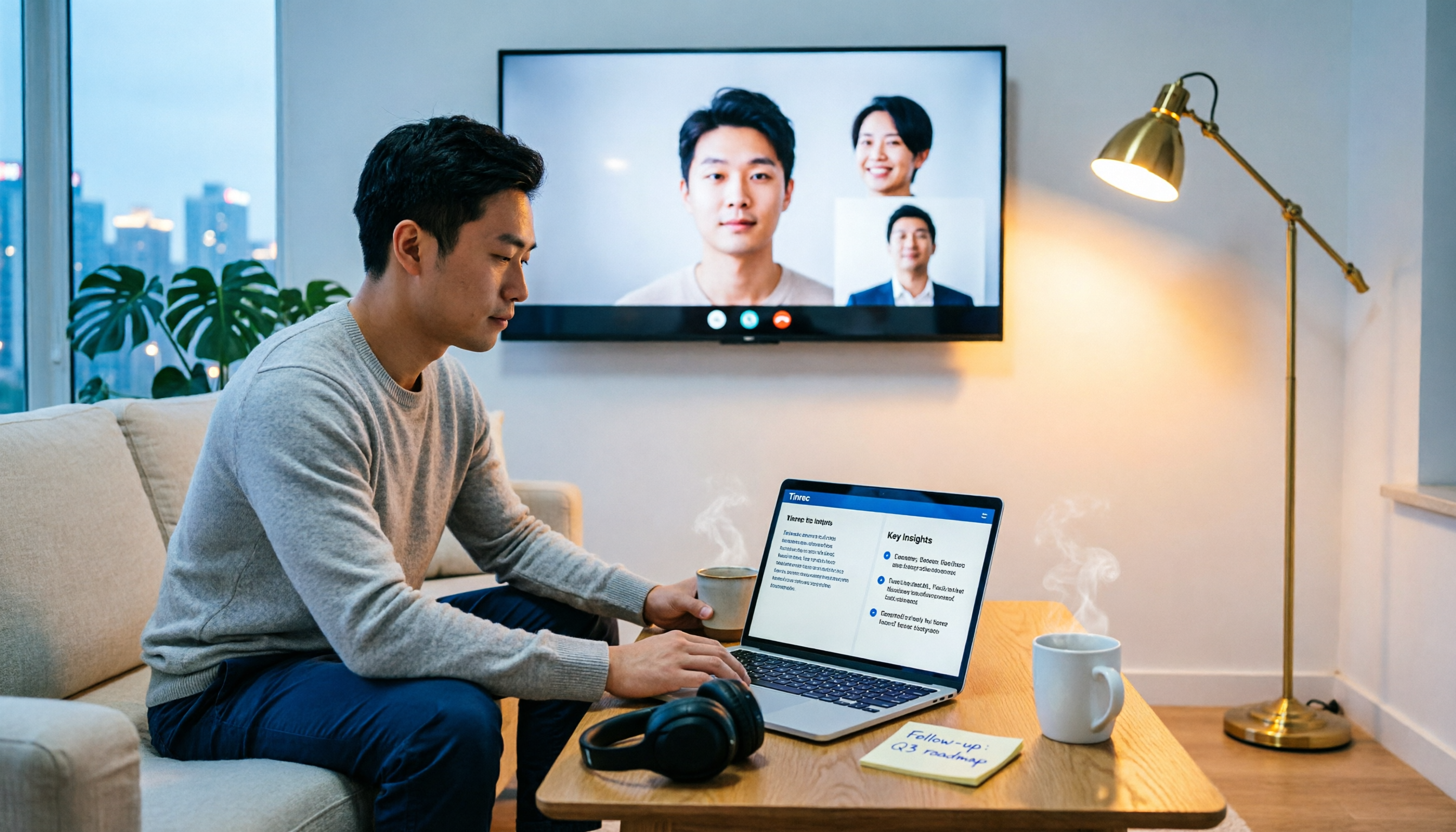
Google Meet on TV vs Tinrec in 2026: 5-Dimension Comparison — Which Should You Choose for Living Room Meetings?
Putting Google Meet on your TV isn't hard — the hard part is figuring out whether you want a bigger picture or usable meeting data afterward. This article compares Chromecast casting, built-in Meet on Android TV, Chrome tab casting, and Tinrec desktop recording across 5 key decision points, covering differences, limitations, and ideal use cases, with step-by-step instructions and common mistakes to help you choose the right approach.

Google Meet vs Tinrec in 2026: 5-Factor Comparison — Presentation Audio vs. Meeting Notes
Google Meet now lets you share full system audio during presentations, but it's off by default, has OS version requirements, and won't save meeting notes for you. This article compares Google Meet and Tinrec across 5 dimensions to help you decide when to use built-in sharing and when to use Tinrec for recording, transcription, AI summaries, and team collaboration.

Google Meet On-the-Go vs. Tinrec: Which Actually Saves Post-Meeting Time?
Google Meet's On-the-Go mode lets you join meetings while walking or commuting, but does it solve participation or documentation? This article breaks down On-the-Go's real boundaries across 5 dimensions and compares Tinrec's approach to post-meeting organization, cross-platform support, and team knowledge retention, helping you decide how to divide mobile meeting tasks.