
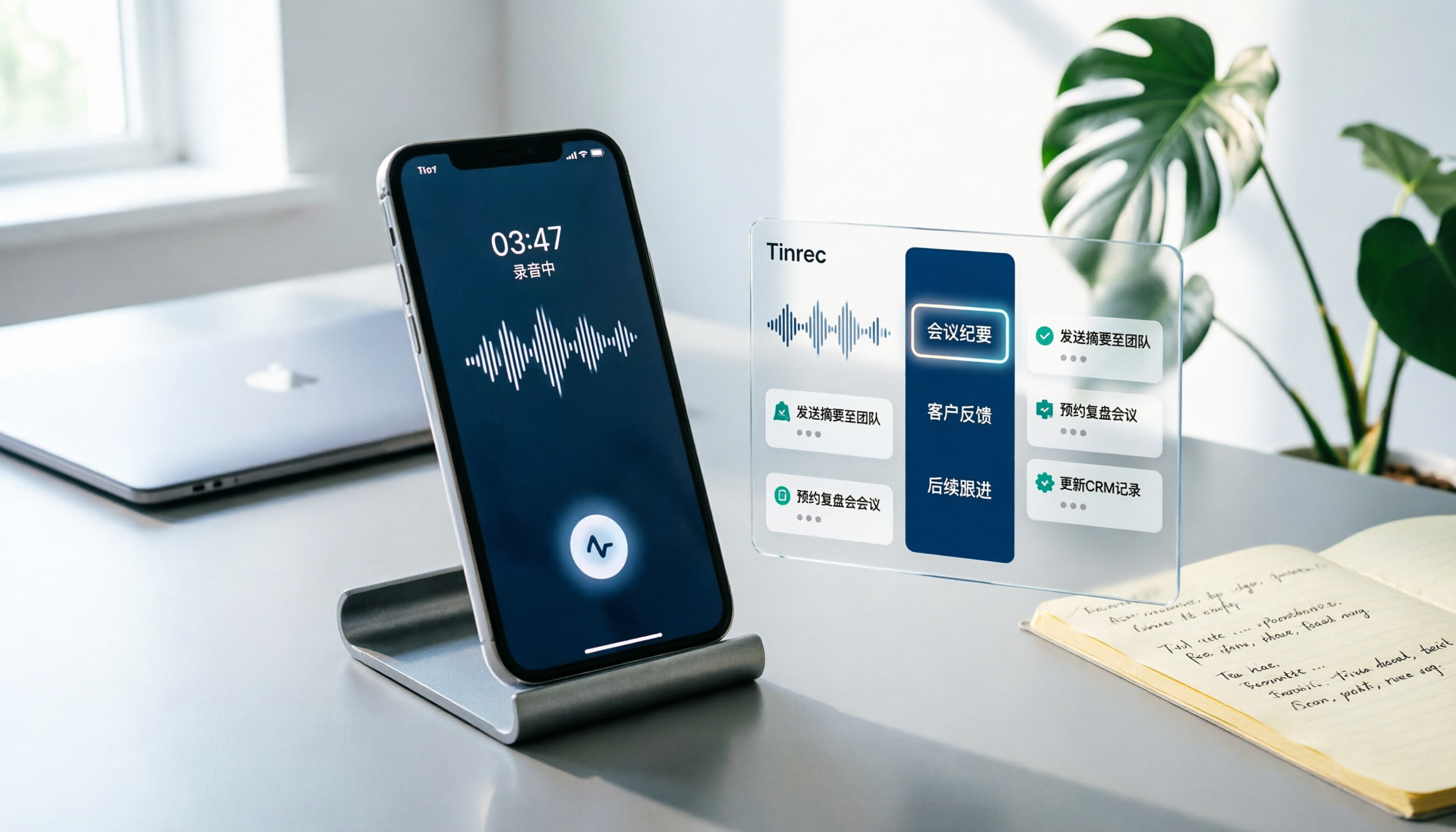
Turn recordings into transcripts and summaries in minutes
Upload audio or video for multilingual transcription, AI notes, and action items
You've recorded the call—now what?
Last month, a friend in sales handed me his phone. It had over forty LINE call recordings on it.
"I recorded them all, but I haven't listened to a single one."
He sounded helpless. He had indeed saved all his client calls from the past six months, but whenever he thought about putting on headphones and listening from the beginning, he kept putting it off. The result: the recordings exist, but the information doesn't.
In recent years, the barrier to recording LINE calls on iPhone has dropped a lot. With iOS 26, the built-in "Local Capture" lets you record call audio without installing any app or buying any equipment. Recording itself is no longer the problem.
The real problem is what comes after—you now have an audio file, and then what?
This article is divided into two parts: the first half is "how to record," and the second half is "how to turn the recording into data you can actually use." The second half is what I think most people miss.
Before you start, understand these 3 things
1. The recording method determines audio quality, and audio quality determines whether you can use it later
Recording a LINE call with speakerphone on versus off makes a big difference. Currently, iOS 26's "Local Capture" still requires speakerphone to be on in practice to capture both sides' voices. This isn't a settings issue; it's a matter of how sound is picked up.
So before recording, I always confirm three things: the phone is on a hard table, not a soft cloth; there's no fan blowing directly nearby; and at the start of the call, I say, "I'm starting to record on my end."
2. Where the file is saved determines whether you can find it later
Many people forget where the file is after recording. Currently, audio recorded via "Local Capture" is usually saved in the Downloads folder of the Files app.
My usual practice: immediately rename the file after the call, adding the date and the person's name at the front, for example "20260818_Mr. Wang_Requirements Confirmation." Just this one step determines whether you can still find it three months later.
3. Recording without organizing is the same as not recording
This is where most people get stuck. A recording is raw material, not a finished product. In a forty-minute client call, you actually only need three things: what the other party wants, what they care about, and what I need to do next.
If you have to re-listen every time to get these three things, then the value of the recording is eaten up by the cost of re-listening.
So when choosing tools, I suggest asking yourself one question: Do I want "recording," or do I want "content I can use directly after recording"? In 2026, these are already tools at different levels.
Tinrec—turn audio into queryable data
Having set the standard, let me share my current approach.
Tinrec is an AI meeting notes and collaboration tool for individuals and teams, available on iOS, Android, and web. It can't record LINE calls for you—that's a system-level iPhone matter. What it handles is the part after the audio file goes in.
Drop in the audio file, and the transcript comes out
After the call, I import the audio file into Tinrec, and it converts it into a transcript. One detail I care about: the transcript preserves timestamps.
Why does that matter? Because no matter how accurate the AI summary is, you'll occasionally need to go back and confirm "did he really say that?" With timestamps, you click once and jump back to that moment in the recording—no need to drag the progress bar and guess the position.
Summary, chapters, and to-dos—all at once
The most troublesome thing about a long call is that it has no structure. Tinrec automatically generates a summary and chapters, breaking the long conversation into several meaningful sections.
Even more practical is to-do extraction. Last week, for a client call, it organized three items: "send quotation," "confirm delivery date," and "reply by next Wednesday." I don't need to re-listen; I can act just by looking at these three lines.
AI Q&A—the key reason I stayed
After recording, you can ask it questions directly.
For example: "What budget range did the client mention?" "Which specification is he concerned about?" It doesn't just throw keyword search results at you; it answers directly based on understanding the content, with source timestamps attached.
For people in sales, customer service, and interview research, this makes a big difference. Previously you had to Ctrl+F to find keywords and guess which term the other person used; now you can just ask in natural language.
My hands-on experience
I tested with an approximately eight-minute client call audio file (recorded on iPhone, indoors, speakerphone on during the call). After uploading, I got a transcript, a summary, and four to-dos.
To be honest: transcription quality is affected by recording conditions. If there's echo in the environment during speakerphone, or both sides talk over each other, the recognition results will need manual verification. So before looking at the summary, I make a habit of checking whether a few key numbers and names are correct.
Its advantages
The first is "saving you from re-listening." It's not about saving typing time; it's about saving the psychological cost of "I know there's something important in there, but I don't want to listen again."
The second is "you can ask follow-up questions." Once the data is in, it's not dead—you can keep asking, which is very useful for work that requires repeated verification.
The third is "cross-device." Record on your phone, organize on your computer, view on the web—this is a basic need for people who use multiple devices.
Stop organizing recordings by hand
Upload audio or video and automatically get a transcript, summary, and action items
Its limitations
The free version has a monthly quota, and heavy users need to pay. For someone who makes two or three calls a week, it's enough; for someone recording every day, they'll hit the limit.
Also, it's not a call recording tool and won't intervene in your LINE. You have to get the audio file out first, then import it. This point needs to be clear from the start.
If your recordings are team data
If these call recordings aren't just for you—for example, a sales team needs to share client records, or customer service needs to hand over cases—then consider the team version.
The team version is a separate team space, not multiple people sharing one account. Meeting data belongs to the team, and members leaving won't take the data with them; admins can manage roles, seats, usage, and audit logs. Note a common misunderstanding: even without a seat, members can still view and play team data—they just can't upload or edit.
Who it's for
If you frequently discuss things over LINE and need to keep records afterward, or need to go back and check "what exactly did he say at the time," this workflow will feel much more effective than pure recording.
The complete 5 steps: from recording to usable data
Okay, let's connect the workflow.
Step 1: Before the call, add "Local Capture" to Control Center
First go to Settings and add "Local Capture" to Control Center. You only need to do this once.
Why do this first? Because you can't be looking for a button during the call. Every second during a call is content being lost.
Step 2: During the call, turn on speakerphone and pull down Control Center to start recording
After connecting, turn on speakerphone, pull down Control Center from the top-right corner, and tap "Local Capture."
Two practical reminders here. First, try not to let the screen go into long standby during recording, to avoid the system's power saving interrupting the process. Second, at the beginning, say "I'm starting to take notes on my end"—this is both polite and gives the recording a clear starting point.
Step 3: Long-press the red dot in the Dynamic Island to stop, then find the audio file in the Files app
After the call, long-press the red dot in the Dynamic Island to stop recording. The audio file is automatically saved in the Files app, usually in the iCloud Downloads folder.
Rename it immediately after finding it. The ten seconds this takes will save you ten minutes in the future.
Step 4: Import into Tinrec and let it generate a transcript
Import the audio file into Tinrec and wait for the transcript to finish. You don't need to do anything during this step—you can work on other things at the same time.
After it's done, don't rush to look at the summary. I first scan the beginning and end of the transcript to confirm recording quality and recognition status, then decide how much to trust the summary.
Step 5: Wrap up with the summary and to-dos, and ask questions directly when needed
Look at the summary to grasp the big picture, look at the to-dos to confirm next steps, and use Q&A to dig into anything unclear.
Finally, if needed, you can export it as a document or bring it into tools you already use, like Notion or Google Docs. Data needs to enter your existing workflow to actually be used.
Besides Tinrec, what other options are there?
iPhone's built-in "Local Capture": This is the most economical starting point—no need to install anything. But it only handles recording; after recording, you still have an audio file, and transcription and organization are up to you. If you only record once a week and listen immediately, this is enough.
Notta: A multi-platform transcription tool with significant overlap with Tinrec. The free version offers 120 minutes per month with a 3-minute limit per item, so you'll hit the limit quickly in practice. It performs well in file transcription and translation, but lacks Tinrec's desktop bot-free recording and team data accumulation design.
PLAUD NotePin: AI recording hardware, with the advantage of being portable and recording independently. Official website price starts at USD 159. If you often need to record in situations without a computer, hardware has its value. But if you mainly record LINE calls and online meetings, the necessity of carrying an extra device is lower—a phone plus software can get it done.
Pitfall guide: the three most common mistakes
Pitfall 1: Thinking that recording equals organizing.
This is the most expensive mistake. Audio files don't turn into knowledge by themselves; they just become a folder that keeps growing and that you increasingly don't want to open. Processing on the same day you record is the only effective method.
Pitfall 2: Ignoring the legality and courtesy of recording.
Recording involves local laws and regulations, which vary by country. In practice, I always inform the other party first and obtain consent when necessary. This isn't just a legal issue; it's also a trust issue—being discovered secretly recording is more damaging than not recording at all.
Pitfall 3: Treating the summary as the transcript.
AI summaries are very useful, but they are ultimately a processed product. Key information such as amounts, dates, names, and contract terms must be verified against the timestamps in the transcript. I make it a habit: summary for direction, transcript for details.
Conclusion: Where should you start?
In one sentence: first solve "recording," then solve "using."
- Just want to save phone calls → iOS 26's "Local Capture" is enough; first build the habit of renaming immediately after recording
- Need a transcript and summary after recording → Tinrec, the most direct next step
- Need to repeatedly verify "what exactly did the other person say" → Tinrec's AI Q&A is easier than keyword search
- Call records are shared team assets → Tinrec team version, data belongs to the team, not individuals
- Often record in situations without a computer → hardware like PLAUD can be considered
Quick start checklist
- Settings → Control Center → Add "Local Capture"
- During the call, turn on speakerphone and pull down Control Center to start recording
- After finishing, find the audio file in the Files app and rename it immediately
- Import into Tinrec and wait for the transcript to generate
- First scan the beginning and end of the transcript to confirm quality, then look at the summary
- Use to-do extraction to decide next steps, and use Q&A to follow up on anything unclear
Recording is just the beginning. What's truly valuable is the ten minutes of organization after recording. Try it with one call, and you'll find that those recordings lying around unlistened are actually still salvageable.
References
Turn every recording into actionable outcomes
Get 60 free transcription minutes when you sign in. No credit card required.
Related Reading
You might also like

2025 LINE Call Recording Free Options: 4 Methods Compared
How to choose a free LINE call recording solution in 2025? Based on a student's real-world experience, this article covers four options: iPhone local capture, Android call recording, a voice recorder, and Tinrec's post-recording AI organization. It compares transcription, AI summaries, action item extraction, and export capabilities. With a limited budget, you can start with free quotas and find the LINE call recording and post-meeting workflow that suits you best.

6 iPhone LINE Call Recording Methods Tested for 2026: Which One Actually Captures Audio?
Most people's first instinct for recording LINE calls on iPhone doesn't actually capture audio. This guide covers 6 practical methods—from free Voice Memos and screen recording to workflows that turn recordings into transcripts and action items—and honestly explains each one's limitations and best use cases.

How to Record LINE Calls on iPhone in 2026: 4 Tested Methods and Buying Guide
You can't directly record two-way LINE calls on iPhone, and the common PTT complaint of 'only hearing my own voice' comes from choosing the wrong method. This guide breaks down four practical solutions—speakerphone with a second device, iOS local capture, MagSafe recording accessories, and AI recording hardware—and tests the post-call workflow, showing how Tinrec turns call audio into transcripts, summaries, and action items, with pricing and pitfalls to avoid.

2026 Comparison of 3 LINE Recording Download and Transcription Tools: What Are the Alternatives to Keep?
LINE voice messages don't have a direct download button; most people use Keep to save them, but downloading is just the beginning. This article addresses common misconceptions, breaks down the complete process from obtaining audio files to converting them into transcripts and usable records, and compares Tinrec, Notta, TurboScribe, and Otter.ai in terms of differences and limitations in Taiwan usage scenarios.

5 LINE Call Recording Methods Tested and Compared in 2026: How to Choose from Free Screen Recording to AI Transcription
Seeing "LINE is using recording" doesn't mean LINE saves your call as a file. This article compiles 5 LINE call recording methods, from iPhone screen recording and Android's Cube ACR to Tinrec's AI transcription and meeting minutes, honestly listing limitations and pricing to help you choose the one that works for you.
3 Ways to Download LINE Voice Messages in 2026: Which One Actually Turns Audio into Usable Data?
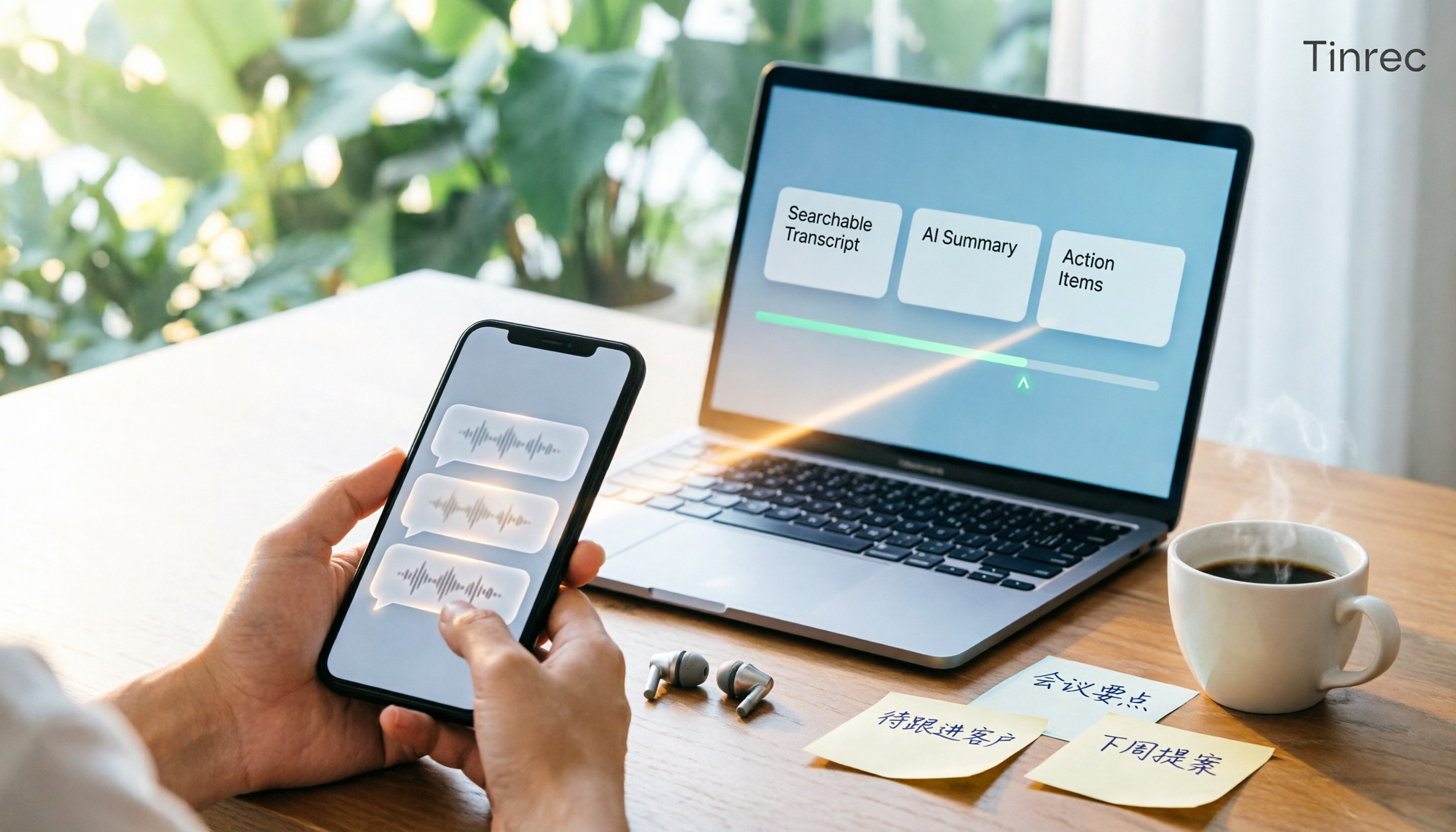
Saving LINE voice messages as audio files isn't hard—the challenge is what to do with them afterward. This hands-on comparison tests three methods: LINE's built-in save, mobile download, and uploading to an organization tool. It explains the limitations of each and demonstrates how Tinrec turns voice into searchable, summarizable transcripts and action items that can be handed off.

2026 LINE Call Recording Showdown: 3 Methods Tested — Who Turns Your Calls into Action Items?
How do you record a LINE call, and how do you download and save the audio afterward? Starting from a manager's real-world need to handle over a dozen meetings a week, this article compares the Android call recording app Cube ACR with Tinrec across five dimensions: platform coverage, post-call organization, search and follow-up questions, team collaboration, and Chinese-language scenarios. It also outlines the feasible approaches and limitations for both iPhone and Android users.

4 LINE Call Recording Solutions Tested for 2026: Which One Actually Works on iPhone?
The LINE call recording question that pops up on PTT every month, explained once and for all: why iPhone's system restrictions break most apps, what's awkward about the iOS 18.1 built-in recording prompt, and why 'after recording, use Tinrec to transcribe, extract summaries and action items' is the part that truly saves time.

How to Record LINE Calls on iPhone in 2026: Built-in Capture + Tinrec for Transcripts & Action Items
After upgrading to iOS 26, iPhone users can record LINE calls using the built-in "Local Capture" feature without notifying the other party. But what happens after recording? This tutorial first shows you how to record a LINE call, then explains how to use Tinrec to turn the audio file into a transcript, AI summary, and action items, and save it to a team space—ideal for client interviews, work assignments, and team meetings.