

Turn recordings into transcripts and summaries in minutes
Upload audio or video for multilingual transcription, AI notes, and action items
3 iPhone LINE Call Recording Methods Tested for 2026: Capturing Audio Is Basic—Transcribing It Saves Time
The client on the phone mentioned three key points. You're holding the phone with one hand and fumbling for a notepad with the other. After hanging up, all you remember is "something about the budget."
Or the interview ends, you open the screen recording file, and discover: video yes, audio no—the whole thing was a waste.
LINE is one of the most common calling tools in Taiwan, but it doesn't have built-in call recording. So most people improvise—record with another phone nearby, gamble on screen recording, or just buy a voice recorder. In 2026, things have changed: with iOS 26's "Local Capture," iPhone can finally record system audio, and LINE, WhatsApp, FB Messenger, WeChat, and Telegram are all supported.
This article breaks down the three most common methods on iPhone today and answers what most people really care about: after recording, how do you turn these audio files into usable data?
Before Choosing an iPhone LINE Recording Method, Understand These 4 Key Points
1. Does it actually record audio? This has been the biggest pain point. In the past, using built-in screen recording for LINE calls often resulted in "no audio in the video" or "recording stopped midway." The simple test: does this method capture system audio or rely on the microphone? The former is stable; the latter picks up your TV and air conditioner too.
2. Will the other party be notified? Many assume recording will always be noticed. Currently, iOS 26's "Local Capture" does not send a recording notification, but that doesn't mean you can record freely—legal and courtesy considerations are separate, discussed later in the pitfalls section.
3. Can you use it after recording? This is the dimension this article emphasizes most. For a 40-minute call, what you really need isn't the audio file—it's "who said what, what was concluded, and who does what next." Just saving the audio to Photos is as good as not organizing it.
4. Can your device and OS version handle it? "Local Capture" requires iOS 26 or later; older iPhones must fall back to screen recording or external devices. Also, if you work across iPhone and a Windows laptop, whether you can open the same data across devices will determine how easy it is to organize later.
Tinrec—Recording Audio Is Just the First Step; Turning It into Usable Data Is Key
In one sentence: Tinrec is an AI meeting notes and collaboration tool for individuals and teams, supporting iOS, Android, web, and desktop. It converts recordings, online meetings, audio, and video files into transcripts and automatically generates summaries, chapters, and action items.
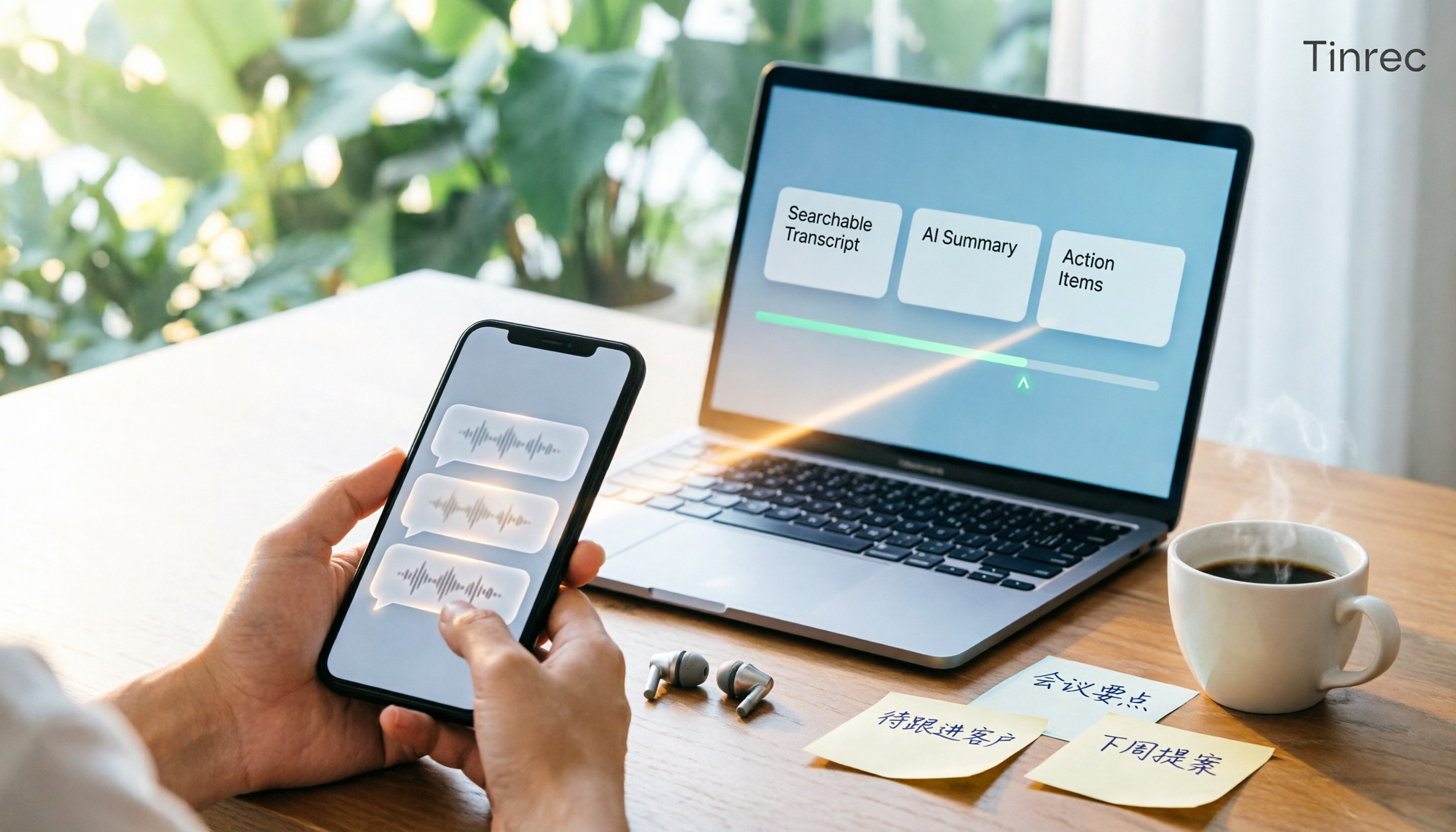
Drop in a LINE call audio file and get a transcript After recording a call with iPhone's "Local Capture" or an external device, you get an audio file. Import it into Tinrec and it produces a transcript; mixed Chinese-English content is handled too, and you can view it with real-time translation in original, translated, or bilingual mode. For client calls where you need to confirm details back and forth, this is much faster than replaying repeatedly.
Summaries, chapters, and action items generated at once The most time-consuming part of a long call is never listening—it's organizing. Tinrec automatically generates summaries and chapters and extracts action items from the discussion—who sends the quote, when to reply, which spec version is finalized—listed for you, no need to take notes while listening.
AI Q&A: Just ask "How many times did the client mention the budget?" This is where it differs most from ordinary transcription tools. After recording, you can continue asking questions about the meeting content, and it answers based on semantics, not just a list of keyword search results. Finding client objections, decision conclusions, or previous commitments doesn't require scrolling through the transcript from the beginning.
Export and further processing Transcripts and notes can be exported to Notion, Google Docs, OneNote, Dropbox, and other tools for continued use; when formal documents are needed, Agent post-processing can generate reports, tables, and meeting minutes.
Stop organizing recordings by hand
Upload audio or video and automatically get a transcript, summary, and action items
If this needs to be handed to the whole team The team version is a separate team space, not multiple people sharing one personal account. You can create multiple teams, invite members via join links, set owners/admins/regular members, and distinguish "roles" from "seats": members without seats can still view, play, and read team data, but need a seat to record, upload, edit, and export. Admins also have team usage trends, member rankings, audit logs, team hotwords, and an audio recycle bin (retained for 30 days, recoverable or permanently deleted). Currently, team monthly billing is USD 29.80 per paid seat per month, annual billing is USD 199 per paid seat per year (about USD 16.58 per month); eligible teams can try 7 days free with 1 free seat and 300 shared import minutes, paid seats provide 2,000 shared import minutes per month, and real-time recording currently does not deduct minutes under active plans and seats. Prices and benefits are subject to the official purchase page.
Limitations, honestly stated
- Tinrec cannot record LINE calls for you. It handles the "after recording" part; you still need to capture the audio using iPhone's built-in features or an external device.
- Transcript quality depends on recording conditions: best in quiet environments with no overlapping speech; background TV, multiple overlapping speakers, or many proper nouns still require manual proofreading. No tool should be treated as guaranteeing a fixed accuracy rate.
- The free version has usage limits; long-term high-frequency use requires evaluating a paid plan.
Who it's for People who often need to keep call, interview, or meeting content for repeated use—sales, customer service, project managers, research interviewers, and departments that want to turn meeting data into team assets.
Besides Tinrec, There Are 3 Other Recording Options on iPhone
iOS 26 built-in "Local Capture" Free, no plugins, no jailbreak. It records system audio without notifying the other party and supports LINE, WhatsApp, FB Messenger, WeChat, and Telegram. Tip: add it to the first page of Control Center; long-press to switch to "Audio Only." But it only gives you an audio or video file—no transcript, summary, or action items, and no cross-device centralized management—which is exactly the gap Tinrec fills.
Traditional screen recording The most common workaround on older iPhones, with the lowest barrier to entry. In practice, it often results in "no audio after recording" or mid-recording interruptions, and audio is captured via microphone, so ambient noise comes along. It only solves "keeping the visuals"; for those who need transcripts and minutes, you still spend double the time organizing afterward—this is the biggest difference from Tinrec.
External recording devices (MagSafe attachable recorders, PLAUD and other AI recording hardware) Suitable for regular call recording and those who don't want screen recording. Attach to the back of the phone and press to record, no extra network or monthly fee. For example, PLAUD's US official site currently lists NotePin at USD 159 and Note Pro at USD 189, with Pro membership at USD 99.99/year for 1,200 minutes per month. Downsides: you need to carry an extra device, remember to charge it, and the hardware doesn't handle post-processing; Tinrec requires no extra device and turns the same audio file into queryable, exportable data.
Pitfall Guide: 4 Most Common Mistakes When Recording LINE on iPhone
Pitfall 1: Assuming screen recording always captures audio. Many discover the file is silent only after recording. Build a habit: after pressing record, say a test sentence and play back to confirm audio before starting the call.
Pitfall 2: Ignoring the OS version. "Local Capture" requires iOS 26 or later. Check your version before traveling or important interviews—don't search for the feature during the call.
Pitfall 3: Recording and forgetting. The audio sits in Photos, and three days later you can't even remember which call it was. Import the file into an organizing tool the same day, while memory is fresh, to extract summaries and action items—that's what truly saves time.
Pitfall 4: Ignoring laws and the other party's feelings. Call recording regulations vary by country and region. Confirm local laws before recording and obtain consent from all participants when necessary. Whether the tool is good is secondary; crossing this line is trouble.
Conclusion: Which One Should You Choose?
- Just occasionally want to keep a call → iOS 26 built-in "Local Capture," zero cost, no notification to the other party, good enough.
- Need transcripts, minutes, and action items after recording → Tinrec: import the audio and get transcripts, summaries, chapters, and action items, plus AI Q&A to look up details.
- Regularly record in-person calls without screen recording → External recording device captures audio; let Tinrec handle the organizing.
- Team needs to share meeting data → Tinrec team version, with team spaces, roles, and seat management; data stays even when members leave.
As for budget, decide based on usage frequency: start with the free version or a plan with limits for a trial run or two, confirm it really saves you organizing time, then consider upgrading. A tool you buy but don't use is the most expensive kind.
References
- [Phone Tips] LINE can now record calls! iPhone built-in call recording secret, no notification to the other party! | Jyes Communication ~ Challenge the lowest phone market price
- How to record phone calls and LINE calls? iPhone and Samsung call recording app recommendations
- LINE call recording iPhone tutorial secret, easily record call audio with iOS 26 Local Capture - Mr. Mad
- LINE can finally record calls! No plugins or external devices needed—just use iPhone's built-in system features
- LINE call recording complete guide: Android, iPhone, PC all covered! – AirDroid
Turn every recording into actionable outcomes
Get 60 free transcription minutes when you sign in. No credit card required.
Related Reading
You might also like

2025 LINE Call Recording Free Options: 4 Methods Compared
How to choose a free LINE call recording solution in 2025? Based on a student's real-world experience, this article covers four options: iPhone local capture, Android call recording, a voice recorder, and Tinrec's post-recording AI organization. It compares transcription, AI summaries, action item extraction, and export capabilities. With a limited budget, you can start with free quotas and find the LINE call recording and post-meeting workflow that suits you best.

6 iPhone LINE Call Recording Methods Tested for 2026: Which One Actually Captures Audio?
Most people's first instinct for recording LINE calls on iPhone doesn't actually capture audio. This guide covers 6 practical methods—from free Voice Memos and screen recording to workflows that turn recordings into transcripts and action items—and honestly explains each one's limitations and best use cases.

How to Record LINE Calls on iPhone in 2026: 4 Tested Methods and Buying Guide
You can't directly record two-way LINE calls on iPhone, and the common PTT complaint of 'only hearing my own voice' comes from choosing the wrong method. This guide breaks down four practical solutions—speakerphone with a second device, iOS local capture, MagSafe recording accessories, and AI recording hardware—and tests the post-call workflow, showing how Tinrec turns call audio into transcripts, summaries, and action items, with pricing and pitfalls to avoid.

2026 Comparison of 3 LINE Recording Download and Transcription Tools: What Are the Alternatives to Keep?
LINE voice messages don't have a direct download button; most people use Keep to save them, but downloading is just the beginning. This article addresses common misconceptions, breaks down the complete process from obtaining audio files to converting them into transcripts and usable records, and compares Tinrec, Notta, TurboScribe, and Otter.ai in terms of differences and limitations in Taiwan usage scenarios.

5 LINE Call Recording Methods Tested and Compared in 2026: How to Choose from Free Screen Recording to AI Transcription
Seeing "LINE is using recording" doesn't mean LINE saves your call as a file. This article compiles 5 LINE call recording methods, from iPhone screen recording and Android's Cube ACR to Tinrec's AI transcription and meeting minutes, honestly listing limitations and pricing to help you choose the one that works for you.
3 Ways to Download LINE Voice Messages in 2026: Which One Actually Turns Audio into Usable Data?
Saving LINE voice messages as audio files isn't hard—the challenge is what to do with them afterward. This hands-on comparison tests three methods: LINE's built-in save, mobile download, and uploading to an organization tool. It explains the limitations of each and demonstrates how Tinrec turns voice into searchable, summarizable transcripts and action items that can be handed off.

2026 LINE Call Recording Showdown: 3 Methods Tested — Who Turns Your Calls into Action Items?
How do you record a LINE call, and how do you download and save the audio afterward? Starting from a manager's real-world need to handle over a dozen meetings a week, this article compares the Android call recording app Cube ACR with Tinrec across five dimensions: platform coverage, post-call organization, search and follow-up questions, team collaboration, and Chinese-language scenarios. It also outlines the feasible approaches and limitations for both iPhone and Android users.

4 LINE Call Recording Solutions Tested for 2026: Which One Actually Works on iPhone?
The LINE call recording question that pops up on PTT every month, explained once and for all: why iPhone's system restrictions break most apps, what's awkward about the iOS 18.1 built-in recording prompt, and why 'after recording, use Tinrec to transcribe, extract summaries and action items' is the part that truly saves time.

How to Record LINE Calls on iPhone in 2026: Built-in Capture + Tinrec for Transcripts & Action Items
After upgrading to iOS 26, iPhone users can record LINE calls using the built-in "Local Capture" feature without notifying the other party. But what happens after recording? This tutorial first shows you how to record a LINE call, then explains how to use Tinrec to turn the audio file into a transcript, AI summary, and action items, and save it to a team space—ideal for client interviews, work assignments, and team meetings.