

Turn recordings into transcripts and summaries in minutes
Upload audio or video for multilingual transcription, AI notes, and action items
iPhone Voice Memos vs Tinrec in 2026: 5-Dimension Comparison — Which Saves More Time After Recording?
You recorded a one-hour meeting, but the real hassle is the two hours afterward
A 60-minute recording is sitting on your phone, and you just want to confirm "what exactly was said about the budget." So you fast-forward from the beginning, drag the waveform back and forth, and spend 15 minutes finding that 30-second segment.
You recorded an entire class and want to review the key points the instructor highlighted before the exam, but the audio file has no chapters or markers — you have to listen to the whole thing again.
Interviews or client conversations are even more troublesome — the recording is just raw material; what you actually need to deliver is a transcript, key points, and action items.
This article isn't saying the built-in feature is bad. It's here to help you distinguish: in which situations is iPhone's built-in Voice Memos more than enough, and in which situations do you need a helper that can turn recordings into text along the way.
Recording on iPhone: 5 Key Points to Understand First
1. Is recording the starting point or the end goal? If you archive recordings right after making them and almost never listen back, the free built-in tool is completely sufficient. But if every time you record you need to type a transcript, write minutes, and capture action items, then "how much work is needed after recording" is the cost you should calculate first.
2. Recognition performance for Chinese and mixed Chinese-English speech Meetings in Taiwan rarely use pure Chinese or pure English — most mix them, like "this campaign's budget needs to be reviewed again." When choosing a tool, rather than looking at official claimed numbers, try it with a real recording of your own meeting — one with air conditioning noise, keyboard sounds, and people talking over each other. That's the only way to get an accurate test.
3. Will the recording file be kept? Some people only need the text and don't care if the file is kept; but most of the time you'll want to go back and check against the original audio. Whether a tool retains audio files and allows playback for comparison affects long-term use more than transcription speed.
4. Cross-device continuity Record on iPhone, organize on computer — that's many people's real workflow. If a tool only lives on your phone, you'll still end up transferring files back and forth.
5. Who ultimately owns the data? For personal use, it's not a big issue. But for department weekly meetings or project meetings, if recordings are stored in one person's phone account, once they leave or change departments, those records disappear with them. At that point, what matters isn't whether the app is good, but whether there's a team workspace and data handover design.
Tinrec — An iPhone Recording Method That Transcribes While Recording
Tinrec is an AI meeting notes and collaboration tool for individuals and teams, supporting iOS, Android, and web. Its positioning isn't "another recording app" but rather pushing the audio captured on your phone directly to a stage where it's searchable, queryable, and deliverable.
While recording on iPhone, it's doing other things simultaneously Open Tinrec and press record — the screen shows a live transcript as it records, and by the time the meeting ends, the text is largely formed. This "real-time recording to text" is especially useful for in-person meetings, classes, and interviews — you don't have to wait until recording ends to start organizing.
For cross-language meetings, you can switch between original text, translation, or bilingual side-by-side view during recording. Traditional Chinese and mixed Chinese-English content are within its processing scope.
After recording is where it really shines For a 60-minute recording, Tinrec automatically generates summaries, chapters, and key points, breaking long meetings into easily browsable structure. For project meetings, it can further extract action items — who's responsible for what and when it's due — listed directly.
Even better is AI Q&A. You don't need to Ctrl+F search keywords in the transcript; you can directly ask "who mentioned the budget in this meeting" or "what was the conclusion of the last discussion," and it will answer based on the meeting content. This is something most recording tools haven't achieved yet.
When you need to submit a report or write meeting minutes, you can continue generating documents, reports, or tables in the same interface, then export to Notion, Google Docs, OneNote, Dropbox, and other tools for further processing.
Online meetings can be recorded too Tinrec's desktop version captures computer system audio to handle online meetings on Zoom, Google Meet, Microsoft Teams, Webex, etc., without pulling a bot into the meeting room as a participant. Note that this doesn't mean "automatically joining all meetings on your calendar" — you still need to actively start recording.
A few limitations that must be honestly stated The free version provides a basic quota, suitable for trying it out and occasionally organizing one or two recordings; if you have meetings every week, you'll need to upgrade. Additionally, transcription quality is affected by recording quality, ambient noise, accents, overlapping speakers, and technical terminology. For important content, it's recommended to listen back to the original audio at the corresponding transcript timestamps for verification.
Who it's for If your purpose for recording is never just "keeping a record" but always producing transcripts, minutes, or action items; or if your meetings span iPhone, computer, and web — Tinrec will save you a lot of rework compared to a simple recording app.
Stop organizing recordings by hand
Upload audio or video and automatically get a transcript, summary, and action items
For team use, it also provides an independent team workspace: meeting data belongs to the team, with management of members, roles, and seats, plus usage and activity logs. Active members can view and play team data even without a seat, but actual recording, uploading, or editing requires a seat. When a member leaves, data isn't taken away but handed over to other members.
Where's the record button? 4 Quick iPhone Recording Setups
The built-in Voice Memos is in the "Utilities" folder — go in and press the red button to start recording, and you can pause and resume during recording. It supports basic editing like trimming, replacing, and reverting, and you can choose stereo or spatial audio; after enabling iCloud for Voice Memos, recordings sync across iPhone, iPad, and Mac signed in with the same Apple Account. Accidentally deleted files stay in "Recently Deleted" for 30 days.
The problem is, in an emergency you might not find that red button. Here are 4 ways to bring it to your fingertips:
Method 1: Shortcuts + Back Tap Open the Shortcuts app, tap "+" in the top right, search for "Voice Memos" and select "Create Recording," then save. Next, go to Settings → Accessibility → Touch → Back Tap, choose double tap or triple tap, and scroll down to find the shortcut you just created. After that, tap the back of your phone to start recording — but remember to unlock the screen first.
Method 2: Action Button (iPhone 15 Pro series and later) Go to Settings → Action Button and assign it to "Voice Memos." The advantage is you can press it to start recording even when the screen is locked.
Method 3: Control Center Swipe open Control Center, long-press an empty area to enter edit mode, tap "Add a Control" at the bottom, and add "Voice Memos." You can freely adjust position and size, and afterward pull down from any screen to start with one tap.
Method 4: Lock Screen shortcut (iOS 18 and later) Long-press the background on the Lock Screen, tap "Customize," and replace one of the two bottom shortcuts with the recording function. After setup, long-press that button on the Lock Screen to record directly.
The same logic can be applied to Tinrec — put "Start Recording" into Shortcuts or Control Center, so you don't have to search for the app when you need to capture something.
Besides Tinrec, what other options are there?
Apple Voice Memos Built into every iPhone, completely free, seamlessly synced with iCloud — that's its biggest advantage. Its limitations are also clear: recording and organizing are two separate steps; what you get is an audio file, and transcription requires iOS 18 or later with Apple Intelligence for additional processing. It has no AI Q&A, no action item extraction, no team workspace, and doesn't extend to Android or web. Suitable for people who just want to "record it first."
Otter.ai A mature choice for English meetings. The free version offers 300 minutes per month, which is generous, and includes summaries, action items, and AI Q&A. But it's primarily designed for English business meeting scenarios; if your meetings are mainly in Chinese, the experience will differ. For Chinese meeting notes, bot-free desktop recording, and multi-format export after meetings, Tinrec is a more direct match.
Notta Good multilingual transcription and file import capabilities. The free version offers 120 minutes per month with a 3-minute limit per item; the Business plan provides role permissions and usage reports. It leans more toward being a "transcription, translation, and file processing" tool. If what you value is bot-free recording of online meetings, post-meeting AI follow-up questions, and team data retention, that's where Tinrec has an advantage.
Pitfall Guide: The 4 Most Common iPhone Recording Mistakes
Pitfall 1: Assuming that recording equals remembering Recording is just raw material. If you never listen back after recording, the value of that audio file is zero. Before recording, think clearly: what will I do after recording? If the answer is typing a transcript, don't let yourself spend double the time later.
Pitfall 2: Ignoring microphone distance and ambient noise With the phone on the table and people sitting two meters away, the captured sound is roughly just the outline of "someone talking." For meeting recordings, keep the phone as close to the speaker as possible, or use a supported headset or external microphone. This is more effective than any AI补救 afterward.
Pitfall 3: Using only built-in features and ignoring cross-device needs Record on iPhone today, want to edit on computer tomorrow — you have to figure out how to move the file first. If you handle recordings every week, choosing a tool that supports phone, computer, and web from the start will save you a lot of fragmented time transferring files in the long run.
Pitfall 4: Keeping team meeting data in personal accounts This is the most easily overlooked pitfall. Recordings stored on personal phones, transcripts on personal cloud drives — once a person changes departments, the data is cut off. If these meeting records are valuable to the team, they should be stored in a team-shared space, not on someone's device.
Conclusion: Which one should you choose?
Back to the most practical question — what will you use your recording for after it's done?
Just want to know "did that segment get recorded?" → Voice Memos Built-in, free, synced with iCloud, press and start recording. For daily memos, quick inspiration notes, and casual evidence, it's the easiest.
Need to type a transcript and write minutes after recording → Tinrec Transcribes while recording, and after the meeting you directly have summaries, chapters, and action items — no need to start organizing from scratch.
Meetings mix Chinese and English, need bilingual comparison → Tinrec During recording, you can switch between original text, translation, and bilingual view — no need to find a separate translator for cross-language meetings.
Want to go back and ask "what was that conclusion last time?" → Tinrec Ask directly with AI Q&A — much faster than manually flipping through a 30-minute transcript.
Don't want to pull a bot into online meetings → Tinrec The desktop version captures system audio without adding an extra participant.
Only record English, zero budget → Otter.ai This is the only scenario in this article where we suggest considering another tool; the free quota is indeed cost-effective for English meetings.
If you're not sure which type you are, we suggest starting with the free version: throw in a real meeting recording and see if the transcript it produces is directly usable. If it is, consider upgrading; if not, the built-in feature hasn't let you down either.
One final reminder: when recording involves other people's conversations, please comply with local regulations and obtain participants' consent when necessary.
References
- Record in Voice Memos on iPhone - Apple Support (Taiwan)
- iPhone recording made easy! One-tap quick self-protection at critical moments
- iPhone recording shortcut setup guide: 3 ways to quickly launch recording - Tech Girlz
- How to record audio and voice on iPhone in 3 simple ways
- Complete guide to iPhone recording features: more than just Voice Memos — this tool can even record LINE and Zoom calls!
Turn every recording into actionable outcomes
Get 60 free transcription minutes when you sign in. No credit card required.
Related Reading
You might also like

Best iPhone Audio Transcription Tools in 2026: 4 Tested, This Free One Is Enough
Is iPhone audio transcription really free? This article tackles the common 'fake free' trap by comparing 4 options: iPhone's built-in Voice Memos transcript, Aiko, Notta, and Tinrec. It also outlines 4 key buying criteria and 4 pitfalls to help you choose the one that's truly sufficient without wasting money.

Best iPhone Two-Way Call Recording Methods in 2026: 5 Tested Options, This Free Method Wins
The days of iPhone lacking built-in call recording are over—but can 'free, two-way, and good quality' really coexist? We tested 5 methods: iOS 18.1 built-in call recording, screen recording, merged call services, hardware recorders, and jailbreak tweaks. We compare free limits, audio quality, file formats, and post-processing costs, plus a hands-on test of Tinrec turning call audio into transcripts, summaries, and action items—so you can pick the best combo for your needs.

3 iPhone Recording Transcription Tools Tested: Where Are Voice Memos & How to Get Transcripts (2026)
iPhone voice memos are saved only in the Voice Memos app by default—they don't appear in Files or Photos unless you manually export them. This guide first explains where recordings actually live and how to export them, then hands-on compares three recording organization methods: Tinrec, Granola, and TurboScribe, plus common pitfalls and selection advice.

5 iPhone Recording Apps Tested for 2026: Is the Built-in Free App Enough, or Does AI Transcription Save Time?
How to choose an iPhone recording app? This article starts with the most common misjudgments when selecting one, then tests and compares Voice Memos, Tinrec, Otter.ai, Notta, and other tools. It covers the differences between free and paid plans, how to record online meetings, and what to watch out for when sharing with a team—helping you find the one that truly saves time.

Where Is the iPhone Recording Button in 2026? 5 Quick Recording Methods Tested and Compared
iPhones don't have a dedicated physical recording button—recording entry points are scattered across the Voice Memos app, Lock Screen shortcut, Action button, and Back Tap. This guide breaks down the paths, supported models, and limitations of 5 ways to start recording, then explains how to use Tinrec to turn recordings into transcripts, summaries, and to-dos, so you can go from finding the button to getting usable data.

3 Free iPhone Recording Solutions Tested and Compared in 2026: Recording, Transcription, and Organization at a Glance
Recording on iPhone isn't hard—it's what comes after. Starting from 'free,' this article breaks down three common iPhone recording approaches and tests whether Tinrec's free version can turn a 40-minute recording into a searchable, organized transcript and to-do list. It also lists key buying considerations for free quotas, transcription, export, and team collaboration.

3 iPhone 13 Recording and Transcription Methods Compared: Is the Built-in Voice Memos App Enough?
The iPhone 13's recording feature is built right into the system—most people just can't find it, and after recording, they don't have the energy to organize. This guide first shows you where to find Voice Memos and how to set up one-tap recording, then compares the built-in feature, Tinrec, Notta, TurboScribe, and PLAUD from five angles: accessibility, transcription, Chinese recognition, online meetings, and data retention—so you can see which one fits your needs.
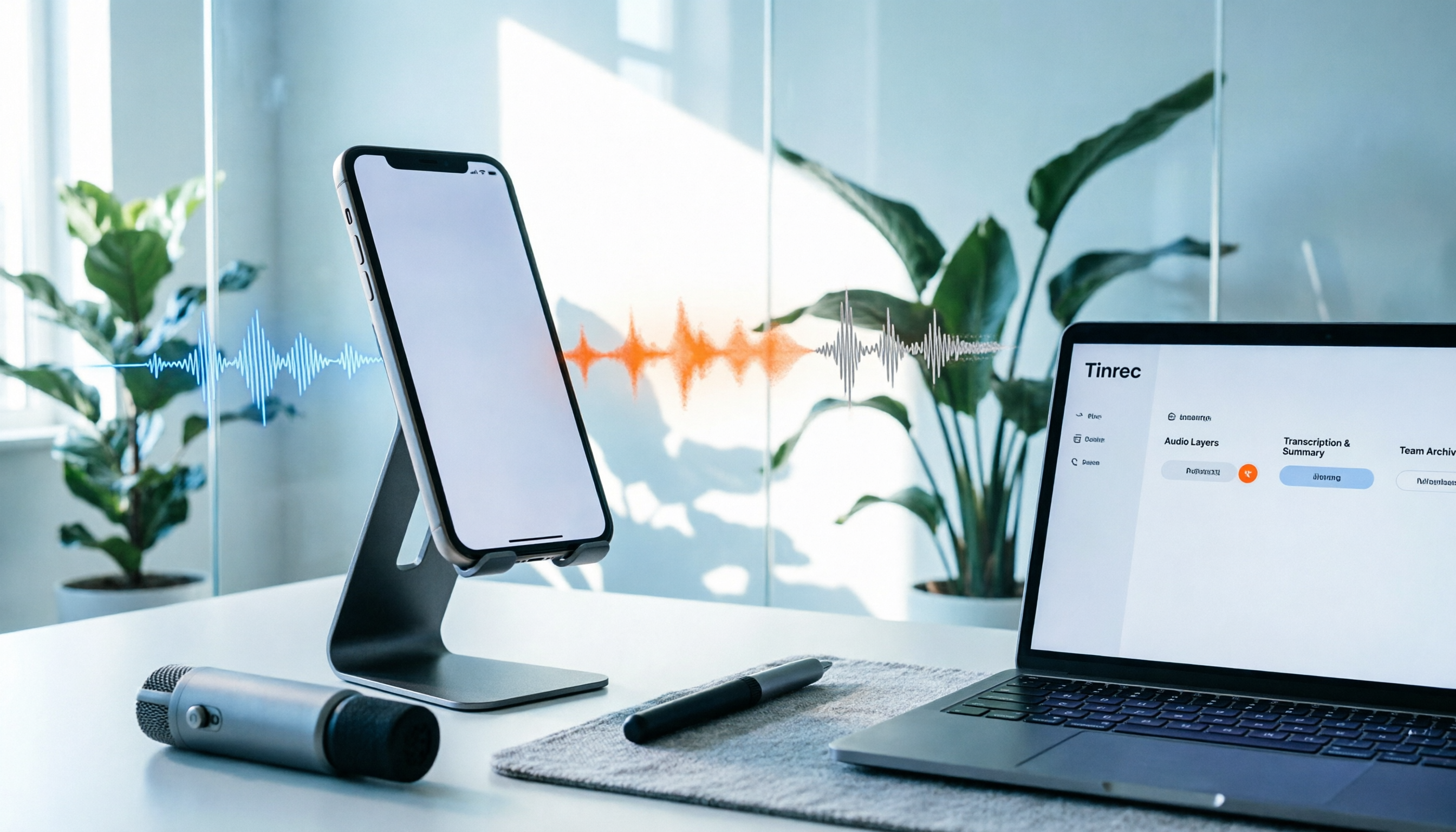
How to Record iPhone Screen with Audio in 2026: When to Turn On Mic + 3 Key Tips for Capturing System Sound
Can iPhone screen recording capture audio? Yes, but there are three audio sources, and most people only get one. This guide breaks down the differences between system sound, microphone ambient sound, and call audio, compares built-in screen recording with Tinrec for post-recording organization and team collaboration, and includes a 6-step quick start checklist.

6 Ways to Transfer iPhone Voice Memos to Computer in 2026: Free, Fast, and Large File Comparison
There are actually 6 ways to transfer iPhone voice memos to a computer, with differences in system compatibility, file size, and ease of use. This article compares USB cable, AirDrop, cloud storage, LINE, email, and Wi-Fi web transfer across four dimensions, and finally explains how to turn m4a files into transcripts, summaries, and to-dos after transfer, so you can choose the right method at a glance.