

Turn recordings into transcripts and summaries in minutes
Upload audio or video for multilingual transcription, AI notes, and action items
When trying to record two-way calls for free on iPhone, most people get stuck on the same question: Do you want to record the call as it happens, or do you want to quickly turn the recording into usable text afterward?
These two needs have completely different solutions. The recording part now has a solution on iPhone, but the organizing part doesn't. Figure out which part you need so you don't waste money or effort.
This article compiles 5 methods I've personally tested, and at the end we'll discuss a step many people overlook: what to do after recording.
Free Two-Way Call Recording on iPhone: You're Actually Choosing Two Things
The first thing is 'can you record both sides' voices?'
This depends on your phone's OS version. Starting with iOS 18.1, iPhone added built-in call recording that captures both sides, even if the other person uses Android. The recording is saved to Notes. This is the easiest free method, provided your phone can update to that version.
The second thing is 'can you use the recorded audio file?'
The built-in feature only gives you an audio file. A 40-minute client call takes one second to record, but finding out 'what exactly did they agree to' might take another 40 minutes.
That's why many people record lots of audio files but never open them again.
5 Criteria to Understand Before Choosing
1. Is it truly two-way, or is only your side clear?
Some methods essentially only capture microphone sound. The other party's voice through the earpiece is faint and muffled, significantly increasing transcription errors. True two-way recording means both voices are at the same volume level.
2. Where is the hidden cost of 'free'?
In iOS's closed ecosystem, having 'pure software, completely free, two-way, and high quality' all at once is extremely difficult. Most free apps trade off with ads, per-call time limits, or audio compression. Merged call services are another model—the app dials a server first, then connects you and the other party; these usually charge fees.
3. Where is the audio file stored, and can you export it?
Storing in Notes, in Photos, or in an app that can't export are completely different levels. If you can't get the file out, all later organizing is moot.
4. Trade-off between file size and audio quality
For the same call, the built-in call recording produced a 26.3KB file, while screen recording produced 2.83MB—over a hundred times larger. Screen recording files are much bigger but give you full original audio, which usually improves transcription accuracy later.
5. Did you inform the other party first?
This is most often overlooked. Recording involves privacy and local laws, which vary by region—some require both parties' consent, others only one. The safest practical approach is to say at the start of the call, 'I'm recording this for my records to handle follow-ups,' spending three extra seconds to avoid all future trouble.
Tinrec: Not for Recording Calls, But for Processing the Audio Afterward
Let's clarify its positioning to avoid confusion.
Tinrec is an AI meeting notes and collaboration tool for individuals and teams, available on iOS, Android, and web. It does not answer or intercept phone calls, so if you want an app that 'automatically records calls once installed,' this isn't it.
It solves the other half of the problem: how to turn an audio file into something you can directly use.
Here's the workflow:
You get an audio file using iPhone's built-in call recording (or screen recording, or a hardware recorder), upload it to Tinrec, and it generates a transcript, then automatically creates summaries, chapters, and action items.
For example, a 35-minute client call: after recording, I let it run while doing other things. When I come back, the transcript is ready, the summary lists the three requests the client made, and action items directly say 'send quote by next Wednesday.'
Even better is the AI Q&A.
After recording, you can directly ask it: 'What budget did they mention?' 'Did they mention competitors?' It answers based on semantic understanding, not just throwing keywords for you to search. This feature saves me a lot of time when handling past calls—especially those from three months ago where I only remember fragments.
Other practical features:
It handles mixed Chinese-English calls quite well, and for cross-language meetings you can enable real-time translation, viewing in original, translated, or bilingual mode. After organizing, you can export to Notion, Google Docs, OneNote, Dropbox, etc. for further processing.
If you also have online meetings besides phone calls, Tinrec's desktop version directly captures computer system audio without needing to invite a meeting bot into Zoom, Google Meet, Teams, or Webex—this is practical for those who 'don't want clients to see a strange account joining the meeting.'
Stop organizing recordings by hand
Upload audio or video and automatically get a transcript, summary, and action items
Honestly, limitations too:
The free version provides a basic quota, suitable for trying the workflow; those who need to organize calls weekly long-term will need to upgrade (weekly card, Pro monthly, Pro annual, depending on usage frequency). Also, it doesn't promise a fixed accuracy rate—actual performance is affected by recording quality, accents, background noise, and multiple people talking over each other. For important content, it's recommended to cross-check with transcript timestamps and original recording.
Who it's for:
People who frequently need to turn call or meeting content into text records, sales and customer service who need to capture client communication details, and office workers who have regular weekly meetings and don't want to take handwritten notes. If you're a team sharing, the team version offers independent team spaces where meeting data belongs to the team, with role and seat management, usage analytics, and audit logs—data won't be taken away when members leave. This is different from 'multiple people sharing one personal account.'
The Other 4 Free Methods and Who They Suit
iPhone Built-in Call Recording (iOS 18.1+)
The most straightforward free solution—records both sides, works even if the other party is on Android, and saves automatically to Notes. The limitation is it only gives an audio file, no transcript or summary—which is exactly where Tinrec steps in. If your phone can't update, you'll have to look at other methods.
Screen Recording + Speakerphone
No app download, no payment—add 'Screen Recording' to Control Center, turn on speakerphone during the call, and start recording. Note that it relies on the microphone to capture ambient sound, so noisy environments will make it muddy, and files are large (tested over a hundred times larger than call recording files). Suitable for occasional use in quiet environments with older phone versions.
Merged Call Services / Third-Party Recording Apps
The app dials its server first, then connects you and the other party into a three-way call to record. Convenient, but usually paid, depends on network stability, and audio quality may suffer. Also, availability of such apps varies; check their data handling practices when choosing.
External Hardware: Voice Recorder or MagSafe Recording Case
Physically capturing sound is currently the most stable and least controversial two-way recording method. Downsides: you need to carry an extra device and it's not cheap. For example, PLAUD's NotePin is USD 159 on the official site, Note Pro USD 189, with additional membership plans in the app. Suitable for those with high call volume and high audio quality demands. After hardware recording, you still face the 'how to turn audio into text' issue.
(Not Recommended) Jailbreak Recording Tweaks
You'll see this path online—it bypasses restrictions for two-way recording. But jailbreaking brings system risks, warranty issues, and cleanup problems. To save a little money, I personally don't recommend it.
Pitfall Guide: The 4 Most Common Mistakes
Pitfall 1: Thinking updating is enough
Built-in call recording only solves 'recording,' not 'using.' Recording a whole year of audio but never opening it again is as good as not recording. What's truly worth investing time in is the post-recording organization workflow.
Pitfall 2: Believing in 'completely free and high quality' pure software apps
Under iOS's closed architecture, this combination is extremely hard to achieve. Most free apps trade free access for ads, time limits, or audio compression, and some have privacy concerns. When you see claims of being all-powerful, check their limitations first.
Pitfall 3: Treating screen recording as a long-term solution
Occasional recording is fine, but files are large, require speakerphone, and noisy environments ruin it. As a long-term workflow, it's painful.
Pitfall 4: Only comparing 'price per minute'
When comparing prices, people only see transcription minutes but don't count their own time organizing transcripts. For a one-hour call, manually organizing a transcript takes far more work hours than most tools' monthly fees. Calculate total cost, not unit price.
Conclusion: Which One Should You Choose?
One-sentence conclusion: Record with iPhone built-in, organize with Tinrec.
Here's the practical breakdown:
- Phone updated to iOS 18.1 → Get audio file from built-in call recording, upload to Tinrec for transcript, summary, and action items
- Phone version too old, or want high-quality original file → Get file via screen recording or hardware recorder, also throw into Tinrec for organizing
- Not just phone calls, but also Zoom, Meet, Teams online meetings → Tinrec desktop version directly captures system audio, no need to invite bots into meetings
- Team needs to share meeting data, manage members and usage → Tinrec team version, 7-day trial (1 free seat, 300 minutes shared team import quota), paid seats USD 29.80/month or USD 199/year, 2,000 minutes shared import quota per seat per month; actual prices subject to official purchase page
- Zero budget, only recording English content → Otter.ai free version offers 300 minutes per month, generous quota, but Chinese meeting experience isn't its strength
- Just batch processing large long audio files, no meeting workflow needed → TurboScribe free allows 3 files per day (30 minutes per file), suitable for this simple need
Final practical advice: First run through the workflow with Tinrec's free basic quota, using a real call audio file you have. If the transcript is understandable and the summary captures key points, then consider upgrading. Rather than paying upfront, confirm it fits your work habits first.
References
- How to do free two-way call recording on iPhone? 2026 call recording and transcription tool hands-on guide - Tinrec Blog
- [Call Recording] No app download needed! iPhone can also do two-way call recording and screen recording! Microphone tutorial | Kikinote
- iPhone can record calls now! No app, free two-way call recording (tutorial)
- Where is iPhone call recording? 8 solutions and why Apple doesn't allow call recording - Mr. Mad
- How to record calls on iPhone? 5 iPhone call recording methods revealed!
Turn every recording into actionable outcomes
Get 60 free transcription minutes when you sign in. No credit card required.
Related Reading
You might also like

4 iPhone Call Recording Apps Tested in 2026: Free Download Doesn't Mean Free Recording
The biggest trap when recording calls on iPhone is mistaking 'free download' for 'free recording.' This article compares the real limitations of 4 iPhone call recording apps, including three-way calling, subscription unlocks, and where recordings are stored. It also explains that call recording and meeting notes should be handled separately: use Tinrec to turn meetings, interviews, and online calls on your computer into transcripts, summaries, and action items.
4 iPhone Call Recording Apps Tested in 2026: Free Download Doesn't Mean Free Recording
The biggest trap when recording calls on iPhone is mistaking 'free download' for 'free recording.' This article compares the real limitations of 4 iPhone call recording apps, including three-way calling, subscription unlocks, and where recordings are stored. It also explains that call recording and meeting notes should be handled separately: use Tinrec to turn meetings, interviews, and online calls on your computer into transcripts, summaries, and action items.
2026 iPhone Recording Microphone Comparison: Capture Is Just the Start—Organizing Is Key
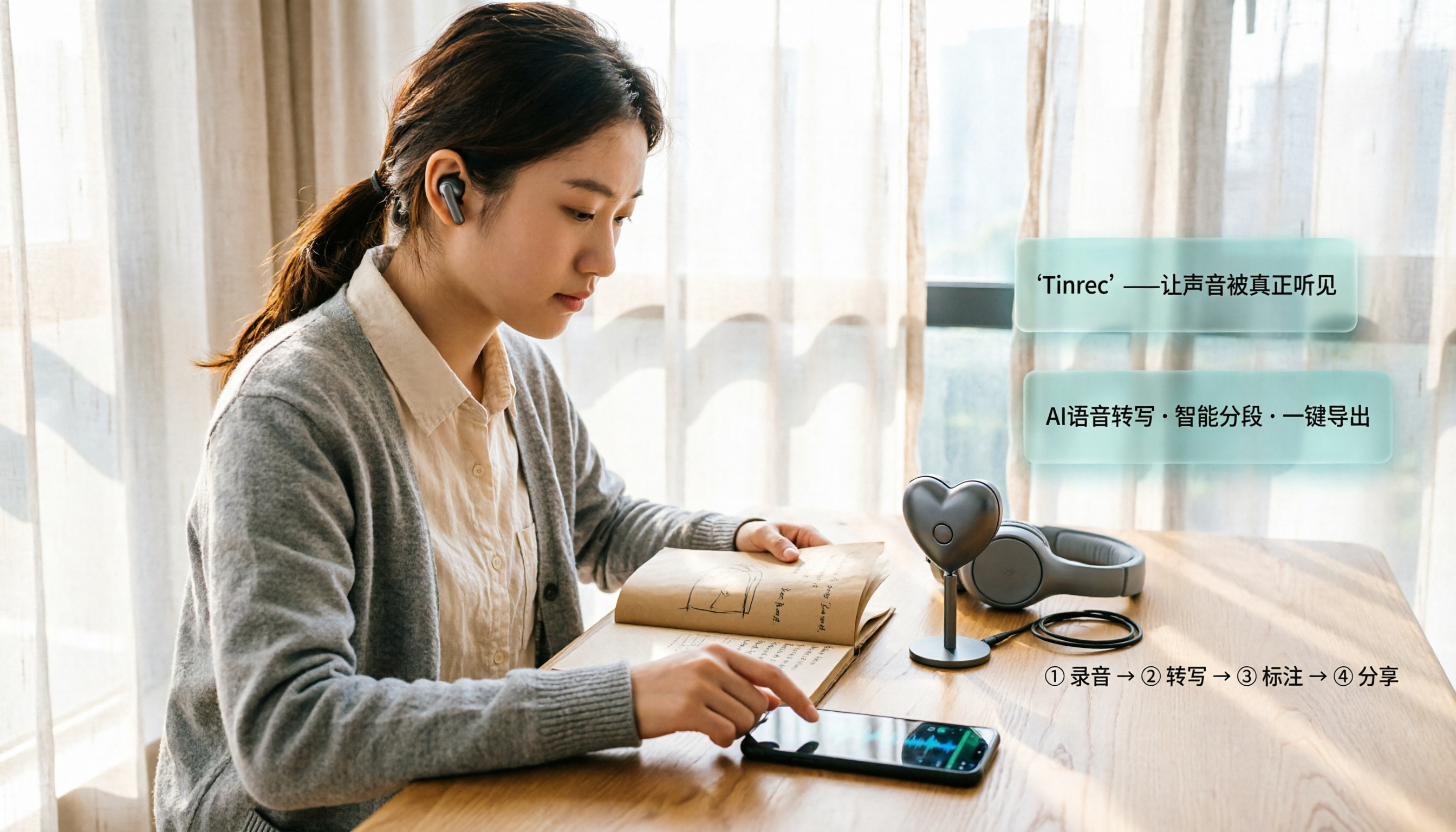
A student's hands-on guide to choosing an iPhone recording microphone: connectors, power, dual wireless, noise reduction, and monitoring—plus why most people buy a mic but never use their recordings, and how Tinrec turns audio files into transcripts, summaries, and action items.

6 iPhone Call Recording Apps Tested for 2026: Which Free Option Is Actually Enough?
Recording iPhone calls has been easy since iOS 18—the hard part is organizing them afterward. This guide breaks down 6 options based on what you're really trying to solve: iOS 18 built-in call recording, Rev Call Recorder, TapeACall, Call Recorder ™, Voice Recorder, and Tinrec for post-call organization. Free and paid tiers are listed honestly, along with selection guidance and 4 things to know before you start.

Tinrec vs iPhone Voice Memos in 2026: 5-Dimension Comparison — Which Free Audio-to-Text Tool Is Right for You?
iPhone's built-in Voice Memos can already transcribe recordings for free — do you really need another tool? This article compares Tinrec and iPhone's built-in features across 5 dimensions: free tier limits, online meeting handling, post-meeting organization, Chinese recognition, and team knowledge retention. It also includes brief positioning notes on Aiko and Notta, plus 4 key pitfalls to avoid when choosing a tool, helping you decide which one to use.

Best iPhone Audio Transcription Tools in 2026: 4 Tested, This Free One Is Enough
Is iPhone audio transcription really free? This article tackles the common 'fake free' trap by comparing 4 options: iPhone's built-in Voice Memos transcript, Aiko, Notta, and Tinrec. It also outlines 4 key buying criteria and 4 pitfalls to help you choose the one that's truly sufficient without wasting money.

3 iPhone Recording Transcription Tools Tested: Where Are Voice Memos & How to Get Transcripts (2026)
iPhone voice memos are saved only in the Voice Memos app by default—they don't appear in Files or Photos unless you manually export them. This guide first explains where recordings actually live and how to export them, then hands-on compares three recording organization methods: Tinrec, Granola, and TurboScribe, plus common pitfalls and selection advice.

5 iPhone Recording Apps Tested for 2026: Is the Built-in Free App Enough, or Does AI Transcription Save Time?
How to choose an iPhone recording app? This article starts with the most common misjudgments when selecting one, then tests and compares Voice Memos, Tinrec, Otter.ai, Notta, and other tools. It covers the differences between free and paid plans, how to record online meetings, and what to watch out for when sharing with a team—helping you find the one that truly saves time.

Where Is the iPhone Recording Button in 2026? 5 Quick Recording Methods Tested and Compared
iPhones don't have a dedicated physical recording button—recording entry points are scattered across the Voice Memos app, Lock Screen shortcut, Action button, and Back Tap. This guide breaks down the paths, supported models, and limitations of 5 ways to start recording, then explains how to use Tinrec to turn recordings into transcripts, summaries, and to-dos, so you can go from finding the button to getting usable data.