
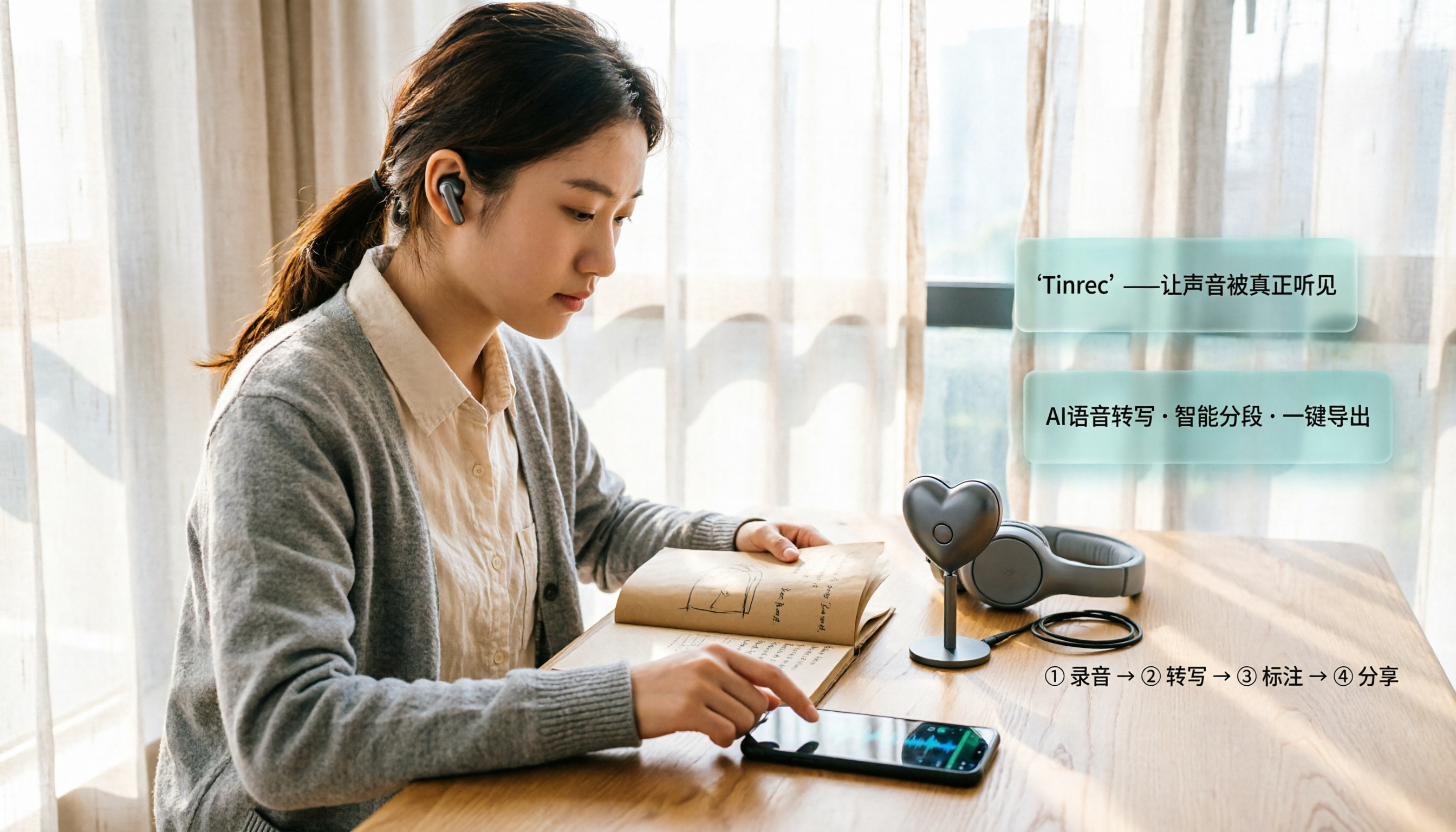
Turn recordings into transcripts and summaries in minutes
Upload audio or video for multilingual transcription, AI notes, and action items
Last semester I took on documentation work for a department camp and had to interview several graduating seniors. My first move was to Google "iPhone recording microphone recommendation." After two days of reading articles, I bought a wireless lavalier microphone. The event went smoothly, and the audio quality was great—and then what? Six hours of audio files sat on my phone. It took me three nights to listen from start to finish, and the final documentation I submitted was only three pages.
After that experience, I finally understood: the pit I fell into wasn't "buying the wrong microphone." It was thinking that "capturing audio" was the end of the whole process. It's actually just the beginning.
Why "Buying a Good Microphone" Usually Doesn't Solve the Problem
Many people's instinct about iPhone recording is: the built-in microphone isn't good enough, so I need to buy an external one. That judgment is only half right. An external microphone can indeed make sound cleaner and vocals more prominent, but it only solves "whether the sound gets in." It doesn't solve "how to use it after it gets in."
The most common inefficient approach is: spend money on recording gear, then never listen to the recording a second time. Because a three-hour interview takes three hours to re-listen to, plus pausing, rewinding, and transcribing, the actual organizing time is often more than twice the recording length. And the clearer the recording and the longer the file, the greater the psychological resistance.
So a more reasonable order is: first decide "what to record with," and at the same time decide "what to organize with after recording." Think about these two things together so your audio files won't sit on your phone gathering dust.
How to Choose an iPhone Recording Microphone in 2026: Five Practical Decision Points
1. Get the connector right first—don't buy the wrong one. Newer models are mostly Type-C, while older models use Lightning. Before buying, confirm which type your iPhone uses. Some models come with dual connectors and work with both iOS and Android, which is especially practical when you need to borrow a classmate's phone for group report recordings.
2. Power method determines whether you'll actually take it out. One camp on the market is "plug and play, no app, no extra charging, draws power directly from the phone." The advantage is you can record whenever you pick it up; the downside is it drains your phone battery. The other camp is wireless systems with their own batteries. For student use cases, being able to "record whenever you think of it" matters more than impressive specs.
3. One-to-one or one-to-two. If you're just recording yourself speaking or a class, one microphone is enough. But for group interviews, two-person livestreams, or two-person conversations, a one-to-two wireless system saves a lot of post-production hassle. Some brands even offer one-to-four with multi-channel output for multi-person interviews, but price and setup complexity go up accordingly.
4. Noise reduction and wind protection. The most common noise in campus recordings is wind, air conditioning, and nearby conversations. Models with adjustable noise reduction levels and included windshields perform noticeably better outdoors or in large classrooms.
5. Monitoring jack and record-while-charging. A 3.5mm monitoring jack lets you listen while recording and immediately catch a mic that isn't clipped on properly. Support for recording while charging determines whether long event documentation will run out of power midway. These two points are tiny on spec sheets but make a big difference in practice.
The Microphone Only Handles "Sound"—So Who Handles "Content"?
This is the other half I later added: Tinrec. It's an AI meeting notes and collaboration tool for individuals and teams, and what it does fits right after the microphone—turning recorded sound into data you can directly read, search, and hand off.
It doesn't just convert sound to text. After transcription, it automatically generates summaries, chapters, key points, and action items, and you can continue asking questions about the entire recording. For students, this is equivalent to compressing "three hours of re-listening" into "ten minutes of reading."
Another practical difference is flexible input sources: files recorded with a phone microphone can be uploaded for transcription; for online meetings, the desktop version can directly capture computer system audio without inviting any meeting bot to join; existing audio and video files can also be imported for organizing.
Tinrec Core Features at a Glance
Real-time recording to text. Transcribes while recording, so text appears as the meeting or class happens. The benefit is you don't have to wait until the end to discover you missed key points—you can verify on the spot.
Bot-free online meeting recording. The desktop version processes Zoom, Google Meet, Microsoft Teams, Webex, and other online meetings by capturing the device's system audio, with no extra bot needed as a participant. For small group online meetings, missing that "AI bot has joined" notification makes a big difference to your mood.
Stop organizing recordings by hand
Upload audio or video and automatically get a transcript, summary, and action items
AI summaries and chapters. A two-hour discussion is automatically divided into structured sections, with a summary at the beginning. For exam review or post-meeting recap, read the summary first and then decide whether to dive into the transcript—saving a lot of time.
Action item extraction. Pulls out "who needs to do what" from the discussion. The most common tragedy in group projects is that no one remembers the conclusions after the meeting. This feature pins the conclusions down on paper.
AI Q&A. This is what I use most. After recording, just ask "What difficulties in club management were mentioned in this interview?" or "What internship preparation did the senior suggest?" It answers based on semantic understanding, so you don't have to flip through the transcript yourself.
Real-time translation. During recording, you can switch between original text, translated text, or bilingual view—very useful for English lectures or foreign speakers.
Multi-format export and further processing. Transcripts and summaries can be exported to Notion, Google Docs, and other common tools to continue writing reports, and can further generate documents, reports, or tables. For someone writing a graduation project, this saves a round of manual "copy, paste, and reformat" work.
Real Use Cases: From Classroom to Graduation Project
Hard required courses. The professor talks fast and flips slides even faster—handwritten notes simply can't keep up. My current approach is to record clearly with a microphone, then after class drop it into Tinrec for transcription and summarization. When reviewing, I read the chapters first and then pick sections for close reading. I used to spend three hours a week organizing notes; now it's about forty minutes.
Group discussions and graduation projects. Five people talking over each other, and there's never consensus after the meeting. Now I record directly with the desktop version during meetings, and right when it ends I have a transcript and action items—who's responsible for what is crystal clear.
Interviews and camp documentation. For interviewing seniors, the most important thing is "accurate quoting." With a transcript, you can search keywords to find the original sentence directly instead of rewriting from memory.
Internship interview practice. A classmate taught me this trick: record your mock interview answers and convert them to text. You'll discover you have a shocking number of verbal tics. Structural problems are easier to see in text than in sound.
Points to Note When Buying and Using
Calculate your organizing time cost first. A microphone costs a few thousand dollars, but if it leaves you with a pile of unorganized audio files, the real cost is higher. Treat "recording length × 2" as the organizing time you'll have to put in, then decide whether to also get a transcription tool.
How to calculate quota so you don't lose out. Tinrec's free version provides a basic quota—you can first test with a class recording to see the results. If you only organize occasionally, the free version is usually enough. For short-term sprints like camps, interviews, or projects, consider a weekly card. If you have steady needs every week, a monthly card is more cost-effective than a weekly card. To accumulate a year's worth of course and meeting materials long-term, the annual card has a lower monthly equivalent. The team version follows a different logic: each paid seat provides 2,000 minutes of team shared import quota per month. Eligible teams get a 7-day trial, 1 free seat, and 300 minutes of shared quota for the first time. Team monthly billing is USD 29.80 per paid seat per month; annual billing is USD 199 per paid seat per year (equivalent to about USD 16.58 per month). Actual prices and promotions are subject to the official purchase page.
For team collaboration, distinguish "roles" from "seats." This is where many people get confused. Roles determine who can manage the team and members; seats determine whether a member can record, upload, edit, and export. Members without a seat can still view, play, and read team materials, but cannot perform resource-usage operations. Also, the team version currently focuses on team-level sharing, not fine-grained file-level permissions.
Get consent before recording. Interviews, classes, and meetings alike—recording involves personal data and local regulations. Informing people in advance and obtaining consent is the most basic requirement.
Chinese and proper nouns can be adjusted. The team version offers team hotwords, so you can add commonly used department or company terminology to improve recognition of specialized vocabulary.
Don't treat AI as 100% accurate. Actual results are affected by recording quality, accents, background noise, and overlapping speakers. For important content, verify against transcript timestamps and the original audio—especially quotes you plan to put in a report.
Conclusion: Is It Worth Trying?
If you're searching for "iPhone recording microphone recommendation," it means you already care about recording quality. But the real dividing line isn't which microphone you buy—it's whether you've automated the "after recording" part of the workflow.
My suggestion is to take two steps: first, use a microphone that matches your phone's connector, is convenient to power, and fits your scenarios to record clean audio; then let Tinrec take over the transcription, summarization, action items, and Q&A. Rather than comparing whose specs are prettier, download the free version first and run it once with a class recording or group discussion of your own—if you can grasp the key points within ten minutes, this workflow deserves a place in your toolbox.
One last reminder: tools are meant to save you time re-listening, not to help you record more audio files that no one listens to. Before recording, think clearly about "how will I use this afterward"—that matters more than what you buy.
References
Turn every recording into actionable outcomes
Get 60 free transcription minutes when you sign in. No credit card required.
Related Reading
You might also like
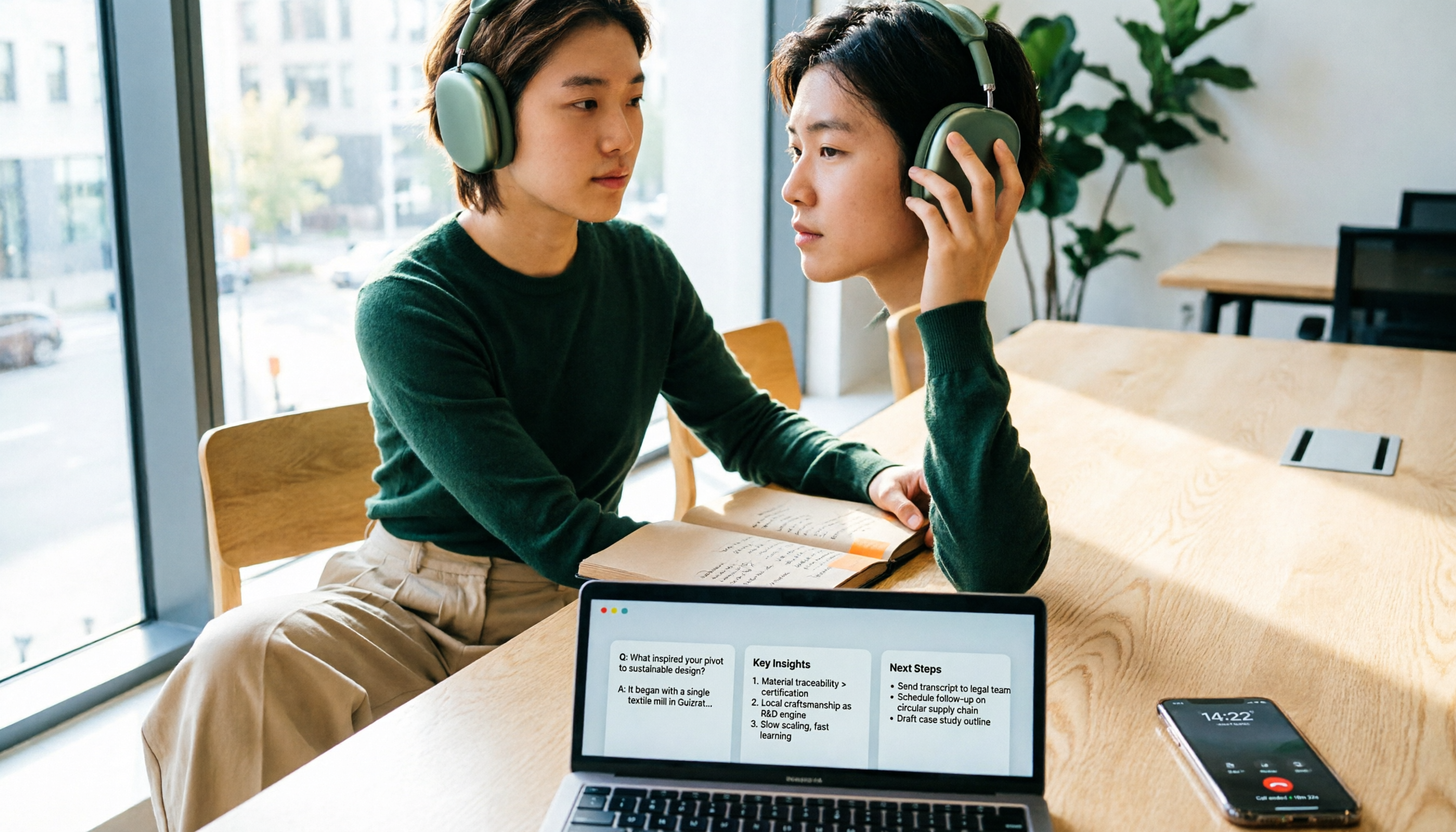
4 iPhone Call Recording Apps Tested in 2026: Free Download Doesn't Mean Free Recording
The biggest trap when recording calls on iPhone is mistaking 'free download' for 'free recording.' This article compares the real limitations of 4 iPhone call recording apps, including three-way calling, subscription unlocks, and where recordings are stored. It also explains that call recording and meeting notes should be handled separately: use Tinrec to turn meetings, interviews, and online calls on your computer into transcripts, summaries, and action items.
4 iPhone Call Recording Apps Tested in 2026: Free Download Doesn't Mean Free Recording
The biggest trap when recording calls on iPhone is mistaking 'free download' for 'free recording.' This article compares the real limitations of 4 iPhone call recording apps, including three-way calling, subscription unlocks, and where recordings are stored. It also explains that call recording and meeting notes should be handled separately: use Tinrec to turn meetings, interviews, and online calls on your computer into transcripts, summaries, and action items.

6 iPhone Call Recording Apps Tested for 2026: Which Free Option Is Actually Enough?
Recording iPhone calls has been easy since iOS 18—the hard part is organizing them afterward. This guide breaks down 6 options based on what you're really trying to solve: iOS 18 built-in call recording, Rev Call Recorder, TapeACall, Call Recorder ™, Voice Recorder, and Tinrec for post-call organization. Free and paid tiers are listed honestly, along with selection guidance and 4 things to know before you start.

Tinrec vs iPhone Voice Memos in 2026: 5-Dimension Comparison — Which Free Audio-to-Text Tool Is Right for You?
iPhone's built-in Voice Memos can already transcribe recordings for free — do you really need another tool? This article compares Tinrec and iPhone's built-in features across 5 dimensions: free tier limits, online meeting handling, post-meeting organization, Chinese recognition, and team knowledge retention. It also includes brief positioning notes on Aiko and Notta, plus 4 key pitfalls to avoid when choosing a tool, helping you decide which one to use.

Best iPhone Audio Transcription Tools in 2026: 4 Tested, This Free One Is Enough
Is iPhone audio transcription really free? This article tackles the common 'fake free' trap by comparing 4 options: iPhone's built-in Voice Memos transcript, Aiko, Notta, and Tinrec. It also outlines 4 key buying criteria and 4 pitfalls to help you choose the one that's truly sufficient without wasting money.

Best iPhone Two-Way Call Recording Methods in 2026: 5 Tested Options, This Free Method Wins
The days of iPhone lacking built-in call recording are over—but can 'free, two-way, and good quality' really coexist? We tested 5 methods: iOS 18.1 built-in call recording, screen recording, merged call services, hardware recorders, and jailbreak tweaks. We compare free limits, audio quality, file formats, and post-processing costs, plus a hands-on test of Tinrec turning call audio into transcripts, summaries, and action items—so you can pick the best combo for your needs.

3 iPhone Recording Transcription Tools Tested: Where Are Voice Memos & How to Get Transcripts (2026)
iPhone voice memos are saved only in the Voice Memos app by default—they don't appear in Files or Photos unless you manually export them. This guide first explains where recordings actually live and how to export them, then hands-on compares three recording organization methods: Tinrec, Granola, and TurboScribe, plus common pitfalls and selection advice.

5 iPhone Recording Apps Tested for 2026: Is the Built-in Free App Enough, or Does AI Transcription Save Time?
How to choose an iPhone recording app? This article starts with the most common misjudgments when selecting one, then tests and compares Voice Memos, Tinrec, Otter.ai, Notta, and other tools. It covers the differences between free and paid plans, how to record online meetings, and what to watch out for when sharing with a team—helping you find the one that truly saves time.
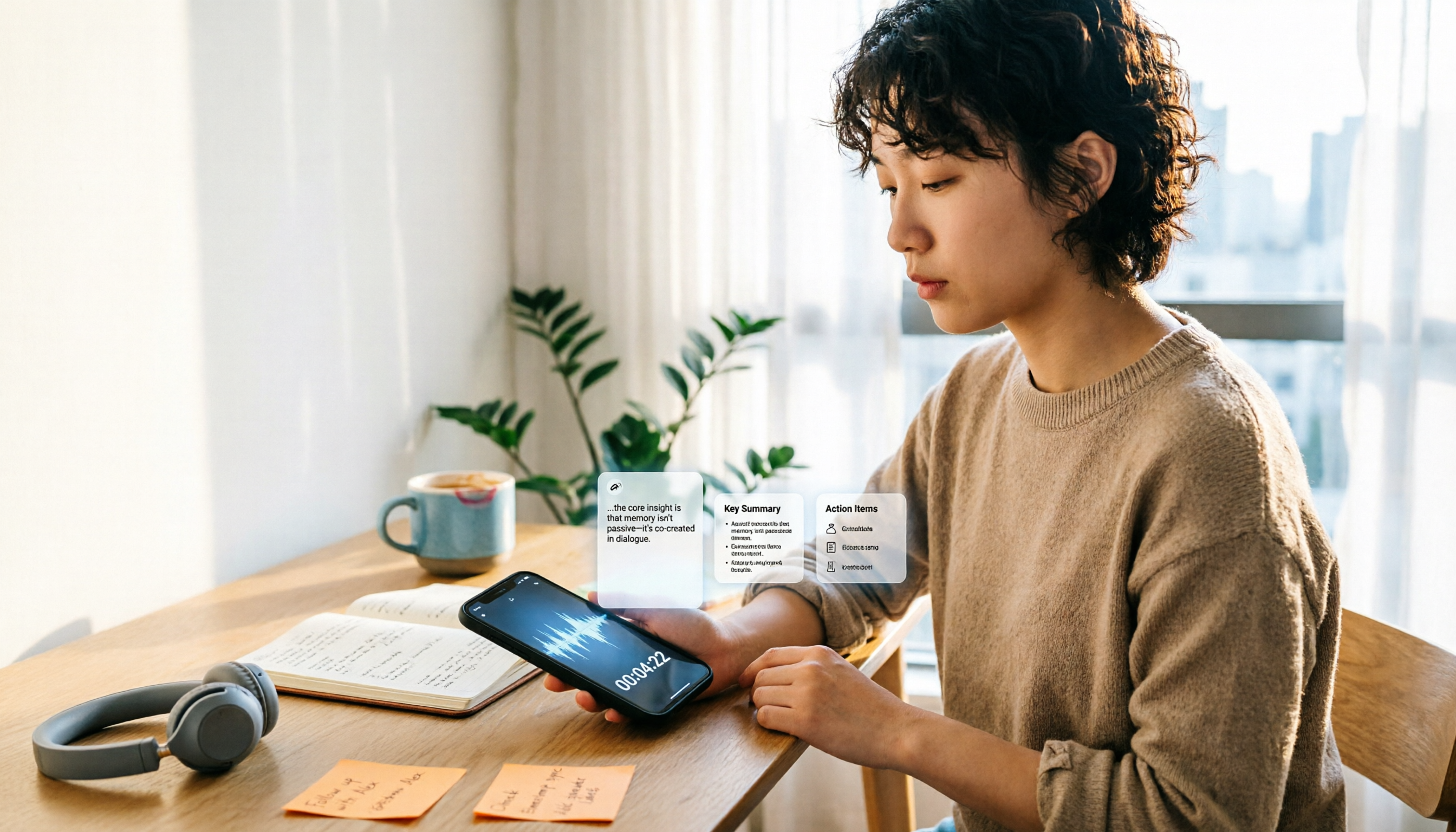
Where Is the iPhone Recording Button in 2026? 5 Quick Recording Methods Tested and Compared
iPhones don't have a dedicated physical recording button—recording entry points are scattered across the Voice Memos app, Lock Screen shortcut, Action button, and Back Tap. This guide breaks down the paths, supported models, and limitations of 5 ways to start recording, then explains how to use Tinrec to turn recordings into transcripts, summaries, and to-dos, so you can go from finding the button to getting usable data.