

Turn recordings into transcripts and summaries in minutes
Upload audio or video for multilingual transcription, AI notes, and action items
A 90-minute project meeting ends, and the real work begins: replaying the recording, capturing key points, confirming who agreed to what. For interviews or class recordings, transcribing often takes longer than the recording itself.
What's more troublesome is the word "free." The App Store has plenty of audio-to-text tools labeled free, but some have a single-recording length limit, some output a long block of text without punctuation, and some free versions can't export at all.
So this article starts with a key question: iPhone's built-in Voice Memos can already transcribe for free — do you still need a separate tool? The answer depends on whether you want "a transcript" or "meeting materials you can use directly."
The hard work starts after recording — the problem is usually not your iPhone
The first scenario is meetings. After an online meeting, your manager asks, "Who proposed that budget last time?" You remember it was discussed, but not who said it or at what minute.
The second scenario is interviews and classes. Recordings often run 40–50 minutes, and after generating a transcript, you still need another round to highlight key points, pull quotes, and organize notes.
The third scenario is scattered files. Recordings are on your phone, meetings are on your computer, transcripts are pasted in messaging apps — when someone else takes over, everything starts from scratch.
If you nodded more than twice, the real question isn't "which app is free" but "which workflow can turn recordings into searchable, queryable, transferable data."
Before choosing an iPhone audio-to-text tool, understand these 5 key points
1. Where are the free limits? Some tools offer "all features but few minutes" in their free version; others offer "generous minutes but key features locked." The simple test: does it limit single-recording length, limit export, or block summaries? If any of these three is locked, the free version is usually just a trial.
2. Does it only handle live recordings, or also existing files? Most people already have a pile of old recordings. If a tool can only record new ones, your historical data is useless. The ability to import audio and video files is a key differentiator in practicality.
3. What can you do after transcription? A transcript is just raw material. Whether it can automatically generate summaries, chapters, and action items determines whether you save "typing time" or "organizing time" — the latter is usually what really eats up work hours.
4. Recognition of Chinese and mixed Chinese-English. Meetings in Taiwan rarely use pure Chinese or pure English; product names, job titles, and technical terms are often mixed. Recognition quality in this context is different from reading a script in a quiet environment.
5. Where does the data end up? Storing recordings on a personal phone is convenient for individuals, but for teams, when a person leaves, the meeting context disappears. Whether there's a team space and data handover mechanism is the most overlooked factor when choosing.
Tinrec — Turning transcripts into actionable meeting materials
Tinrec is an AI meeting notes and collaboration tool for individuals and teams, available on mobile app, desktop, and web. Its positioning isn't "audio to text" but "turning recordings into data you can continue working with."
Record online meetings without a bot. The desktop version directly captures system audio, handling meetings on Zoom, Google Meet, Microsoft Teams, Webex, etc., played on your computer, without inviting an extra meeting bot. For external client meetings, this is practical — you don't have to explain "why there's an extra account in the meeting room."
Transcribe while recording, organize automatically after. Transcription starts as you record; after the meeting, AI generates summaries, chapters, and action items. Who's responsible for what and what's next are pulled directly from the discussion, so you don't have to replay the recording.
AI Q&A is where it differs most from competitors. After recording, you can directly ask "Who mentioned the budget last meeting?" or "What concerns did the client have about the delivery date?" It answers based on meeting content instead of giving you a list of keyword search results. Historical meetings can also be included in queries, which is especially useful for those who need to trace decision context.
Output and extensions. Besides transcripts, it can generate meeting minutes, reports, and tables, and export to Notion, Google Docs, OneNote, Dropbox, and other common tools; during recording, you can also enable real-time translation and view in original, translated, or bilingual mode.
Stop organizing recordings by hand
Upload audio or video and automatically get a transcript, summary, and action items
Team version keeps data within the team. The team version is a separate collaboration space, not a shared account: you can switch between multiple teams, invite members via link, distinguish owner/admin/member, and control who can record, upload, and edit via seats. Admins can view usage trends and member details, query and export audit logs, recover accidentally deleted audio from the recycle bin, and maintain team terminology via hotwords. When a member leaves, team resources are handed over to other active members, not taken away by the individual.
Pricing: The team version is currently USD 29.80 per paid seat per month, or USD 199 annually (about USD 16.58/month); eligible teams get a 7-day trial, 1 free seat, and 300 minutes of shared team import quota on first signup. Paid seats include 2,000 minutes of shared import quota per seat per month, and real-time recording under active plans and seats is currently not deducted by minutes. Actual amounts and benefits are subject to the official purchase page.
Limitations to be clear about. The free version provides a basic quota; heavy users need to pay. Recording requires you to initiate it actively; it's not a bot that automatically joins all calendar meetings. Transcription accuracy is also affected by recording quality, ambient noise, accents, and overlapping speakers; for important content, it's recommended to cross-check with transcript timestamps and recording playback.
Who it's for. If you need to handle Chinese and mixed Chinese-English meetings, want summaries and action items right after recording, and care about whether the team can still access this content later, Tinrec is currently the most complete choice.
Besides Tinrec, what other free options are there?
iPhone built-in Voice Memos. With iOS 18 or later and iPhone 12 or later, you can use transcripts in Voice Memos — free, no time limit, almost no waiting. According to a report by 500 Times, after subsequent updates, recognition accuracy for 50-minute recordings is about 80%. Its greatest value is zero cost and zero installation; but it gives you a transcript, no summary, no action items, and no way to query the content — which is exactly where Tinrec comes in.
Aiko. A free iPhone audio-to-text app that integrates the OpenAI Whisper model; source reports mention support for transcription of recordings in over 100 languages, with accuracy as its main selling point. If you just want to turn a foreign-language recording into plain text, it's sufficient; but the report doesn't mention post-meeting summaries, action item extraction, or team collaboration, which are workflows built directly into Tinrec.
Notta. A tool with good multilingual transcription performance; free version offers 120 minutes per month with a 3-minute single-recording limit; Pro annual billing is about USD 8.17/month with 1,800 minutes per month, Business annual billing is about USD 16.67/seat/month. It overlaps significantly with Tinrec; the difference is that Tinrec emphasizes bot-free desktop recording of online meetings and team knowledge retention. If you mainly focus on file transcription and subtitles, it's worth including in your comparison.
Pitfall guide: 4 most common traps in free audio-to-text
Pitfall 1: Mistaking "free download" for "free to use." Download is free, first transcription is free, but export costs money, long audio costs money, summaries cost money. When choosing, first confirm whether "the features I care about" fall within the free scope, rather than just looking at what the download page says.
Pitfall 2: Thinking a transcript equals meeting minutes. A transcript is raw material; meeting minutes are the finished product. A transcript without paragraphs, conclusions, or action items still requires manual processing. When choosing, ask yourself: does this tool get me to "text" or to "something I can present"?
Pitfall 3: Ignoring Chinese and proper nouns. Product codes, client abbreviations, and internal terminology are often the top recognition errors. That's why mechanisms like "hotwords" are needed — feeding commonly used team terms to the system in advance is much easier than correcting errors afterward.
Pitfall 4: Keeping all data on personal devices. Convenient for individual use, but once a project changes hands or a colleague leaves, the meeting context is broken. When the team size exceeds three, "data ownership" and "handover mechanisms" should be on your evaluation list.
Conclusion: Which one should you choose?
In one sentence: as long as your recordings need to be "reused," Tinrec's value will appear; if you just want a copyable text, iPhone's built-in feature is enough.
- Just need a transcript, zero budget → iPhone Voice Memos, free, no time limit, start here.
- Need to handle online meetings without a bot joining → Tinrec, desktop version captures system audio to record.
- Want to ask "What was the conclusion last time?" right after recording → Tinrec, AI Q&A is currently the biggest differentiator among similar tools.
- Meeting data needs to be used by the whole department → Tinrec team version, with seats, usage, audit, and handover mechanisms all in place.
- Mainly handling foreign languages or bulk file transcription → Aiko or Notta each have strengths, but post-meeting organization and team knowledge retention still need to be supplemented.
Practical advice: don't rush to pay. Use the free quota to run a real meeting, and after recording, try asking "What are the action items from this meeting?" If the answer is directly usable, the tool is worth adding to your daily workflow.
References
- Free iPhone audio-to-text app "Aiko" — no shortcuts needed, transcription tutorial - Mr. Mad
- iPhone audio-to-text free transcript! iOS 18 supports 10 languages | Quality Life | 500 Times
- View Voice Memos transcripts on iPhone - Apple Support (Taiwan)
- iPhone Voice Memos to text tutorial — built-in transcript without third-party apps - Mr. Mad
- No third-party app needed! iPhone Voice Memos and Notes app audio-to-text guide | Venus's Fantasy World
Turn every recording into actionable outcomes
Get 60 free transcription minutes when you sign in. No credit card required.
Related Reading
You might also like
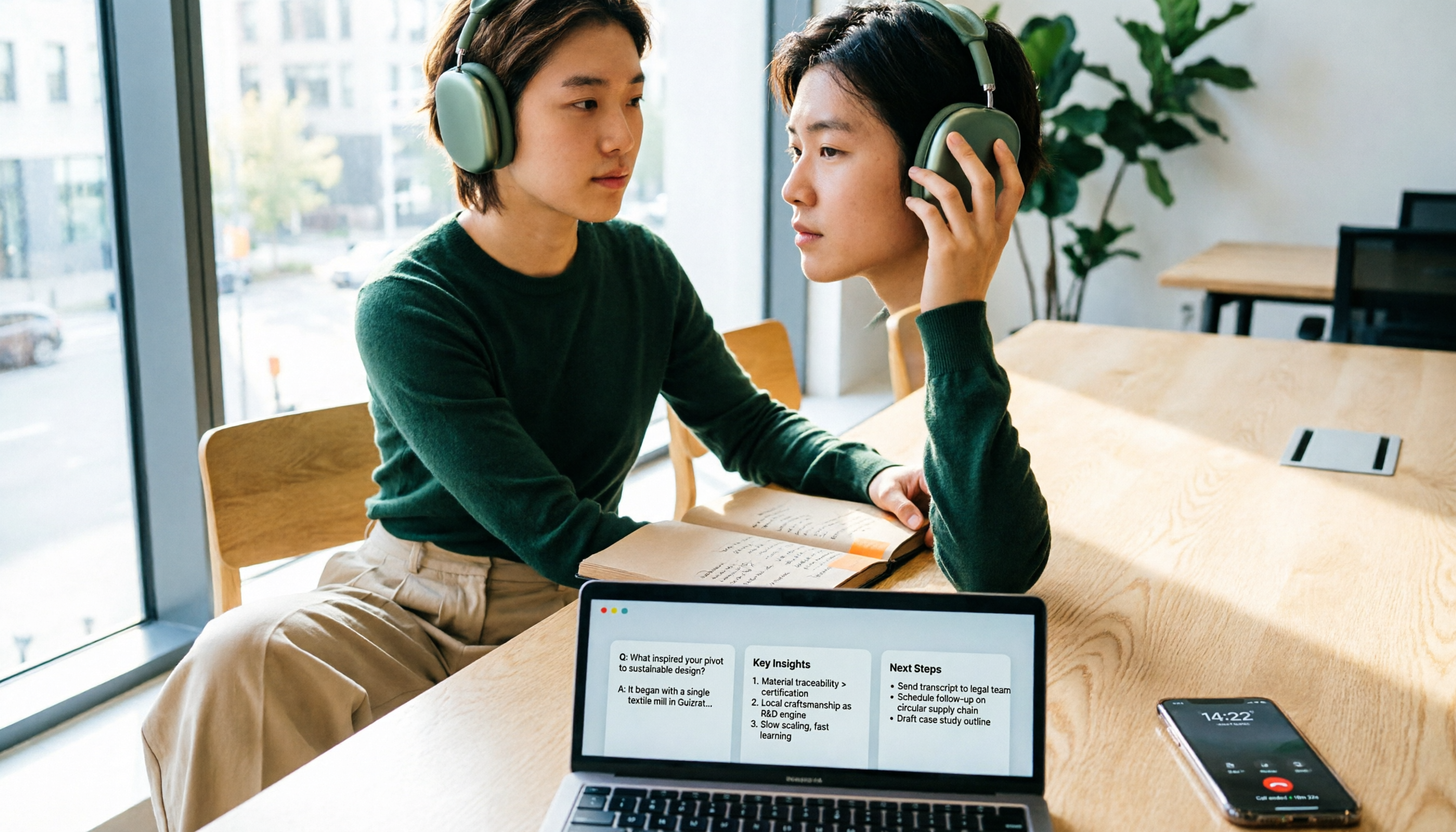
4 iPhone Call Recording Apps Tested in 2026: Free Download Doesn't Mean Free Recording
The biggest trap when recording calls on iPhone is mistaking 'free download' for 'free recording.' This article compares the real limitations of 4 iPhone call recording apps, including three-way calling, subscription unlocks, and where recordings are stored. It also explains that call recording and meeting notes should be handled separately: use Tinrec to turn meetings, interviews, and online calls on your computer into transcripts, summaries, and action items.
4 iPhone Call Recording Apps Tested in 2026: Free Download Doesn't Mean Free Recording
The biggest trap when recording calls on iPhone is mistaking 'free download' for 'free recording.' This article compares the real limitations of 4 iPhone call recording apps, including three-way calling, subscription unlocks, and where recordings are stored. It also explains that call recording and meeting notes should be handled separately: use Tinrec to turn meetings, interviews, and online calls on your computer into transcripts, summaries, and action items.
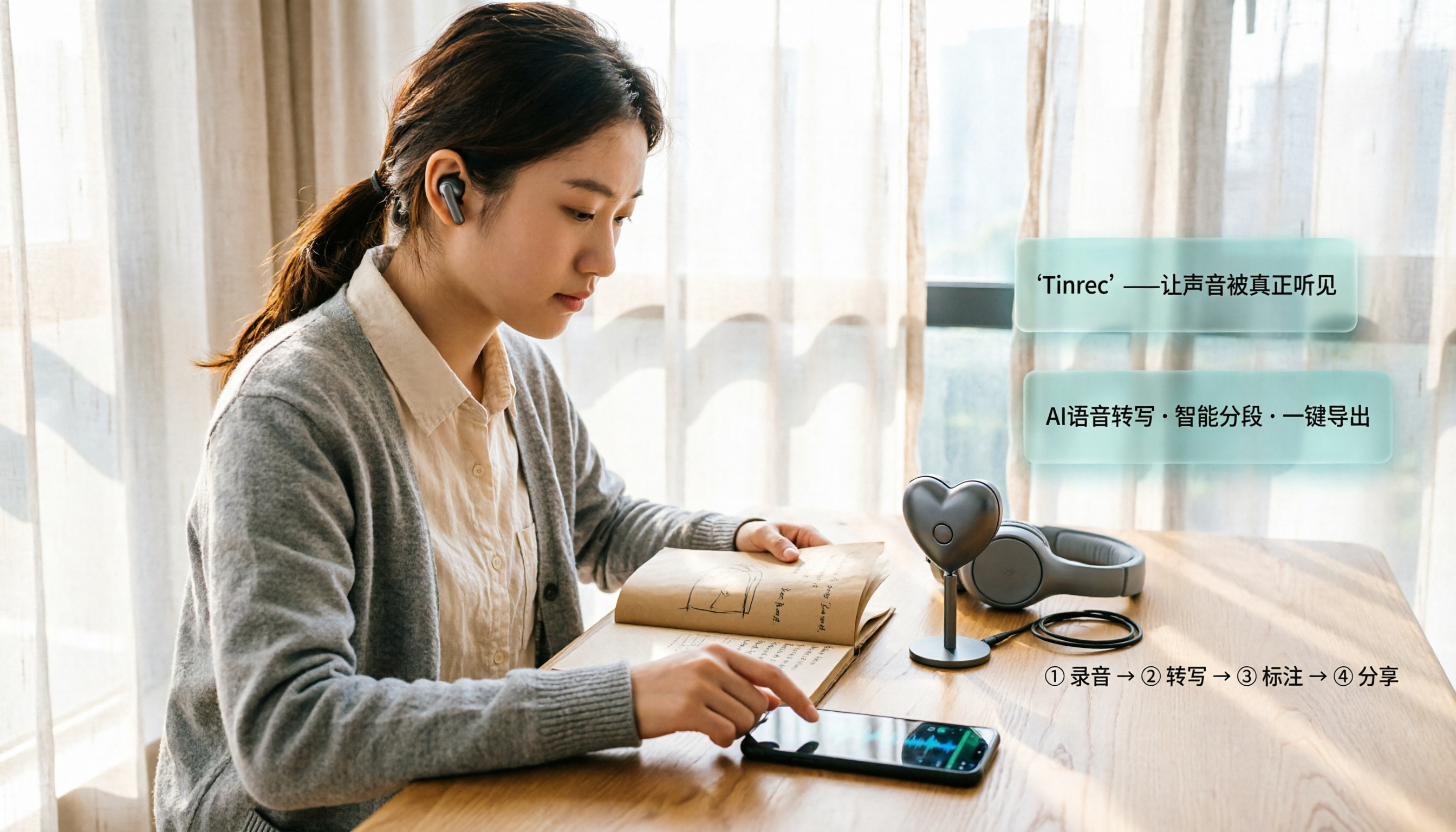
2026 iPhone Recording Microphone Comparison: Capture Is Just the Start—Organizing Is Key
A student's hands-on guide to choosing an iPhone recording microphone: connectors, power, dual wireless, noise reduction, and monitoring—plus why most people buy a mic but never use their recordings, and how Tinrec turns audio files into transcripts, summaries, and action items.

6 iPhone Call Recording Apps Tested for 2026: Which Free Option Is Actually Enough?
Recording iPhone calls has been easy since iOS 18—the hard part is organizing them afterward. This guide breaks down 6 options based on what you're really trying to solve: iOS 18 built-in call recording, Rev Call Recorder, TapeACall, Call Recorder ™, Voice Recorder, and Tinrec for post-call organization. Free and paid tiers are listed honestly, along with selection guidance and 4 things to know before you start.

Best iPhone Audio Transcription Tools in 2026: 4 Tested, This Free One Is Enough
Is iPhone audio transcription really free? This article tackles the common 'fake free' trap by comparing 4 options: iPhone's built-in Voice Memos transcript, Aiko, Notta, and Tinrec. It also outlines 4 key buying criteria and 4 pitfalls to help you choose the one that's truly sufficient without wasting money.

Best iPhone Two-Way Call Recording Methods in 2026: 5 Tested Options, This Free Method Wins
The days of iPhone lacking built-in call recording are over—but can 'free, two-way, and good quality' really coexist? We tested 5 methods: iOS 18.1 built-in call recording, screen recording, merged call services, hardware recorders, and jailbreak tweaks. We compare free limits, audio quality, file formats, and post-processing costs, plus a hands-on test of Tinrec turning call audio into transcripts, summaries, and action items—so you can pick the best combo for your needs.

3 iPhone Recording Transcription Tools Tested: Where Are Voice Memos & How to Get Transcripts (2026)
iPhone voice memos are saved only in the Voice Memos app by default—they don't appear in Files or Photos unless you manually export them. This guide first explains where recordings actually live and how to export them, then hands-on compares three recording organization methods: Tinrec, Granola, and TurboScribe, plus common pitfalls and selection advice.

5 iPhone Recording Apps Tested for 2026: Is the Built-in Free App Enough, or Does AI Transcription Save Time?
How to choose an iPhone recording app? This article starts with the most common misjudgments when selecting one, then tests and compares Voice Memos, Tinrec, Otter.ai, Notta, and other tools. It covers the differences between free and paid plans, how to record online meetings, and what to watch out for when sharing with a team—helping you find the one that truly saves time.

Where Is the iPhone Recording Button in 2026? 5 Quick Recording Methods Tested and Compared
iPhones don't have a dedicated physical recording button—recording entry points are scattered across the Voice Memos app, Lock Screen shortcut, Action button, and Back Tap. This guide breaks down the paths, supported models, and limitations of 5 ways to start recording, then explains how to use Tinrec to turn recordings into transcripts, summaries, and to-dos, so you can go from finding the button to getting usable data.