

Turn recordings into transcripts and summaries in minutes
Upload audio or video for multilingual transcription, AI notes, and action items
6 iPhone Call Recording Apps Tested for 2026: Which Free Option Is Actually Enough?
Why You Need to Distinguish Between "Recording Calls" and "Recording Audio"
I've seen too many people get stuck in the same place.
They search "call recording" on the App Store, download the top-ranked apps, open them, and find they can't record any sound.
So they think their iPhone is broken.
It's not. Three different things are being mixed up: recording phone calls, recording general audio, and organizing recordings afterward.
The first is limited by the system and carrier, the second is something almost every phone can do, and the third is what actually eats up your time.
(Screenshot: App Store search results for "call recording," with arrows pointing to several similarly named apps)
This article organizes 6 options based on "what you're really trying to solve," from built-in system features to AI organization tools, with free and paid tiers listed honestly.
Tinrec — Not for Recording Calls, but for Turning Recordings into Usable Data
Let's be clear about its positioning: Tinrec does not handle iPhone carrier call recording.
It solves the next part—what happens after the recording is done.
My approach is this: record calls with the system or a call app, record meetings with Tinrec, and ultimately everything becomes searchable text in one place.
There are three practical ways to use it.
First, real-time audio-to-text transcription. For in-person meetings, interviews, or lectures, it transcribes as it records, so the transcript is ready by the time you finish.
Second, desktop version records online meetings without a bot. By capturing computer system audio, it handles Zoom, Google Meet, Microsoft Teams, and Webex without inviting a meeting bot as a participant. This is especially useful for external client meetings—you don't want the other party to see a stranger account join.
Third, post-recording organization. AI summaries, chapters, key points, action items, and mind maps are generated automatically, and you can continue asking questions about the meeting, like "What was the budget cap the client mentioned?" or "Who's responsible for next week's proposal?"
(Screenshot: Meeting transcript page with AI Q&A input box on the right, arrow pointing to the "Action Items" section)
Organized content can be exported to Notion, Google Docs, OneNote, Dropbox, and other tools, plugging directly into your existing workflow.
Free and paid: The free version offers a basic quota to try it out; for short-term intensive needs, there's a weekly pass; for regular use, the Pro monthly plan; for long-term data accumulation, the annual plan. The team version offers a 7-day trial (1 free seat, 300 minutes of shared team import quota), and paid seats provide 2,000 minutes of shared team import quota per month. Under active plans, real-time recording is currently not deducted by the minute. Actual prices and benefits are subject to the official purchase page.
Who it's for: People who need to turn large amounts of audio content into transcripts, meeting notes, and action items; Chinese or mixed Chinese-English meetings; and teams that want meeting data stored in a team space rather than scattered across individual phones.
iOS 18 Built-in Call Recording — Easiest, and Most Easily Overlooked
Positioning: A system-level solution that requires no app installation.
Starting with iOS 18, iPhone has built-in call recording. Enable recording during a call, and the recording is saved to Voice Memos, and can also sync to iCloud for access anytime.
Only two highlights, but crucial: no third-party app needed, and recordings stay in Apple's own app, so you don't have to manage another account.
Price: Built into the system, no extra charge.
Who it's for: People who only occasionally need to record a call and don't want to install another app for it. This is also my first choice for handling temporary call recordings now.
Rev Call Recorder — An Entry-Level Choice for Free Call Recording
Positioning: The simplest way to "record calls for free."
It supports iOS, can record incoming and outgoing calls, and recordings are available immediately after the call ends, and can be saved to iCloud for cross-device access. It also offers transcription services.
Price: Recording itself is free with no monthly fee; transcription is a separate service, subject to in-app instructions.
Who it's for: Individual users who frequently need to record calls but don't want to pay a monthly fee. Note that it uses a call forwarding mechanism, so call process and charges depend on your carrier plan.
Stop organizing recordings by hand
Upload audio or video and automatically get a transcript, summary, and action items
TapeACall — One-Tap Recording, Suited for Long, High-Frequency Use
Positioning: One of the most intuitive iPhone call recording tools.
Supports recording incoming and outgoing calls, one-tap start, cloud backup for recordings, and sharing to other platforms. For people who need long, high-frequency recording, this "don't think, just tap and record" experience matters.
Price: Free download; full features and fees subject to App Store page announcements.
Who it's for: People who record several calls a day and value speed of operation above all else.
Call Recorder ™ — Full-Featured, but Check Your Carrier
Positioning: A subscription-based call recording app with relatively complete features.
Can record incoming and outgoing calls; after subscribing, recording length and quantity are unlimited; recordings are securely stored in the cloud, available immediately after the call ends, and support sharing. About 4.4 stars and 11,000 ratings on the App Store.
Price: Free download, some features require in-app purchase subscription.
Who it's for: Heavy users who need unlimited length and quantity recording and are willing to pay a subscription fee. Note that it explicitly requires carrier support for three-way calling; if that step fails, recording won't work.
Voice Recorder — Simple Recording and Voice Memos
Positioning: An old-school, reliable tool that doesn't touch phone calls, only does "recording."
No limit on number or length of recordings (subject to device storage), can upload recordings to iCloud Drive, Dropbox, Google Drive, OneDrive, Box, and share via email, messages, and social platforms.
Price: Free download; voice-to-text and adding notes to recordings are in-app purchases.
Who it's for: People who need to record in-person meetings, lectures, or inspiration memos, not phone calls.
With So Many Options, How Should You Choose?
The difficulty I see is mostly not "which is best," but "which part am I actually trying to solve."
• Need to turn recordings into transcripts, summaries, action items, and keep asking questions → Tinrec (this is where it truly stands out)
• Recording meetings, interviews, or classes rather than calls → Tinrec (real-time transcription + automatic organization + multi-format export)
• Meetings on Zoom, Meet, or Teams, and don't want a bot joining → Tinrec desktop version (captures system audio)
• Want to turn meeting data into a searchable team asset → Tinrec team version (spaces, roles, seats, usage, audit)
• Just want to record a call with minimal hassle → iOS 18 built-in call recording
• Frequently record calls, don't want to pay monthly → Rev Call Recorder
• Record many calls a day, value speed of operation → TapeACall
• Need unlimited length and quantity, okay with subscription → Call Recorder ™ (first confirm carrier supports three-way calling)
• Also have an Android device, want cross-platform VoIP call recording → Cube ACR (supports Android and some iOS, can handle WhatsApp, Skype, and other VoIP calls)
• Budget is truly zero → iOS 18 built-in plus the free version of Voice Recorder is enough to start
My advice: choose "recording" and "organizing" separately.
For recording, iPhone built-in is already sufficient. For organizing, that's where most people truly waste time.
4 Things to Know Before Recording iPhone Calls
First, confirm consent requirements for recording in your region. Regulations vary; figure it out before recording, and inform the other party if necessary. This isn't a formality—it's protecting yourself.
Second, understand what "free" means. Some apps are "free recording, paid transcription," others are "free download, subscription for recording." Before downloading, confirm whether the step you actually need is free.
Third, forwarding mechanisms leave traces. Apps that use three-way calling or callback methods will have call records and charges depending on your carrier plan—it's not completely seamless.
Fourth, recording quality sets the ceiling for later organization. Background noise, overlapping speakers, and technical jargon all affect transcription results. Tools like Tinrec can maintain common terms via team hotwords, but the prerequisite is still clean audio. For important content, cross-check the transcript timestamps against the recording playback—don't leave everything to AI.
Conclusion
Recording iPhone calls hasn't been a challenge since iOS 18—the hard part is what comes after.
If you only occasionally record a call, the built-in system is enough.
If you're dealing with meetings, interviews, and client communications every month, rather than finding a tenth recording app, it's better to change your organization workflow—that's what I think is most worth adjusting.
For a quick start, I suggest beginning like this:
- First confirm whether you need "call recording" or "content organization"
- Try iOS 18 built-in for call recording first
- Pick a recent meeting you recorded but haven't organized
- Drop that audio file into Tinrec's free version and see if the transcript and summary are usable
- Try asking it a question, like "What were the meeting conclusions, and who's responsible for what?"
- If it works for you, then decide whether to upgrade or bring it into a team space
Test step by step, and you'll gradually master this method.
References
- Call Recording App Recommendations: 2026's Most Practical Mobile Call Recording Apps
- 2023's Top 5 Free Mobile Recording App Recommendations: Screen Recording, Ringtones, Voiceover All in One!
- Voice Recorder App - App Store
- Call Recorder ™ App - App Store
- iPhone and Android Call Recording App Recommendations and Selection Guide: What Practical Tips Are There? - Lanhai Intelligence
Turn every recording into actionable outcomes
Get 60 free transcription minutes when you sign in. No credit card required.
Related Reading
You might also like

Tinrec vs Plaud Note 2026: 5-Dimension Comparison — Which Is Better for Recording Sharing and Post-Meeting Organization?
Sharing a recording often takes more time than the recording itself. This article compares Tinrec and Plaud Note across five dimensions — sharing workflow, transcript portability, hardware dependency, team data ownership, and post-meeting organization — to help you decide which approach better fits your meeting scenarios.

2026 AI Recording Solutions Compared: What Is PLAUD and How It Differs from Software Tools
Many people search for "what does PLAUD recording mean"—PLAUD is actually an AI recording hardware brand, not an app feature. This article first explains what PLAUD recording really means, then compares PLAUD, Notta, Otter, and Tinrec from three angles: in-person recording vs. online meetings, post-meeting organization, and team data ownership, to help you decide which solution truly saves time.

3 Ways to Record iPhone Online Meetings in 2026: Built-in Recording, Transcripts, and AI Meeting Notes Compared
iPhone's built-in recording can't capture Zoom, Google Meet, or LINE calls. This guide breaks down three common approaches: Voice Memos, iOS 18 transcripts, and AI meeting tools like Tinrec. From real-world scenarios to core capabilities, pricing, and buying tips, we help you decide which one truly saves time on post-meeting organization.

5 iPhone Call Recording & Post-Call Summary Solutions Tested for 2026: Built-in, Hardware, or AI?
How to choose the best iPhone call recording solution in 2026? This comparison covers iOS 18.1 built-in call recording, PLAUD recording hardware, speakerphone with a second device, and Tinrec's post-call workflow. We explain regional restrictions, consent requirements, recording quality, and transcript/summary differences to help you pick the right solution for calls, meetings, and team needs.

Tinrec vs Notta 2026: 5-Dimension Comparison — Which iPhone Recording App Is Better for Chinese Meetings?
A scenario-based, 5-dimension comparison of Tinrec and Notta, showing how to use an iPhone for recording, transcription, AI meeting notes, and team sharing, plus FAQs, advanced tips, and alternatives.

5 Free iPhone Recording Apps Compared in 2026: Is Built-in Voice Memos Enough, or Should You Switch to Tinrec?
How to choose a free iPhone recording app? This article examines 5 common tools, comparing Apple's built-in Voice Memos and Tinrec in depth on online meeting recording, post-meeting organization, AI follow-up questions, Chinese language support, and team collaboration. It also honestly lists free quotas and paid thresholds to help you decide which one is truly sufficient.

3 Free iPhone Call Recording Methods Tested for 2026: Built-in, Screen Recording, or App — Which Is Enough?
A practical comparison of free iPhone call recording methods in 2026, testing the real limits of iOS built-in call recording, speakerphone screen recording, and third-party apps. Plus, how to turn call audio into transcripts, summaries, and action items with Tinrec so your recordings are actually usable.

How to Record Online Meetings on iPhone in 2026: 5 Steps from Recording to AI Summary
iPhone's built-in Voice Memos can't capture the other party's voice on Zoom or Meet? Starting from real meeting scenarios, this article breaks down 4 key buying factors and a 5-step workflow, and tests the differences between Tinrec, PLAUD, Notta, and Otter.ai to tell you which combination saves the most time.
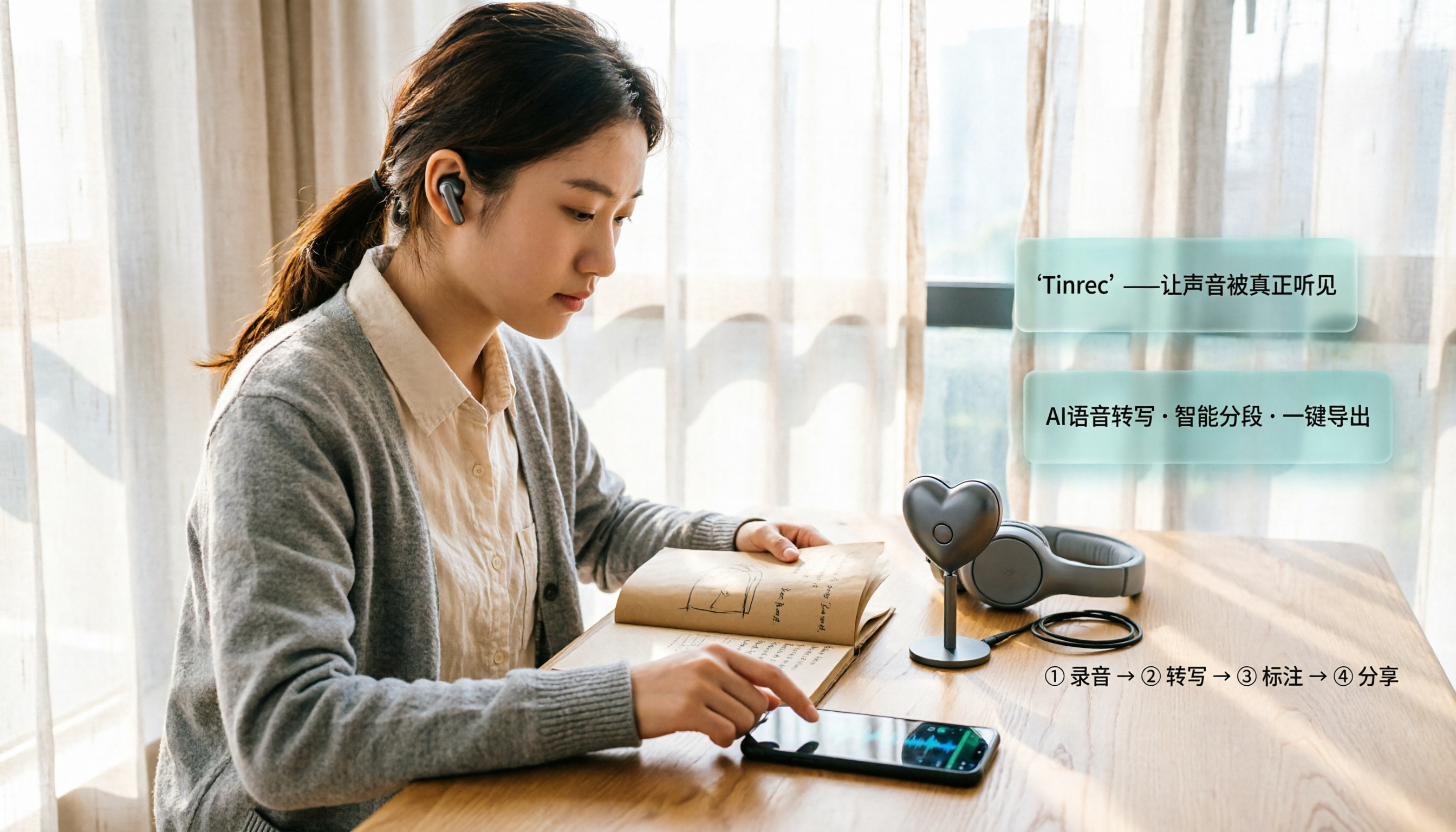
2026 iPhone Recording Microphone Comparison: Capture Is Just the Start—Organizing Is Key
A student's hands-on guide to choosing an iPhone recording microphone: connectors, power, dual wireless, noise reduction, and monitoring—plus why most people buy a mic but never use their recordings, and how Tinrec turns audio files into transcripts, summaries, and action items.