
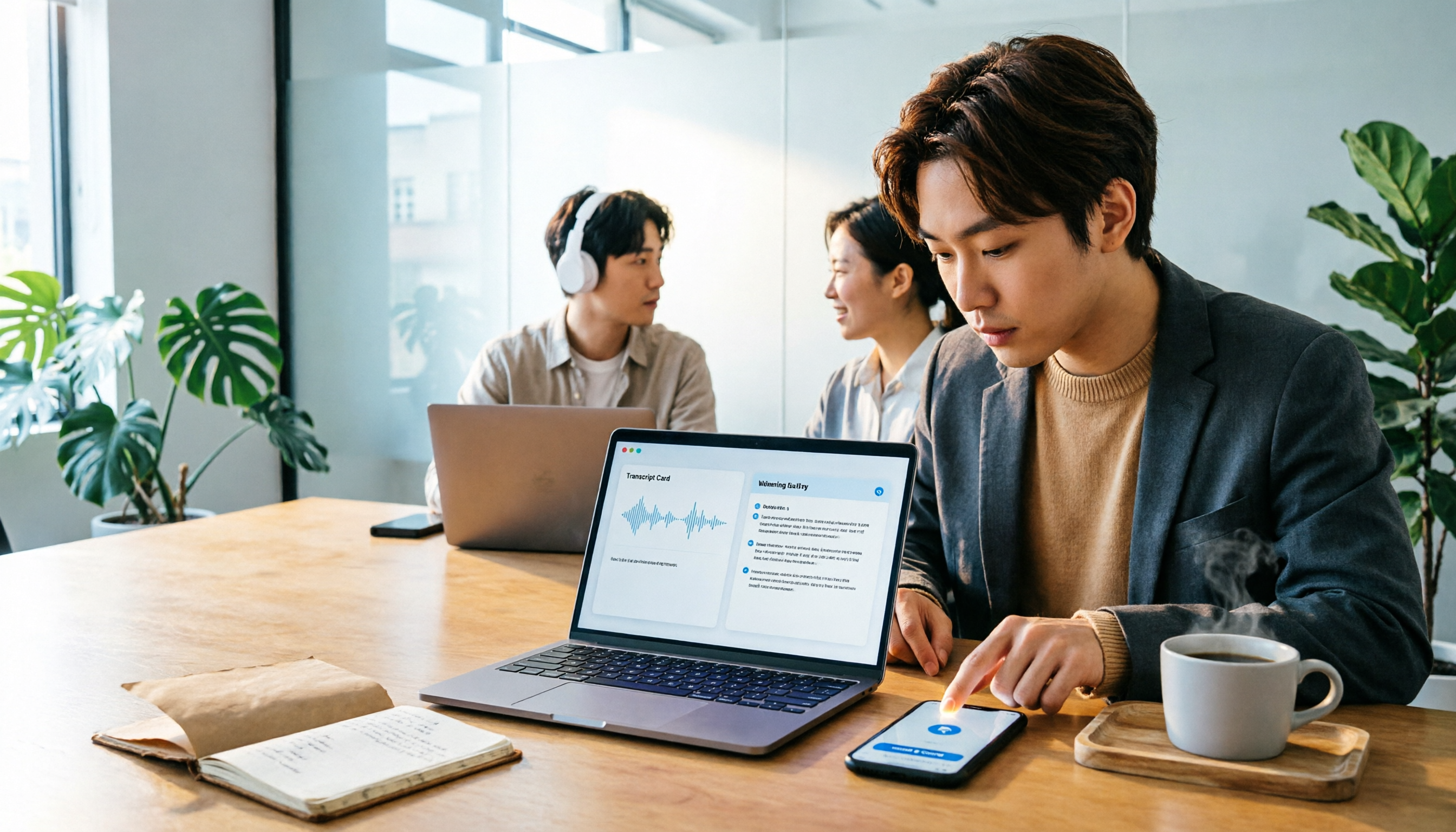
Turn recordings into transcripts and summaries in minutes
Upload audio or video for multilingual transcription, AI notes, and action items
Wednesday at 4 PM, you just finished a 90-minute cross-department meeting. Three tabs are still open on your screen, and a message pops up from the marketing team: "What was the conclusion about that budget?" You search through your handwritten notes and only find one line: "Let's go with this for now, discuss details later."
At times like this, most people open a search engine and type "AI meeting assistant download."
Tinrec (MiaoTing Recording) is one such tool. It turns meeting recordings into transcripts, summaries, chapters, and action items, and even lets you ask questions directly about the content afterward. Below is the download, setup, and usage process I put together after actually trying it out.
What Can an AI Meeting Assistant Do for You?
Scenario 1: After the meeting, the minutes are already waiting A two-hour meeting used to take another hour to organize. With Tinrec, for example, as the meeting ends, the transcript, summary, chapters, and action items are already generated—who's responsible for what and when it's due are listed directly.
Scenario 2: No extra bot needed for online meetings Tinrec's desktop version directly captures your computer's system audio. When handling meetings on Zoom, Google Meet, Microsoft Teams, Webex, etc., you don't need to invite an additional meeting bot. This is actually crucial for external meetings—the other party won't see a strange bot hanging in the participant list.
Scenario 3: When asked "Who said this?" The transcript is searchable and reviewable. Tinrec supports AI Q&A around meeting content. You can directly ask: "What was the budget cap the client mentioned?" "Who was responsible for last week's decision?" It answers based on semantics, so you don't have to scroll through everything yourself.
Scenario 4: Meetings with mixed Chinese and English Meetings in Taiwan are rarely pure Chinese. Tinrec supports real-time translation. During recording, you can switch between original text, translation, or bilingual view—especially useful for scenarios with foreign clients or English terminology.
What Are Tinrec's Core Capabilities?
Bot-free recording of online meetings The desktop version records meetings by capturing the device's system audio; users simply start recording actively. Note that this is not the same as "automatically joining all meetings on your calendar"—you still need to start recording yourself.
Real-time transcript and real-time translation Transcribes while recording, so you can see the text settle as the meeting progresses. For cross-language meetings, you can view both original and translation simultaneously, saving you from re-listening to an hour of audio afterward.
AI summary, chapters, and action item extraction It doesn't just condense the transcript into a paragraph; it structures the information: meeting topic, discussion points, conclusions, and action items are listed separately. Long meetings are split into chapters for easy skimming.
AI Q&A and post-meeting processing After transcription, you can ask questions about a single meeting or across meetings. Tinrec also supports Agent post-processing to further generate reports, tables, or documents from meeting content—suitable for work that requires post-meeting deliverables.
Multi-format export Organized results can be exported to common file formats or brought into tools like Notion, Google Docs, OneNote, Dropbox for continued use, without retyping.
Team space and governance (Team Edition) The Team Edition is a separate collaborative space, not "multiple people sharing one personal account." It includes member invitations, roles (Owner, Admin, Member), seat allocation, team usage analytics, audit logs, team hotwords, and audio recycle bin.
How to Download an AI Meeting Assistant in 2026: Complete 5-Step Tutorial
Step 1: First, confirm where you mainly hold meetings
If most meetings happen on your computer, the desktop version will be your main tool; if you're often visiting clients or on-site, mobile real-time recording is more convenient. Tinrec offers desktop, web, and mobile versions that you can use together depending on the scenario.
Step 2: Download and install the desktop version
Get the desktop installer from Tinrec's official website, complete installation, and log in with your account. The free version lets you experience basic recording, import, summary, and transcription quotas without paying upfront.
Step 3: Set up microphone and system audio permissions
This is where most people get stuck. When you start recording for the first time, the system will ask for access to the microphone and screen/system audio. You must allow both to capture both "your voice" and "the voice from the other end of the meeting."
If you only authorize the microphone, you may find afterward that the transcript only contains your own speech.
Stop organizing recordings by hand
Upload audio or video and automatically get a transcript, summary, and action items
Step 4: Start recording, transcribe as you go
After joining the meeting, press record in Tinrec, and the transcript will be generated in real time. At this point, you can do two things: check if any speaker's content is obviously missing, and mark key passages.
Step 5: Post-meeting organization, Q&A, and export
After the meeting, first look at the AI summary and chapters to grasp the big picture, then use the action item list to confirm action items, finally use AI Q&A to fill in details, and export the results to your team's usual tools. The whole process takes about ten minutes—much faster than manually re-listening.
Practical Application Scenarios
Weekly and project meetings Regular weekly progress meetings are best left to AI. Tinrec splits discussions into chapters and automatically lists action items with owners and tasks—especially convenient for reviewing last week's decisions before the next meeting.
Customer interviews and sales communications The most valuable part of a customer interview is often a casual complaint or need. Record the entire conversation with Tinrec, and afterward directly ask "What were the customer's concerns about pricing?"—far more reliable than relying on memory.
Courses, lectures, and internal training Taking notes during lectures makes it easy to miss things. Use real-time transcription to capture the content, review with summaries afterward, and copy the speaker's exact words from the transcript when needed.
Content creation and research Interview recordings, online courses, public videos—all can be imported into Tinrec to organize into text materials, then further generate outlines or reports.
5 Things to Consider When Choosing an AI Meeting Assistant
1. How the meeting is recorded Some tools rely on a meeting bot joining, others on desktop capturing system audio. Tinrec is the latter—the advantage is a clean participant list and no platform restrictions, but you need to actively start recording on your computer.
2. What you can do after transcription Transcript is just the starting point. After transcription, Tinrec also provides summaries, chapters, action items, AI Q&A, translation, and export—these are what truly save time.
3. Performance with Chinese and mixed Chinese-English Taiwan meetings often mix Chinese and English. Tinrec covers Chinese, Traditional Chinese, and multilingual scenarios, and supports team hotwords to maintain company-specific terminology. Actual performance is still affected by recording quality, accents, noise, and multiple people speaking simultaneously—we recommend testing with your own recordings.
4. Data ownership and team management Personal version data belongs to the individual account; Team Edition data belongs to the team. Tinrec's Team Edition distinguishes "roles" and "seats": roles determine who can manage the team and audit, seats determine who can record, upload, edit, and export. Members without seats can still view, play, and read team data.
5. Quotas and pricing The personal version offers a free version, weekly card, Pro monthly, and Pro annual—choose based on usage frequency. The Team Edition currently costs USD 29.80 per paid seat per month for monthly billing, or USD 199 per paid seat per year for annual billing (equivalent to about USD 16.58 per month). Each paid seat provides 2,000 minutes of team shared import quota per month; real-time recording under an active team plan is currently not deducted by minutes. Eligible teams can enjoy a 7-day trial, 1 free seat, and 300 minutes of shared quota for the first time. Actual prices and benefits are subject to the official purchase page.
Frequently Asked Questions
Q: Is Tinrec paid-only? No. The free version provides basic quotas so you can experience recording, import, summary, and transcription. After using it for a week or two and finding it smooth, then consider a weekly card or Pro based on frequency.
Q: Do I need to invite a meeting bot after downloading? No. Tinrec's desktop version directly captures computer system audio and does not appear in the participant list. However, recording requires you to actively start it—it is not currently a mode that automatically joins all calendar meetings.
Q: Does it support Zoom, Google Meet, Microsoft Teams? It can handle meeting audio played on the computer from these platforms. Note that this is system-level recording and does not imply official partnership with these platforms.
Q: Can deleted meeting recordings be recovered? The Team Edition provides an audio recycle bin, which can restore before permanent cleanup begins; the recycle bin retention period is currently 30 days. Note that action items are currently not within the scope of the recycle bin.
Q: Can team members without seats see data? They can view, play, and read team data, but cannot perform resource usage operations such as upload, edit, import/export. When actual operations are needed, the admin can allocate seats.
Q: Is transcription accuracy guaranteed? We do not recommend interpreting it that way. Actual performance is affected by recording quality, environmental noise, accents, overlapping speech, and technical terminology. Tinrec can significantly reduce the cost of manual recording and organization, but for important content, we recommend verifying against transcript timestamps and recording playback.
Conclusion
The 2026 Generative AI Conference will set its theme as "Agent First," which means directly: AI has moved from demonstration to daily work. Meeting minutes are probably the area where results are most easily seen.
Downloading an AI meeting assistant—the real value is not "turning sound into text," but saving that post-meeting organization work that no one wants to do. Tinrec puts transcript, summary, action items, Q&A, and export into one workflow; the free version lets you run two or three meetings first to see.
If your meeting content needs to settle into team data, then consider the Team Edition's space, seats, and audit capabilities. Start with the free version, and if it fits, go further—that's more practical than buying the top tier at once.
Recording and transcription involve personal data; remember to obtain participant consent in accordance with local regulations before use.
References
Turn every recording into actionable outcomes
Get 60 free transcription minutes when you sign in. No credit card required.
Related Reading
You might also like

How to Use Smart Meeting Notes in 2026: Bot-Free Recording, Transcription, and AI Summaries with Action Items
Many people think smart meeting notes just means hitting record and waiting for AI to spit out a summary—but the resulting transcript is often something no one wants to read. This article starts with the most common misconceptions, breaks down the four key judgment points that truly matter for meeting notes, and then walks through a complete before-during-after workflow using Tinrec, including copy-paste prompt templates and a pitfalls checklist.

Best AI Meeting Notes Apps 2026: Auto Transcripts + AI Summaries & Action Items
Tired of spending two hours writing up meeting notes? This guide starts with the key question—do you need a recording or usable meeting data?—then breaks down 4 essential factors for choosing an AI meeting notes app, compares Tinrec, Otter.ai, Notta, and Granola, and covers the 3 most common pitfalls so you can pick the right tool the first time.
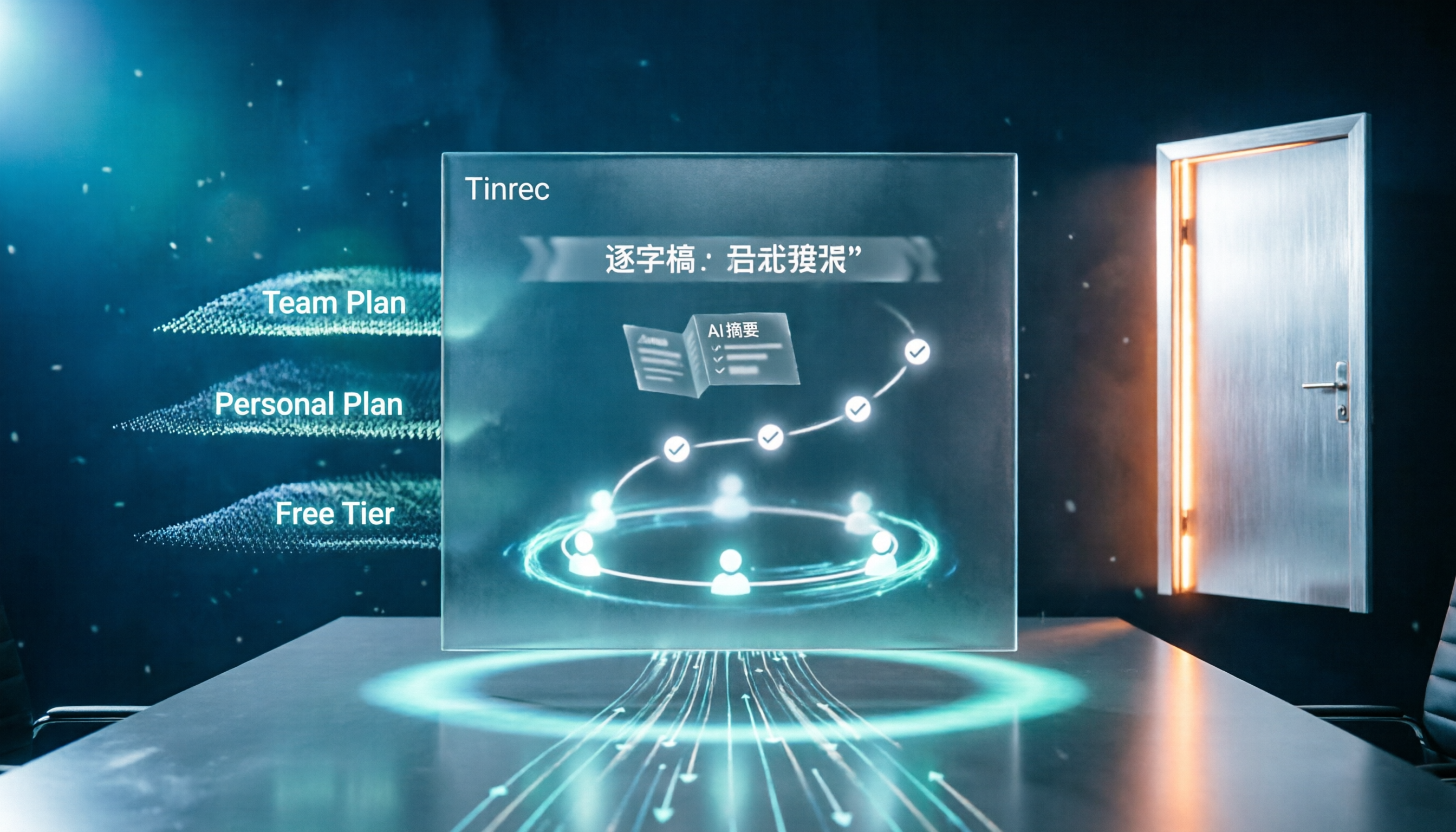
2026 AI Meeting Assistant Cost Comparison: Free Tiers and Paid Thresholds Dcard Users Ask About Most
Starting from the common Dcard question about free minutes, this article explains how to evaluate AI meeting assistant costs. Using Tinrec as the main test subject, it covers the quotas and pricing for the free, personal, and team plans, and compares bot-free recording, Chinese transcripts, AI summaries, action items, and team collaboration, with 6 cost FAQs.
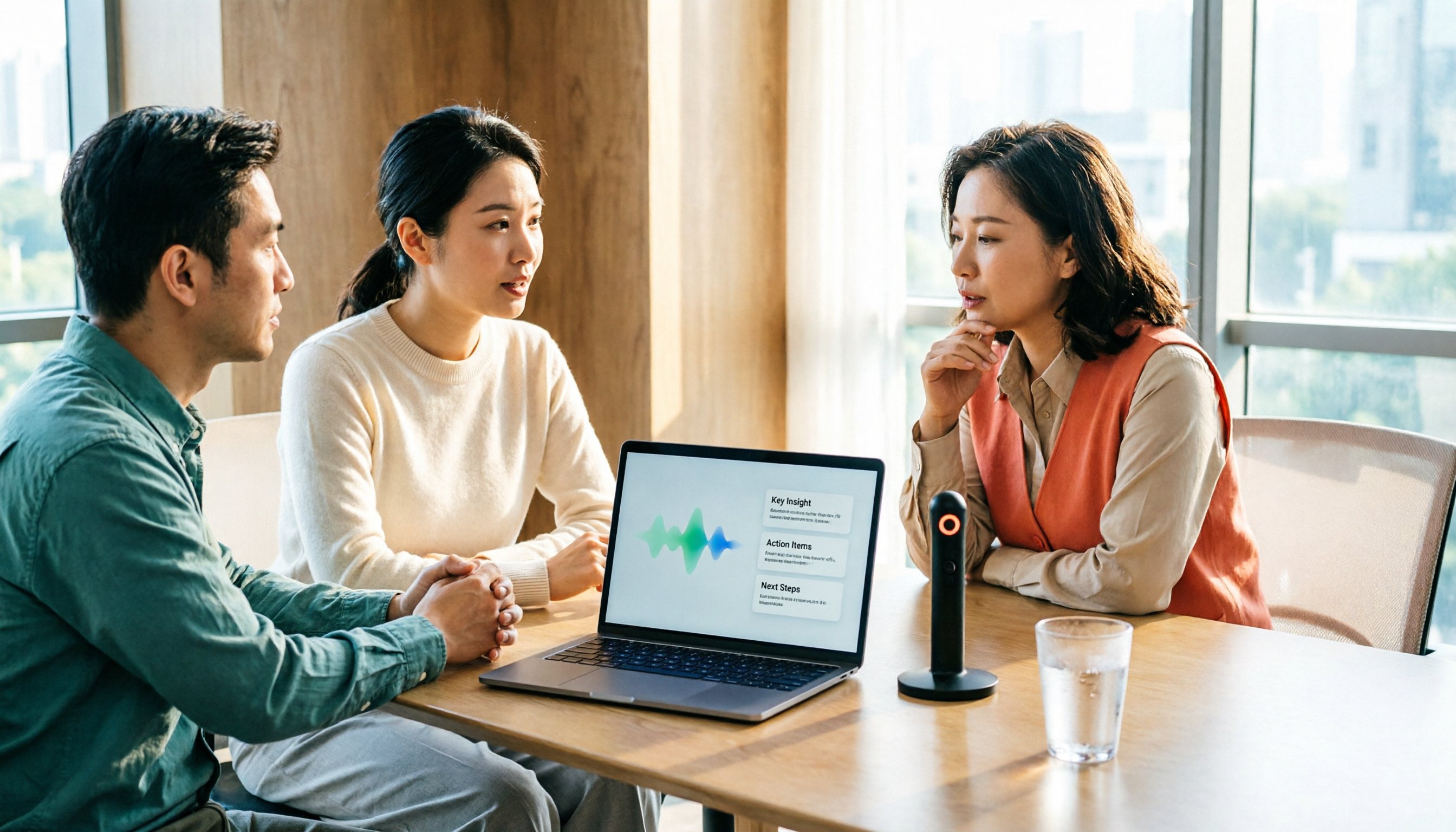
Tinrec vs Notta 2026: 5-Dimension Comparison for Chinese Meeting Notes
How to choose the latest AI meeting assistant in 2026? This article compares Tinrec and Notta across 5 dimensions: Chinese transcription, meeting capture methods, post-meeting output, team data governance, and pricing quotas. It honestly lists free quotas and paid prices for both, and includes 4 common pitfalls when choosing an AI meeting assistant to help you decide which one fits your meeting scenarios.
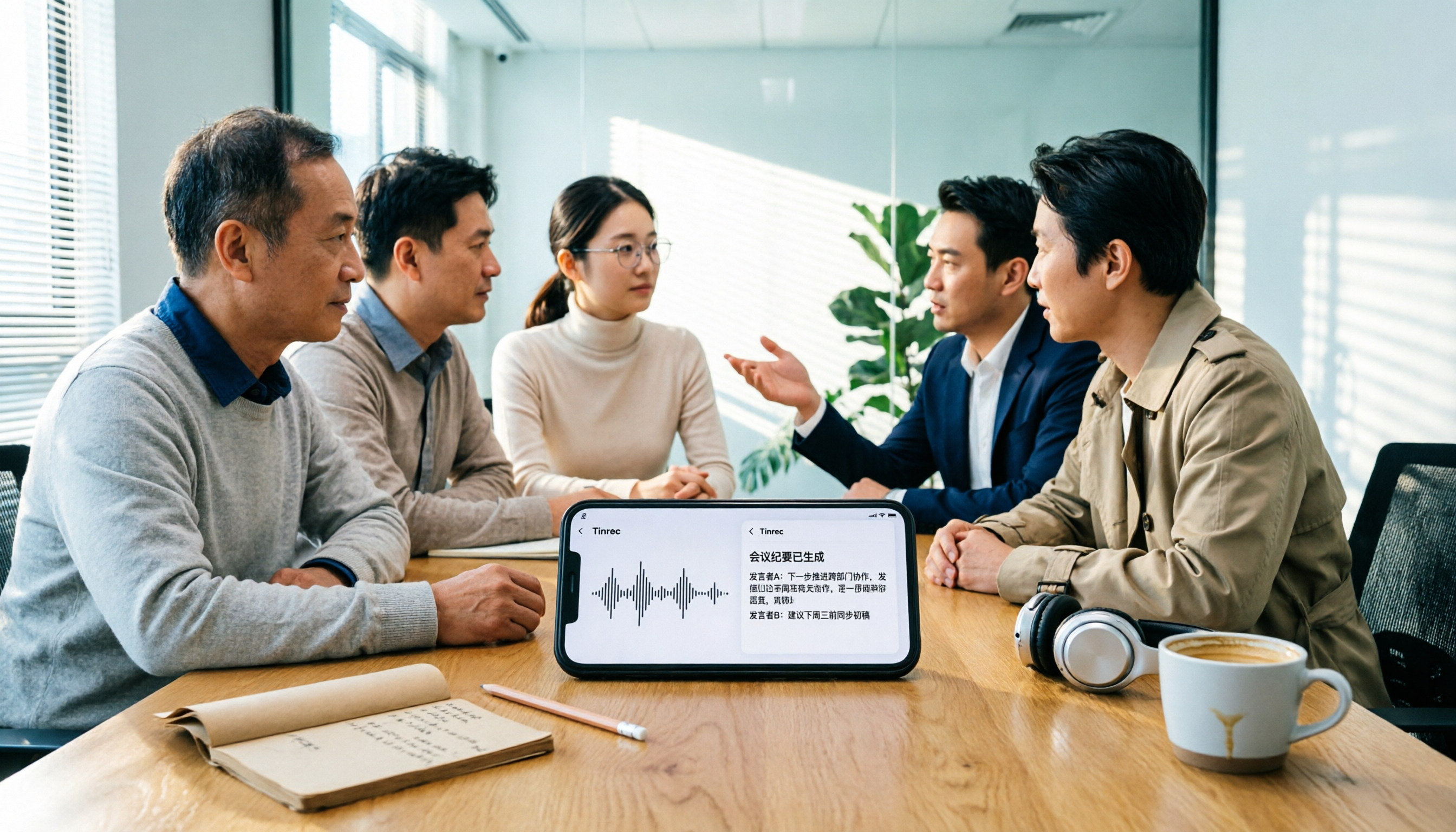
2026 AI Meeting Assistant Comparison: No Bots, Best Chinese Transcription?
How to choose the latest AI meeting assistants in 2026? This article examines four key aspects: recording method, audio retention, Chinese recognition, and post-meeting output. It compares Tinrec, Otter.ai, Notta, and PLAUD, and includes pricing, seats, and quotas for personal and team plans to help you avoid the trap of only looking at free minutes.

2025 AI Meeting Assistant Comparison: Tinrec, Otter.ai, Notta, and Granola Reviewed
Many people download AI meeting assistants only to find transcripts hard to use, Chinese recognition unreliable, and team data scattered. This article compares Tinrec, Otter.ai, Notta, and Granola across selection criteria, real workflows, and pitfalls to help you choose a tool that actually produces usable meeting notes.

2026 Smart Meeting Notes Tools Compared: How to Tell If Meeting Minutes Are Actually Useful
Most people evaluate smart meeting notes tools only by transcription accuracy, but the real cost is in how you use the notes after the meeting. This article starts with common misconceptions, breaks down 4 key points for reviewing meeting notes, compares Tinrec, Otter.ai, Notta, and Granola, and highlights 3 pitfalls to help you choose a tool that fits your workflow.

4 Smart Meeting Notes Tools Tested for 2026: From Transcripts to Action Items, Which One Really Saves Time?
Meeting notes aren't just about keeping a transcript. This article starts with the most common pitfalls, breaks down the correct workflow for smart meeting notes and 4 key selection criteria, and compares Tinrec, Otter.ai, Notta, and Granola in terms of recording capture methods, post-meeting organization capabilities, and team collaboration differences, with a guide to avoiding pitfalls and selection advice.

2026 AI Meeting Assistant Guide: Bot-Free Recording + Auto Summaries & Action Items
Many people think recording a meeting is enough and they can just listen again later—but that's actually the most time-consuming and inefficient approach. This article starts with the key factors for choosing an AI meeting assistant, introduces Tinrec's bot-free recording, automatic summaries and action items, AI Q&A, and team collaboration capabilities, and briefly reviews alternatives like Otter.ai, Granola, and PLAUD to help you find the right meeting notes workflow.