

Turn recordings into transcripts and summaries in minutes
Upload audio or video for multilingual transcription, AI notes, and action items
How to Download Zoom Meeting Recordings in 2026: A 5-Step Guide
During a Tuesday afternoon project meeting, you stepped out to take a call. When you returned, your manager said, "I'll just watch the recording later." Three days later, you open Zoom and the cloud recordings section is empty. You ask a colleague for the link, and they reply, "It says it's protected on my end, I can't download it." So you spend 40 minutes searching for a video that might not exist—or might be on someone else's computer.
If you've been in this situation, this article is for you. Below, I'll first clarify where Zoom recordings are actually stored and who has download rights, then give you 5 practical steps, and finally discuss what happens after downloading—honestly, getting a 50-minute video and truly understanding those 50 minutes are two different things.
Before You Download: 3 Key Points to Understand
First, who started this recording. Zoom recordings basically come in two types: "local recordings" saved on the host's computer, and "cloud recordings" stored on Zoom's servers. The file locations for these two are completely different, so looking in the wrong place will waste your time.
Second, do you have download permission. Cloud recordings can be shared via links, but some links are marked as protected and require the host's permission to download. In other words, "having the link" doesn't mean "you can download."
Third, which device you're searching on. Local recordings only stay on the computer where they were recorded and won't sync to your phone; cloud recordings can be found on both the desktop web version and the mobile app, but the menu locations are different.
Confirm these three things first, and the following steps will go much smoother.
5 Steps to Download Zoom Meeting Recordings
Step 1: Confirm the Recording Type
The quickest way is to ask the host directly: Was cloud recording enabled for this meeting? If not, it's a local recording, and the file is on their computer—you'll need them to provide it manually.
Step 2: Local Recording—Go Back to That Computer to Find the File
Local recordings remain on the original device after completion. Generally, you can look for files created around the meeting end time; note that you shouldn't shut down the computer before the recording finishes, or the file may be incomplete.
Step 3: Cloud Recording—Check Your Email for the Link
After the cloud recording is processed, Zoom sends an email with a sharing link to the host. Click it to access the cloud storage location. If you're not the host, you'll need to ask them for the link (and password, if any).
Step 4: Download from the Shared Link
Click the link and log in to your Zoom account if necessary to access the recording page. On desktop, you can find the target recording under "Meetings" > "Recorded"; on mobile, it's in the "Recordings" section of the left menu. After opening the recording, look for the download button—it's sometimes hidden under a downward arrow icon. Click it and choose a save location.
If the screen shows this is a protected recording link, you must obtain the host's consent before downloading; there's no way around this.
Step 5: Confirm the File Plays and You Have Rights to Use It
After downloading, play a short segment to confirm both audio and video are working. Also, meeting recordings involve participants' speech and likeness; if you plan to share externally or use publicly, it's advisable to get everyone's consent first.
The Problem You Discover After Downloading: A Video Is Not the Same as Usable Meeting Material
Okay, let's assume you've successfully obtained the file. Now the real trouble begins.
To rewatch a 50-minute meeting recording, you need another 50 minutes. To confirm "who said that thing about the budget," you have to drag the timeline back and forth, often overshooting. If the meeting mixes Chinese and English and speakers interrupt each other, the cost of rewatching only increases.
This is why I've been using the "record first, process later" workflow less often. If what you really need is "meeting content you can look up later," a more practical approach is to have a tool generate text during the meeting itself.
Tinrec is a tool that takes this approach. It's an AI meeting notes and collaboration tool for individuals and teams, available on desktop, web, and mobile.
Its desktop version directly captures your computer's system audio, so it can handle Zoom, Google Meet, Microsoft Teams, and Webex meetings played on your computer—without needing an extra meeting bot to join as a participant. For internal meetings, this is quite practical—some managers feel uncomfortable seeing "AI assistant has joined the meeting."
Stop organizing recordings by hand
Upload audio or video and automatically get a transcript, summary, and action items
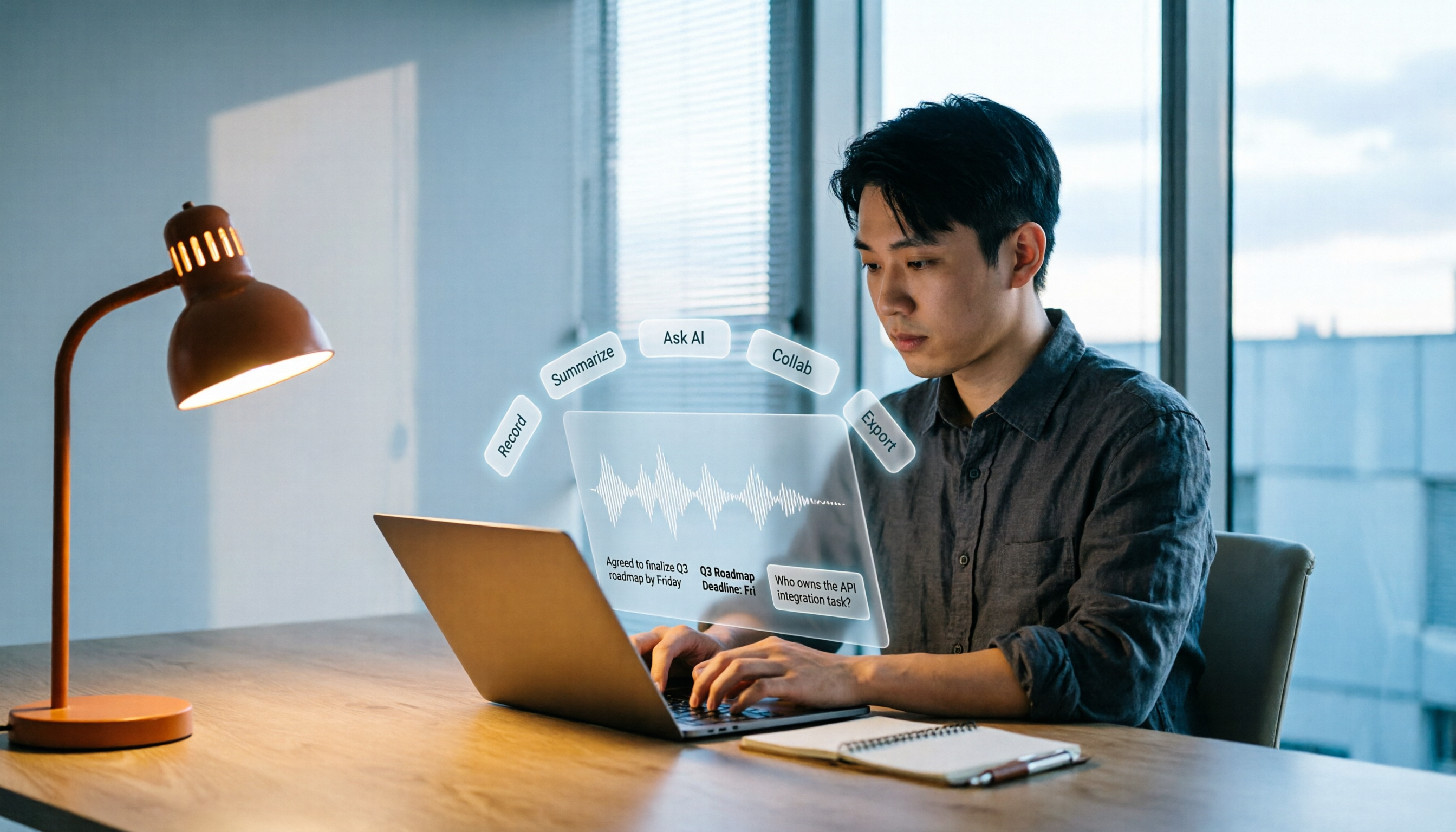
While the meeting is in progress, it records and transcribes simultaneously. Afterward, the transcript, summary, chapters, and action items are already there. Even better is the AI Q&A: after recording, you can directly ask it "What were the conclusions of this meeting?" or "Who mentioned the budget?" and it will give you answers instead of dumping a bunch of keywords for you to search through. When you need to take content elsewhere, you can export to Notion, Google Docs, OneNote, Dropbox, and other tools for further processing.
For team use, the Team version is a separate team space where meeting data belongs to the team, not tied to an individual's account. When members leave or lose their seats, data can be transferred to other members and won't leave with the person. The admin side distinguishes roles and seats: members without seats can still view, play, and read team data, but recording, uploading, editing, or exporting requires a seat. There are also team hotwords, usage analytics, audit logs, and a 30-day audio recycle bin.
Pricing: The Team version is currently USD 29.80 per paid seat per month, or USD 199 per paid seat per year (about USD 16.58 per month). Eligible teams can try 7 days free with 1 free seat and 300 minutes of shared team import quota; paid seats include 2,000 minutes of shared import quota per month, and live recording under an active plan and seat is currently not deducted by minutes. The Personal version offers a free tier, weekly pass, Pro monthly, and annual plans—choose based on your usage frequency.
A few things to clarify: Tinrec is not a tool for downloading Zoom cloud recordings; it records and organizes content itself. It also doesn't automatically join all meetings on your calendar—you need to actively start recording. Transcription accuracy can be affected by audio quality, background noise, accents, and overlapping speakers; for important information, it's recommended to cross-check with transcript timestamps and audio playback.
In short, if you need to revisit several meetings every month, need Chinese transcripts and summaries, and don't want a bot entering your meeting room, Tinrec will save you a lot of hassle compared to the "record + download + rewatch" path.
Beyond Manual Download: What Other Options Are There?
Zoom's built-in cloud recording: The most direct method—if you have permission, you can view and download. However, recording retention depends on your plan, and the recording itself won't organize key points for you; the cost of rewatching remains.
Otter.ai: A mature AI meeting assistant with deep experience in English business meetings. The free version offers 300 minutes per month; Pro annual billing is about USD 8.49 per user per month, including 1,200 minutes monthly. If your meetings are almost entirely in English and you don't need Chinese transcripts, it's still a reasonable choice; but Chinese meetings and bot-free desktop recording are not its strengths.
Notta: Good multilingual transcription. Free version: 120 minutes per month, 3 minutes per session; Pro annual billing is about USD 8.17 per month, 1,800 minutes monthly. Suitable for users focused on file transcription and subtitles. If you want to turn meetings into a collaborative team database, Tinrec's team space and post-meeting outputs are closer to that workflow.
Granola: Also uses a bot-free approach to capture system audio, combined with handwritten notes for AI enhancement. Basic is free; Business is USD 14 per user per month. Note that it doesn't support uploading pre-recorded audio files and doesn't save meeting audio files; if you need to keep recordings for later audio verification, this is a difference.
Pitfall Guide: The 4 Most Common Mistakes When Downloading Zoom Recordings
Pitfall 1: Assuming the host definitely enabled cloud recording. Many people think meeting recording is on by default—it's not necessarily. Asking beforehand saves three days of searching later.
Pitfall 2: Thinking you can download just because you have the link. Protected recording links require host authorization; trying workarounds is not only troublesome but may also violate policies.
Pitfall 3: Looking for files on the wrong device. Local recordings only exist on the computer where they were recorded; you won't find them on another laptop or phone.
Pitfall 4: Only focusing on downloading, without thinking about how to use it later. The more videos you save, the more you still have to drag through the timeline to find a specific sentence. If you need to repeatedly look up meeting content, instead of recording from the start, it's better to have a tool generate searchable text during the meeting.
Conclusion: Do You Want to "Download" or "Never Rewatch"?
If you just want to save a meeting and the host enabled cloud recording, follow the steps above—that's the easiest.
If you need to repeatedly search meeting content, want summaries and action items, and your team needs to use the same data together → consider Tinrec. The desktop version records online meetings without a bot and directly produces transcripts, summaries, and action items afterward.
If your team has turnover and needs seat management and usage tracking → Tinrec's Team version puts roles, seats, usage, and auditing in one space.
If your meetings are almost entirely in English and your budget is zero → Otter.ai's free version with 300 minutes per month is a reasonable option.
If you need to process large volumes of audio/video files at once for subtitles and translation → a file-transcription-focused tool like Notta is more suitable.
I'd suggest trying a free version with a real meeting first to see if the transcript quality and team workflow fit your needs, then decide whether to pay. With tools, trying once is more accurate than reading ten reviews.
References
- How to Easily and Quickly Download Zoom Video Recordings - Edimakor
- How to Download Zoom Video Meeting Recording Files | Subanana Help Center
- One Minute to Teach You How to Download Zoom Web Recording Playback_ Bilibili
- How to Download Zoom Recording from Link - 2026 Ultimate Guide
- Zoom Apps and Plugins Download Center | Zoom
Turn every recording into actionable outcomes
Get 60 free transcription minutes when you sign in. No credit card required.
Related Reading
You might also like

Best Zoom Meeting Transcription Tools in 2026: 4 Tested, and the One That Makes Chinese Meetings Easiest
Most people download Zoom to attend meetings, but the real time sink is the post-meeting cleanup. This review tests four meeting transcription tools—Tinrec, Otter.ai, Notta, and Granola—focusing on key decision points like how meeting audio gets into the tool, what you get after transcription, data ownership, and how seats are counted. It also covers buying tips and the three most common pitfalls to help you pick the right tool within your budget.

5 Ways to Download Zoom Meeting Recordings in 2026: Which Gets You Usable Meeting Data Fastest?
Zoom meeting recordings don't just appear on your computer after you hit record. This guide compares 5 practical methods—from Zoom cloud recording, local recording, browser extensions, to AI meeting tools—explaining each download process, limitations, and ideal users, so you'll know where files are, how to get them, and how to use them.

5 Zoom Meeting Apps Tested for 2026: Which Free Tier Is Most Generous?
Starting from real pain points in campus group meetings, this compares 5 Zoom meeting apps and online meeting tools: which ones turn meetings into transcripts, summaries, and action items, and which just connect the video. Includes free tier limits, plan differences, and tips for students choosing a tool.

2026 Meeting Tools Comparison: Tencent Meeting vs Zoom vs Tinrec — Which to Choose?
Tencent Meeting or Zoom? This comparison covers connection scenarios, free plan limits, post-meeting organization, and team management, and explains how Tinrec fills the gap with meeting notes, AI summaries, action items, and team knowledge retention.
Zoom vs Tinrec in 2026: 5-Dimension Comparison — Which Should You Choose for Online Meeting Notes?
Zoom makes meetings run smoothly, but the 50-minute recording afterward is the real burden. This article compares Zoom and Tinrec across 5 dimensions — recording method, post-meeting organization, AI Q&A, team governance, and export workflows — to help you decide where to spend your budget.

2026 Comparison of 4 Transcription Tools: How to Use Yating, Free Quotas, and Alternatives
Starting with the actual workflow of Yating transcription, this article covers real-time recording, uploading audio files, export formats, and free quota limits. It also compares Tinrec, Otter.ai, and Notta in meeting organization to help you decide which tool suits your use case.

The Complete Guide to Using Zoom Meetings in 2026: 5 Practical Steps from Joining to Post-Meeting Follow-Up
Most people don't struggle with Zoom—they just treat it like a phone call. This guide tackles the most common misconceptions and breaks down five key areas: joining a meeting, hosting a meeting, pre-meeting preparation, in-meeting actions, and post-meeting organization. It explains why a recording isn't the same as meeting notes and how desktop tools can fill in the gaps with transcripts, summaries, and action items.

Zoom vs Tinrec 2026: 5-Dimension Comparison — Which One Should Keep Your Meeting Notes?
A good Zoom call doesn't guarantee good meeting notes. This article breaks down 5 dimensions: what problems Zoom and Tinrec each solve, where free version limits hit, and how team plan seats and quotas work — helping you decide whether to invest in connection quality or post-meeting organization.

4 Free Speech-to-Text Tools Tested in 2026: Which Free Tier Actually Gives You Enough?
How to choose a free speech-to-text tool? This article compares the free tiers, per-recording limits, Chinese recognition, and post-meeting organization capabilities of Tinrec, Otter.ai, Notta, and inFin, and lists 5 common pitfalls. From personal meetings to team collaboration, it helps you determine which free plan is truly sufficient and when to upgrade.