
Turn recordings into transcripts and summaries in minutes
Upload audio or video for multilingual transcription, AI notes, and action items
6 iPhone Call Recording Apps Tested for 2026: Which Free Option Actually Records?
Type "call recording" into the App Store and nearly every top result says "free." You download, sign up, tap the record button—and only then does a subscription screen pop up. You finally get through, the other person hears a notification tone, and the recording only works if your carrier supports three-way calling. This isn't your fault; it's a long-standing limitation of iPhone when it comes to call recording.
This article lays out 6 practical options: which are truly $0, which are "free download, paid unlock," and which rely on a completely different workflow. After reading, you can decide which path to take.
Why Is iPhone Call Recording So Hard? Understand the 3 Paths First
Apple's native system has long not supported call recording, due to telecom architecture and privacy regulations in various regions, forcing many interview, sales, and customer service needs to find workarounds. Today, there are really only three paths:
The first is built-in system: recent iOS versions have gradually added call recording—free but limited in features. The second is third-party apps: they use your carrier's three-way calling to bring a recording server into the call—free to download, but mostly subscription-based to unlock full features. The third is speakerphone side-recording: use another device or recording app to capture the speakerphone audio—lowest cost, audio quality depends on the environment.
The 6 options below are organized by these three paths, with each option's free boundaries clearly marked.
Option 1 | Tinrec—Turn Call Content into Searchable Transcripts and To-Dos
One-line positioning: It's not a recording app that "connects to your phone line"; it's an AI meeting notes tool that turns recorded audio into transcripts, summaries, and to-dos.
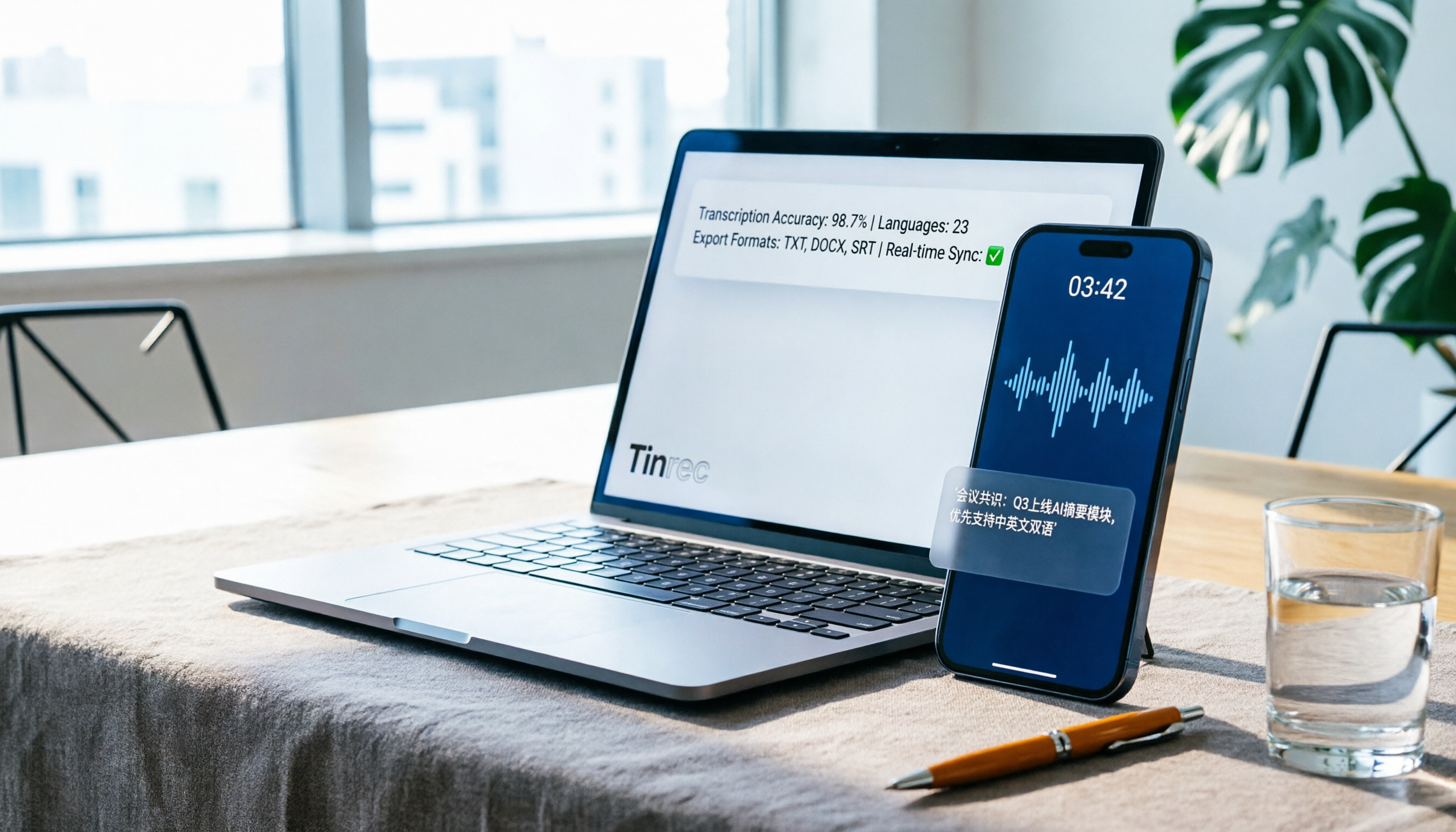
For iPhone users, the most practical use is speakerphone side-recording: put the call on speaker, use Tinrec for real-time recording and transcription, and by the time the call ends, the transcript is already there. What really sets it apart is post-recording processing—automatically generating AI summaries and chapters to quickly capture what was discussed; automatically extracting to-dos, listing what the other party promised and what needs follow-up; and you can continue asking AI questions about the recording, such as "What was the budget cap they mentioned?"
If you already have old call recording files (MP3, M4A), you can upload audio or video files for transcription without re-recording. Results can be exported to Notion, Google Docs, OneNote, and other tools for further work, or directly generate meeting minutes, reports, and tables. Another desktop use is recording online meetings: the desktop version captures system audio to process Zoom, Google Meet, Microsoft Teams, and Webex meetings without inviting a meeting bot.
Free vs. paid: The free version offers basic quota to try recording, importing, summaries, and transcription; for short-term intensive needs, choose the weekly card; for steady weekly use, the Pro monthly card; for long-term recording accumulation, the Pro annual card. The team version is a separate team space at USD 29.80 per paid seat per month, or USD 199 annually (about USD 16.58/month), with 2,000 minutes of team-shared import quota per seat per month, plus member, role, seat, usage analytics, and audit log management capabilities.
Who it's for: People who need call content to leave a "searchable, quotable text record"—sales visits, interviews, customer service follow-ups, parent-teacher communication. If you just need an audio file for the record, the built-in feature is enough; but if you need to find key points later, Tinrec's layer of organization is where the value lies.
Option 2 | Built-in iOS Call Recording—Completely Free, but Accept the Notification Tone
Recent iOS versions have added call recording at the system level. On supported versions, the path is "Settings → Phone → Call Recording." Once enabled, calls are recorded automatically, and audio files are stored in Voice Memos. This is currently the only truly $0 option with no minute limits.
The limitations are clear: the other party hears a notification tone, and it's audio only—no transcript. If you go this route, treat it as "evidence storage"; when you need text records, export the audio to a transcription tool.
Who it's for: People who just want a call record and don't need efficient post-call organization.
Option 3 | Call Recorder—Free Download, Subscription Unlocks Full Features
"Call Recorder ™" (developer Pretty Boa Media Ltd) on the App Store is a common choice in this category, with about 11,000 ratings and a 4.4 score, supporting iPhone and iPad, using a free download plus in-app purchase model.
It focuses on recording incoming and outgoing calls; recordings are available immediately after the call, can be stored in the cloud and shared, and the interface is relatively clean. The free version lets you try it; unlimited recording length and unlimited number of recordings are unlocked only with a subscription. One thing to note before use: these tools rely on your carrier's three-way calling, which not every carrier supports, and a notification tone may appear during the call.
Stop organizing recordings by hand
Upload audio or video and automatically get a transcript, summary, and action items
Who it's for: Business users willing to pay a monthly fee for the convenience of "one-tap recording" and whose carrier supports three-way calling.
Option 4 | TapeACall—Veteran Three-Way Call Recording, Available for Trial in Taiwan
TapeACall is a well-known veteran service on this path, available for trial to users in Taiwan. It works by connecting a recording service into the call via carrier three-way calling. Traditional telecom recording usually emits a notification tone or requires prior notice to the other party under local laws.
These services typically use monthly fees or call-count limits, with limited free quota. If you only record one or two calls occasionally, try the built-in feature and speakerphone side-recording first, then evaluate whether it's worth paying.
Who it's for: Existing users with high call volume who need a stable recording workflow and have confirmed carrier support.
Option 5 | Screen Recording + Speakerphone—$0, No Notification Tone, but Environment-Dependent
The lowest-cost method: find a quiet space, put the call on speaker, and use iPhone Control Center's screen recording to capture audio, or use another phone or tablet to record. No payment, no minute limits, and no notification tone interrupting the conversation.
The trade-off is audio quality. Speakerphone pickup easily captures ambient noise; the other party's voice may be too soft, and it's even harder to distinguish when multiple people speak at once. After recording, you usually have to listen through the whole thing again. If your priority is "must have text," pair it with an AI transcription tool that offers free quota—upload the audio to get a transcript.
Who it's for: People with zero budget, a quiet call environment, and no objection to manual organization afterward.
Option 6 | PLAUD Note/NotePin—Hardware Approach, Records Without an App
If even "turning on speaker" feels inconvenient, hardware is another path. PLAUD's AI recording devices focus on portable recording and call recording, magnetically attaching to the back of your phone. Official prices are USD 159 for NotePin and USD 189 for Note Pro; membership plans are Starter at 300 minutes per month, and Pro at USD 99.99/year with 1,200 minutes per month.
Its advantage is the stability and portability of a dedicated recording device; the downside is the extra hardware expense, and meeting content still ends up scattered between the device and the app.
Who it's for: People who frequently visit clients on the go, need to record at a moment's notice, and are willing to pay a one-time hardware cost.
With So Many Options, How Should You Choose?
- Want call content turned into searchable, queryable text records → Tinrec. It's the only option on this list that combines real-time transcription, AI summaries, to-do extraction, and AI Q&A; just put the call on speaker to side-record, and you don't have to re-listen to the whole thing afterward.
- High call volume, need Chinese and mixed Chinese-English transcripts → Tinrec. Chinese meeting transcription, multilingual content, and team hotwords are its strengths; actual performance will still be affected by recording quality, accents, and ambient noise.
- Want to review history with colleagues → Tinrec team version. Meeting data belongs to the team; members can view and play even without a seat, and resources can be handed over when a member leaves, rather than disappearing with a personal account.
- Don't want to spend anything, just need an audio record → Built-in iOS call recording; just accept the notification tone.
- Only need a clean audio file, quiet environment → Screen recording + speakerphone, zero cost.
- Need hardware for portable recording → PLAUD series; calculate the total annual cost of hardware plus membership first.
4 Things to Know Before Using iPhone Call Recording
1. Confirm legality and courtesy first. In Taiwan, if you are a party to the call, recording to protect your own rights is generally legal, but it's advisable to politely inform the other party before recording to avoid later disputes. When third-party content or trade secrets are involved, be even more careful.
2. Recognize the real boundaries of "free." There are almost no "completely free and unlimited" three-way call recording apps on the market, because maintaining communication servers is extremely costly. When you see "free," first confirm whether it's free download or free use, and the quota for minutes and files.
3. Notification tone and audio quality are two independent variables. Built-in system and most telecom recordings emit a notification tone; speakerphone side-recording has no notification tone, but audio quality depends on the environment. Before recording an important call, do a test recording to confirm the result.
4. What happens after recording is the key. Recording itself doesn't create value; being able to quickly find "what the other party said and what I need to do" is what creates value. Put the audio into a tool with transcription and summarization capabilities (such as Tinrec) to output transcripts, chapters, and to-dos—it's more efficient than manually re-listening for thirty minutes; for important content, still cross-check against transcript timestamps and recording playback.
Conclusion
There's no single perfect solution for iPhone call recording—only the combination that best fits your budget and usage frequency. If you want zero cost, accept the notification tone or speakerphone audio quality; if you want usable text and to-dos as soon as the call ends, choose a tool like Tinrec that connects recording to an organization workflow.
In practice, the easiest approach is to first run through a real call scenario you'll actually encounter using the free quota—whether a client call or a meeting recording—confirm that transcription quality and organization results meet your needs, and then decide whether to upgrade to a paid plan.
References
- "Call Recorder ™" App - App Store
- 4 Must-Have iPhone Call Recording Apps Reviewed for 2026: One-Tap Solutions for Call History and Transcription - Tinrec Blog
- 5 Best Free Mobile Recording Apps of 2023: Side-Recording, Ringtones, Voiceover All in One!
- Free iPhone Call Recording Methods (2026) | iOS 26 Built-in Features + App Full Comparison
- [Tech News] 3 Recommended "Mobile Call Recording Apps"! Free, High-Quality Call Recording | Jyes Communication ~ Challenging the Lowest Mobile Market Prices
Turn every recording into actionable outcomes
Get 60 free transcription minutes when you sign in. No credit card required.
Related Reading
You might also like

The Complete Guide to Call Recording Apps in 2026: From Call Recording to Transcripts and Meeting Notes
How do you choose a call recording app? This guide compares built-in call recording, third-party recording apps, and Tinrec's recording-to-notes workflow across five dimensions: device and carrier limitations, file storage, transcription and summarization needs, cross-platform support, and team collaboration. It helps you decide which type to install and how to use recordings afterward.

Tinrec vs TapeACall 2026: 5-Factor Comparison — Which iPhone Call Recording App Is Better for Post-Call Organization?
This article compares Tinrec and TapeACall for iPhone call recording and post-call organization across five dimensions: scenario coverage, transcription and AI organization, Chinese language processing, file export, and team collaboration. It helps readers decide whether they need a call recording tool or an AI meeting notes tool that turns recordings into searchable data.

5 Phone Call Recording Solutions Tested for 2026: How to Choose iPhone Call Recording According to PTT
Starting from the most common iPhone call recording pain points on PTT, we tested and compared five solutions: iOS 18 built-in, PLAUD recording hardware, Notta, Otter.ai, and Tinrec. We break down system limitations, transcription workflows, post-meeting summaries, and team collaboration differences to help you choose the right call recording solution for your actual work scenarios.

4 Call Recording Tools Tested and Compared in 2026: The Key Is How You Organize After Recording
Most people searching for 'call recording download' think about finding an app to record calls, but rarely consider what to do with the recording afterward. This article starts from real pitfalls, breaks down the key points to understand before downloading a call recording app, and tests and compares Cube ACR, Call Recorder ™, Call Recorder, and Tinrec, explaining why 'recording' and 'organizing' should be separate tool choices.

2026 iPhone Call Recording Showdown: Apple Built-in vs Third-Party Apps vs AI Transcription
Apple's built-in call recording arrived with iOS 18.1, but the real time sink is transcription, summarization, and follow-up. This comparison covers Apple's native feature, third-party call recording apps, AI recording hardware, and Tinrec—including availability, regional restrictions, legal reminders, and common pitfalls.

5 Best iPhone Call Recording Apps in 2026: From Built-in to AI Transcription
iPhone's built-in call recording only arrived with iOS 18 and plays a notification sound when activated, while most third-party call recording apps rely on three-way calling. This guide breaks down 5 key factors for choosing an app, walks through a real-world test of Tinrec's post-recording workflow, and compares Otter.ai, Notta, and PLAUD in terms of positioning and pricing, plus 4 common pitfalls to avoid.

Phone Call Recording Apps in 2026: 3 Steps to Choose the Right Tool + AI-Powered Call Summaries
How do you choose a phone call recording app? First, decide whether you need to just record calls or actually use the content. This guide walks you through 3 key decision points to pick the right tool, and compares a free call recording app (Cube ACR as an example) with Tinrec for call capture, transcription, AI Q&A, team collaboration, and cost. Includes system limitations for iPhone and Android, plus 6 FAQs.

How to Record iPhone Calls in 2026: A 5-Step Guide
iPhone's built-in call recording arrived with iOS 18, but many users struggle to find the button, locate saved recordings, or get transcripts to appear. This guide walks you through five steps—from enabling the feature and recording calls to finding files and organizing transcripts—and tests how Tinrec handles summaries and action items afterward.

5 Call Recorder Apps Tested for 2026: The Real Key Is Whether You Can Use the Recording Right Away
Recording a phone call is easy; finding the key points afterward is the real challenge. This article starts with the system limitations of iPhone and Android, compares the practical differences among 5 common call recording solutions, and tests the workflow of importing recordings into Tinrec to generate transcripts, summaries, and action items—helping you decide which combination best fits your usage scenario.