

Turn recordings into transcripts and summaries in minutes
Upload audio or video for multilingual transcription, AI notes, and action items
How to Record iPhone Calls in 2026: A 5-Step Guide
A client changes the specs on the phone, you're holding your phone in one hand and flipping through notes with the other, and after hanging up you realize you only remember two of the three key numbers.
In the past, you'd have to put the call on speaker and record with another phone—poor audio quality and then you'd have to sync it up with your timeline. Since iOS 18, iPhone finally has call recording built into the system, and it can automatically turn recordings into transcripts.
But when you actually open your phone, the first questions many people have are: Where's the button? Where did the recording go? Why isn't the transcript showing up?
This article breaks the whole process into 5 steps and includes the pitfalls I've encountered myself.
Before You Start: Check These 3 Things
First, your iOS version. Call recording was added in iOS 18. If your phone is still on an earlier version, you won't see this option in Settings. Update to the latest version first.
Second, regional and language support. This is the most overlooked point. Apple has announced that call recording is currently unavailable in regions including the EU, Russia, Turkey, Saudi Arabia, South Africa, Pakistan, and Egypt. To know for sure, the fastest way is to open your own phone and see if the recording control appears on the call screen.
Transcripts have another layer of restrictions: they only support certain languages and require a minimum device model. If you don't see a transcript, it's usually not broken—it's just that the conditions aren't met.
Third, does the other party consent? This isn't just a formality. In Taiwan, secretly recording a call without the other party's consent may violate the Criminal Code's provisions on invasion of privacy. If you want a record of the call, tell the other person upfront—it will save you a lot of trouble later.
Step 1: Make Sure "Call Recording" Is Not Turned Off
iPhone's "Call Recording" is enabled by default, but it can be turned off.
If you can't find the record button on the call screen, first check in Settings to confirm the feature hasn't been removed. Note that this switch only controls whether you can record—it doesn't control whether someone else can record your calls. If the other person is using a third-party app, you won't receive any notification.
Step 2: Start Recording During a Call
After you make or answer a call, a call recording control appears on the call screen. Tap it to start recording.
There's a thoughtful design here that surprises many first-time users: after you tap, there's a brief countdown, and the system plays an audio prompt so both parties know the call is being recorded.
In other words, iPhone's built-in recording is not designed for you to record secretly. We'll discuss this more in the pitfalls section later.
Step 3: Stop Recording and Find the File in "Notes"
To end the recording, the person who started it taps stop, and the system plays a notification that recording has ended.
The file doesn't stay in the Phone app—it's automatically saved in the "Call Recordings" folder in the "Notes" app. Here's a detail that's easy to miss: the recording is saved in the Notes of the person who initiated the recording. If you were the one being recorded, the file won't be on your phone.
Step 4: View the Transcript and Summary
After the recording ends, the transcript may not appear immediately—the screen will show that transcription is in progress, so wait a moment and check again.
The transcript identifies the speaker for each segment. Tap a segment to jump to the corresponding audio position and listen again. If your iPhone supports Apple Intelligence (such as iPhone 15 Pro series, iPhone 16 series, or later models), you also get a "Summary" button to quickly capture the key points of the call.
Honestly, you should always scan the transcript yourself. Apple's official documentation also notes that transcripts may not perfectly represent the conversation. For important numbers, amounts, and dates, verify against the recording playback—don't use the transcript directly as a contract attachment.
Step 5: Decide How to Use the Recording
After recording and reviewing, the final step is what to do with it.
If it's just for your own reference, leaving it in Notes is fine. But if you need it for meeting minutes, customer complaint evidence, or handover materials, you'll need to consider format and backup. Note that deleting a recording also deletes the transcript—they're linked, and you can't undo it.
This is the real pain point for most people: iPhone turns voice into text for you, but the system doesn't help you organize, archive, or find key points after the text is generated.
The Real Work Starts After Recording: How Tinrec Takes Over
Tinrec is an AI meeting notes and collaboration tool for individuals and teams, available on web, desktop, and mobile. It handles exactly the part after your iPhone call recording stops.
Stop organizing recordings by hand
Upload audio or video and automatically get a transcript, summary, and action items
Use case 1: Drop in the recording file for organization. You can import your iPhone call recording into Tinrec, and it will transcribe it and automatically generate summaries, chapters, and action items. For a 40-minute client call, you'll see segmented key points instead of a wall of text.
Use case 2: Handle online meetings that iPhone's built-in feature can't touch. Built-in call recording is for phone calls, but much communication now happens on Zoom, Google Meet, Microsoft Teams, and Webex. Tinrec's desktop version captures your computer's system audio directly—no need to add a meeting bot as an extra participant.
Use case 3: Keep asking questions after recording. This is where it differs most from pure transcription tools. You can ask Tinrec directly: "What was the budget cap the client mentioned?" "Who was assigned this task in the last meeting?" It answers based on the meeting content, so you don't have to Ctrl+F through the transcript. For cross-language meetings, you can enable real-time translation and view in original, translated, or bilingual mode.
You can also export the organized results to Notion, Google Docs, OneNote, Dropbox, and other tools. When you need a formal deliverable, you can generate reports, tables, and meeting minutes.
Plans and pricing: The personal plan includes a free version, weekly card, Pro monthly, and Pro annual. If you only occasionally organize a recording, the free version is enough; consider Pro if you have meetings every week. The team plan is a separate collaboration space. First-time eligible teams get a 7-day trial, 1 free seat, and 300 minutes of shared team import quota. After payment, monthly billing is USD 29.80 per paid seat per month, and annual billing is USD 199 per paid seat per year (about USD 16.58 per month). Each paid seat provides 2,000 minutes of shared team import quota per month. Real-time recording under an active plan is currently not deducted by minutes.
Limitations we should be honest about: Tinrec does not promise a fixed accuracy rate—actual performance depends on recording quality, background noise, accents, and people talking over each other. It's also not a bot that "automatically joins all meetings"—you need to actively start recording on the desktop version. The team plan currently offers team-level sharing with role and seat-based permissions, not fine-grained file-level access control.
Who it's for: If you only occasionally record a call for yourself, the built-in feature is completely sufficient. But if you have weekly client calls and online meetings to turn into records, or need to share data with your team, the time Tinrec saves will be significant.
What Other Options Are There Besides the Built-in Feature?
Notta: A multi-platform transcription tool that supports meeting notes, file import, and translation. The free version offers 120 minutes per month with a 3-minute limit per item. If you mainly convert short audio files to text, you can try it first. But if you want to record online meetings on your computer without a bot, Tinrec's desktop system audio capture is more direct.
PLAUD recording devices: NotePin costs USD 159 and Note Pro is USD 189, focusing on portable recording and phone call recording. The Starter membership includes 300 minutes per month. Suitable for people who are often on the go and need a standalone device. In contrast, Tinrec doesn't require buying extra hardware—it works on phone, computer, and web, and also handles historical audio files and online meetings.
Otter.ai: A mature choice for English meetings, with a generous free tier of 300 minutes per month. If all your recordings are in English, it's a reasonable option. But for Chinese meetings, mixed Chinese-English, and real-time translation, Tinrec's experience is closer to the Taiwan usage context.
Pitfall Guide: The 3 Most Common iPhone Call Recording Mistakes
Pitfall 1: Thinking you can do it without anyone knowing. iPhone's built-in recording always plays a notification that both parties can hear. The "silent recording" methods taught online mostly only capture your side of the conversation—the other person's voice doesn't get recorded at all, and you only realize after the call that it's all you talking. If you need evidence, inform the other party openly.
Pitfall 2: Treating the transcript as 100% accurate. Transcription is an aid, not a verdict. Always verify amounts, dates, names, and proper nouns by playing back the recording. This is especially true for mixed Chinese-English conversations, where the error rate is higher.
Pitfall 3: Leaving the recording only on your phone. Recordings and transcripts are deleted together—if you accidentally delete one, both disappear. And since the data stays on a personal device, handing over to someone else or having a colleague check it requires forwarding. This is why many people eventually move their data into a tool with team space, so files belong to the team, not the individual.
Conclusion: Which Option Fits Your Situation?
In one sentence: Record with the built-in feature first, then use a tool to turn the recording into usable data.
- Just want to occasionally keep a call record → iPhone's built-in call recording is enough; don't spend extra.
- Weekly client calls needing summaries and action items → Tinrec, the key is saving organization time.
- Meetings on Zoom, Meet, Teams → Tinrec desktop version, no need to pull a bot into the meeting.
- Want to ask "What was the conclusion?" right after recording → Tinrec's AI Q&A is much faster than manually scanning the transcript.
- Need multiple people to share meeting data and manage seats and usage → Tinrec team plan.
- All recordings are English meetings and budget is zero → Otter.ai free version is a reasonable exception.
I suggest starting with Tinrec's free version: take an existing call recording from your phone, drop it in, and see if the summary it produces works for you. If it feels right, then consider upgrading—no need to pay from the start.
References
- Record and transcribe calls on iPhone - Apple Support (Taiwan)
- How to record iPhone calls? 5 methods revealed!
- Record and transcribe calls on iPhone - Apple Support (Taiwan)
- How to use iPhone call recording? Built-in iOS call recording and transcription explained - Mr. Mad
- iPhone call recording tutorial: Step-by-step guide to recording calls
Turn every recording into actionable outcomes
Get 60 free transcription minutes when you sign in. No credit card required.
Related Reading
You might also like

The Complete Guide to Call Recording Apps in 2026: From Call Recording to Transcripts and Meeting Notes
How do you choose a call recording app? This guide compares built-in call recording, third-party recording apps, and Tinrec's recording-to-notes workflow across five dimensions: device and carrier limitations, file storage, transcription and summarization needs, cross-platform support, and team collaboration. It helps you decide which type to install and how to use recordings afterward.

Tinrec vs TapeACall 2026: 5-Factor Comparison — Which iPhone Call Recording App Is Better for Post-Call Organization?
This article compares Tinrec and TapeACall for iPhone call recording and post-call organization across five dimensions: scenario coverage, transcription and AI organization, Chinese language processing, file export, and team collaboration. It helps readers decide whether they need a call recording tool or an AI meeting notes tool that turns recordings into searchable data.

5 Phone Call Recording Solutions Tested for 2026: How to Choose iPhone Call Recording According to PTT
Starting from the most common iPhone call recording pain points on PTT, we tested and compared five solutions: iOS 18 built-in, PLAUD recording hardware, Notta, Otter.ai, and Tinrec. We break down system limitations, transcription workflows, post-meeting summaries, and team collaboration differences to help you choose the right call recording solution for your actual work scenarios.

4 Call Recording Tools Tested and Compared in 2026: The Key Is How You Organize After Recording
Most people searching for 'call recording download' think about finding an app to record calls, but rarely consider what to do with the recording afterward. This article starts from real pitfalls, breaks down the key points to understand before downloading a call recording app, and tests and compares Cube ACR, Call Recorder ™, Call Recorder, and Tinrec, explaining why 'recording' and 'organizing' should be separate tool choices.

2026 iPhone Call Recording Showdown: Apple Built-in vs Third-Party Apps vs AI Transcription
Apple's built-in call recording arrived with iOS 18.1, but the real time sink is transcription, summarization, and follow-up. This comparison covers Apple's native feature, third-party call recording apps, AI recording hardware, and Tinrec—including availability, regional restrictions, legal reminders, and common pitfalls.

5 Best iPhone Call Recording Apps in 2026: From Built-in to AI Transcription
iPhone's built-in call recording only arrived with iOS 18 and plays a notification sound when activated, while most third-party call recording apps rely on three-way calling. This guide breaks down 5 key factors for choosing an app, walks through a real-world test of Tinrec's post-recording workflow, and compares Otter.ai, Notta, and PLAUD in terms of positioning and pricing, plus 4 common pitfalls to avoid.

Phone Call Recording Apps in 2026: 3 Steps to Choose the Right Tool + AI-Powered Call Summaries
How do you choose a phone call recording app? First, decide whether you need to just record calls or actually use the content. This guide walks you through 3 key decision points to pick the right tool, and compares a free call recording app (Cube ACR as an example) with Tinrec for call capture, transcription, AI Q&A, team collaboration, and cost. Includes system limitations for iPhone and Android, plus 6 FAQs.
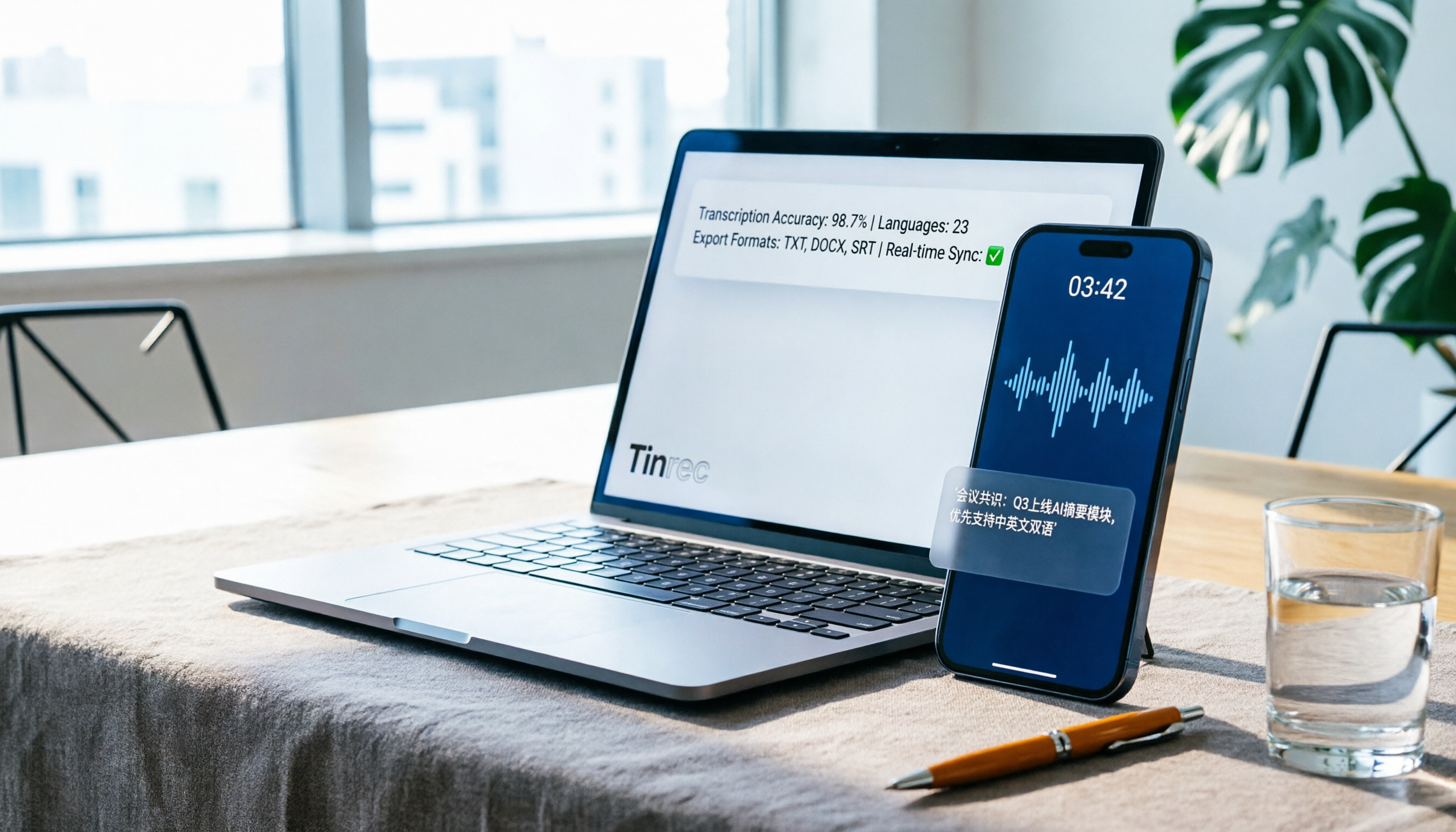
6 iPhone Call Recording Apps Tested for 2026: Which Free Option Actually Records?
iPhone call recording apps advertise themselves as free, but after downloading you hit a subscription page. This guide covers 6 practical options—from built-in iOS call recording, Call Recorder, and TapeACall to speakerphone side-recording and AI transcription tools—explaining each one's free limits, notification tone restrictions, and ideal users, plus legal reminders for recording in Taiwan, so you can choose between zero budget and full features.

5 Call Recorder Apps Tested for 2026: The Real Key Is Whether You Can Use the Recording Right Away
Recording a phone call is easy; finding the key points afterward is the real challenge. This article starts with the system limitations of iPhone and Android, compares the practical differences among 5 common call recording solutions, and tests the workflow of importing recordings into Tinrec to generate transcripts, summaries, and action items—helping you decide which combination best fits your usage scenario.