

Turn recordings into transcripts and summaries in minutes
Upload audio or video for multilingual transcription, AI notes, and action items
How to Choose an AI Meeting Notes App in 2026: 5 Steps from Recording to Team Summaries
It's 4 PM on a Wednesday. The meeting just ended, and everyone is getting ready to log off. Suddenly, your manager asks: "Who was going to organize the client feedback? Who's following up on progress next week?" You look at the recording on your phone and your blank notes, and realize the key points are scattered across seven or eight different conversations.
This isn't a memory problem—it's that the meeting notes process isn't connected. Recording, transcribing, extracting key points, assigning action items, and putting everything into the team knowledge base—if any one of these steps relies on manual work, it slows down the entire post-meeting workflow.
This article breaks it down into 5 steps, explains how to choose an AI meeting notes app, and shows what role Tinrec plays in a real meeting workflow.
The Pain Point of Meeting Notes Isn't Slow Typing—It's Disconnected Data
The first scenario is online meetings. After a Zoom, Google Meet, or Microsoft Teams call, you have the recording, but no one wants to rewatch 50 minutes. It's not so much that you lack a transcript—it's that you lack a summary and action items you can quickly scan.
The second scenario is in-person interviews. Recording on your phone is convenient, but back at the office you have to re-listen, pause, and type. A 30-minute interview often takes an hour to organize. With multiple people talking over each other or technical jargon, correction time gets even longer.
The third scenario is scattered team data. Colleague A's transcript is in their personal cloud, Colleague B's action items are in a chat room, and when Colleague C leaves, the meeting context disappears with them.
So the real problem to solve isn't "how to record"—it's "how to turn meetings into searchable, queryable, transferable data."
Before Choosing an AI Meeting Notes App, Understand These 4 Key Points
1. How does the meeting audio get in?
Some tools use a meeting bot to join the meeting, some use a desktop app to capture system audio, and some only allow uploading audio files. You need to first confirm whether you most often have online meetings, in-person meetings, or post-meeting recording organization. Tinrec's desktop version can directly capture computer system audio, handling Zoom, Google Meet, Microsoft Teams, and Webex meetings played on your computer without needing an extra bot to join.
2. What can it produce after transcription?
Looking only at the transcript easily underestimates a tool's value. A good app should automatically generate summaries, chapters, key points, and action items, and ideally let you continue asking questions about the meeting content. Instead of manually Ctrl+F for keywords, just ask: "What are the three things the client cares about most?"
3. Is it smooth enough for Chinese and cross-language meetings?
In Taiwanese workplaces, it's common to mix Chinese and English, product terms, and client names. When choosing, check whether it supports Chinese, multiple languages, real-time translation, and bilingual viewing. Tinrec can handle Chinese, Traditional Chinese, and multilingual meetings, and supports team hotwords, but note: transcription quality is still affected by recording quality, noise, accents, overlapping speech, and technical jargon.
4. Should meeting data stay with individuals or be retained by the team?
For personal use, look at free quota and export formats; for team use, look at members, roles, seats, shared quota, usage, and auditing. Tinrec's team version is a separate team space where data belongs to the team, not multiple people sharing one personal account.
Tinrec—Connecting Meetings from Recording to Team Summaries
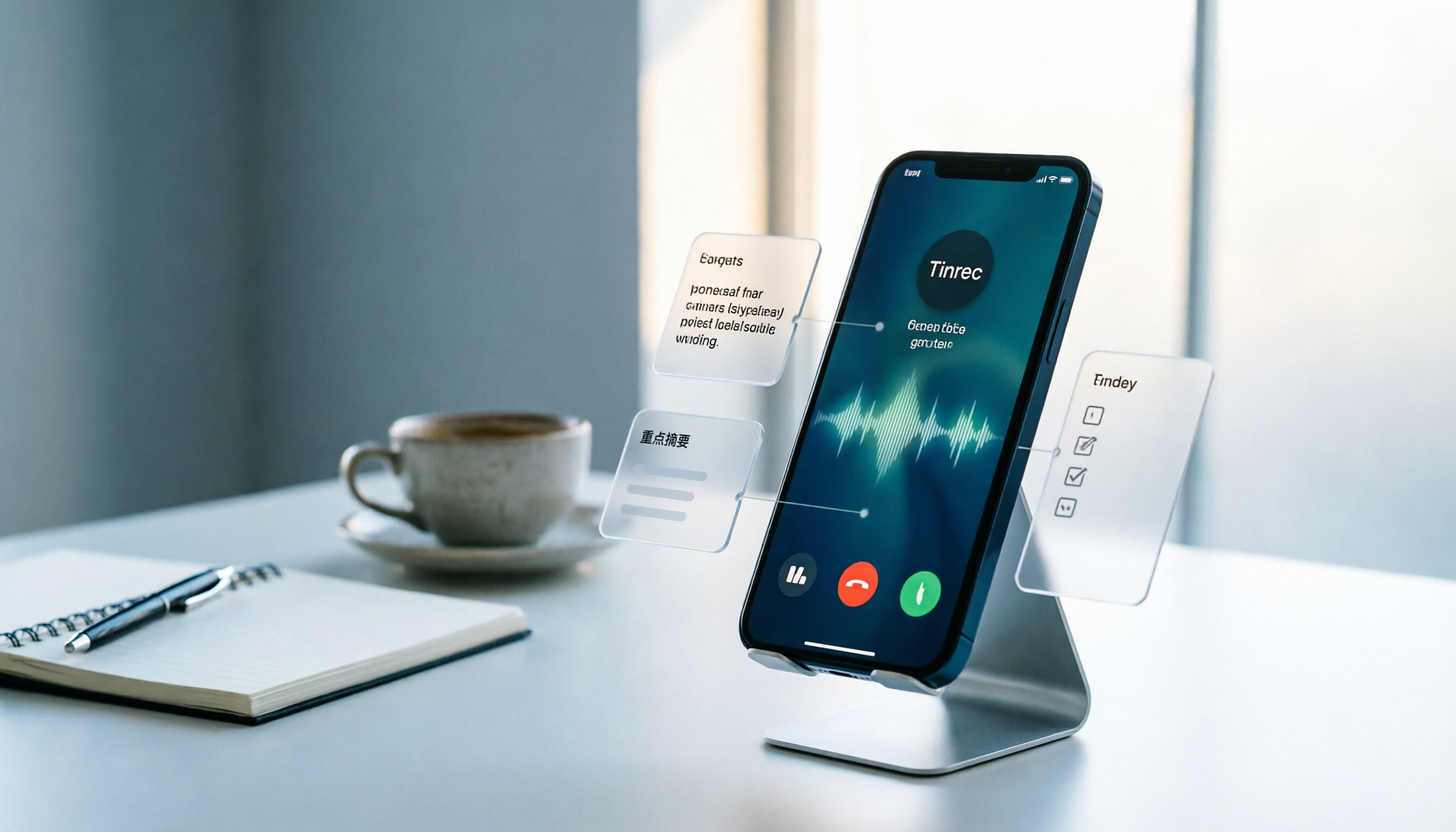
Tinrec is an AI meeting notes and collaboration tool for individuals and teams, supporting real-time recording, bot-free online meeting transcription via desktop, audio/video file import, real-time translation, AI summaries, action items, AI Q&A, multi-format export, and team spaces.
I'll look at it through 5 steps, because most people get stuck not on a single feature but on the post-meeting workflow.
Step 1: Choose a source and start recording
For in-person meetings, use real-time recording; for online meetings, use the desktop version to capture system audio; if you already have recordings or videos, upload the files; for on-the-go communication, use your phone. Tinrec also supports importing some web links, but this is more suitable for supplementary material and should not be the main entry point for team meeting notes.
Note that Tinrec is not a meeting bot that "automatically joins all calendar meetings." You need to actively open the desktop version to start recording. The advantage is that there's no extra bot participant in the meeting, and there's no need to imply official partnerships with Zoom or Teams.
Step 2: Transcribe while recording—get a readable transcript first
During the meeting, Tinrec transcribes content into text in real time. For cross-language meetings, you can view the original text, translation, or bilingual content. The value here is "no need to wait until after the meeting to start organizing"—participants can see most of the content before they log off.
I don't recommend promising a fixed accuracy rate. Real meetings have air conditioning noise, keyboard sounds, and people talking over each other—results will definitely differ from a quiet recording studio. Important decisions, amounts, dates, and names should still be verified against the transcript timestamps and recording.
Step 3: Use AI summaries, chapters, and action items to distill key points
After the meeting, Tinrec can generate summaries, chapters, key points, and action items, and can also organize them into a mind map. This is especially useful for long meetings: first look at the summary to judge what's important, then click into chapters to see the transcript.
Stop organizing recordings by hand
Upload audio or video and automatically get a transcript, summary, and action items
Action item extraction is what many people really need. Instead of just getting a transcript, you directly see "who's responsible, when it's due, and what unresolved issues remain."
Step 4: Ask follow-up questions about meeting content and generate post-meeting deliverables
Tinrec's AI Q&A lets you continue asking questions about single or multiple meeting materials. For example, ask it: "Who mentioned budget risks in the last meeting?" "What were the client's concerns about the delivery timeline?" This is much faster than manually flipping through a 30-minute transcript.
When you need to write reports, you can also use Agent post-processing to generate reports, tables, and documents; results can be exported to Notion, Google Docs, OneNote, Dropbox, and other tools for further processing. For people who need post-meeting deliverables, this is more practical than just transcribing text.
Step 5: Put it into the team space so data can be handed over
Tinrec's team version provides a separate team space where you can create and switch between multiple teams, invite members via join links, and set owners, admins, and regular members. Teams can centrally store Audio, Folder, TODO, and meeting data, and view usage trends, member rankings, details, and audit logs.
Here you need to distinguish between "roles" and "seats." Roles determine who can manage the team, members, auditing, and team settings; seats determine whether members can record, upload, edit, import, export, and use team resources. Members who are active but have no seat can still view, play, and read team data, but cannot perform uploads, edits, imports/exports, and other operations.
Team data belongs to the team. When a member leaves, is removed, or loses their seat, the team resources they were responsible for need to be handed over to other active members. The team also provides team hotwords, an audio recycle bin, and a permanent cleanup process; currently the audio recycle bin retention period is 30 days.
Pricing and limitations—let's be clear upfront
The personal version has a free version, weekly card, Pro monthly, and Pro annual, suitable from light trial to long-term retention. The team version's first eligible trial is 7 days, 1 free seat, and 300 minutes of team shared import quota; team monthly is USD 29.80 per paid seat per month, annual is USD 199 per paid seat per year, equivalent to about USD 16.58 per month. Paid seats provide 2,000 minutes of team shared import quota per month.
Under an active team plan and active seat, real-time recording currently does not deduct minutes; file and web imports consume team shared import minutes and do not fall back on members' personal quotas. Prices, currencies, and promotions should be subject to the official purchase page.
Limitations to note: Tinrec is currently not a fine-grained document permission system, but rather team-level sharing, role governance, and seat-based usage control; it also should not be claimed to "completely replace manual note-taking." AI may miss or misunderstand details, and important information should still be checked against the original.
Besides Tinrec, What Other AI Meeting Notes Apps Are There?
Granola is a bot-free AI meeting notes tool. Basic is free, Business is USD 14 per user per month, and Enterprise is USD 35 per user per month. It emphasizes real-time notes and AI enhancement, but does not support uploading pre-recorded audio and does not save meeting audio. If you need to keep recordings, import historical files, and ask post-meeting questions, Tinrec is more suitable.
PLAUD Note/NotePin is a representative AI recording hardware. NotePin is USD 159, Note Pro is USD 189; Starter is 300 minutes per month, Pro is USD 99.99 per year with 1,200 minutes per month, and Unlimited is USD 239.99 per year. It's suitable for on-the-go recording but requires extra hardware; Tinrec requires no device purchase and works on web, desktop, and mobile, and can also handle online meetings.
TurboScribe leans toward cost-effective file transcription. Free allows 3 files per day, up to 30 minutes per file; Unlimited annual is USD 120, equivalent to USD 10 per month, paid version supports up to 10 hours or 5 GB per file, and can upload 50 files at once. It's strong for long documents and batch files, but doesn't focus on real-time meetings and team meeting databases; if you want to transcribe while meeting, ask post-meeting questions, and retain team knowledge, Tinrec is a better fit.
Pitfall Guide: The 4 Most Common Mistakes When Choosing an AI Meeting Notes App
Pitfall 1: Only looking at free minutes, not single-session limits.
Some free plans give 120 minutes per month, but each session is capped at 3 minutes; a 40-minute meeting will hit the limit. When choosing, look at monthly quota, single-session cap, file import limits, and team shared quota.
Pitfall 2: Treating "having a transcript" as the end goal.
A transcript is just raw material. Without summaries, chapters, action items, and Q&A, you still have to organize manually. Instead of just comparing transcription minutes, look at whether it can produce usable post-meeting data.
Pitfall 3: Ignoring team seats and roles.
The team version is not "everyone sharing one account." Confirm who can view, who can upload and edit, how seats are allocated, and how data is handed over when members leave. Tinrec separates roles, seats, and member relationships, making team governance clearer.
Pitfall 4: Assuming desktop recording equals automatically joining meetings.
Tinrec's desktop version captures computer system audio and requires the user to actively start recording; it is not a calendar bot and does not imply official partnerships with Zoom, Meet, or Teams. Also, recording and transcription should comply with local laws, and participant consent should be obtained when necessary.
Summary: Choose the Right App in 5 Steps and Turn Meetings into Actionable Data
If you want a "usable right after the meeting" workflow, I'd recommend choosing this way:
- Chinese meetings, mixed Chinese-English, and need real-time translation and bilingual viewing → Tinrec
- Don't want an extra bot in online meetings → Tinrec desktop version
- Need to upload historical audio, keep recordings, and ask AI questions after meetings → Tinrec
- Team needs to share meetings, manage seats, usage, and auditing → Tinrec team version
- Need to generate reports, tables, documents after meetings and export to existing workflows → Tinrec
- Only handling large volumes of long-document batch transcription → TurboScribe (a few exceptions)
Back to that Wednesday afternoon meeting. Instead of worrying after the meeting about who's responsible for organizing, choose your tool before the meeting starts: Step 1 start recording, Step 2 get the transcript, Step 3 distill summaries and action items, Step 4 ask follow-up questions, Step 5 put it into the team space.
Tinrec's free version and team trial let you run through the workflow once in a real meeting. First confirm whether it fits your work habits, then decide whether to upgrade—that's more practical than just looking at spec sheets.
References
- AI Meeting Notes Software Recommendations: 5 App Reviews, Automatic Transcription Makes Meetings Easy!
- Meeting Notes AI Recording Transcription App - App Store
- AI Meeting Notes - Google Play App
- Top AI Meeting Notes Tools of 2026, Time-Saving Must-Haves for Meetings!
- No Time Limit! 3 Free AI Transcription Tools, Highly Recommended! AI Voice Notes Generate Meeting Notes, Presentations, Mind Maps | 104 Career Power
Turn every recording into actionable outcomes
Get 60 free transcription minutes when you sign in. No credit card required.
Related Reading
You might also like
How to Record iPhone Calls in 2026: iOS 18.1 Built-in Feature + Transcription Guide
Confused about iPhone call recording? Older posts say it's impossible, but iOS 18.1 now supports it. This guide covers how to enable built-in call recording, regional and device restrictions, whether the other party hears a notification, and compares 7 recording and post-call organization solutions including Tinrec, Otter, Notta, TurboScribe, Granola, and PLAUD—so you can go from recording to transcript, summary, and action items in one go.

5 Phone Call Recording Solutions Tested for 2026: iPhone, Android, LINE, and AI Transcription Compared
A practical guide addressing common phone recording questions from Dcard, comparing iPhone, Android, LINE, and AI-powered transcription workflows. Covers legal reminders, recording limitations, and how to use Tinrec to turn call audio into transcripts, summaries, and action items.

How to Choose Brainstorming Tools in 2026: A 5-Step Practical Guide
Brainstorming sessions end, but ideas get scattered across whiteboard photos and group chats. This article, from a mid-level manager's practical perspective, breaks down the 5-step process for brainstorming tools in 2026 and 4 key purchasing criteria. It uses Tinrec to demonstrate how AI recording, transcription, summarization, to-dos, and Q&A can turn meeting ideas into team knowledge. It also honestly compares the use cases and limitations of Otter.ai, Notta, and Granola.

Tinrec vs Otter.ai in 2026: 5-Dimension Comparison for Chinese Meeting Scenarios
Starting from the common PTT question about choosing an AI meeting notes tool, this article compares Tinrec and Otter.ai across 5 dimensions: Chinese recognition, meeting capture, post-meeting organization, team collaboration, and pricing, to help you decide which one better fits your meeting scenarios.

2026 AI Meeting Notes Tools Compared: Which One Actually Saves You Time?
Most people looking for AI meeting notes tools only get transcription, not organization. This article examines four key aspects: how meeting audio gets in, what happens after transcription, handling Chinese and mixed Chinese-English, and team data ownership. We tested and compared Tinrec, Otter.ai, Notta, and Granola on features, limitations, and pricing, and summarized four common purchasing pitfalls to help you decide which one to buy based on a real meeting.

2026 Comparison of 4 Call Recording & Post-Call Tools: iPhone Limits, Android Built-in, and How to Choose Tinrec
Common call recording questions on Dcard often revolve around iPhone limitations, whether Android's built-in features are sufficient, and how to organize recordings afterward. This article starts from real-world usage scenarios, compares built-in phone features, Cube ACR, CallsBox, and explains how to use Tinrec to turn call audio into transcripts, summaries, and action items.

How to Teach Brainstorming in 2026: A Complete 5-Step Guide from Grouping to AI Summarization
Teaching brainstorming isn't just about locking everyone in a conference room. This guide covers Osborn's four principles, grouping 6 to 12 people, pre-meeting independent thinking, and post-meeting steps to turn transcripts into summaries and action items. It also compares Tinrec, Granola, TurboScribe, and PLAUD for discussion documentation.

2026 Comparison of 5 Classroom Note-Taking Apps: How to Choose from Handwriting to AI Transcripts
A classroom note-taking app is not just about moving paper notes to a tablet. This article addresses three common misconceptions, compares the differences among 5 classroom note-taking approaches, and uses Tinrec to demonstrate a complete workflow from recording, transcription, AI summaries to pre-exam review, along with 5 purchasing checkpoints and FAQs.

3 Best Brainstorming Tools in 2026: From Idea Generation to Post-Meeting Action
Brainstorming tools shouldn't just be about sticky notes. We tested Tinrec, Candor, and Visual Paradigm Online from divergent thinking to convergent action to help you find the tool that actually keeps your conclusions.