
Turn recordings into transcripts and summaries in minutes
Upload audio or video for multilingual transcription, AI notes, and action items
How to Record iPhone Calls in 2026: iOS 18.1 Built-in Feature + Transcription Guide
Bottom line: iPhone can now record calls, but only if your phone is updated to iOS 18.1 or later. If you've seen posts saying "iPhone can't record calls at all," those are likely outdated—since iOS 18.1 launched in 2024, there's a built-in "Record" button during regular phone calls. When you tap it, the system counts down 3 seconds, both parties hear a "This call will be recorded" notification, and the recording is saved to the "Call Recordings" folder in the Notes app. This guide answers the most common questions about iPhone call recording—"Will the other person know?" "Which regions can't use it?" "How do I organize recordings afterward?"—and compares 7 recording and post-call organization solutions.
Why You Need iPhone Call Recording
The need for call recording is usually specific: verbal agreements from clients, rent and repair terms from landlords, interview times and locations, medical and care instructions from family. Just because you understood it in the moment doesn't mean you'll remember it three days later. A common frustration is "I didn't dare ask them to repeat it, and now I'm afraid I misremembered."
Another issue is organizing recordings afterward. A 30-minute call takes 30 minutes to listen to again; if you also need to type a transcript and extract action items, it's easy to procrastinate without tools. The list below starts with "AI organization after recording," then covers iPhone's built-in recording and other transcription options.
Option 1 | Tinrec — Turn call recordings into searchable, queryable data
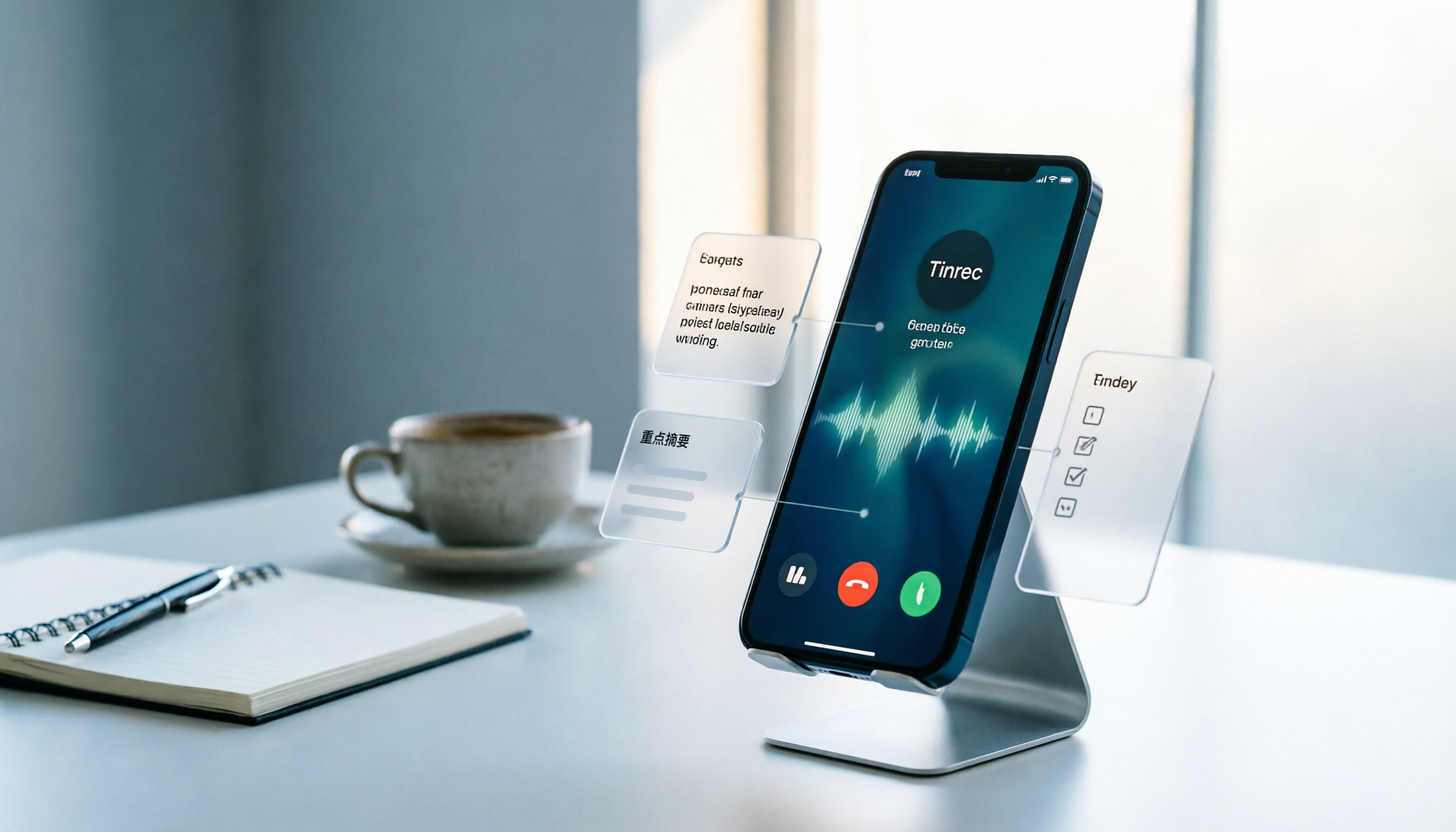
Tinrec is not a tool that directly records iPhone calls—let's be clear about that. Its role is an "AI organization hub after recording": you import iPhone call recordings, online meeting audio, or existing audio files, and it transcribes them, automatically generates summaries, chapters, key points, and action items, and even lets you ask AI questions about the meeting content. For people who frequently attend meetings or conduct interviews, the real time sink isn't recording—it's organizing afterward.
Its core highlights are fourfold. First, the desktop version can capture computer system audio to record online meetings on Zoom, Google Meet, Microsoft Teams, Webex, etc., without inviting a meeting bot. Second, after transcription, it doesn't just give you a transcript—it also generates summaries, chapters, action items, and mind maps, perfect for post-meeting review. Third, you can continue asking questions about single or multiple meeting materials, such as "What discount did the client finally agree to?" or "What was decided last week?" Fourth, the team version offers independent team spaces, member and seat management, usage analytics, audit logs, and an audio recycle bin, so meeting data doesn't disappear when an individual leaves.
Free and paid plans: The free version lets you experience basic recording, import, summaries, and transcription; short-term users can get a weekly card; regular users can choose Pro monthly or Pro annual. For teams, first-time eligible users can try 7 days free with 1 free seat and 300 minutes of shared team import quota; team monthly is USD 29.80 per paid seat per month, annual is USD 199 per paid seat per year (about USD 16.58/month), with 2,000 minutes of shared team import quota per paid seat per month. Actual prices and benefits are subject to the official purchase page.
Who it's for: People who need to quickly turn call recordings, meeting recordings, or interview audio into transcripts, summaries, and action items; those who need Chinese or mixed Chinese-English meeting organization; and teams that want to build a searchable team knowledge base from meeting data.
Option 2 | iPhone Built-in Call Recording — Official solution in 3 steps
Positioning: Built into iOS 18.1 and later, free, no third-party app needed. This is currently the most direct way to record iPhone calls, but there are three prerequisites to confirm first.
The steps are simple:
- Confirm your iPhone is updated to iOS 18.1 or later, and check Apple's support page to see if call recording is available in your country or region.
- Make or receive a regular phone call, and tap the "Record" button on the call screen. The system counts down 3 seconds, both parties hear a "This call will be recorded" notification, and recording begins.
- After ending the call or stopping the recording, open the Notes app and go to the "Call Recordings" folder to play back, view the transcript, or see the summary.
Highlights: Free, operates directly from the phone interface, recordings automatically saved to Notes, and some models and languages can auto-transcribe. Prerequisites: The other party will know they're being recorded; Apple's support page currently lists some regions where call recording is unavailable; transcripts and summaries require supported languages and minimum device requirements—not every iPhone has them; deleting a recording also deletes the transcript.
Who it's for: People who only need to record regular calls, have zero budget, and are in a supported region. If you want post-call summaries, action items, AI Q&A, and team sharing, the built-in feature alone isn't enough—pairing it with an organization tool like Tinrec will save more time.
Stop organizing recordings by hand
Upload audio or video and automatically get a transcript, summary, and action items
Option 3 | Otter.ai — A veteran choice for English meeting notes
Otter.ai is a mature AI meeting assistant that supports Zoom, Microsoft Teams, Google Meet, real-time transcription, speaker identification, AI Chat, and team management. Pricing: Basic is free with 300 minutes per month; Pro annual is about USD 8.49 per user per month, including 1,200 minutes of in-app recording and 10 file imports per month; Business offers unlimited meetings and in-app recording, more imports, and management capabilities—actual prices subject to the official page. Suitable for those focused on English business meetings who need mature meeting automation. The difference from Tinrec is that Tinrec emphasizes Chinese meetings, bot-free desktop recording, and team data retention.
Option 4 | Notta — Multilingual transcription and team plans
Notta overlaps significantly with Tinrec, covering multi-platform transcription, meeting notes, file import, translation, and team plans. Free is 120 minutes per month, max 3 minutes per item; Pro annual is about USD 8.17 per month with 1,800 minutes per month; Business annual is about USD 16.67 per seat per month, offering unlimited transcription, role permissions, and usage reports. Suitable for those who need multilingual transcription and team permissions. Prices subject to the official page.
Option 5 | TurboScribe — Cost-effective long audio transcription
TurboScribe is more of a cost-effective file transcription tool, focusing on long files, batch uploads, subtitles, and translation. Free allows 3 files per day, max 30 minutes per file; Unlimited annual is USD 120 (about USD 10/month), with paid version supporting up to 10 hours or 5 GB per file and 50 files per upload. Suitable for one-time organization of large volumes of long audio, podcasts, or lecture recordings. If you need real-time meetings and post-meeting action items, Tinrec's workflow is a better fit. Prices subject to the official page.
Option 6 | Granola — Bot-free meeting notes
Granola is a bot-free AI meeting notes tool that transcribes in real time via desktop system audio and microphone, and combines with user handwritten notes to generate meeting content. Basic is free; Business is USD 14 per user per month; Enterprise is USD 35 per user per month. It supports real-time transcript viewing, copying, and searching, designed primarily for live meetings; pre-recorded audio requires other tools, and it doesn't save meeting audio. Suitable for those who like to take notes during meetings and focus on English meetings. Prices subject to the official page.
Option 7 | PLAUD Note / NotePin — Portable recording hardware
PLAUD Note / NotePin are AI recording hardware devices, with selling points including portable recording, phone call recording, long battery life, and hardware form factor. The US official site shows NotePin at USD 159 and Note Pro at USD 189; Starter is 300 minutes per month; Pro is USD 99.99 per year with 1,200 minutes per month; Unlimited is USD 239.99 per year. Suitable for those who don't want to use their phone to record and need a standalone device. If you value online meetings, historical files, and a team database, Tinrec's multi-platform and post-meeting workflow is more complete. Prices subject to the official page.
With So Many Options, How Should You Choose?
• You want "quick organization after recording" → Tinrec: transcript, summary, chapters, action items, and AI Q&A all in one. • You often have Chinese or mixed Chinese-English meetings → Tinrec: Chinese meetings and mixed-language content are its main scenarios. • You need to switch between phone, computer, and web → Tinrec: multi-platform use, meeting data stored centrally. • You want to turn past meetings into a searchable database → Tinrec: ask questions about single or multiple meetings. • Your team needs to share meetings, manage seats and usage → Tinrec Team: team spaces, roles, seats, usage, and auditing. • You only need to record regular calls, zero budget → iPhone built-in call recording: free, directly from the phone interface. • You focus on English meetings → Otter.ai: mature for English business meetings. • You need multilingual support and role permissions → Notta: complete multilingual transcription and team plans. • You only have one-time long audio files → TurboScribe: cost-effective for long files and batch uploads. • You like to take notes during meetings → Granola: notes combined with AI enhancement. • You want portable hardware recording → PLAUD Note / NotePin: standalone device, easy to carry.
If you're unsure, start by importing a call recording or meeting audio into Tinrec's free version to see if the transcript and summary fit your workflow; only use iPhone's built-in feature when you purely need to record regular calls.
4 Things to Know Before Using iPhone Call Recording
- The other party will know. This is not a stealth recording feature. After tapping record, there's a 3-second countdown and both parties hear a notification; in a quiet environment, the other person can easily hear it.
- Not available in all regions. Apple's support page lists some countries and regions where call recording is unavailable; Taiwan is not currently on the restricted list, but actual availability depends on Apple's support page and your carrier environment.
- Transcripts and summaries aren't available on every phone. Call recording itself requires iOS 18.1 or later; transcripts require supported languages and minimum device requirements, and summaries may also involve Apple Intelligence device and language limitations. If you don't see a transcript, it doesn't necessarily mean recording failed.
- Confirm legal and consent requirements before recording. Different countries and regions have different consent requirements for call recording; for sensitive content involving legal, medical, or financial matters, it's advisable to confirm local regulations and obtain the other party's consent first.
Another common question: Why do some people say iPhone can't record? Because those are likely discussions from before iOS 18.1, or they're confusing "call recording" with "recording calls in messaging apps." The built-in feature is mainly for regular phone calls; calls in messaging apps like LINE or WhatsApp may not be supported—check Apple's documentation before use.
Conclusion
After iOS 18.1, iPhone call recording is no longer "completely impossible" but "possible with conditions": you need a supported region, an updated system, and acceptance that the other party will hear a notification. The built-in feature is suitable for purely recording regular calls; if what you really need is post-call transcripts, summaries, action items, AI Q&A, and team sharing, a post-meeting organization tool like Tinrec saves more time. If budget is limited, start with the free version and upgrade once you confirm the workflow fits.
References
- #iPhone Call Recording - Apple forum | Dcard
- #iPhone iPhone beta starts supporting call recording! - Apple forum | Dcard
- [Phone Tips] 2026 iPhone built-in "Call Recording" feature tutorial! iOS enable call recording/key points to note | 傑昇通信~挑戰手機市場最低價
- Record and transcribe calls on iPhone - Apple Support (Taiwan)
- How to record iPhone calls? 5 iPhone call recording methods revealed!
Turn every recording into actionable outcomes
Get 60 free transcription minutes when you sign in. No credit card required.
Related Reading
You might also like

5 Phone Call Recording Solutions Tested for 2026: iPhone, Android, LINE, and AI Transcription Compared
A practical guide addressing common phone recording questions from Dcard, comparing iPhone, Android, LINE, and AI-powered transcription workflows. Covers legal reminders, recording limitations, and how to use Tinrec to turn call audio into transcripts, summaries, and action items.

How to Choose Brainstorming Tools in 2026: A 5-Step Practical Guide
Brainstorming sessions end, but ideas get scattered across whiteboard photos and group chats. This article, from a mid-level manager's practical perspective, breaks down the 5-step process for brainstorming tools in 2026 and 4 key purchasing criteria. It uses Tinrec to demonstrate how AI recording, transcription, summarization, to-dos, and Q&A can turn meeting ideas into team knowledge. It also honestly compares the use cases and limitations of Otter.ai, Notta, and Granola.

How to Choose an AI Meeting Notes App in 2026: 5 Steps from Recording to Team Summaries
Starting from a meeting that just ended but no one wants to organize, this article explains the key considerations for choosing an AI meeting notes app and demonstrates 5 steps with Tinrec: recording, transcription, summarization, follow-up questions, and team knowledge retention.

Tinrec vs Otter.ai in 2026: 5-Dimension Comparison for Chinese Meeting Scenarios
Starting from the common PTT question about choosing an AI meeting notes tool, this article compares Tinrec and Otter.ai across 5 dimensions: Chinese recognition, meeting capture, post-meeting organization, team collaboration, and pricing, to help you decide which one better fits your meeting scenarios.

2026 AI Meeting Notes Tools Compared: Which One Actually Saves You Time?
Most people looking for AI meeting notes tools only get transcription, not organization. This article examines four key aspects: how meeting audio gets in, what happens after transcription, handling Chinese and mixed Chinese-English, and team data ownership. We tested and compared Tinrec, Otter.ai, Notta, and Granola on features, limitations, and pricing, and summarized four common purchasing pitfalls to help you decide which one to buy based on a real meeting.

2026 Comparison of 4 Call Recording & Post-Call Tools: iPhone Limits, Android Built-in, and How to Choose Tinrec
Common call recording questions on Dcard often revolve around iPhone limitations, whether Android's built-in features are sufficient, and how to organize recordings afterward. This article starts from real-world usage scenarios, compares built-in phone features, Cube ACR, CallsBox, and explains how to use Tinrec to turn call audio into transcripts, summaries, and action items.

How to Teach Brainstorming in 2026: A Complete 5-Step Guide from Grouping to AI Summarization
Teaching brainstorming isn't just about locking everyone in a conference room. This guide covers Osborn's four principles, grouping 6 to 12 people, pre-meeting independent thinking, and post-meeting steps to turn transcripts into summaries and action items. It also compares Tinrec, Granola, TurboScribe, and PLAUD for discussion documentation.

2026 Comparison of 5 Classroom Note-Taking Apps: How to Choose from Handwriting to AI Transcripts
A classroom note-taking app is not just about moving paper notes to a tablet. This article addresses three common misconceptions, compares the differences among 5 classroom note-taking approaches, and uses Tinrec to demonstrate a complete workflow from recording, transcription, AI summaries to pre-exam review, along with 5 purchasing checkpoints and FAQs.

3 Best Brainstorming Tools in 2026: From Idea Generation to Post-Meeting Action
Brainstorming tools shouldn't just be about sticky notes. We tested Tinrec, Candor, and Visual Paradigm Online from divergent thinking to convergent action to help you find the tool that actually keeps your conclusions.