

Turn recordings into transcripts and summaries in minutes
Upload audio or video for multilingual transcription, AI notes, and action items
The projector screen in the meeting room is still on, and you're typing furiously. When you look up, you've already missed two conclusions.
This is where most people start looking for speech-to-text tools—not to try something new, but to stop taking notes while listening. But once you start comparing, the questions change: Is the free version enough? Does it work with Chinese? And who will help me turn that long block of text after the meeting into something usable?
This article uses the same criteria to look at six common tools: Tinrec, Otter.ai, Notta, TurboScribe, Granola, and PLAUD. Then we walk through the complete workflow with Tinrec so you can see what else you can do after "transcription."
Before You Start: 4 Things to Clarify
- Where the meeting takes place: Online meetings (Zoom, Google Meet, Microsoft Teams, Webex) and in-person interviews require different recording methods.
- Whether to keep the audio: Some tools only keep text, so if you want to verify exact wording or tone later, there's nothing to listen back to.
- Whether you only need a transcript or also summaries and action items: This is the dividing line between a "transcription tool" and a "meeting notes tool."
- Who will use the data: Whether it's just for you or for the whole team to share makes a big difference in permissions and storage.
(Illustrative image: An online meeting open on a desk, with a transcript growing in another window)
Quick Positioning of the Six Tools
| Tool | Positioning | How meetings get in | Post-meeting output | Price range |
|---|---|---|---|---|
| Tinrec | AI meeting notes and team collaboration | Desktop app captures system audio without a bot, live recording, audio file import | Transcript, summary, chapters, action items, AI Q&A, export | Free tier for personal; team plan USD 29.80 per paid seat per month |
| Otter.ai | AI meeting assistant | Meeting bot and desktop app | Transcript, summary, AI Chat | Free 300 minutes per month; Pro annual billing equivalent to USD 8.49 per user per month |
| Notta | Multilingual transcription | Meeting and file import | Transcript, translation, summary | Free 120 minutes per month (3 minutes per session); Pro annual billing equivalent to USD 8.17 per month |
| TurboScribe | Cost-effective file transcription | Primarily file upload | Transcript, subtitles, translation | Free 3 files per day; Unlimited annual USD 120 |
| Granola | Bot-free AI meeting notes | Desktop system audio + microphone | Enhanced notes, viewable and searchable transcript | Basic free; Business USD 14 per user per month |
| PLAUD | AI recording hardware | Physical device recording | Summary, templates, Q&A | NotePin USD 159, Note Pro USD 189; Pro membership USD 99.99 per year |
Step 1: Record the Meeting Audio—No Bot Required
The goal of this step is to get a clean meeting audio file, which everything else depends on.
The common approach for online meetings is to invite a "meeting bot" to join as a participant. The advantage is full automation; the downside is that it appears in the participant list. Tinrec's desktop app takes a different path: it directly captures the computer's system audio, so no extra bot needs to join, and you don't have to ask clients to wait while you set it up.
In practice, you just open the desktop app, confirm the audio source, and press record. For in-person interviews, switch to live recording and place your phone on the table.
Why bring this up? Because "an extra bot in the meeting" may not matter for internal meetings, but it can be a concern for external visits, interviews, or sensitive meetings. Bot-free approaches like Granola and Tinrec have been discussed more in recent years for this reason.
When done, you'll have a recording with a timeline, and everything else builds on it.
(Illustrative image: A phone placed in the center of a meeting table, showing a recording waveform on screen)
Step 2: Let AI Turn Audio into a Transcript
The goal is to turn a 40-minute conversation into searchable text.
Tinrec starts transcribing while recording, so by the end of the meeting the transcript is roughly formed. For existing files, uploading or importing also produces a transcript with timestamps.
When you put the same Chinese meeting recording into different tools, the difference usually isn't whether it transcribes at all, but how it handles punctuation, mixed Chinese-English, and speaker separation. Tinrec covers Chinese and multilingual scenarios and can handle sentences with mixed Chinese and English, but actual performance is still affected by recording quality, accents, and overlapping speech—this is true for every tool, so don't believe claims of fixed accuracy rates.
The finished transcript is searchable, and you can click timestamps to play back and verify.
(Illustrative image: A laptop screen with audio waveform on the left and paragraph text with timestamps on the right)
Step 3: Proofread and Confirm Speakers
The goal is to fix obvious errors so the summaries generated later are trustworthy.
My habit is to scan once and only fix three things: names and company names, numbers and dates, and conclusion sentences. Leave other filler words alone.
Stop organizing recordings by hand
Upload audio or video and automatically get a transcript, summary, and action items
Tinrec offers team hotwords, so you can add frequently occurring product names, project codes, and abbreviations. This makes transcription more consistent for the same team. It's especially noticeable for Chinese meetings, because internal terminology is often where errors are worst.
(Illustrative image: A transcript screen with several names highlighted, and a hotword management list popping up on the right)
Step 4: Let AI Generate Summaries, Chapters, and Action Items
The goal is to turn text into something actionable.
This is where most "pure transcription tools" and "meeting notes tools" diverge. Tinrec generates summaries, chapters, and action items on top of the transcript, so for long meetings you can just read the chapter titles and jump around.
Even better is AI Q&A: you can directly ask "What was decided at the end of this meeting?" or "What were the three concerns the client mentioned?" and it will find answers from the meeting content. When searching past meetings, this is much faster than scrolling through the transcript from the beginning.
Note that AI summaries can still miss details or misinterpret tone, so for important decisions, go back to the transcript and recording to verify.
(Illustrative image: A meeting page with summary points and an action item list on the right, cursor hovering over the Q&A input box)
Step 5: Export and Retain
The goal is to get meeting results into your existing workflow.
Transcripts and summaries can be exported as documents or taken to Notion, Google Docs, OneNote, Dropbox, and other tools for further processing. You can also use Agent post-processing to generate reports, tables, or meeting minutes drafts.
For team use, the team plan puts meeting data into a team space: data belongs to the team, new members can see past meetings, and when a member leaves or loses a seat, resources are transferred to others instead of disappearing with the personal account. Admins can also view usage, seats, and activity logs. This is one thing I check first when choosing a tool—data ownership matters more than a feature list.
(Illustrative image: An export window listing multiple formats, with a team space meeting list in the background)
Common Questions and Troubleshooting
Q: Is the free version enough?
It depends on how often you have meetings. Tinrec's free version offers a basic quota, suitable for trying it out with one or two of your own recordings. Otter.ai offers 300 free minutes per month, Notta offers 120 free minutes per month (3-minute limit per session), and TurboScribe offers 3 free files per day. For long-term use, you'll likely move to a paid plan.
Q: What if there are many typos in the transcript?
First check the recording quality. If the distance is too far or the environment is too noisy, even the best engine can't fix it. Second, use a glossary (Tinrec uses team hotwords) to feed in commonly mistyped words in advance.
Q: Do I need to invite a meeting bot?
Not necessarily. Tinrec's desktop app directly captures system audio without a bot joining as a participant; Granola uses a similar approach. Bots are suitable for teams that want full automation.
Q: Does it support Chinese and mixed Chinese-English?
Tinrec focuses on Chinese and multilingual meetings, supporting real-time translation and bilingual viewing. Actual recognition performance is affected by accents, speaking speed, and overlapping speech.
Q: Can teams share meeting data?
Yes. Tinrec's team plan is a separate team space where data belongs to the team; roles determine who can manage, and seats determine who can record, upload, and edit. Members without a seat can still view and play back. Currently, sharing is at the team level, not granular file-level permissions.
Q: Do I need to inform participants before recording?
Yes. Recording and transcription involve local regulations and personal data. In practice, you should obtain participant consent first and establish retention and deletion rules within the team.
Advanced Tips: 3 Ways to Go One Step Further
1. Use AI Q&A to search past meetings
No need to re-listen; just ask "What was the conclusion of the meeting where we discussed pricing last time?" Tinrec can answer questions about a single meeting or multiple meetings, which pure transcription tools cannot do.
2. Train your own recognition with team hotwords
Add all product lines, project codes, and client abbreviations. The first few meetings will be a bit tedious, but every meeting after that benefits.
3. Real-time translation + bilingual comparison
For cross-language meetings, you can view the original and translation while recording, and after the meeting use the bilingual transcript to confirm details, saving the time of finding a separate translator.
If You Don't Use Tinrec, Here Are Other Options
- Granola: Also bot-free, emphasizing notes and AI enhancement, suitable for those who value a personal note-taking feel; but it does not support uploading pre-recorded audio files and does not save meeting audio.
- Notta: Good multilingual transcription performance; the Business plan includes role permissions and usage reports.
- TurboScribe: Suitable for long files and batch processing; the paid version supports up to 10 hours per file and 50 files per upload.
- PLAUD: Consider it if you want a physical recording device and often take calls or work in the field, but you need to buy hardware separately.
Each of these has its strengths. If what you want is "usable minutes and action items right after the meeting, and the ability to put them into a team space," Tinrec's workflow will be smoother.
Conclusion
Back to the original question: you're not really comparing who has more transcription minutes; you're comparing who can save you a little time after the meeting ends.
Learn the five steps above—record, transcribe, proofread, generate summaries and action items, export and retain—and you can turn any meeting into searchable, queryable, transferable data. The next step is simple: take one of your own meeting recordings, run it through Tinrec's free version, and see if the transcript and minutes really save you the time you would have spent.
(Prices and plans are subject to official pages; this article was compiled in 2026.)
References
- [Review] AI PC Applications - Testing Three Quick Speech-to-Text Methods Comparison @ Computer Applications Discussion Board - Bahamut
- 2026 Comparison of 5 Free Speech-to-Text Tools: Which Is Best for Taiwanese Office Workers? - Tinrec Blog
- [2024 Update] Speech-to-Text Voice Recorder Comparison
- AI Speech-to-Text Tool Recommendations: 8 Comparisons—Which Is Best for Meeting Notes, Transcripts, and Voice Input? — Leading Era
- [AI Voice Notes] 5 Highly Recommended AI Transcription Tools! Generate Transcripts and Meeting Notes Highlights, Free vs Subscription, Pros and Cons Comparison | 104 Workplace
Turn every recording into actionable outcomes
Get 60 free transcription minutes when you sign in. No credit card required.
Related Reading
You might also like

4 Transcript Download Tools Tested in 2026: Notta Export Limits vs. Tinrec Team Workflow—Which Is More Practical?
Many people searching for "Notta download transcript" really want to confirm the format, batch limits, and team handoff methods after downloading a transcript. This article compares the export process and post-meeting workflow of Notta, Tinrec, Otter.ai, and TurboScribe, and highlights the permission and plan restrictions most easily overlooked when downloading transcripts.

3 Spanish Speech-to-Text Tools Tested: Is Notta's Free Plan Enough?
Recorded a Spanish meeting or interview but can't get a transcript? We tested Notta, TurboScribe, and Tinrec to uncover hidden free plan limits, accent recognition, and post-meeting organization. Plus 3 common pitfalls to help you choose the tool that truly saves time.

2026 Test of 3 Desktop Meeting Recording Tools: Is Notta Desktop Good Enough for Chinese Meetings?
Starting from real meeting scenarios of a mid-level manager, this article compares Notta Desktop, Granola, Otter.ai, and Tinrec on bot-free recording, Chinese recognition, post-meeting organization, and team collaboration. It also summarizes 5 key purchasing points and 4 common pitfalls to help you decide which tool fits your meeting rhythm.

Notta Download: 5 Key Factors to Consider Before Installing in 2026
What to know before downloading Notta? This article compares Notta and Tinrec across 5 dimensions: download and installation, meeting recording methods, free quota, post-meeting organization, and team collaboration. It also covers complete installation steps for Notta desktop on Windows and macOS, export limitations, and FAQs to help you decide which tool better fits your meeting workflow.
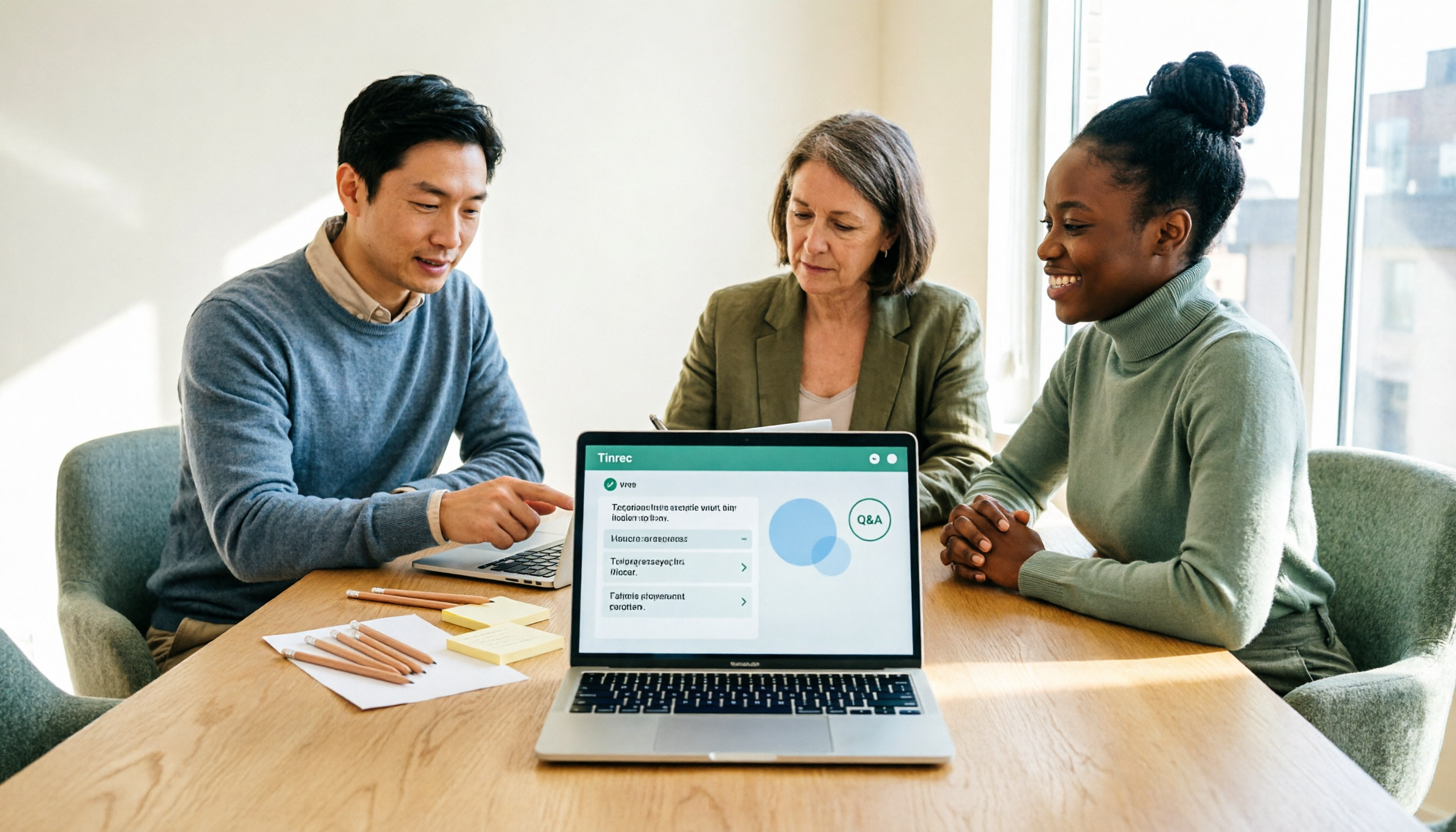
3 Mac Meeting Recorder Tools Tested in 2026: Notta Download Guide & Tinrec Review
Tired of typing transcripts after Mac meetings? We tested Notta, Otter.ai, Granola, and Tinrec, covering Notta Mac download and install steps (.dmg drag-and-drop, system requirements, free plan limits), plus comparisons of bot-free recording, AI Q&A, action item extraction, and team collaboration to help you choose the right meeting notes tool.

Notta Pricing 2026: Plans, Costs, and How Tinrec Compares
When looking up Notta pricing, the most common mistake is treating the annual-billing monthly rate as the month-to-month price. This article breaks down Notta's Free, Pro, and Business plans—costs, quotas, and add-ons—and explains why Tinrec is better suited for Chinese-language meetings and team collaboration across five dimensions: meeting capture, post-meeting workflow, cost predictability, team governance, and Chinese-language experience.

Notta for Windows Download Guide 2026: Installation, System Requirements, and Meeting Transcription Tested
Looking for a meeting transcription tool for Windows? This guide covers Notta for Windows download and installation steps, system requirements, and free plan limits. It also compares Tinrec desktop, Otter.ai, and Granola on bot-free recording, post-meeting organization, and team collaboration to help you choose the right tool.

3 Chrome Extensions for Meeting Transcription Tested in 2026: Is Notta's Free Version Enough?
People searching for 'notta chrome extension free' usually want to know what Notta's free Chrome extension can actually do and where its limits are. Starting from a real 50-minute Google Meet frustration, this article breaks down the free quota traps of Chrome extension recording, the difference between system audio and tab recording, and compares Notta, Otter.ai, Granola, and Tinrec, ending with scenario-based selection advice.

Notta Education Discount 2026: How to Get 50% Off — Eligibility, Steps & Plans
How do you apply for the Notta education discount? This guide covers eligibility for the official 50% off education offer, the web-based application steps, discounted pricing, and which plans qualify. It also compares similar transcription tools for meeting notes and team collaboration, helping students and faculty decide whether it's worth the spend.