
Turn recordings into transcripts and summaries in minutes
Upload audio or video for multilingual transcription, AI notes, and action items
As a primary communication tool for daily and professional use, LINE often lacks a built-in recording button for important calls. iPhone users in particular face system privacy restrictions that make direct in-app recording nearly impossible, leading to missed details in business negotiations or key meetings.
This article breaks down the latest LINE call recording solutions for 2026. We've tested and compiled common call recording and transcription tools, providing a detailed comparison table across 5 dimensions including platform support, transcription capability, and pricing. We also offer specific step-by-step instructions and FAQs for both iOS and Android.
Quick navigation tip: If you only need to save audio files, Android users can prioritize built-in system tools or recording apps. If you value post-call efficiency and need to convert calls into transcripts and action items, consider AI-powered transcription tools (such as Tinrec).
Review Statement and Testing Criteria
To ensure practical recommendations, this review was conducted in early 2026. Test environments included a quiet office and a coffee shop with slight background noise. The test sample was a 30-minute LINE two-way voice call, with a mix of Chinese and some English proper nouns.
Our evaluation criteria are based on five core metrics:
- System Compatibility: Can it overcome iOS/Android restrictions on VoIP calls?
- Error Rate and Recognition Accuracy: Precision of speech-to-text, especially in mixed Chinese-English scenarios.
- Segmentation Reasonableness: Can it correctly distinguish different speakers?
- Summary and Abstract Quality: Can it automatically extract meeting highlights and action items?
- Export and Integration Efficiency: Time required to process 30 minutes of audio and convenience of export formats.
Comparison Table of 5 LINE Call Recording Solutions and Results
After testing, traditional recording-only apps and new AI-powered transcription tools show significant differences in "post-processing efficiency." Below is a comparison of the 5 common solutions:
| Tool/Solution | Platform Support | Recording Method | Speech-to-Text Transcription | AI Summary & Action Items | Pricing & Free Tier |
|---|---|---|---|---|---|
| Android Built-in Recording/Screen Recording | Android only | Direct system-level capture | ❌ No | ❌ No | Completely free |
| Cube ACR | Primarily Android | Side-recording VoIP call audio | ❌ No (audio only) | ❌ No | Free basic, subscription for advanced |
| iOS Shortcuts + Voice Memos | iOS only | Requires speakerphone, mic recording | ❌ No | ❌ No | Completely free |
| LINE Desktop + OBS | Windows/Mac | Capture system audio | ❌ No | ❌ No | Completely free |
| Tinrec (SecMi Recording) | iOS, Android, Web | Requires speakerphone mic recording, or file import | ✅ Supports 10 languages auto-detection | ✅ Auto-generates meeting minutes | Free version: 100 minutes/month |
Results Data: In the 30-minute test sample, traditional recording solutions required about 40-60 minutes of manual listening and typing after recording. In contrast, AI-powered transcription tools completed transcription of 30 minutes of audio in 2-3 minutes, simultaneously producing structured key summaries.
Real-World Scenario Breakdown: Differences in Meetings, Interviews, and Personal Records
Different scenarios have distinct requirements for LINE call recording:
- Remote Business Meetings: Usually conducted on a computer. Using LINE desktop with desktop recording software is most stable. If you need to quickly send meeting minutes afterward, importing the recorded audio into an AI tool for transcription can significantly reduce administrative burden.
- Media Interviews: Journalists are often on the go, so using a phone speakerphone with another device recording, or enabling a voice recognition app on the phone for real-time capture, is common. This scenario heavily relies on low error rates to avoid misquoting.
- Personal/Legal Evidence: For such scenarios, simple audio file retention (e.g., Android built-in features) is usually sufficient. The key is recording stealth and stability.
Stop organizing recordings by hand
Upload audio or video and automatically get a transcript, summary, and action items
In-Depth Review of Tinrec: Value Advantages and Real-World Applicability
As a multi-platform AI recording assistant, Tinrec's core differentiator is that it not only provides transcription but creates a complete workflow from "recording → understanding → action."
Advantages & Value: Tinrec excels at handling high-information-density conversations. It transforms time-based content into scannable, searchable, and actionable text. In tests, it automatically identified Chinese and English, and immediately extracted conclusions and to-do lists after the call, solving the pain point of many tools that only provide transcripts without decision summaries.
Limitations & Applicability: It must be clearly noted that due to Apple and Google's privacy policies, no third-party app, including Tinrec, can directly "internally record" both sides of a LINE call on a mobile device. Therefore, to use Tinrec to record a LINE call on a phone, the common solution is to enable speakerphone so the microphone captures both your voice and the other party's. If you are in a noisy environment and cannot use headphones with a separate microphone, AI tools relying on microphone pickup will have degraded performance. Its ideal use cases are physical meetings, importing audio files from computer-based remote meetings, and personal quiet spaces where speakerphone is feasible.
Practical Tutorial: 4 Steps to Turn Call Recordings into Valuable Text
If you choose to use AI tools to boost efficiency, here are the steps using Tinrec as an example to quickly structure your audio or call content.
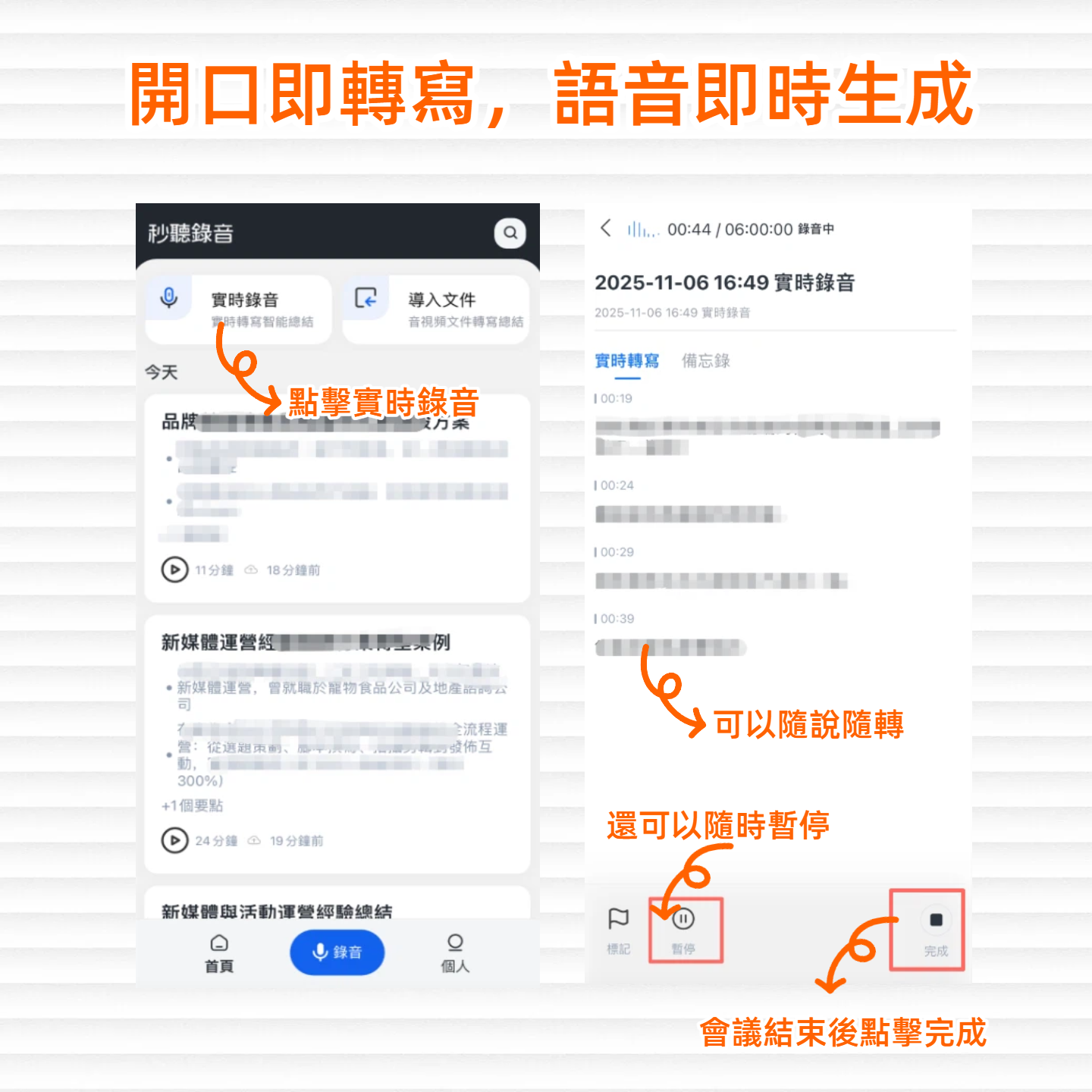
Step 1: Real-Time Transcription (for LINE calls on speakerphone)
When you are in a quiet space and on a LINE call with a client, you can enable speakerphone.
- Open the Tinrec app or web version homepage.
- Tap "Start Recording"; the system will instantly transcribe both sides of the conversation on screen.
- No need to wait during the call; you can monitor the recording and mark key points at any time.
Step 2: Audio File Transcription (for pre-recorded call files)
If you have already recorded a LINE call using Android's built-in features or desktop software:
- Go to the "Audio File Transcription" section.
- Upload your call recording file.
- The system will quickly identify and separate speakers, generate a full transcript, and automatically extract action items.
Step 3: Online Video/Link Parsing (for cloud meeting recordings)
If you conducted an online call via computer, or someone sent you a cloud meeting recording link:
- Copy the URL of the meeting recording or online video.
- Paste the link in the "Video Transcription" entry.
- The tool will automatically fetch the audio and convert it to text, generating a summary—ideal for reviewing remote project discussions.
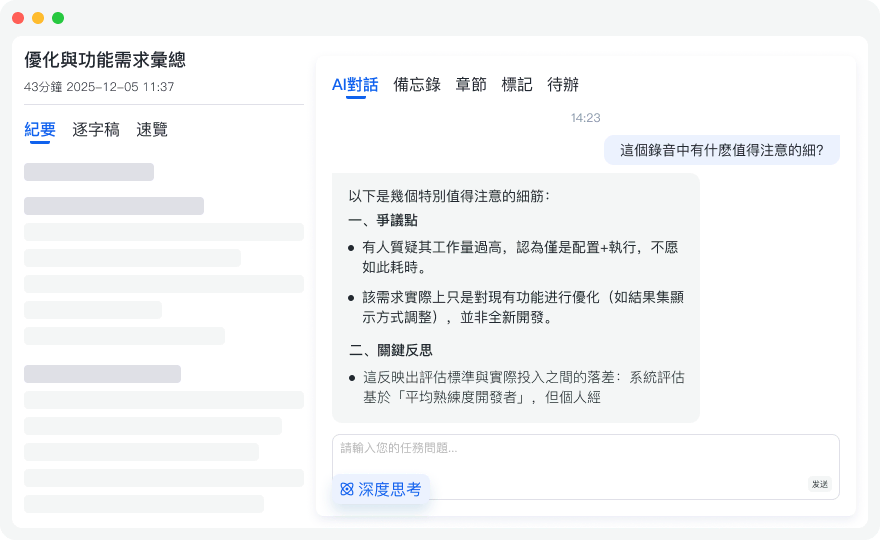
Step 4: AI Chat Query (replacing traditional Ctrl+F search)
After obtaining a lengthy transcript, you don't need to scroll manually to find key points:
- Find the "AI Chat Query" feature.
- Directly enter a semantic question, e.g., "What was the budget limit the client mentioned?"
- The system will provide an intelligent conversational answer based on the call recording content, allowing you to easily recall information as if asking a person.

Frequently Asked Questions about LINE Call Recording
1. Can iPhone (iOS) directly record LINE calls?
Due to Apple's strict privacy policy, iOS does not allow third-party apps to directly record two-way calls including the other party's voice (i.e., "internal recording"). To record on iPhone, you typically need to enable speakerphone and use Voice Memos or similar apps to capture audio through the microphone.
2. What's the recommended LINE call recording method for Android?
Some Android phones (e.g., specific models from certain brands) may allow built-in screen recording that captures media audio simultaneously. If the system doesn't support it, third-party side-recording apps like Cube ACR can be used as an alternative.
3. Are there free tools for transcribing recorded voice to text?
Many transcription tools offer a basic free tier. For example, Tinrec's free version provides up to 100 minutes of transcription per month, which is usually sufficient for occasional meeting note-taking for individual users.
4. How to get the clearest recording of LINE calls on desktop?
Desktop has fewer restrictions. You can use Windows' built-in Xbox Game Bar recording, or OBS on Windows/Mac, or QuickTime Player on Mac for screen and system audio recording. The resulting audio file, when imported into a transcription tool, typically has the best sound quality.
5. Will the other party know I'm recording? Is it legal?
Using speakerphone side-recording or desktop software, LINE does not notify the other party. However, for communication privacy and legal compliance, it is strongly recommended to verbally inform and obtain consent before recording to avoid potential disputes.
6. Can I use the same methods to record and generate summaries for Teams or Google Meet calls?
Yes. Although Teams and Google Meet have built-in recording, they are sometimes restricted by enterprise permissions. In such cases, you can use system audio recording or import the recorded file/video into the AI tools mentioned above to produce accurate meeting minutes and action items.
Summary and Tool Selection Recommendations
In summary, the choice of LINE call recording solution depends on your final scenario and purpose:
- If you only need audio backup and are an Android user: Prioritize trying the phone's built-in screen recording or third-party recording apps (e.g., Cube ACR) for the lowest learning curve and most direct approach.
- If you primarily conduct remote business meetings on desktop: Use desktop recording software (e.g., OBS) to capture system audio—the most stable and platform-independent solution.
- If you need to convert calls into meeting minutes and action items: Simple recording tools won't suffice. Adopt AI-powered speech-to-text tools with semantic understanding. Consider solutions like Tinrec that support multiple platforms and languages. Take advantage of its free tier to experience the complete workflow from recording to action items, ensuring every important conversation is truly captured and productive.
Turn every recording into actionable outcomes
Get 60 free transcription minutes when you sign in. No credit card required.
Related Reading
You might also like

Tinrec Meeting Data Access Permissions Guide 2026: Role Authorization + Seat Management
When meeting data is seen by other departments or disappears when members leave, the problem usually stems from unclear permissions. This article starts with common misconceptions, breaks down Tinrec's team space, roles, seats, and audit mechanisms, and teaches you how to set up meeting data access so you control who can view, use, and edit. It also covers 5 purchasing considerations and FAQs.

How to Assign Project Meeting Tasks in 2026: 5 Steps from Meeting to Action Items
How do you assign project meeting tasks in 2026? This article compares Tinrec and PLAUD Note across five dimensions: meeting recording methods, action item extraction, post-meeting follow-up, export workflows, and cost, helping you determine which approach ensures tasks are truly assigned and progress is trackable.

2026 Cross-Departmental Meeting Collaboration Tools Compared: Which Saves More Time with Chinese Transcripts and Post-Meeting Action Items?
Cross-departmental project meetings often end with everyone interpreting things differently. This article starts with common pitfalls and outlines 4 key factors for choosing a cross-departmental meeting collaboration tool. It compares Tinrec, Granola, Notta, and Otter.ai in real tests, focusing on Chinese transcripts, post-meeting action items, and team knowledge retention, plus a guide to avoid pitfalls and selection advice.

Best Project Meeting Action Item Follow-Up Tools in 2026: We Tested 2, and This One Is Best for Chinese-Speaking Teams
The real breakdown in project meetings often happens after the meeting, not during it—specifically, in following up with action item owners. This article starts with common follow-up pitfalls, compares Tinrec and Otter.ai across 6 dimensions including action item extraction, Chinese-language meetings, team seats, and post-meeting deliverables, and summarizes pricing and FAQs to help you decide which tool better fits your project team.

Tinrec vs Notta 2026: 5-Dimension Comparison — Which Meeting Notes Tool Is Better for SMBs?
SMBs dread meetings that end without decisions, and post-meeting recording cleanup is time-consuming. This guide reviews 6 meeting notes tools — Tinrec, Otter, Notta, Fireflies, Granola, and TurboScribe — comparing Chinese language support, bot-free recording, AI Q&A, team collaboration, and pricing to help you find the best fit for your SMB.

2026 Comparison of 4 Meeting Knowledge Asset Tools: Which One Turns Meetings into Searchable Team Assets?
Meetings end and data scatters? This article uses 5 dimensions—capture method, audio retention, post-meeting output, team governance, and Chinese language experience—to compare Tinrec, Notta, Granola, and Otter.ai. It breaks down how to choose and avoid pitfalls for team meeting knowledge assets, and explains the difference between roles and seats.

2026 Team Meeting Transcription Tools Compared: Tinrec vs Otter.ai — Which Is Better for Chinese-Speaking Teams?
Choosing between Tinrec and Otter.ai for team meeting notes in 2026? This hands-on comparison focuses on Chinese-language meeting scenarios common in Taiwan-based teams, evaluating five dimensions: Chinese transcription, bot-free recording, post-meeting AI organization, team data ownership, and trial barriers. We break down each tool's unique strengths and ideal users to help you find the best meeting transcription tool for your team.

How to Manage Team Meeting Data in 2026: 5 Steps from Recording to Team Knowledge Base
Team meeting data often ends up scattered across personal computers and chat logs. This article uses Tinrec and PLAUD Note as examples to compare team meeting data management tools across 5 dimensions: meeting capture methods, team spaces and governance, AI post-meeting organization, cross-platform flexibility, and pricing. It also includes FAQs to help you find the right meeting notes and knowledge retention solution for your team.

How to Take Multi-Person Meeting Notes in 2026: 5 Steps from Recording to AI Summary
The pain point of multi-person meeting notes is never typing speed—it's the lack of manpower to organize afterward. This article addresses three common misconceptions, breaks down the core capabilities a multi-person meeting notes tool should have, a 5-step implementation process, purchasing checkpoints, and FAQs. It uses Tinrec as an example to demonstrate the complete workflow from recording, transcription, to AI summaries and action items.