

Turn recordings into transcripts and summaries in minutes
Upload audio or video for multilingual transcription, AI notes, and action items
You recorded something in Voice Memos you want to keep—maybe a phrase you said, a melody, or a family member's reminder—and you want to use it as your ringtone.
You open Settings and scroll through the ringtone list, but that recording isn't there.
Your phone isn't broken, and you didn't miss a button. iOS has specific requirements for ringtone format, and Voice Memos files just don't meet them.
This article runs through three common methods to show you which is fastest and which gets stuck most easily. At the end, we'll add a section: if your recording isn't just 30 seconds but a meeting or interview, where should you really spend your time?
Why can't iPhone recordings be set as ringtones directly?
iPhone ringtones have two requirements: format and length.
Voice Memos saves files as .m4a or .caf by default, but the system needs .m4r. They're incompatible, so you won't see it in the ringtone list.
The second requirement is length. System ringtones max out at 30 seconds; longer files won't be accepted.
That's why there's no "one-click recording to ringtone" button on iPhone—you must go through a conversion process. The good news is you don't need a computer; the built-in GarageBand can do it.
Before you start, understand these 3 things
1. The format must be .m4r
Whether you use GarageBand or another method, only .m4r will be recognized by the system. That's why many people put mp3s on their phone and still see an empty ringtone list.
2. 30 seconds is a hard limit, not a suggestion
Any segment longer than 30 seconds must be trimmed first. In GarageBand, for example, the ringtone length limit is 30 seconds, so you have to decide which part to keep.
3. Fade out affects how it sounds
In GarageBand's top-right gear settings, there's a "Fade Out" option. Turning it on makes the ringtone end more naturally instead of cutting off abruptly. You'll notice this detail yourself, and it makes a big difference in others' first impression too.
Tested: Convert a recording to ringtone with GarageBand in 5 steps
The following steps use iPhone built-in features and don't require a computer.
Step 1: Export the recording to Files
Open Voice Memos, find the recording you want, tap Share, and save to the Files app. Many people skip this step, but GarageBand imports from Files, so saving first makes things much smoother.
Step 2: Create a new project in GarageBand
Open GarageBand and tap "Recorder" to create a new project. If you don't have the app—maybe you deleted it before—just search for GarageBand in the App Store and download it again. It's free.
Step 3: Drag the recording into a track
Find the file import option in the project and drag the recording you saved to Files onto the leftmost track. Track view mode is easier to use and dragging is more precise.
Step 4: Trim to under 30 seconds and turn on Fade Out
Drag the edges of the audio clip to trim the parts you don't need. Make sure the total length is within 30 seconds. Then tap the gear icon in the top right and turn on "Fade Out."
Step 5: Rename, then share as ringtone
First go back to "My Songs," long-press the project you just made, and select "Rename." Give it a name you'll recognize later.
Long-press the project again, select "Share," and then choose "Ringtone" from the format list.
After the system converts the file, you'll see "Ringtone Export Successful." Tap "OK" to finish.
Finally, go to Settings → Sounds & Haptics → Ringtone, and you'll see your new ringtone in the list. You can use it as your incoming call ringtone or alarm sound.
Once you're familiar with the process, it takes about 5 minutes. The first time will be slower, mainly because you're looking for buttons.
After recording, where it's more worth spending time
Now that we've covered ringtones, I want to add a decision point that's often overlooked.
If the recording is just 30 seconds of laughter or a single sentence, making it a ringtone makes sense—it makes you happy. But if you recorded a meeting, an interview, or a class, setting it as a ringtone doesn't solve the real problem: when you need to find a specific sentence later, you still have to listen from the beginning.
In that case, I usually suggest a different approach: convert the recording into searchable text.
I personally use Tinrec. It's an AI meeting notes and collaboration tool for individuals and teams, available on iOS, Android, and web.
Stop organizing recordings by hand
Upload audio or video and automatically get a transcript, summary, and action items
Its purpose isn't "recording to ringtone" but turning recorded content into searchable, queryable data. Here's how it works in practice:
During a meeting, open Tinrec for live recording, and a transcript appears as you speak. When the meeting ends, AI summaries, chapters, and action items are already organized—you can see who's responsible for what and what the deadlines are.
What's special is its AI Q&A. After recording, you can ask it directly, "Who mentioned the budget in the last meeting?" It doesn't give you a list of keyword search results; it answers directly. This feature saves a lot of time when organizing multiple meetings and isn't common among tools at this price point.
For online meetings, you don't need to invite a bot. Tinrec's desktop version captures your computer's system audio directly, so it works with Zoom, Google Meet, Microsoft Teams, Webex, and similar meetings without adding an extra participant that interrupts the flow.
It also supports live translation, so cross-language meetings can show original text, translation, or bilingual view. Organized results can be exported to Notion, Google Docs, and other tools for further use.
Note that the free version provides a basic quota. If you have many meetings to organize every week, you'll need to evaluate paid plans. Also, transcription quality is affected by recording quality, background noise, accents, and people talking over each other. For important content, it's still best to check against the transcript and recording.
For pricing, the personal version has a free tier, weekly card, Pro monthly, and annual plans—choose based on your usage frequency. For team use, the team version is a separate collaboration space with member and seat management, shared quota, usage analytics, and audit logs. Currently, team monthly is USD 29.80 per paid seat per month, and annual is USD 199 per paid seat per year (about USD 16.58 per month). Paid seats include 2,000 minutes of shared team import quota per month. Actual prices are subject to the official purchase page.
Simply put: if your goal is just "to hear it ring," the GarageBand route is enough. If your goal is to "keep the content," then the organization tools are what matter.
Besides GarageBand, what other options are there?
Finder or iTunes on computer
The traditional method is to convert the audio file to .m4r on a computer, then sync it back to your phone via Finder or iTunes. This isn't hard for people comfortable with computers, but it requires a cable and a computer, so it's not convenient for changing ringtones on the fly.
Notta
Notta is a transcription tool that's gained popularity in recent years, with good multilingual support. The official free version offers 120 minutes per month with a 3-minute limit per item; Pro annual is about USD 8.17 per month for 1,800 minutes per month. It's good for document transcription and translation, but it doesn't have ringtone-making features like GarageBand—they solve different problems.
Otter.ai
A mature choice for English meetings, with a generous free tier of 300 minutes per month. If your meetings are mainly in English, it's a cost-effective starting point. But if your recordings are in Chinese, the Chinese recognition experience will differ from Tinrec.
Pitfall guide: 4 most common mistakes when converting ringtones
Pitfall 1: Using the original Voice Memos file directly
The format is wrong, so it won't appear in the ringtone list. This isn't a bug; it's a system limitation.
Pitfall 2: Ignoring the 30-second limit
Many people only discover the export failed after finishing, then realize the length was too long. Don't skip the trimming step.
Pitfall 3: Not renaming the project
GarageBand's default name is a string of numbers. After making three or five, you can't tell them apart. Get in the habit of renaming as you go.
Pitfall 4: Assuming export success means it's automatically applied
It's not. Exporting only puts the file in the ringtone library; you still need to go to Settings → Sounds & Haptics → Ringtone and select it manually.
One more reminder: if you're recording someone else's voice or want to use copyrighted music as a ringtone, make sure you have permission first. Copyright-protected music files appear grayed out in GarageBand and can't be used.
Conclusion: Which method should you use?
Want to turn an existing recording into a ringtone → Use GarageBand: no computer, 5 steps, free.
Want to use a recording as an alarm sound → You still need to convert it to a ringtone first so the system recognizes it; then you can select it in alarm settings.
Recording is a meeting, interview, or class that you need to search later → Instead of spending time making a ringtone, use Tinrec to turn the content into searchable, queryable data.
Meetings are mainly in English → Otter.ai's free tier is a cost-effective starting point.
Only occasionally need to process long audio files → Transcription tools like Notta are worth considering.
Ringtones aren't hard; the hard part is figuring out what your recording is actually for. Once you're clear on that, choosing a tool is straightforward.
References
- iPhone Voice Recording to Ringtone Tutorial: Complete on Phone Without a Computer - Tech Girlz
- Can iPhone Recordings Be Ringtones? 2026 Latest Tutorial and AI Transcription Tool Recommendations - Tinrec Blog
- How to Use iPhone Recordings as Alarms in 2026: Complete 4-Step Tutorial - Tinrec Blog
- 2026 iPhone Ringtone Making Tips Tutorial! 4 Methods to Make Phone Ringtones Without a Computer - Mr. Mad
- Create Custom Ringtones on iPhone - Apple Support (Taiwan)
Turn every recording into actionable outcomes
Get 60 free transcription minutes when you sign in. No credit card required.
Related Reading
You might also like

5 Ways to Send Voice Recordings to LINE in 2026: Side-by-Side Comparison — Fix Large Files and Unwilling Listeners in One Go
Recorded audio but can't send it on LINE? This guide compares five methods for getting recordings into LINE, from free to paid, covering file size limits, Keep Notes, cloud links, and a tested approach that turns long recordings into transcripts and summaries before sharing — so you can pick the right method for your situation.
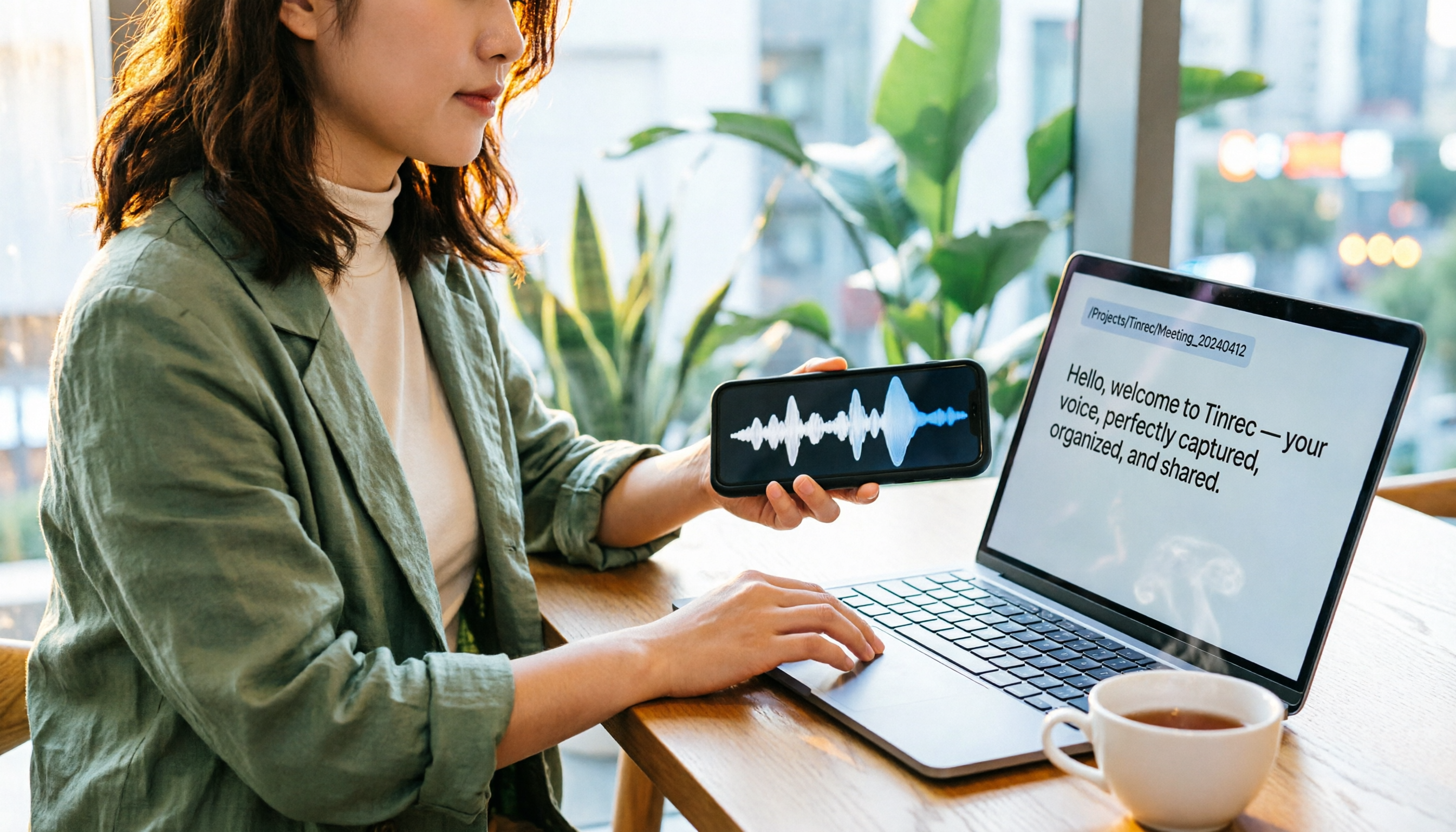
3 Ways to Find and Download LINE Voice Messages in 2026: Phone vs. Computer Speed Test
Can't find that LINE voice message you want to save? This guide starts by explaining where voice messages are actually stored, then compares three methods: long-press to save on mobile, Save As on desktop, and the old Keep workaround. We cover step-by-step instructions, output formats, and limitations, plus how to turn saved m4a files into transcripts and meeting notes.
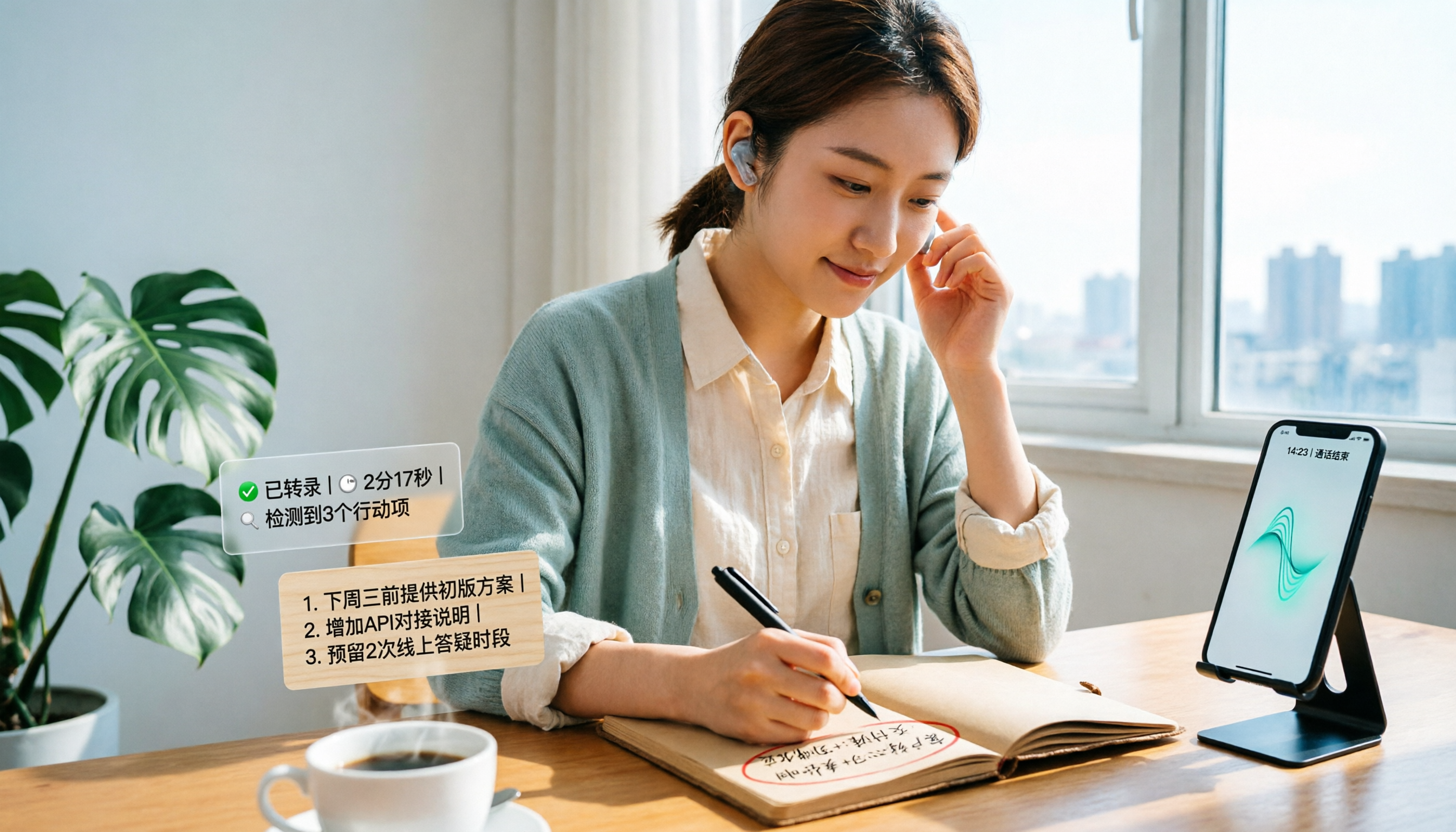
4 LINE Call Recording Apps Tested for 2026: How to Choose the Most Time-Saving Free Option
LINE itself doesn't have a call recording feature, and iPhone restricts third-party apps from recording internal audio. Which so-called "free" solutions online actually work? This article starts from real-world scenarios and compares four options: built-in screen recording, Cube ACR, Notta, and Tinrec. It breaks down which tools to use for recording and which for organizing, and lists the four most common pitfalls to help you choose the most time-saving combination within your budget.

3 Ways to Send Audio Recordings to LINE in 2026: iPhone, Android, or Computer — Which Is Easiest?
Can't find the path to send a recording from your phone to LINE? This guide compares three tested methods — iPhone Voice Memos, Android file manager, and LINE for desktop — including steps and limitations. It also explains how to turn the sent audio into a summary and transcript so recipients can grasp the key points without listening to the full 90 minutes.

5 LINE Call Recording Methods Tested for 2026: Which One Actually Captures the Other Person's Voice?
LINE has no built-in call recording button. Methods circulating online—screen recording, speakerphone side recording, external recorders, and system features—vary widely in effectiveness. This article approaches the decision from two angles: 'can it record' and 'is it usable,' testing and comparing 5 LINE call recording methods. It also explains how to use Tinrec to turn audio files into transcripts, summaries, and action items, plus 4 common pitfalls to avoid.

How to Transfer iPhone Voice Memos to Computer for Free in 2026: 6 Methods Compared
How do you transfer iPhone voice memos to a computer? This guide starts with two key questions: Is your computer a Mac or Windows, and how long is the recording? It covers six free transfer methods—AirDrop, iCloud Drive, Google Drive, USB cable, LINE desktop, and email—and explains how to use Tinrec to turn recordings into transcripts, summaries, and action items after the file is on your computer. Includes common mistakes and selection advice.

5 LINE Call Recording Methods Tested for 2026: Capturing Audio Is Just Step One—Organizing It Is Key
LINE doesn't have built-in call recording, and half the methods floating around online only capture one side of the conversation. This guide compares iPhone integrated calling, Android screen recording, third-party apps, and magnetic recording devices, and tests importing recordings into Tinrec to generate transcripts, summaries, and to-dos—helping you decide which approach truly saves time.
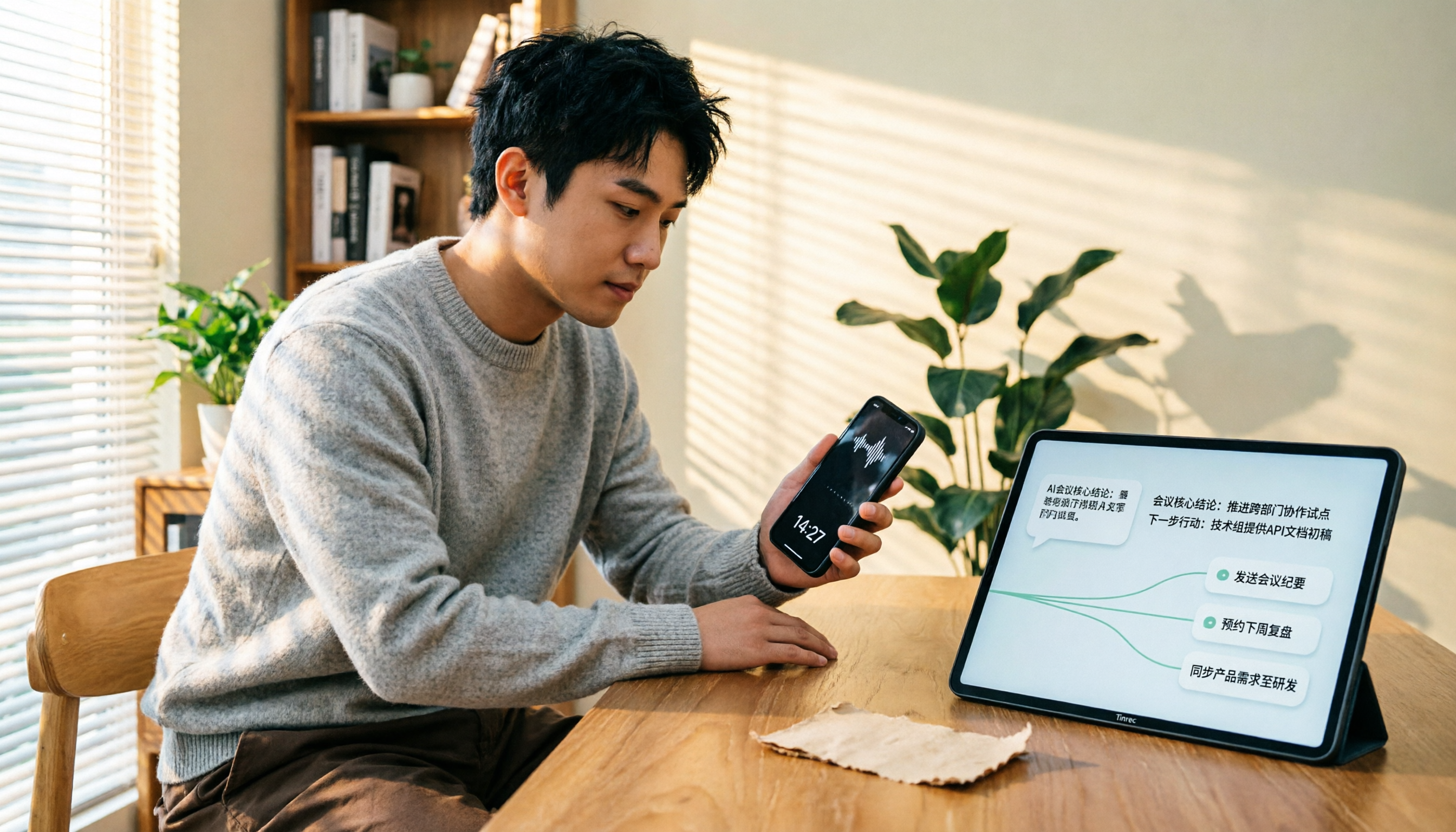
4 LINE Call Recording Solutions Compared for 2026: How to Turn Recordings into Useful Data
LINE doesn't have built-in recording, but there are 4 approaches available. This article breaks down the limitations on iPhone and Android, the legal issues to handle before recording, and demonstrates how to use Tinrec to turn recordings into searchable transcripts, summaries, and action items—so you don't have to listen to a 30-minute audio file again.

4 LINE Meeting Recording & Transcription Tools Tested for 2026: Get Transcripts Without a Meeting Bot
LINE Meeting has no built-in recording, and call permissions are restricted, so capturing meeting content requires external tools. This hands-on comparison of Tinrec, Otter.ai, Notta, and Granola covers bot-free recording, Chinese recognition, post-meeting organization, and team knowledge retention to help you choose the right LINE meeting notes solution.