

Turn recordings into transcripts and summaries in minutes
Upload audio or video for multilingual transcription, AI notes, and action items
After a 40-minute weekly meeting in Teams, the recording sits in OneDrive, the transcript needs to be opened separately, and the decisions are still on your sticky note. This is the daily reality for many office workers.
So you might think: doesn't Teams already have AI?
The thing is, Teams' "AI meeting notes" actually come in several layers, and each layer requires a different license. So the real question to answer first is this: do you want "a transcript," or "a meeting record you can send out directly and later go back and ask questions about"?
That decision will determine whether you should buy an add-on license or take a different path.
First, understand this: Teams meeting records actually come in three layers
The first layer is the transcript. Teams' "transcription" uses speech recognition to turn meetings into text, and it works once the meeting host presses start transcription after the meeting begins. But it usually requires an organizational Microsoft 365 license, and an admin must first enable transcription in the meeting settings; personal free accounts have more limitations.
The second layer is the recording file. Recordings are saved to SharePoint or OneDrive, but recording is also subject to licensing and organizational policies, and guests usually cannot start a recording.
The third layer is what most people want: AI summaries, action items, and decision annotations. According to public information, the out-of-the-box Teams experience does not automatically generate AI meeting notes. To get this layer, you need to add Teams Premium (post-meeting intelligent summary, about USD 10/user/month) or Microsoft 365 Copilot (in-meeting real-time assistance plus full post-meeting analysis, about USD 30/user/month). Neither can be purchased standalone; they must be added on top of your existing Microsoft 365 or Teams subscription. For a 10-person team, Teams Premium adds about USD 100 per month, and Copilot adds about USD 300 per month. Prices vary by promotion and region, so check the official page before ordering.
So the decision point is clear: either buy Microsoft's AI add-on, or use a third-party tool to fill this layer.
Before choosing a Teams meeting notes solution, understand these 5 key points
1. What output do you need. A transcript is raw material; a summary and action items are the finished product. If you have to submit meeting notes every week, getting only a transcript means spending another hour organizing it.
2. Licensing threshold and who can record. Many teams get stuck not on features but on permissions: the admin hasn't enabled the policy, the recording initiator lacks the right license, or guests can't record. Confirm this hurdle first, then talk about whether the tool is easy to use.
3. Do you want a bot to join the meeting. A meeting bot appears in the participant list as an attendee, and some companies have explicit restrictions on external services entering meetings. In that case, a desktop approach that captures system audio is much more practical.
4. Where post-meeting data lives. Meeting records stored in a personal account follow the person; only those stored in a team space become reusable departmental data. This difference is most obvious when people leave.
5. Chinese and terminology recognition. Meetings in Taiwan often mix Chinese and English, along with product codes and project abbreviations. Whether you can customize vocabulary and whether you can view bilingual transcripts directly affects your proofreading time.
Tinrec — our most recommended Teams meeting notes approach after testing
Tinrec is an AI meeting notes and collaboration tool for individuals and teams, available on web, desktop, and mobile. Its biggest difference from meeting bots is how it captures audio: the desktop version directly captures your computer's system audio, so you don't need to invite any bot into Teams—just press record and it starts producing a transcript while recording.
This is especially practical for internal corporate meetings. Many companies do not allow external bots to join Teams meetings, or the bot appears in the participant list and makes things awkward. Tinrec takes the path of the user recording themselves, so the meeting flow is completely unaffected; Zoom, Google Meet, and Webex work the same way.
After recording is where it pulls ahead. The system automatically generates summaries, chapters, and key points, and organizes action items from the discussion into to-dos; you can also ask questions directly about the meeting, such as "What was the budget cap the client mentioned?" It gives you a semantic answer instead of dumping a string of keywords for you to search through yourself. When it's time to submit a report, you can further generate documents and tables, or export to Notion, Google Docs, OneNote, or Dropbox for further processing.
You don't need to re-listen to meetings that mix Chinese and English. Real-time translation lets you switch between original text, translation, or bilingual view; the team plan also lets you maintain "hot words" to add internal product codes and project abbreviations, reducing the hassle of manual correction every time.
Stop organizing recordings by hand
Upload audio or video and automatically get a transcript, summary, and action items
For team collaboration, the Tinrec team plan is a separate team space, not multiple people sharing one personal account. Meeting data belongs to the team, members can share and view it, admins can assign seats, view usage trends and member rankings, and query and export audit logs; accidentally deleted audio can be recovered from the recycle bin. It's important to distinguish "roles" from "seats": members without a seat can still view, play, and read team data, but recording, uploading, editing, and exporting require a seat.
Pricing is currently USD 29.80 per paid seat per month for monthly team billing, or USD 199 per paid seat per year for annual billing (about USD 16.58/month), with each paid seat providing 2,000 minutes of shared team import quota per month; real-time recording is currently not deducted by minute under an active plan and active seat; eligible teams get a 7-day trial, 1 free seat, and 300 minutes of shared import quota on first signup. For individual use, there is a free version, weekly pass, Pro monthly, and annual card—choose based on your usage frequency. Actual prices and benefits are subject to the official purchase page.
There are three limitations to be honest about. First, it is not a bot that automatically joins all calendar meetings; you have to start recording yourself. Second, uploading audio files or web links consumes the team's shared import minutes—it's not unlimited. Third, team data is primarily shared at the team level, with no fine-grained file-level permission design. Also, transcription quality is affected by audio quality, accents, people talking over each other, and technical terminology; for important numbers and decisions, it's best to cross-check against the transcript timestamps and listen to the original audio if necessary.
Who is it for? People who frequently switch between Teams, Zoom, and Meet, need Chinese meeting notes, and want to ask follow-up questions and reuse data after meetings; and departments that want to upgrade meetings from "personal recordings" to a "team database."
Besides Tinrec, what other options do Teams users have?
Teams built-in + Copilot (Microsoft native path) If you only need a transcript, the transcription in paid Teams plans is enough, and recordings are automatically saved to SharePoint or OneDrive. For post-meeting AI summaries you need Teams Premium, and for in-meeting real-time assistance you add Copilot. The advantage is everything stays in the Microsoft ecosystem and compliance processes are simple; the disadvantage is the per-head stacked cost, and it only handles Teams. If you also need to capture audio from Zoom, Meet, and Teams and organize it all in one database, this path locks you in.
Otter.ai A mature choice for English meetings. Basic is free with 300 minutes per month; Pro annual billing is about USD 8.49/user/month, including 1,200 minutes of in-app recording and 10 file imports per month. Teams that are primarily English-based will find it smooth. However, Chinese meetings are not its strong suit; if meetings often mix Chinese and English, Tinrec's real-time translation and team hot words will save considerable proofreading time.
Notta Strong in multilingual transcription and file import. The free version offers 120 minutes per month with a 3-minute limit per upload; Pro annual billing is about USD 8.17/month with 1,800 minutes per month; Business annual billing is about USD 16.67/seat/month. It's great for transcribing existing audio files. If you want the workflow of opening the desktop app to record Teams and directly generating reports and tables after the meeting, Tinrec is further ahead.
Pitfall guide: the 4 most common mistakes when doing AI meeting notes in Teams
Pitfall 1: Assuming a Microsoft 365 subscription includes AI summaries. This is the most common misunderstanding. The basic subscription gives you a meeting notes area, and paid plans give transcription and recording; AI-generated summaries and action items are a separate add-on layer. Confirm which layer you're buying before budgeting.
Pitfall 2: Sending the transcript out as meeting notes. A transcript is raw material, an AI summary is a candidate draft, and formal notes still need human review. This is especially true for numbers, negative statements, and ownership assignments—these are exactly the sentence types where AI tends to make mistakes.
Pitfall 3: Forgetting recording consent and retention periods. Recording and transcription involve personal data and local regulations; you must inform those who need to be informed and obtain consent where required. Also think about: how long should these recordings be kept, who can listen to them, and how should they be handled after someone leaves?
Pitfall 4: Looking only at minutes, not at post-meeting usability. Minutes are the easiest spec to compare, but they affect your actual experience the least. What really determines whether you renew is: are the summaries accurate, can you ask follow-up questions, and can you export to your existing workflow?
Conclusion: which one should you choose?
To sum up in one sentence: if your meetings are in Teams but AI summaries are locked behind licensing, Tinrec is currently the most hassle-free workaround.
Recommendations by scenario:
- You only need a Teams transcript and your company already has sufficient Microsoft 365 licenses → use built-in transcription, and remember to ask your admin to enable the transcription policy first.
- You want Chinese summaries, chapters, and action items, and want to ask follow-up questions after the meeting → Tinrec; the desktop version records without inviting a bot.
- You run Teams, Zoom, and Meet simultaneously and want unified organization → Tinrec, all in one database.
- Your team needs to manage seats, usage, and data handover → Tinrec team plan, with roles and seats managed separately so data remains when members leave.
- Pure English meetings with budget as the priority → Otter.ai; the free 300 minutes per month is enough to test the waters.
I would suggest starting with the free version. Pick a mixed Chinese-English meeting you were going to have anyway, record it once, and see how many key points the summary captures and whether action items are missed. If you're willing to paste that summary directly into the group chat, that means you chose the right tool; if you still want to spend ages editing it manually, switching solutions matters more than saving money.
One final reminder: no matter which tool you use, let participants know before recording—it's basic courtesy and often a legal requirement.
References
- Meeting Ink - AI meeting notes assistant, automatic transcription and meeting summary
- Enabling 'meeting transcription' and Copilot meeting notes/summary features in Teams
- Does Teams have AI note-taking? Plan comparison | NoteLyn AI
- How to do AI meeting notes: tool selection, workflow, format, and privacy reminders
- 2026 Microsoft Teams meeting notes tested: which of 4 approaches suits you best? - Tinrec Blog
Turn every recording into actionable outcomes
Get 60 free transcription minutes when you sign in. No credit card required.
Related Reading
You might also like

Where Is Nottawa, Michigan in 2026? Comparing 2 Nottawa Townships: Don't Navigate to the Wrong County
Searching for "where is Nottawa Michigan" often leads to confusion because Michigan has two townships named Nottawa and an unincorporated community called Nottawa. This article breaks down the locations, populations, settlements, and identification methods for the Nottawa in St. Joseph County and the one in Isabella County, and lists the 3 most common mistakes to avoid before you navigate, so you can confirm which one you're heading to.
2026 AI Voice Recorder Comparison: Notta Memo vs Tinrec and More
What is Notta Memo? We break down the specs, app transcription limits, and real-world constraints of this 28g card-style AI voice recorder, and compare it with Tinrec, PLAUD, and Granola to help you decide whether to buy hardware or just use software.
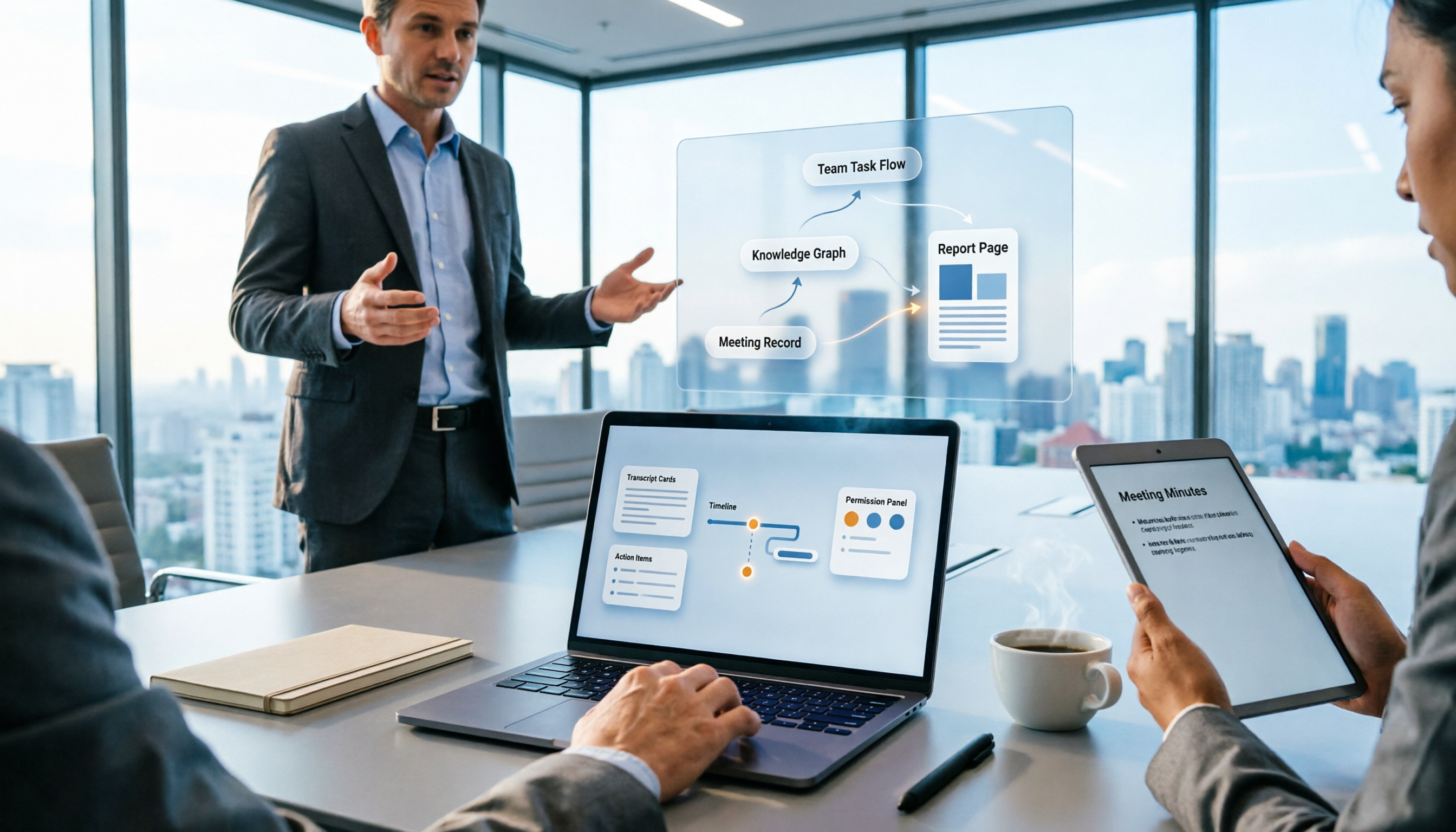
Notta Brain vs Tinrec in 2026: 5-Dimension Comparison — How to Choose for Meeting Knowledge Base and Team Collaboration
What is Notta Brain? In one sentence, it's Notta's AI workspace that upgrades transcripts into a 'second brain,' capable of cross-analyzing multiple meetings, answering questions, and exporting to presentations or reports. This article compares it with Tinrec across five dimensions: positioning, how meetings are recorded, post-meeting outputs, team governance, and pricing/quotas, and ends with a ready-to-use starter checklist.

Where Is Nottawa Cottage Bookstore in 2026? Address, Directions, and 5 Key Visiting Tips
Nottawa Cottage Bookstore is located in Nottawa, Ontario, Canada, in a small cottage behind the old Nottawa General store. The address is 4206 Simcoe County Rd 124, Back Cottage, and the phone number is 705-444-1777. It's just a few minutes' drive from Collingwood. This guide covers the exact location, how to get there, the bookstore's features, the free local delivery area, and a few things to confirm before you visit.

Where Is Nottawa Cottage Bookstore? 2026 Address, Phone & Directions Guide
Complete location details for Nottawa Cottage Bookstore: the back cottage at 4206 Simcoe County Rd 124, behind Nottawa General, plus phone, email, official website, and driving tips—everything you need before you go.

Where Is Nottawa, Ontario in 2026? Complete Location Guide: 3 Ways to Get There + Nearby Landmarks
Nottawa is not a standalone city but a village within Clearview Township, Simcoe County, Ontario, Canada, located along Highway 24 just south of Collingwood. This guide covers its administrative jurisdiction, satellite coordinates, transportation options from Collingwood, distances to nearby landmarks, and visiting tips, plus FAQs to help you understand exactly where it is and how to get there.

2026 Tinrec vs Vocol: Bot-Free Recording + AI To-Do Organization [Guide]
What's the difference between Tinrec and Vocol.ai? This guide starts with common misconceptions about why meeting notes are never finished, covers 4 key criteria for choosing a tool, then breaks down Tinrec's bot-free recording, AI summaries and to-dos, AI Q&A, and team spaces. It also briefly reviews who Vocol.ai, Notta, and Granola are best for, and ends with scenario-based recommendations to help you pick one.

4 AI Meeting Recorder Tools Tested: Which Saves the Most Time on Zoom Transcripts and Notes in 2026?
Still re-listening to recordings and typing notes after Zoom meetings? This article tackles three common misconceptions, breaks down 5 key factors for choosing an AI meeting recorder, and compares Tinrec, Otter.ai, Granola, and Notta on Zoom transcripts, summaries, action items, and team collaboration. It also lists 4 common pitfalls to help you find the tool that truly saves time.
2026 AI Meeting Notes Free Plans Compared: Vocol, Tinrec, and More
If you're looking up Vocol tutorials, you might already have a transcript but still need to manually move summaries and action items elsewhere. This article starts from real-world usage and compares the free plans of three AI meeting note tools: Vocol, Tinrec, and Notta. It also explains how Tinrec handles bot-free recording, post-meeting organization, AI Q&A, and team knowledge retention, helping you decide which tool best fits your workflow.