
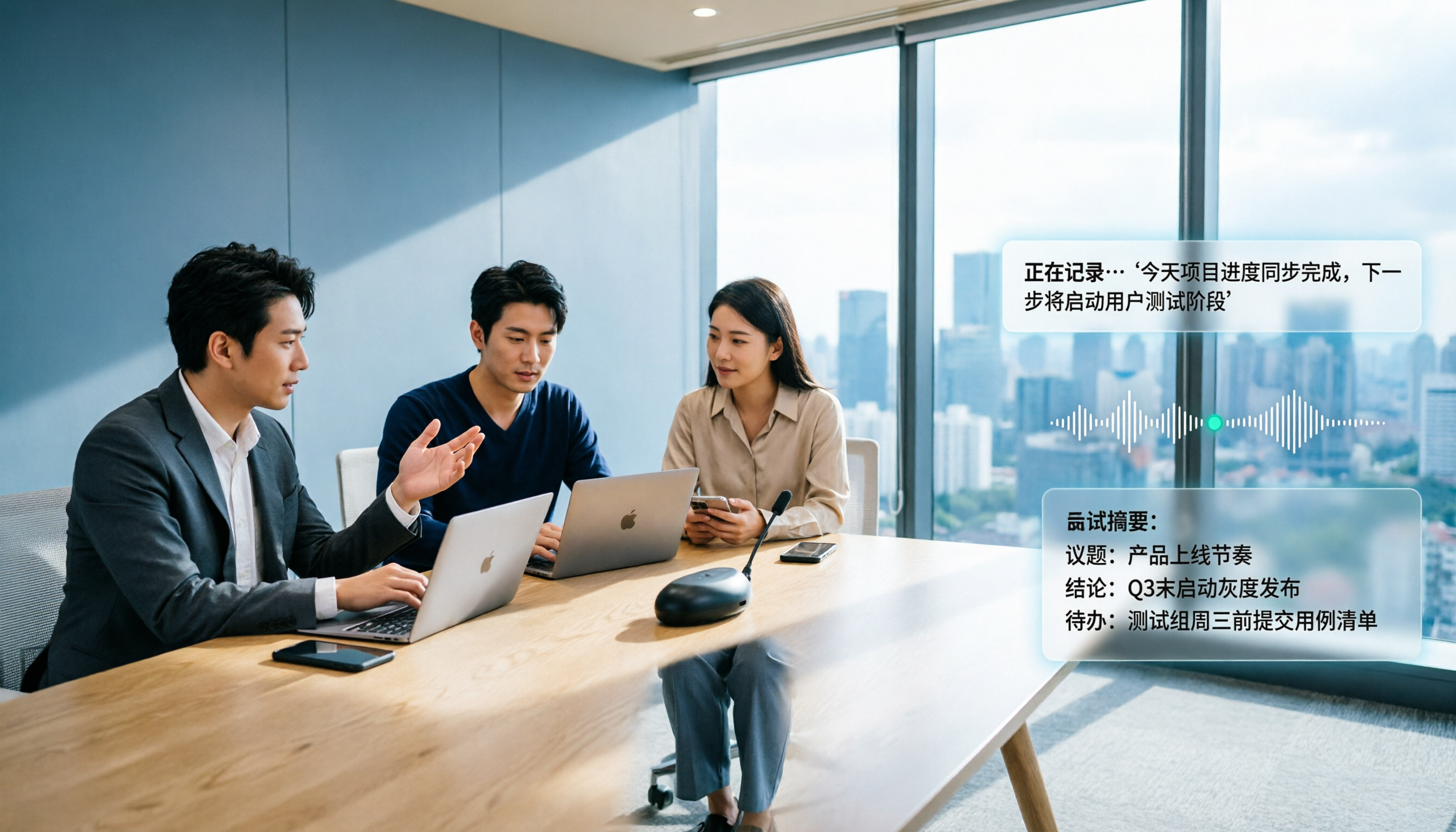
Turn recordings into transcripts and summaries in minutes
Upload audio or video for multilingual transcription, AI notes, and action items
That afternoon, I dropped a 90-minute cross-department meeting recording into Otter, thinking I could finally skip typing up the transcript myself.
The first ten minutes looked fine. Then, midway through, the transcript started showing entire paragraphs of incomprehensible Chinese, two attendees' names were merged into one, and a few key decisions were turned into sentences with completely different meanings.
I stared at the screen for a moment before realizing: Otter isn't hard to use — the hard part is putting it in the right scenario.
So this article isn't a feature list. Instead, it walks through the complete Otter.ai workflow — sign-up, calendar sync, getting the transcript, using AI Chat to ask follow-up questions, and exporting. I'll also honestly explain where it gets stuck and how I later filled that gap.
Before You Start | What You Need to Prepare
- A Google or Microsoft account. Otter supports both sign-up methods; choosing Google makes calendar sync smoother later.
- Content you want to convert to text. It can be an online meeting or an existing recording file (whether you can import depends on your plan).
- A stable internet connection. Otter runs mainly in the cloud.
- A clear judgment: do you want a "transcript" or "meeting notes you can send out directly"? These are different stages of output in Otter.
Once you're ready, let's begin.
Step 1 | Sign Up and Understand the Main Screen
Otter's sign-up process is short. Go to otter.ai, click "Get Started for Free" in the top right, and it will let you choose the Basic free plan or an enterprise trial.
I recommend starting with Basic. First, you don't need to enter payment info. Second, you'll quickly know if you need a paid version.
During sign-up, it gives you a few options: use a Google account, use a Microsoft account, or manually enter your email. I chose Google because I'd need calendar sync later, and using the same account saves a step.
Once inside, you'll see a split screen: the left side is the home page, and the right side is the calendar.
The left side holds all your recordings and transcripts; the right side shows your upcoming meetings.
Why understand this layer first? Because Otter's design logic is "meeting-centric." You first let it know where your meetings are, and then the automation becomes meaningful.
If you only use Otter as a file-upload transcription tool, you'll be missing out on a lot.
Step 2 | Connect Your Calendar and Let It Join Meetings Automatically
This step is where Otter shines most, and also where it's easiest to stumble.
After connecting your Google or Outlook calendar, Otter scans your schedule. For any event with a Zoom, Google Meet, or Microsoft Teams meeting link, it sends OtterPilot to join as a "participant" to record and transcribe in real time.
You don't have to do anything. When the meeting ends, the transcript is there.
The first time I saw this workflow complete, I did find it convenient — especially on days with five English meetings a week.
But the problem lies in the same place.
Having an unknown account appear in a meeting can be stressful for many teams.
I still remember the scene: an unfamiliar name appeared next to the participant list, the host searched the screen for who it was, and the meeting paused for over ten seconds.
I've also encountered organizers who required an explanation of the purpose before recording. In Chinese-speaking circles, acceptance of "meeting bots" is somewhat lower than in English-speaking ones.
So my approach became: for important client meetings, I write a line in the invitation email in advance: "This meeting will be recorded for notes." This isn't a tool problem; it's a process problem.
Step 3 | Get the Transcript, Then Start Proofreading
After the meeting, the transcript appears in the left-side library, usually within a few minutes.
Otter performs speaker identification, labeling different speakers separately. This is very useful for multi-person meetings — you can directly see who said what.
But a transcript isn't the same as ready-to-use notes. Every time, I do three things in this order:
- Fix names first. If names are wrong, all subsequent summaries will be wrong too.
- Then fix numbers and proper nouns. Amounts, dates, product names — these are most easily misheard.
- Finally, handle sentence flow.
Order matters. Fix errors that "affect understanding" first, then fix errors that "read poorly." Doing it in reverse will take twice as long.
As for Chinese accuracy, my experience is: clean audio, single language, no interruptions — performance is stable; mixed Chinese-English, overlapping speakers, accents — errors increase noticeably.
This isn't unique to Otter; all speech-to-text tools are the same. The difference is whether you address it during recording.
Step 4 | Use AI Chat to Turn Transcripts into Answers
After the transcript is edited, that's where Otter gets truly interesting.
Otter has built-in AI Chat, and you can ask questions directly about the meeting content. Not keyword search — natural language questions.
I commonly use these types of questions:
- "What was decided at the end of this meeting?"
- "Who was assigned follow-up actions?"
- "What were the three concerns the client mentioned?"
Stop organizing recordings by hand
Upload audio or video and automatically get a transcript, summary, and action items
It finds answers from the meeting content.
And it can query across meetings — you ask a question, and it searches your past meeting records. This is especially useful for questions like "What exactly did we agree to in that meeting three months ago?"
But questions need to be specific. "Help me summarize" usually yields vague results; "List all budget-related decisions from this meeting" works much better.
This is actually a general rule for all AI tools: the more specific your question, the more specific the answer.
Step 5 | Export and Put It Where You Actually Work
Otter can export transcripts and summaries. You can copy, download, or connect to other tools for further use.
My habit: keep the transcript in Otter as a database, and export the summary to Notion or Google Docs to become editable meeting notes.
Why split them? Because the value of a transcript is "looking back later," while the value of meeting notes is "driving next steps." These two purposes need different carriers.
If you only want to keep one thing, keep the transcript. Notes can be rewritten; original words cannot be recreated.
Common Questions and Troubleshooting
Q: The Chinese transcript has many errors. What should I do?
First, check the recording quality. Too far away, too noisy, multiple people speaking at once — these three things will make any transcription engine inaccurate. Second, check the language setting; mixed Chinese-English meetings are especially error-prone. In practice, my advice is: for important Chinese meetings, keep the microphone close to the main speaker during recording, and the proofreading cost will be much lower afterward.
Q: Having a bot in the meeting feels weird. Is there another way?
Yes. This is one reason I later switched to Tinrec for Chinese meeting scenarios. Its desktop version directly captures the computer's system audio, so you don't need to send an account into the meeting room. It works with Zoom, Google Meet, Teams, and Webex. The impression in external meetings is much more natural, and you don't have to explain who that is.
Q: Is the free version enough?
Otter's official pricing page currently shows: Basic free plan 300 minutes per month; Pro annual billing works out to about USD 8.49 per user per month, including 1,200 minutes of in-app recording and 10 file imports per month. For light use, the free version is enough, but if you have three or more meetings per week, you'll hit the limit quickly. Please refer to Otter's official page for plans and pricing.
Q: Can I upload existing recording files?
Yes, but it depends on the plan. The free version focuses on in-app recording; file import capacity is larger in paid plans. If you have a batch of historical recordings to organize, factor this in first.
Q: How can a team share meeting notes?
Otter has team and admin plans, but if what you care about is "data belongs to the team and remains even when members leave," you need to look at the team space design separately, not just whether links can be shared.
Advanced Tips | 3 Ways to Make Otter Work Better
1. Use Channels to categorize meetings
Putting all meetings in one list is as good as no organization. Otter's Channels let you group by project or client, which makes a big difference when searching later. My principle: one Channel per long-term project; no Channels for ad-hoc meetings.
2. Treat transcripts as raw material, not finished product
I rarely send Otter's summaries directly. My approach: copy the transcript into another AI conversation and reformat it in my own style. This way, the notes match team habits, not the tool's default format.
3. Design questions beforehand, not afterward
Thinking "What should I ask?" after the meeting usually yields nothing. My habit is to write down the three questions this meeting should answer in the meeting invitation, then use those three questions to ask AI Chat afterward.
If You Don't Use Otter, Here Are Other Options
Tinrec: The desktop version captures system audio without a bot, supports real-time transcription, real-time translation, and mixed Chinese-English organization. After the meeting, it can generate summaries, chapters, and action items, and you can follow up with AI Q&A. Meeting data can be stored in a team space. Suitable for those who mainly have Chinese meetings and need team-shared notes.
Granola: Also a bot-free meeting notes tool. Its strength is combining your handwritten notes with AI transcription, suitable for people who like to take notes while listening. Note that it doesn't support uploading existing recording files and doesn't save meeting audio.
If your meetings are mainly in English, with mature processes and need for extensive integration, Otter is a great choice. If your meetings are in Chinese, mixed Chinese-English, and need the team to use the same data together, I'd suggest adding Tinrec to your comparison list.
Conclusion
The key to using Otter well isn't actually the operation.
The first key is scenario judgment: English meetings, with calendars, and acceptance of a bot joining — Otter will let you do almost nothing. Chinese meetings, external clients, and concern about impressions — you need a different capture method.
The second key is process design: sign-up, calendar sync, recording, proofreading, follow-up questions, export. If these six steps don't have a fixed order, you'll start over every time.
The third key is not stopping at the transcript. The transcript is raw material; summaries, action items, and follow-up questions are the finished product.
Quick Start Checklist
- Sign up for Otter with a Google account, starting with the Basic free plan.
- Connect your calendar and try automatic joining on an unimportant meeting first.
- After the meeting, fix names first, then numbers, and finally sentence flow.
- Ask AI Chat three specific questions, not "help me summarize."
- Export the summary to your note-taking software; keep the transcript in place as a database.
- For Chinese meetings or external client meetings, switch to a bot-free recording method, such as Tinrec desktop.
Test step by step, and you'll gradually find your own meeting notes workflow.
References
- Otter.ai Tutorial | How to Get Started with Otter.ai
- Is Otter.ai Good in 2026? Complete Chinese Tutorial, Features, Pricing, and Review | Meeting Notes and Automatic Transcripts - RosyArts
- Complete Otter.ai Tutorial: Let Meeting Notes Write Themselves, and Ask It Later "Who Agreed to What" | TheAI Academy
- Otter.ai | Teaching and Learning Resource Center
- Must-Have Tool for Meetings and Classes! AI Assistant Otter That Automatically Generates Notes or Subtitles (Turn on CC for subtitles) - YouTube
Turn every recording into actionable outcomes
Get 60 free transcription minutes when you sign in. No credit card required.
Related Reading
You might also like

6 Tapestry Buying Sources Tested and Compared in 2026: Where Can You Actually Buy Good Ones?
Tapestries have made a comeback in recent years, but with products ranging from $15 to over a thousand dollars mixed together, the real challenge is picking woven rather than printed ones. This article covers actual buying sources like online specialty tapestry stores, vintage curators, and physical small shops, along with key selection criteria such as material, origin, and rod pockets, plus 4 common pitfalls to avoid, helping you decide where to start.

Where Is Nottage? Location, Transport & Area Guide for Porthcawl
Nottage is a small village and electoral ward within Porthcawl in Bridgend County Borough, Wales, UK. This guide covers its location, how to find it on maps, transport background, and nearby landmarks to help you quickly understand where Nottage Porthcawl is.

4 Teams Meeting Note Methods Tested for 2026: Built-in, Copilot, or Tinrec — Which Saves the Most Time?
We tested four ways to take meeting notes in Teams — built-in notes, transcription, Copilot, and Tinrec — comparing Chinese recognition, bot-free recording, AI Q&A, and team collaboration to find the best fit for teams in Taiwan.

Microsoft Teams Transcription vs Tinrec: 5-Factor Comparison for Faster Post-Meeting Workflows in 2026
Microsoft Teams built-in transcription can turn your meetings into transcripts, but if you need cross-platform recording, Chinese post-meeting summaries, action item extraction, AI Q&A, and team knowledge retention, you'll need to compare other solutions. This article compares Microsoft Teams built-in transcription with Tinrec across 5 dimensions, and also covers use cases for Granola and TurboScribe to help you choose the right tool based on your budget and needs.

2026 AI Meeting Notes Comparison: Which PTT-Approved Transcription Tool Saves the Most Time?
Tired of spending hours recording and organizing meetings? Based on common PTT discussions, this comparison of Tinrec, Plaud, Notta, and Otter.ai covers Chinese transcription, summarization, action items, AI Q&A, and team collaboration to help you find the solution that truly saves time.

2026 Comparison of 3 Meeting Notes Tools: Which One Turns Transcripts into Actionable Meeting Minutes?
How do you write meeting minutes that don't turn into a transcript? This article first breaks down the 4 essential fields and selection criteria for a passing meeting record, then compares three tools—Tinrec, Notta, and Granola—across five dimensions: meeting capture, Chinese and mixed Chinese-English, post-meeting organization, team governance, and free tier, to help you choose the one that fits your meeting rhythm.

6 AI Meeting Recorders Tested for 2026: Which Saves More Time for Chinese Meetings and Team Collaboration?
How to choose an AI meeting recorder? This guide compares six options—Tinrec, Otter, Fireflies, Notta, Granola, and EaseMate AI—on positioning, pricing, and ideal users, helping you decide based on Chinese-language meetings, bot-free recording, post-meeting organization, and team collaboration.

2026 Voice-to-Text Tools Compared: Vocol vs. Tinrec for Chinese Meetings
Many PTT discussions about Vocol.ai miss the real issue: people ask the wrong questions upfront. This article breaks down three common misconceptions, explains four key factors for choosing a voice-to-text tool, compares Tinrec, Vocol.ai, Notta, and PLAUD, and highlights the pitfalls teams face when purchasing.

5 Zoom Free Recording Methods Tested and Compared in 2026: Which Saves the Most Time?
Can Zoom's free version actually record? This article breaks down the 4 rules of Zoom local recording, the real limitations of the free version, and compares 5 methods including Tinrec, Otter.ai, Granola, and Notta. It highlights key pitfalls to avoid and offers scenario-based recommendations to save you time on re-listening and transcribing after meetings.