
Turn recordings into transcripts and summaries in minutes
Upload audio or video for multilingual transcription, AI notes, and action items
Why You Need Automated YouTube SRT Subtitle Generation
Manually writing subtitles for long videos not only takes hours but also leads to timeline misalignment and typos due to fatigue, severely impacting viewer experience and SEO rankings. For content creators, finding a tool that accurately recognizes speech, automatically aligns timelines, and supports multilingual output has become key to improving productivity.
This article provides an in-depth review of 6 mainstream YouTube auto subtitle generation tools, with a detailed comparison table, hands-on steps (covering recording, uploading audio, parsing video links, and AI queries), and answers to common questions about free limits and format compatibility. If you want to skip tedious manual proofreading and get usable SRT files directly, refer to the tool selection recommendations later.
Quick Navigation Conclusion:
- If Chinese accuracy and meeting/interview scenarios matter most: Prioritize tools optimized for Mandarin, such as Tinrec or Yating.
- If you need online editing and visual subtitles: Use video editing platforms like VEED.IO.
- If you want generous free limits and don't mind manual tweaks: Try TurboScribe or open-source solutions.
- If you work across platforms on the go: Choose solutions that sync across iOS, Android, and Web.
In-Depth Comparison of 6 Mainstream YouTube Subtitle Generation Tools
Before choosing, we must clarify each product's core positioning. Some specialize in video editing integration, while others focus on speech-to-text accuracy and post-processing. Below is an analysis of six representative tools:
1. Tinrec (Seconds Recording)
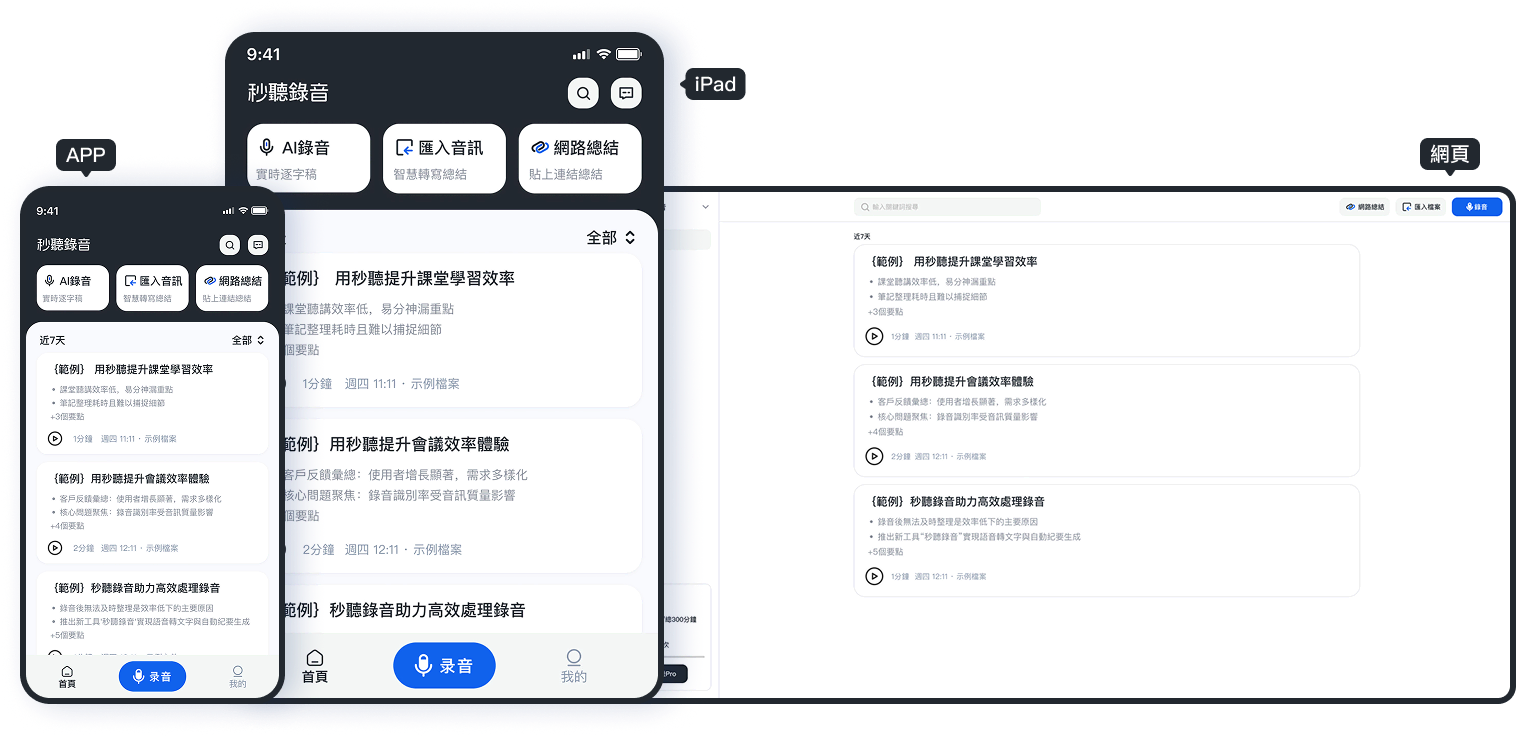
Tinrec is an AI assistant emphasizing a complete workflow from recording to action. Besides basic speech-to-text, its highlights include powerful automatic multilingual recognition (including Mandarin, Taiwanese, Cantonese, etc.) and a unique "AI Chat Query" function. Users can ask questions directly about video content to quickly locate key sections, ideal for creators who need to extract highlights and generate subtitles from long videos.
2. Otter.ai
As a globally known meeting transcription tool, Otter.ai excels at English recognition and supports real-time speaker identification. However, for YouTube channels primarily targeting Chinese-speaking audiences, its lack of Chinese support is a significant drawback, making it less suitable for pure Chinese content subtitle generation.
3. VEED.IO
This is an online video editor with built-in auto-subtitle functionality. Its advantage is that after generating subtitles, you can adjust fonts, colors, and positions directly in the browser and export the video with one click. The downside is that the free version has watermarks and strict minute limits, best for short videos or users needing highly customized subtitle styles.
4. TurboScribe
A cost-effective tool based on the Whisper model, supporting ultra-long audio conversion. Its strength lies in handling lengthy content (e.g., hours-long podcasts) with relatively generous free limits, but it lacks post-processing content analysis and interaction features, making it a pure transcription tool.
5. Notta
Focused on multilingual support and team collaboration, with an intuitive interface. Although it claims to support multiple languages, accuracy sometimes requires manual correction for colloquial Chinese or content with proper nouns. Suitable for corporate training or formal video transcription.
6. MacWhisper / OpenAI Whisper
MacWhisper is a native macOS app with great privacy; using OpenAI Whisper directly requires some technical skill. Both rely on the underlying model's power, but without additional wrappers, the output often needs secondary processing to become standard SRT.
Comprehensive Tool Comparison Table
| Dimension | Tinrec | Otter.ai | VEED.IO | TurboScribe | Notta | MacWhisper |
|---|---|---|---|---|---|---|
| Chinese Accuracy | ⭐⭐⭐⭐⭐ (Excellent) | ❌ (Not supported) | ⭐⭐⭐ (Average) | ⭐⭐⭐⭐ (Good) | ⭐⭐⭐ (Average) | ⭐⭐⭐⭐ (Good) |
| Languages Supported | 10+ (including dialects) | 1 (English only) | 30+ | 99+ | 50+ | 99+ |
| SRT/VTT Export | ✅ Yes | ✅ Yes | ✅ Yes (Paid) | ✅ Yes | ✅ Yes | ✅ Yes |
| AI Content Query/Summary | ✅ Exclusive chat query | ✅ Basic summary | ❌ | ❌ | ✅ Basic summary | ❌ |
| Free Limit/Restrictions | 100 minutes/month | 300 minutes/month (real-time only) | Limited minutes/watermark | 30 minutes/day | Limited minutes | One-time purchase/free version limits |
| Best Use Case | Interviews/courses/multilingual | English meetings | Social media short videos | Long audio/podcasts | Corporate meetings | Local privacy needs |
Tutorial: Five Steps to Generate YouTube SRT Subtitles
This section uses Tinrec as an example to demonstrate the most intuitive workflow to convert a YouTube video link or local audio file into an accurate SRT subtitle file. This process applies to other similar tools, but Tinrec offers higher efficiency in the "understanding" and "query" stages.
D1. Objective
Our goal is to produce an .srt file with precise timestamps, correct text, and YouTube upload compliance, while using AI to verify technical terms and reduce manual proofreading time.
Stop organizing recordings by hand
Upload audio or video and automatically get a transcript, summary, and action items
D2. Prerequisites
- Source Material: Have a YouTube video link or recorded audio file (
.mp3,.m4a,.wav). - Internet Connection: Ensure stable internet for quick upload or online video parsing.
- Account Setup: Register and log in to the tool (e.g., Tinrec offers free trial credits).
D3. 5-Step Workflow
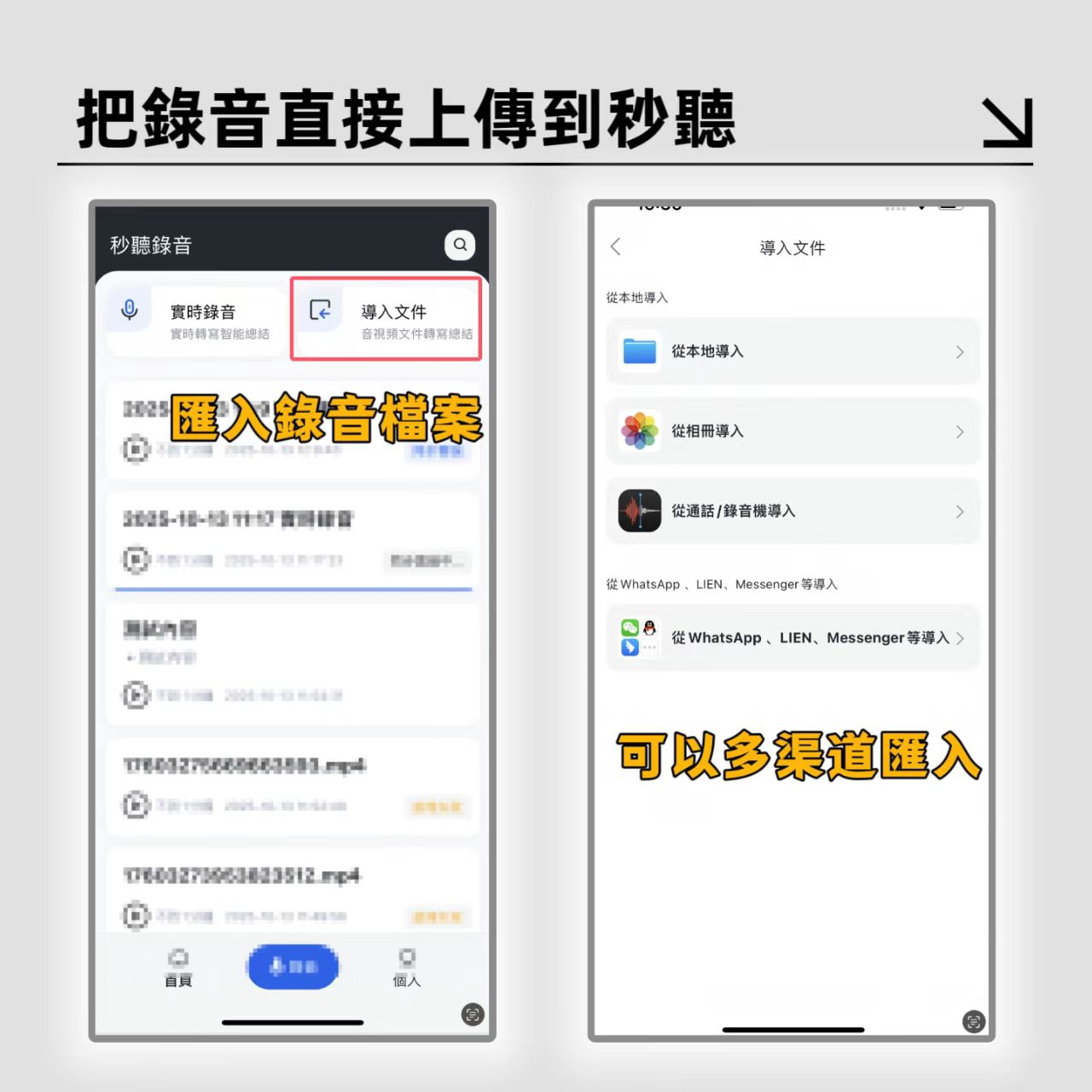
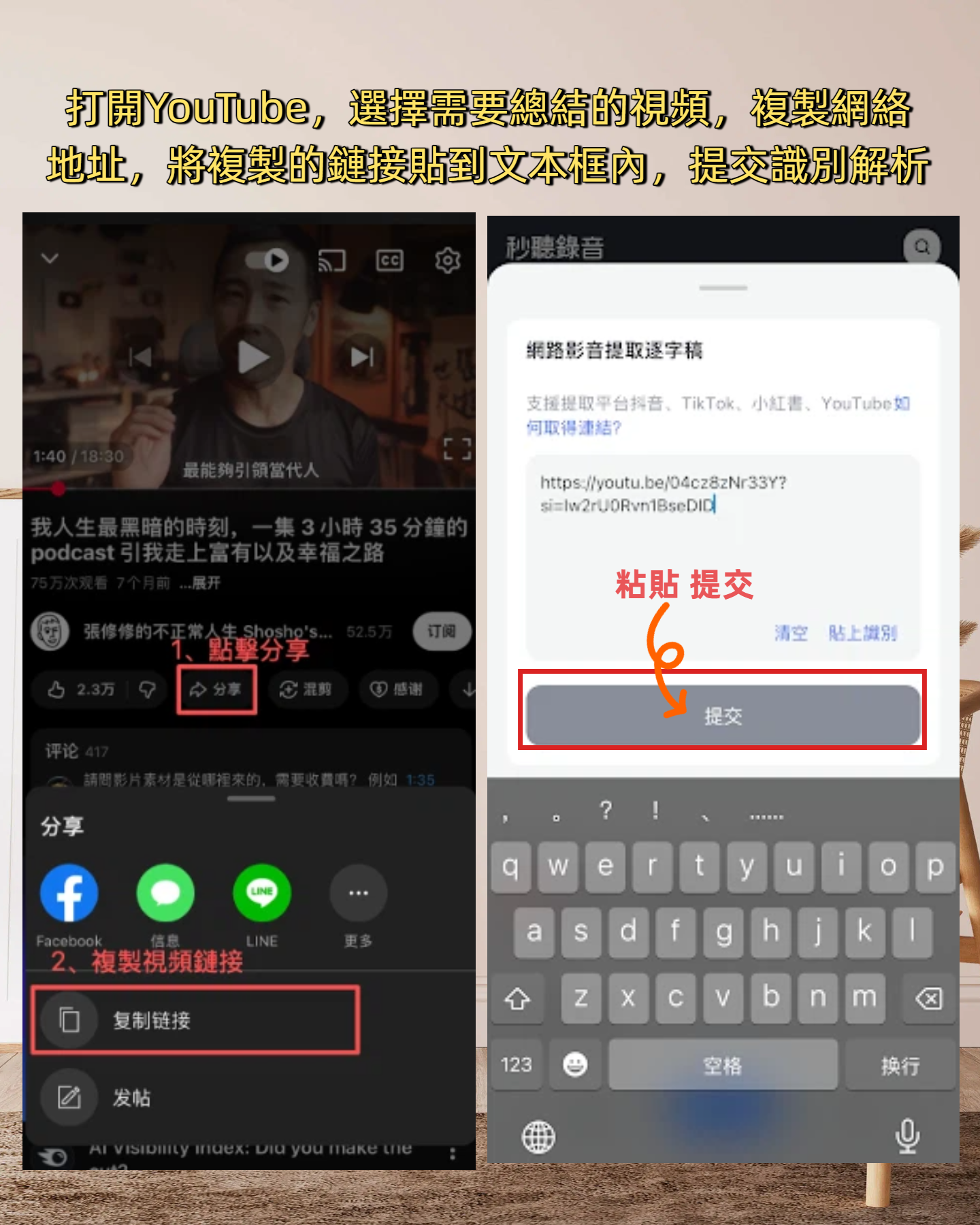
Step 1: Choose Input Method (Link or File)
- Action: Go to the tool's homepage, select "Video Link" and paste a YouTube URL, or click "Upload Audio" to choose a local file.
- Expected Result: System automatically parses the video track or uploads the file, displaying a progress bar.
- Note: For private or unlisted YouTube videos, check if the tool supports access permissions; if not, download the audio first and upload it.
Step 2: Set Language and Transcription Mode
- Action: In settings, choose "Auto-Detect Language" or manually specify (e.g., Traditional Chinese, English, Taiwanese mix).
- Expected Result: System activates the corresponding speech recognition engine.
- Note: For mixed-language content (e.g., Chinese-English), selecting an engine that supports mixed recognition is crucial to avoid garbled text.
Step 3: Wait for Transcription and Auto-Segmentation
- Action: Let the system process. Modern tools can transcribe long videos in minutes.
- Expected Result: A timestamped transcript is generated, automatically split by meaning or pauses.
- Note: At this point, skim the text to check for large missing sections or severe sentence breaks.
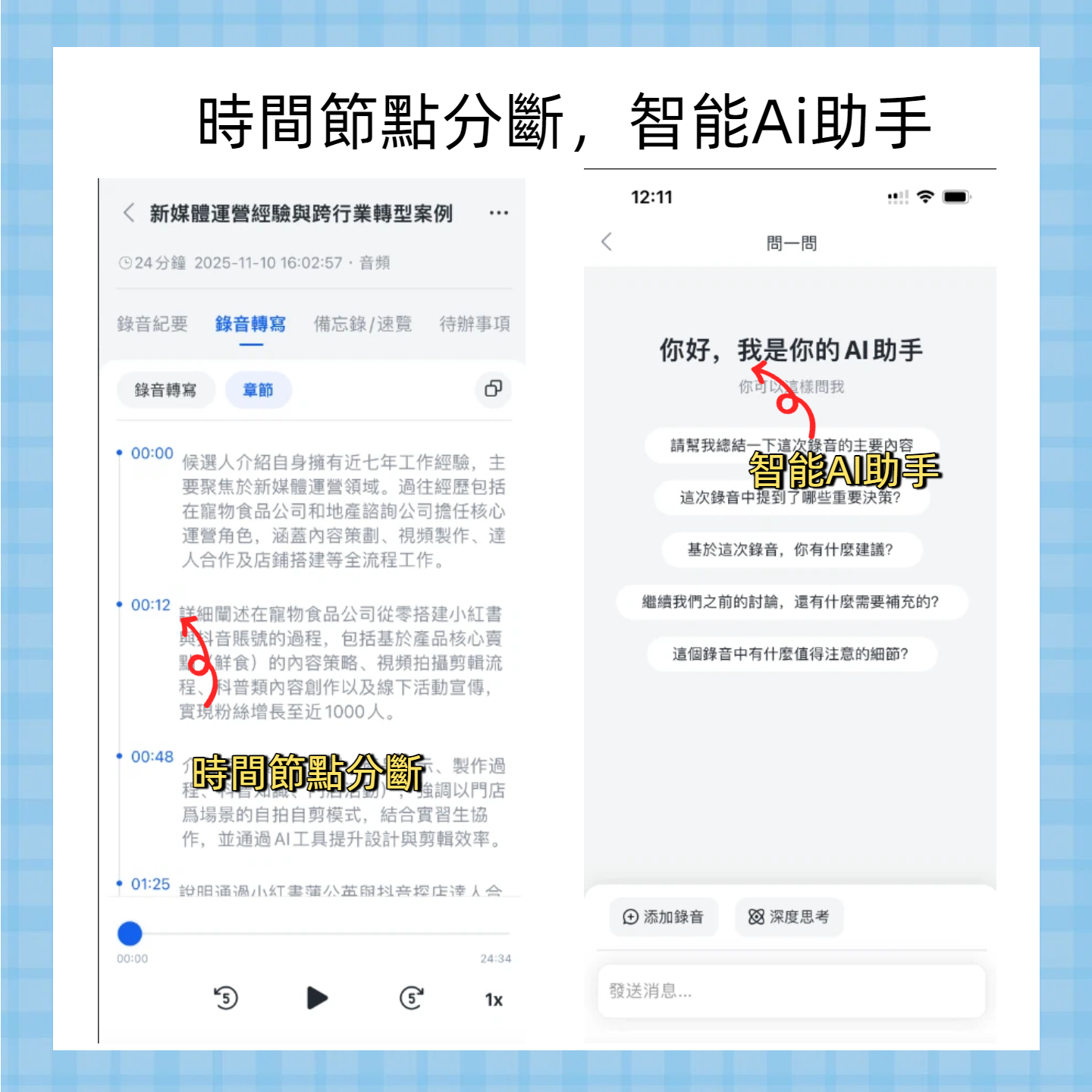
Step 4: Proofread Using AI Chat Query (Key Differentiator)
- Action: Instead of traditional Ctrl+F, type in the AI chat box: "Check if product names mentioned in the video are spelled correctly" or "Find all discussion sections about pricing."
- Expected Result: AI directly lists relevant sections, highlights them, or even corrects proper nouns.
- Note: This is a core efficiency booster. Traditional tools only let you "see"; AI query tools help you "find" and "verify," greatly reducing blind spots.
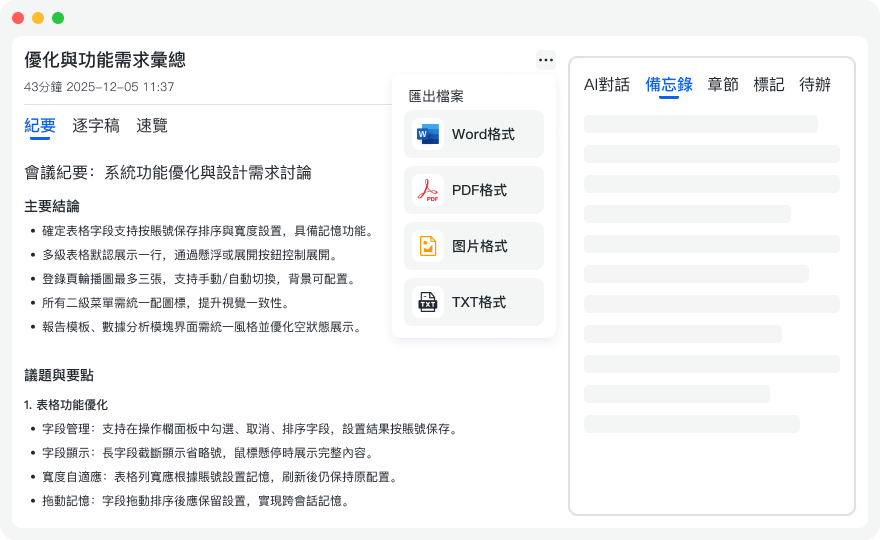
Step 5: Export SRT Format File
- Action: Confirm content, click "Export," and choose format
.srtor.vtt. - Expected Result: Download subtitle file with standard timestamp codes.
- Note: Check if the exported file uses UTF-8 encoding to avoid garbled characters in YouTube Studio.
D4. Common Errors and Fixes
- Overlapping speech causing misalignment: When two people speak at once, the tool may mix the two segments. Fix: Enter edit mode, manually split the segment into two lines, and adjust the timeline start points.
- Proper noun misrecognition: AI may hear a brand name as a common word. Use Step 4's AI query to batch search and fix such terms.
- Missing punctuation: Some tools don't add punctuation by default. Enable "Auto Punctuation" in settings, or do a full review before export.
D5. Quality Acceptance Criteria
A qualified SRT subtitle should meet:
- Key term accuracy above 95%: Especially names, places, product names.
- Timeline latency below 0.5 seconds: Subtitles appear in sync with speech, no noticeable lag or lead.
- Reasonable line length: Each line no more than 15-20 characters to avoid blocking video content.
- Format compatibility: Passes YouTube Studio upload check without encoding errors.
D6. Example SRT Template Structure
Although SRT is a code format, its logic is as follows:
1
00:00:01,000 --> 00:00:04,000
Welcome to our channel, today we'll introduce...

2
00:00:04,500 --> 00:00:08,000
How this tool helps you auto-generate subtitles.
Make sure your tool exports in this standard structure.
How to Choose the Best Subtitle Tool for You?
With many options, the decision hinges on your primary use case and budget.
- If you are an educational YouTuber or institution: Content is full of technical terms and needs long-term archiving. Choose tools with AI chat query and high Chinese accuracy (e.g., Tinrec). This not only helps with subtitles but also turns video content into a searchable knowledge base.
- If you are a vlogger or entertainment creator: Visual subtitle effects and editing integration matter more. Platforms like VEED.IO with built-in editors may be more intuitive, though higher cost but avoids switching between apps.
- If you have a tight budget and mainly handle English content: Otter.ai's free plan or TurboScribe are good starting points, but watch for Chinese support limitations.
Remember, the best tool isn't the one with the most features, but the one that allows you to produce the highest quality subtitles with minimal manual intervention. For traditional Chinese users, the local training of language models is often the deciding factor.
FAQ
Q1: Are YouTube auto subtitle generation tools completely free?
Most tools use a freemium model. For example, Tinrec offers 100 free minutes per month, TurboScribe has a daily limit, and VEED.IO free version includes watermarks. For mass production, a paid subscription is usually needed to unlock unlimited minutes and advanced features.
Q2: Can I directly upload the generated SRT file to YouTube?
Yes. As long as the tool exports standard .srt or .vtt format, you can upload it via YouTube Studio's "Subtitles" section. The system will automatically align timelines, but if the original transcription has large errors, manual adjustment in YouTube Studio may be needed.
Q3: Do these tools support Taiwanese or Cantonese?
This is a key differentiator. General-purpose tools (like Google's native or some international software) have weak dialect support. Tools optimized for Asian markets like Tinrec explicitly support mixed recognition of Taiwanese, Cantonese, and Mandarin, offering significantly higher accuracy for local content.
Q4: Does loud background music affect subtitle accuracy?
Yes. Background noise and overlapping speech are the biggest enemies of speech recognition. Advanced tools usually have built-in noise reduction algorithms that can partially filter background music, but if the music volume overtakes the voice, consider using audio editing software to separate vocals or using services with "noise-reduction transcription" features.
Q5: Can I generate SRT on a mobile phone?
Yes. Modern tools support cross-device syncing. Tinrec offers iOS and Android apps, allowing you to record or paste links on your phone and complete transcription and export in the cloud, perfect for mobile work or on-location interviews.
Q6: How to handle professional English terms in the video?
Before transcription, check if the tool offers a "custom vocabulary" feature. If so, pre-import a list of proper nouns. If not, use the AI chat query function after transcription to command: "Replace all instances of 'Machine Learning' with 'machine learning'" or keep the original English, which is more efficient than manual searching.
Turn every recording into actionable outcomes
Get 60 free transcription minutes when you sign in. No credit card required.
Related Reading
You might also like

for mac google meet: Audio Permissions, Recording, and Transcript Handoff for Google Meet on Mac
Recording Google Meet on a Mac usually gets stuck not because you cannot find the record button, but because macOS separates 'capture system audio' and 'use microphone' into two independent authorizations. This article proceeds in three parts—permission setup, recording, and post-meeting organization—explaining how to determine which layer is causing meeting audio not to be recorded, and how to organize the recording into a transcript, summary, and to-dos and hand it off to a colleague.

How to Change Your Google Meet Background on Mobile: Check Account and Version Requirements First, Then Follow the Pre-Meeting or In-Meeting Path
When you're told to join a client-facing meeting and only have your phone on hand, the last thing you want is to discover five minutes before the call that you can't find the background option. This article first explains what's required to use backgrounds on mobile (account type, app version, device permissions), then walks through two paths step by step—one before you join the meeting and one during it—and closes with a pre-meeting checklist and alternatives if you can't find the option.

Google Meet 2026 APK Installed: Choosing a Meeting Notes Tool on Android — First Look at the Mobile vs. Desktop Organization Gap
Installing the Google Meet 2026 APK is just the first step. This article uses four dimensions to narrow down meeting notes tools that claim to 'support Google Meet' to two or three options, focusing on the real-world gap between Android mobile and desktop post-meeting organization. Each dimension includes specific questions you should confirm with the product page or vendor.

Google Meet 2026 Meeting Notes Capability Review: Where Built-in Transcription Ends and How to Split Post-Meeting Action Items and Deliverables
A practical mid-level manager's review of Google Meet 2026 recording and transcription coverage, explaining the responsibility boundaries for post-meeting summaries, action items, and deliverables, with recommendations for Chinese and mixed Chinese-English meetings, data storage, and team handoffs.

Which Google Meet 2026 APK Should You Install? Android Install Source Guide, Meeting Prerequisites, and Backup Recording Handoff Order When Nothing Was Recorded
When you're assigned to join a Google Meet on an Android phone and handle post-meeting notes, first clarify whether you're attending, hosting, or responsible for organizing. Then decide whether to install from the official app store or a third-party APK source, what prerequisites are needed to sign in, and how to use audio recording and transcription in order to fill in the transcript and action items and hand them off when the meeting wasn't recorded.

Google Meet 2026 Meeting Notes Capabilities: Where Built-In Transcription Ends and How to Split Post-Meeting To-Dos and Deliverables
Google Meet 2026 recording and transcription are not automatically enabled by default, and post-meeting summaries, to-dos, and deliverables still have coverage boundaries. This article walks through the actual workflow to assess built-in platform capabilities, explains the differences in organizing Chinese and mixed Chinese-English meetings, the distinction between data storage and team spaces, and offers recommendations for dividing post-meeting to-dos, deliverables, and data storage.
How to Choose a Google Meet Note-Taking Tool for Windows: Four Dimensions to Narrow Down from Cross-Device Gaps to Two or Three Options
Meetings happen on Google Meet on a Windows PC, but organizing often gets picked up on a phone or another device. This article uses four dimensions (how audio gets in, how far post-meeting output goes, the organizing gap between Windows and phone, and whether data stays in a personal or team space) to narrow down candidate tools to two or three, with specific questions to ask product pages or vendors for each dimension.

How to Choose a Google Meet Meeting Notes Tool for PC: Narrow a Dozen Options to Two or Three with Four Dimensions, and What to Confirm with Vendors for Each
After a Google Meet call on a Windows PC, what you actually need to deliver is decisions, owners, deadlines, and an archivable record. This article uses four dimensions to help you narrow a dozen tools that claim Google Meet support down to two or three, with specific questions to confirm on product pages or with vendors for each dimension.

What You Need for Google Meet: Pre-Meeting Role Checklist and Post-Meeting Handoff
From the perspective of administrative assistants and project coordinators, this guide breaks down the prerequisites for joining or hosting a Google Meet by role, including account requirements, organizational settings, recording permissions, and extra conditions for external attendees. It also provides a pre-meeting checklist and a post-meeting handoff sequence for transcripts, decisions, and action items.