
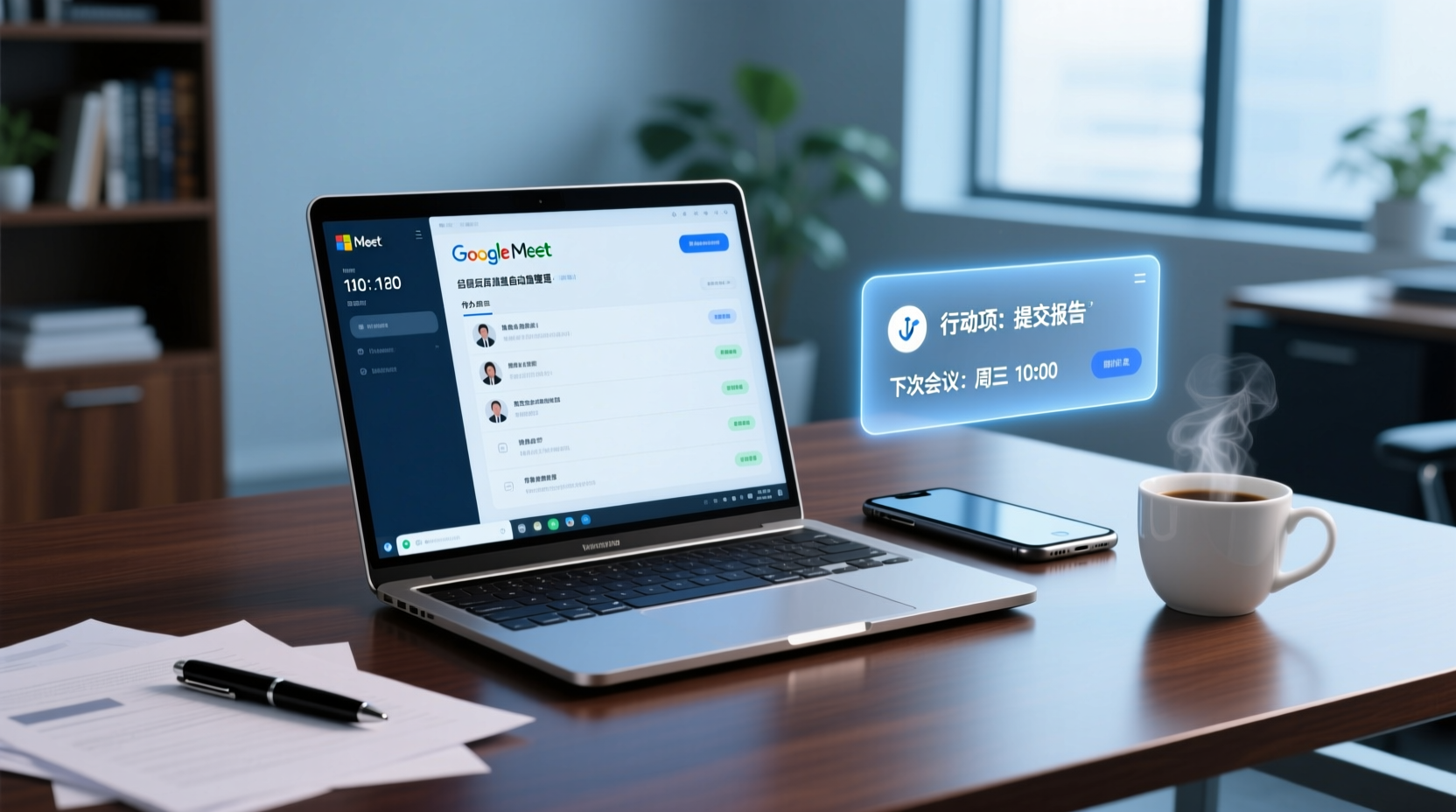
Turn recordings into transcripts and summaries in minutes
Upload audio or video for multilingual transcription, AI notes, and action items
Why "Supports Google Meet" Can't Be Your Only Buying Criterion
You finish a meeting on Google Meet on your Windows PC, but the organizing work often falls to your phone or another device: you want to add a few notes during your commute, or confirm who agreed to what when you get home, only to find the recording on your computer, your notes on your phone, and decisions still buried in a chat thread. What you actually need to deliver is a record that can go into a project document or be reported to your manager—not an audio file you have to listen to again.
Almost every meeting note-taking tool's landing page says "supports Google Meet," but what that means in practice varies widely: some send a meeting bot to join your meeting room, some capture system audio on your own computer, and some just let you manually upload a recording afterward. These three approaches have different impacts on the meeting experience, post-meeting workflow, and data ownership—yet the landing page says the same thing.
Here's the bottom line: the key to narrowing candidates to two or three isn't which platform they support, but whether they can handle four things—how meeting audio gets in, how far post-meeting output goes, how big the organizing experience gap is between Windows and phone, and whether data ends up in a personal account or a team space. Below we break down each dimension, with specific questions to ask product pages or vendors after each one.
Dimension 1: How Meeting Audio Gets In—Bot Participation or System Audio Capture
This is the first question to clarify because it affects both the meeting experience and the post-meeting workflow. There are at least three implementations on the market:
- Meeting bot participation: The tool joins the meeting room as an additional participant, so an extra account appears on the attendee list. The advantage is it doesn't use your computer's resources; the downside is attendees see an extra account, and some external or client meetings require advance notice.
- System audio capture: The tool records the meeting audio playing on your own Windows computer, so no one extra appears in the meeting room. This approach requires you to actively open the tool and start recording—it doesn't automatically join every meeting on your calendar.
- Manual upload after the meeting: The tool doesn't touch the meeting itself; it just lets you drop in a video or audio file afterward for transcription. This is the least disruptive to the meeting, but it pushes the organizing time later.
For someone who runs several Google Meet sessions on Windows every week, this directly determines "how soon after the meeting you get something." Bot participation usually produces content shortly after the meeting ends; system audio capture depends on whether you remember to hit record before the meeting; manual upload depends entirely on when you have time to process the file.
Questions to ask the product page or vendor:
- Does this tool join meetings with a bot, or capture system audio on my computer?
- If it's system audio capture, do I need to manually start recording each time? Or can it automatically detect when a meeting starts?
- Are there details about supported OS versions and how Google Meet is used (browser or desktop app)?
- Will recording affect other audio playback or microphone use on my computer?
Dimension 2: How Far Post-Meeting Output Goes—Transcript, Summary, To-Dos, or Deliverable Documents
The second dimension determines how much time you still spend organizing after the meeting. Tools that all claim "meeting notes" can differ by three levels of output:
1. Transcript: Turns audio into text, preserving original speech. Good for situations requiring quotes or line-by-line verification, but long meetings are still time-consuming to read.
2. Summary and to-dos: Automatically generates summaries, sections, key points, and action items on top of the transcript. This already saves most of the synthesis time, but to-dos usually still need you to confirm owners and deadlines.
3. Deliverable documents: Further organizes meeting content into meeting minutes, reports, tables, or documents that can go directly into project files or be reported to your manager. This level truly handles "post-meeting delivery."
The difference: a tool that only gives a transcript doesn't eliminate post-meeting organizing time—it just shifts from "listening to a recording" to "reading a long document." A tool that provides summaries and to-dos saves synthesis time. A tool that also produces deliverable documents closes the last mile.
Take Tinrec as an example: its positioning isn't just turning audio into text, but organizing meeting recordings into searchable, summarizable, queryable, exportable, and further processable data. The desktop version captures device system audio to handle Google Meet and other online meetings without a meeting bot joining. After the meeting, it can generate transcripts, summaries, sections, key points, and to-dos, and through an AI assistant (Agent) it can continue producing reports, tables, and documents based on meeting context. Note that important commitments, externally sent content, and key decisions should still be manually reviewed before use.
Questions to ask the product page or vendor:
- What does it produce by default after a meeting? Are transcript, summary, and to-dos separate or in one document?
- Can to-dos be tagged with owners and deadlines?
- Can results be exported to formats or tools I normally use?
- If I need meeting minutes or a report I can hand over directly, how far can the tool go?
Dimension 3: Differences in Organizing Experience Between Windows and Phone
This is the most easily overlooked item, yet it's closest to the reality of "meeting on computer, organizing picked up on phone."
Stop organizing recordings by hand
Upload audio or video and automatically get a transcript, summary, and action items
The advantage of Windows is a large screen, the ability to have the meeting and transcript open simultaneously, easy editing while viewing, and suitability for detailed organizing that requires cross-referencing the original text. The advantage of phone is immediacy: right after the meeting, in the elevator or on your commute, you can add key points and confirm to-dos. The problem is that if the two ends operate independently, data splits—a recording on the computer, notes on the phone—and you still have to merge them manually.
So the question for this dimension isn't "is there a mobile app?" but "are both ends the same data?" Ideally: a meeting recorded on Windows can be opened on your phone to see the same transcript and to-dos, where you can continue editing, adding, or just quickly browsing to confirm. If the tool only supports a single platform, or the two ends require manual export/import, the cross-device gap becomes extra organizing cost.
Questions to ask the product page or vendor:
- Are Windows and phone the same data under the same account?
- Can the phone edit, add to, or just view? Are there permission differences?
- Do notes or to-dos added on the phone sync back to the computer?
- If a meeting is recorded on Windows, how soon can the phone see the content?
Dimension 4: Does Data Stay in a Personal Account or a Team Space
The last dimension determines the "ownership" and "continuity" of the meeting record.
Data staying in a personal account is simple, with clear privacy boundaries, suitable for individual use or when team collaboration habits haven't formed yet. The downside is that when you need a colleague to take over, or when you change devices or jobs, data continuity depends on the state of the personal account.
Putting data in a team space is a different logic: meeting data belongs to the team, members can view, search, and query historical meetings, and to-dos and post-meeting outputs can continue to be followed up. For project coordinators, this means "the meeting is over" doesn't mean "the data is scattered"—it becomes a reusable team asset.
Note that team space and personal account aren't a binary feature switch, but two different data ownership designs. Some tools have both; some only have a personal version. There's no standard answer for this dimension—it depends on whether your meeting content needs multiple people to take over.
Questions to ask the product page or vendor:
- Does this tool have a team space? Are team data and personal data separate?
- Can team members view historical meeting data? What are the requirements?
- If a member leaves the team, what happens to the meeting data they were responsible for?
- Are team data permissions shared at the team level, or can they be controlled at the individual file level?
Two Practical Steps Where the Team Edition Fits into a Windows Google Meet Workflow
If your meeting content needs colleagues to take over, the team edition is worth including in your comparison. Here are two practical steps showing how it works.
Step 1: Moving meeting data from a personal computer into a team space
The old way: you finish a Google Meet on Windows, the recording and transcript stay in your own account, and to share with colleagues you have to manually export and send to a group or cloud drive, with versions easily scattered.
With a team space, meeting data can be stored centrally in the team space, and members can view, play, and read the same transcript, summary, and to-dos without each person keeping their own copy. To be clear: the team edition is shared visibility at the team level, governing permissions through role management and usage eligibility through seat management—it is not a fine-grained permission system that sets independent access scopes for each file.
Step 2: Data handover when members change
The old way: the colleague responsible for organizing leaves or transfers, meeting data disappears with their personal account, and the successor has to ask around all over again.
The team edition is designed so team resources belong to the team. When a member exits, is removed, or loses their seat, the team resources they were responsible for can be handed over to other active members, and historical meeting data doesn't lose its ownership when an individual leaves. Note that active members without a seat can still view, play, and read team data, but cannot perform resource usage operations such as uploading, editing, importing, or exporting.
If your team is evaluating this type of tool, you can start by confirming whether the team space and shared meeting data meet your needs, then check with the official source for plan details based on your actual situation.
Recommendations for Narrowing Down by Meeting Type
Applying the four dimensions back to your actual meeting types makes the direction clearer:
- External client meetings, where attendees need advance notice: Prioritize confirming whether the tool uses bot participation or system audio capture. System audio capture doesn't add an account to the attendee list, lowering the communication cost for external meetings.
- Internal project meetings, where work is assigned afterward: Prioritize the post-meeting output level—whether it can provide to-dos and deliverable documents is more important than the transcript itself.
- Cross-device, often organizing on the phone: Prioritize confirming whether Windows and phone are the same data, to avoid splitting between the two ends.
- Multi-person collaboration, needing long-term accumulation: Prioritize confirming whether data ownership is a personal account or a team space, and how handover works when members change.
- Only occasionally needing a record: You can start with a tool at the transcript and summary level, without pursuing full team capabilities from the start.
You don't need to ask all the questions at once, but at least clarify "how audio gets in" and "where data stays," because those are the hardest to fix later. The other two can be prioritized based on your meeting type.
Final reminder: recording and transcription involve attendees' rights. Follow local regulations in actual use and obtain attendee consent when needed.
Tinrec does more than produce a transcript. After summaries, highlights, and action items are extracted, Agent can use the meeting context to help turn follow-up tasks into practical deliverables such as an action plan, follow-up material, a report, a table, or a document. Important commitments and external messages should still be reviewed by a person.
Tinrec for Teams then keeps the meeting materials, action items, and resulting deliverables in a shared team workspace so members can continue the work, search the context, and retain it over time. Capabilities selected for this scenario include 团队空间、共享会议资料.
If these records need to be maintained by more than one person, consider Tinrec for Teams for a more consistent collaboration workflow.
References
- Google Meet: Online Web and Video Conferencing Calls | Google Workspace
- GMeet - Meeting Scheduler and Backgrounds - Free download and install on Windows | Microsoft Store
- How to Download & Use Google Meet on PC (Windows or Mac)- Pawa IT
- Google Meet - Apps on Google Play
- Download Google Meet for Web Apps - Free - latest version
Turn every recording into actionable outcomes
Get 60 free transcription minutes when you sign in. No credit card required.
Related Reading
You might also like

2026 AI Meeting Notes Comparison: Notta vs Otter vs Granola vs Tinrec
Starting from the real frustration of finishing a meeting and losing the key points, this side-by-side comparison of Notta, Otter.ai, Granola, and Tinrec explains differences in bot-free recording, post-meeting summaries and action items, AI Q&A, team seats, and usage governance. It also compiles official pricing and free tiers to help you choose the one that fits your workflow.

2026 AI Meeting Recorder Pricing: How Much Does Notta AI Really Cost?
Notta AI's pricing looks like a single USD 8.17, but it actually involves annual billing discounts, per-session minute limits, AI Credits, and translation add-ons. This article breaks down the costs of Notta's Free, Pro, Business, and Enterprise plans, compares them with Tinrec, Otter.ai, and TurboScribe, and offers selection advice based on your meeting habits, plus four common pitfalls that can lead to overspending.
2026 AI Meeting Recorder Comparison: Is Notta Bot's Auto-Join Really Easier?
Notta Bot syncs with your calendar to auto-join and transcribe meetings, but bot-free recording, post-meeting AI Q&A, and team data governance are separate considerations. This article addresses common misconceptions and compares Notta, Granola, Otter.ai, and Tinrec, with official pricing and buying advice.

Notta vs Tinrec 2026: 5-Factor Comparison After Reddit Complaints
Reddit reviews of Notta are mixed: some find it easy to use at first, while others complain about language support not matching expectations, insufficient quota, and data used for training. This article compiles real complaints from Reddit and third-party reviews, and compares Notta and Tinrec across 5 dimensions to help you decide which is better for your meeting scenarios.

AI Meeting Notes Tools Cost Comparison 2026: 4 Pricing Pitfalls Students Have Fallen Into
Searching 'notta ai prices' and only looking at the monthly fee is the easiest way to fall into a trap. This article breaks down the pricing pitfalls of AI meeting notes tools from a student budget perspective, using Tinrec to actually record class lectures, group discussions, and online courses, and explains how to choose between the free version, weekly pass, Pro, and team plans.
Notta AI Tutorial & Comparison 2026: Which of 3 Meeting Note Tools Saves the Most Time?
Starting from the real scenario of having to write transcripts after meetings, we walk through the complete Notta AI tutorial process, then compare Tinrec, Otter.ai, and Granola using the same criteria to see the actual differences in free tiers, Chinese transcription, and team collaboration.

Notta App vs. 3 AI Meeting Recorders Tested: Which Handles Chinese Transcription, Post-Meeting Summaries, and Team Knowledge Best?
Looking for Notta App reviews and pricing? This article starts with the decision point: are you recording meetings or files? We compare Notta, Tinrec, Otter.ai, and TurboScribe on meeting capture methods, post-meeting outputs, free tiers, and team collaboration, and honestly list each tool's limitations and pricing to help you make a regret-free choice before paying.

Nótt Ataşehir: Complete Guide 2026 – Address, Hours, Menu & What to Know Before You Go
Searching for notta ataşehir but finding conflicting info across platforms? This guide compiles the address, phone, hours, food and cocktail highlights, reservation tips, and common pitfalls for Nótt (Kitchen & Cocktail Bar) in Ataşehir, Istanbul—read this before you go.
Notta Chrome Extension Review 2026: 2 Tools Tested for Meeting Notes
Does installing the Notta Chrome extension automatically record all your meetings? Actually, it captures audio from browser tabs. This article addresses three common misconceptions, then compares Notta and Tinrec across five dimensions, including official pricing, quotas, and team governance differences, to help you decide which fits your meeting scenario.