

Turn recordings into transcripts and summaries in minutes
Upload audio or video for multilingual transcription, AI notes, and action items
Can You Record LINE Calls on iPhone? Bypassing iOS Restrictions and Efficient Transcription Guide
Picking up your iPhone to record an important LINE call, only to find no "record" button? This is a common pain point for many iOS users. Due to Apple's strict privacy protection policies and sandbox mechanism, the iPhone cannot natively record audio from third-party apps (such as LINE, WhatsApp). This not only causes business professionals to miss client details but also makes it hard for students to retain key discussion points from online classes.
Although there is no "one-tap recording," it's still possible to achieve this through external devices or specific techniques. More importantly, simply saving the audio file on your phone adds little value. This article will walk you through feasible iOS recording methods and thoroughly review how to quickly convert these audio files into searchable, actionable text notes. We will compare mainstream tools and introduce workflow solutions like Tinrec that combine AI summaries, helping you evolve from "saving recordings" to "mastering information."
Quick Navigation: Which Solution Is Right for You?
- Want the simplest, no extra hardware: Use another device (like an iPad, old phone, or voice recorder) placed near the speaker to record externally.
- Prioritize Chinese recognition accuracy and meeting summaries: Choose tools optimized for Asian languages, such as Tinrec or Notta.
- Mainly handle English meetings with frequent team collaboration: Otter.ai is the top choice for international teams, but note its limited Chinese support.
- Have a large backlog of old audio files to organize: Look for tools that support batch upload and automatic speaker differentiation, such as Tinrec or TurboScribe.
Why Can't iPhone Directly Record LINE Calls?
Before seeking solutions, understanding the root of the restrictions can help you avoid dead ends. iOS system design treats call audio channels as high-privacy zones; Apple prohibits general apps from accessing audio streams from other calling apps. This means:
- Screen recording is silent: Even using iOS's built-in screen recording, when recording a LINE call, it typically only captures video, not the conversation audio (it may record your own microphone input depending on version, but it's unstable).
- Background recording interruption: When a LINE call is active, the system occupies the microphone and audio output, causing background recording apps to be forcibly paused or unable to capture audio.
Therefore, apps currently claiming to "record LINE calls on iPhone without jailbreak or external accessories" mostly have compliance risks or incomplete functionality. The most stable and legal method remains using external recording or computer assistance.
Practical Solutions: How to Record LINE Calls on iPhone
Since the system limitations can't be broken, we turn to operational workarounds. Here are three proven paths:
Method 1: Dual-Device External Recording (Most Recommended, Lowest Cost)
This is the most primitive but reliable method. Prepare another device with recording capability (like an old iPhone, Android phone, iPad, or digital voice recorder).
- Set the LINE call to "Speakerphone" mode to ensure sound comes from the speaker.
- Open the recording app on the second device and place it close to the iPhone's speaker.
- Start the call and begin recording simultaneously.
Pros: No technical barrier, does not violate any app terms of service.
Cons: Ambient noise may affect quality; requires manual post-processing of audio files.
Method 2: Mac/PC Computer-Assisted Recording
If you habitually use LINE Desktop on a computer, you can use the computer's recording software.
- Install LINE on your computer and log in.
- Use the built-in "Voice Memos" (Mac) or Audacity (Windows/Mac).
- Set the audio input to "System Audio" or "Stereo Mix"; this may require additional virtual audio drivers (like BlackHole for Mac).
Pros: Better audio quality, directly produces digital audio files.
Cons: Complex setup; non-technical users may struggle with audio routing settings.
Method 3: Use Dedicated Call Recording Hardware
There are specialized call recording earbuds or adapters for iPhone Lightning or USB-C ports (e.g., MagSafe recording accessories).
Pros: High integration, clear audio.
Cons: Requires additional hardware purchase, less portable.
From Audio to Text: Why You Need AI Transcription Tools
Successfully recording audio is only the first step. Based on past experience, transcribing a 60-minute meeting recording manually takes at least 3-4 hours. Worse, when you urgently need to find a specific decision point, you have to drag the progress bar and listen repeatedly—extremely inefficient.
That's where "audio-to-text" tools become essential. But with so many tools on the market, how do you choose? We evaluate the mainstream tools based on three dimensions: Chinese recognition accuracy, AI summarization capability, and workflow integration.
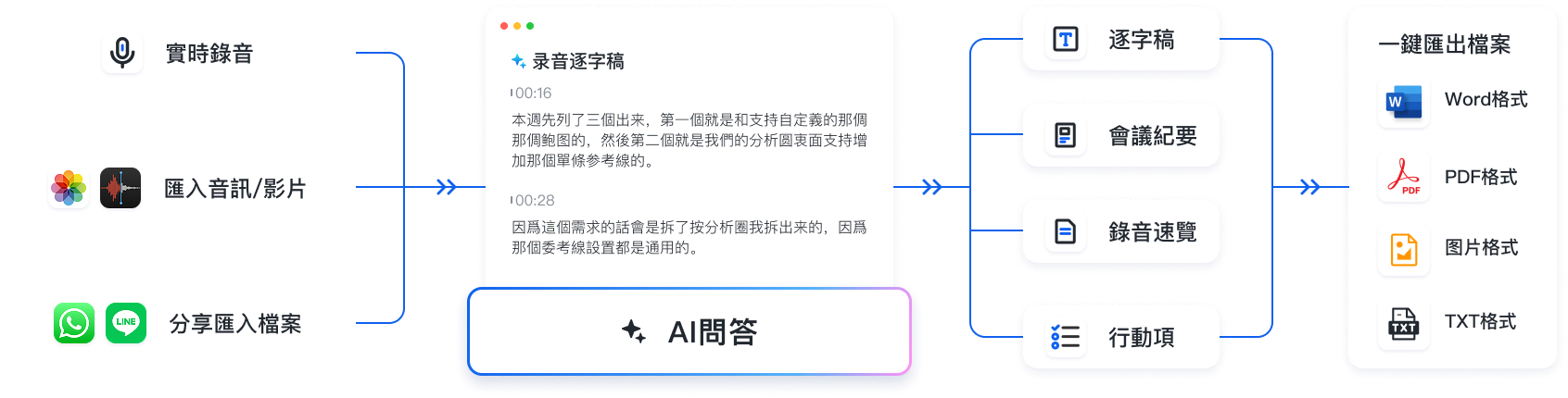
Evaluation Dimensions
- Language Support & Accuracy: Does it fully support Chinese (including Traditional), Taiwanese, or mixed Chinese and English? This is a core pain point for Asian users.
- AI Intelligence: Does it only output raw text (transcript) or can it automatically extract "meeting conclusions" and "action items"?
- Search & Interaction: Can you query the recording content through conversation? For example, ask: "What was the budget limit the client mentioned earlier?"
Stop organizing recordings by hand
Upload audio or video and automatically get a transcript, summary, and action items
In-Depth Tool Reviews & Comparison
1. Otter.ai: International Benchmark, but Weak Chinese Support
Otter.ai is a globally recognized meeting recording assistant known for real-time transcription and speaker identification.
- Strengths: Extremely high English recognition rate; beautiful interface; deep integration with Zoom and Teams.
- Weaknesses: Does not support Chinese transcription. This is a fatal flaw for users in Taiwan or Mandarin-speaking contexts. Additionally, its free tier has limited credits, and premium features are pricey.
- Best for: All-English meetings, cross-national team collaboration.
2. Notta: Multi-Language Support, but Chinese Stability Needs Improvement
Notta markets itself as supporting over 50 languages, including Chinese.
- Strengths: Good cross-platform support; offers web and app versions; intuitive interface.
- Weaknesses: Based on user feedback, its recognition accuracy occasionally fluctuates with fast speech or specialized terminology in Chinese meetings; editing features are basic.
- Best for: Simple meeting notes with mixed languages.
3. OpenAI Whisper / MacWhisper: Developers' Choice, High Barrier for General Users
Whisper is currently the most powerful open-source speech recognition model.
- Strengths: Very high recognition accuracy; supports offline operation; excellent privacy. MacWhisper makes it convenient for Mac users to leverage this model.
- Weaknesses: High usage barrier. Average users need some technical know-how to deploy or use related software. It only provides "transcription" functionality, lacking subsequent summarization, organization, and action item extraction.
- Best for: Privacy-conscious tech professionals, developers, and on-premise processing of sensitive data.
4. Tinrec (Seconds to Listen): Complete AI Workflow from Recording to Action
Compared to the tools above, Tinrec positions itself not just as "transcription" but as "information management." It solves the pain point of traditional tools that only produce raw transcripts without structured summaries.
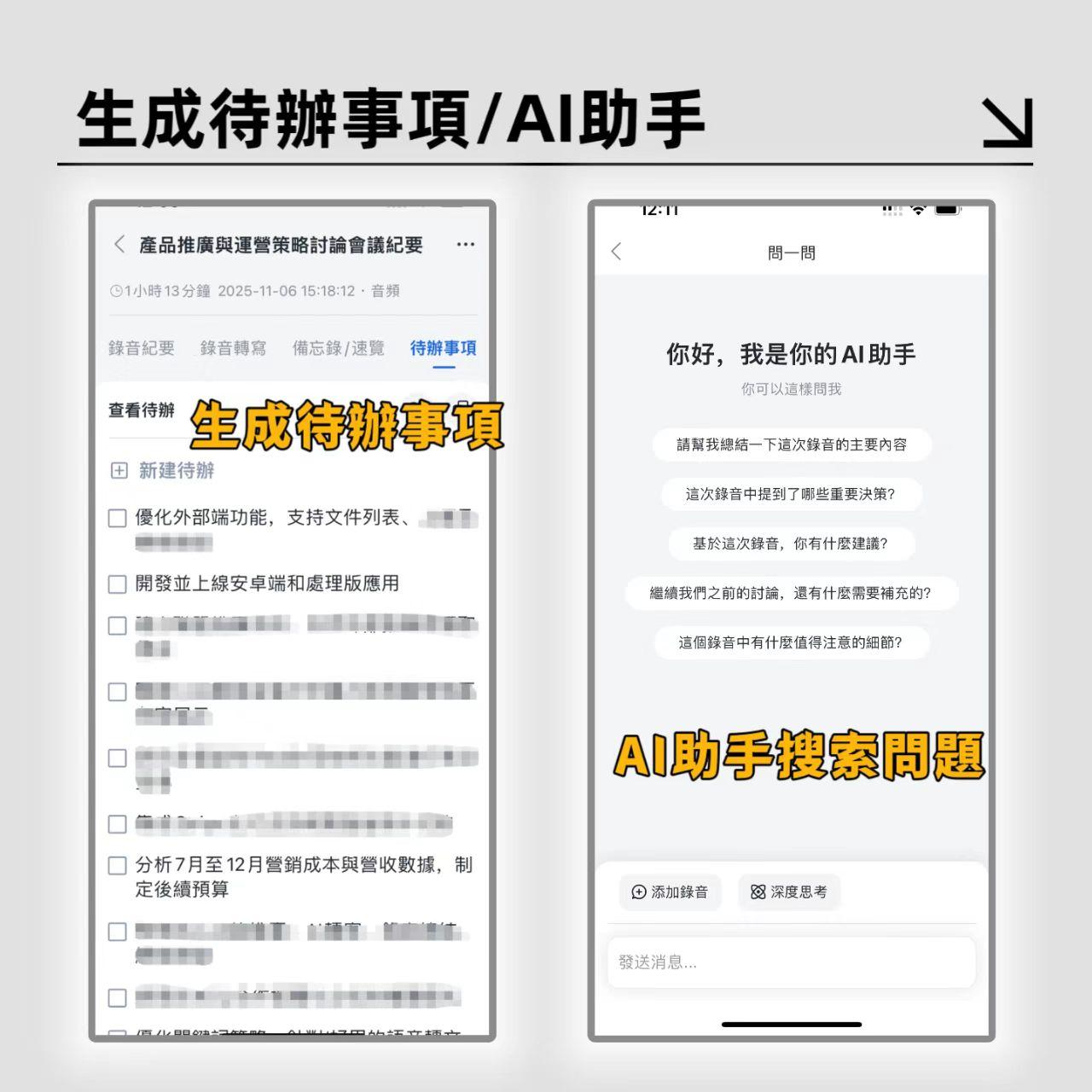
Key Differentiators:
- Accurate Chinese and multi-language support: Tinrec is optimized for Chinese (Traditional/Simplified), Taiwanese, Cantonese, and languages like English, Japanese, Korean. It automatically detects language switching, especially suited for Asian workplace scenarios where Chinese and English mix.
- AI Chat Query (Chat with Audio): This is Tinrec's killer feature. Instead of Ctrl+F searching keywords, you can directly ask the AI: "What was the conclusion about the marketing budget in this meeting?" The system understands semantics and directly provides the answer along with source timestamps. This transforms "searching documents" into "consulting an expert."
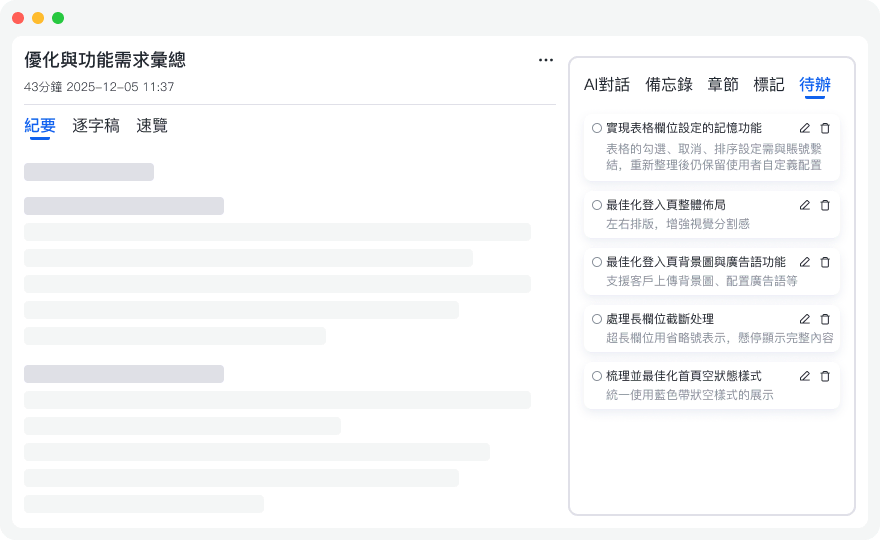
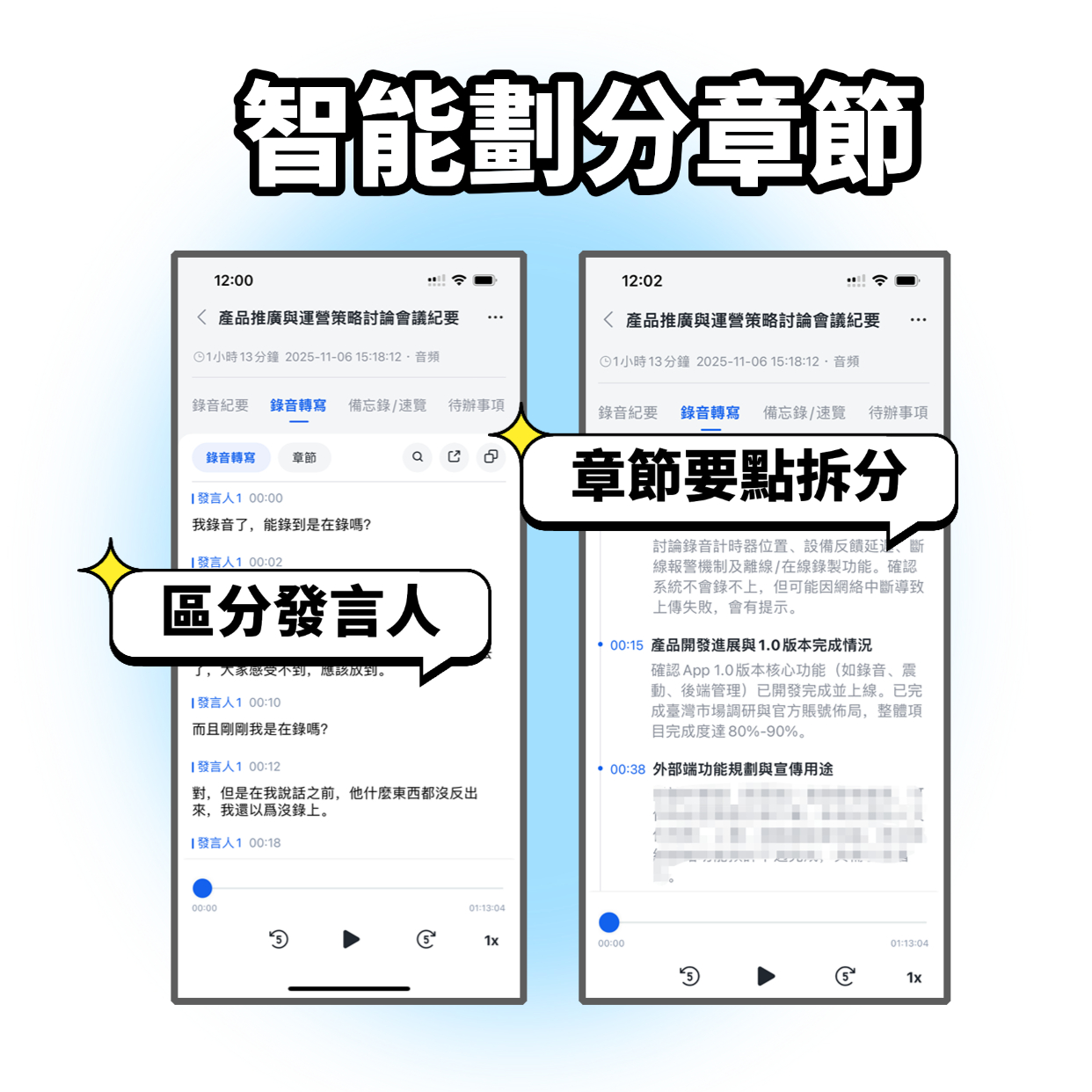
- Automated meeting minutes and action items: After uploading or live recording, Tinrec automatically generates structured meeting minutes including "Key Summary," "Decisions Made," and "Action Items," with assignees marked. This directly shortens the distance from meeting to execution.
- Multi-device sync and flexible import: Supports iOS, Android, and Web. You can directly upload LINE call audio obtained via the "dual-device recording" method to the Tinrec web version for processing, easily overcoming the bottleneck after bypassing iOS recording restrictions.
Pricing & Accessibility:
Tinrec offers a free tier with 100 minutes of recording per month, enough for light users to try. For heavy users, Basic and Pro plans offer competitive per-minute rates and support multiple payment methods.
Practical Tutorial: How to Turn LINE Recordings into Efficient Notes
Combining the aforementioned "external recording method" with Tinrec, here is a standard operating procedure (SOP):
Step 1: Record
Use a second device (e.g., iPad) to open a voice recorder, set iPhone LINE call to speakerphone, ensure a quiet environment, and complete the call recording. Save the audio file in a common format (e.g., MP3, M4A, WAV).
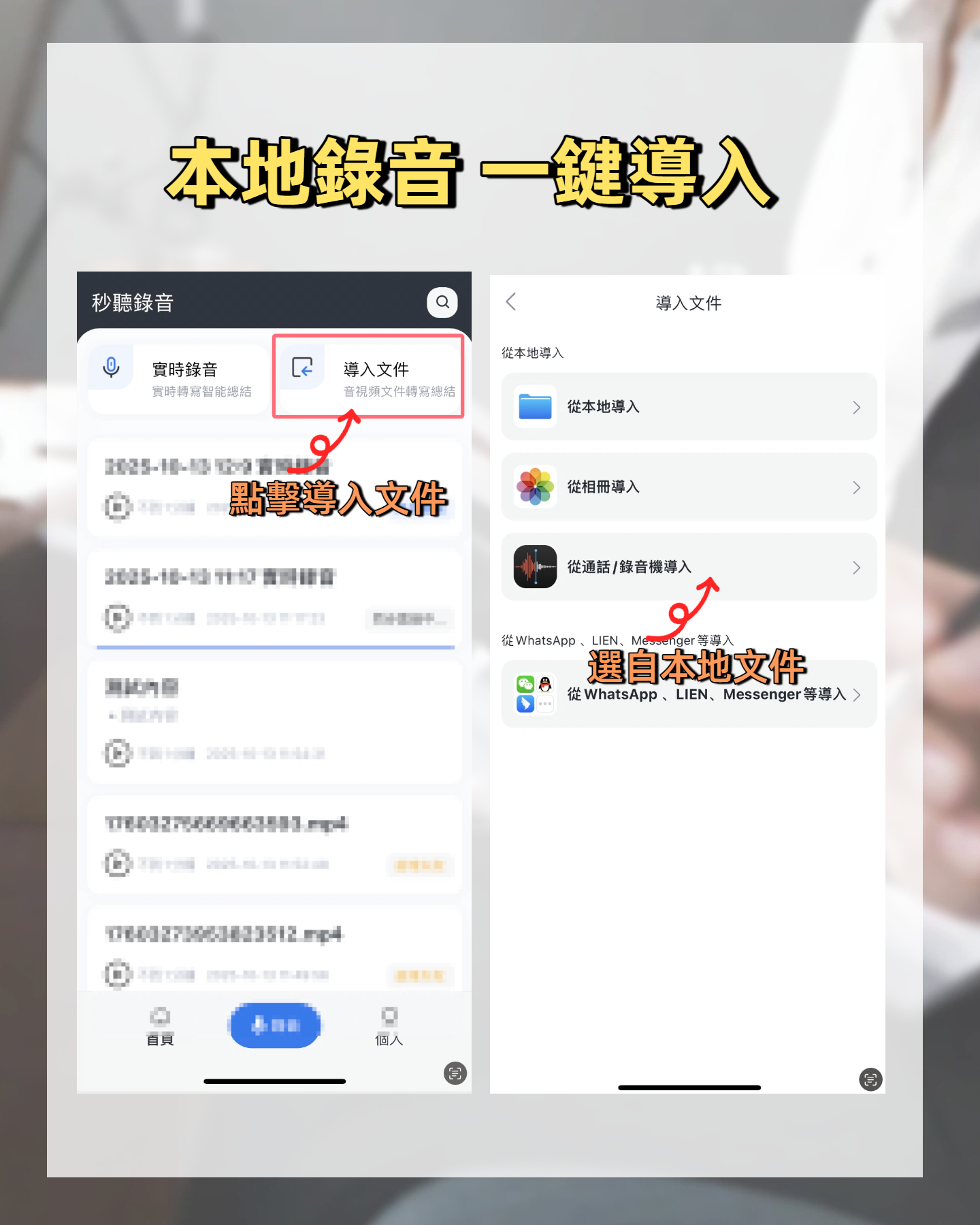
Step 2: Upload to Tinrec
Open Tinrec web or app, select the "Audio File to Text" feature. Upload the recorded audio file. Tinrec supports multiple audio formats, no additional conversion needed.
Step 3: AI Auto-Processing & Proofreading
The system automatically performs speech recognition and generates a transcript. You can then use Tinrec's editor to quickly fix any minor recognition errors. Meanwhile, AI runs in the background to generate meeting summaries and action items.
Step 4: Extract Key Information via AI Chat
If you only want to confirm a specific detail, no need to replay the whole recording. Enter the "AI Chat Query" function and type your question, e.g., "What specific feedback did the client have about the product prototype?" Tinrec will immediately respond with the key points and indicate their position in the recording.
Step 5: Export & Share
Export the generated meeting minutes and action items as TXT or PDF, or copy-paste them directly into your project management tool (e.g., Notion, Trello) to close the loop.
Frequently Asked Questions (FAQ)
Q1: If I use external recording and the quality is poor, can AI still recognize it accurately?
A: Modern AI voice models (like Tinrec's underlying technology) have powerful noise reduction and enhancement capabilities. As long as the human voice is clear and distinguishable, the recognition rate remains at a practical level even with slight background noise. It's recommended to keep the recording device as close to the sound source as possible.
Q2: How long of a recording can Tinrec handle?
A: Tinrec supports long audio processing; specific limits depend on the subscription plan. The free tier has a monthly total time limit, but single uploads can usually handle most meeting-length recordings. For very long recordings (e.g., multi-hour lectures), consider splitting them or using a higher-tier plan.
Q3: Besides LINE, do these methods work for WhatsApp or Messenger?
A: Yes. Since iOS restrictions on all third-party VoIP calls are the same, the "external recording + AI transcription" approach works for any calling app that cannot natively record.
Q4: Is the privacy of recording-to-text secure?
A: Choosing a reputable service provider is crucial. Legitimate vendors like Tinrec use encrypted transmission and storage and provide privacy policy guarantees. For extremely sensitive content, consider locally running tools like MacWhisper, but you'll sacrifice convenience and AI summarization features.
Conclusion: Choosing a Tool is Choosing a Workflow
The inability to directly record LINE calls on iPhone is a system-level limitation, but it shouldn't be an excuse for information loss. By combining "external recording + AI transcription," you can not only bypass the restriction but also gain more powerful information processing capabilities than native recording.
In terms of tool selection:
- If you prioritize top-notch English experience and international collaboration, Otter.ai remains a strong contender.
- If you are a tech enthusiast who values absolute privacy, the OpenAI Whisper series is worth exploring.
- But if you work in a Chinese-dominated environment focused on efficiency and action conversion, Tinrec's complete workflow of "Record → Understand → Act," especially its Chinese optimization and AI chat query, can significantly reduce your administrative burden, making every call truly productive.
Don't let valuable conversations remain dormant in audio files—start building your digital recording note system today.
Turn every recording into actionable outcomes
Get 60 free transcription minutes when you sign in. No credit card required.
Related Reading
You might also like

2026 Audio-to-Text Comparison: Tinrec vs Otter.ai for Chinese Meetings & Team Knowledge
How to choose an audio-to-text tool in 2026? This article compares Tinrec and Otter.ai across 5 dimensions: Chinese meeting transcription, bot-free online meeting capture, audio file organization, post-meeting workflows, and team data governance. Based on public features and pricing, it helps you decide which is better suited for meeting notes needs in Taiwan.

How to Choose an Online Audio-to-Text Tool in 2026: 5 Steps to Pick the Right One and Get a Transcript
How do you choose an online audio-to-text tool? This article reviews 6 online options—Tinrec, MyEdit, cSubtitle, CyberLink, Yating Transcript, and Monica—comparing free quotas, Chinese recognition, export formats, and team collaboration. It also walks you through 5 steps to turn an audio file into a transcript.

2024 Review of 4 Audio-to-Text Tools: Which Saves the Most Time on Chinese Meeting Transcripts and AI Summaries?
The 2024 audio-to-text comparison isn't just about transcription speed—it's about whether the tool can organize your meeting notes afterward. Based on real meetings and interviews, this review compares Tinrec, Notta, Granola, and PLAUD on audio sources, transcripts, AI summaries, action items, team collaboration, and pricing limits to help you choose the right tool.

4 Free Online Audio-to-Text Tools Compared (2026): Which Offers the Best Free Tier and Chinese Recognition?
A comparison of Tinrec, MyEdit, cSubtitle, and Monica's free online audio-to-text offerings, covering free quotas, Chinese recognition, export formats, and post-meeting AI organization to help you decide which suits meetings, interviews, and subtitles.

4 Free AI Audio-to-Text Tools Tested: Which Free Tier Is Enough in 2026?
There are many free AI audio-to-text tools, but free quotas, single-recording length limits, Chinese recognition, and post-meeting organization capabilities vary widely. This article compares the free plans and use cases of 4 tools, using Tinrec's no-bot recording, AI Q&A, and team spaces as selection references.

2026 Comparison of 2 Online Audio-to-Text Tools: Tinrec vs Otter.ai — Which Is Better for Chinese Meetings?
Starting from common misconceptions, this comparison examines Tinrec and Otter.ai in Chinese meetings, bot-free recording, post-meeting organization, real-time translation, and team data retention to help you decide which online audio-to-text tool fits your daily work.

2026 Comparison of 2 Audio-to-Text Platforms: Free Tiers, Chinese Recognition, and Post-Meeting Organization at a Glance
A side-by-side comparison of Tinrec and Notta across free tiers, Chinese recognition, online meeting recording, post-meeting organization, and team collaboration, helping you decide whether the free version is enough and when to upgrade.

iPhone Voice Memos vs Tinrec in 2026: 5-Dimension Comparison — Is Free Transcription Enough?
iPhone's built-in Voice Memos can now transcribe recordings for free, so do you still need a separate tool? This article compares iPhone's built-in features with Tinrec across 5 practical dimensions and honestly explains where the free limits are, helping you decide which approach fits your meeting volume.

4 Free Audio-to-Text Tools Tested for 2026: Which Free Tier Is Actually Enough?
There are plenty of free audio-to-text tools, but few can handle a full meeting. This hands-on comparison tests the free plans of Tinrec, Otter.ai, Notta, and TurboScribe—breaking down how limits are calculated, transcript post-processing, audio retention, and team collaboration—to help you decide which free version is truly usable.