
Turn recordings into transcripts and summaries in minutes
Upload audio or video for multilingual transcription, AI notes, and action items
Before You Start | What You'll Need
If you've been looking for a way to record Google Meet or Facebook Messenger calls and turn them into text, this post is for you. Honestly, neither platform has good built-in transcription—Meet's live captions can only be viewed, not saved as a full transcript; Messenger doesn't even have the feature.
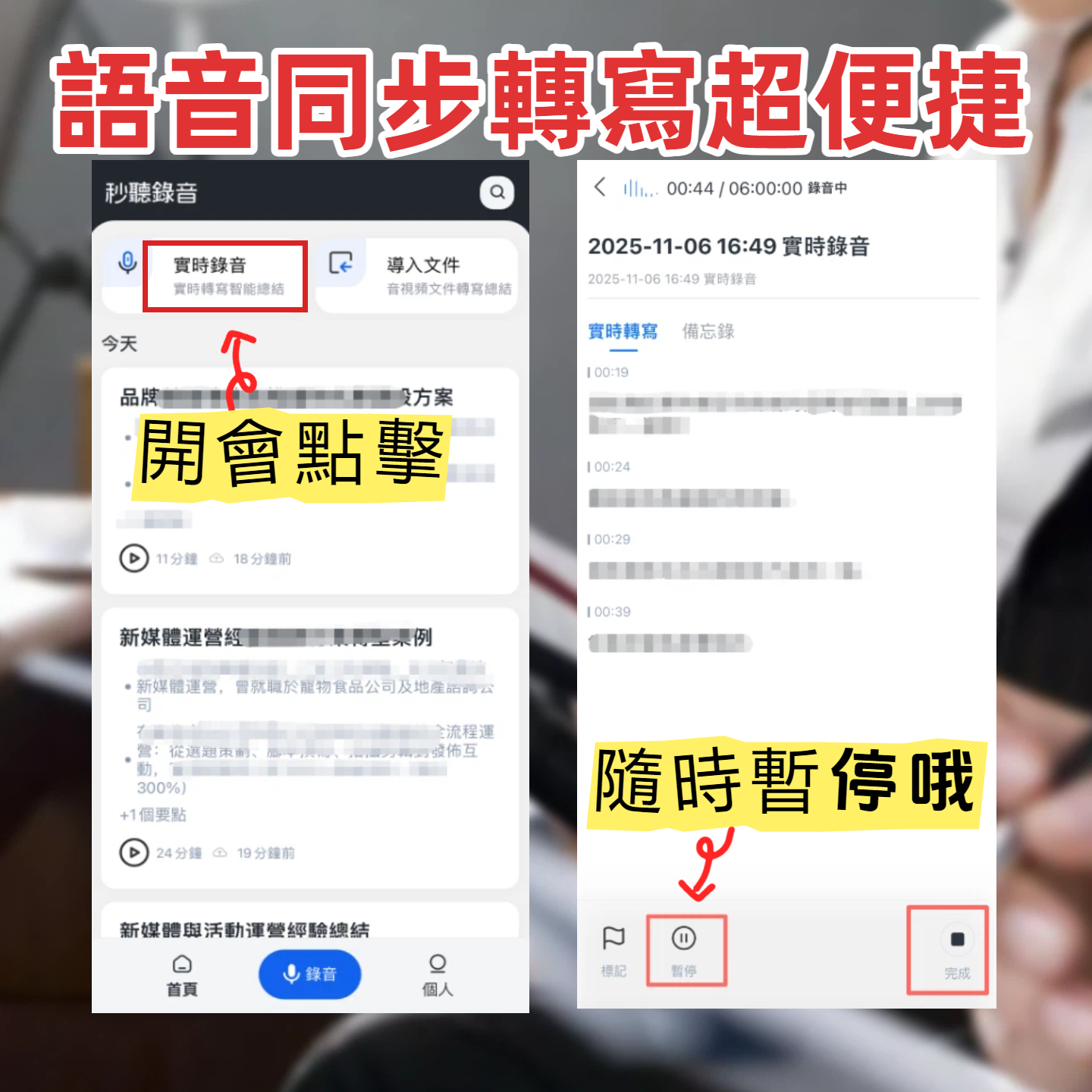
I tested Tinrec (formerly Miaoshou Voice Recorder) and found it really works. Here's what you need before you start:
- A device that can record: phone (iPhone/Android) or computer—Tinrec's app and web version both work.
- Download Tinrec: search for "Tinrec" on the App Store or Google Play, or visit tinrec.com for the web version.
- A Google or Apple ID account—takes 30 seconds to sign up.
- The Google Meet or Messenger call you want to record. For Meet, just place your phone nearby; for Messenger, use a second phone to record.
- A stable internet connection—real-time transcription needs it; download language packs for offline use.
Step 1 | Record the Content You Want to Transcribe
The goal here is to get a clear recording—everything else depends on it.
Open Tinrec and tap the record button on the main screen. For a Google Meet meeting, place your phone near your computer speaker; for Messenger calls, put the call on speaker and set another phone nearby. Honestly, recording distance determines transcription accuracy—spending 10 seconds to position it right saves you a day of proofreading.
Why? Even the best AI engine can't fix a muffled recording. Tinrec has built-in noise reduction, but physical distance still matters. I tried recording a Meet call from two meters away and got tons of errors.
After recording, you'll see the clip on the main screen with its duration and file size. Tap it to proceed.
(Illustration: person sitting in front of a laptop with Google Meet open, phone recording nearby, screen showing live transcription)
Step 2 | Let AI Transcribe the Audio into Text
Once recording ends, Tinrec automatically starts transcribing. A 1-minute recording finishes in about 10 seconds—much faster than I expected.
The left side shows the audio file, the right side shows the transcript with a timeline. You can listen along, and just tap on any word to fix errors.
I tested it with a meeting that mixed English and Chinese. Proper nouns were almost all correct, except for one minor error: "Q3 roadmap" became "Q 3 route map." For a free tool, that's pretty good.
Step 3 | Quickly Proofread the Transcript
Tinrec's editor is easy to use—you can listen and edit at the same time, click on the timeline to jump to a spot. I usually spend 5 minutes quick-scanning to fix key terms.
Pro tip: if a whole section is terrible, tap the "re-transcribe" button next to that paragraph. It will try a different model. I once had a segment in Taiwanese Hokkien; after re-transcribing, accuracy improved significantly.
Stop organizing recordings by hand
Upload audio or video and automatically get a transcript, summary, and action items
After proofreading, you have a draft meeting record ready to use.
Step 4 | Let AI Generate Meeting Notes
This is the feature I find most useful. Tap "AI Summary" and it automatically extracts key points, discussion topics, and conclusions.
For our team's weekly meetings, the original transcript was five dense pages. The AI condensed it to three decisions and two action items. Accuracy? I checked—no made-up content, though once it misinterpreted "postpone launch" as "launch on time" because the context was missing. Watch out for that.
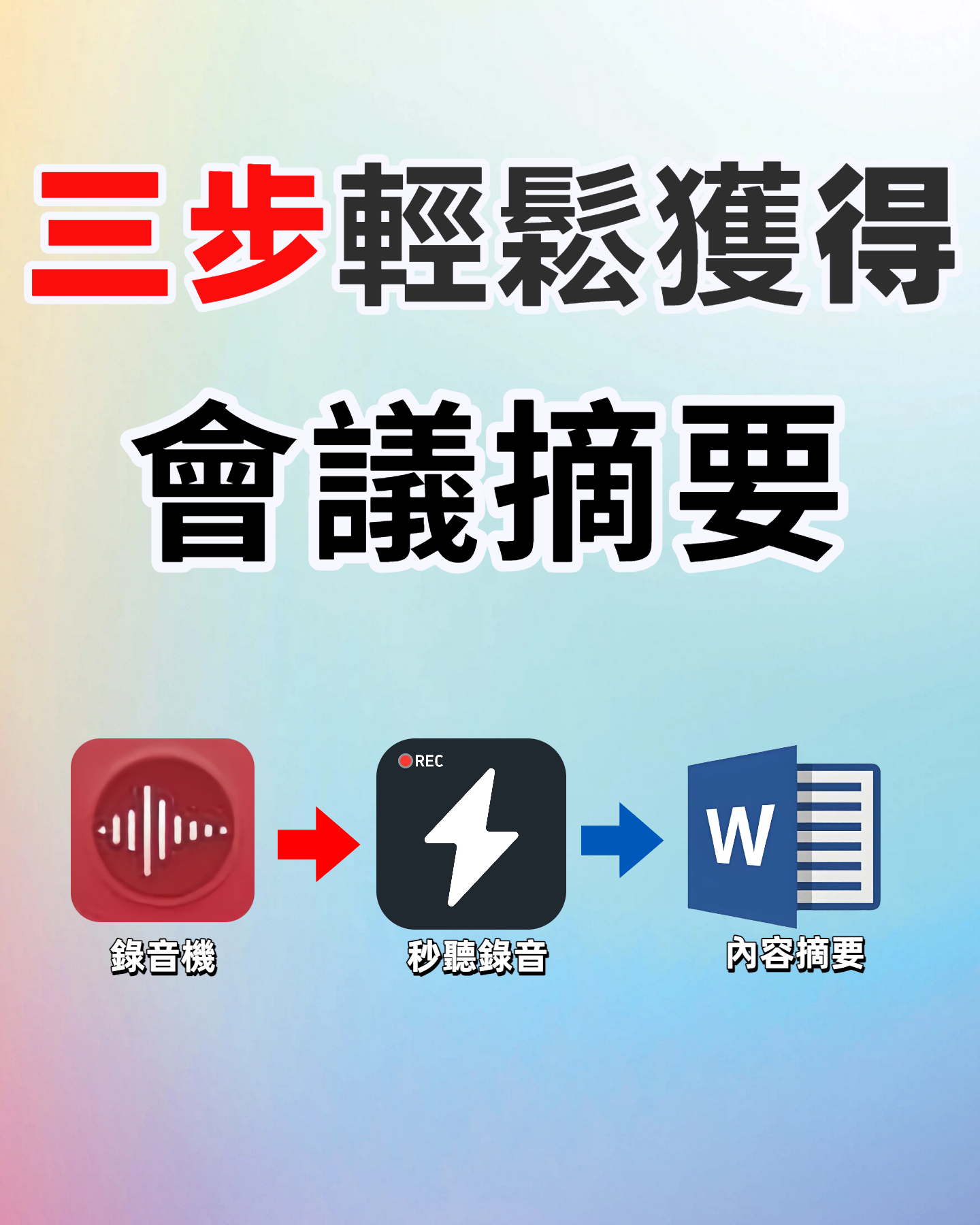
Tap "To-dos" and it extracts action items you can copy directly to Slack or Notion.
Step 5 | Export and Share
You can export the whole record as a text file, PDF, or even sync it directly to Notion or Google Docs. I usually export a PDF and email it to the team or post it in the company group chat.
When exporting, you can choose to include the summary and to-dos—all in one go. That's much more convenient than many similar tools, saving you from manual formatting.
FAQs & Troubleshooting
Q: The other person's voice is too quiet during a Meet or Messenger call. What should I do? First, make sure your phone's mic isn't blocked. If Tinrec's "Smart Noise Reduction" is on, background noise will be reduced. If it's still too quiet, try recording the Meet call on your computer and then feed the audio file to Tinrec for transcription.
Q: The transcript is full of errors. Can it be fixed? This usually happens due to a noisy environment or long distance. Tinrec can re-transcribe specifically for high-noise environments, which improves accuracy. This feature is rare among other tools.
Q: Can I record Messenger calls without using a second phone? Currently, Messenger doesn't have built-in recording like Meet, so you have to use external recording. Tinrec's app records in the background reliably, but remember to inform the other person out of respect for privacy.
Pro Tips | 3 Ways to Double Tinrec's Efficiency
- AI Chat Query: In your recorded database, you can type a question like "Who said we should change the timeline in the last meeting?" Tinrec will search all your historical recordings for the answer. This feature is almost unique to Tinrec and super useful for frequent meeting takers.
- Multi-Platform Sync: Record on your phone, and it instantly appears on the web version. I often record ideas on my phone during my commute, then continue editing on my computer when I get to the office.
- Direct Video Link Paste: If a meeting was recorded or there's a Facebook Live, just paste the link into Tinrec and it will transcribe it. No need to download videos or convert files—saves many steps.
If You Don't Use Tinrec, Here Are Alternatives
Otter.ai: Great for English meetings, accurate transcription, but Chinese support is average. The free plan gives 300 minutes per month. Good for English-only meetings. But once you hit the limit, you're out—Tinrec's free plan doesn't have such strict limits.
Notta: Strong multilingual transcription, nice interface, but the free plan only gives 120 minutes per month. If you prefer file-based transcription, consider it, but web video transcription requires the paid plan.
Honestly, if you mainly use online calls like Google Meet or Messenger and want free transcription, Tinrec is still the handiest option.
Conclusion
Now that you've learned these 5 steps, you can use Tinrec to turn Google Meet meetings and Facebook Messenger calls into searchable, organizable data. Not just transcripts—summaries and to-dos are auto-generated too.
Next step: download the free version of Tinrec and try it on a recent meeting recording. The free monthly quota is generous—test it on two or three meetings and decide if it's worth it.
Turn every recording into actionable outcomes
Get 60 free transcription minutes when you sign in. No credit card required.
Related Reading
You might also like

2026 Latest Versions of 2 Speech-to-Text Tools Compared: Tinrec vs Otter.ai — Which Is Better for Chinese Meetings?
Many people assume the "latest version" is automatically the most accurate, but overlook how meeting audio gets in, whether output is usable right after the meeting, and whether team data stays with the team. Using Tinrec and Otter.ai as examples, this article compares Chinese transcription, bot-free recording, AI Q&A, team collaboration, and cross-platform input to help you decide which fits your meeting scenarios.

2025 Audio-to-Text Guide: Bot-Free Meeting Recording + Auto-Generated Summaries & Action Items
In 2025, audio-to-text is more than just turning voice into words. Based on a real meeting-recording workflow, this guide compares Tinrec and Otter.ai across five dimensions—Chinese meeting experience, bot-free recording, post-meeting outputs, team data governance, and pricing—to help you decide whether you need a transcript or meeting data you can keep using.

How to Use Speech-to-Text in 2026: 3 Steps to Get Started + AI Summaries and Action Items in One Go
How do you use speech-to-text? This guide covers three scenarios—live dictation, transcribing existing audio files, and online meeting notes—with a hands-on walkthrough of Tinrec's full workflow, free vs. paid differences, and comparisons of Notta, Otter.ai, and PLAUD for different use cases. It also highlights the 3 most common mistakes beginners make.

2026 Speech-to-Text Tools Compared: Which Free Tier Is Enough?
Meeting over but your notes are only three lines? This practical guide covers four key factors for choosing a speech-to-text tool, walks through Tinrec's full workflow and free plan limits, and compares Otter.ai, Notta, and TurboScribe on quotas and best-fit users—so you can find a plan that's sufficient without wasting money.

4 Best Audio-to-Text Tools in 2026: Free Tiers and Chinese Accuracy Compared
The meeting ends, but the overtime begins. This article compares Tinrec, Notta, TurboScribe, and Otter.ai across three dimensions: free tier limits, Chinese and mixed Chinese-English recognition, and post-meeting organization. It also highlights three common pitfalls to help you decide which tool can truly save you that hour after the meeting.

5 Best Speech-to-Text Tools in 2026: Chinese Accuracy & AI Summaries Compared
How to choose a speech-to-text tool? This comparison breaks down Chinese recognition, AI summaries and meeting Q&A, input sources, and team collaboration across four key criteria. It focuses on Tinrec (Miao Ting Lu Yin) and compares Otter.ai, Notta, and Granola on positioning, free tiers, and ideal users, with four common pitfalls and scenario-based recommendations.

2026 Review of 5 Audio-to-Text Apps: How Tinrec Differs from Otter and Notta
Hands-on testing of 5 popular audio-to-text apps in 2026, comparing Chinese meeting recognition, online meeting recording methods, post-meeting summaries and action items, free tiers, and team data management. We explain how Tinrec differs from Otter and Notta in real workflows to help you choose the one that truly saves time.

Free Audio Transcription in 2026: Avoid 'Fake Free' Traps + AI Summary Workflow Explained
How to choose free audio transcription in 2026? We break down three common 'fake free' traps and 5 key selection criteria, then compare the free tiers and limits of Tinrec, Google Live Transcribe, Good Tape, and Otter.ai. Includes a pitfall-avoidance guide and scenario-based recommendations to help you get usable transcripts and meeting highlights at zero cost.
2026 Comparison of 5 Audio-to-Text Tools: Is the Free Version Enough?
Free audio-to-text tools seem plentiful, but free tiers hide many limits: maximum duration per file, transcript-only without audio storage, and paywalls popping up mid-transcription. This article breaks down the free rules of 5 tools from a practical standpoint, explains Tinrec's no-bot meeting recording and post-meeting AI organization workflow, and compares the free plan differences of Notta, TurboScribe, and Otter.ai to help you decide which free version is truly sufficient.