

Turn recordings into transcripts and summaries in minutes
Upload audio or video for multilingual transcription, AI notes, and action items
How to Use Speech-to-Text in 2026: 3 Steps to Get Started + AI Summaries and Action Items in One Go
Just Realized No One Took Notes After the Meeting? This Is What Speech-to-Text Really Solves
"Who said that just now?" "What exactly was the conclusion from last meeting?" If you often find yourself scrolling up in a group chat for ten minutes looking for notes, the problem usually isn't that there's no recording—it's that the recording hasn't been turned into usable text.
Your phone's built-in dictation is convenient, but it only handles "what you're saying right now." Already-recorded meeting audio, LINE voice messages, interview recordings—built-in dictation can't help with any of these. This is the most common misunderstanding people have when they first try speech-to-text.
This article starts with "how to use it," covering three scenarios separately: live dictation, audio file transcription, and online meeting notes. At the end, it puts everything into a step-by-step workflow you can follow.
How to Use Speech-to-Text: 4 Key Points to Understand First
1. Do You Need "Live Dictation" or "Audio File Transcription"?
These are two completely different things. iPhone dictation and Android GBoard microphone are both "speak live, output instantly"—when you stop, it's over.
If you have a recorded file, you need a different kind of tool: upload the audio and batch-transcribe it into text. Before choosing a tool, figure out which category you fall into so you don't spend time downloading something you won't use.
2. Can the Transcribed Text Be Read Directly?
A transcript with no punctuation and no paragraph breaks just hands the cleanup work right back to you.
Generally, I first check whether it automatically adds punctuation and paragraphs, and whether it can label "who said what." Speaker identification makes reviewing meetings much easier afterward.
3. Beyond the Transcript, Are There Post-Meeting Outputs?
The real cost of a meeting is after it ends: capturing key points, listing action items, and sending out meeting notes.
If a tool only turns voice into text, you still have to read through a 40-minute transcript yourself. Tools that also generate summaries, chapters, and action item lists are the ones that truly save time.
4. How to Record Online Meetings
For meetings on Zoom, Google Meet, Microsoft Teams, and similar platforms, there are two common approaches: one is to have a meeting bot join as a "participant," and the other is to use a desktop app that directly captures your computer's system audio.
The advantage of the latter is that no unfamiliar account appears in the participant list—especially useful for client-facing meetings.
Tinrec — The Workflow I'd Try First
Tinrec is an AI meeting notes and collaboration tool for individuals and teams, available on desktop, web, and mobile. It doesn't just turn voice into text—it also organizes meetings into summaries and action items, and you can later ask questions directly about the meeting content.
Hands-On: 3 Steps to Get Through a Meeting
Step 1: Choose your source and hit record.
After opening the desktop app, choose microphone (for in-person meetings, interviews) or system audio (for online meetings). With system audio, you don't need to invite any bot into the meeting room—works with Zoom, Meet, Teams, and Webex.
Step 2: Watch the transcript as you record.
Text appears in real time as you record. For cross-language meetings, you can enable live translation and view it in original, translated, or bilingual mode. This is especially helpful for discussions that mix Chinese and English.
Step 3: Get summaries and action items after the meeting, then ask follow-up questions.
As soon as the meeting ends, the summary, chapters, key points, and action items are automatically organized. If something was unclear or you want to confirm a detail, you can ask directly: "Who's responsible for the budget in this meeting?" "What were the three concerns the client mentioned?" It answers based on the content, not by dumping a bunch of keyword search results on you.
Finally, export the results to Notion, Google Docs, OneNote, or Dropbox to keep working, or generate reports and tables directly.
What I Like About It
First, no extra bot needed. During client meetings, the participant list stays clean and clients won't find it odd.
Second, no need to re-listen after the meeting. Previously, organizing a one-hour meeting took another hour of re-listening and typing; now I review the summary against the transcript and wrap up in about ten minutes.
Stop organizing recordings by hand
Upload audio or video and automatically get a transcript, summary, and action items
Third, data stays put. The team version centralizes meeting recordings, transcripts, summaries, and action items in a shared team space. New members can look up past meetings, and data doesn't disappear when a member leaves (resources need to be transferred to other members first).
Things to Note
The free version has a basic quota. If you have a heavy weekly meeting load, you'll likely need to consider a paid version. The personal plan offers a weekly pass, Pro monthly, and Pro annual—the right choice depends on your usage frequency.
Also, transcription accuracy is affected by recording quality, background noise, accents, and multiple people talking over each other. For important numbers and commitments, it's still best to cross-check with the recording playback.
Licensing for Team Use
The team version is a separate collaboration space, not multiple people sharing one account. Roles (Owner, Admin, Member) determine who can manage the team and view audit logs; seats determine whether members can record, upload, edit, and export.
Members without a seat can still view and play team data, but cannot edit. Currently, the team version mainly shares at the team level and does not offer file-level permission settings—confirm this before purchasing.
Current team plan pricing is USD 29.80 per paid seat per month, or USD 199 per paid seat per year (about USD 16.58/month). Each paid seat provides 2,000 minutes of shared team import quota per month; under an active plan and seat, live recording currently does not deduct minutes. First-time eligible teams can try 7 days with 1 free seat and 300 minutes of shared import quota. Actual pricing and benefits are subject to the official purchase page.
Who It's For
If you frequently hold online meetings, need Chinese or mixed Chinese-English transcripts, want to get summaries and action items right after meetings, or want meeting data to accumulate within your team, this workflow will feel much smoother.
Besides Tinrec, What Other Options Are There?
Notta: Mature multi-platform transcription and translation, with significant overlap with Tinrec. The official free version offers 120 minutes per month with a 3-minute limit per item; Pro annual works out to about USD 8.17/month. If you only occasionally transcribe short audio files, it's worth considering; but if you need to handle a full one-hour meeting and don't want to be constrained by per-item length limits, Tinrec's desktop bot-free recording will be smoother.
Otter.ai: A mature choice for English business meetings. Free version offers 300 minutes per month; Pro annual works out to about USD 8.49 per user per month. Its English meeting habits are well-established; if you mainly record Chinese or mixed Chinese-English content, Tinrec is closer to your needs in Chinese experience, live translation, and post-meeting outputs (reports, tables, team database).
PLAUD NotePin / Note Pro: AI recording hardware, priced at USD 159 and USD 189 on the official website, suitable for people who are often on the go and need portable recording. Hardware has its value, but you need to carry an extra device and spend extra money; if most of your meetings are actually on a computer, Tinrec can handle system audio and historical audio files without buying any equipment.
Pitfall Guide: The 3 Most Common Speech-to-Text Mistakes
Pitfall 1: Using built-in dictation to process already-recorded audio files.
This is the most common misunderstanding. iPhone dictation and Android microphone only support live input and cannot transcribe voice memos. To organize existing recordings, you need a tool that can upload audio files.
Pitfall 2: Only looking at free minutes and ignoring per-item length limits.
Some tools seem to offer enough free quota, but the per-file limit is very short—a one-hour meeting won't fit at all. When choosing a tool, look at both the "per-item limit" and the "monthly total."
Pitfall 3: Treating a transcription tool as just a typewriter.
If you only use it to turn voice into text, you're only using one-third of its value. After recording, go straight to the summary and ask "What was the conclusion?" "What are the action items?"—much faster than manually scrolling through a 40-minute transcript.
Conclusion: Which Approach Should You Actually Use?
- Just jotting down a quick note → Use iPhone dictation or Android microphone—free and instant.
- Organizing recorded audio files or interviews → Use a transcription tool that supports file uploads; stop relying on built-in dictation.
- Online meetings needing transcripts and minutes → Choose a desktop solution that can directly capture system audio; Tinrec is one of the easiest to set up for this workflow.
- Wanting summaries, action items, and reports right after meetings → Tinrec's AI summaries, Q&A, and Agent post-processing can handle it all in one go.
- Team sharing of meeting data → Use the team version space to manage roles and seats so data doesn't scatter across personal devices.
I recommend starting with the free version on a real meeting to experience the transcript and summary quality, then decide whether to upgrade. After all, the best way to know if a tool works for you is to try it once.
References
- Speech-to-Text: AI voice input and transcription | Google Cloud
- Hands-on test of 4 best online speech-to-text tools: free and instant audio-to-transcript conversion
- iPhone speech-to-text settings tips: 5 ways to transcribe recordings - Mr. Mad
- Mobile speech-to-text tutorial (2026): Comparison of all methods for iPhone, Samsung, and LINE voice
- Speech to Text - Google Play App
Turn every recording into actionable outcomes
Get 60 free transcription minutes when you sign in. No credit card required.
Related Reading
You might also like

2026 Latest Versions of 2 Speech-to-Text Tools Compared: Tinrec vs Otter.ai — Which Is Better for Chinese Meetings?
Many people assume the "latest version" is automatically the most accurate, but overlook how meeting audio gets in, whether output is usable right after the meeting, and whether team data stays with the team. Using Tinrec and Otter.ai as examples, this article compares Chinese transcription, bot-free recording, AI Q&A, team collaboration, and cross-platform input to help you decide which fits your meeting scenarios.

2025 Audio-to-Text Guide: Bot-Free Meeting Recording + Auto-Generated Summaries & Action Items
In 2025, audio-to-text is more than just turning voice into words. Based on a real meeting-recording workflow, this guide compares Tinrec and Otter.ai across five dimensions—Chinese meeting experience, bot-free recording, post-meeting outputs, team data governance, and pricing—to help you decide whether you need a transcript or meeting data you can keep using.

2026 Speech-to-Text Tools Compared: Which Free Tier Is Enough?
Meeting over but your notes are only three lines? This practical guide covers four key factors for choosing a speech-to-text tool, walks through Tinrec's full workflow and free plan limits, and compares Otter.ai, Notta, and TurboScribe on quotas and best-fit users—so you can find a plan that's sufficient without wasting money.

4 Best Audio-to-Text Tools in 2026: Free Tiers and Chinese Accuracy Compared
The meeting ends, but the overtime begins. This article compares Tinrec, Notta, TurboScribe, and Otter.ai across three dimensions: free tier limits, Chinese and mixed Chinese-English recognition, and post-meeting organization. It also highlights three common pitfalls to help you decide which tool can truly save you that hour after the meeting.

5 Best Speech-to-Text Tools in 2026: Chinese Accuracy & AI Summaries Compared
How to choose a speech-to-text tool? This comparison breaks down Chinese recognition, AI summaries and meeting Q&A, input sources, and team collaboration across four key criteria. It focuses on Tinrec (Miao Ting Lu Yin) and compares Otter.ai, Notta, and Granola on positioning, free tiers, and ideal users, with four common pitfalls and scenario-based recommendations.

2026 Review of 5 Audio-to-Text Apps: How Tinrec Differs from Otter and Notta
Hands-on testing of 5 popular audio-to-text apps in 2026, comparing Chinese meeting recognition, online meeting recording methods, post-meeting summaries and action items, free tiers, and team data management. We explain how Tinrec differs from Otter and Notta in real workflows to help you choose the one that truly saves time.

Free Audio Transcription in 2026: Avoid 'Fake Free' Traps + AI Summary Workflow Explained
How to choose free audio transcription in 2026? We break down three common 'fake free' traps and 5 key selection criteria, then compare the free tiers and limits of Tinrec, Google Live Transcribe, Good Tape, and Otter.ai. Includes a pitfall-avoidance guide and scenario-based recommendations to help you get usable transcripts and meeting highlights at zero cost.
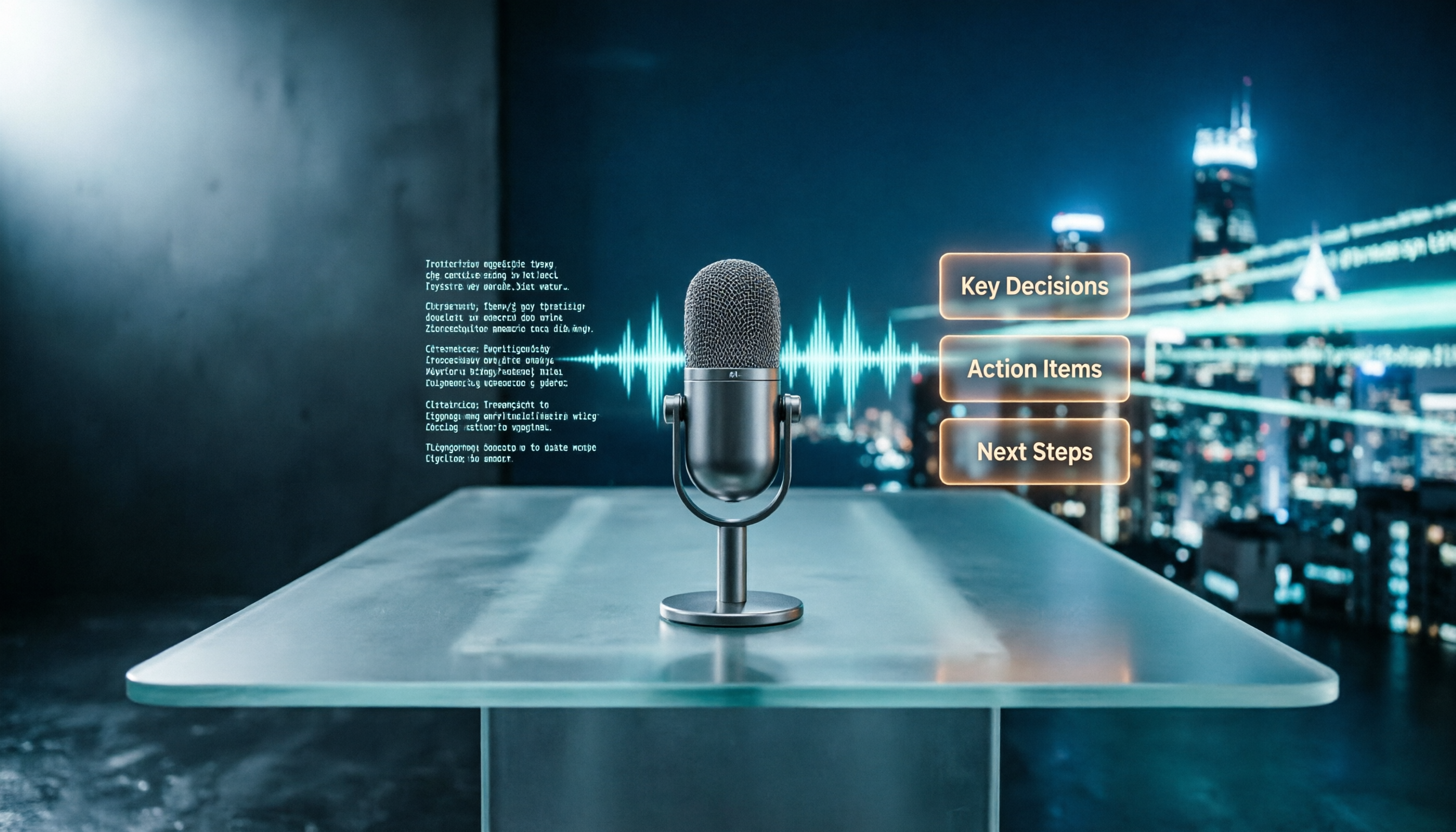
2026 Comparison of 5 Audio-to-Text Tools: Is the Free Version Enough?
Free audio-to-text tools seem plentiful, but free tiers hide many limits: maximum duration per file, transcript-only without audio storage, and paywalls popping up mid-transcription. This article breaks down the free rules of 5 tools from a practical standpoint, explains Tinrec's no-bot meeting recording and post-meeting AI organization workflow, and compares the free plan differences of Notta, TurboScribe, and Otter.ai to help you decide which free version is truly sufficient.
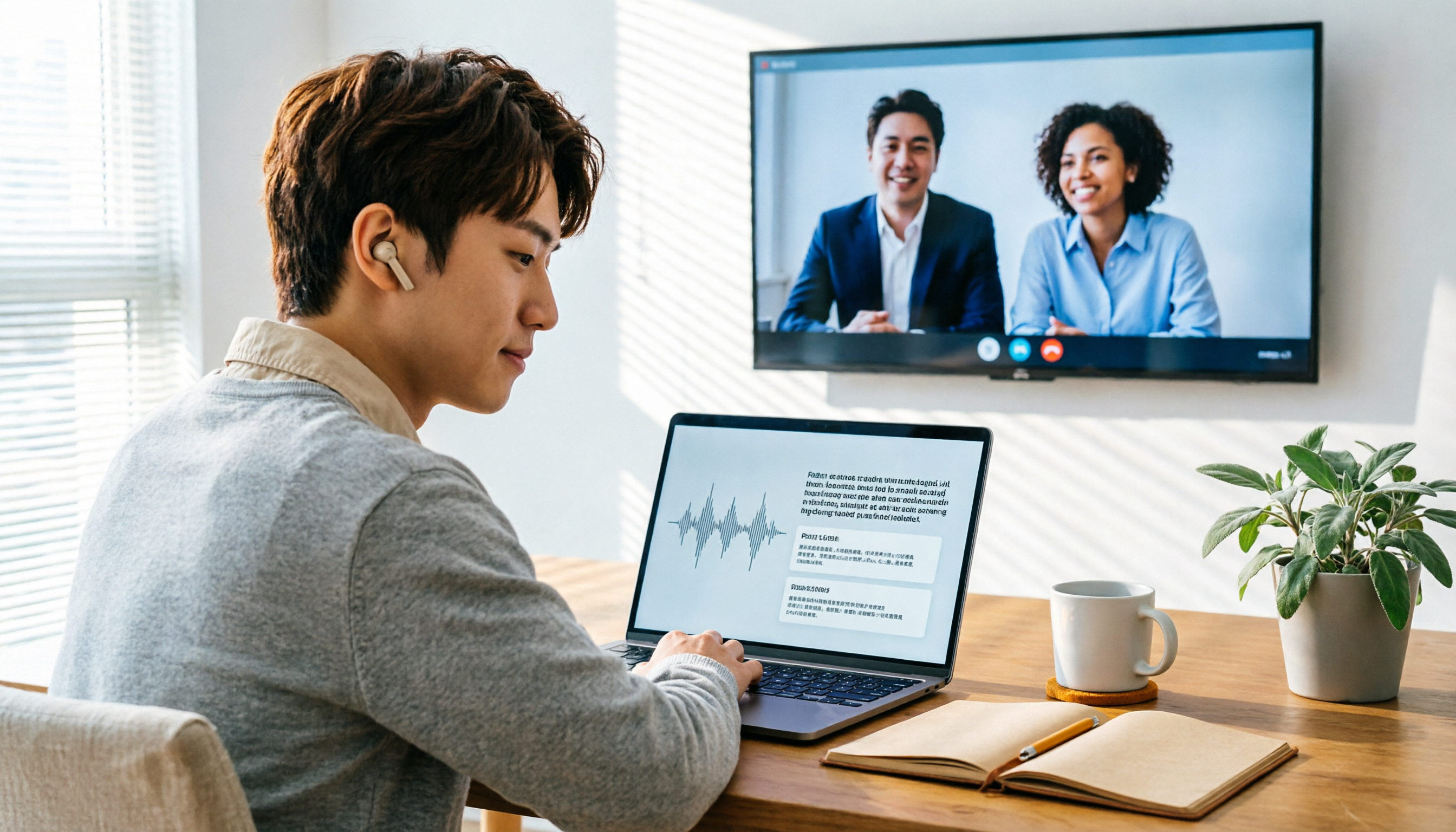
2026 Audio-to-Text Showdown: Tinrec vs. Yating Transcript — Which Should You Choose?
Starting from common audio-to-text pain points discussed on Dcard in 2026, this hands-on comparison pits Yating Transcript against Tinrec: one is a veteran Chinese transcription tool billed by the hour; the other focuses on bot-free online meeting recording, AI summaries and Q&A, and team knowledge retention. We break it down across 5 dimensions to help you decide which fits your workflow.