
Turn recordings into transcripts and summaries in minutes
Upload audio or video for multilingual transcription, AI notes, and action items
Recently, I recorded an entire online course session using Google Meet.
But after the class, looking at the two-hour video, I really didn't want to watch it from start to finish just to take notes.
This made me think—many readers often ask me, "Esor, after recording a Google Meet, is there a quick way to extract key points and action items?"
So I started testing different tools, from built-in features to third-party services, to find the best solution for typical knowledge workers.
This article is my complete guide to Google Meet meeting notes—not just transcription, but turning meeting content into actionable data.
Why Do You Need Google Meet Meeting Notes?
If you just save a meeting recording, it remains a "watch and forget" file.
But if you convert it to text, it becomes a searchable, summarizable, queryable database.
Especially in the growing remote work environment, using meeting note tools can save you hours of playback and manual note-taking.
Below, I introduce the 4 methods I tested, from most comprehensive to simplest, so you can choose based on your needs.
Method 1: Tinrec — The Most Complete AI Recording Assistant
I first tried several plain transcription services, but they all felt lacking.
Then I used Tinrec and realized that "what happens after transcription" is the key.
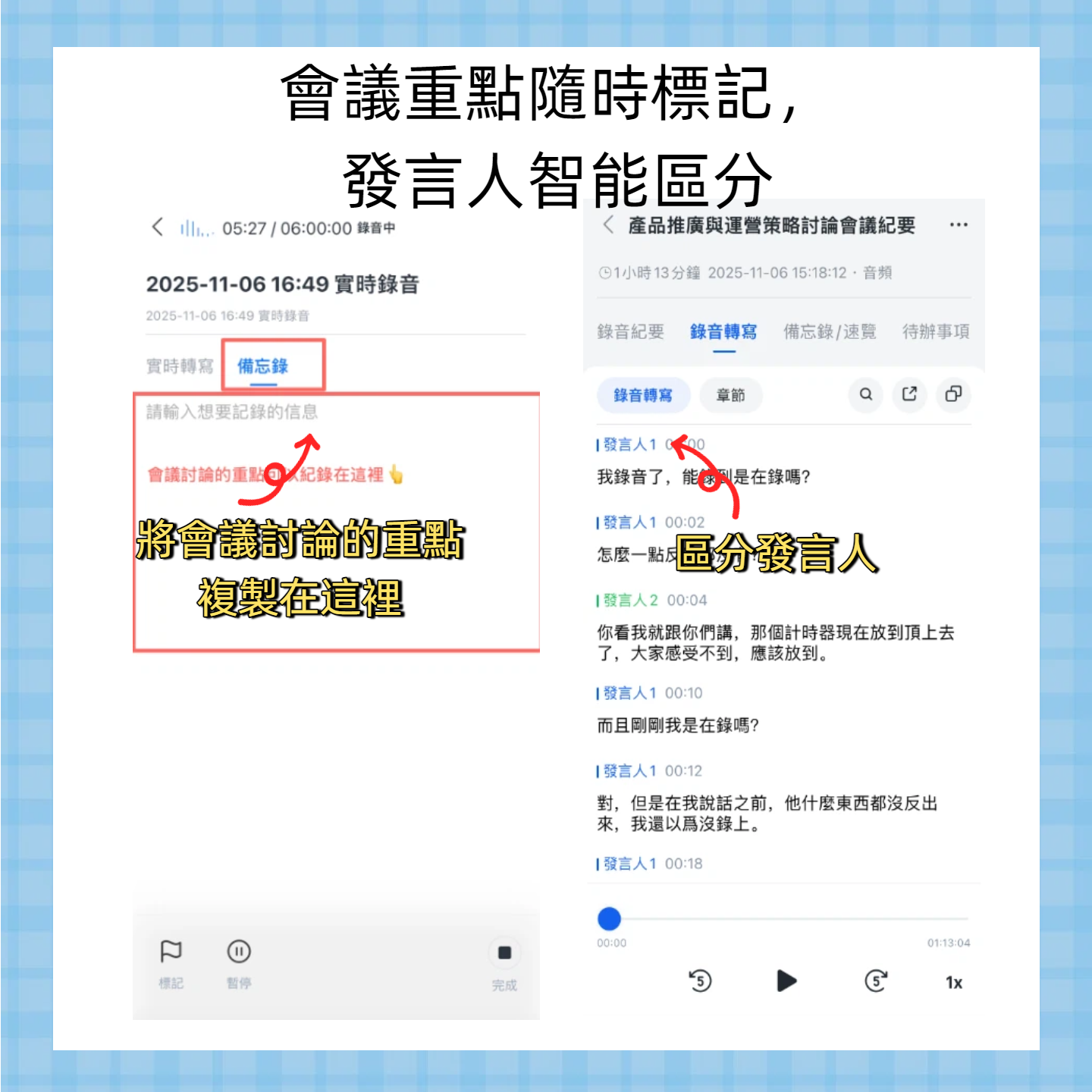
Tinrec doesn't just convert Google Meet audio into verbatim text.
It also automatically generates summaries, chapters, action items, and even lets you use AI chat to directly ask questions about the recording.
For example, I had a meeting recording and simply asked Tinrec, "Please list three key points discussed and each person's action items."
It not only listed the points but also clearly indicated who needed to do what. Finally, I could export to Notion or Google Docs with one click.
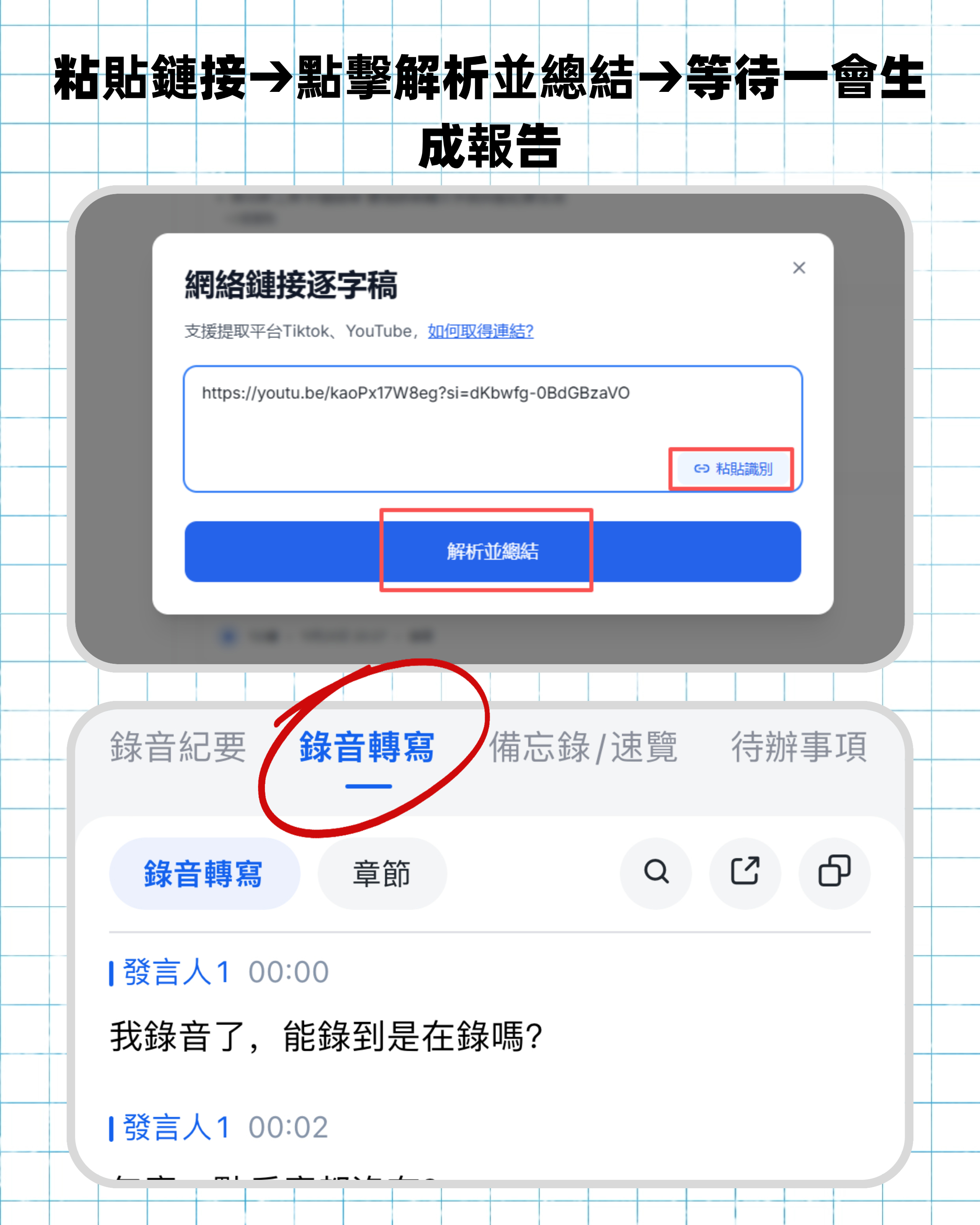
What I love most is that Tinrec handles not just Google Meet recordings but also supports pasting YouTube, Bilibili, and other online video links, or uploading local audio and video files.
This way, whether it's a meeting, course, interview, or public online video, I can manage everything in one workflow.
The free plan includes basic transcription minutes, suitable for occasional use.
If you have weekly meetings or courses to process, the Pro plan is more cost-effective and offers higher transcription limits and AI Q&A features.
Who it's for: If you want to turn meeting content into truly "searchable, queryable, exportable" data rather than a static transcript, Tinrec is the most complete choice.
Prompt template: You can directly input in Tinrec's AI chat: "Based on this recording, please extract: 1. Three core conclusions 2. Two risks to track 3. Action items for each participant."
Method 2: Otter.ai — AI Meeting Notes Tool Focused on Online Meetings
Otter.ai is the go-to for many English meeting users. It automatically joins Google Meet, Zoom, and other meetings, offering real-time transcription and speaker labeling.
Stop organizing recordings by hand
Upload audio or video and automatically get a transcript, summary, and action items
Its strength lies in "invisible recording"—you don't need to manually start; it appears on its own.
However, if your work involves not just meetings but also courses, interviews, or online videos, Otter's scope is more limited, and Chinese transcription isn't as smooth as English.
The free plan offers 300 minutes per month, and the Pro plan (annual) costs about $8.33/month with 1,200 minutes.
Who it's for: If your work scenario is almost entirely English online meetings and you need automatic recording and post-meeting collaboration, Otter is worth a try.
Method 3: Notta — Multi-Language Transcription and Meeting Notes
Notta is quite similar to Tinrec—both support real-time recording, file transcription, and multi-language recognition.
But from my experience, Notta leans more toward "transcription itself" with well-integrated translation, while Tinrec focuses more on "thinking after transcription," like AI chat queries and action item extraction, which feel more robust.
Notta's free plan gives 120 minutes per month; the Pro plan (annual) is about $8.17/month with 1,800 minutes.
Who it's for: If you need simultaneous meeting transcription and subtitle creation, and you care about multi-language translation, Notta is a sufficient option.
Method 4: Google Meet Built-in Recording and Transcription — Free but Basic
Google Meet can record, and if you have certain Google Workspace versions, you can get auto-captions after recording.
But limitations are clear: captions are English-only, and there's no automatic summary, chapters, or action items, let alone search or Q&A afterward.
If you just need a simple video archive, this is enough.
But if you want to turn meetings into actionable data, you'll likely need a more professional tool.
Who it's for: Those with zero budget who only need to preserve the meeting without further processing.
How to Choose Among So Many Options?
Personally, I differentiate like this:
- Want the most complete AI features (transcription + AI chat queries + auto minutes) → Tinrec (the only one with all these features)
- Need Cantonese + Mandarin bilingual transcription, or care about Chinese text quality → Tinrec (supports multiple languages, most detailed for Chinese scenarios)
- Need to switch between phone and computer usage → Tinrec (iOS + Android + web version)
- Almost exclusively attend English meetings and don't want manual operation → Otter.ai (auto-joins, great English experience)
- Care about transcription + translation, balanced meeting and subtitle needs → Notta
- Zero budget and only occasional recording → Google Meet built-in (basic retention)
3 Things to Know Before Using Google Meet Meeting Notes
Recording quality determines transcription quality
Regardless of the tool, if the Google Meet audio has poor microphone pickup, echo, or overlapping voices, transcription quality will suffer. I recommend using a headset microphone during meetings or asking participants to speak one at a time.AI summaries still need your review
Tools like Tinrec produce useful summaries and action items, but occasionally they miss subtle cues or unstated conclusions. I usually skim the key points and add my own notes where necessary.Check privacy and permissions
If you're sending meeting recordings to a third-party tool, confirm company policy and inform participants. Tinrec has a clear privacy policy, and I ensure data is used only for my personal knowledge base.
Summary
Google Meet recordings shouldn't just be "archives."
With AI tools like Tinrec, you can turn them into searchable, queryable, actionable data.
If you want to try it out, start with this checklist:
- Download Tinrec (iOS, Android, or web version)
- Import a Google Meet recording, or paste the meeting recording link
- Test the AI summary and chat query features to experience the efficiency of "not having to watch from start to finish"
Test gradually, and you'll master this method over time.
Turn every recording into actionable outcomes
Get 60 free transcription minutes when you sign in. No credit card required.
Related Reading
You might also like

2026 Comparison of 4 Meeting Transcription Tools: Which AI Summarization and Examples Save the Most Time?
We tested 4 meeting transcription tools in 2026, providing transcript examples and buying tips. Tinrec wins with bot-free recording, AI summary Q&A, and team collaboration, making it ideal for Chinese meetings and team knowledge retention.

Best Speech-to-Text Tools in 2026: 4 Tested, Top Pick for Chinese Meetings
How to choose a speech-to-text tool? This guide explains the difference between real-time dictation and audio file transcription, tests Tinrec, Otter.ai, Notta, and PLAUD Note, and covers 4 key buying criteria, step-by-step instructions, team plan seat and quota differences, and 4 common pitfalls to help you pick the right transcription tool for Chinese meetings.

How to Transcribe Audio to Text in 2026: A Complete 5-Step Guide
The latest audio-to-text tools don't just transcribe accurately—they turn recordings into usable transcripts, summaries, action items, and team data. This guide breaks down the audio-to-text workflow in 5 steps and compares Tinrec, PLAUD, Granola, and TurboScribe by use case and limitations.

Tinrec vs Notta 2026: 5-Factor Comparison of the Best Free Audio-to-Text Tools
How to choose the best free audio-to-text tool in 2026? This article compares Tinrec and Notta across 5 dimensions: free quota, meeting capture method, post-meeting organization, Chinese language experience, and team knowledge retention. It also covers the free plans and limitations of Granola and TurboScribe. Honestly, free isn't just about minutes—it's about whether the tool can still help you organize your meeting after the quota runs out.
Best Audio-to-Text Tools in 2026: 4 Latest Versions Tested, Top Pick for Chinese Meetings and Team Organization
Starting from the pain points of organizing a 90-minute meeting, we tested four latest 2026 audio-to-text tools—Tinrec, Granola, TurboScribe, and PLAUD—comparing Chinese recognition, bot-free meeting recording, post-meeting AI organization, team collaboration, and pricing to help you choose the right solution.

Tinrec vs Otter.ai in 2026: 5-Dimension Comparison — Which Is Better for Chinese Meetings and Team Knowledge Retention?
Compare Tinrec and Otter.ai across 5 dimensions — free tier, Chinese recognition, bot-free recording, post-meeting organization, and team governance — to help you decide which is better suited for Chinese meetings and team knowledge retention.

Tinrec vs Otter.ai: Which Speech-to-Text Translation Tool Handles Mixed Chinese-English Meetings Better in 2026?
How do you translate speech-to-text? Most people get stuck not on the translate button, but on confusing transcription with translation. This article compares Tinrec and Otter.ai across five dimensions—mixed Chinese-English transcription, real-time bilingual comparison, post-meeting organization, and team collaboration—to help you decide which workflow truly saves time on re-listening to recordings.

2025 Audio-to-Text Guide: Tinrec vs. Notta — No-Bot Recording + Automatic Meeting Minutes
How to choose an audio-to-text tool in 2025? This guide focuses on real decision points for meeting notes, comparing Tinrec and Notta on meeting capture, Chinese transcription, post-meeting organization, and team collaboration. It also covers Tinrec's live transcription, AI summaries, action item extraction, and team workspace features to help you pick the right tool and skip extra work.

2026 Comparison of 2 Audio-to-Text Tools: Tinrec vs Yating Transcript, Which AI Meeting Notes Really Save Time?
Which audio-to-text tool should you choose? This article compares Tinrec and Yating Transcript across 5 dimensions: online meeting recording methods, multilingual and real-time translation, post-transcription organization, post-meeting output and export, and team collaboration governance. It also includes each tool's unique advantages and purchasing advice to help you decide which one to use.