

Turn recordings into transcripts and summaries in minutes
Upload audio or video for multilingual transcription, AI notes, and action items
Two Hours in a Meeting, Two More to Write It Up—My Recent Pain Point
Over the past month, I realized I spend more time each week organizing Google Meet notes than actually being in meetings.
What makes it worse: some meetings involve multiple people speaking in turn, and with occasional network instability, it’s hard to tell who said what when replaying the recording.
Manually re-listening, transcribing word for word, then extracting key points into a to-do list… that process eats up half a day.
If you often use Google Meet for meetings and find yourself buried in recordings and notes afterward, this article is for you.
5 Key Points to Understand Before Choosing a Google Meet Transcription Tool
1. Transcription Accuracy: Don’t Just Trust the Numbers
Many tools claim accuracy above 90%, but that’s lab data.
Real Google Meet sessions include keyboard clicks, paper rustling, and people talking over each other—that’s where the differences really show.
I pay special attention to performance in multilingual conversations and discussions with jargon.
2. AI Summaries: More Than Just a Transcript
If a tool only gives you a full transcript, you still have to read through everything yourself.
What I really need is: after the meeting ends, automatically generated key summaries, action items, and even the ability to ask questions like "Who mentioned the budget earlier? What was the conclusion?"
This capability turns meeting records from "archival documents" into "actionable information."
3. Cross-Platform Support: Sync Across Phone, Computer, and Web
You might join a Google Meet on your work computer and later review the recording on your phone during your commute.
If the tool only works on one device, you’re stuck.
Cross-platform sync keeps your workflow uninterrupted.
4. Free Tier & Pricing: Try Before You Buy
I don’t recommend jumping straight into an annual plan.
Test the free version first to see if the transcription quality matches your real-world needs, then consider upgrading.
Also check: does the free tier limit minutes or features? There’s a big difference.
5. Beyond Meetings: Can It Handle Other Audio/Video?
My workflow includes more than just Google Meet recordings.
There are also lecture recordings, interview files, and occasional YouTube videos I want to transcribe.
If a tool only handles meetings, I’d need multiple tools, making things messier.
A tool that can process various audio/video sources is better for multitaskers like me.
Tinrec (Miao Listening) — Our Top Pick After Testing
Tinrec is an AI recording and audio/video transcription tool that supports 14 languages, available on iPhone, Android, and web.
Here’s how I use it:
Before each Google Meet, I open Tinrec’s web app or mobile app and select "Record computer audio and microphone."
During the meeting, it transcribes in real time, automatically labeling different speakers.
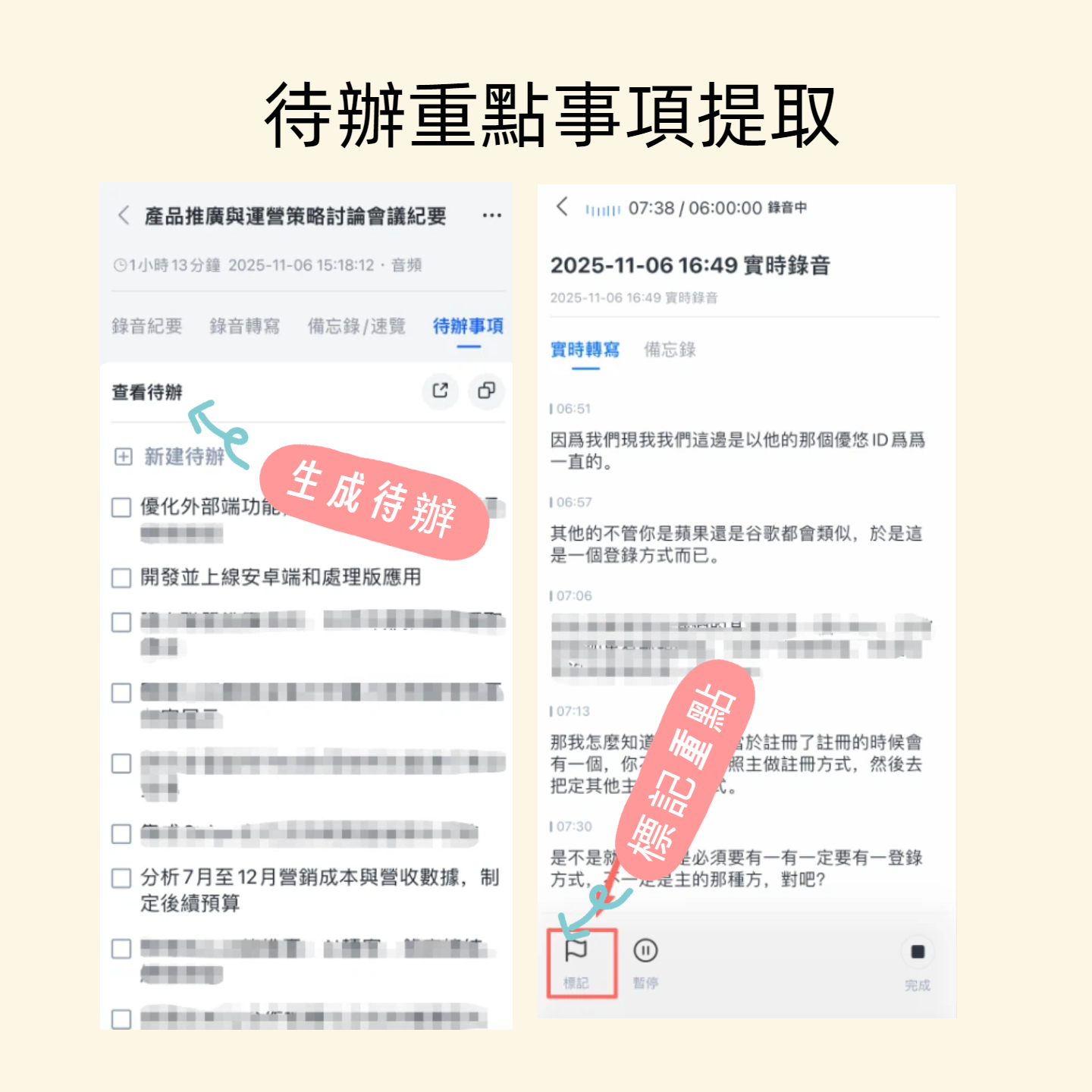
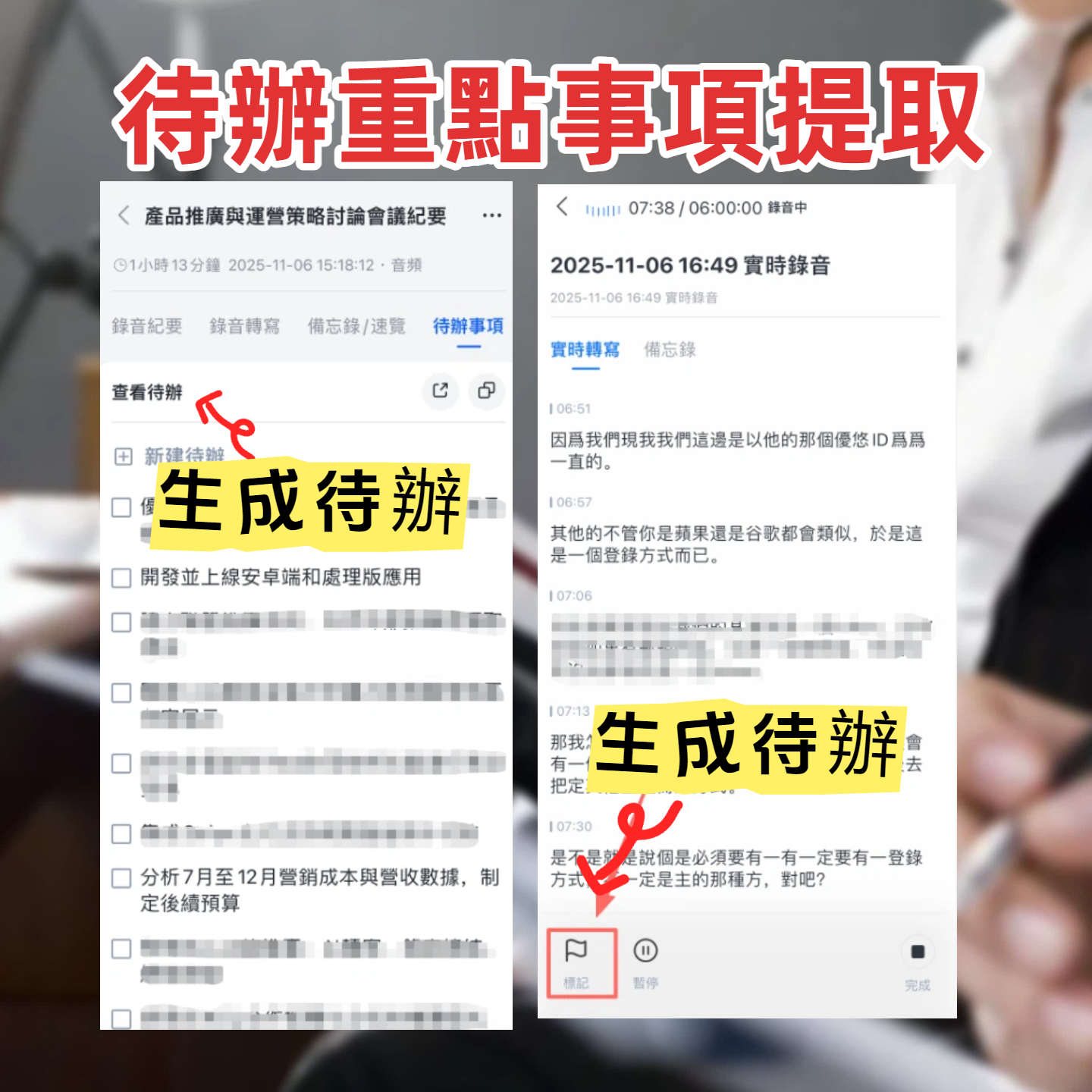
As soon as the meeting ends, the AI summary and action items appear on screen.
This is my favorite part: no need to wait until the meeting is over to start organizing—the organization is already done when the meeting ends.
(Screenshot: Tinrec’s meeting recording main screen, arrow pointing to the "Start Recording" button and audio source selection)
Another feature that surprised me is its AI conversation search.
Once I needed to quickly confirm a budget figure from a project meeting last week. I just typed in Tinrec’s Q&A box: "What was the budget mentioned by the marketing team in the last meeting?"
It didn’t just return keyword search results—it understood the context and gave me the exact numbers and context from the conversation.
Currently, no competitor at the same price point offers such an intuitive search method.
(Screenshot: Tinrec’s AI Q&A interface, arrow pointing to the input box and generated answer)
Stop organizing recordings by hand
Upload audio or video and automatically get a transcript, summary, and action items
In our test, we used a 10-minute Chinese Google Meet recording (with three people discussing, keyboard typing, and paper rustling as background noise).
Tinrec transcribed quickly, and even with overlapping speech, it correctly distinguished speakers.
Overall impression: I no longer need to spend time re-listening to the recording; the transcript is highly readable, and the summary hits the key points directly.
Pros:
- Multiple input sources: Besides recording Google Meet, you can upload local audio files or paste YouTube links for direct transcription. This makes it not just a meeting transcription tool but a single hub for organizing lectures, interviews, and online videos.
- Great Chinese handling: In conversations mixing Chinese and jargon (e.g., "We need to optimize CTR while lowering CPA"), transcription accuracy is noticeably better than most English-first tools.
- Complete AI post-processing: Automatically generates chapters, to-do lists, and exports to Notion or Google Docs, seamlessly connecting to my workflow.
Limitations to note:
- The free tier provides basic transcription credits; heavy users who have more than three meetings per week may need to upgrade. But for most people, the free trial is sufficient for testing.
- The conversation search feature depends on the transcribed text; if the original recording quality is poor, accuracy may suffer.
Best for:
If you frequently hold Google Meet meetings, want to save time on post-meeting organization, and your meetings involve a lot of Chinese terminology, Tinrec is the tool that best fits my workflow so far.
Beyond Tinrec: What Other Options Are There?
Otter.ai: Great for English Meetings, Struggles with Chinese
Otter.ai is a well-known meeting transcription tool among many teams, with a smooth interface and mature automatic meeting joining.
The free tier offers 300 minutes per month, generous for light English meetings.
But in our experience, Otter’s transcription error rate increases significantly in Chinese meetings, and the AI summaries tend to follow English syntax, requiring additional proofreading.
For Chinese conversational search, Otter currently can’t match Tinrec’s capability.
Notta: Fast Transcription, Basic Post-Processing
Notta transcribes quickly and supports real-time translation. Its paid plan offering 1,800 minutes per month is attractive for heavy users.
However, compared to Tinrec, the biggest difference lies in "what you can do after transcription."
Notta’s summaries and to-do features are relatively basic; you can’t directly query the content or extract actions like you can with Tinrec.
If you just need a quick transcript, Notta works well; but if you need to turn meetings into actionable tasks, Tinrec is more convenient.
Pitfall Guide: 3 Common Mistakes When Choosing a Google Meet Transcription Tool
Mistake 1: Focusing Only on Price, Ignoring Post-Processing
Many tools lure you with "free transcription," but after transcribing, they just give you a wall of text.
You still have to manually find key points and create to-do lists.
That solves only half the problem.
What truly saves time is a seamless workflow from transcription to summary to task list.
Mistake 2: Overlooking Cross-Platform & Offline Needs
You might record a Google Meet on your laptop at the office and later review key points on your phone at home.
If the tool only supports one platform, you’re locked in.
Always check if the tool offers a web app, mobile app, and offline caching for recordings.
Mistake 3: Buying an AI Tool but Only Using It for Transcription
This is the biggest waste.
If you only use the tool to "convert recordings to text," you’re using only a third of its capability.
With Tinrec’s AI conversation search, you can ask "What’s the next step for this project?"—much smarter than manually scrolling through a 30-minute transcript.
Make full use of AI features to truly get the most out of your tool.
Conclusion: Which One Should You Choose?
To sum up: if you’re a heavy Google Meet user and often deal with Chinese meetings, lectures, or interviews, Tinrec is the most integrated choice that best fits my workflow.
Here’s how to decide:
- Need multi-speaker Chinese transcription + post-meeting Q&A → Tinrec (best AI conversation and summaries)
- Only English meetings, and on a budget → Otter.ai (generous free tier)
- Just need a quick transcript, no AI summarization → Notta (fast transcription)
- Cross-device usage (phone + computer + web) → Tinrec (most convenient sync across three platforms)
- Manage meetings, courses, and online videos in one tool → Tinrec (only solution with multiple input sources)
One last tip: download Tinrec’s free version and try it out.
Don’t rush to pay—use it for your next Google Meet and experience the transcription and organization workflow firsthand.
If you like it, consider upgrading; if not, no loss.
Quick Start Guide
- Go to the Tinrec website or App Store to download.
- Create an account to get free trial credits.
- At your next Google Meet, open Tinrec and select "Record system audio."
- After the meeting, check the auto-generated summary and action items.
- Use the AI Q&A feature to search for key meeting content.
- Export results to Notion or Google Docs to complete your workflow.
Test it step by step, and you’ll master this method over time.
Turn every recording into actionable outcomes
Get 60 free transcription minutes when you sign in. No credit card required.
Related Reading
You might also like

Best Meeting Transcription Tools in 2026: 5 Methods Tested, Tinrec vs Google
When it comes to meeting transcription, many people first think of Google, but in practice they often get stuck with 'only a summary, no verbatim transcript' or find that Meet's built-in transcription requires payment. This article compares Google's free AI tools and Tinrec across 5 dimensions—speaker identification, online meeting recording, post-meeting organization, quota and cost, and team collaboration—to clarify who each is best for.

2026 Guide: Transcribing Cantonese Meeting Recordings — Cantonese Recognition + Automatic Meeting Minutes
A roundup of key considerations for transcribing Cantonese meeting recordings in 2026, covering Cantonese recognition, mixed Chinese-English speech, post-meeting organization, and team data ownership. Features a hands-on breakdown centered on Tinrec, plus brief competitor reviews and 3 common pitfalls to help you quickly decide which tool to use.

Free Meeting Transcription in 2026: Tinrec vs. Notta Compared
How do you choose a free meeting transcription tool? This article compares Tinrec and Notta across five dimensions: free tier limits, meeting capture methods, post-transcription processing, Chinese and multilingual support, and team governance. It also includes a ready-to-follow checklist to help you decide which tool better fits your meeting scenarios.

2026 Comparison of 4 Meeting Transcription Tools: Which Offers the Best Free Tier and Post-Meeting Organization?
How to choose a meeting transcription tool? Most people compare the wrong things first. This article tests and compares Tinrec, Notta, Otter.ai, and Granola from four angles: meeting capture method, post-meeting organization, audio retention, and free tier, and summarizes three common purchasing pitfalls to help you find the one that truly saves you organization time.

6 Free Meeting Transcription Tools Tested and Compared in 2026: Which Free Tier Is Enough?
We tested and compared six free meeting transcription tools in 2026, covering the free tiers, best use cases, and selection advice for Tinrec, Otter.ai, Notta, TurboScribe, Granola, and PLAUD.

2026 Comparison of 4 Meeting Transcription Tools: Which AI Summarization and Examples Save the Most Time?
We tested 4 meeting transcription tools in 2026, providing transcript examples and buying tips. Tinrec wins with bot-free recording, AI summary Q&A, and team collaboration, making it ideal for Chinese meetings and team knowledge retention.

Best Speech-to-Text Tools in 2026: 4 Tested, Top Pick for Chinese Meetings
How to choose a speech-to-text tool? This guide explains the difference between real-time dictation and audio file transcription, tests Tinrec, Otter.ai, Notta, and PLAUD Note, and covers 4 key buying criteria, step-by-step instructions, team plan seat and quota differences, and 4 common pitfalls to help you pick the right transcription tool for Chinese meetings.

How to Transcribe Audio to Text in 2026: A Complete 5-Step Guide
The latest audio-to-text tools don't just transcribe accurately—they turn recordings into usable transcripts, summaries, action items, and team data. This guide breaks down the audio-to-text workflow in 5 steps and compares Tinrec, PLAUD, Granola, and TurboScribe by use case and limitations.

Tinrec vs Notta 2026: 5-Factor Comparison of the Best Free Audio-to-Text Tools
How to choose the best free audio-to-text tool in 2026? This article compares Tinrec and Notta across 5 dimensions: free quota, meeting capture method, post-meeting organization, Chinese language experience, and team knowledge retention. It also covers the free plans and limitations of Granola and TurboScribe. Honestly, free isn't just about minutes—it's about whether the tool can still help you organize your meeting after the quota runs out.