

Turn recordings into transcripts and summaries in minutes
Upload audio or video for multilingual transcription, AI notes, and action items
Before You Start | What You Need
- A computer or phone with Google Meet installed, and the ability to record meeting audio (Google Meet’s built-in recording saves to the cloud, but Tinrec can record system audio directly, no need to wait for file sync)
- Download the Tinrec app (iOS/Android/Web), sign in with your Google or Apple ID
- A stable internet connection for real-time transcription; if using offline recording, download the language pack first
- A Google Meet meeting ready to record
Step 1: Record Your Google Meet Audio
The goal here is to capture the entire meeting audio so it can be transcribed and organized later.
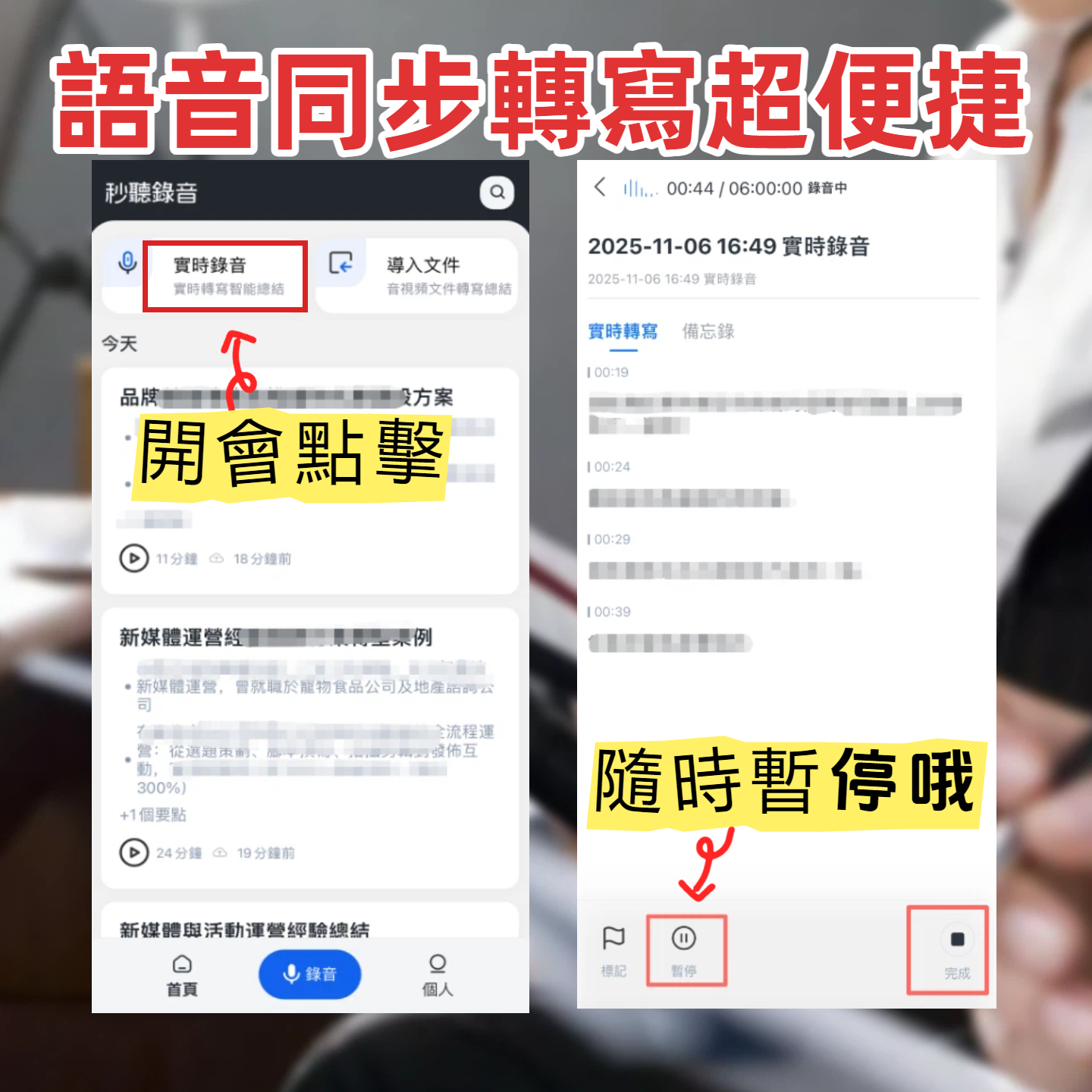
Once your Google Meet starts, open Tinrec and select “System Audio Recording” mode (works on Windows/Mac). Tinrec will directly capture the meeting audio without needing a separate recorder or downloading the recording after the meeting. If you’re on a mobile device, you can use Tinrec’s “Instant Recording” feature and place your phone near the speaker.
Why use Tinrec instead of Google Meet’s built-in recording? Built-in recording requires you to wait for the recording to finish, download the file, and then import it into a transcription tool—two extra steps. Tinrec transcribes in real-time, so you can see the transcript even before the meeting ends. Plus, built-in recording has time limits and storage caps; Tinrec doesn’t.
After recording, you’ll see the audio file on Tinrec’s home screen with duration and file size, and it will start transcribing automatically.
(Illustration: A person in an office using a computer for a Google Meet, with a phone showing Tinrec’s real-time transcription, looking busy and productive)
Step 2: Let AI Transcribe It into Text
Once recorded, Tinrec automatically converts the audio to text. Just wait for it to process. For longer recordings, it usually finishes within minutes—enough time to grab a coffee.
The transcript appears on the right side of the screen, and you can listen to the recording while reading the text. Tinrec supports mixed Cantonese and Mandarin recognition, so it handles the Cantonese-English mix common in Hong Kong offices perfectly. When multiple people speak at once, it automatically labels speakers as “Speaker 1,” “Speaker 2,” etc.
Why is this important? Many transcription tools can’t differentiate speakers, leaving you with a wall of text. Tinrec’s speaker separation uses AI voiceprint analysis, and it works well even without pre-recorded voiceprints—enough to tell which colleague said what.
(Illustration: Computer screen showing Tinrec interface with a timeline on the left and transcript on the right, with different colors for different speakers)
Step 3: Quickly Proofread the Transcript
AI transcripts aren’t 100% accurate, especially with accents, background noise, or fast speech. So it’s best to spend a few minutes scanning the key parts.
Tinrec has a handy feature: you can listen to the recording and edit the transcript directly. Changes are saved automatically. If you’re unsure about a line, click it, and the audio jumps to that point—no need to listen from the start. Saves a lot of time.
Why proofread? Because the meeting minutes and to-do items are based on this transcript. Accuracy is crucial. Some tools don’t allow in-place editing; you have to export to Word, edit, and re-import. Tinrec handles it all in one step.
(Illustration: A user at a computer highlighting text in the transcript while listening through headphones)
Step 4: Let AI Generate Meeting Minutes
After proofreading, it’s time for the main event. In Tinrec, select “AI Tools” > “Generate Meeting Minutes,” and it will automatically create a structured summary including:
Stop organizing recordings by hand
Upload audio or video and automatically get a transcript, summary, and action items
- Meeting summary: One or two sentences capturing the gist
- Discussion points: Each topic listed separately
- Decisions: Consensus reached during the meeting
- Action items: Who needs to do what and by when
You can choose which sections to include. The best part: it automatically extracts action items into a checklist, so you can assign them to colleagues without listening to the recording again.
Why is this so important? After a meeting, you really need to know “what’s next?” Tinrec’s AI doesn’t just summarize; it highlights key actions like “John said to submit the report by Friday.” Other tools may only give a summary, but Tinrec thinks ahead for you.
(Illustration: A clean meeting minutes document with summary and key points on the left, and a to-do list on the right, each item with assignee and deadline)
Step 5: Export and Share
Once the minutes are ready, the final step is to share with colleagues or save. Tinrec supports multiple export formats:
- PDF: For formal reports
- Word: For further editing
- TXT: For plain text backup
- Markdown: For use with Notion or other note-taking apps
- Direct export to Google Docs, OneNote, Notion, and other third-party tools
You can also share a link to the entire project so colleagues can view the transcript and minutes online without sending files. This is especially useful for cross-team collaboration.
Why so many export options? Different situations require different formats. Tinrec doesn’t lock you into one. Compared to tools that only offer PDF or plain text, Tinrec offers greater flexibility to fit into your workflow without extra conversions.
(Illustration: Computer screen showing multiple export buttons, with logos of Notion and Google Docs for one-click sharing)
FAQ & Troubleshooting
Q: The transcription has many errors. What should I do? Usually due to background noise or unclear audio. Tinrec has built-in noise reduction; enable it in settings before recording. If you’re using an already recorded file, you can manually select “High Noise Environment” mode. Many tools lack this option, so errors are more common in noisy settings.
Q: Can Tinrec handle mixed Chinese and English during meetings? Yes. Tinrec is trained for mixed-language scenarios and won’t treat English as pinyin. Unlike tools that support only one language, Tinrec is much better suited for Hong Kong offices.
Q: My meeting is long and the transcript is messy. Can it auto-segment? Yes. Tinrec automatically divides the transcript into chapters, allowing you to jump to sections like “Project Status” or “Budget Discussion.” The AI summary condenses each chapter so you don’t have to read the whole thing.
Q: Can I collaborate on the meeting minutes with colleagues? Currently, Tinrec is primarily a personal tool. You can export to Word/Google Docs for collaboration. A future version may include real-time collaboration, but for now, use the export option.
Pro Tips: 3 Ways to Double Your Efficiency with Tinrec
1. Use AI Chat to Find Key Information Tinrec’s unique “AI Chat” lets you ask questions like, “How much did the vendor quote in last week’s meeting?” It will search the recording history for relevant dialogue and numbers. Otter.ai offers similar features only in Pro and doesn’t support Chinese well. Tinrec even understands Cantonese questions and answers accurately, saving you time when reviewing past meetings.
2. Cross-Platform Sync – Work Anywhere Record on your iPhone, then edit on your computer at the office—all data syncs automatically. No need to email yourself or use USB drives. Fireflies.ai is mainly desktop-based with limited mobile functionality; Tinrec truly enables mobile work.
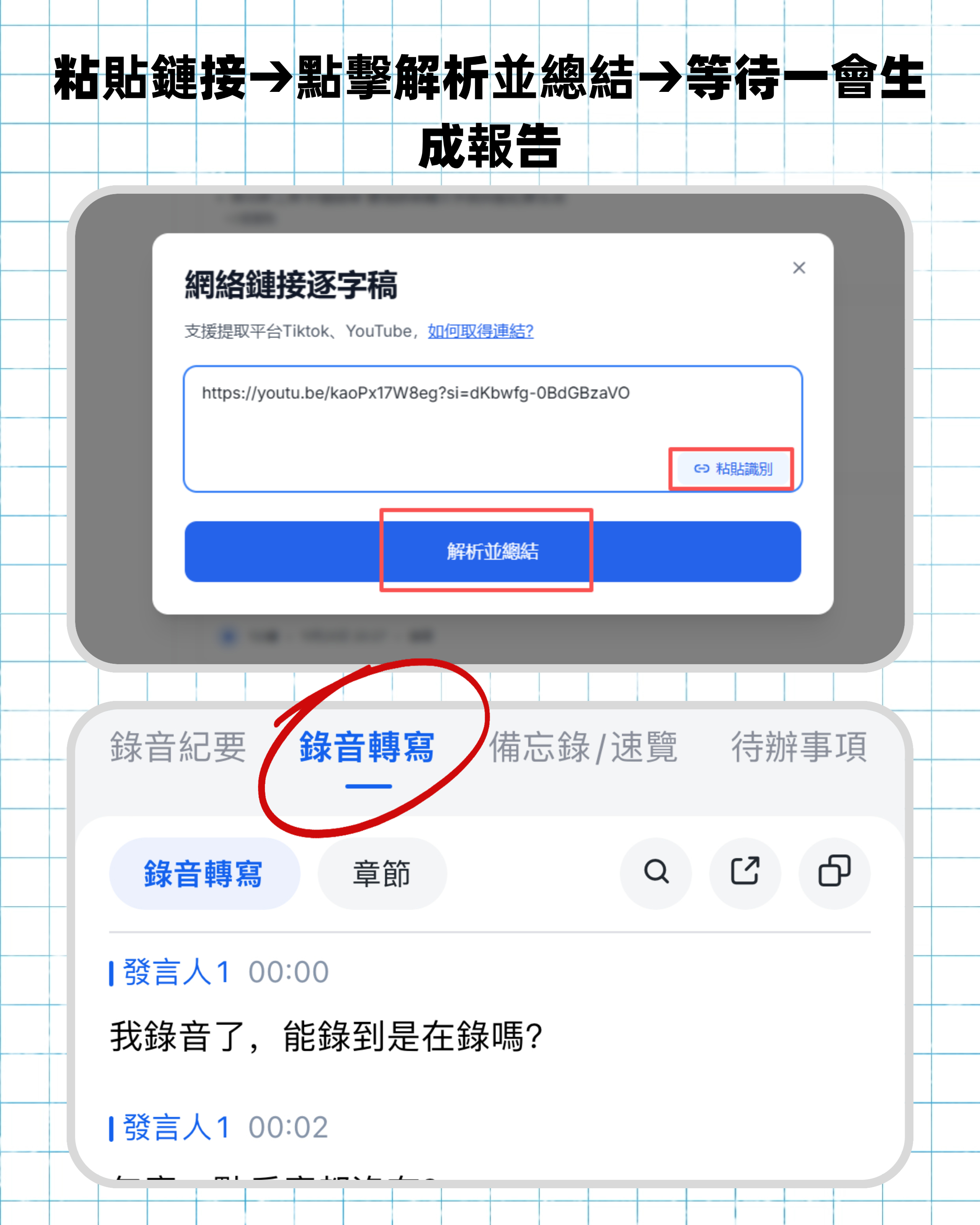
3. Transcribe Online Videos for Reference If you need to review a competitor’s YouTube video before a meeting, Tinrec can paste the link and directly convert it to text and summary, plus you can ask AI about key points. This feature is only available in paid versions of Notta and has restrictions. Tinrec’s free version already supports it, saving you search and viewing time.
Alternatives to Tinrec
- Otter.ai: Best for English business meetings. Free plan offers 300 minutes per month, but Chinese transcription and summarization are weak. For mixed Chinese-English meetings typical in Hong Kong, Tinrec is better.
- Fireflies.ai: Automatically joins Google Meet to record, strong team collaboration, but also English-focused. If you need cross-platform sync and AI chat, Tinrec offers a more complete experience.
Both tools excel in pure English environments, but Tinrec outperforms in Chinese content management and multi-source audio/video processing, especially for Hong Kong professionals’ daily needs.
Conclusion
Now that you’ve learned these 5 steps, you no longer have to dread Google Meet meeting notes: use Tinrec to record, transcribe, proofread, generate minutes and action items, and export/share—all smooth and time-saving. Next time you have a meeting, try installing Tinrec. The free plan has enough credits for a couple of meetings; upgrade as needed. Stop doing overtime for meeting notes—let AI handle it!
Turn every recording into actionable outcomes
Get 60 free transcription minutes when you sign in. No credit card required.
Related Reading
You might also like

5 Board Meeting Minutes Templates Compared for 2026: From Word Tables to AI-Generated Minutes
Board meeting minutes templates are easy to find; what's missing is a process that produces traceable records right after the meeting. This comparison covers five approaches: Word templates, Tinrec, Notta, Otter.ai, and Granola—from field structure and selection criteria to pitfalls to avoid—so you can choose the right fit for your team.

HOA Meeting Minutes Template 2026: 5 Essential Fields + AI-Generated Summaries
Struggling with HOA meeting minutes? Can't find attachments? No one follows up on decisions? This guide breaks down the 5 essential fields of a compliant template and shows how Tinrec turns meeting recordings into transcripts, summaries, action items, and official records ready for posting—all within half an hour after the meeting.

How to Take Online Meeting Notes in 2026: 5 Steps from Recording to AI Summary
After an online meeting, do you still have to write the transcript, summary, and action items yourself? This article breaks down the complete workflow from recording and transcription to AI summaries and team knowledge retention in 5 steps, and compares Tinrec, Granola, Otter.ai, and PLAUD to help you choose the right meeting notes tool within your budget.

2026 Comparison of 4 Meeting Transcription AIs: Free Tiers and Post-Meeting Organization—Which Is More Sufficient?
How to choose a meeting transcription AI? Based on real meeting scenarios, this article outlines 5 key purchasing criteria and compares Tinrec, Notta, Otter.ai, and Granola in terms of bot-free recording, Chinese recognition, post-meeting summaries, and team collaboration. It also lists free tiers and paid pricing honestly to help you decide which tool truly saves time on meeting notes.

2026 Comparison of 3 English Meeting Transcription Tools: Why Tinrec Is Better for Mixed Chinese-English Meetings
English meeting transcription isn't as simple as feeding a recording to AI. This article addresses three common misconceptions and compares Tinrec and Otter on bot-free recording, mixed Chinese-English handling, post-meeting summaries and action items, and team data retention, helping you decide which tool better fits the mixed-language meeting scenarios of teams in Hong Kong and Taiwan.

Best Meeting Transcription Tools in 2026: 5 Methods Tested, Tinrec vs Google
When it comes to meeting transcription, many people first think of Google, but in practice they often get stuck with 'only a summary, no verbatim transcript' or find that Meet's built-in transcription requires payment. This article compares Google's free AI tools and Tinrec across 5 dimensions—speaker identification, online meeting recording, post-meeting organization, quota and cost, and team collaboration—to clarify who each is best for.

2026 Guide: Transcribing Cantonese Meeting Recordings — Cantonese Recognition + Automatic Meeting Minutes
A roundup of key considerations for transcribing Cantonese meeting recordings in 2026, covering Cantonese recognition, mixed Chinese-English speech, post-meeting organization, and team data ownership. Features a hands-on breakdown centered on Tinrec, plus brief competitor reviews and 3 common pitfalls to help you quickly decide which tool to use.

Free Meeting Transcription in 2026: Tinrec vs. Notta Compared
How do you choose a free meeting transcription tool? This article compares Tinrec and Notta across five dimensions: free tier limits, meeting capture methods, post-transcription processing, Chinese and multilingual support, and team governance. It also includes a ready-to-follow checklist to help you decide which tool better fits your meeting scenarios.

2026 Comparison of 4 Meeting Transcription Tools: Which Offers the Best Free Tier and Post-Meeting Organization?
How to choose a meeting transcription tool? Most people compare the wrong things first. This article tests and compares Tinrec, Notta, Otter.ai, and Granola from four angles: meeting capture method, post-meeting organization, audio retention, and free tier, and summarizes three common purchasing pitfalls to help you find the one that truly saves you organization time.